
Importing and Editing Mailchimp Email Templates in the Chat To Clients CRM Design Editor
This article explains how to import your existing Mailchimp email templates into Chat To Clients CRM’s Design Editor, allowing you to edit them visually without needing to work with code. You’ll learn how the import process works, what file types are supported, and how Chat To Clients CRM converts Mailchimp layouts into editable content blocks.
TABLE OF CONTENTS
- What is Importing Mailchimp Email Template
- Key Benefits of Importing Mailchimp Email Template
- How to Import and Customize Mailchimp Email Templates in the Design Editor
- Frequently Asked Questions
What is Importing Mailchimp Email Template
Importing a Mailchimp email template allows you to bring your pre-designed Mailchimp layouts into Chat To Clients CRM’s Design Editor. Instead of starting from scratch, you can reuse your existing Mailchimp designs and edit them visually within Chat To Clients CRM’s drag-and-drop interface.
When you import a template, Chat To Clients CRM automatically recognizes the structure of your Mailchimp design—such as headers, images, and text blocks—and converts them into editable components. This makes it easy to customize content, adjust layouts, and maintain your brand consistency without needing to write or edit code.
Key Benefits of Importing Mailchimp Email Template
- Seamless Template Reuse: Effortlessly bring your existing Mailchimp email designs into Chat To Clients CRM without rebuilding them from scratch.
- Visual, No-Code Editing: Modify and personalize your emails using Chat To Clients CRM’s intuitive drag-and-drop Design Editor, no coding required.
- Consistent Branding Across Platforms: Maintain your brand’s look and feel by reusing familiar layouts, fonts, and color schemes from your Mailchimp templates.
- Faster Campaign Creation: Save time by transforming pre-designed templates into editable Chat To Clients CRM versions, ready for quick customization and launch.
How to Import and Customize Mailchimp Email Templates in the Design Editor
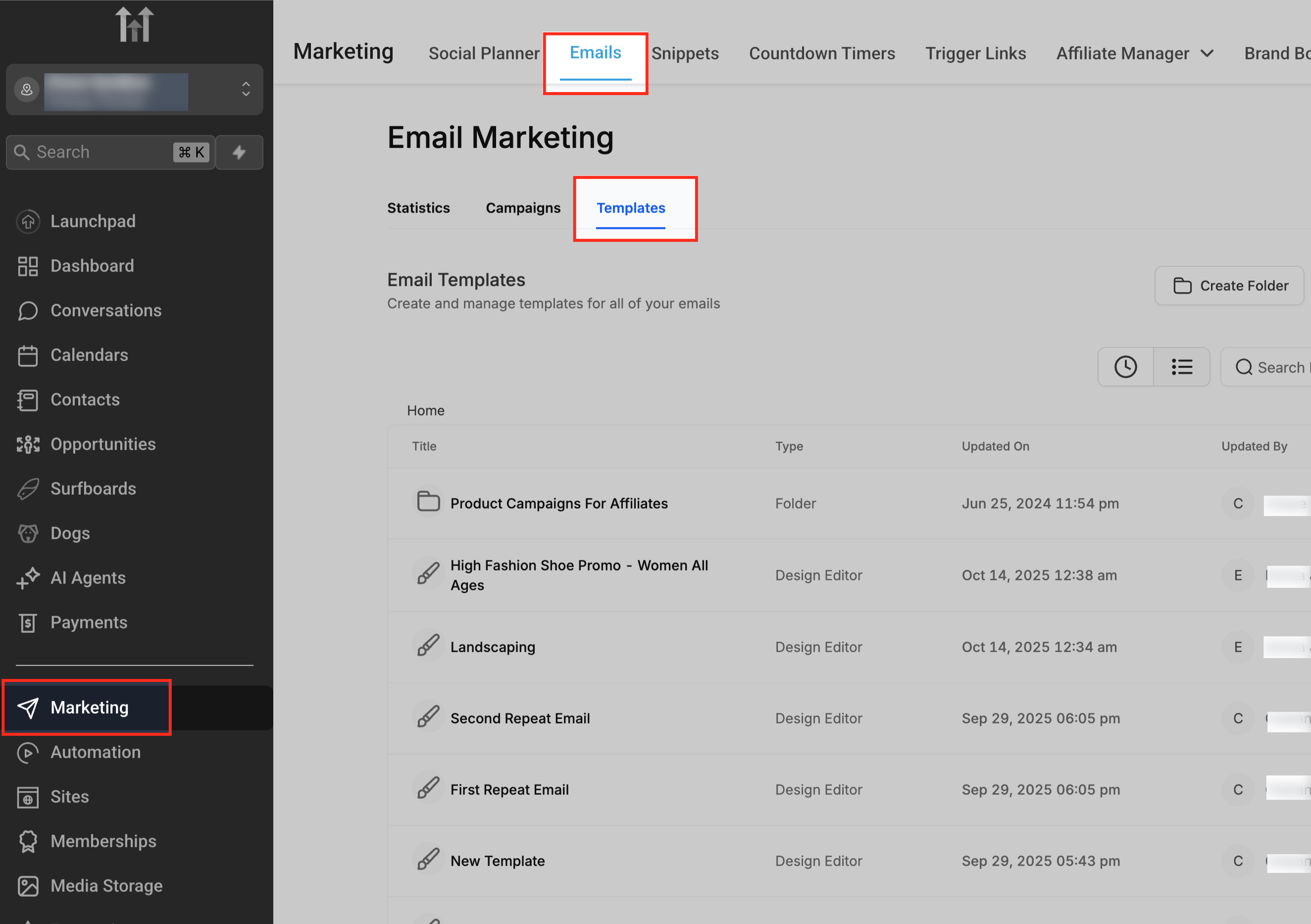
Access the Email Templates Section
Go to Marketing → Emails → Templates from the left navigation menu. This section lists all your existing email templates and gives you access to create new ones using different methods.
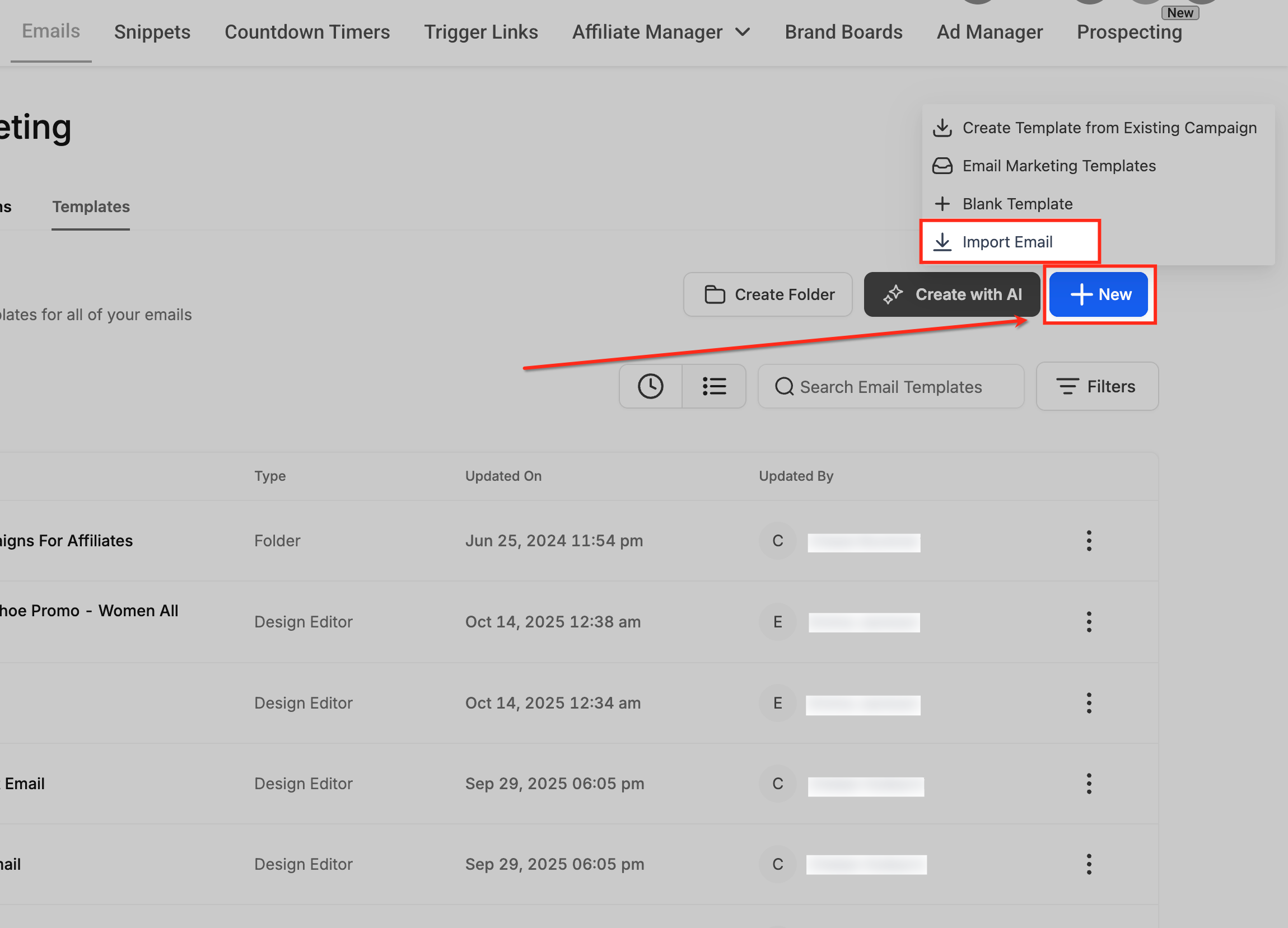
Start a New Import
Click the New button on the top right and select Import Email from the dropdown menu. This option allows you to bring in email templates from external providers like Mailchimp.
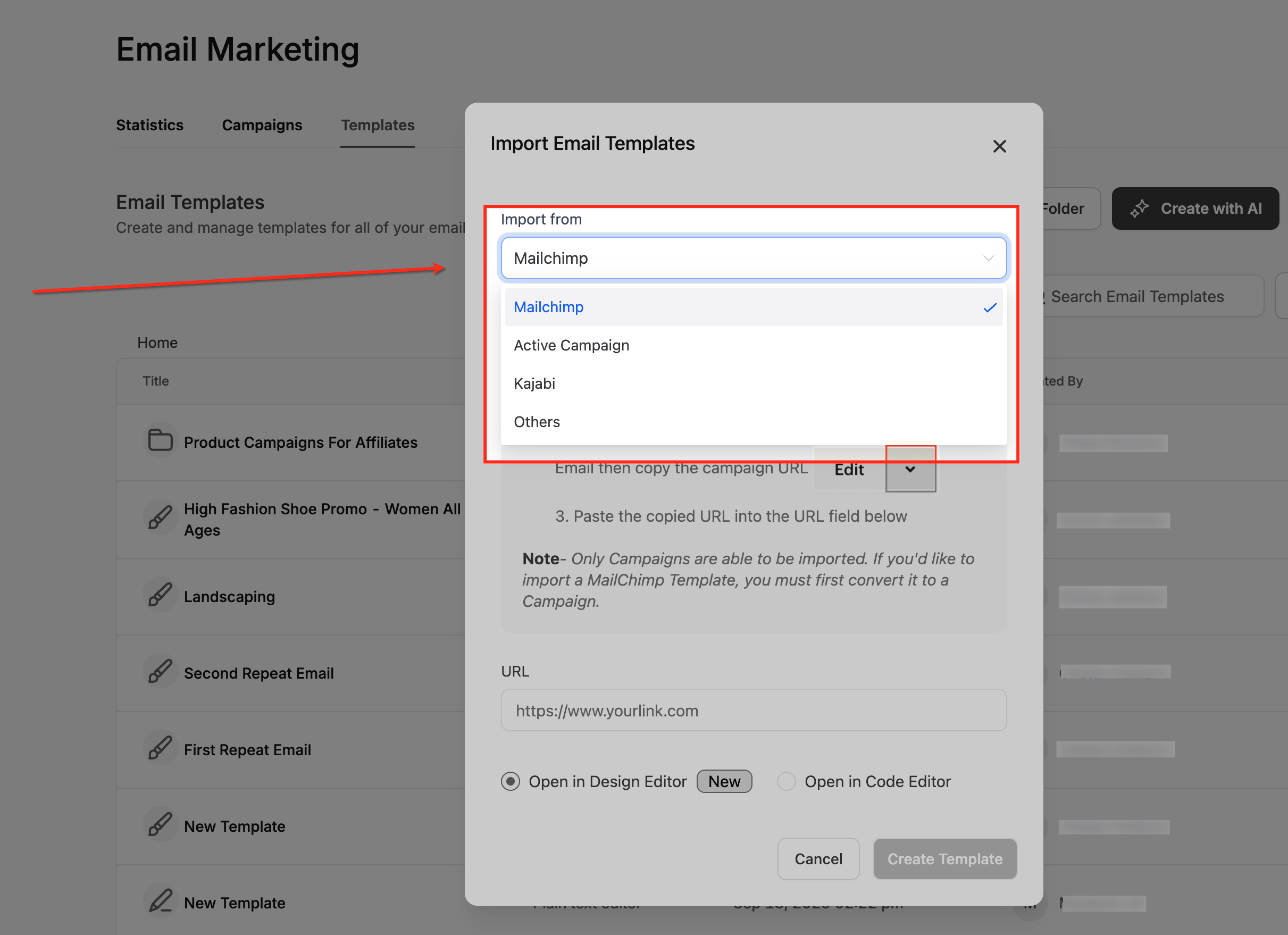
Choose Mailchimp as the Import Source
In the Import Email Templates popup, open the Import from dropdown and choose Mailchimp. This tells Chat To Clients CRM to prepare for importing the campaign layout from your Mailchimp account.
Add the Mailchimp Campaign URL
Copy the campaign URL from your Mailchimp account and paste it into the URL field. This URL helps Chat To Clients CRM fetch and recreate the structure of your Mailchimp campaign for editing.
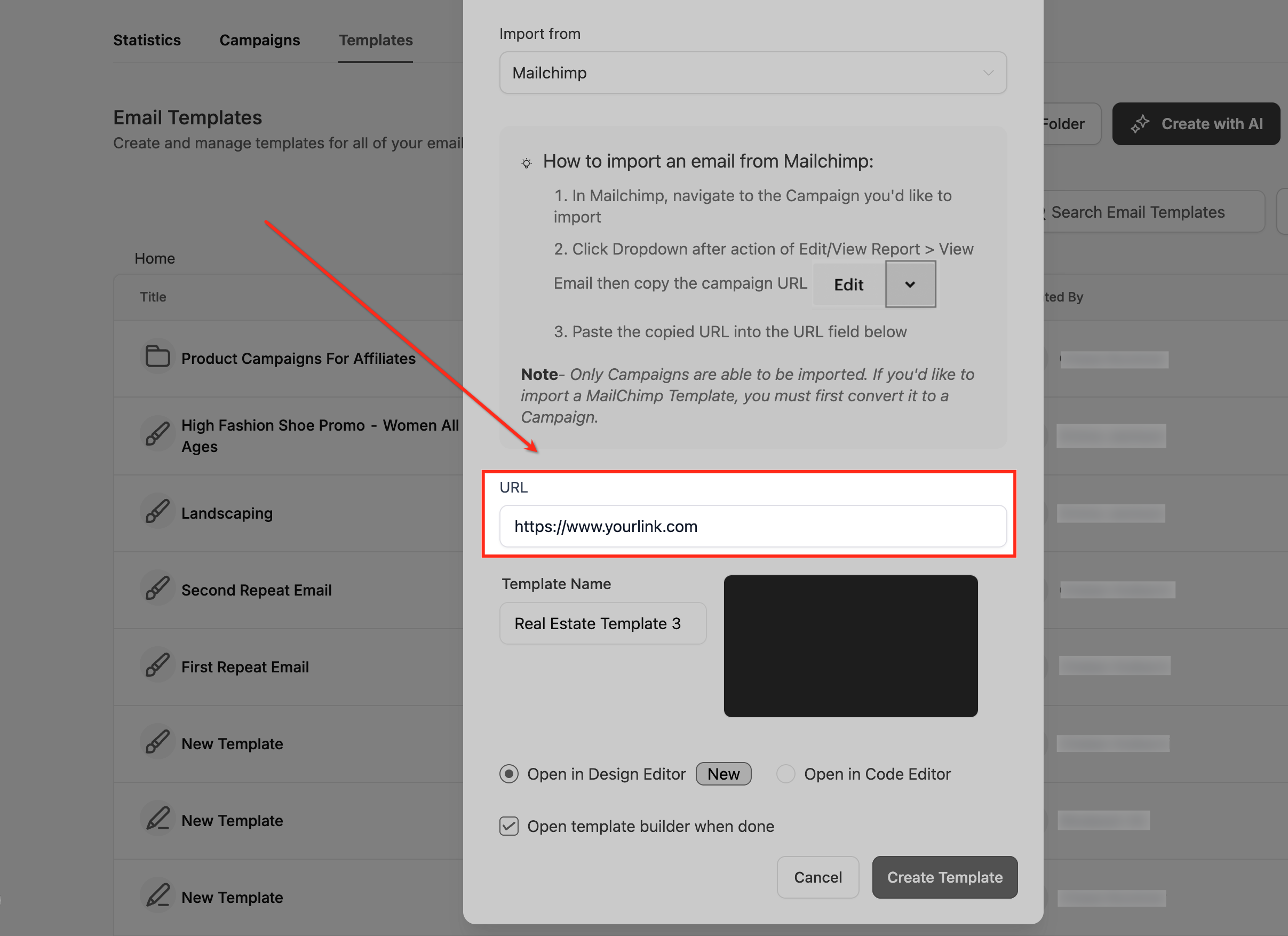
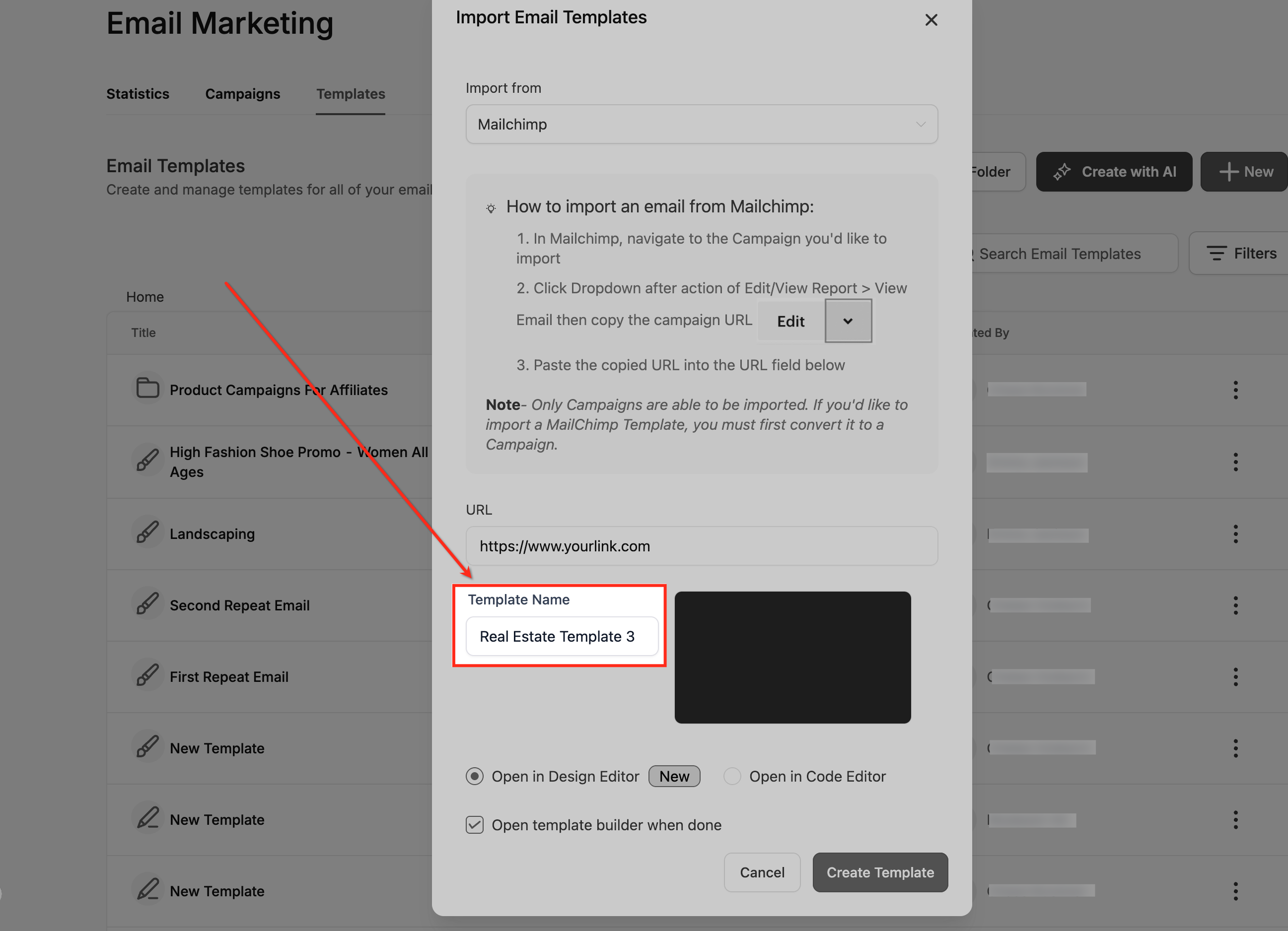
Enter a Template Name
In the Template Name field, give your imported template a clear and recognizable name. This will make it easier to find and edit later from your list of templates.
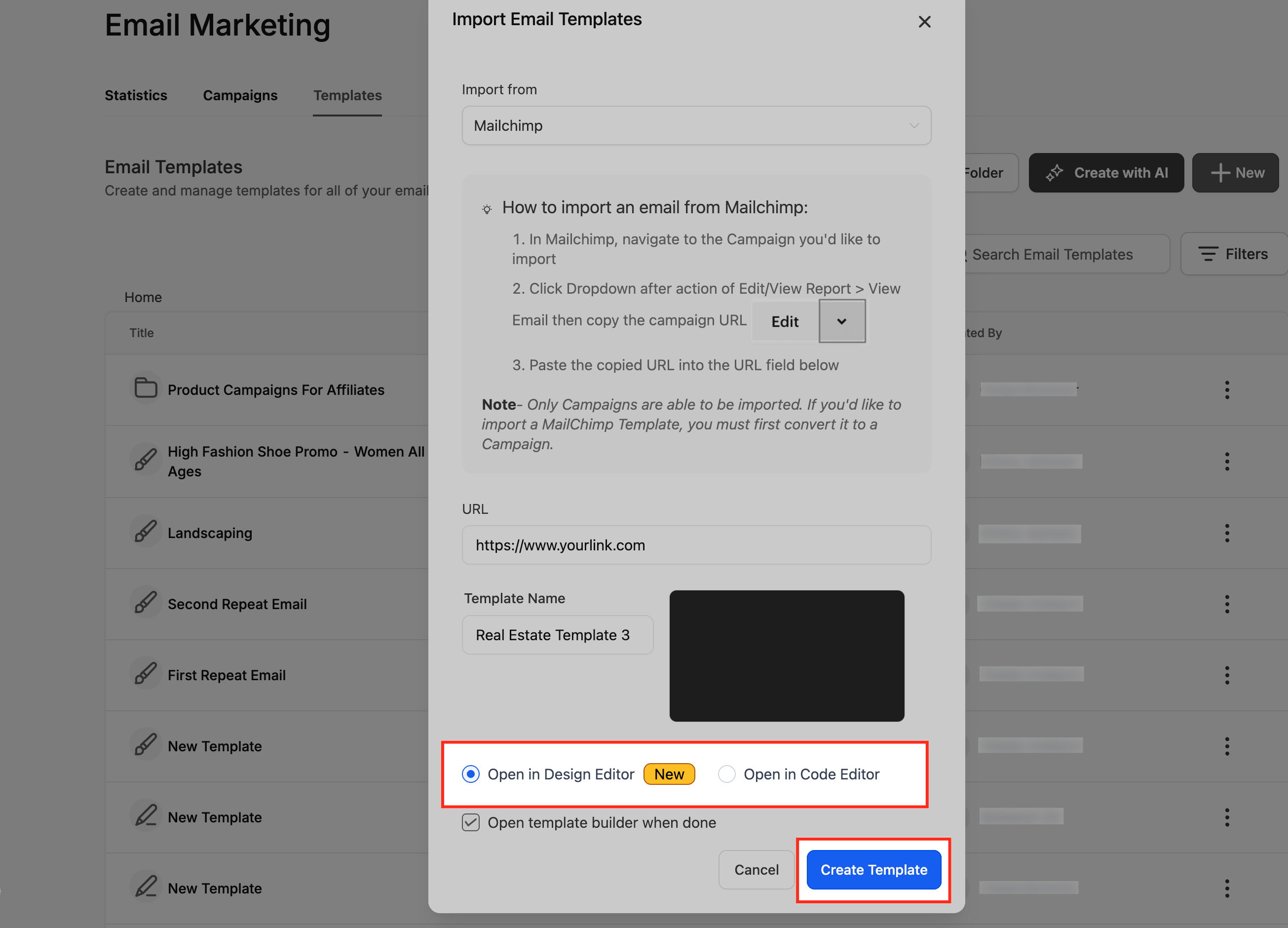
Open in the Design Editor and Create Template
Select Open in Design Editor, then click Create Template. Your Mailchimp template will open in Chat To Clients CRM’s visual Design Editor, ready for drag-and-drop customization and content updates.
Frequently Asked Questions
Q: What happens if my Mailchimp template doesn’t appear correctly in the Design Editor after import?
If your imported template appears misaligned or missing sections, it’s usually because certain Mailchimp-specific HTML structures aren’t fully compatible with the Design Editor’s block-based layout. In such cases, you can switch to the Code Editor to review the HTML and make manual adjustments. For best results, ensure your Mailchimp campaign uses standard HTML and inline CSS before importing.
Q: Can I import Mailchimp templates that use dynamic content, merge tags, or conditional logic?
Mailchimp-specific merge tags and dynamic content rules aren’t automatically translated into Chat To Clients CRM equivalents during import. The structure will import, but the dynamic logic must be reconfigured manually using Chat To Clients CRM’s Custom Values or Dynamic Fields once the template is in the Design Editor.
Q: Does the import tool store or access my Mailchimp account credentials?
No. The import feature relies solely on the public campaign URL that you paste into Chat To Clients CRM. It doesn’t require or store Mailchimp credentials or API keys. The system only reads the HTML layout of the provided URL to recreate your email design inside the Design Editor.
Q: What’s the difference between importing a Mailchimp “Campaign” versus a “Template”?
Mailchimp campaigns can be imported directly using their campaign URL. However, if you want to import a saved Mailchimp template, you’ll first need to create a campaign using that template in Mailchimp and then copy its campaign URL. Only campaigns have a shareable URL structure that the Chat To Clients CRM import tool can process.