
How to change Agency's address in Chat To Clients CRM?
Keeping your agency's address up-to-date in Chat To Clients CRM ensures accurate billing, communication, and representation across the platform. This guide provides a step-by-step process to update your agency's address details.
TABLE OF CONTENTS
- Key Benefits of Updating Your Agency's Address
- Updating Your Agency's Address
- Frequently Asked Questions
- Related Articles
Key Benefits of Updating Your Agency's Address
Maintaining an accurate agency address is crucial for several reasons:
- Accurate Billing: Ensures invoices and financial documents are sent to the correct location.
- Effective Communication: Facilitates timely and accurate correspondence with clients and partners.
- Professional Representation: Reflects the correct business location in client-facing materials, enhancing credibility.
- Compliance: Meets legal and regulatory requirements for business operations.
Updating Your Agency's Address
Updating your agency’s address in Chat To Clients CRM is a quick process that ensures your business details remain accurate. Follow these simple steps to navigate the settings and make the necessary changes to your company’s address.
Step 1: Navigate to Agency View
Click the dropdown menu located at the top left corner of the sidebar and select "Switch to Agency View".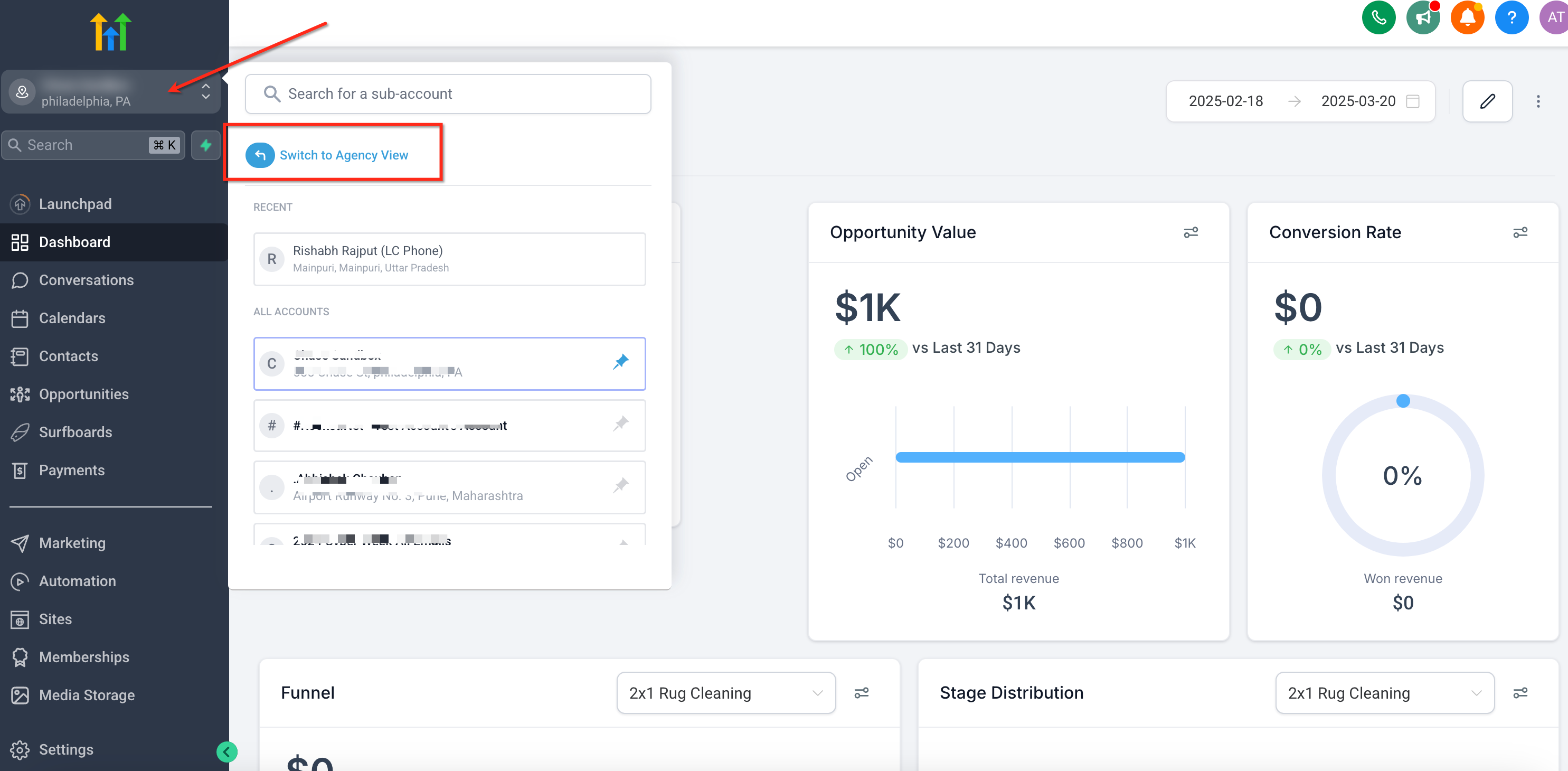
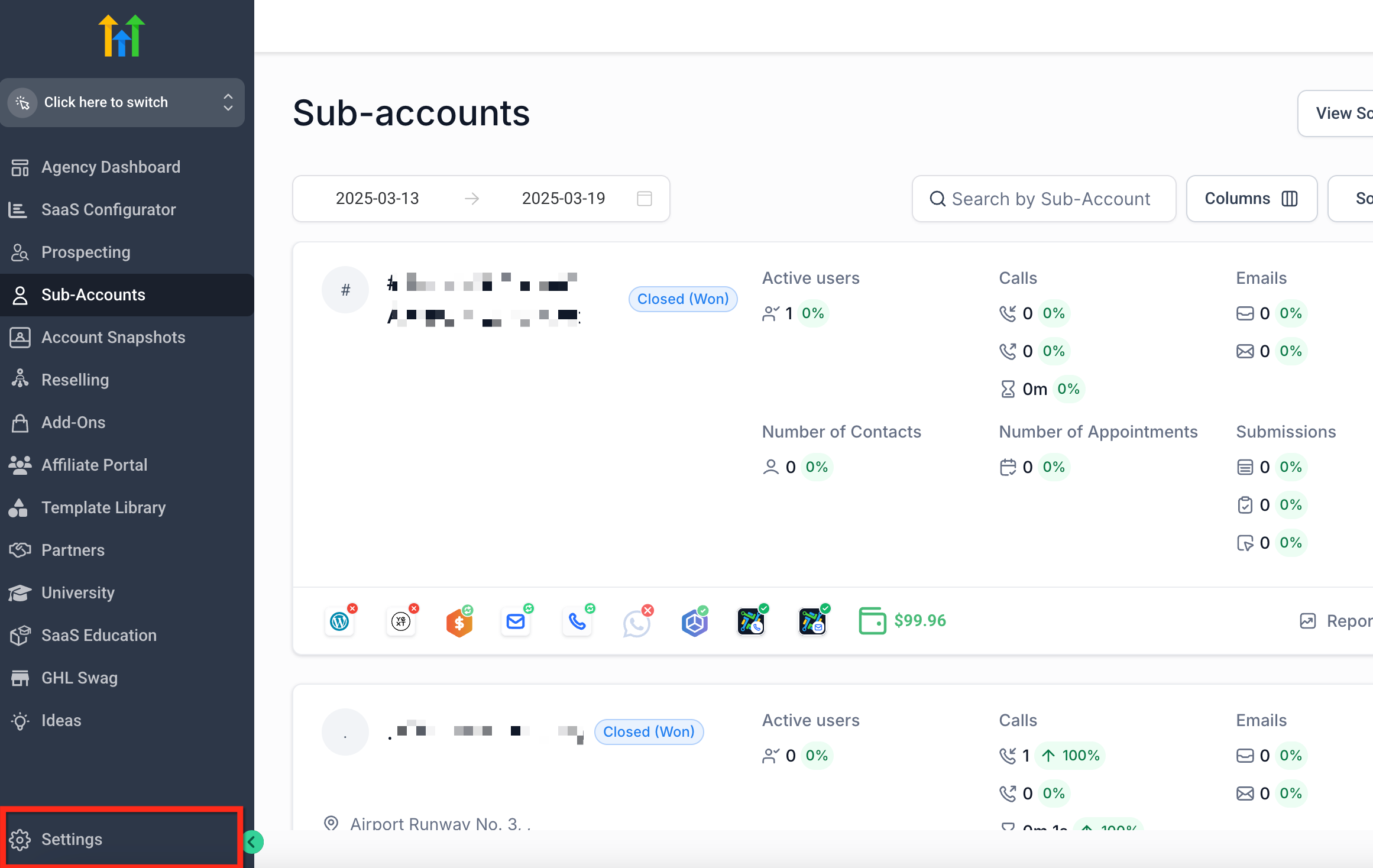
Step 2: Access Agency Settings
Navigate to the bottom of the sidebar and click on the "Settings" icon.
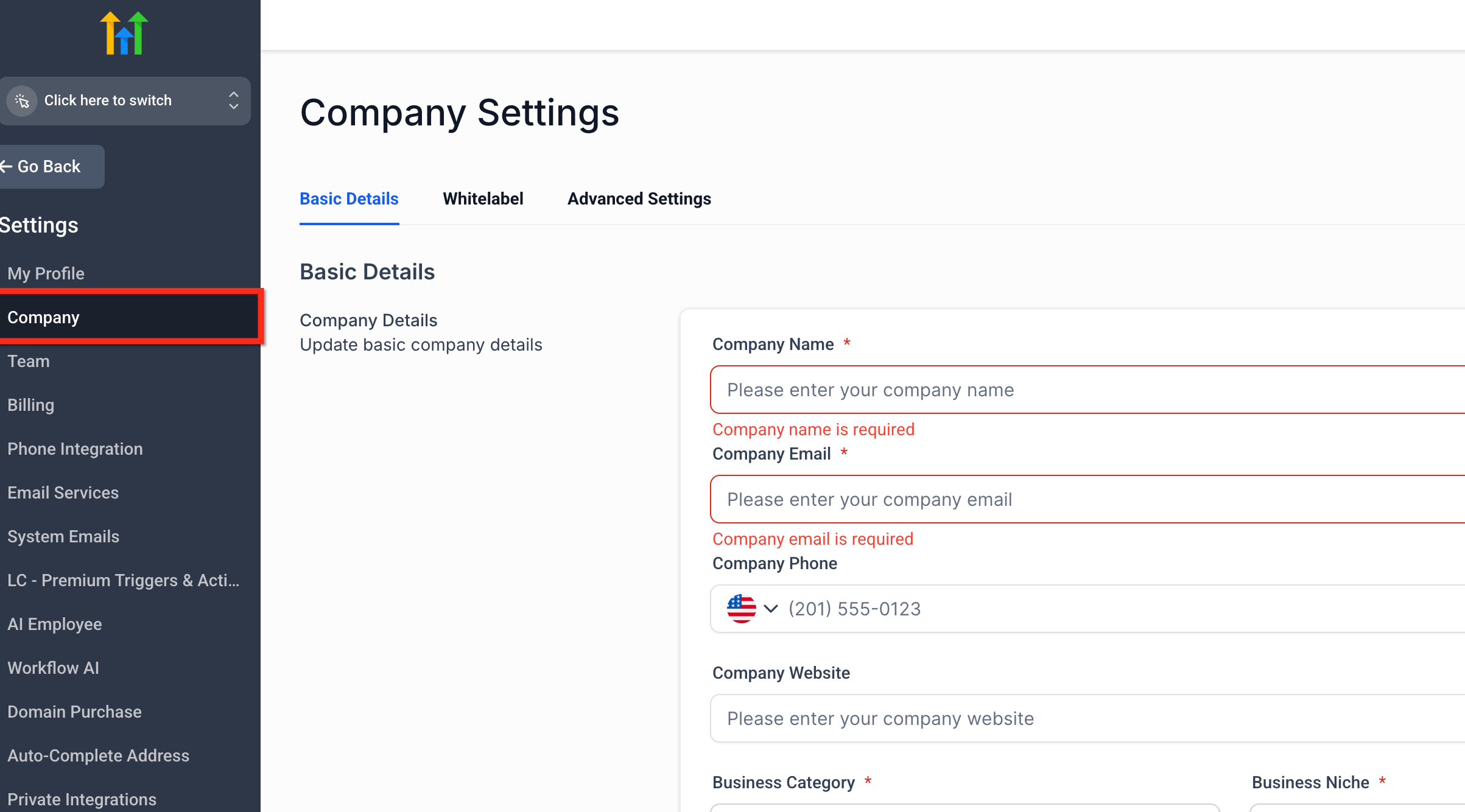
Step 3: Navigate to the Company Tab
Within the Settings menu, click on the "Company" tab located on the sidebar.
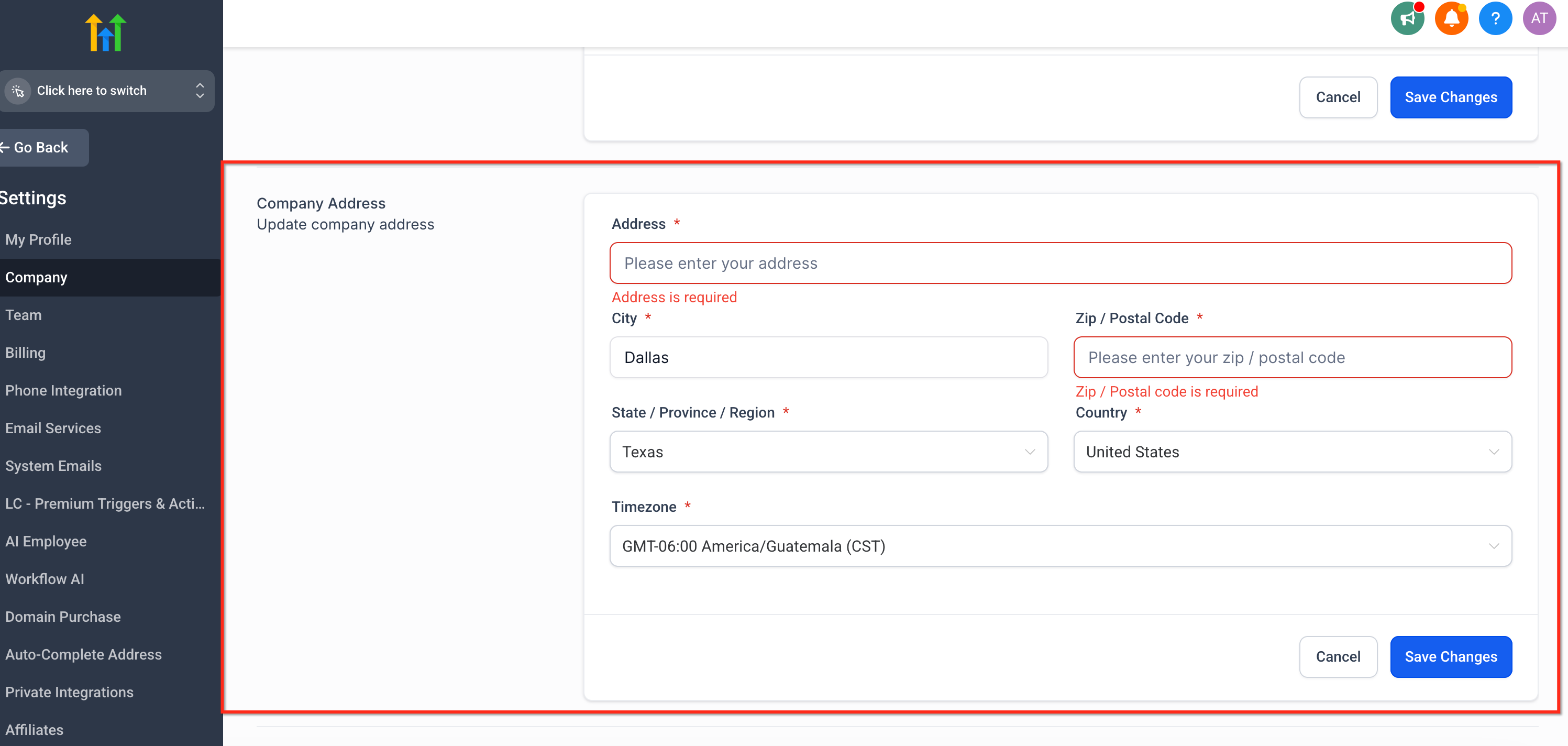
Step 4: Update Company Address
On the right side of the screen, locate the "Company Address" section, enter your updated Address, City, Zip Code, State, Country, and Timezone in the respective fields, and finally click the "Save Changes" button to apply the updates.
Frequently Asked Questions
Q: Do I need special permissions to update the agency's address?
Yes, only users with agency admin-level access can make changes to the agency's address.
Q: How long does it take for the address change to reflect across the platform?
Changes to the agency's address are applied immediately after saving.
Q: Will updating the agency's address affect my billing information?
Yes, updating your agency's address ensures billing and other official communications are sent to the correct location.