
Customizing Chat To Clients CRM Menus: A Guide to Custom Menu Links
This article explains how to create, manage, and optimize Custom Menu Links in Chat To Clients CRM to enhance platform navigation and integrate external tools directly into the user interface.
TABLE OF CONTENTS
- What Are Custom Menu Links?
- Key Benefits of Custom Menu Links
- Who Can Manage Custom Menu Links?
- How to Create and Manage Custom Menu Links
- Getting the user's context within the Custom Menu Link
- How to Edit or Delete a Custom Menu Link
- Best Practices for Using Custom Menu Links
- Frequently Asked Questions
- Related Articles
What Are Custom Menu Links?
Custom Menu Links allow agencies to personalize the Chat To Clients CRM navigation menu for sub-accounts and agency users. These links help direct users to essential external resources, training materials, or frequently accessed tools, improving workflow efficiency. This customization enhances user experience and allows for better navigation within the Chat To Clients CRM platform.
Custom Menu Links can be configured in three ways:
Embedded Page (iFrame): Displays the external page within Chat To Clients CRM while maintaining the navigation structure.
New Browser Tab: Opens the link in a separate browser tab, keeping Chat To Clients CRM open in the background.
Current Browser Tab: Replaces the current Chat To Clients CRM screen with the linked content, directing users outside of the platform.
These options provide flexibility based on how agencies want their users to interact with external tools and resources.
Key Benefits of Custom Menu Links
Custom Menu Links offer various advantages, including:
Streamlined Navigation: Centralized access to frequently used external tools, reducing the time spent switching between different platforms.
Increased Productivity: Users can quickly access essential resources without leaving the Chat To Clients CRM interface.
Better Training & Support Access: Agencies can provide direct links to help documentation, knowledge bases, or customer support portals.
Seamless Third-Party Integrations: Directly embed external dashboards, affiliate portals, or reporting tools within the platform.
Who Can Manage Custom Menu Links?
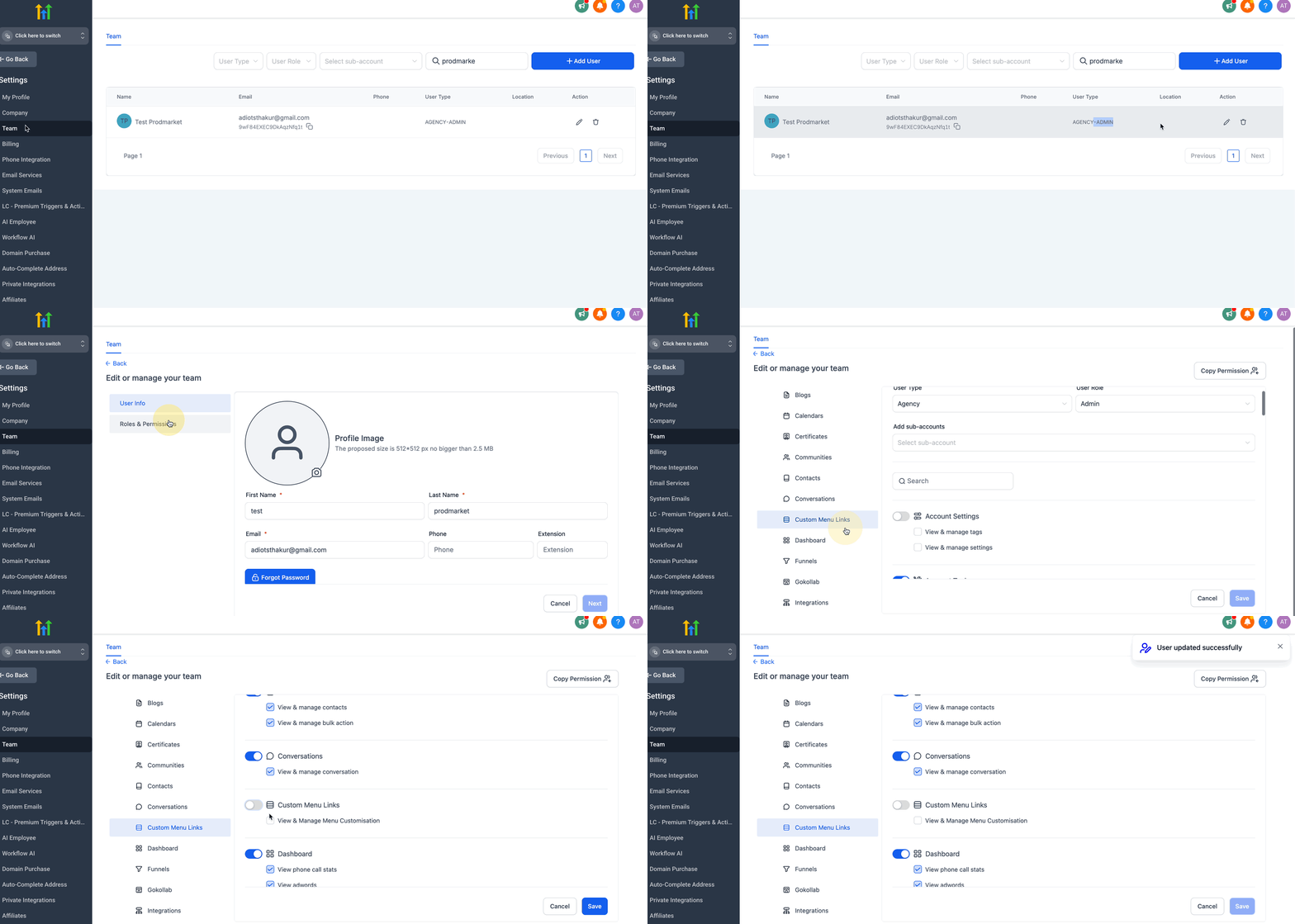
Agency users with the required Custom Menu Links permission can manage Custom Menu Links.
To review or update access, go to Settings > Team, select the team member, and confirm that Manage Custom Menu Links is enabled.
How to Create and Manage Custom Menu Links
Learn how to add and configure custom menu links that appear in the navigation sidebar for agency and sub-account users. These steps will help you seamlessly integrate external tools and resources directly into your Chat To Clients CRM workspace.
Follow these steps to create a new Custom Menu Link:
Step 1: Navigate to Settings > Custom Menu Links in the left-hand menu and click on the Create New button at the top right.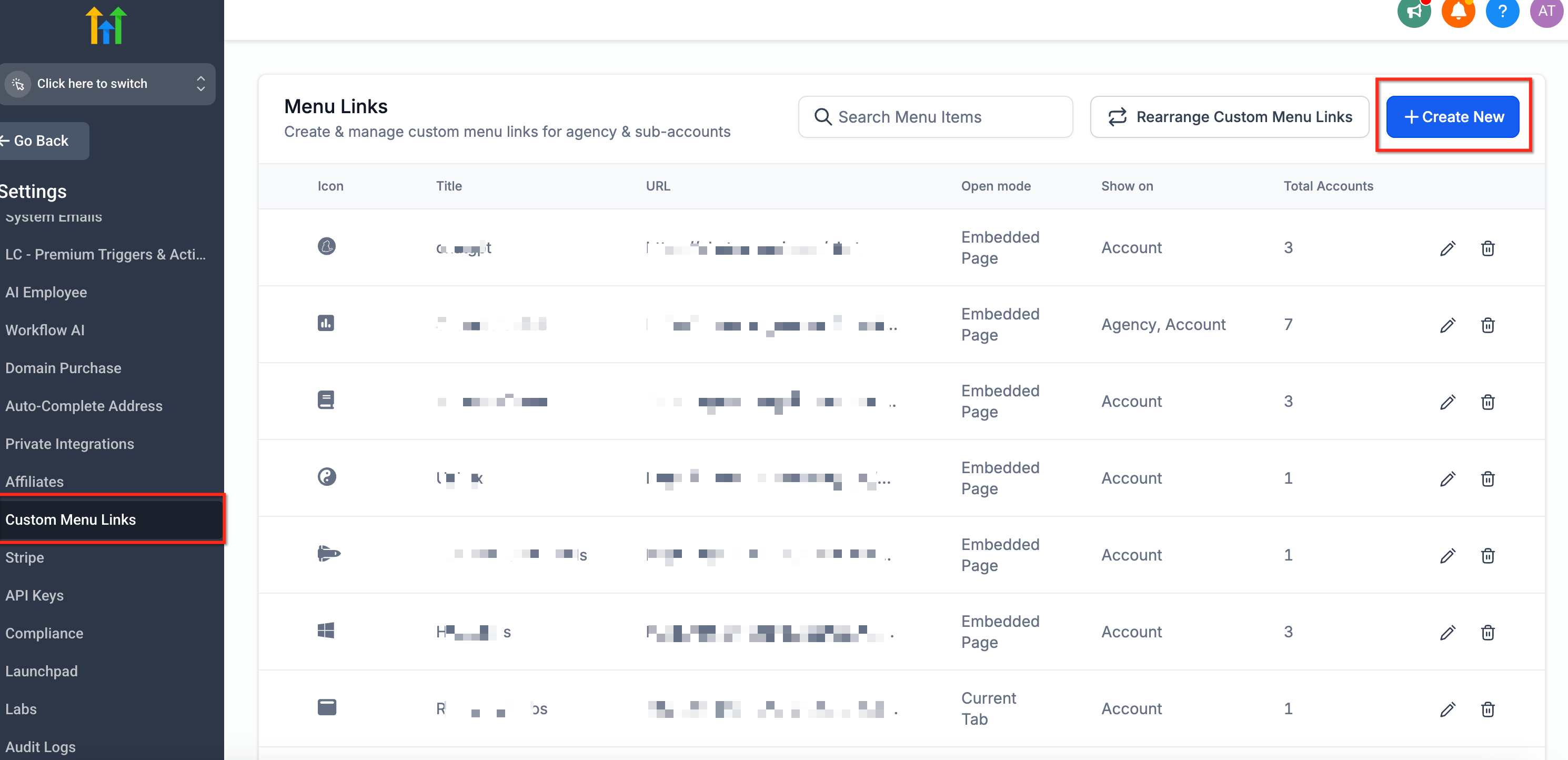
Step 2: Fill in the required details:
Link Icon: Click to select an icon.
Link Title: Enter the name of the menu link.
URL: Provide the external URL to be linked. You may use Location values and Custom Values in here. (These will only work on the Location sidebar when inside an account.)
Example: http://url.com/{{location.id}}?value={{custom_values.my_value}}
Important: Values added to a Custom Menu Link URL are passed to the destination website and may be exposed through browser history, server logs, analytics tools, or other systems that process the URL. Only include user, location, or custom values that the destination requires, and avoid placing sensitive information or credentials in URL parameters.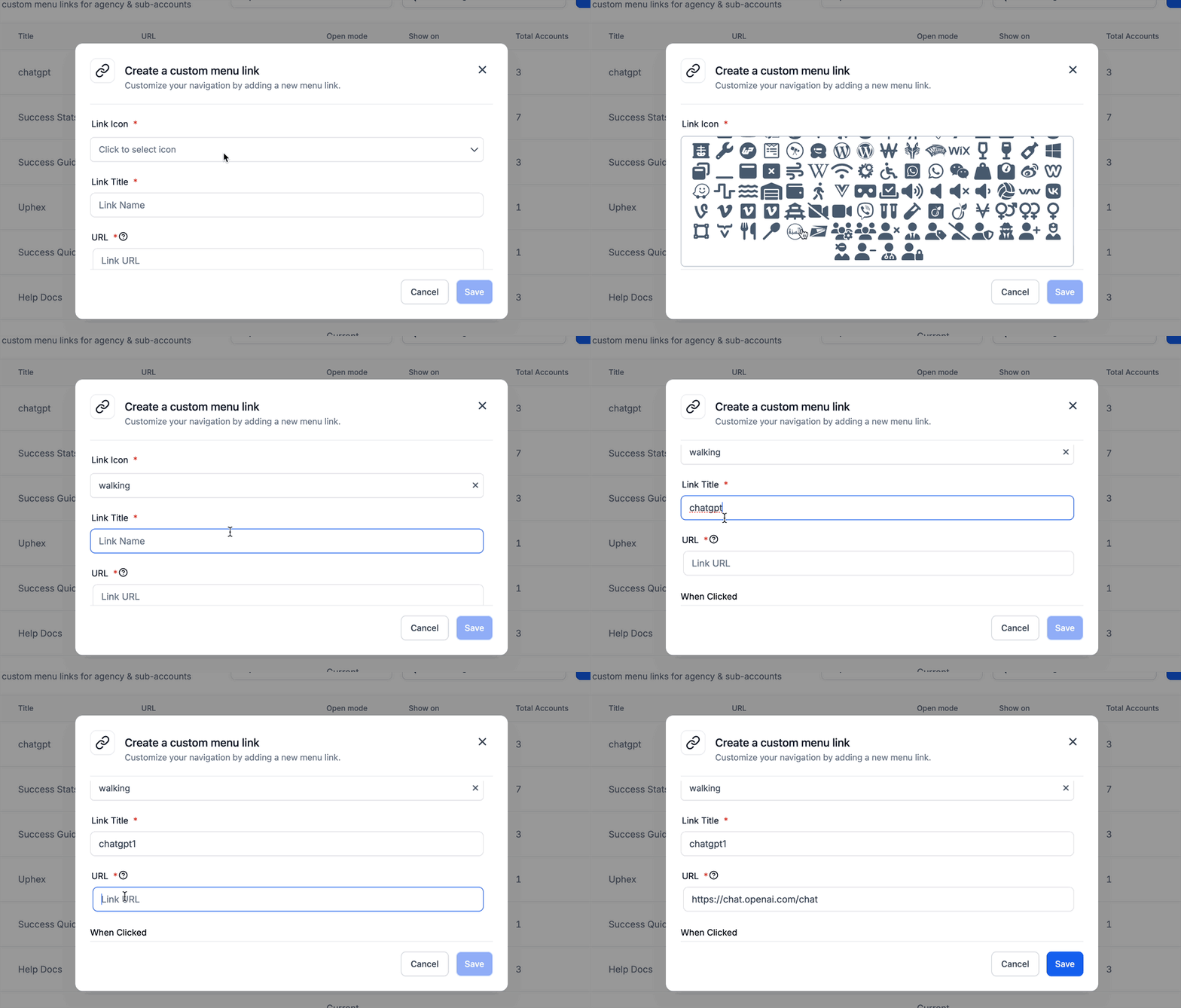
IMPORTANT: The Link URL is the web address where the menu item will direct users. It must begin withhttp://orhttps://. Make sure the destination page allows embedding if using the Embedded Page (iFrame) option.
Step 3: Choose the opening method:
- Open in an Embedded Page (iFrame): Displays the linked content directly within the Chat To Clients CRM dashboard, keeping users in the same interface. Ideal for tools that support embedding.
Open in a New Browser Tab: Opens the link in a separate tab, allowing users to access the resource without leaving their current Chat To Clients CRM view.
Open in the Current Tab: Redirects the current Chat To Clients CRM tab to the linked URL. Best used when users are expected to complete tasks outside the platform.
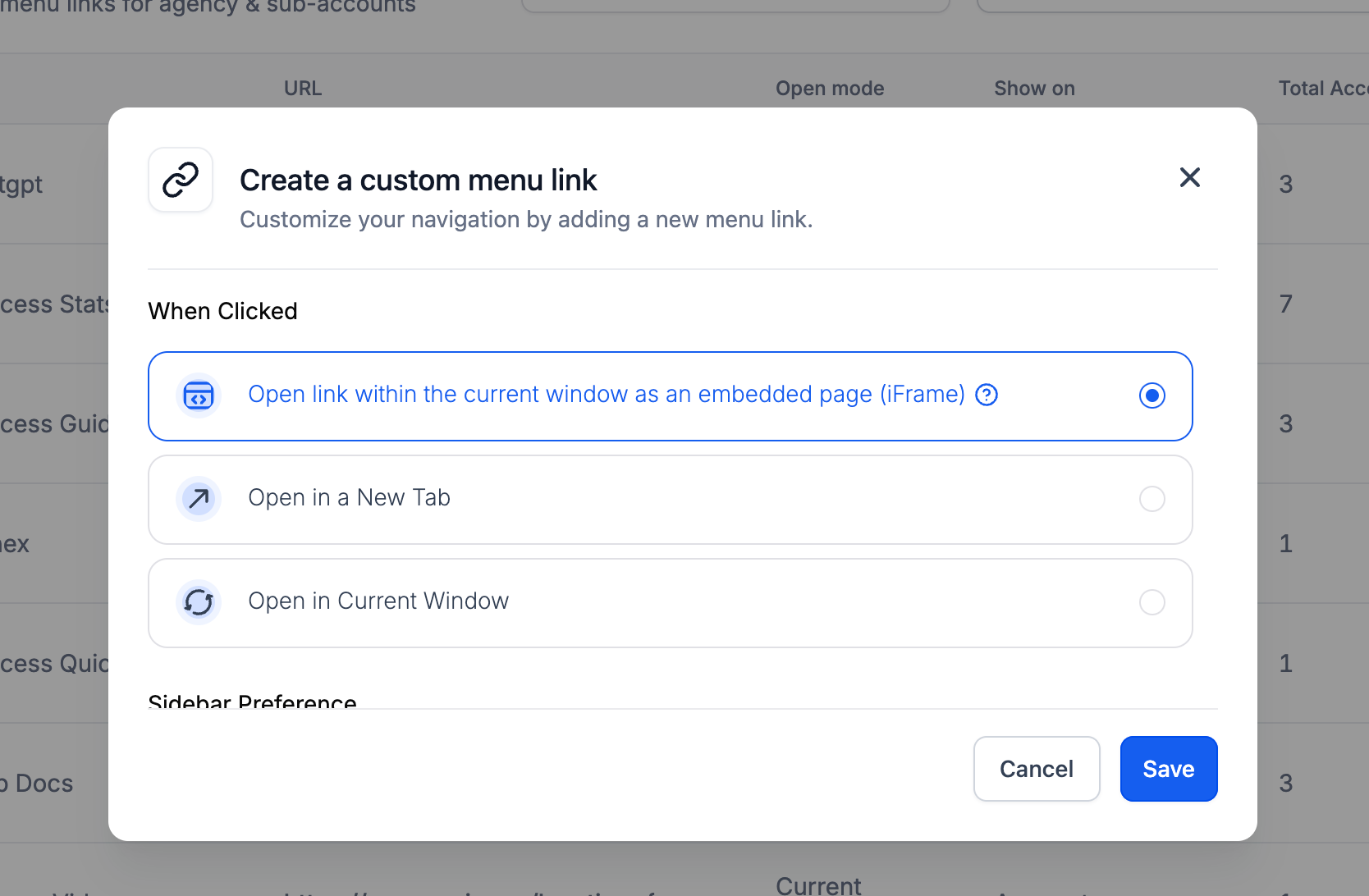
Note: The destination website must allow iframe embedding. If the website blocks embedding, use New Browser Tab or Current Tab instead.
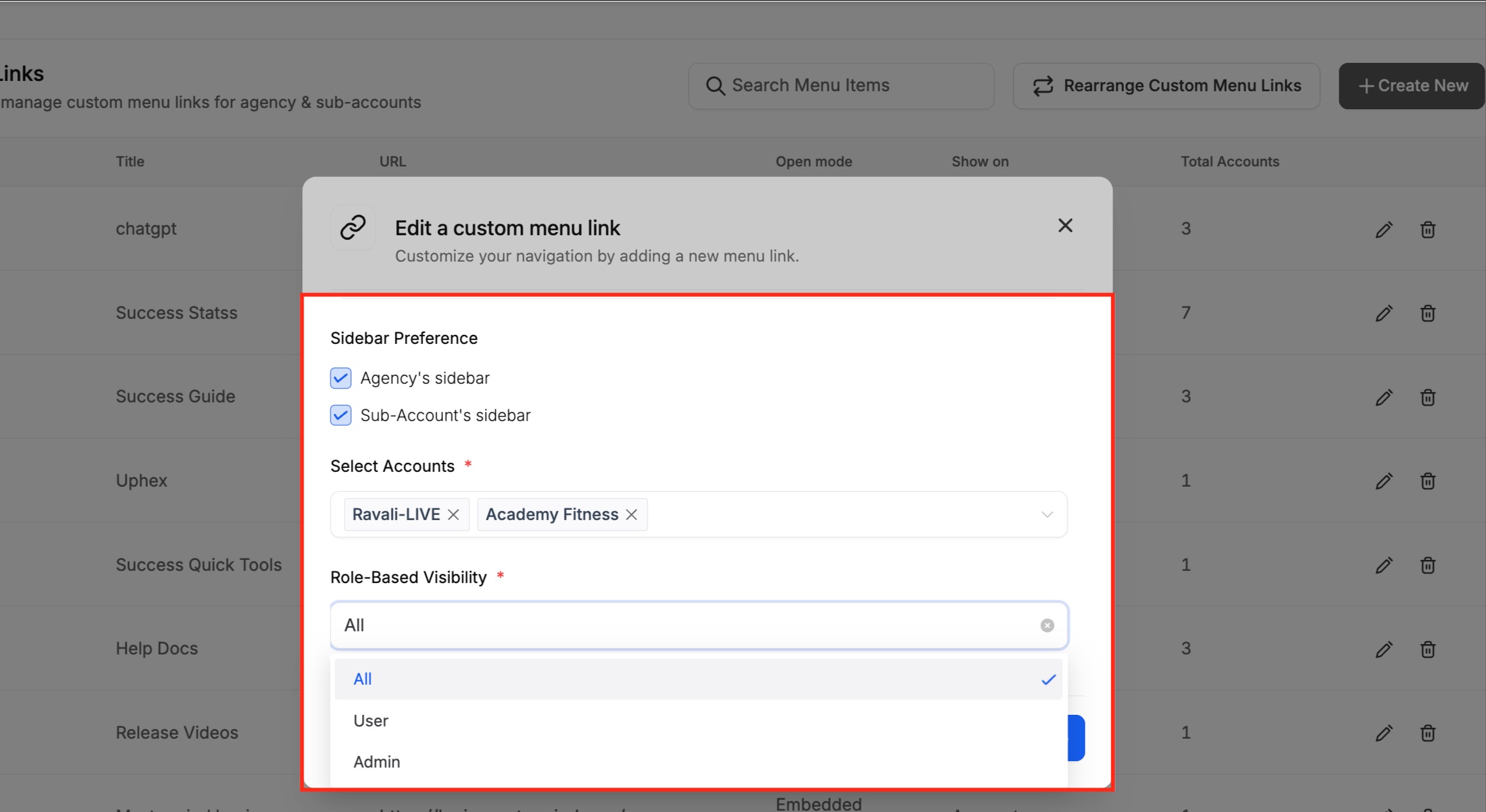
Step 4: Set Sidebar Preference and Role-Based Visibility
Set the Sidebar Preference and Role-Based Visibility to define where the link appears and who can access it. The Sidebar Preference allows you to choose whether the link appears in the Agency sidebar, the Sub-Account sidebar, or both:
Selecting the Agency sidebar will make the link visible to agency-level users.
Selecting the Sub-Account's sidebar enables you to assign the link to specific sub-accounts only. Once selected, you can choose which subaccounts should display the custom menu link.
- Role-Based Visibility lets you control which types of users can see the custom menu link:All: The link will be visible to all roles. User: Only users with the User role will see the link. Admin: Only Admins will have access to the link.
Getting the user's context within the Custom Menu Link
While creating the Custom Menu Link, you can set the URL like this:
https://test.com/test?fname={{user.first_name}}&lname={{user.last_name}}&location_id={{location.id}}&custom_value_example={{custom_values.example_field_name}}
This way, when a user clicks on the link, Chat To Clients CRM will dynamically replace the param variables with actual values based on the user's context. You can extract these params from the URL and get the user's context.
Supported params to CML
user.first_name
user.last_name
user.name
user.phone
user.email
location.id
location.name
location.city
location.state
location.country
location.address
location.email
location.phone
location.postal_code
location.full_address
location.website
location.logo_url
location_owner.first_name
location_owner.last_name
location_owner.email
custom_values.{CUSTOM_VALUE_NAME}
How to Edit or Delete a Custom Menu Link
Make quick updates or remove outdated custom menu links as your agency evolves. This section shows you how to keep your sidebar navigation clean and relevant by editing or deleting existing links.
To modify or remove an existing Custom Menu Link:
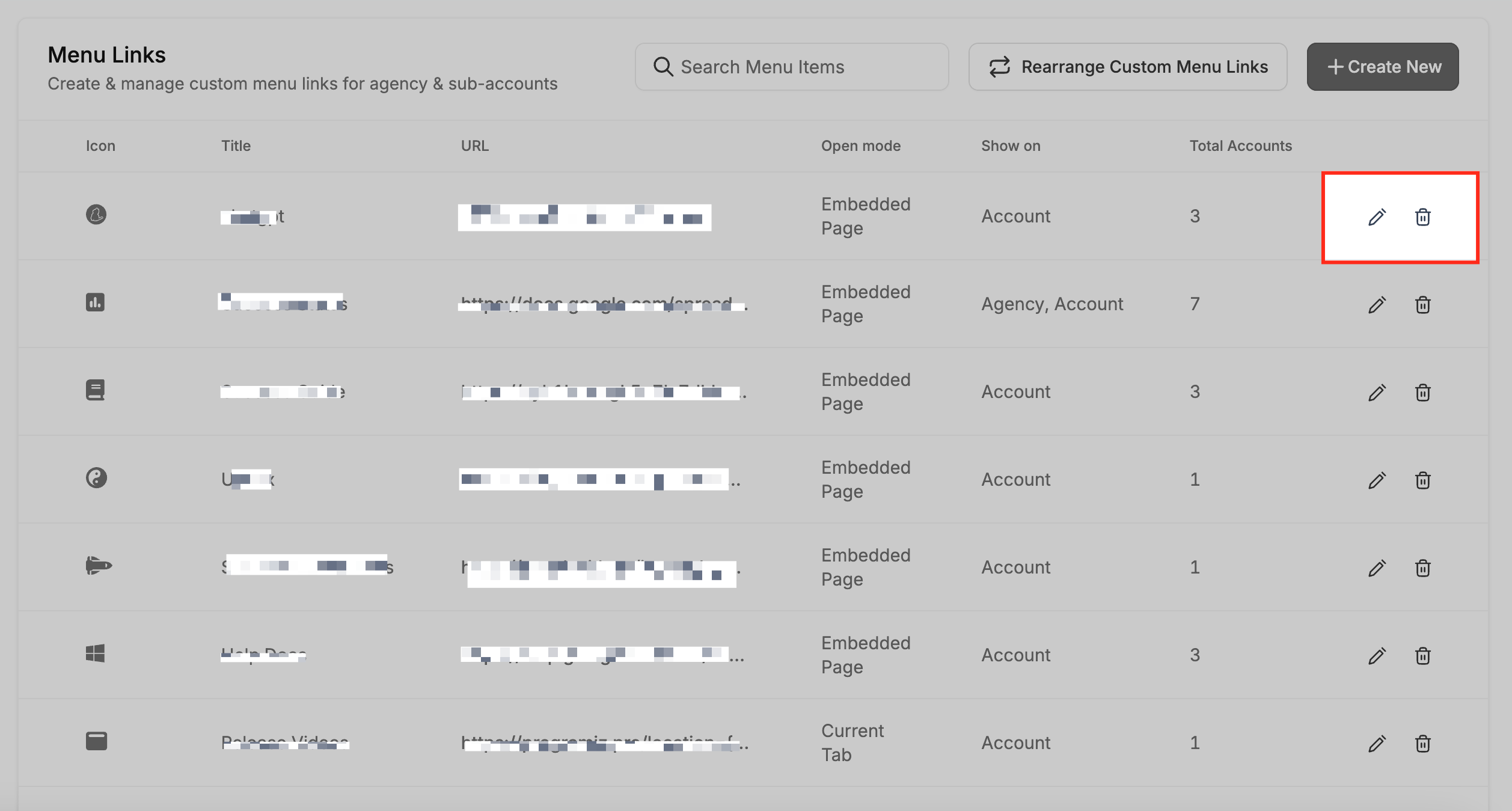
Navigate to Settings > Custom Menu Links and find the desired link and click the Edit (pencil icon) or Delete (trash icon) button. Make the necessary updates or confirm deletion. These changes include updating the name and icon of the existing link. Changes will immediately reflect in the navigation menu for all users.
How to Rearrange Custom Menu Links
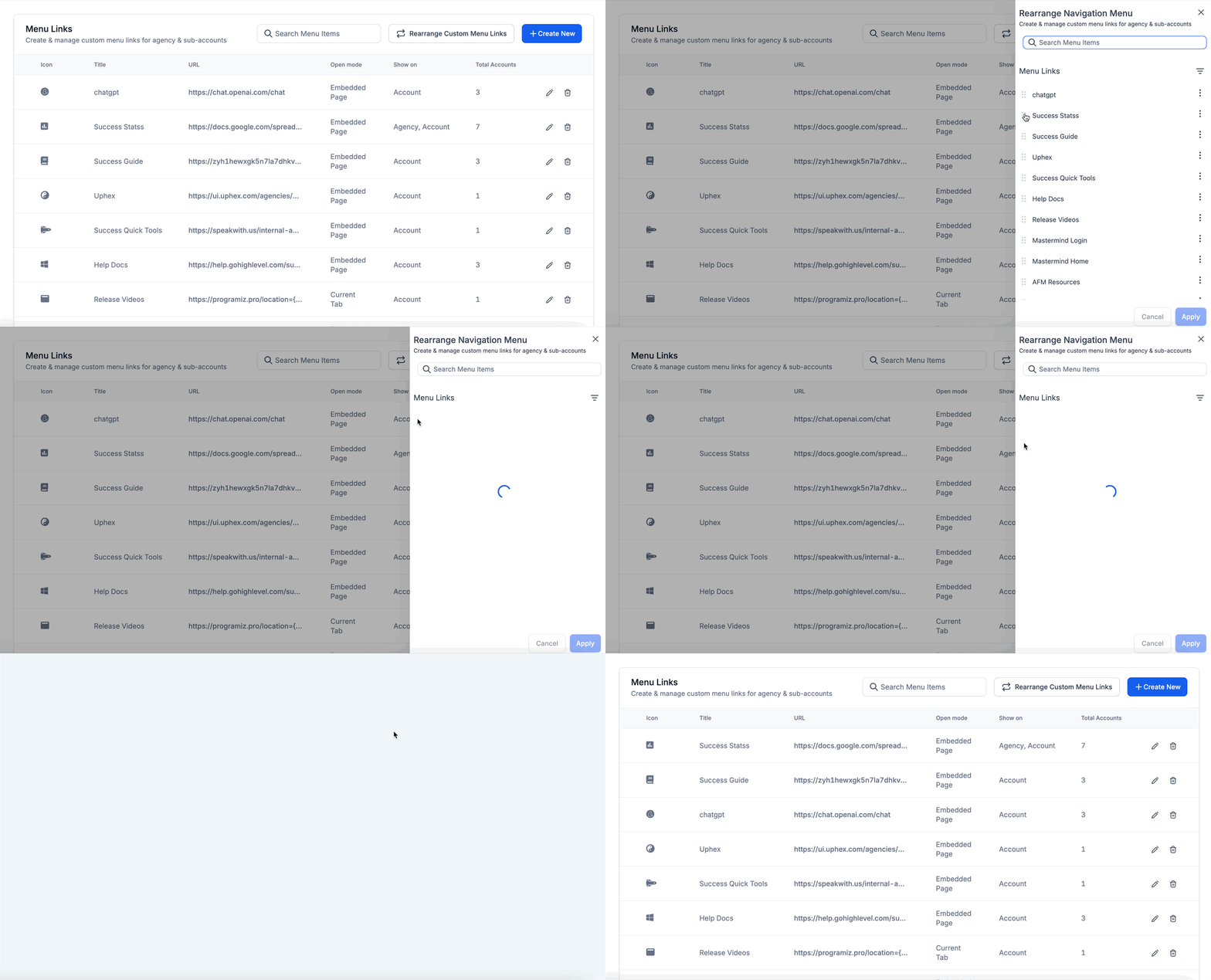
Click on the Rearrange Custom Menu Links button at the top right and drag and drop menu links to the desired order. Finally click Save to finalize the changes.
Best Practices for Using Custom Menu Links
To maximize the effectiveness of Custom Menu Links, consider the following:
Keep It Organized: Avoid adding too many links that might clutter the navigation menu.
Use Clear Titles & Icons: Ensure that menu items are easily recognizable and intuitive for users.
Test iFrame Compatibility: Some external websites may have restrictions preventing them from being embedded in an iFrame.
Regularly Review & Update Links: Ensure that all links remain relevant and functional over time.
Frequently Asked Questions
Q: Can subaccounts create their own Custom Menu Links?
No, only agency users with the necessary permissions can manage Custom Menu Links.
Q: Can I embed any website using the iFrame option?
Not all websites allow embedding via iFrame. Test the link before deploying it to users.
Q: Can I restrict Custom Menu Links to specific users or roles?
Yes. You can control visibility using the supported user roles and select which sub-accounts display the Custom Menu Link.
Q: How do I reorder Custom Menu Links?
Click Rearrange Custom Menu Links, drag and drop the links, and save the new order.