
Troubleshoot a Missing Google Calendar Account in Chat To Clients CRM
A Google Calendar account may already be connected to a user's Chat To Clients CRM profile but still not appear where expected when configuring calendars. This can happen when the account needs to be reauthorized, required Google permissions are missing, or the intended Google Calendar has not been selected for syncing. Checking the connection and permissions first can help restore access without unnecessarily creating a different Google account connection.
TABLE OF CONTENTS
- Why Is My Google Calendar Account Not Showing in Chat To Clients CRM?
- Key Benefits of Troubleshooting the Google Calendar Connection
- Before You Troubleshoot
- How to Fix a Google Calendar Account That Is Not Showing
- Check Google Permissions and Reconnect the Account
- Re-Integrate Google Calendar if the Account Still Does Not Appear
- Connected Google Accounts vs Linked Calendars
- Frequently Asked Questions
- Related Articles
Why Is My Google Calendar Account Not Showing in Chat To Clients CRM?
Google Calendar connections in Chat To Clients CRM are user-specific, meaning each user connects their own Google account. A connected Google account authorizes Chat To Clients CRM to access Google Calendar, while individual calendars from that account can then be selected for the appropriate syncing and availability settings.
Important: The user who owns the Google account should complete the Google authorization. Do not use a "login as" workflow to connect another user's Google account.
Key Benefits of Troubleshooting the Google Calendar Connection
Identifying whether the issue is caused by the account connection, Google permissions, or individual calendar access helps you apply the correct fix. This can restore calendar availability while avoiding unnecessary changes to otherwise valid calendar configurations.
Restore Calendar Access: Reauthorize the correct Google account when its connection or permissions need attention.
Verify Required Permissions: Confirm Chat To Clients CRM has the Google Calendar permissions needed for the integration.
Avoid Incorrect Connections: Reconnect the intended Google account instead of adding an unrelated account.
Identify Calendar-Level Issues: Distinguish an account connection problem from an issue accessing a specific Google Calendar.
Before You Troubleshoot
Google Calendar connections belong to individual Chat To Clients CRM users, so confirming the correct user and Google account first helps prevent reconnecting the wrong account. It is also important to distinguish between connecting a Google account and selecting a particular calendar from that account for syncing.
Before making changes, confirm that:
You are working with the correct Chat To Clients CRM user.
You know which Google account that user intends to connect.
The user can sign in directly to that Google account.
The intended Google Calendar belongs to the account or has been shared with sufficient access.
The user is prepared to approve the required Google permissions if reauthorization is needed.
Note: A Google account being connected does not necessarily mean every Google Calendar associated with that account has already been configured for syncing in Chat To Clients CRM.
How to Fix a Google Calendar Account That Is Not Showing
Checking the current connection and Google authorization can resolve cases where an account was previously connected but is not available where expected. Use the same Google account that the user intends to use with
Chat To Clients CRM rather than connecting a different account simply because the existing one is missing.
From the appropriate Chat To Clients CRM sub-account, go to Calendars.
Open Calendar Settings.
Select the Connections tab.
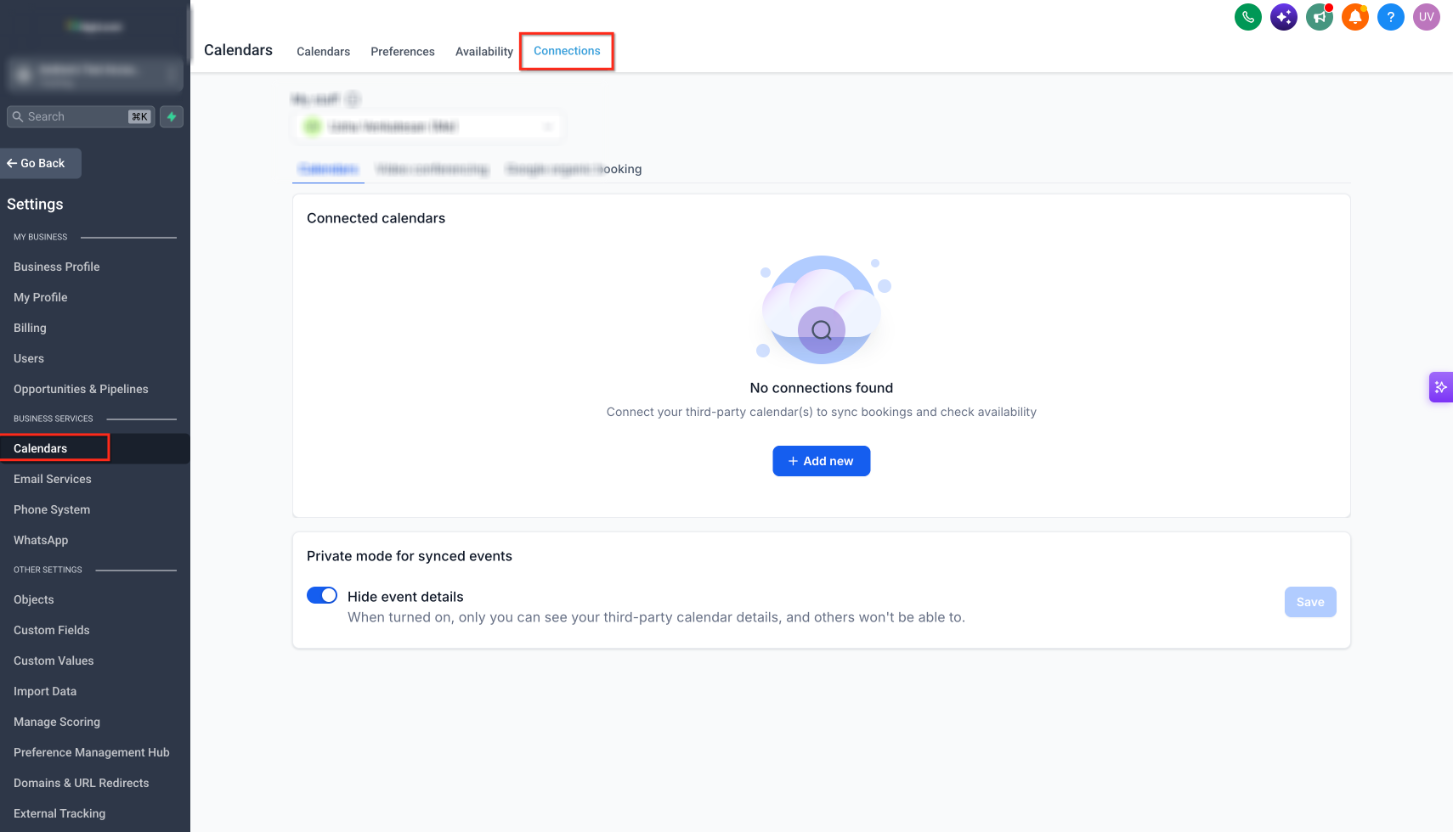
Check whether the intended Google account appears as a connected calendar account.
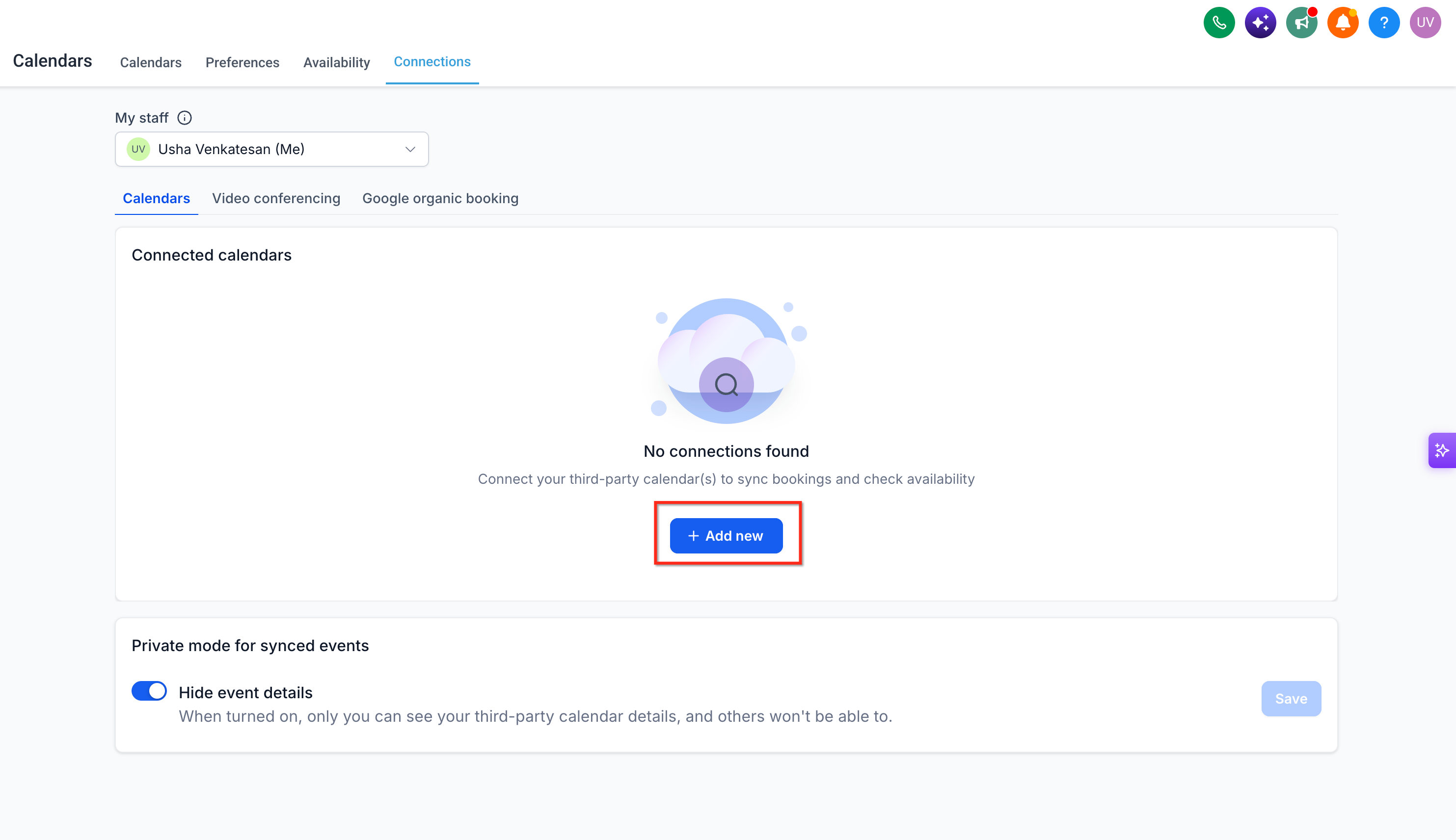
If the Google account is not connected, click + Add New.
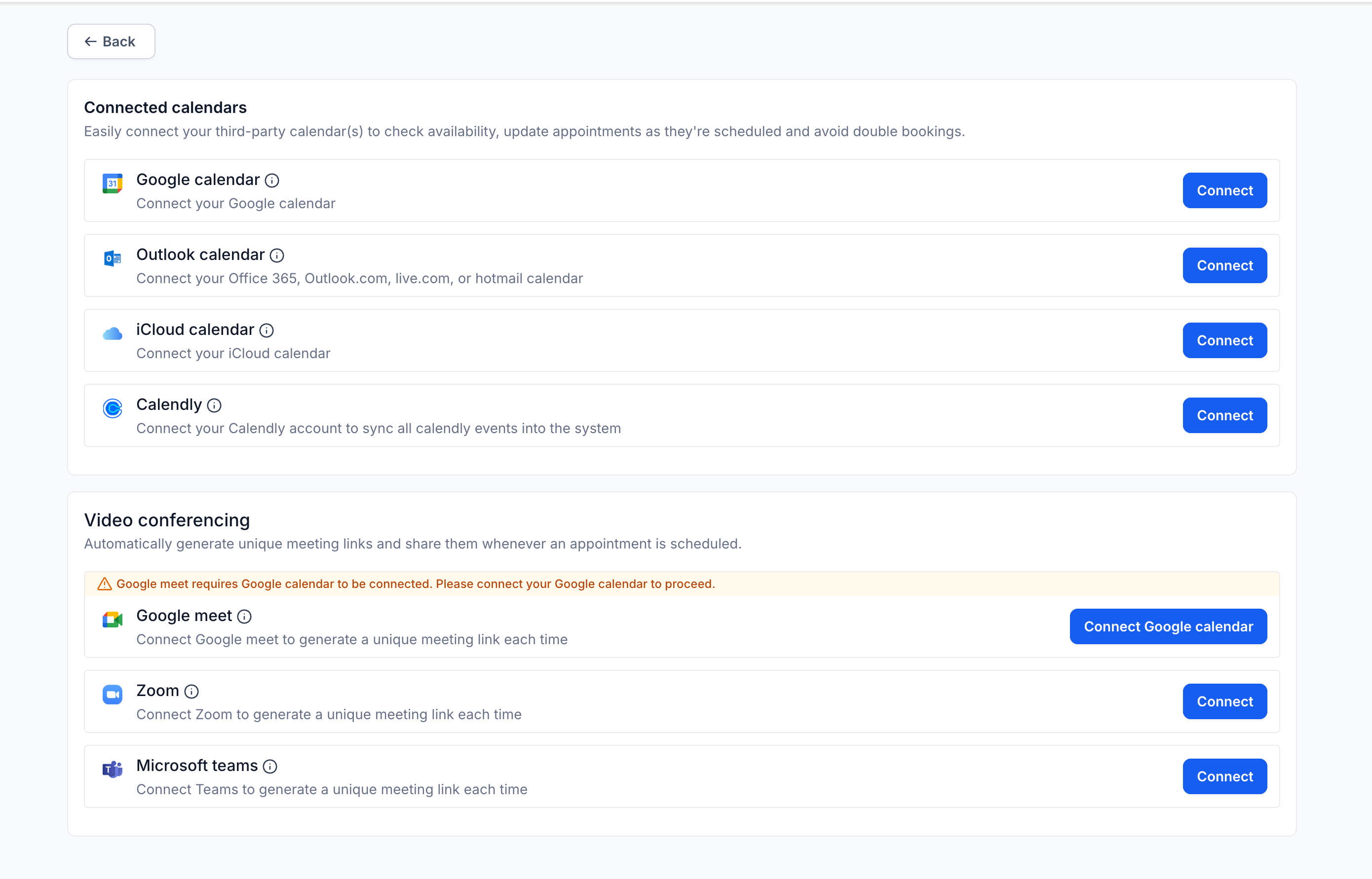
Select Google Calendar as the calendar provider.
When Google asks you to choose an account, select the same Google account you want to use with Chat To Clients CRM.
If the correct account is not shown in Google's account chooser, use Google's available account-selection or sign-in option to sign in with that account.
Important: You do not need to select a different Google account simply because the account was previously connected. The goal is to authorize the correct account for the current Chat To Clients CRM user.
Complete Google's authorization process and grant the requested permissions required for the Google Calendar integration.
Return to Chat To Clients CRM after authorization is complete.
Confirm that the Google account now appears under Calendar Settings > Connections.
Verify that the Google Calendar you want to use is available for the applicable calendar configuration.
Check Google Permissions and Reconnect the Account
A Google account can appear connected while its authorization no longer provides all of the permissions Chat To Clients CRM needs. Reconnecting the account allows the user to reauthorize Chat To Clients CRM and restore required permissions without assuming that an entirely different Google account must be added.
Go to Settings > Integrations.
Locate the Google integration.
Check for a warning or indication that required permissions are missing.
If Chat To Clients CRM provides a Reconnect option, click Reconnect.
Select the correct Google account.
Complete the Google authorization prompts and grant the required permissions.
Return to Calendars > Calendar Settings > Connections.
Confirm that the Google account and intended calendars are now available.
A Google connection may require reauthorization after changes such as revoked permissions, Google account security changes, password changes, or an authorization that is no longer valid.
For more information about these scenarios, see Why Google Calendar Integration Breaks.
Re-Integrate Google Calendar if the Account Still Does Not Appear
If reconnecting permissions does not restore the account, a complete Google Calendar reintegration may be necessary. Reintegration refreshes the connection and is the appropriate escalation path when the existing authorization cannot be restored through the normal Reconnect option.
Before removing an existing connection, review the dedicated reintegration instructions so you understand the applicable calendar and synchronization behavior.
Follow How to Re-Integrate Google Calendar for a User for the current reintegration process.
After reconnecting:
Return to Calendar Settings > Connections.
Confirm the correct Google account shows as connected.
Verify that the intended Google Calendar is available.
Review the applicable Linked and Conflict Calendar configuration.
Test calendar synchronization if needed to confirm that the connection is working correctly.
Connected Google Accounts vs Linked Calendars
Connecting a Google account and selecting a Google Calendar for synchronization are separate parts of calendar configuration. Understanding the difference helps determine whether the problem is with Google authorization or with the configuration of a particular calendar.
Connected Google account: Authorizes Chat To Clients CRM to access the user's Google Calendar account.
Linked Calendar: Determines the external calendar used for applicable synchronization behavior.
Conflict Calendar: Uses busy events from selected calendars to help determine the user's availability.
If the Google account appears correctly under Connections but the expected calendar behavior is still missing, review the Linked and Conflict Calendar configuration rather than repeatedly reconnecting the Google account.
See Setting Up Linked Calendars & Conflict Calendars for detailed configuration instructions.
Frequently Asked Questions
Q: Why is my Google account connected but not showing where I expect it in Chat To Clients CRM?
The account may need to be reauthorized, required Google permissions may be missing, or the specific Google Calendar you need may not yet be selected for the applicable calendar configuration. Check both Calendar Settings > Connections and Settings > Integrations > Google before removing the connection.
Q: Should I select the same Google account again when reconnecting?
Yes. If you want to restore the existing user's Google Calendar connection, select the Google account that user intends to use with Chat To Clients CRM. You do not need to choose a different Google account simply because the existing connection requires reauthorization.
Q: Do I need to grant all requested Google Calendar permissions?
Grant the permissions required by the Google Calendar integration when authorizing or reconnecting the account. Missing required permissions can prevent Chat To Clients CRM from accessing or synchronizing calendar information correctly.
Q: Can an agency admin connect another user's Google Calendar using "login as"?
The Google account should be connected by the user who owns it. The user should sign in to their own Google account and complete the Google authorization process directly.
Q: What if my Google account is connected but a specific Google Calendar is unavailable?
Check whether the account has sufficient access to the specific Google Calendar. This can be especially important for calendars shared from another Google account. See Google Calendar Writer Access Error for additional troubleshooting.
Q: What should I do if reconnecting the Google account does not fix the problem?
Follow the complete Google Calendar reintegration process. After reintegration, verify the account under Calendar Settings > Connections and test the calendar synchronization.
Q: Is connecting my Google account the same as selecting a Linked Calendar?
No. Connecting the Google account authorizes Chat To Clients CRM to access Google Calendar. Linked Calendar configuration determines which calendar is used for the applicable synchronization behavior.