
Troubleshooting: Inbound SMS Showing as Calls or Not Appearing at all.
If you're not seeing incoming SMS messages in the platform — or they're showing up as calls instead — this guide walks you through how to troubleshoot and resolve the issue based on whether you're using Twilio or Chat To Clients Phone.
How to Fix This (At a Glance)
Contact Support for resolution.
- Check Twilio Number Configuration
- Number is SMS/MMS-capable.
- Webhook URL is correctly set for messaging.
- Check whether the phone number is linked to a Twilio Messaging Service. If it is, verify incoming-message routing in the Messaging Service's Integration settings. If it is not, verify the phone number's own Messaging webhook.
- Review Message Logs.
- If the issue still persists, contact Twilio Support.
Step-by-Step Fix (for Twilio Users)
- Go to twilio.com/login and sign in.
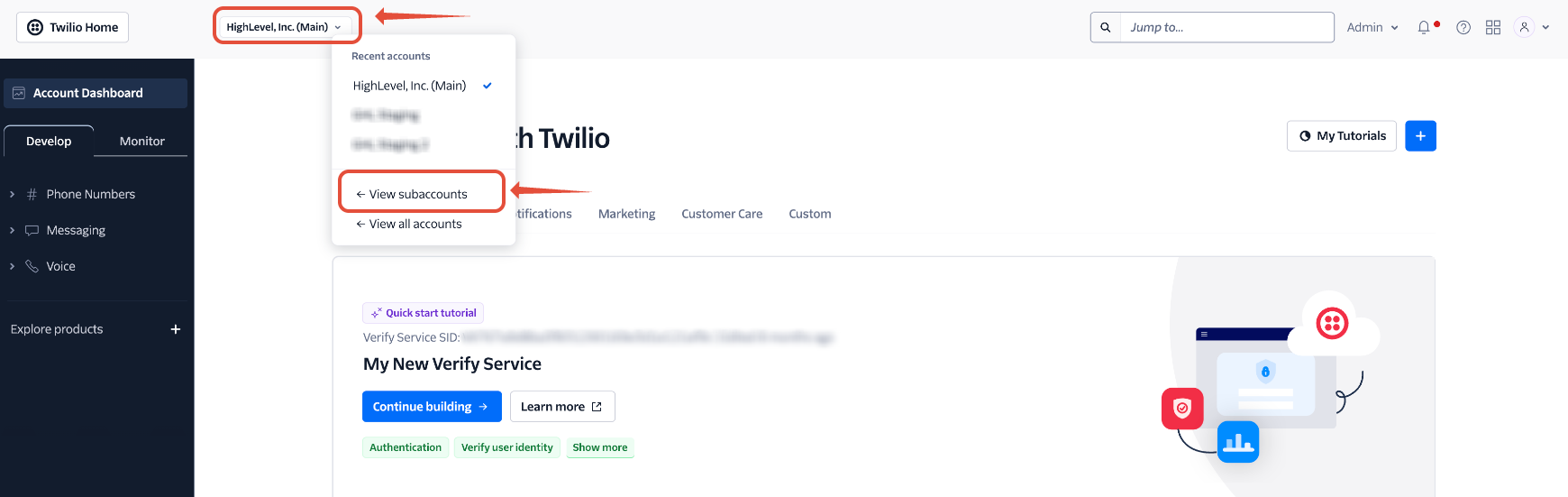
- In the top-left drop-down, click Account Name > View Subaccounts.
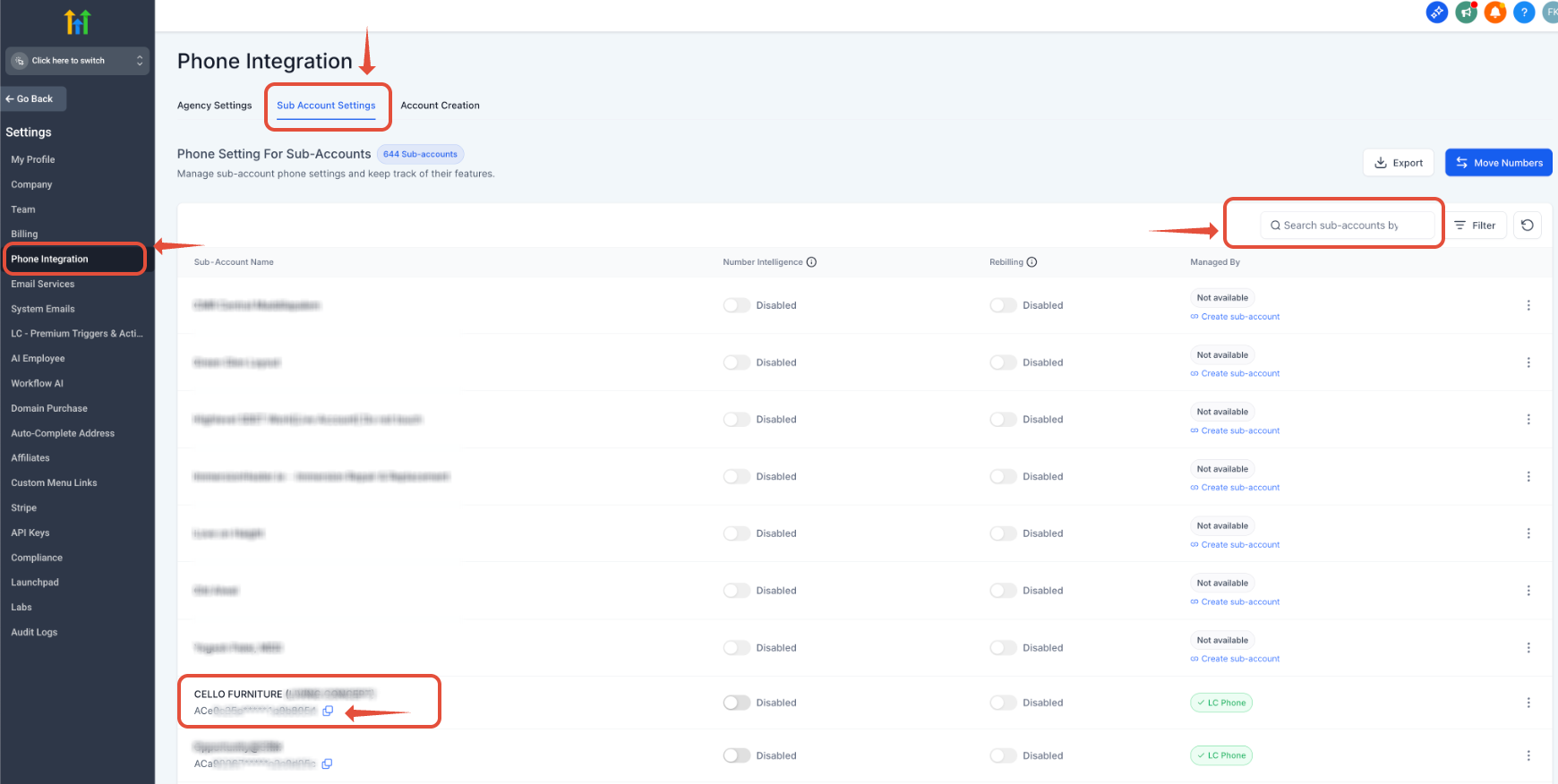
If you have multiple subaccounts and can't find the right one, go to your Agency View > Settings > Phone Integration > Sub-Account Settings. Search for the account you're troubleshooting and copy the Account SID as shown in Screenshot 2.0 below.
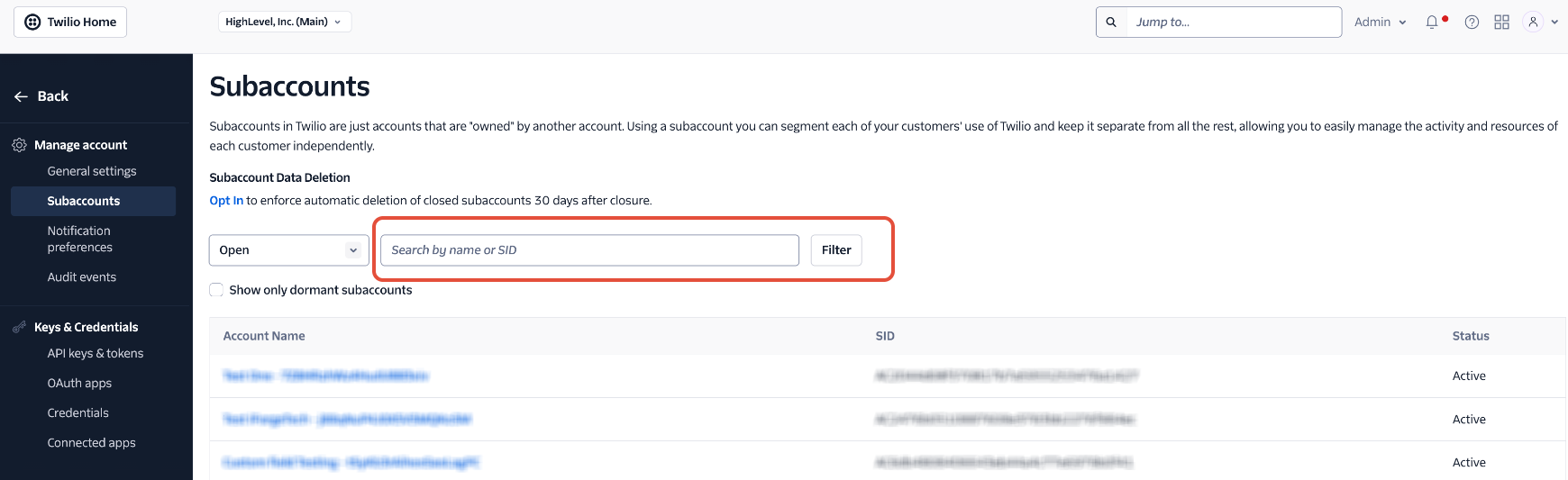
- In Subaccounts, paste the Account SID into the search bar to find the matching subaccount.
- Click on the sub-account you were looking for.
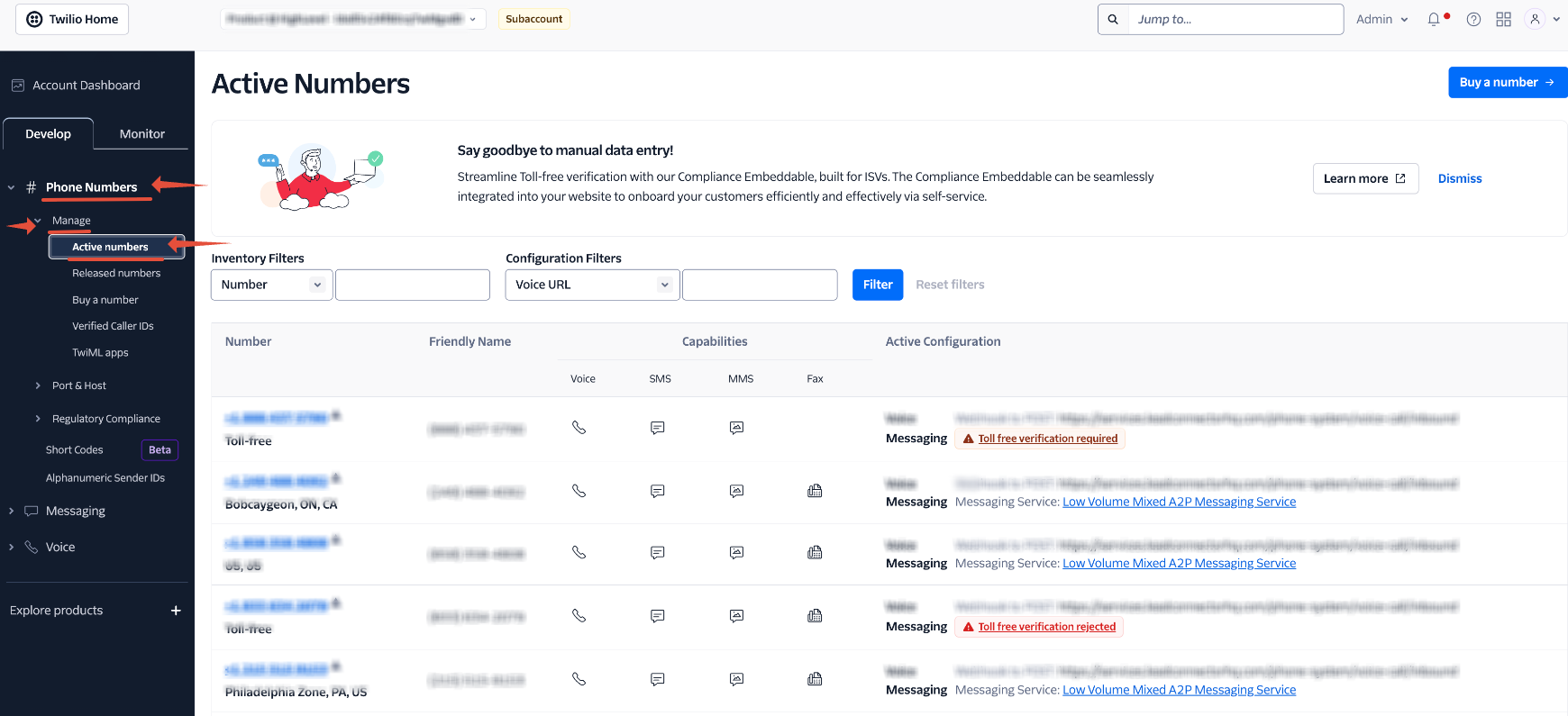
- Go to Phone Numbers > Manage > Active Numbers.
- Click the phone number in question.
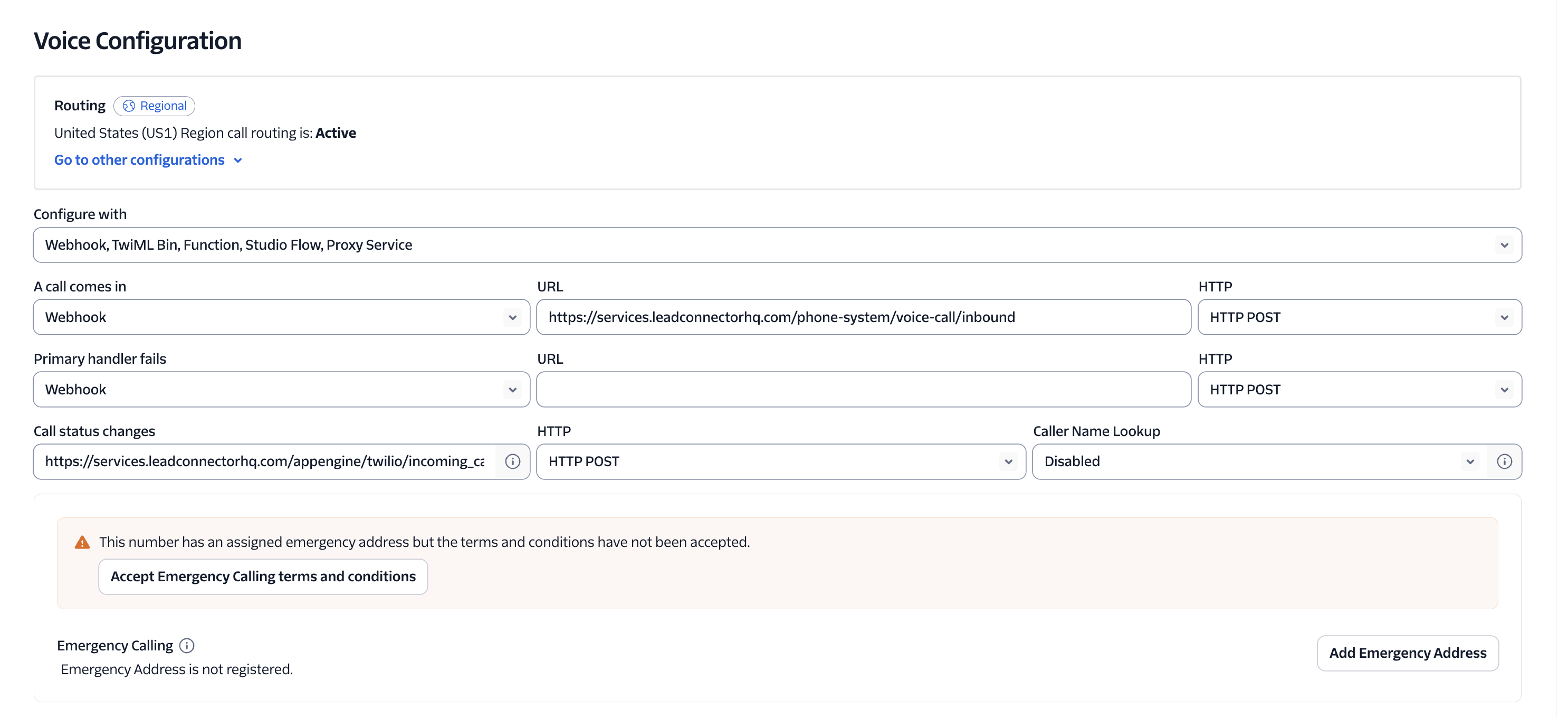
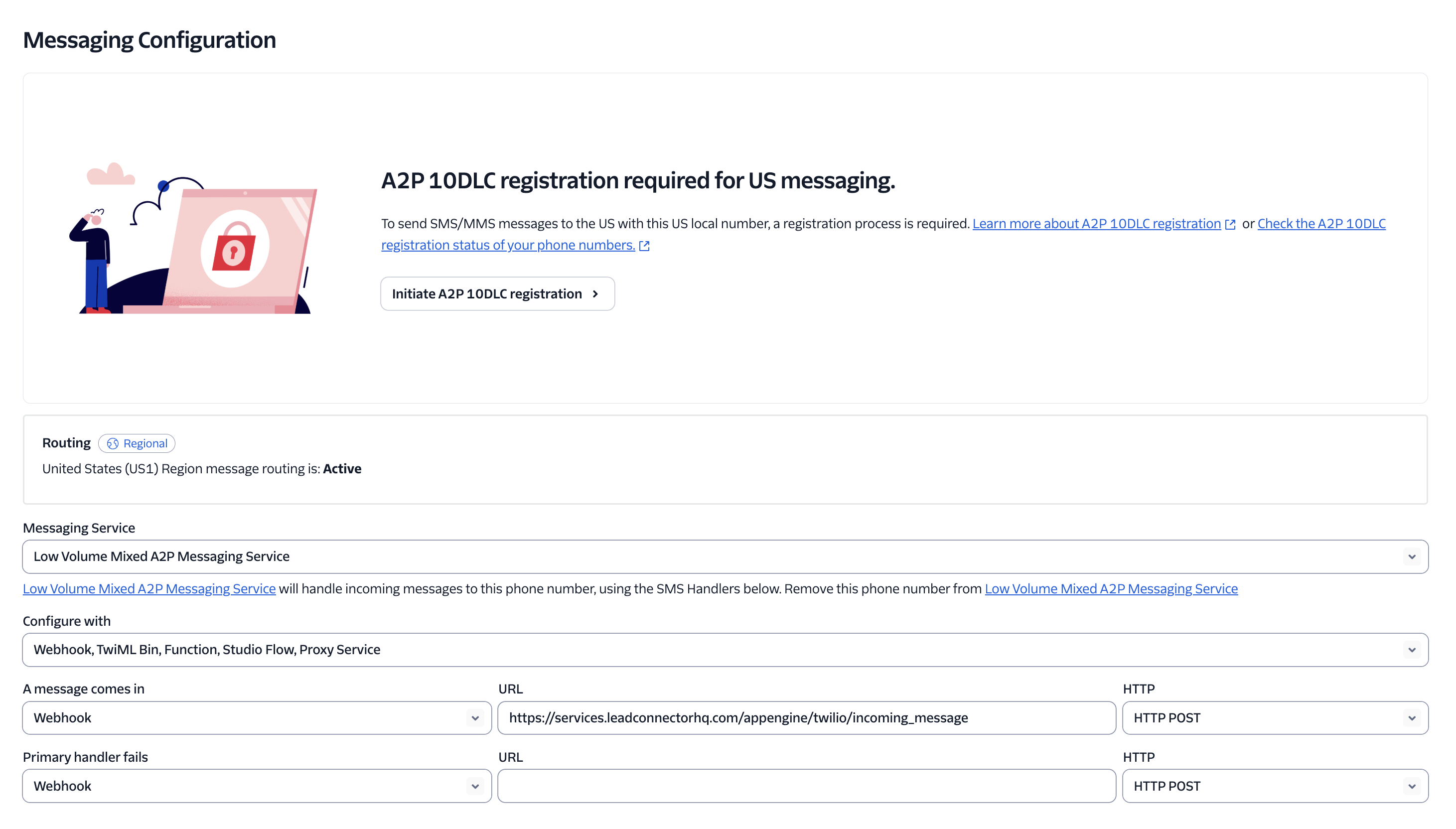
Confirm the Incoming Message Webhook
First, check whether the Twilio number is connected to a Messaging Service.
If the number is not connected to a Messaging Service:
- Open the Twilio phone number.
- Scroll to Messaging.
- Set A message comes in to Webhook.
- Enter:
https://services.leadconnectorhq.com/appengine/twilio/incoming_message - Set the method to HTTP POST.
- Click Save.
If the number is connected to a Messaging Service:
- Open the linked Messaging Service.
- Go to Integration.
- Under Incoming Messages, select Send a webhook.
- Enter:
https://services.leadconnectorhq.com/appengine/twilio/incoming_message - Set the Request URL method to HTTP POST.
- Enter the same URL as the Fallback URL.
- Set the Fallback URL method to HTTP POST.
- Click Save.
Test the Configuration
- Send a new SMS to the Twilio number from an external phone.
- Confirm that the message appears in Conversations in Chat To Clients CRM.
- If it does not appear, review the corresponding message in Twilio Messaging Logs.
- Record the Message SID and exact timestamp if further troubleshooting is required.
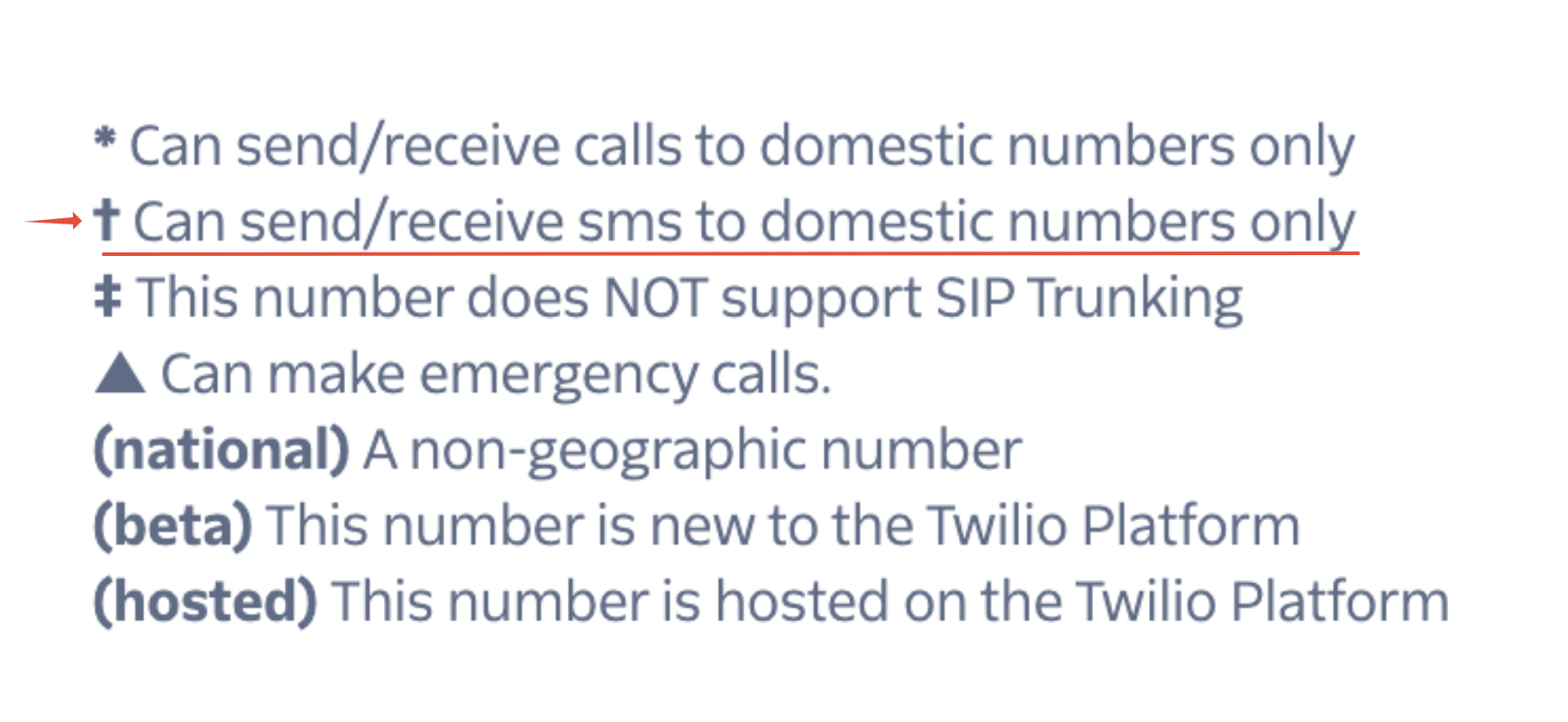
Check SMS Capability
Confirm that the Twilio phone number supports SMS. If the inbound message contains media, also confirm that the number supports MMS.
A dagger icon (†), when shown in Twilio, indicates that SMS capability may be limited to domestic messaging for that number.
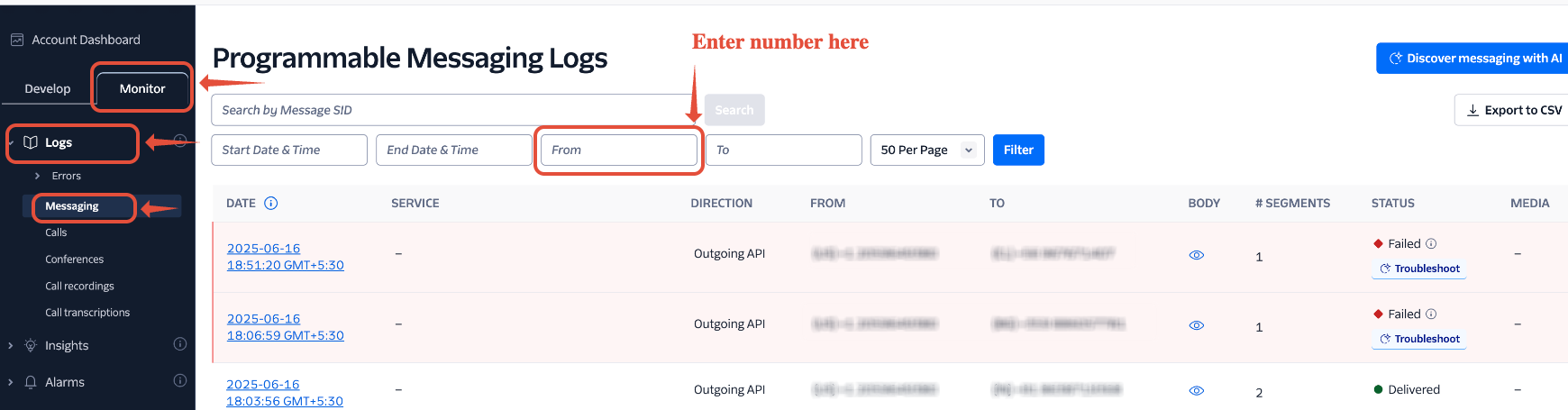
Review Message Logs
- In the left sidebar, click Monitor > Logs > Messaging.
- Enter the contact's phone number in the From fieldwhen troubleshooting an inbound SMS.
Use the To field when troubleshooting an outbound SMS sent to the contact.
- Review the message status.
- Click the Date to view message details.
Note: If Twilio shows the inbound message in Messaging Logs but the message does not appear in Chat To Clients CRM, copy the Message SID, exact timestamp, sender number, recipient number, and message status.
Then verify the incoming-message webhook or Messaging Service configuration. If the configuration is correct and the issue continues, include these details when escalating the issue.
Frequently Asked Questions
This can happen when Twilio's incoming-message routing is not configured correctly.
First determine whether the number is connected to a Messaging Service:
- If it is not, verify the number-level A message comes in webhook.
- If it is, verify the Messaging Service's Integration settings.
Also confirm that the Chat To Clients CRM incoming-message endpoint is configured with HTTP POST.