Email Services Configuration - Reply & Forward Settings
Reply & Forwarding Addresses
Configure forwarding, reply-to, BCC, and reply tracking settings for your Chat To Clients CRM email service.
Table of Contents
- 1. Forwarding Address
- 2. Reply Address
- 3. BCC Emails
- 4. Forward to Assigned User
- 5. Billing for Forwarded Emails
- 6. Enable Reply Tracking – Other SMTP Providers
- 7. Frequently Asked Questions
Where to Find Reply & Forward Settings
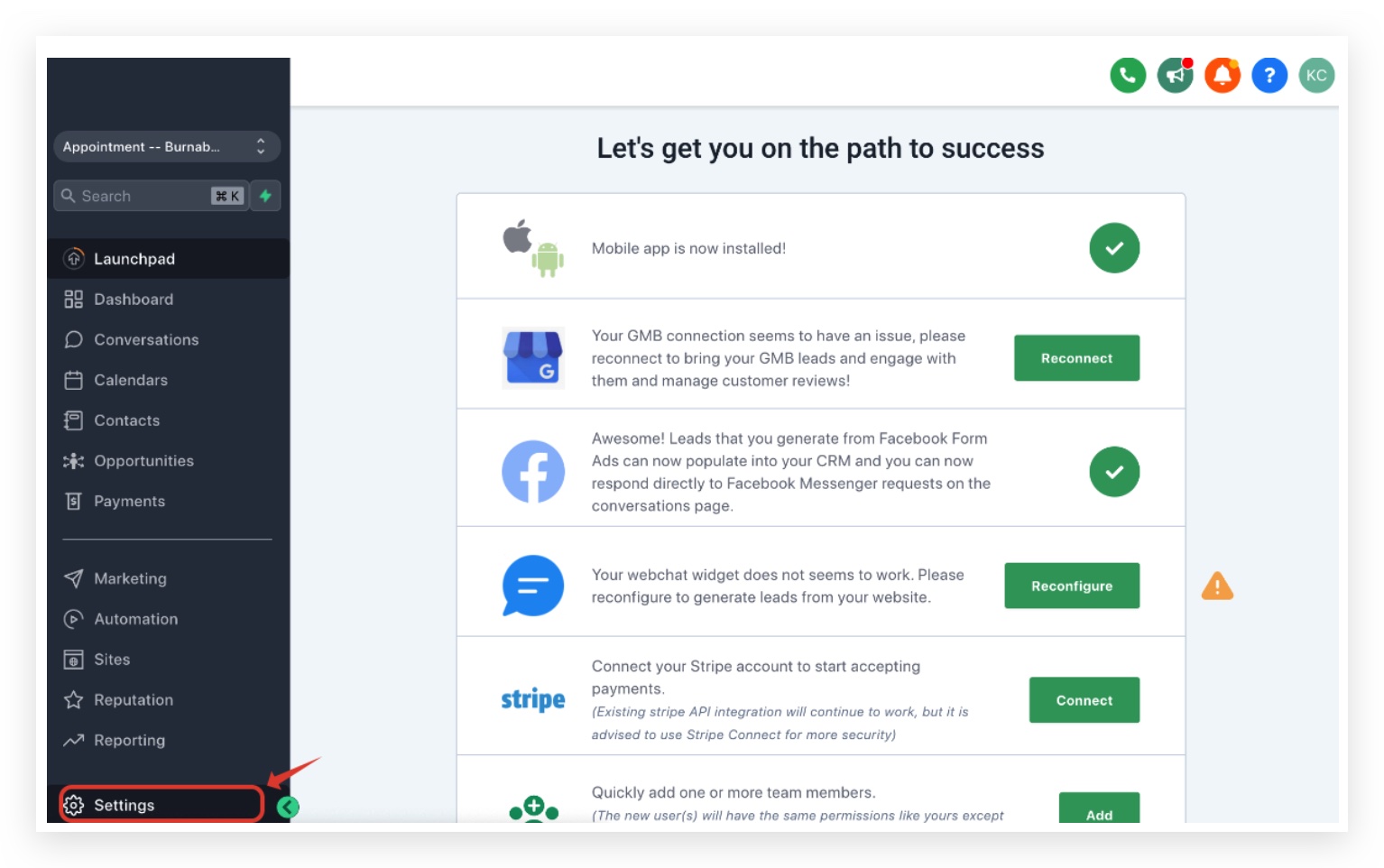
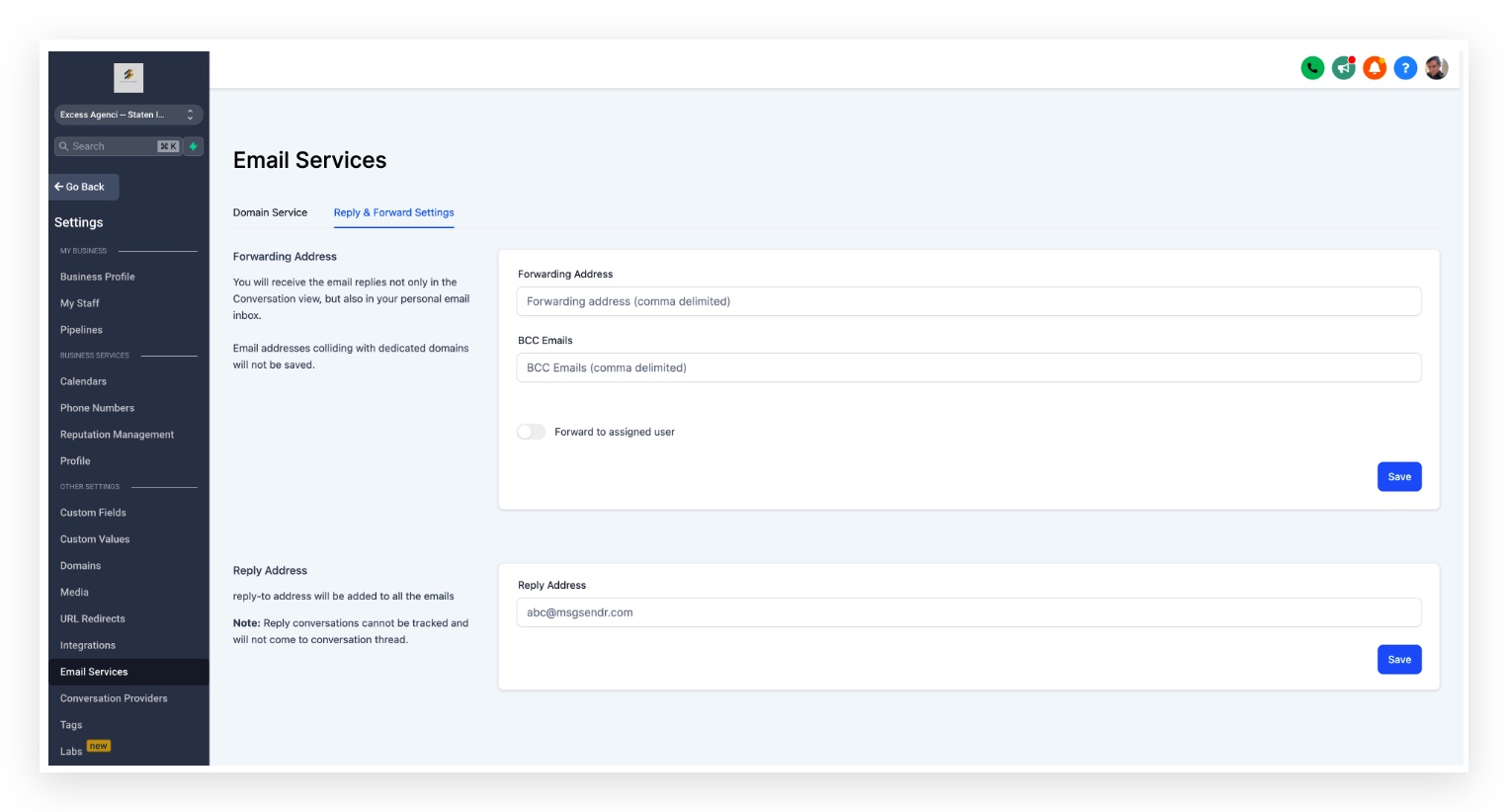
These settings let you receive copies of emails, configure reply-to addresses, and control how replies are tracked. To get started, navigate to:
Settings → Email Services → Reply & Forward Settings
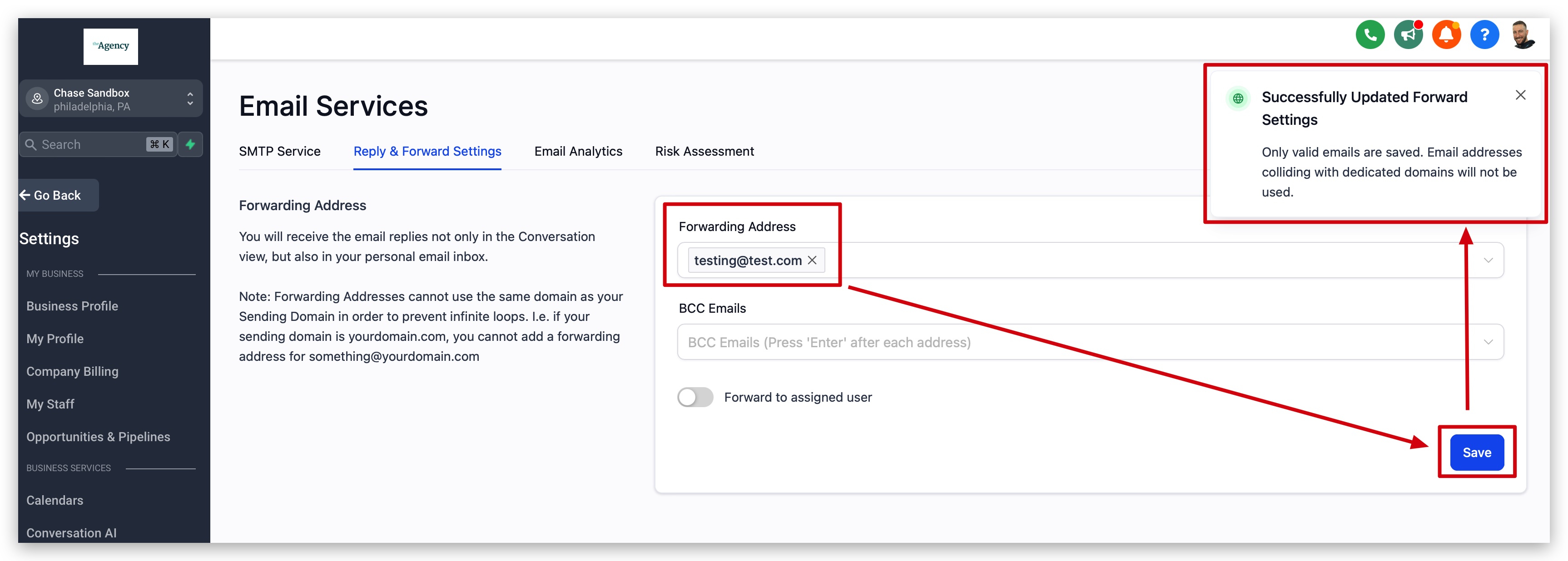
Forwarding Address
When a lead responds to an email, that response always appears in the Conversations tab. If you also want a copy of the lead's reply delivered to someone's inbox, enter that email address here.
You can enter multiple forwarding addresses separated by commas, for example:
email1@test.com, email2@test.com, email3@test.com
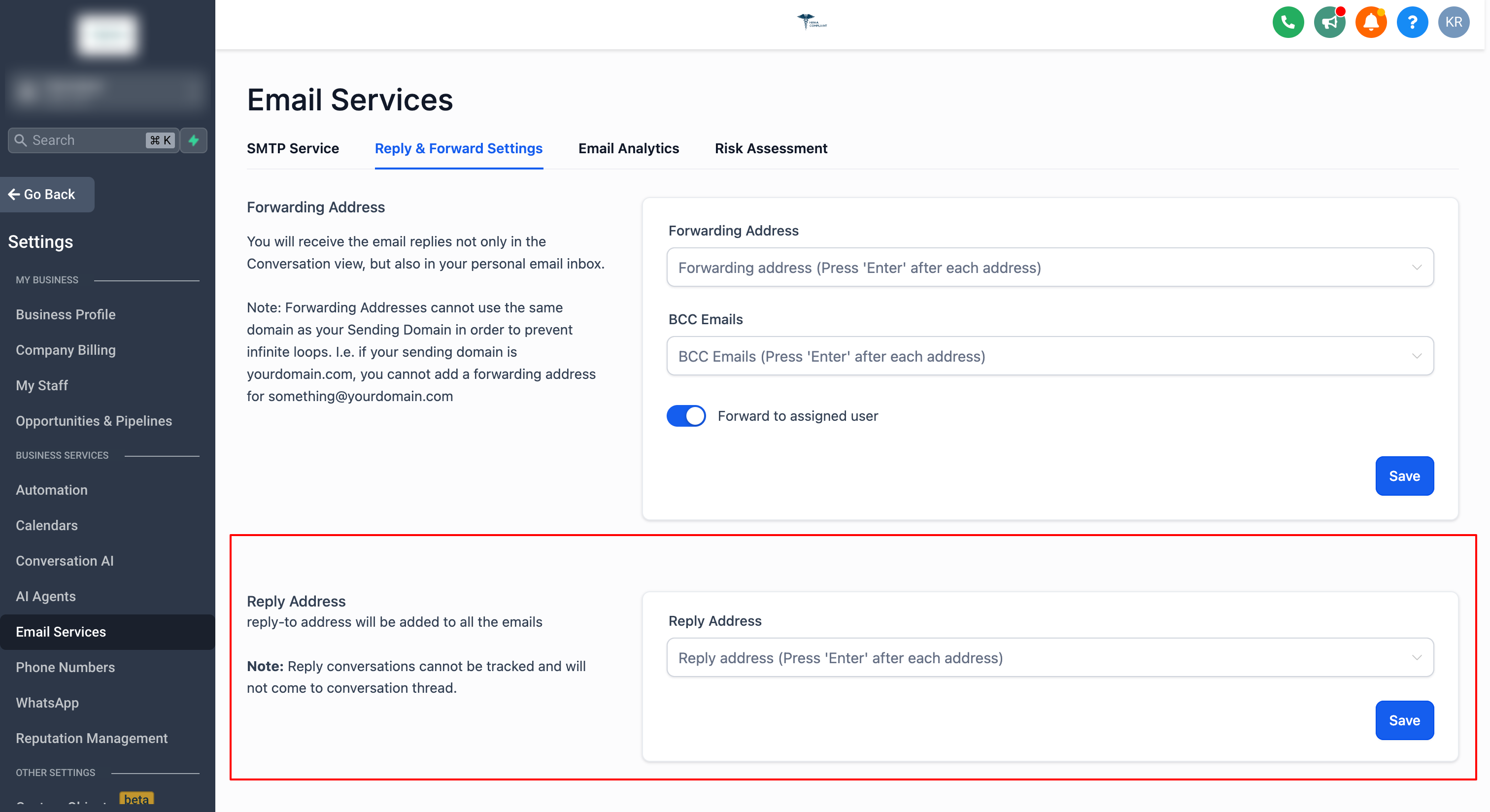
Reply Address
Adding a reply-to address routes all incoming email replies to that address instead of the Conversation tab.
When you reply to a lead's email from your external inbox (outside the CRM), that reply will not sync back to the CRM.
You can add up to 5 email addresses.
Navigate to Settings → Email Services → Reply & Forward Settings → Reply Address and click Save after adding your addresses.
BCC Emails
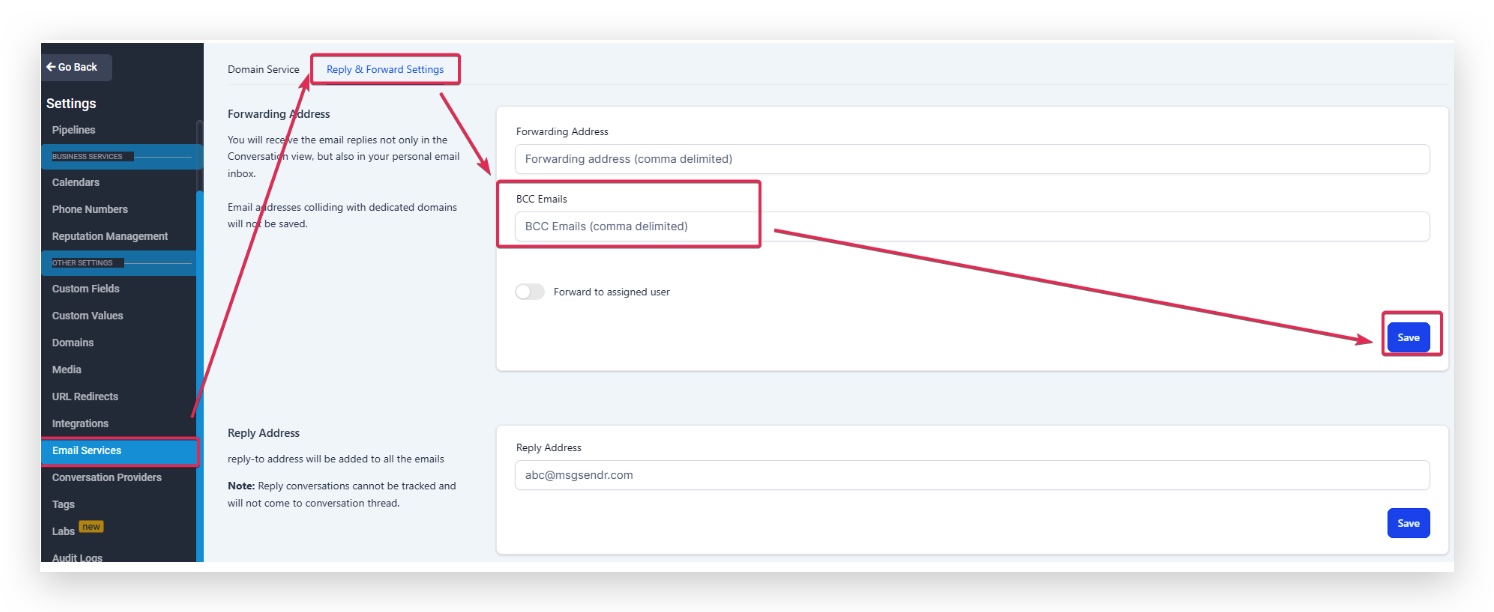
Receive a Blind Carbon Copy of every 1-on-1 email, workflow email, and billing email sent from this location. Configure this from Settings → Email Services → Reply & Forward Settings → BCC Emails.
Forward to Assigned User
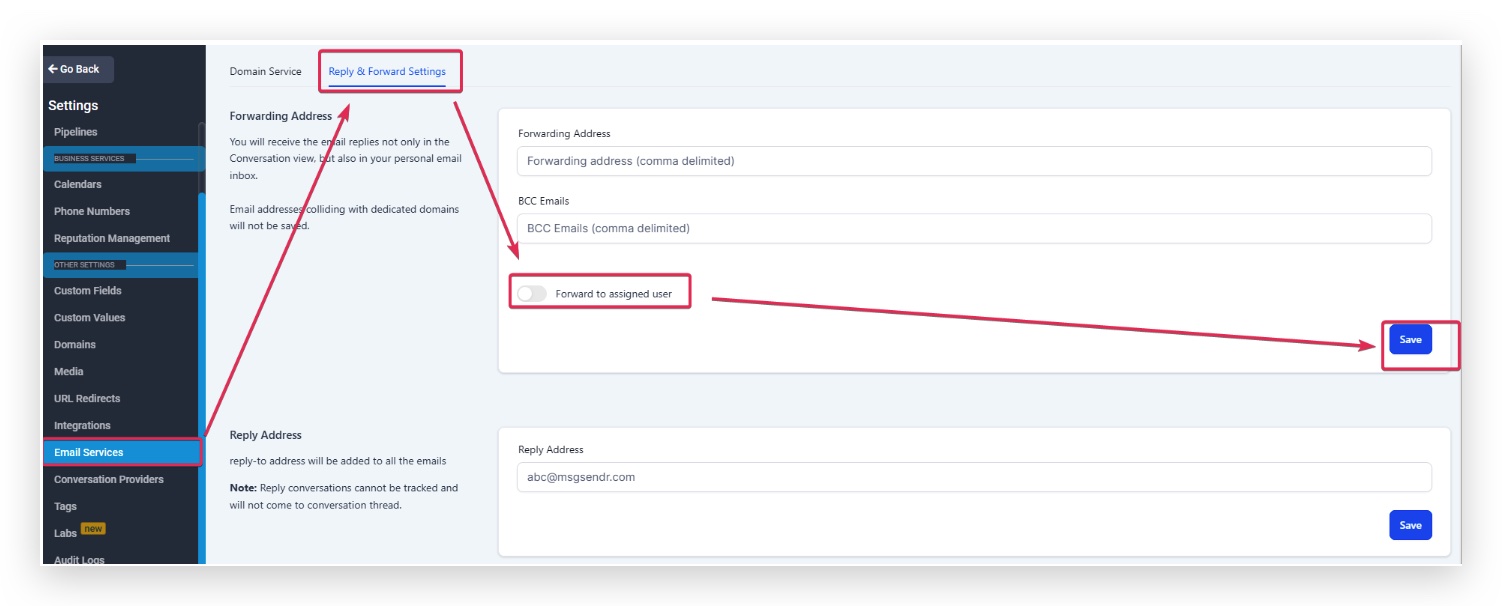
The lead's assigned user receives email replies directly in their email inbox. The email is sent to the address configured under Settings → My Staff → Edit User → User Info.
Billing for Forwarded Emails
Forwarded messages are billed the same way as normal outgoing emails when rebilling is enabled, improving usage accuracy and transparency.
| Service | Applies To |
|---|---|
| Chat To Clients Email | Agency and sub-account (when rebilling is enabled) |
| Mailgun (Location-owned) | Sub-account only |
Each forwarded email incurs a per-email charge aligned to regular email sending rates.
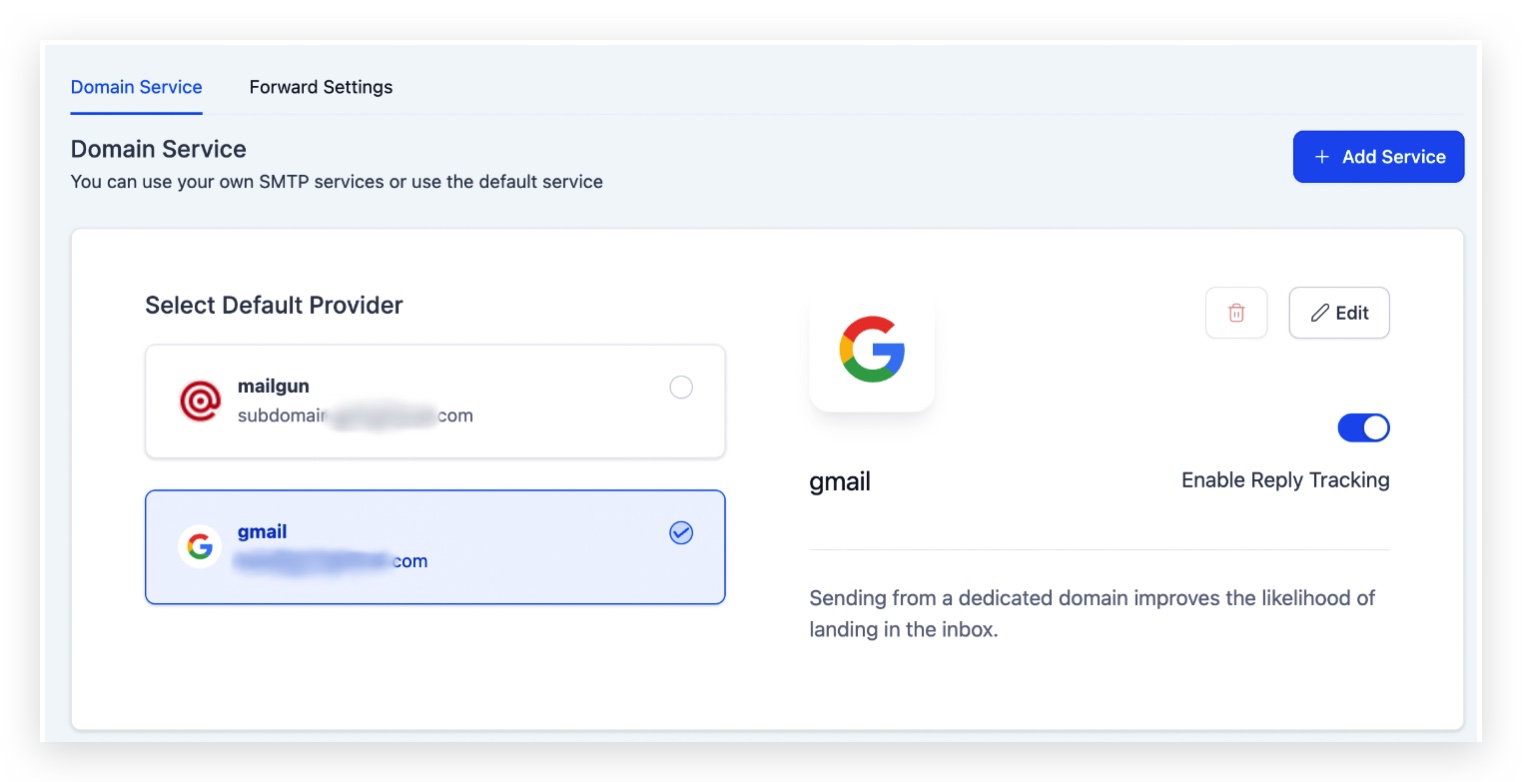
Enable Reply Tracking – Other SMTP Providers
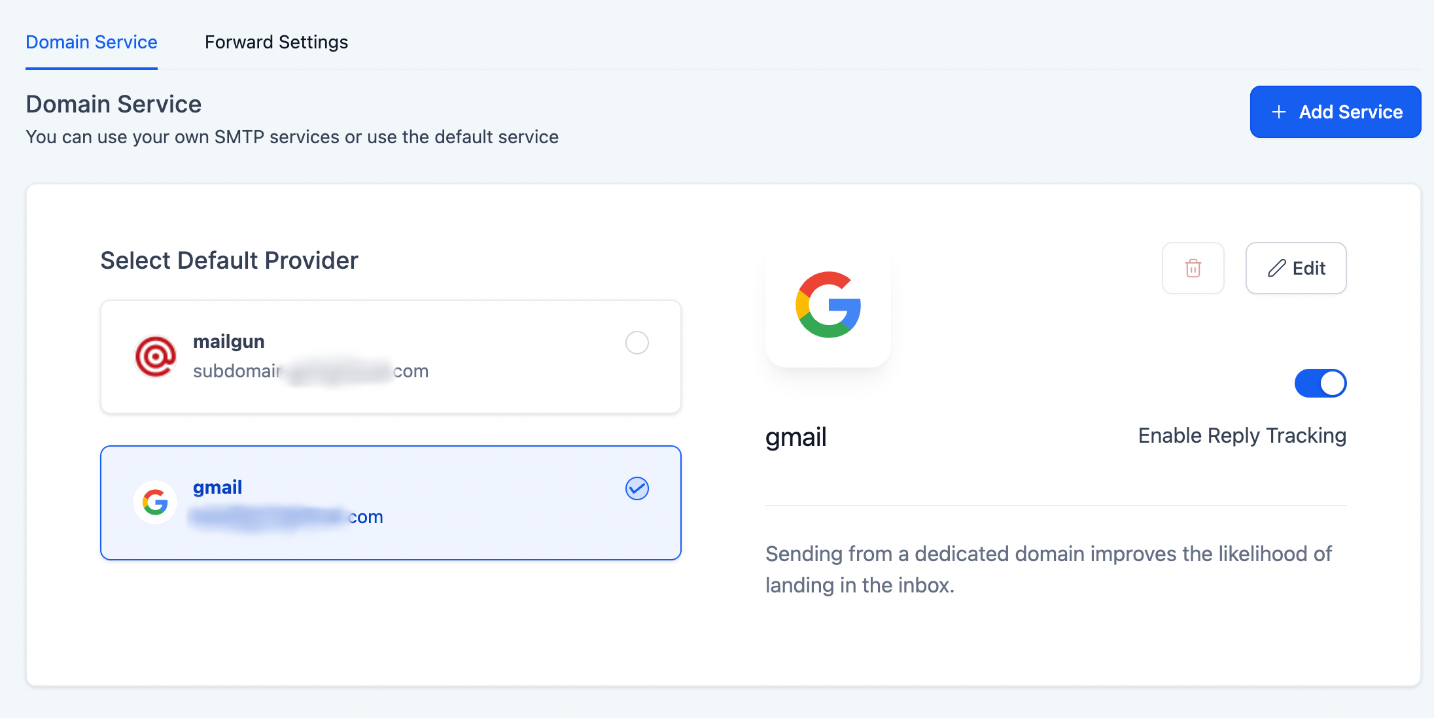
There is no option to enable reply tracking for Mailgun since it is directly integrated with the Receiving Route set up in Mailgun. Learn how to set up replies in Mailgun →
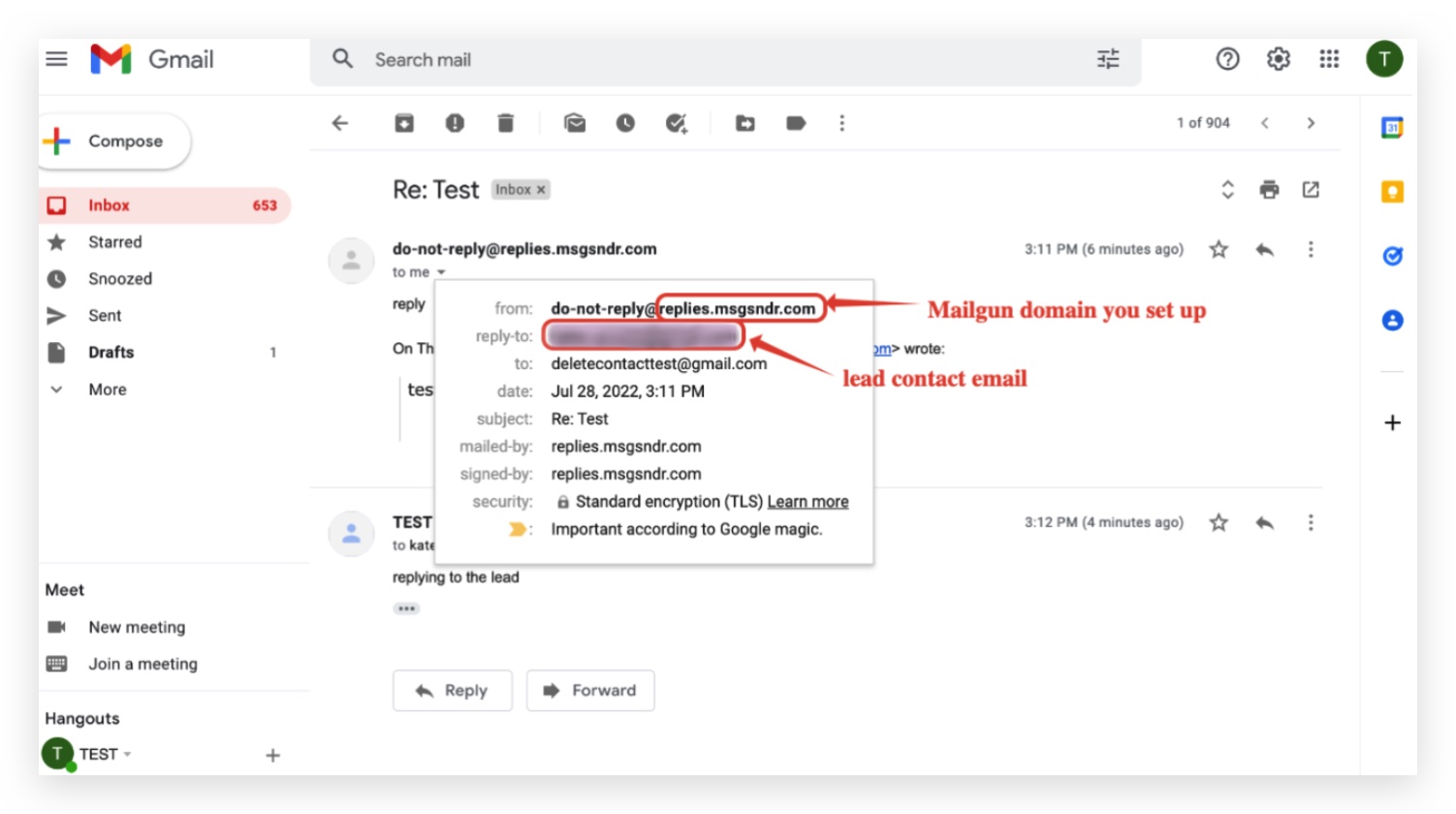
If you mask the sender email (e.g. testing@gmail.com), the reply-to address will show as testing@replies.subdomain.com — the Mailgun subdomain configured for the location in Agency Settings → Mailgun.
Replies will still appear correctly in the sub-account's Conversation tab.
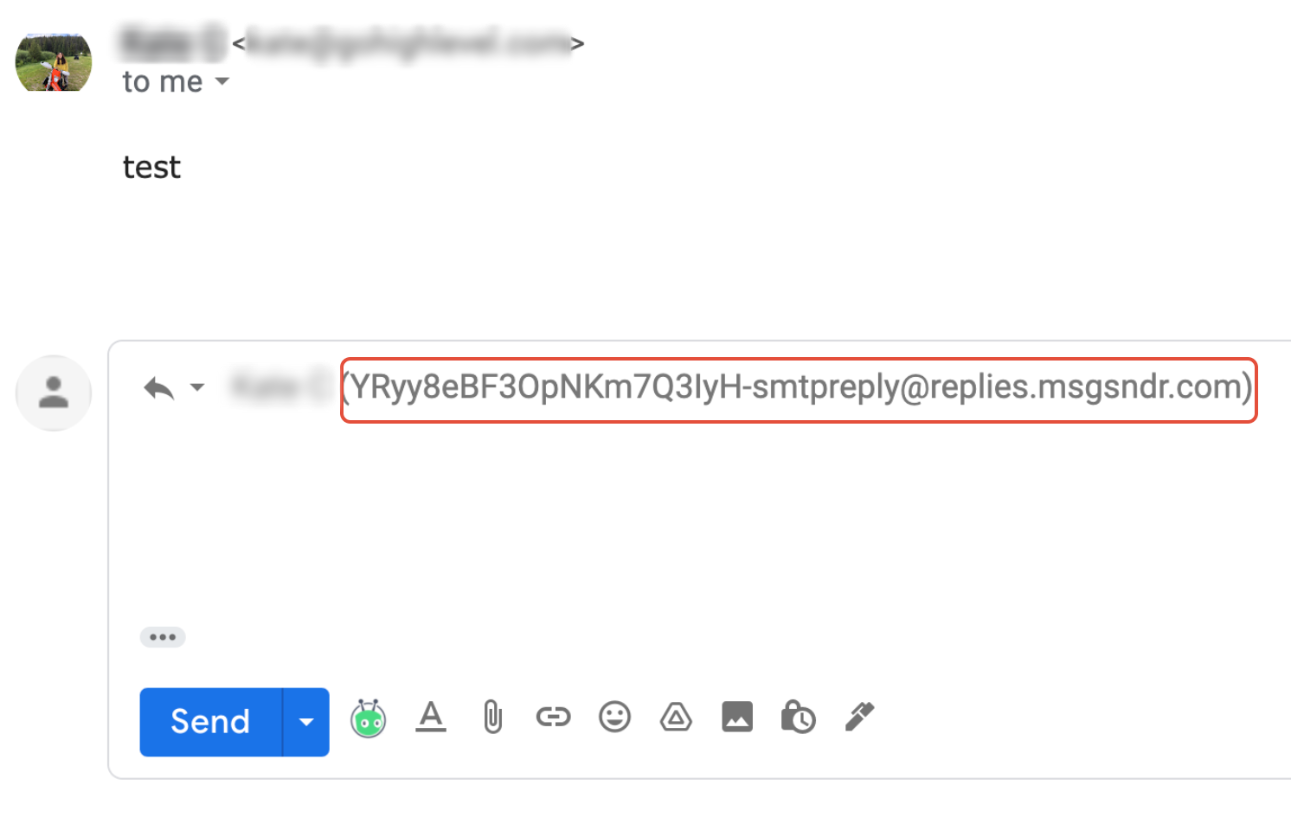
✅ Example With Reply Tracking
The reply-to address shown in the email header is the Mailgun subdomain address. This allows the system to capture replies and route them back into the Conversation tab, where you can read, respond, or trigger automated workflows using tags.
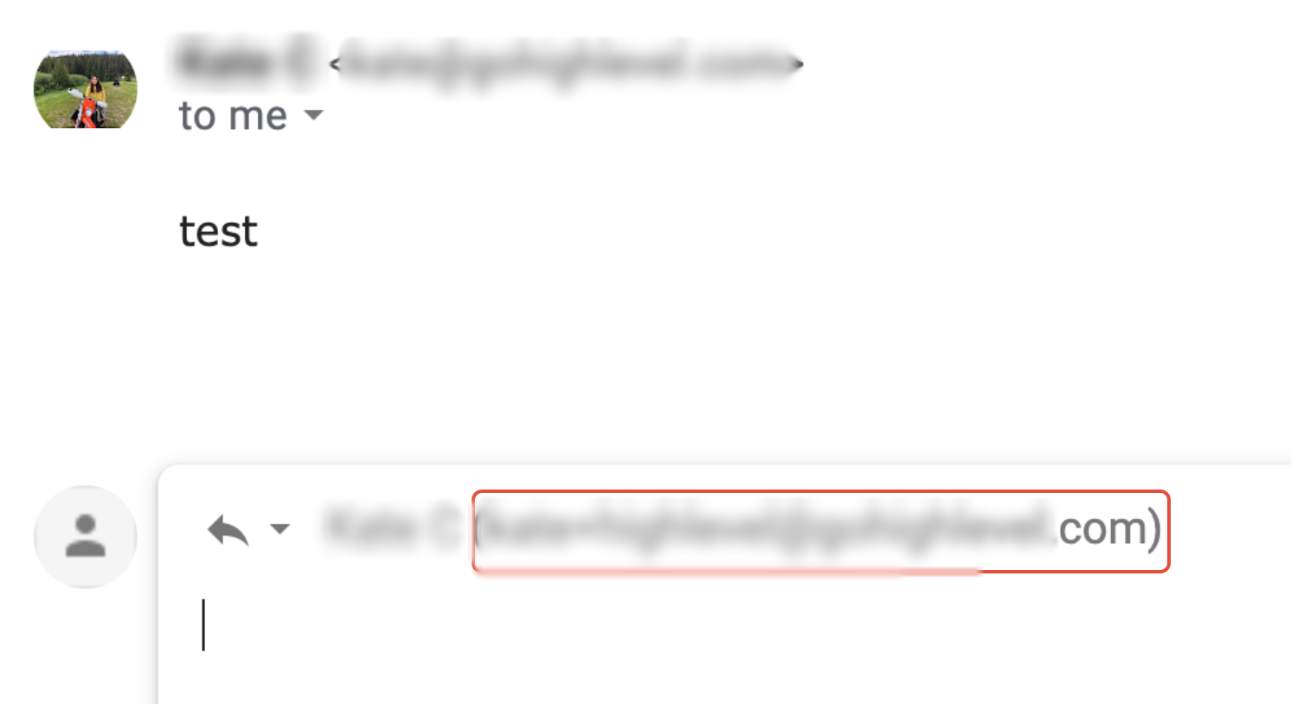
❌ Example Without Reply Tracking
Without reply tracking, the reply-to address points to the configured sender email. Responses go directly to that inbox and are not captured in the Conversation tab.
Frequently Asked Questions