
Setting up QuickBooks Integration
Learn how to use the 2-way integration between Chat To Clients CRM and QuickBooks.
TABLE OF CONTENTS
https://www.youtube.com/watch?v=__c0gDVBLs0
https://www.youtube.com/watch?v=4QXRl3mArfY&feature=youtu.be
https://www.youtube.com/watch?v=QKgJcLx5Q-A
https://www.youtube.com/watch?v=d1eLzPdUlYo
What does the QuickBooks integration do?
Chat To Clients CRM -> QuickBooks
- Create customers in QB if they have activity in HL.
- When a payment is made inside HL (order form, subscriptions, membership checkouts, calendar payments), register sales receipts in QB (matches on contact email).
- When an invoice is marked as sent in HL, create an invoice in QB, also continue to sync updates from HL to QB
- Invoice Number
- Status (paid, voided, etc)
- Issue Date
- Due date
- Contact (created in QBO if it's not already there)
- Billing Email
- Invoice Total Value
- Invoice Amount Paid
- Line item name
- Discount and Taxes are adjusted against item price if its a US subaccount. For rest of regions, the get synced too.
- WILL NOT sync existing invoices, only new invoices created after the integration.
QuickBooks -> Chat To Clients CRM
- Brings existing contacts from QB to HL and continues to sync new contacts from QB to HL (can take up to 5 min).
- When QB shows a contact's 1st invoice paid in full (balance = $0), Send Review Request from HL (this can be turned on/off on the integration card).
- Import old invoices from QB to HL (if enabled during the initial connection). NOTE that changes made to those invoices in HL will NOT sync back into QB, also this WILL NOT create a loop where invoices imported from HL to QB get reimported back from QB to HL. No worries!
Integrate QuickBooks
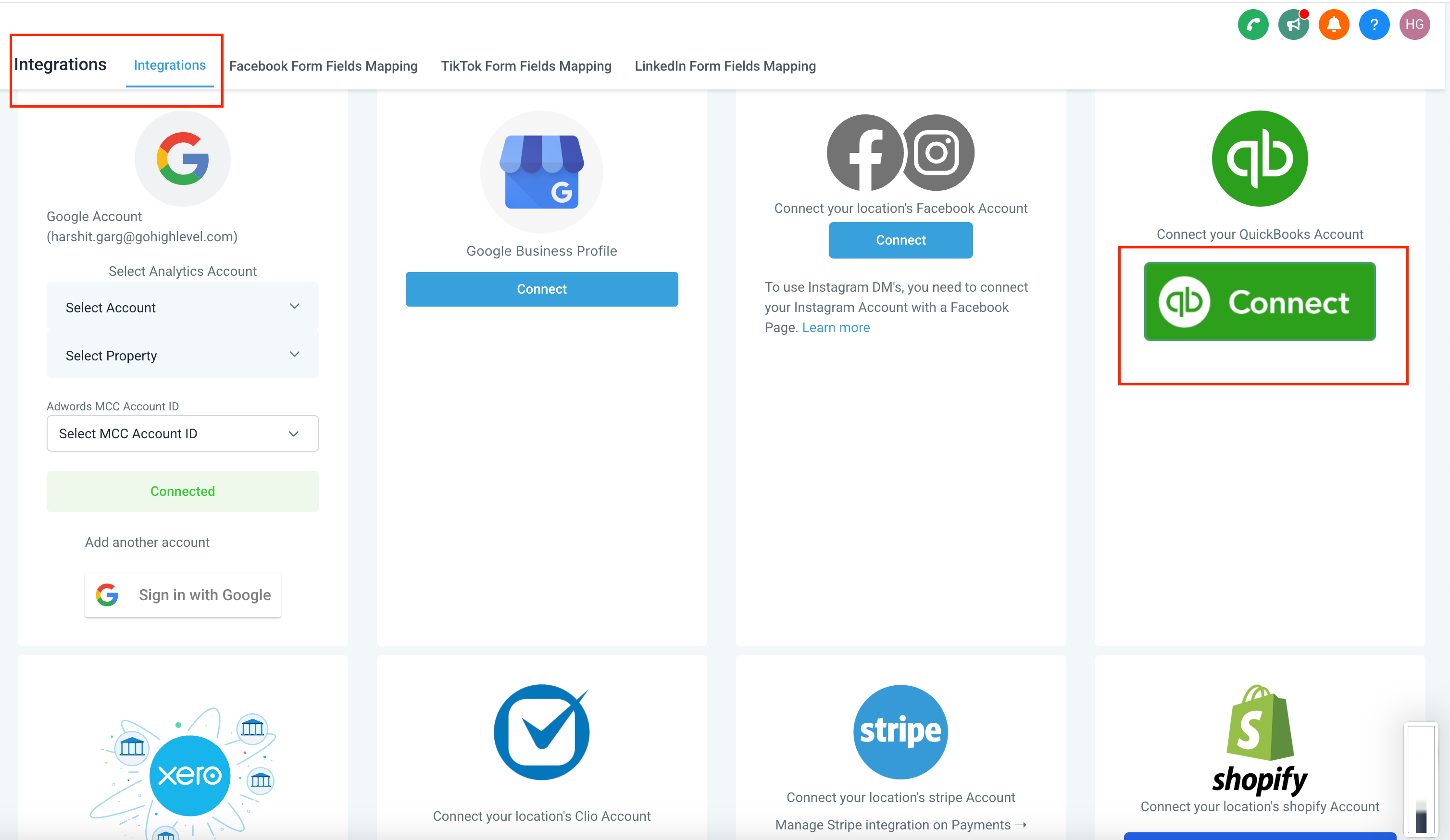
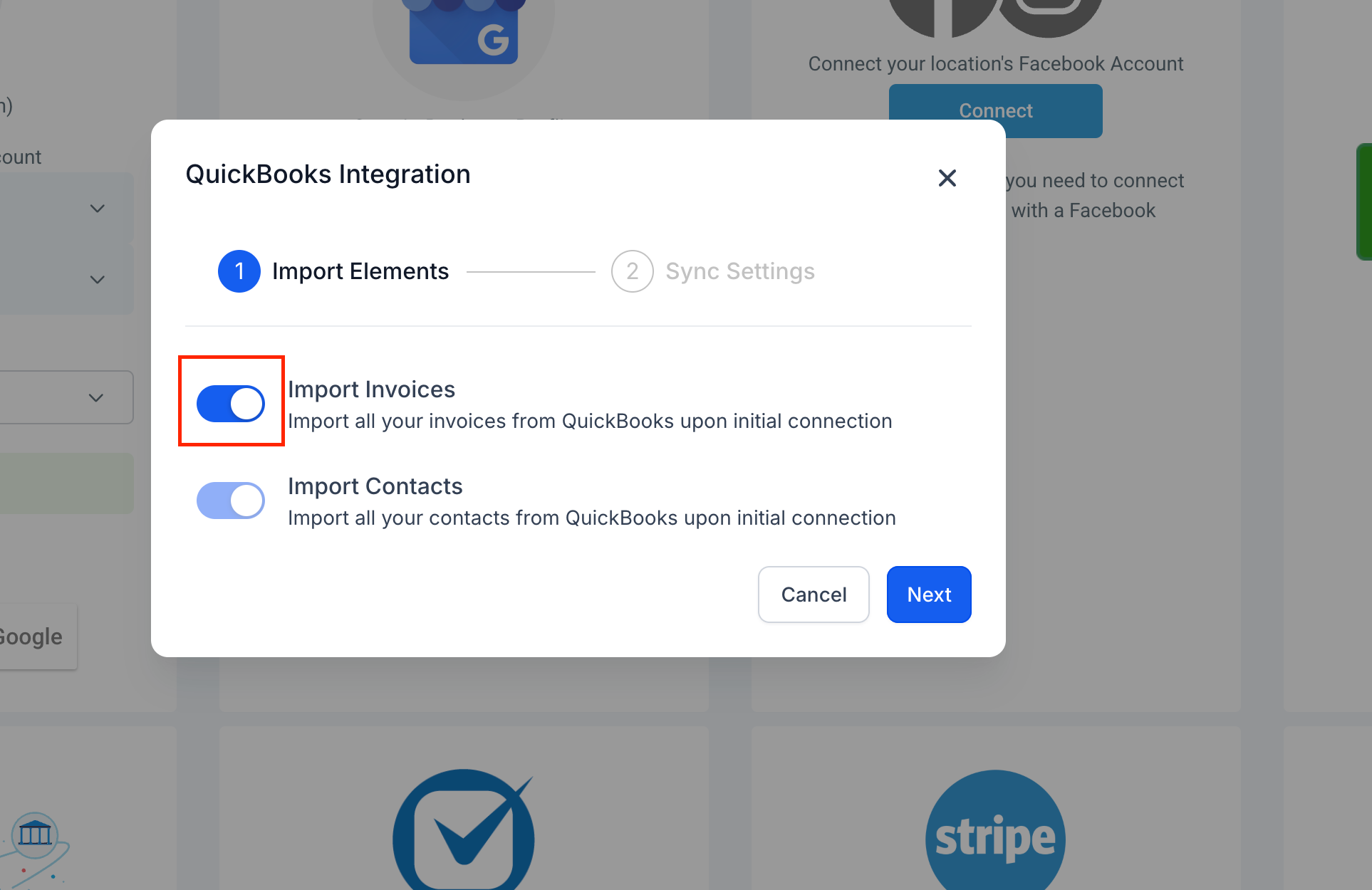
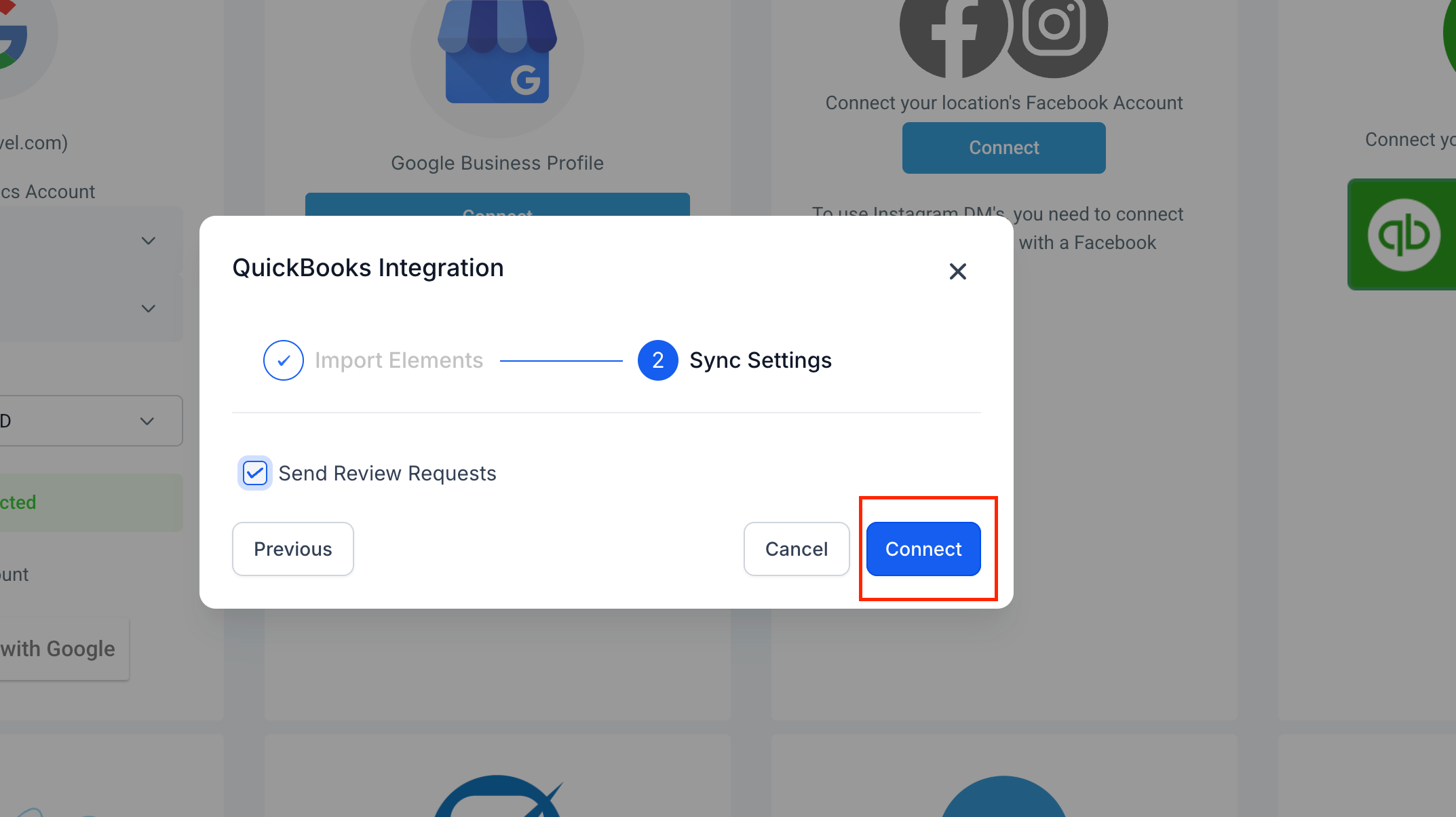
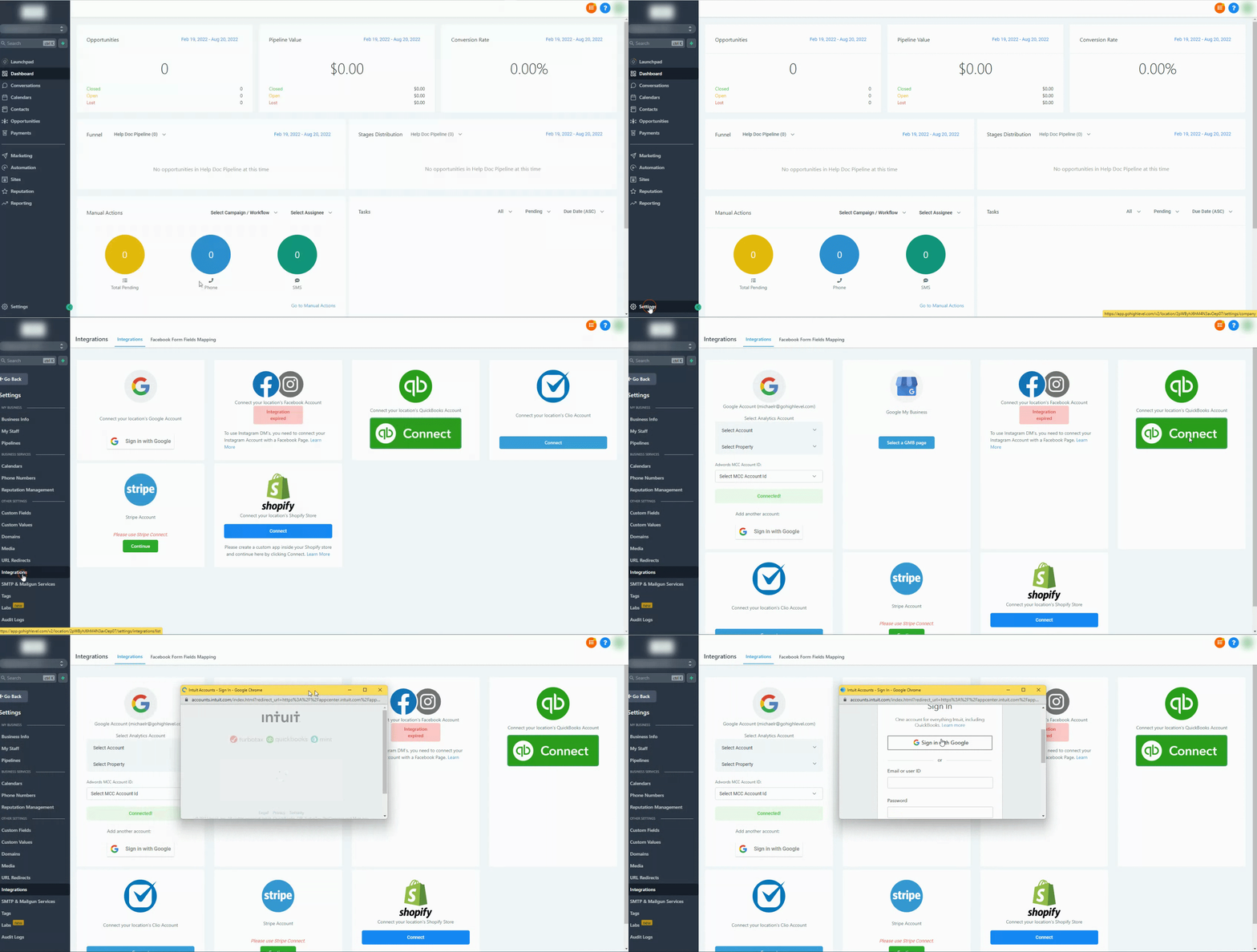
Navigate into your settings > integrations > Click on the "QB Connect" button > Toggle Import invoices to import previously created invoices -> Enable review automation if needed -> Connect & Login with your Quickbooks credentials. Make sure to accept all permissions.

Frequently Asked Questions
Q: What does the QuickBooks integration do?
The integration syncs all existing and new contacts created in QuickBooks into your CRM. It automatically sends a review request when a contact's first invoice is fully paid in QuickBooks (optional and can be toggled off). It registers sales receipts in QuickBooks for payments made in your CRM (e.g., order forms, subscriptions, membership checkouts, and calendar payments). Additionally, it creates and updates invoices in QuickBooks whenever an invoice is sent or updated in your CRM, ensuring seamless synchronization.
Q: Will the integration sync existing QuickBooks invoices to my CRM?
Yes—if you enable the “Import Invoices” toggle during the initial connection, all previously created QuickBooks invoices will be imported into your CRM. Please note: Any changes made to these imported invoices from Quickbooks within your CRM do not sync back to QuickBooks and vice versa.
If you do not enable it, the system only syncs new invoices created in your CRM to Quickbooks after the integration.
Q: How does the integration handle customers that already exist in QuickBooks?
If a customer already exists in QuickBooks with the same email address as used in the transaction, the integration updates the existing customer’s record. For sales receipts, it associates the transaction with the corresponding customer. If no matching email exists, a new customer record will be created in QuickBooks.
Q: Are taxes and discounts included in synced invoices?
Yes, the integration ensures that all synced invoices include total amounts, taxes, and discounts, providing seamless accounting synchronization.
Q: Why isn’t my Chat To Clients CRM invoice syncing to QuickBooks?
Invoices created in Chat To Clients CRM will not sync to QuickBooks while they are in Draft status. Only Sent, Pending, or Paid invoices are pushed to QuickBooks.
Key Points to Check:
Draft invoices do not sync. You must send the invoice for it to appear in QuickBooks.
Customers must exist in both systems. If the contact does not already exist in QuickBooks, you may need to create them there first.
Estimates don’t auto-create customers in QuickBooks. Accepting an estimate in Chat To Clients CRM does not automatically sync the customer to QuickBooks.
Fix:
Open the invoice in Chat To Clients CRM.
Click Send (do not leave it as Draft).
Confirm the customer exists in QuickBooks.
Once sent, the invoice should sync automatically.
If it still doesn’t appear after these steps, recheck the QuickBooks integration connection.