
How to Assign Chat To Clients Phone Numbers to Users
This article outlines methods for assigning a dedicated LC number to an individual user in your system. The process ensures that all inbound calls to that number are routed specifically to the user.
TABLE OF CONTENTS
- What is Chat To Clients Phone Number User Assignment?
- Key Benefits of Assigning Chat To Clients Phone Numbers to Users
- How To Assign a Chat To Clients Phone Number To a User
- Frequently Asked Questions
- Related Articles
What is Chat To Clients Phone Number User Assignment?
Chat To Clients Phone number user assignment controls which Chat To Clients CRM users receive inbound calls made to a specific business number. A number can be configured as a dedicated line for a single user or as a shared line that rings multiple team members. Choosing the appropriate method helps calls reach the people responsible for answering them and supports different sales, support, and operational workflows.
Chat To Clients CRM provides two useful approaches:
- Method 1 — One Number, One User: Assign a dedicated Chat To Clients Phone number directly to an individual user.
- Method 2 — One Number, Multiple Users: Configure an Chat To Clients Phone number to ring multiple team members so more than one person can answer incoming calls.
Key Benefits of Assigning Chat To Clients Phone Numbers to Users
- Dedicated Call Ownership: Give an individual user a dedicated inbound phone number when calls should be routed specifically to that person.
- Shared Call Coverage: Route calls from one number to multiple team members when several users should be available to answer.
- Flexible Team Structure: Configure different numbers according to how individual users, departments, or teams manage calls.
- Improved Call Availability: Shared routing can help reduce missed calls by allowing additional team members to receive the same inbound call.
- Centralized Configuration: Manage user and phone-number routing directly within the Chat To Clients CRM sub-account.
How To Assign a Chat To Clients Phone Number To a User
Properly configuring user routing ensures incoming calls reach the intended person or team. Start by deciding whether the number should belong to one individual or be shared across multiple users, then follow the corresponding method below.
You must have a phone number purchased in the sub-account before you can configure user routing. If you do not have a phone number yet, refer to How to Purchase a Phone Number.
Method 1: Assign One Chat To Clients Phone Number to One User
A dedicated inbound number is appropriate when one team member should be responsible for calls made to that number. This configuration is managed from the user's profile and is best suited to users who need their own individual business line.
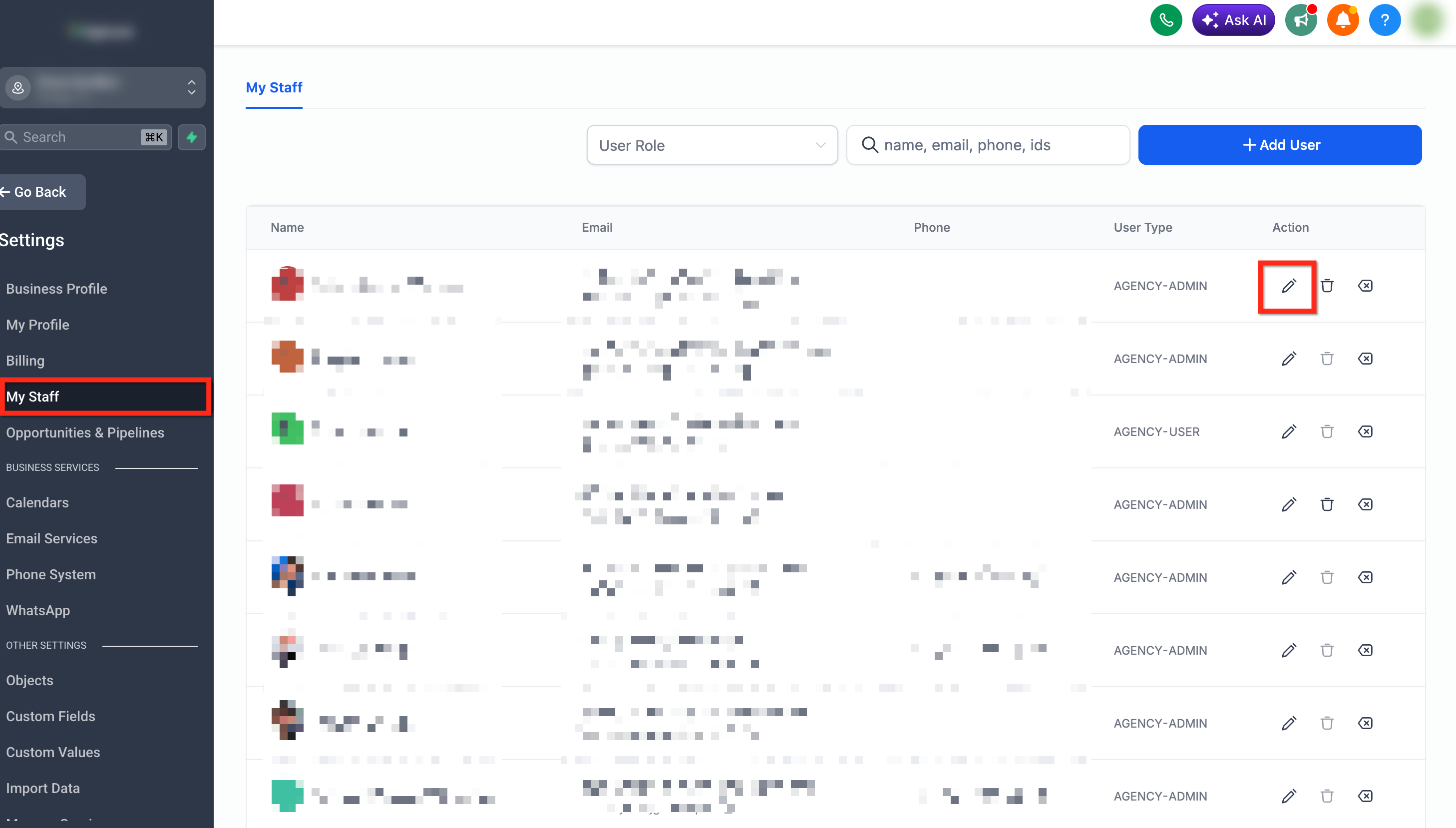
- From the sub-account, go to Settings.
- Navigate to My Staff.
- Locate the user who should receive calls from the Chat To Clients Phone number.
- Click Edit to open the user's profile.
- Expand Call & Voicemail Settings.
- Locate the Inbound Number field.
- Select the Chat To Clients Phone number you want to assign to the user.
- Save the user's settings.
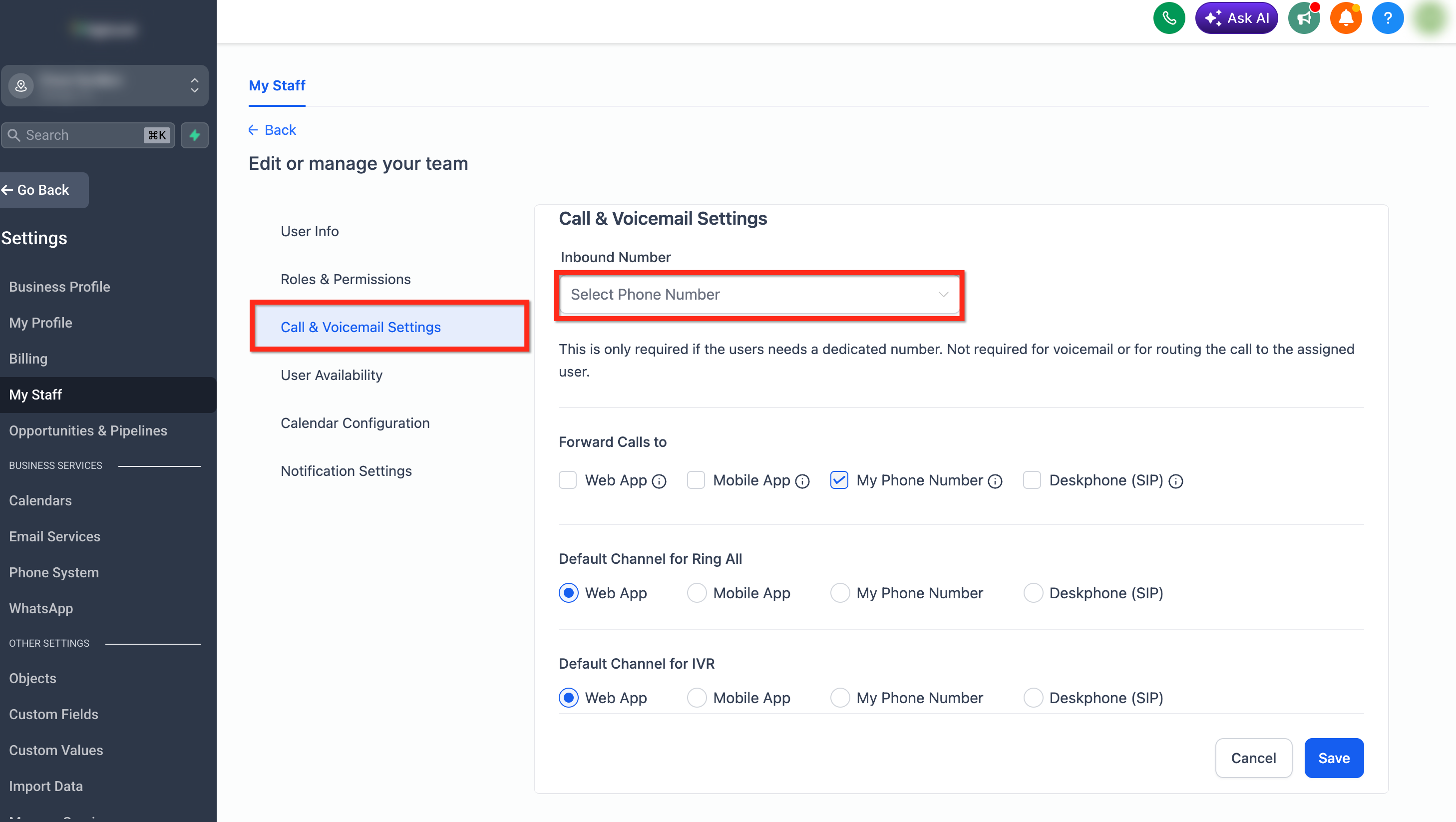
The selected Chat To Clients Phone number is now associated with that user for direct inbound call routing. This method is intended for a one-number-to-one-user configuration.
Important: If several team members need to receive calls from the same number, use Method 2 instead of assigning the number as a dedicated inbound number to each user.
Method 2: Route One Chat To Clients Phone Number to Multiple Users
Shared routing is useful when incoming calls should be available to several team members instead of belonging exclusively to one person. Chat To Clients CRM can ring multiple selected team members, improving coverage for shared sales, support, or departmental phone numbers.
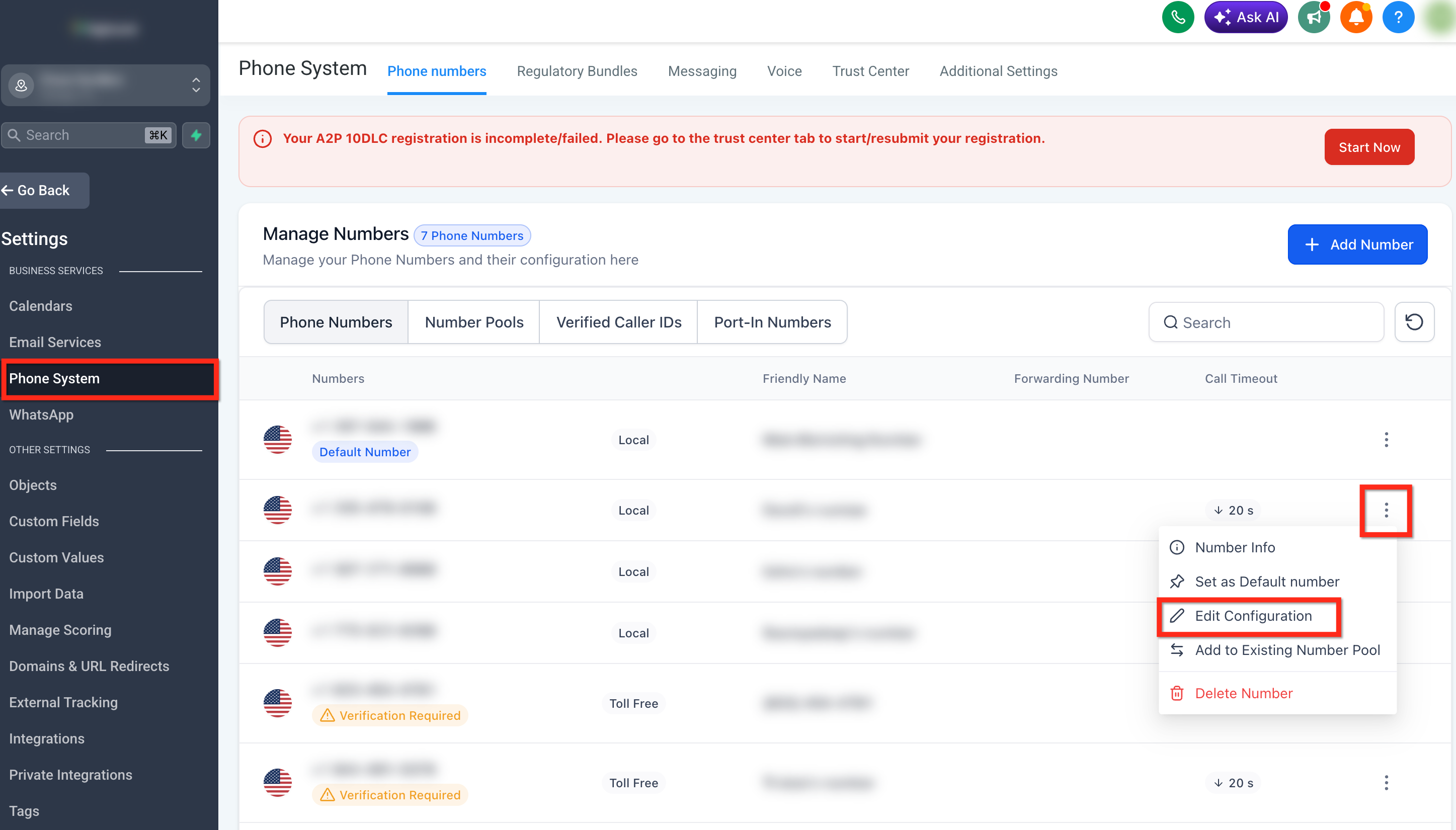
- From the sub-account, go to Settings > Phone System > Phone Numbers.
- Locate the Chat To Clients Phone number you want to configure.
- Click the three-dot menu next to the phone number.
- Select Edit Configuration.
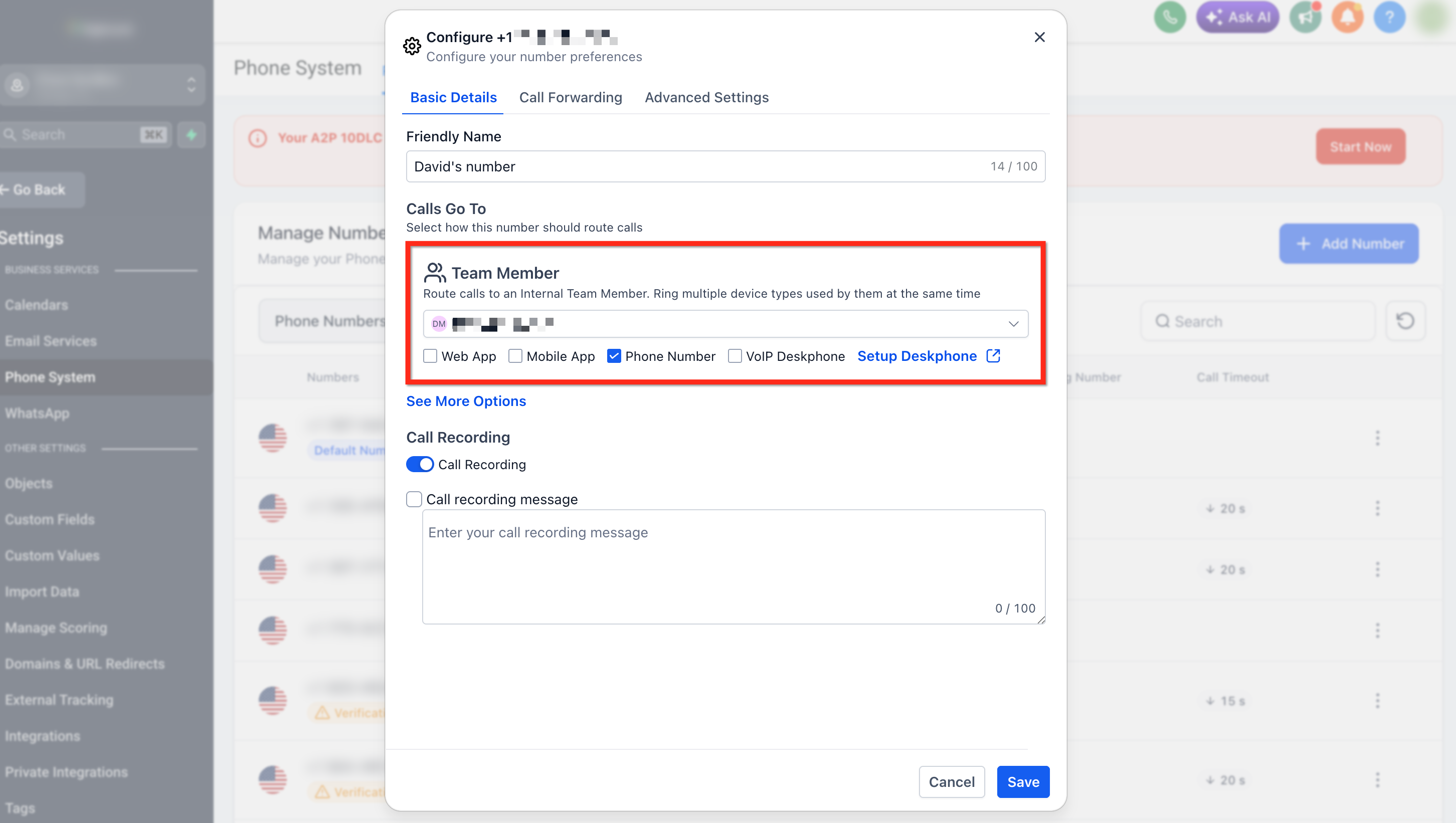
- Under the Basic Details tab, use the Route calls to an Internal Team Member dropdown to select a team member to receive the calls.
- To route calls to additional team members, open the Call Forwarding tab. Select the Ring More Team Members checkbox, and add up to six team members who should receive calls made to this number.
- Review the selected users and save the phone-number configuration.
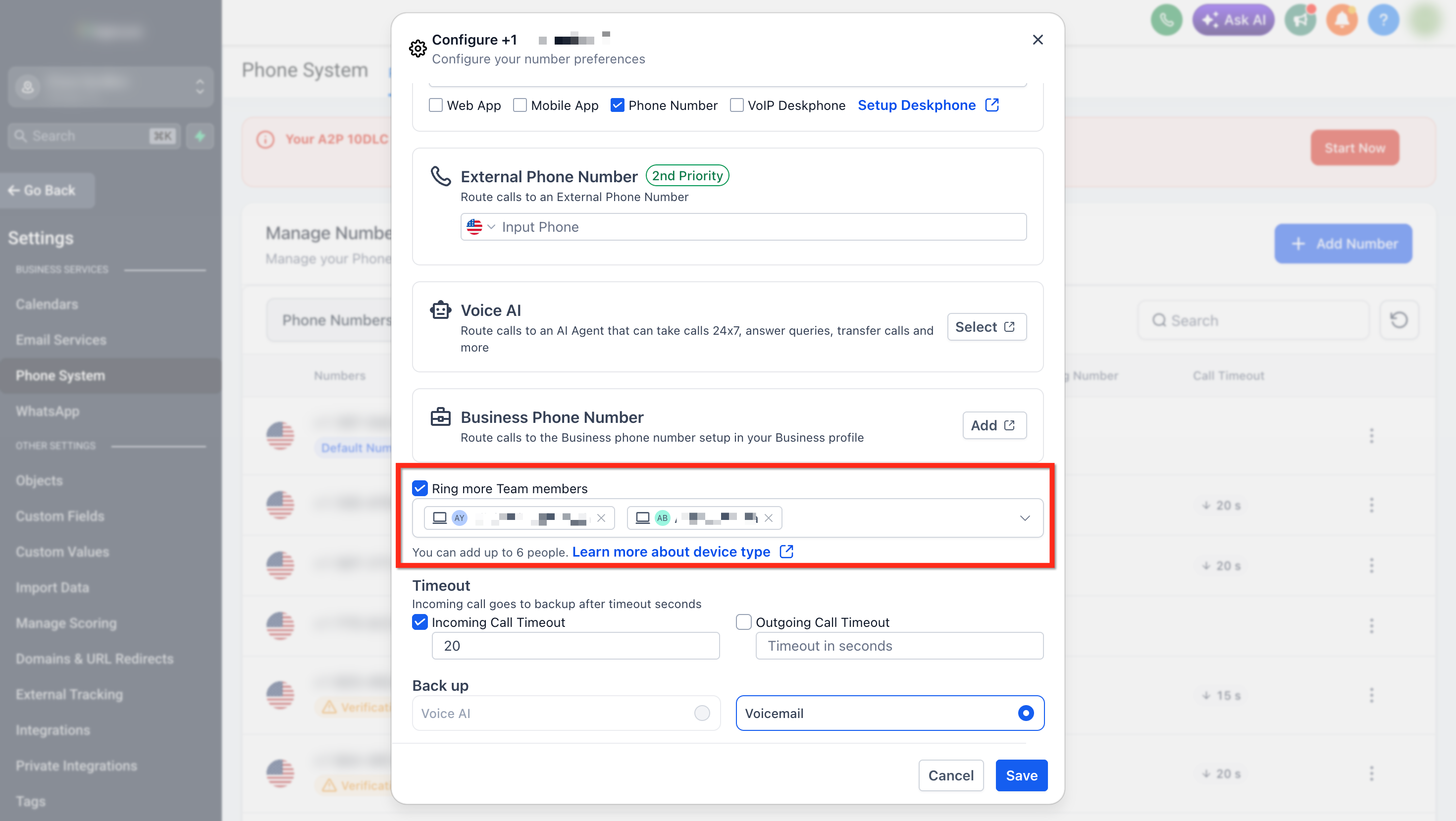
For more advanced phone-number routing, timeout, backup, and call-flow options, refer to Phone Number Edit Configuration (Incoming Calls Settings).
Frequently Asked Questions
Q: Can users choose which device receives calls from shared routing?
Yes. Each user can configure their preferred Ring All channel under Settings > My Staff > Edit User > Call & Voicemail Settings > Default Channel for Ring All.
Q: What happens if one team member declines a shared incoming call?
Declining the call for one user does not stop it from ringing for the other selected users. The remaining users can still answer the call.
Q: Can I assign multiple LC numbers to one user?
No, only one LC number can be assigned to a user at a time for direct routing.
Q: How many users can share one LC number?
Only one user can be assigned to an LC number at any given time. Once assigned, all calls to that number will be directed solely to that user.