
Branding System-Generated Links (API Domain)
This guide explains how to customize system-generated links in Chat To Clients CRM by configuring branded (API) domains at both the Agency and Sub-account levels. Implementing branded domains enhances deliverability and reinforces brand recognition when sending links.
TABLE OF CONTENTS
- What is API Domain?
- Key Benefits of Configuring API Domain
- Agency Level API Domain
- Sub-Account Level Domain (Branded Domain)
- Troubleshooting
- Frequently Asked Questions
- Related Articles
What is API Domain?
An API domain allows you to customize the domain used in system-generated links, such as those for forms, surveys, calendar links, trigger links, short links, and review links. This customization ensures that links reflect your chosen domain, enhancing brand consistency and trustworthiness.
Setting a Custom API domain updates the domain shown in the links that are generated for:
- Forms
- Surveys
- Calendar Links
- Trigger Links
- Payment Links
- Review Links
Configuring an API domain can be done at two levels:
| Configuration Level | Description |
|---|---|
| Agency Level (API Domain) | Applies a default branded domain across all sub-accounts. |
| Sub-Account Level (Branded Domain) | Applies a branded domain to a specific sub-account, overriding the agency-level domain. |
Key Benefits of Configuring API Domain
- Increased Deliverability: Customized links are less likely to be flagged as spam, improving email deliverability rates.
- Enhanced Brand Recognition: Recipients see your branded domain in links, reinforcing brand identity.
- Consistent User Experience: Uniformity in link domains provides a seamless and professional experience for users.
Agency Level API Domain
Setting an API domain at the agency level ensures all system-generated links use a consistent, branded domain, enhancing credibility and deliverability. By setting a default API domain at the agency level, sub-accounts automatically inherit the branding, reducing manual setup efforts while maintaining a professional online presence.
Step 1: Access Agency Domain Settings
Navigate to Agency View → Agency Settings → Company → Whitelabel → Domains.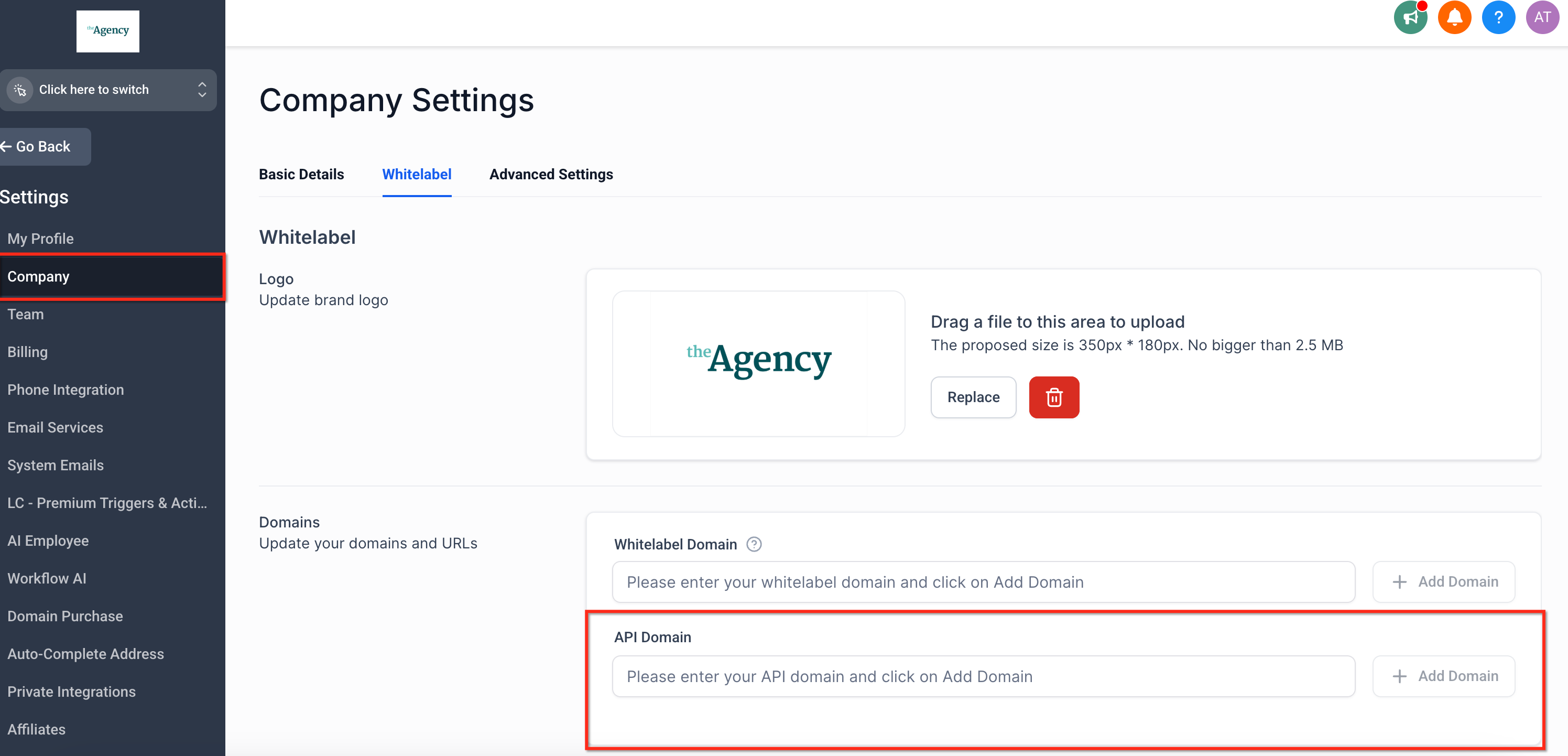
Step 2: Enter API Domain
Click the "Add Domain" button and the domain connect wizard will launch. Follow the prompts to have the wizard automatically create the CNAME in your domain registrar.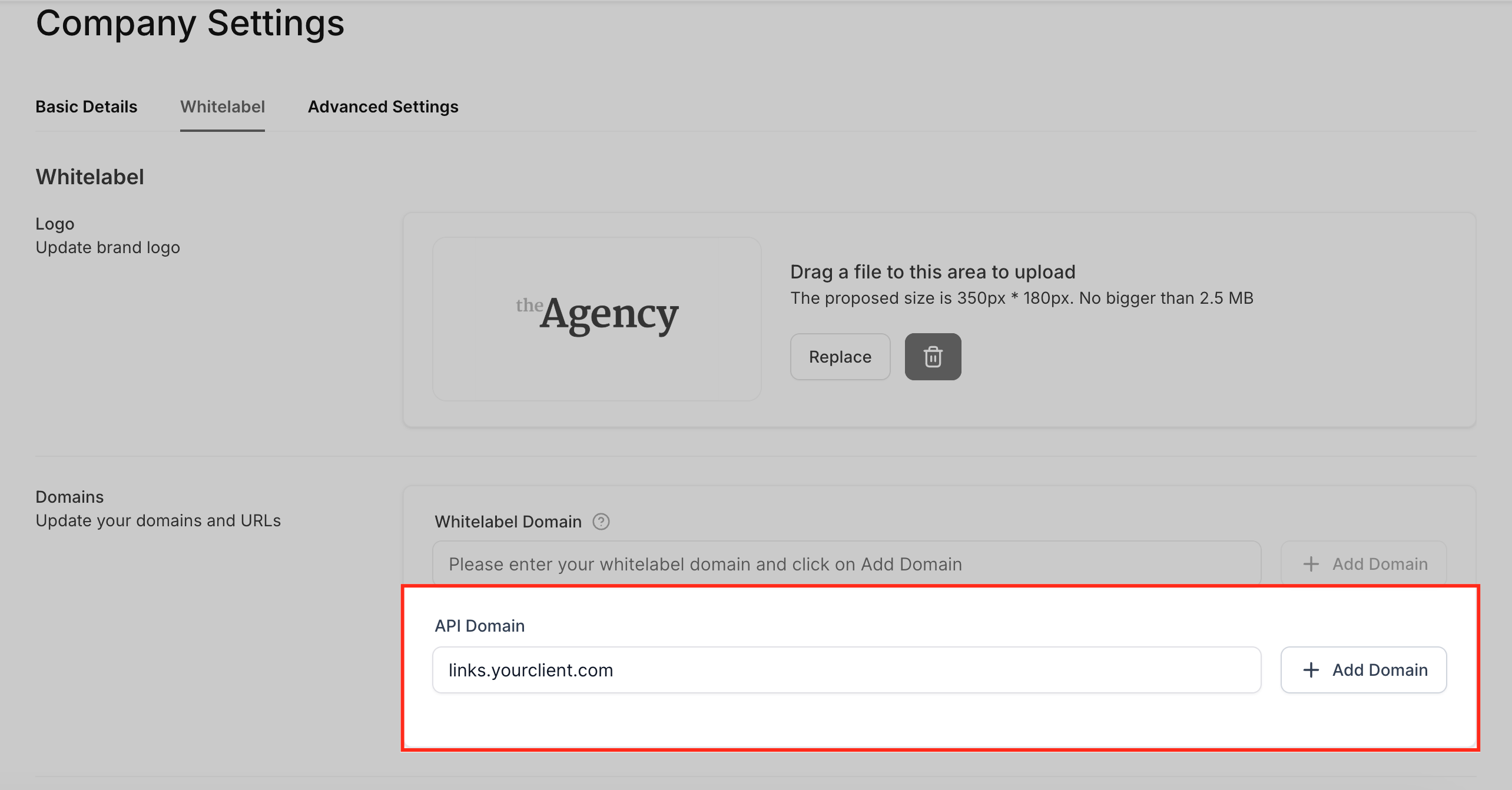
Step 3A: Configure DNS Settings
If you need to create the CNAME manually log in to your domain registrar (e.g., GoDaddy, CloudFlare, Namecheap) in your DNS settings.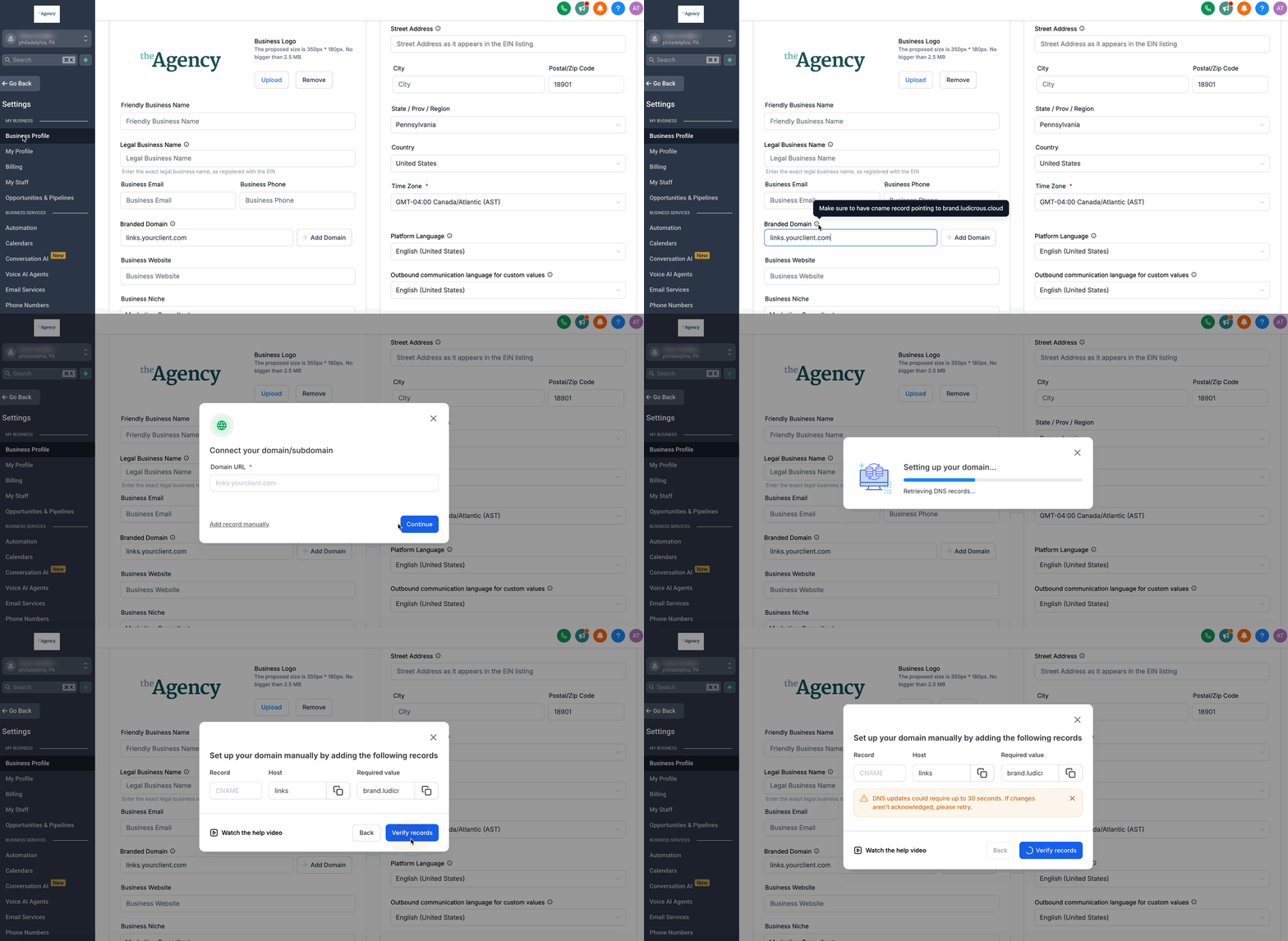
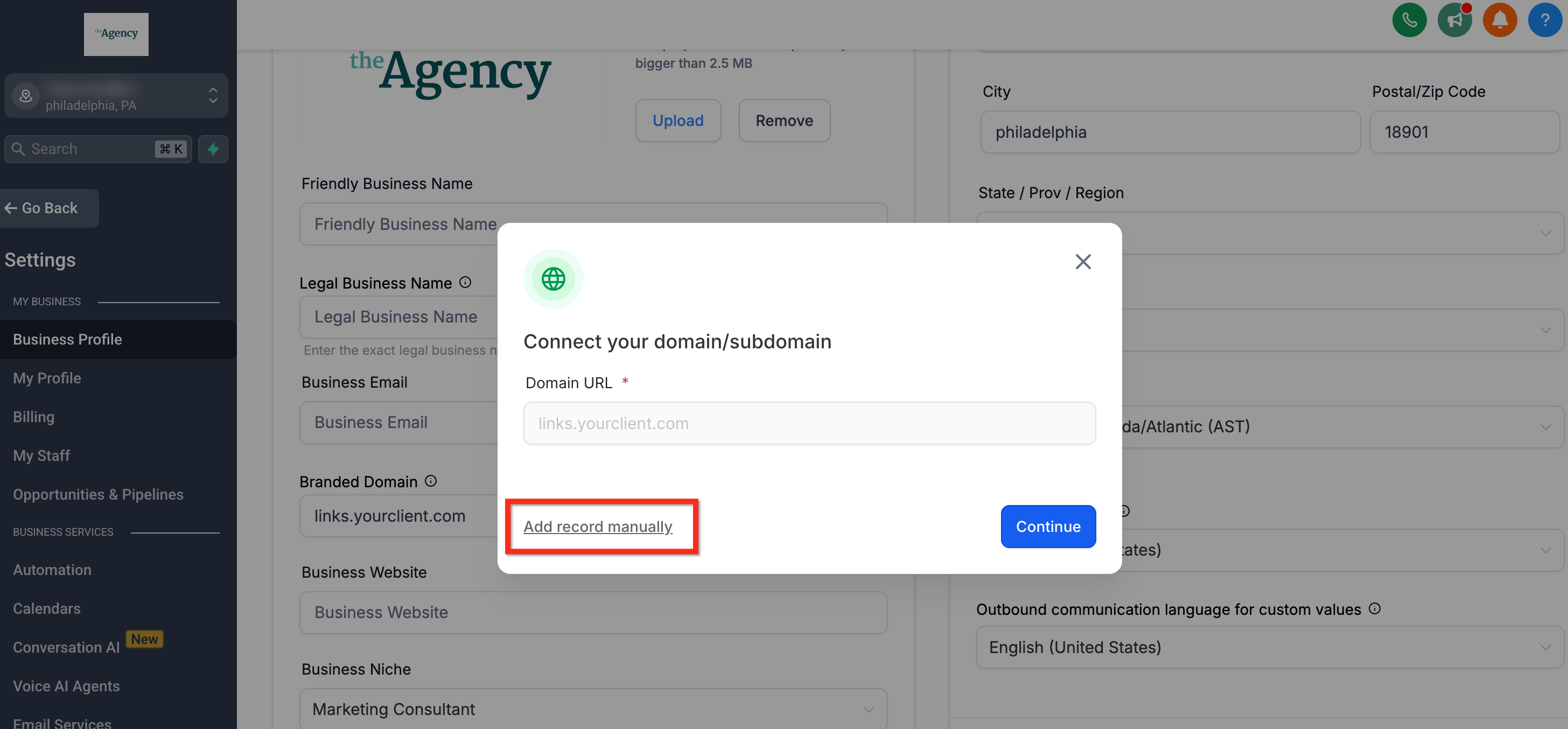
Step 3B: Manual Configuration
If manual setup is preferred, create a CNAME record in your domain registrar:
- Name: The chosen subdomain (e.g.,
links). - Target:
brand.ludicrous.cloud
IMPORTANT: Scroll to the bottom of Agency Settings page > Company page and click the "Update Company" button to save your changes.Sub-Account Level Domain (Branded Domain)
Setting a branded domain at the sub-account level allows individual businesses to customize system-generated links with their own domain, enhancing brand identity and trust. This overrides the agency-level API domain, ensuring that links for forms, surveys, and other features reflect the sub-account’s unique branding.
Step 1: Access Business Profile
In the Sub-Account View, navigate to Settings → Business Profile.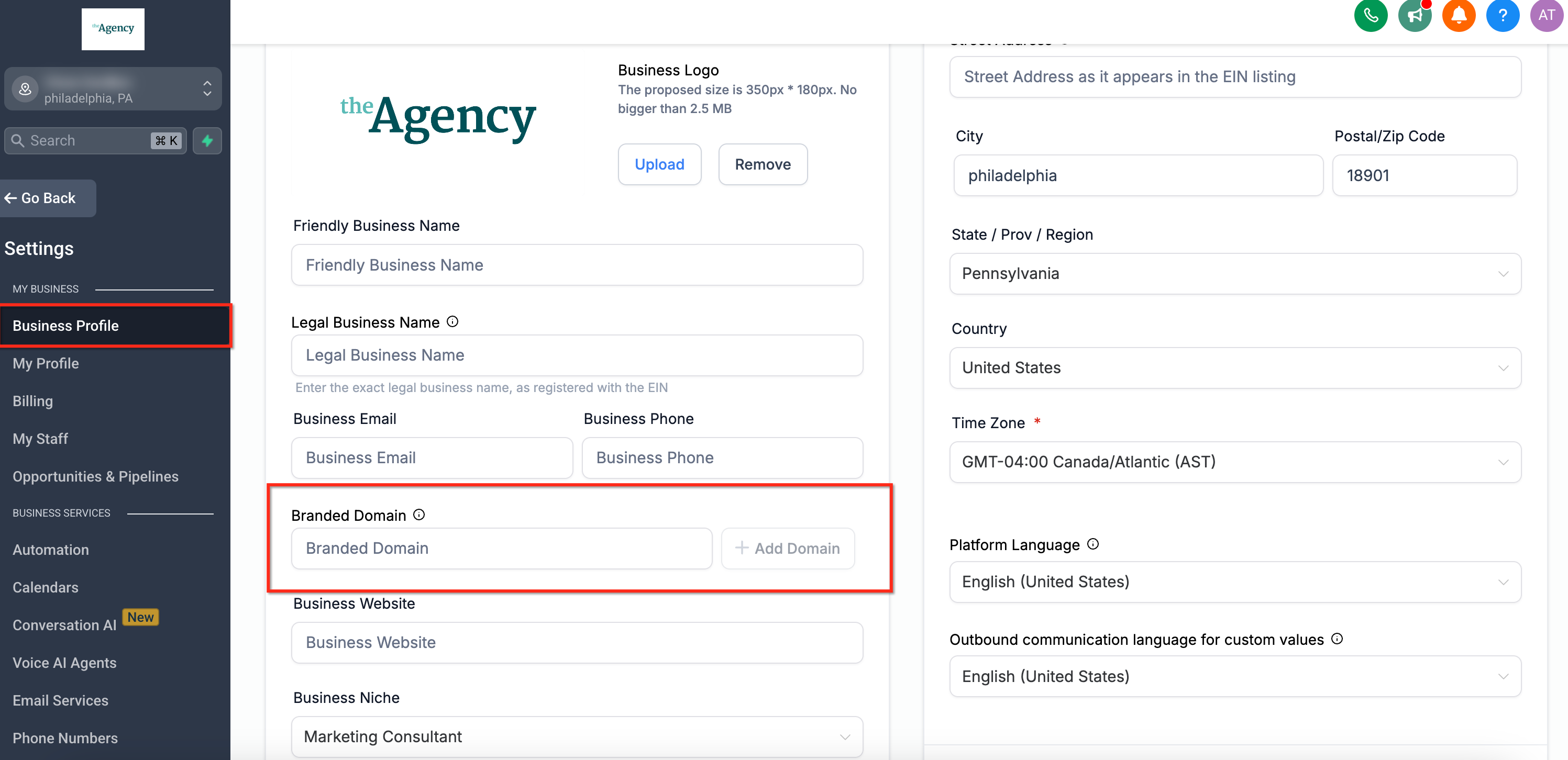
Step 2: Enter Branded Domain
In the Branded Domain field, input the subdomain you want the system to use when creating links for system-generated links (e.g., links.yourclient.com).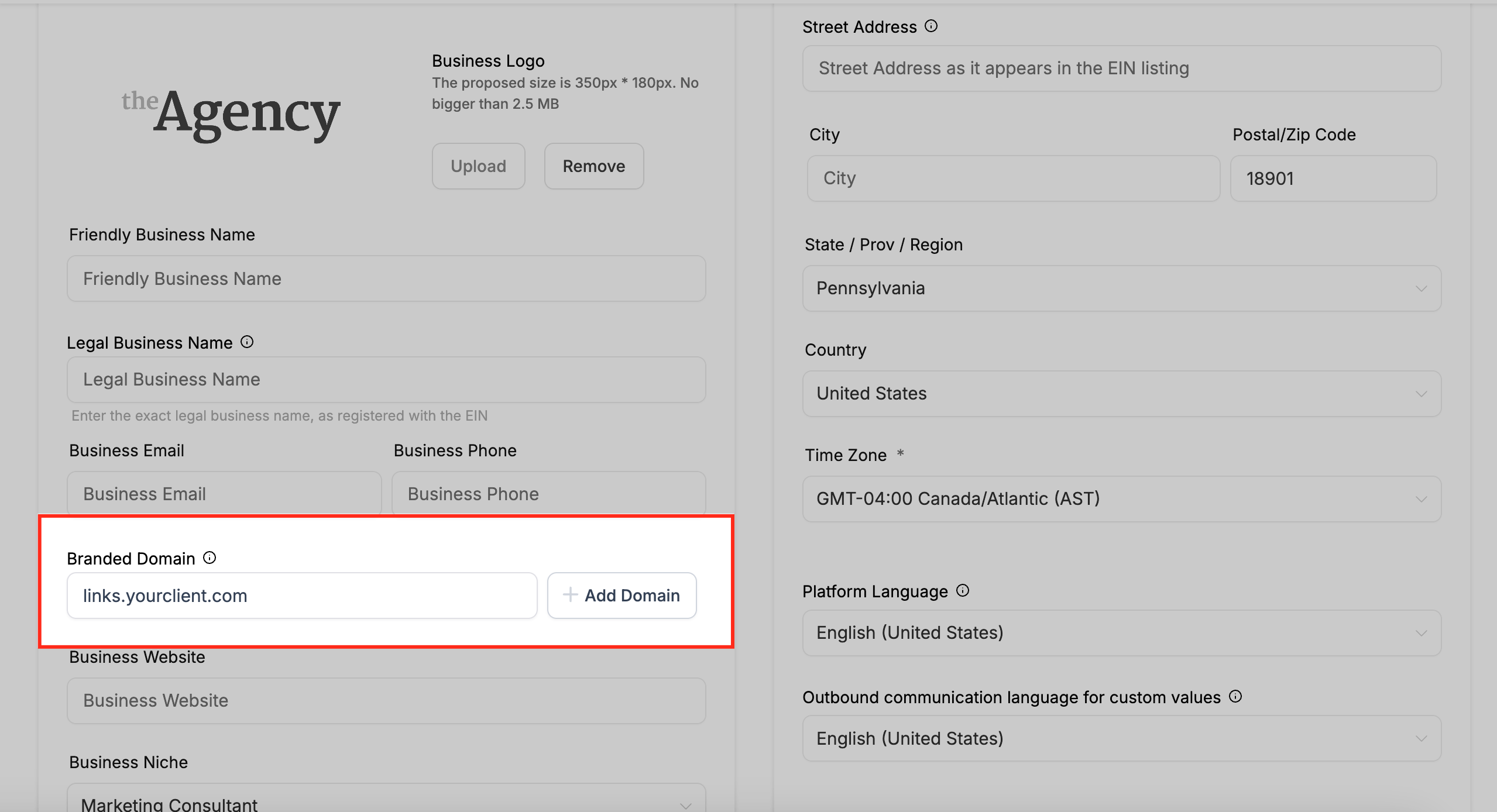
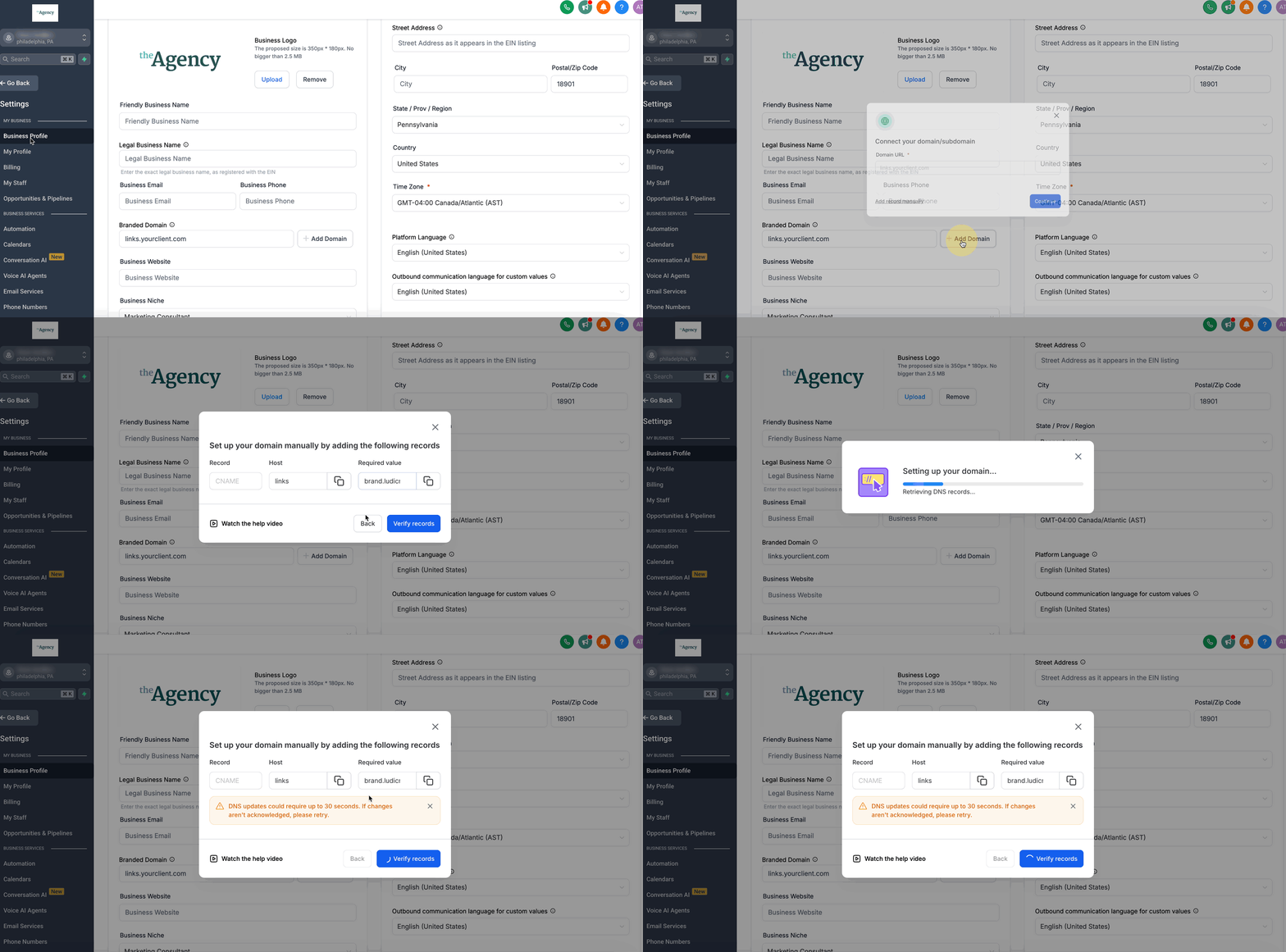
Step 3: Add Domain
Click Add Domain to launch the domain connect wizard. Follow the prompts to create the CNAME record in your domain registrar automatically.
- Name: The chosen subdomain (e.g.,
links). - Target:
brand.ludicrous.cloud
IMPORTANT: Scroll to the bottom of the Settings → Business Profile page and click the "Update Information" button to save your changes.
Troubleshooting
Updating Existing API/Branded Domains: If you need to update your API/Branded domain to point to
brand.ludicrous.cloud, clear the existing domain field, save the settings, re-enter the new subdomain, and save again.Development Purposes: The API Domain is intended solely for branding system-generated links and is not suitable for development purposes and is only designed to White Label (or mask) the links generated for the features mentioned in the above article.
For API integrations, refer to Chat To Clients CRM's API Documentation.
Next Steps: After configuring your branded (API) domain, monitor your system-generated links to ensure they reflect the new domain. Regularly verify DNS settings and update them as necessary to maintain seamless branding across all communications.
Frequently Asked Questions
Q: Can I use my root domain as the API/Branded Domain?
It's recommended to use a subdomain (e.g., links.yoursite.com) to avoid conflicts with existing website configurations.
Q: What happens if I don't configure a sub-account-level branded domain?
The system will default to the agency-level branded domain for that sub-account.
Q: How long does it take for DNS changes to propagate?
DNS propagation can take up to 48 hours, but changes often take effect sooner.