
Adding Custom Forms to Calendars
Learn how to use custom forms with calendars in Chat To Clients CRM to collect detailed information before an appointment is booked. This helps improve lead qualification, automate workflows, and streamline your intake process.
TABLE OF CONTENTS
- What is Adding a Custom Form to Calendars
- Key Benefits of Using Custom Forms with Calendars
- How To Set Up Custom Forms with Calendars
What is Adding a Custom Form to Calendars
Custom forms in Chat To Clients CRM allow you to gather personalized information from contacts before they book an appointment. When you connect a form to a calendar, users must complete the form after selecting a time slot. This ensures you collect vital data that gets saved directly to the contact’s CRM record, enabling personalized and efficient follow-ups.
In order to add custom forms to your calendars, you will first need to have created a form in your sub-account. Click here to learn how to create custom forms.
Key Benefits of Using Custom Forms with Calendars
Attaching a custom form to your calendar booking flow ensures that you capture the most relevant details before an appointment is set. This improves lead handling, automates data collection, and enhances your ability to deliver personalized experiences.
Lead Qualification: Ask important pre-booking questions to filter out unqualified leads.
Automated Data Collection: Map form responses directly to contact records for CRM efficiency.
Improved Personalization: Use collected data to tailor communications, services, or offers.
Reduced Back-and-Forth: Get all the necessary details upfront to avoid delays or follow-ups.
Compliance and Consent: Add terms, agreements, or consent checkboxes to meet legal needs.
Workflow Triggers: Initiate automations based on custom field responses submitted in the form.
Better Client Experience: Provide a seamless and structured way for clients to share info before booking.
How Custom Forms Behave During Booking
Custom forms can do more than collect information during booking. With extended conditional logic support, the form can now influence whether the booking continues and what the user sees after submission.
When a custom form is used in a calendar booking flow:
- Show/Hide field logic continues to work based on the user’s answers
- Disqualify lead logic is evaluated before the booking is created
- If the lead is disqualified, no appointment is created
- If the lead is disqualified, no payment is collected
- The form can show a redirect URL or custom message based on its configured rules
Configure the confirmation experience
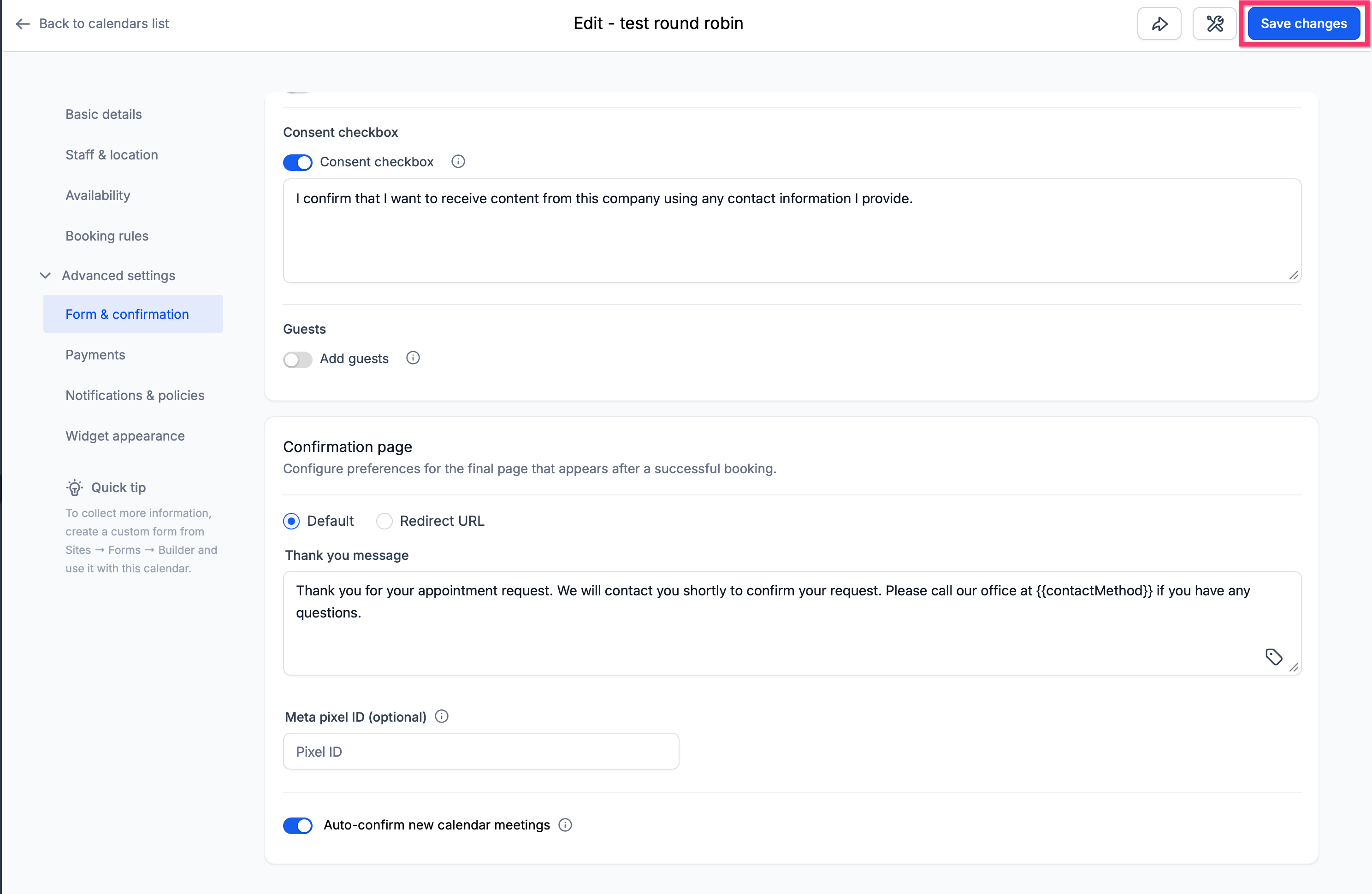
The confirmation page setting lets you choose what happens after the form is submitted.
Available options include:
- Default
- Redirect URL
- Use custom form rules
When Use custom form rules is selected, the booking flow follows the form’s redirect or custom message rules after submission. If no redirect or custom message is configured in the form, the booking falls back to the default confirmation page.
How To Set Up Custom Forms with Calendars
Connecting a custom form to a calendar ensures you collect key details from users before they book time with you. Setting this up requires just a few simple steps.
Step 1: Navigate to the Desired Calendar
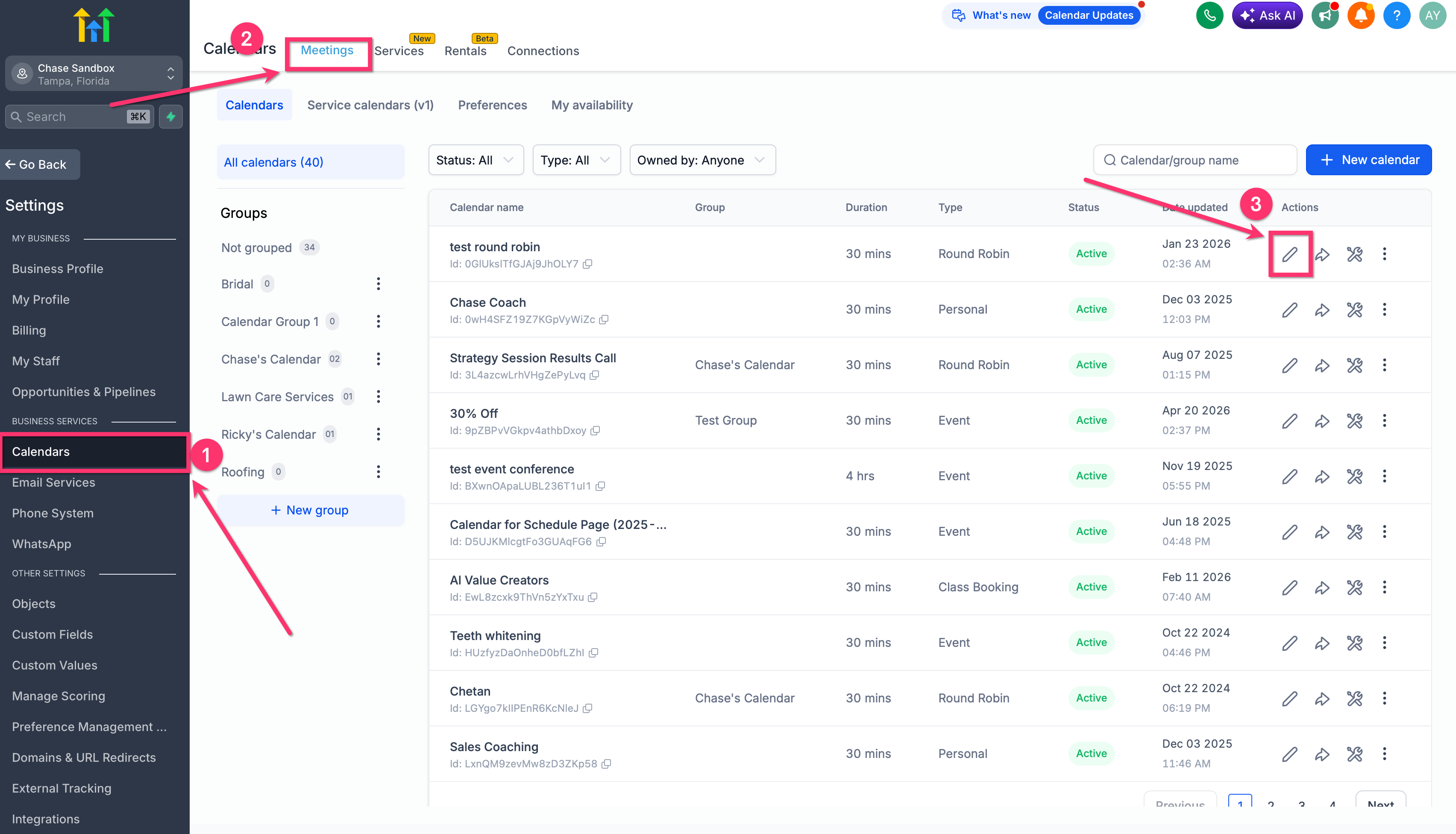
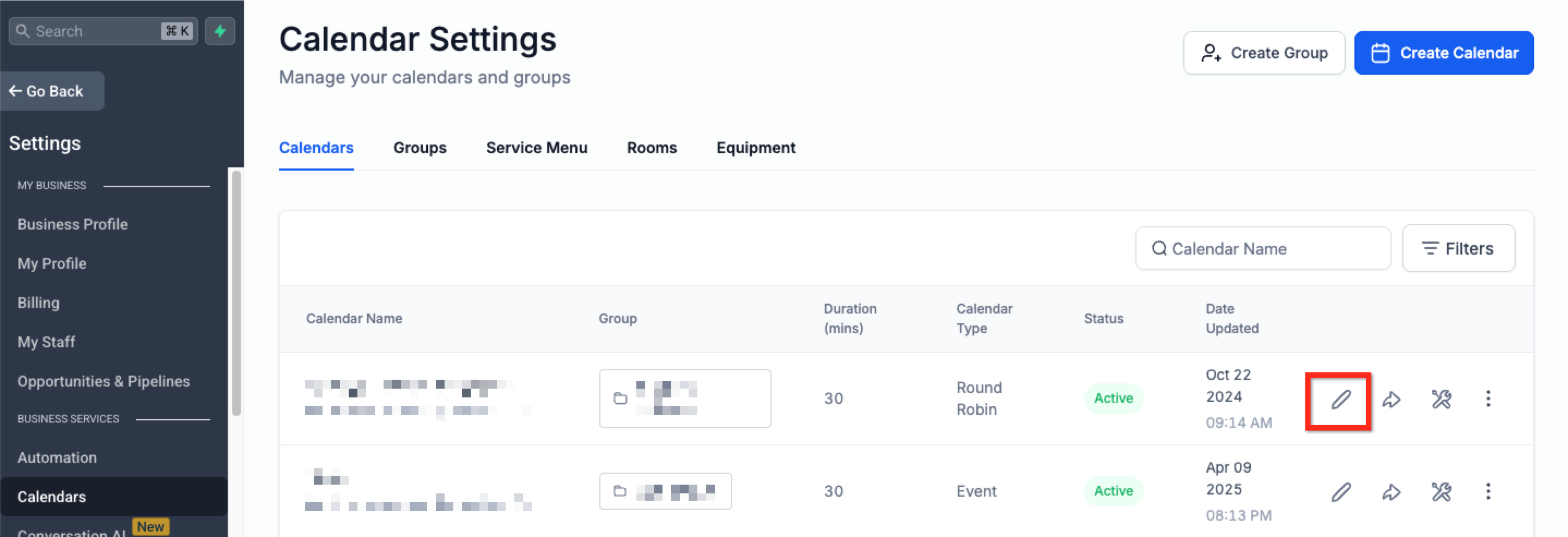
Navigate to Calendars in the main menu then click Calendar Settings in the secondary navigation ribbon.
Find the calendar you'd like to edit and click Edit located to the right of the calendar name.
Step 2: Attach the Custom Form to Your Calendar
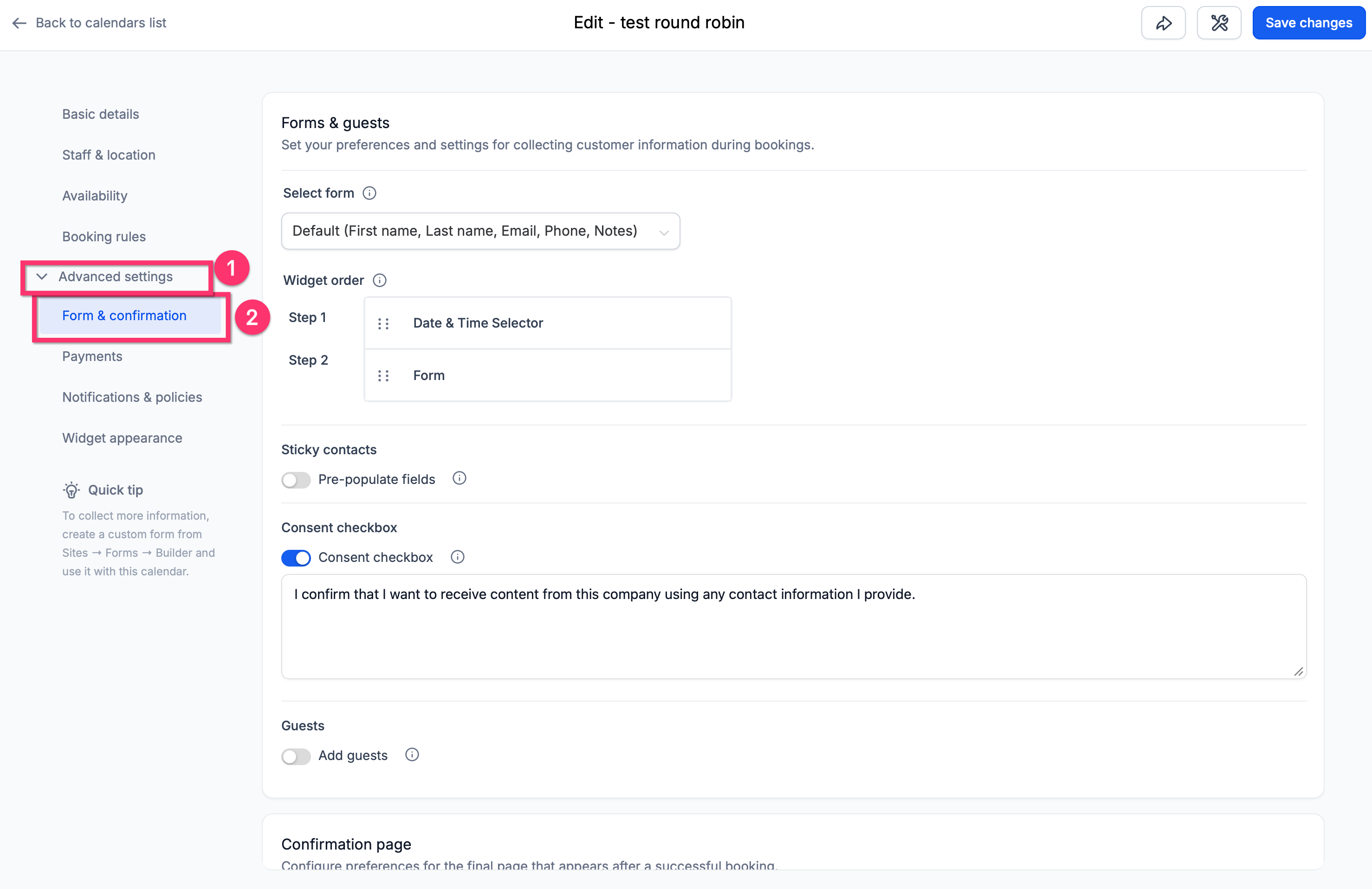
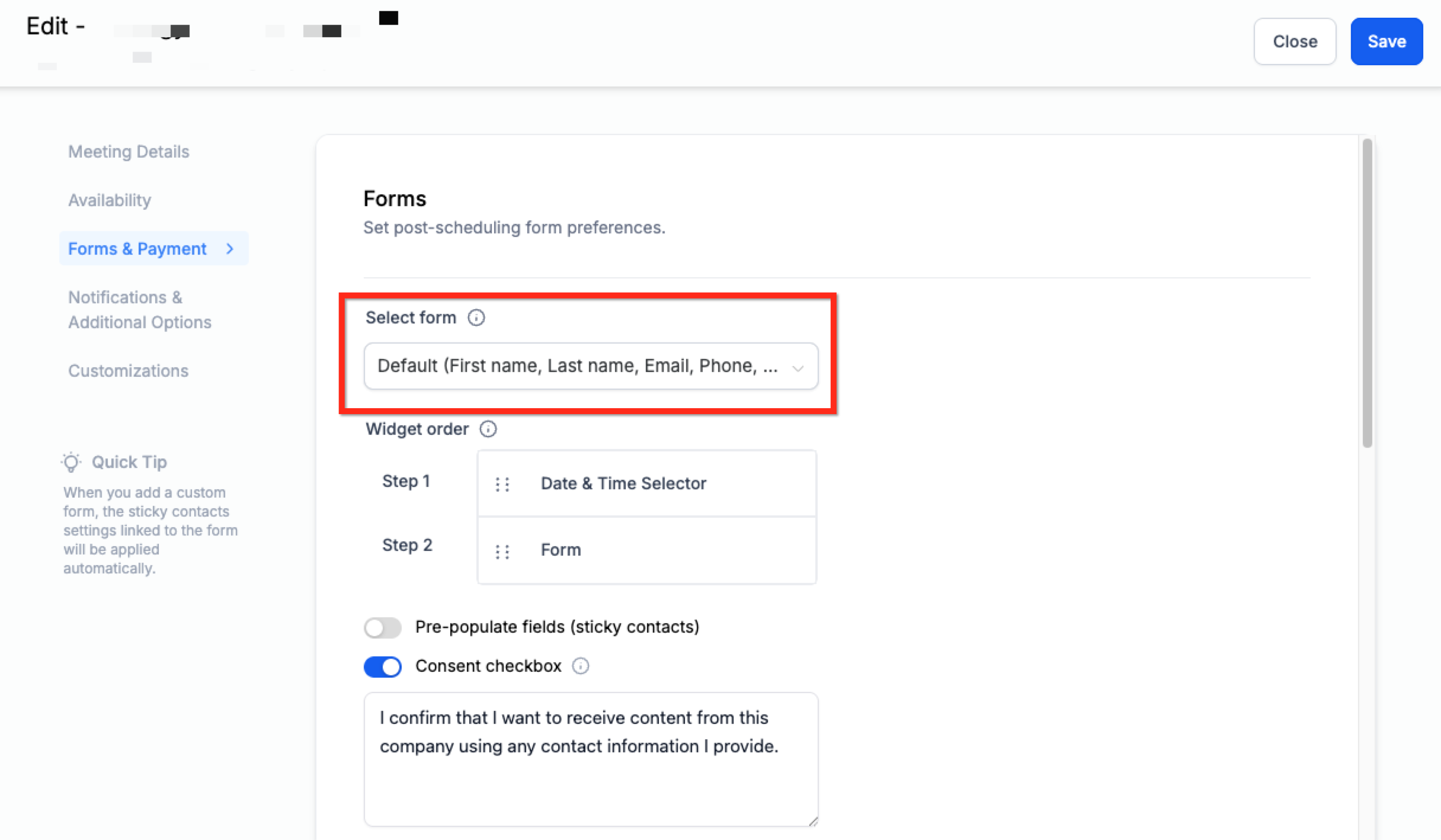
Go to the Forms & Payment tab in the left side navigation ribbon.
Under the Select Form dropdown in the main panel, choose the desired form.
Click the blue button named Save in the upper right corner
How to Add the Same Form in Multiple Calendars
If your business offers several appointment types or team member calendars, reusing one consistent form can save time and maintain uniform data collection. This is helpful when you need the same intake or qualification data across services or departments.
- After creating the form under Sites > Forms, you can assign it to multiple calendars.
Simply repeat the same process for each calendar you would like to assign the form to:
Navigate to Calendar Settings
Click the Edit button
Then choose the form from the Select Form dropdown.
Custom Forms Must Be Added Individually Per Calendar

Adding a form to a calendar is a manual process, forms are not auto-applied across calendars. Even if you're using the same form across multiple calendars, you need to add it to each calendar’s settings separately. This gives you control over which form appears on which booking flow.
Frequently Asked Questions
Q: Can I use more than one custom form on a single calendar?
No. Only one custom form can be attached to a calendar at a time.
Q: What happens to the data submitted in the form?
Form responses are automatically saved to the contact’s record in your CRM, as long as the form fields are mapped to custom fields.
Q: Can I use the same form on multiple calendars?
Yes. A single form can be assigned to multiple calendars by selecting it in each calendar's settings.
Q: Why isn’t my form showing up in the calendar dropdown?
Make sure your form is saved under Sites > Forms and contains at least one field. You may need to refresh the calendar settings page after saving.
Q: Does the form appear before or after selecting a time slot?
The form appears after a time slot is selected. Users choose a time first, then complete the custom form to confirm the booking.
Q: Can I edit the form after attaching it to the calendar?
Yes. Any changes to the form will automatically reflect in calendars it’s attached to. However, be careful not to delete critical fields tied to automations or records.
Q: Will my custom-form data be saved if the appointment isn't booked?
Custom-form responses are stored in the contact record only after the visitor clicks the final ‘Book Appointment’ button. If the visitor abandons the process before that step, no data is written to the CRM.