
Google Calendar Writer Access Error
This tutorial will show you to connect your Google calendar to your Chat To Clients CRM calendar if you are receiving the following error:
You need to have writer access to sync appointments to the selected Google Calendar. Please check with the Google Calendar owner in case syncing is required.
For Group Calendar:
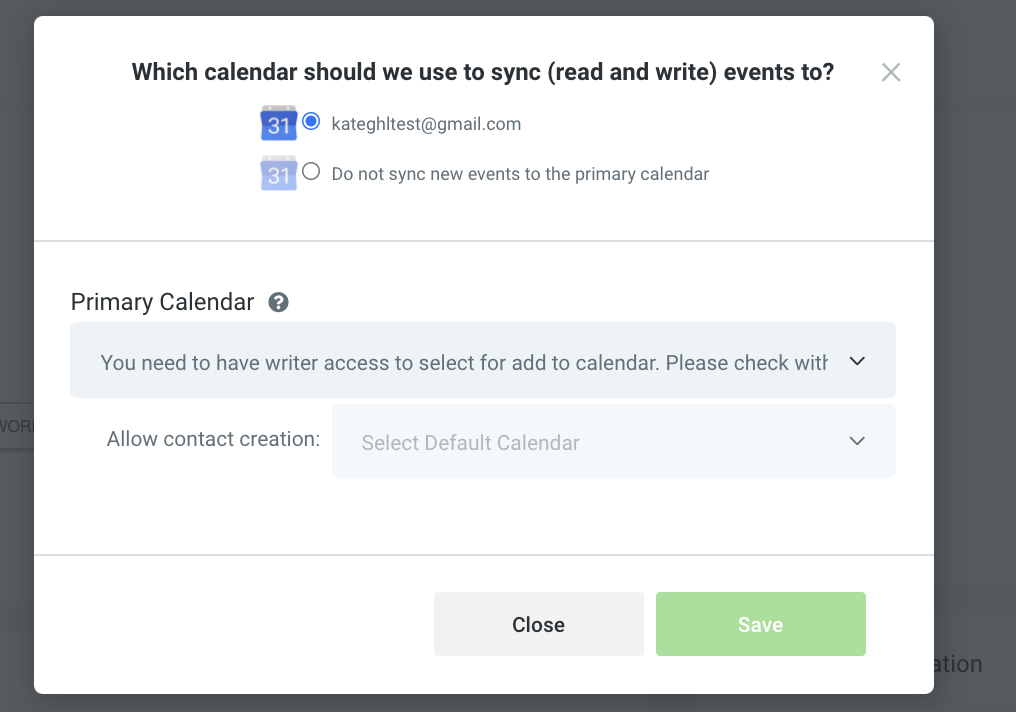
For Unassigned Calendar:
Step 1:
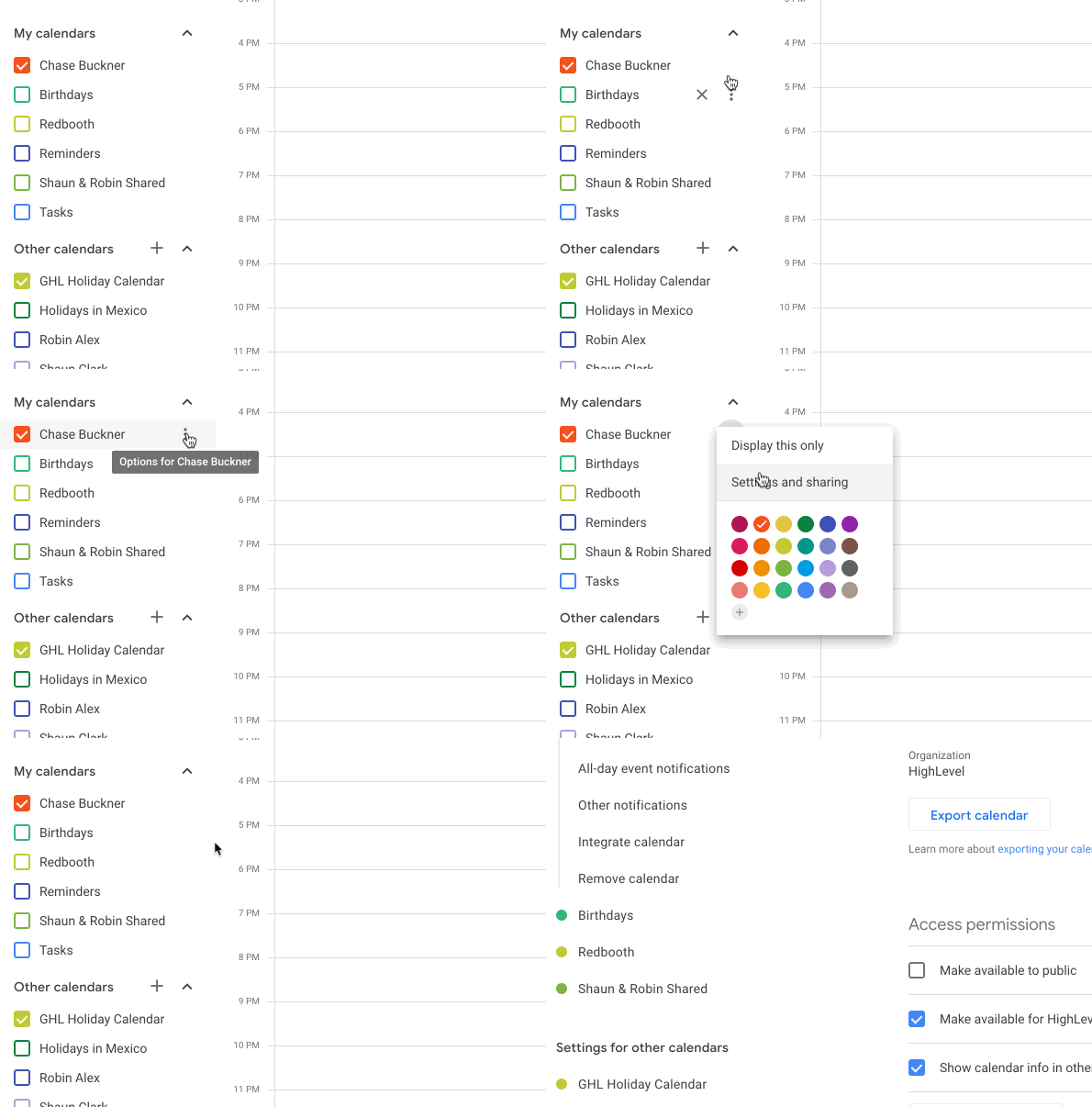
The owner of the Google calendar needs to be logged into Google and go to calendar.google.com
Step 2:
Hover over the desired calendar then click the three-dot icon and select "Settings And Sharing"
Step 3:
Scroll down to "Share with specific people" > Click "Add People" and add the email address of the Google Account that is synced in Chat To Clients CRM > set the Permissions to "Make changes to events" > click Send to save
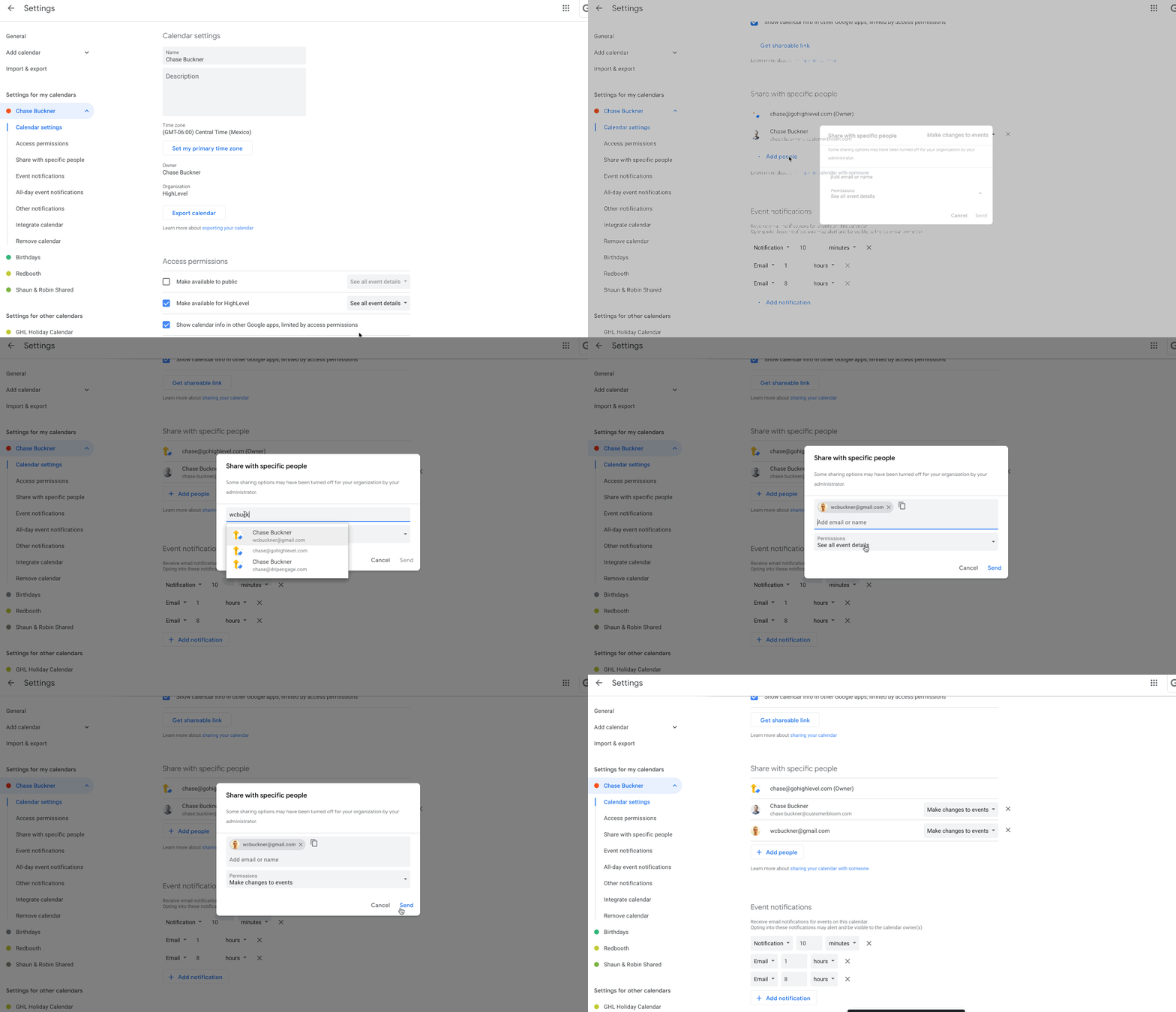
The Google calendar should now be in sync with Chat To Clients CRM