
Creating New Snapshots in Chat To Clients CRM
This article shows you how to create a new snapshot in Chat To Clients CRM. Snapshots allow you to clone a sub-account's configuration so you can reuse them across other sub-accounts efficiently.
TABLE OF CONTENTS
What is a Snapshot?
A Snapshot in Chat To Clients CRM is a reusable template that captures all the configuration from a sub-account - including workflows, funnels, calendars, forms, campaigns, custom fields, and more. This allows you to duplicate successful setups across other client accounts.
Note: You don’t “build” a snapshot directly. You first build a sub-account, and then create a snapshot from that account.Key Benefits of Snapshots
- Save Time: Rapidly deploy repeatable configurations.
- Ensure Consistency: Maintain uniform setups across clients or verticals.
- Enable SaaS Offers: Power pre-built account templates for SaaS plans.
- Selective Asset Control: Include all assets or handpick what you need.
How to Create a Snapshot
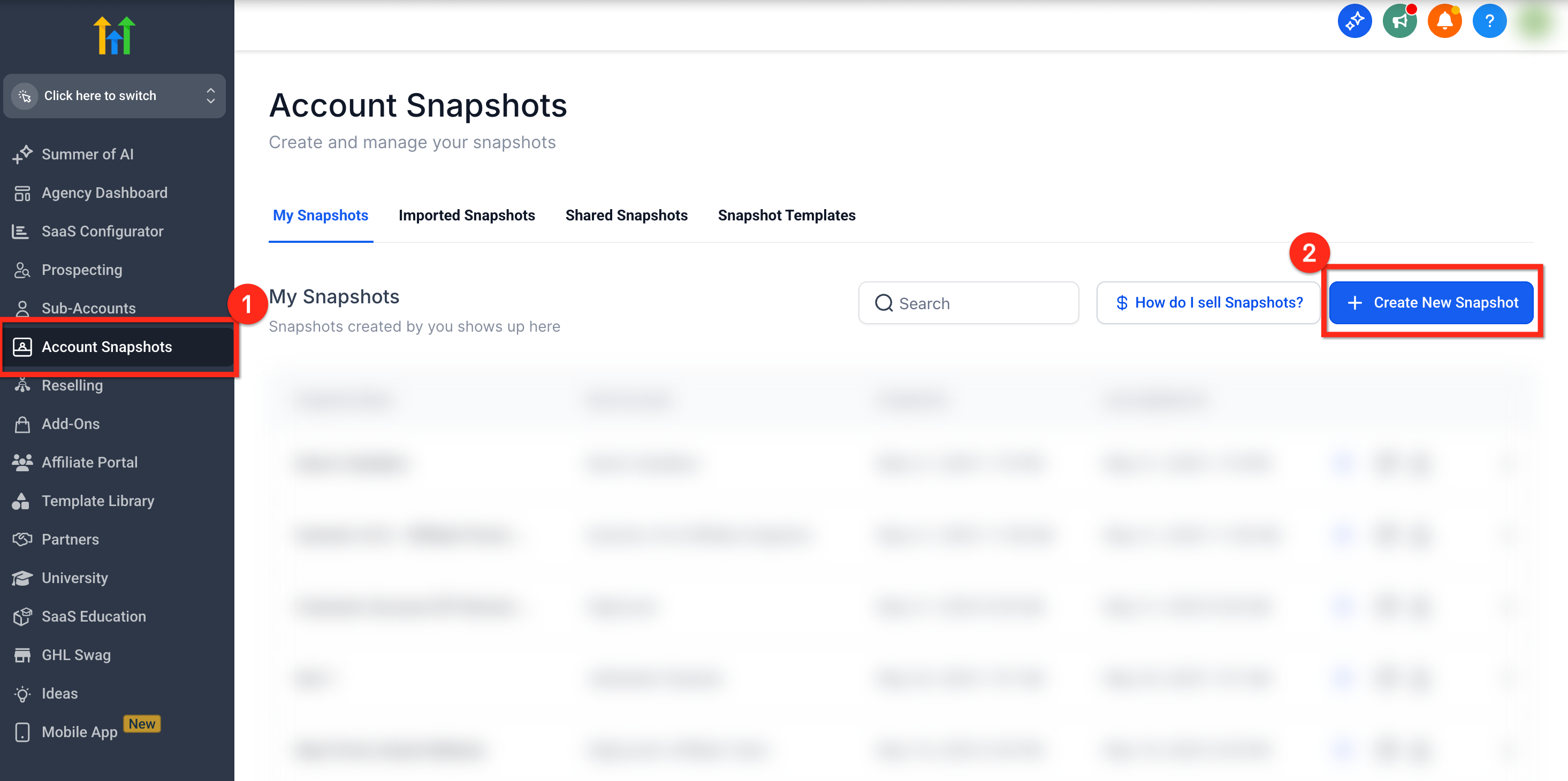
Step 1: Go to Account Snapshots
- From Agency View, click Account Snapshots
- Click the blue + Create New Snapshot button in the top right
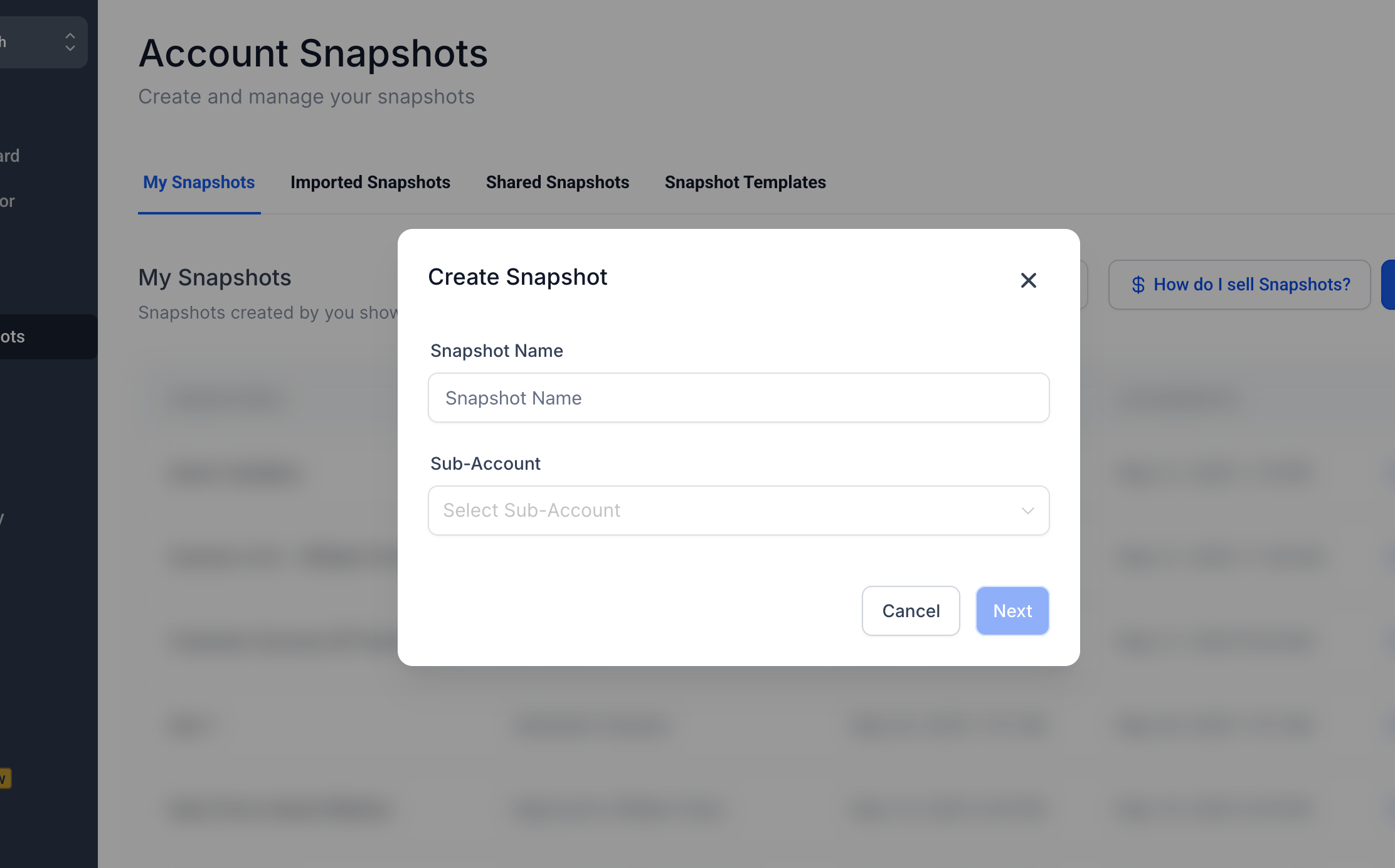
Step 2: Name the Snapshot & Select Sub-Account
Enter a name that reflects the use case (e.g., “Spa Funnel Setup”) the select the sub-account that contains the assets you want to capture.
Step 3: Choose Assets to Include
You'll see a list of all assets in the selected sub-account. Click Select All to include everything, or expand each category with + to choose individually. Once ready, click Create.
Note: If any assets fail to load during this step, you’ll now see a “Retry” option. Clicking it will reattempt fetching the incomplete categories without needing to restart the snapshot creation process.This is especially useful in cases where there are a large number of assets or intermittent load delays.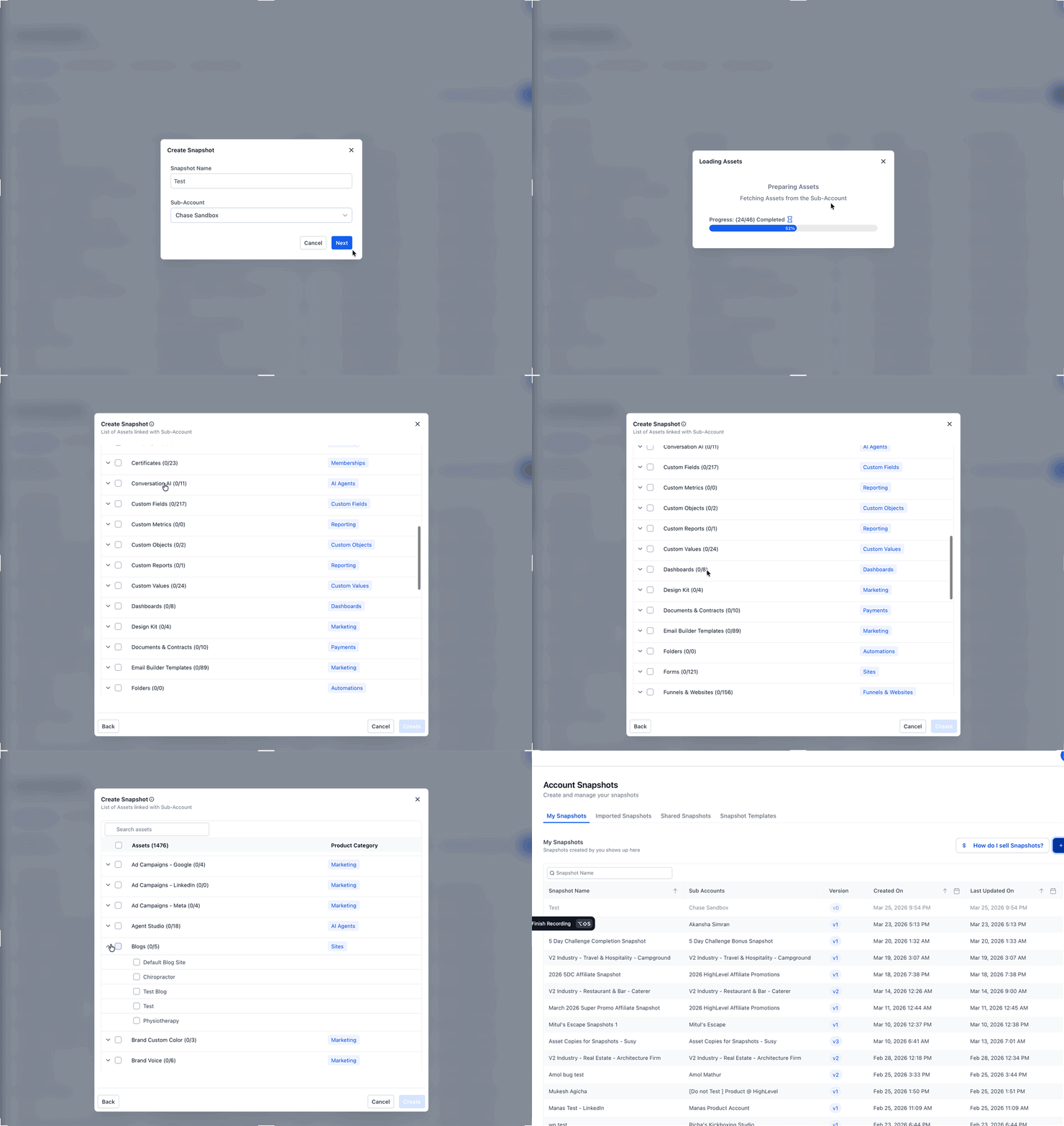
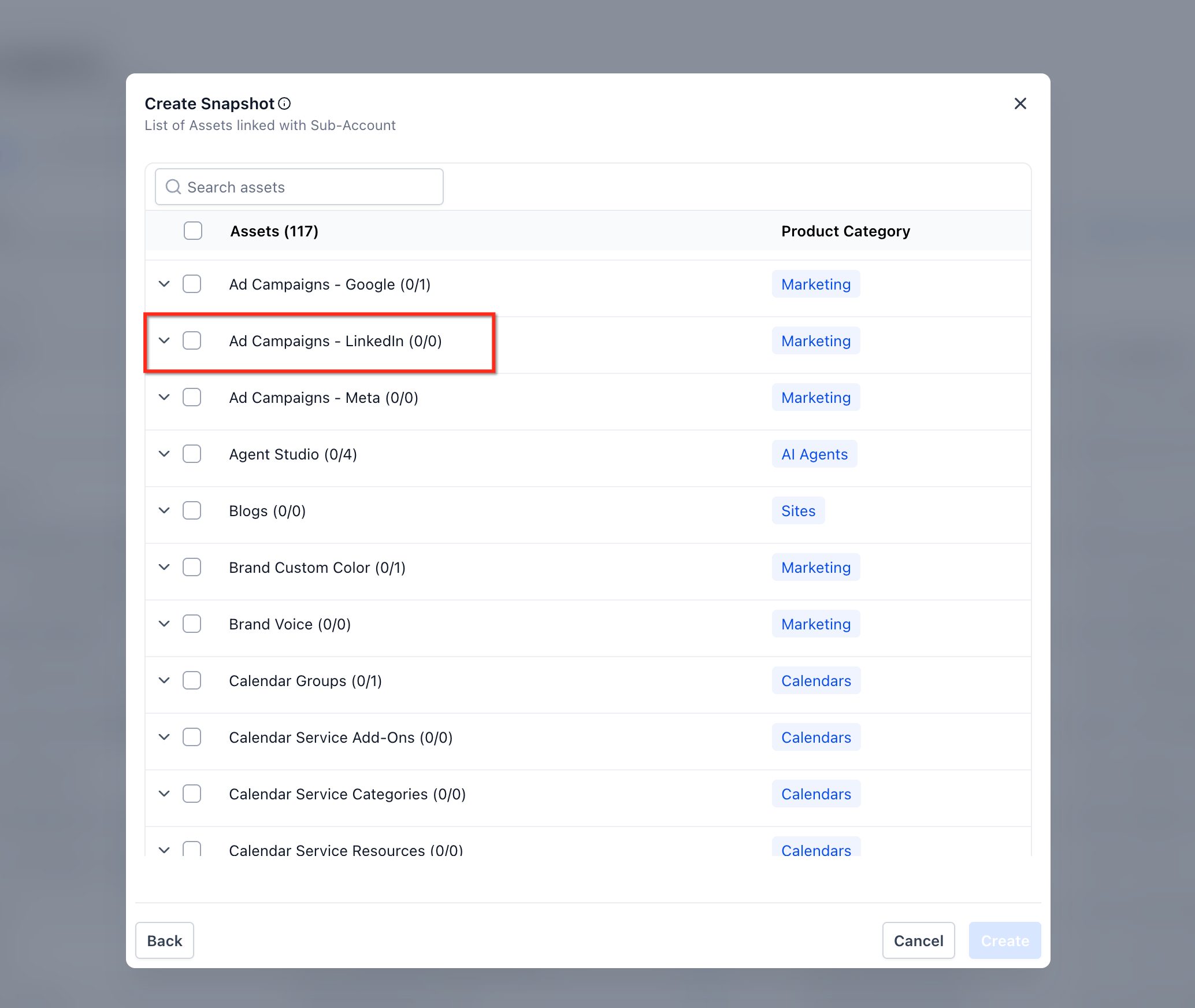
Ad Campaigns – LinkedIn (Marketing Assets)
You can include LinkedIn campaign structures in a snapshot.
Go to Marketing assets → Ad Campaigns – LinkedIn.
Select specific campaigns or choose Select All (shows Selected/Total).
Chat To Clients CRM preserves the full hierarchy: Campaign Group → Campaign → Ad.
Note: Lead Gen Forms are not included in snapshots.
Note: Associations between CRM objects are included automatically in snapshots as long as both objects in the relationship are selected. Contact-to-Contact associations are not supported at this time.
Frequently Asked Questions
Q: Where do I build a snapshot?
You build a sub-account, not the snapshot itself. Then you capture that sub-account using the snapshot tool.
Q: What’s included in a snapshot?
Included: Workflows, Funnels, Calendars, Forms, Emails, Triggers, Custom Fields, Custom Values, Membership content, Services, Webinars, AI Studio projects and more.
Not included: Contacts, Appointments, Conversations, Reputation data, Stripe connections, or integrations.
Q: Can I use a snapshot more than once?
Yes ! You can apply a snapshot to as many sub-accounts as you need.
Q: Can I update a snapshot later?
Yes. Use the Refresh option to add or remove new assets from an existing snapshot.
Related Articles
- Snapshots - Overview
- Snapshot Management: Selective Asset Snapshots and Force Snapshot Creation
- How to Share Snapshots
- Snapshot Version Management