
How to Use the Ask AI Home Screen Widget in Chat To Clients CRM
The Ask AI Home Screen Widget gives you instant access to Chat To Clients CRM's Ask AI assistant directly from your phone's home screen. With dedicated Chat, Voice, and Camera shortcuts, you can start a new conversation, ask questions hands-free, or capture photos without navigating through the mobile app. Available on supported iOS and Android devices, the widget makes it easier to get answers and complete tasks while on the go.
TABLE OF CONTENTS
- What is the Ask AI Home Screen Widget?
- Key Benefits of the Ask AI Home Screen Widget
- Chat Bar: Start a New Ask AI Conversation
- Voice Button: Start a Hands-Free Conversation
- Camera Button: Capture a Photo and Ask AI
- How to Set Up the Ask AI Home Screen Widget
- Add the Ask AI Widget on iOS
- Add the Ask AI Widget on Android
- Start a Conversation from the Widget
- Frequently Asked Questions
- Related Articles
What is the Ask AI Home Screen Widget?
The Ask AI Home Screen Widget is a mobile shortcut that lets you launch Ask AI directly from your device's home screen. Instead of opening the Chat To Clients CRM app and navigating to Ask AI, you can start a fresh conversation with a single tap. The widget supports text, voice, and camera interactions, making it useful when you need quick assistance while managing your business.
The widget includes three interactive components:
Chat Bar: Opens a new Ask AI conversation with the keyboard ready for typing.
Voice Button: Opens a new Ask AI conversation in hands-free Voice Mode.
Camera Button: Opens your device's camera, attaches the captured photo to a new Ask AI conversation, and waits for your question.
The widget automatically uses your app's language and brand colors and supports both light and dark modes. It is available in supported Chat To Clients CRM, Chat To Clients CRM, and White Label mobile apps.
Key Benefits of the Ask AI Home Screen Widget
The Ask AI Home Screen Widget reduces the steps required to access AI assistance from your mobile device. Whether you're managing clients, reviewing documents, or working away from your desk, these shortcuts help you interact with Ask AI using the input method that best fits your situation.
Faster Access to Ask AI: Start a new Ask AI conversation directly from your phone's home screen without navigating through the app.
Hands-Free Assistance: Launch Voice Mode to ask questions and interact with Ask AI while multitasking.
Instant Photo-Based Questions: Capture a document, product, receipt, or job site photo and ask Ask AI about it without manually attaching the image.
Flexible Communication: Choose between typing, speaking, or capturing a photo based on your immediate needs.
Consistent Branding: Display the widget using your app's brand colors and language, including support for White Label apps.
Seamless Sign-In Experience: Continue the widget action you selected after signing in if your session has expired or you are signed out.
Chat Bar: Start a New Ask AI Conversation
The Chat bar provides a quick way to ask questions or submit instructions without navigating through multiple app screens. It is especially useful when you need to create content, retrieve information, or request assistance with a business task.
For example, you can use the Chat bar to ask Ask AI to draft an email, summarize information, or retrieve supported business data.
For additional information about supported tasks, see Overview of Ask AI Assistant & Its Capabilities in Chat To Clients CRM.
Voice Button: Start a Hands-Free Conversation
The Voice button provides direct access to Ask AI Voice Mode, allowing you to communicate through speech instead of typing. Voice conversations are useful when you're moving between appointments, working on-site, or using your phone while performing other tasks.
Note: Voice Mode requires microphone access. If your device requests microphone permission, allow access to use spoken interactions.
For more information about voice interactions, see How to Use Ask AI Voice Mode.
Camera Button: Capture a Photo and Ask AI
The Camera button allows you to start an Ask AI conversation using a photo captured with your mobile device. This eliminates the extra steps of taking a picture separately, opening Ask AI, and manually attaching the image.
For example, you might capture a printed document and ask Ask AI to summarize its contents, or photograph a product and request help creating a description.
The Camera shortcut is especially useful when your question involves something physically in front of you.
Note: Camera access may be required. If your device requests camera permission, allow access to capture photos.
How to Set Up the Ask AI Home Screen Widget
Adding the Ask AI Home Screen Widget places Chat, Voice, and Camera shortcuts directly on your device's home screen. Proper setup ensures that your app meets the version requirements and that the widget is available when you need to start an Ask AI conversation.
Before You Begin
Make sure the following requirements are met:
1. Your device has a supported version of iOS or Android.
2. Your Chat To Clients CRM, Chat To Clients CRM, or eligible White Label app is updated to version 4.27.0 or later.
3. Ask AI is enabled for your account.
4. You can sign in to the mobile app.
5. If you use a White Label app, the Ask AI Home Widget has been enabled for your company.
Add the Ask AI Widget on iOS
Make sure the following requirements are met:
1. Your device has a supported version of iOS or Android.
2. Your Chat To Clients CRM, Chat To Clients CRM, or eligible White Label app is updated to version 4.27.0 or later.
3. Ask AI is enabled for your account.
4. You can sign in to the mobile app.
5. If you use a White Label app, the Ask AI Home Widget has been enabled for your company.
iOS users can add the Ask AI widget through the device's home screen customization options.
Open your Home Screen: Unlock your iPhone and navigate to the home screen where you want to place the widget.
Enter Edit Mode: Touch and hold an empty area of the home screen until the app icons enter edit mode.
Open the Widget Gallery: Tap + or use the available widget-adding option, depending on your iOS interface.
Find Your App: Search for Chat To Clients CRM, Chat To Clients CRM, or your White Label app.
Select Ask AI: Choose the Ask AI widget from the available widget options.
Add the Widget: Tap Add Widget and place it on your home screen.
Finish Editing: Exit home screen editing mode to save the placement.
Test the Widget: Tap the Chat bar, Voice button, or Camera button to launch a new Ask AI conversation.
Add the Ask AI Widget on Android
Android users can add the Ask AI widget using the device's widget selection menu. The appearance of this menu may vary depending on the phone manufacturer and Android launcher.
Open your Home Screen: Unlock your Android device and navigate to the home screen.
Open Home Screen Options: Touch and hold an empty area of the home screen.
Select Widgets: Tap Widgets from the available options.
Find Your App: Locate Chat To Clients CRM, Chat To Clients CRM, or your White Label app in the widget list.
Select Ask AI: Find and select the Ask AI widget.
Add the Widget: Drag or place the widget onto your home screen using your device's available controls.
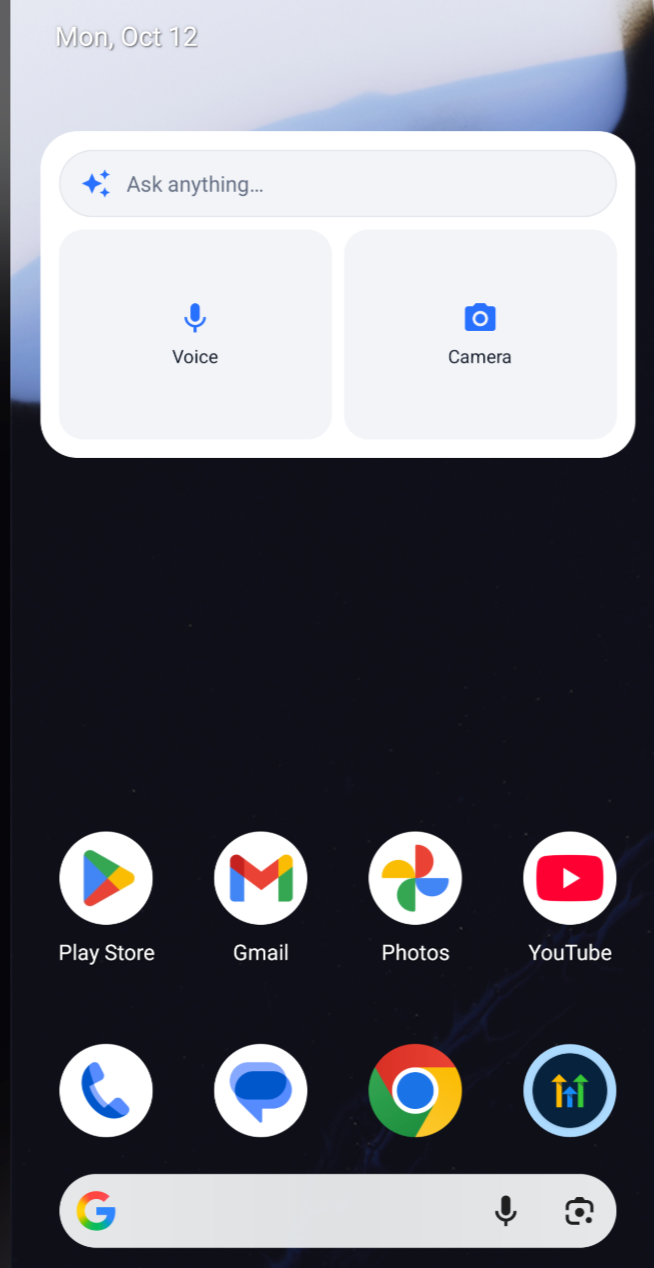
Confirm Placement: Finish the placement process.
Test the Widget: Tap the Chat bar, Voice button, or Camera button to start a new Ask AI conversation.
Start a Conversation from the Widget
Once the widget has been added, you can select the shortcut that best matches how you want to interact with Ask AI.
Tap the Chat bar to open a new conversation and begin typing.
Tap Voice to start a new hands-free conversation.
Tap Camera to capture a photo and attach it to a new conversation before entering your question.
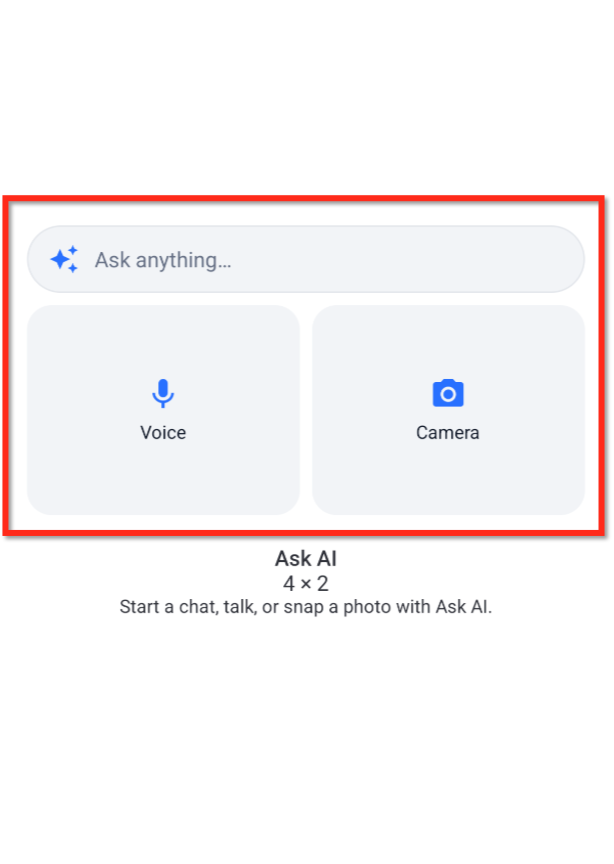
Each shortcut starts a fresh Ask AI conversation. If you are signed out when you select a widget shortcut, the app will ask you to sign in. After successful authentication, it resumes the action you originally selected.
Frequently Asked Questions
Q: Why can't I find the Ask AI widget in my phone's widget list?
A: Confirm that your mobile app is updated to version 4.27.0 or later, your device meets the supported operating system requirements, and Ask AI is enabled for your account. If you're using a White Label app, confirm that the Ask AI Home Widget switch has been enabled for your company.
Q: Do I need to sign in every time I use the widget?
A: Not necessarily. If you're already signed in, the widget opens the selected Ask AI experience. If you're signed out, the app prompts you to sign in and resumes your selected action afterward.
Q: Can I use the widget with a White Label mobile app?
A: Yes. White Label mobile apps support the widget when the company-level Ask AI Home Widget feature is enabled and the app and account meet the requirements.
Q: What if the Camera button cannot open my camera?
A: Check whether the mobile app has permission to use your device's camera. If camera access is blocked, review the app's permissions in your device settings before trying again.
Q: Can I return to conversations I started through the widget?
A: Ask AI supports conversation history and multiple conversation threads. You can use Ask AI's Chat History to find previous conversations. For more information, see Ask AI Multi-Threading: Run Multiple Tasks at Once.
Q: Does the widget provide access to additional Ask AI features?
A: The widget provides shortcuts to existing Ask AI functionality rather than introducing a separate AI assistant. Available capabilities continue to depend on your Ask AI access and supported features.
Q: Can I change the widget's colors independently of my app's branding?
A: The widget automatically follows the app's language and brand colors. The release does not identify separate widget-specific color customization settings.