
How to Use Ask AI from Contact Details in the Mobile App
Ask AI in Contact Details helps you quickly understand a contact's activity, prepare for meetings, and capture notes without leaving their profile. It brings conversations, appointments, opportunities, and tasks into one view. You can also ask questions, generate summaries, and dictate notes using the contact's existing information.
TABLE OF CONTENTS
- What is Ask AI in Contact Details?
- Key Benefits of Ask AI in Contact Details
- Understanding the Contact Summary Card
- Ask AI Actions for Contacts
- Permissions, Data Access, and Chat Behavior
- How to Use Ask AI from Contact Details
- Frequently Asked Questions
- Related Articles
What is Ask AI in Contact Details?
Ask AI is a mobile assistant that provides contact-specific information directly from a contact's detail screen. It displays a summary card built from actual CRM records and offers AI-powered actions to help you manage customer relationships.
The feature is available on iOS and Android in Chat To Clients CRM, Chat To Clients CRM, and supported White-Label Apps running version 4.27.0 or later. Users must have Ask AI access.
Key Benefits of Ask AI in Contact Details
Ask AI reduces the time spent searching through contact records and helps you complete follow-up activities more efficiently.
Quick Contact Overview: View messages, appointments, opportunities, and tasks in one place.
Better Meeting Preparation: Generate a briefing before an upcoming appointment.
Easy Note Capture: Dictate notes and review them before saving.
Up-to-Date Information: Ask AI retrieves the latest available contact records when answering questions.
Full Control: Proposed notes and tasks require your approval before being saved.
Understanding the Contact Summary Card
The summary card displays important contact information from existing CRM records, helping you quickly understand the current relationship.
| Information | Details |
|---|---|
| Last Message | Communication channel and time since the last message. |
| Next Appointment | Upcoming appointment, status, and additional appointment count (+N more). |
| Biggest Open Deal | Pipeline, stage, and days since the last stage movement. |
| Open Tasks | Outstanding tasks, including overdue indicators. |
Tap any row to open its corresponding record. Only information you have permission to view appears in the card.
Ask AI Actions for Contacts
Ask AI provides suggested actions based on the selected contact, making it easier to prepare for conversations and record important information.
Prep Me for Next Appointment
Generate a short briefing using the contact's available records before an upcoming meeting. This option appears when the contact has an appointment within the next seven days.
Summarize This Contact
Generate an AI-powered overview of the contact's relationship history and activity. This option is available for every contact. You can also ask follow-up questions.
Dictate to Add a Note
Speak your notes instead of typing them. Ask AI converts your speech into a proposed note and can suggest a task when follow-up is needed.
Nothing is saved until you approve the proposed action.You can also type custom questions about the contact.
Permissions, Data Access, and Chat Behavior
Ask AI uses your existing access permissions to determine which contact records are available. Understanding these behaviors helps you use the feature securely and manage conversations effectively.
Permissions: No additional feature-specific permission is required, but users must have Ask AI access.
New Chats: Opening Ask AI from a contact starts a fresh chat. After your first message, tap the + icon to start another chat for the same contact.
Offline Access: Previously loaded contact details may remain visible offline. If nothing is available, the app displays "Couldn't load details." Reconnect and pull down to retry.
Deleted Contacts: Ask AI displays an unavailable-contact message if the contact was deleted or access was removed.
Voice Mode: Full Voice Mode is unavailable in contact-specific chats. Use Dictate to Add a Note instead.
How to Use Ask AI from Contact Details
Opening Ask AI directly from a contact automatically provides the assistant with that contact's context, eliminating the need to search for the contact again.
Open a Contact: Navigate to Contacts, Conversations, or Search in your mobile app and select a contact.
Launch Ask AI: Tap the Ask AI icon in the contact's top bar.
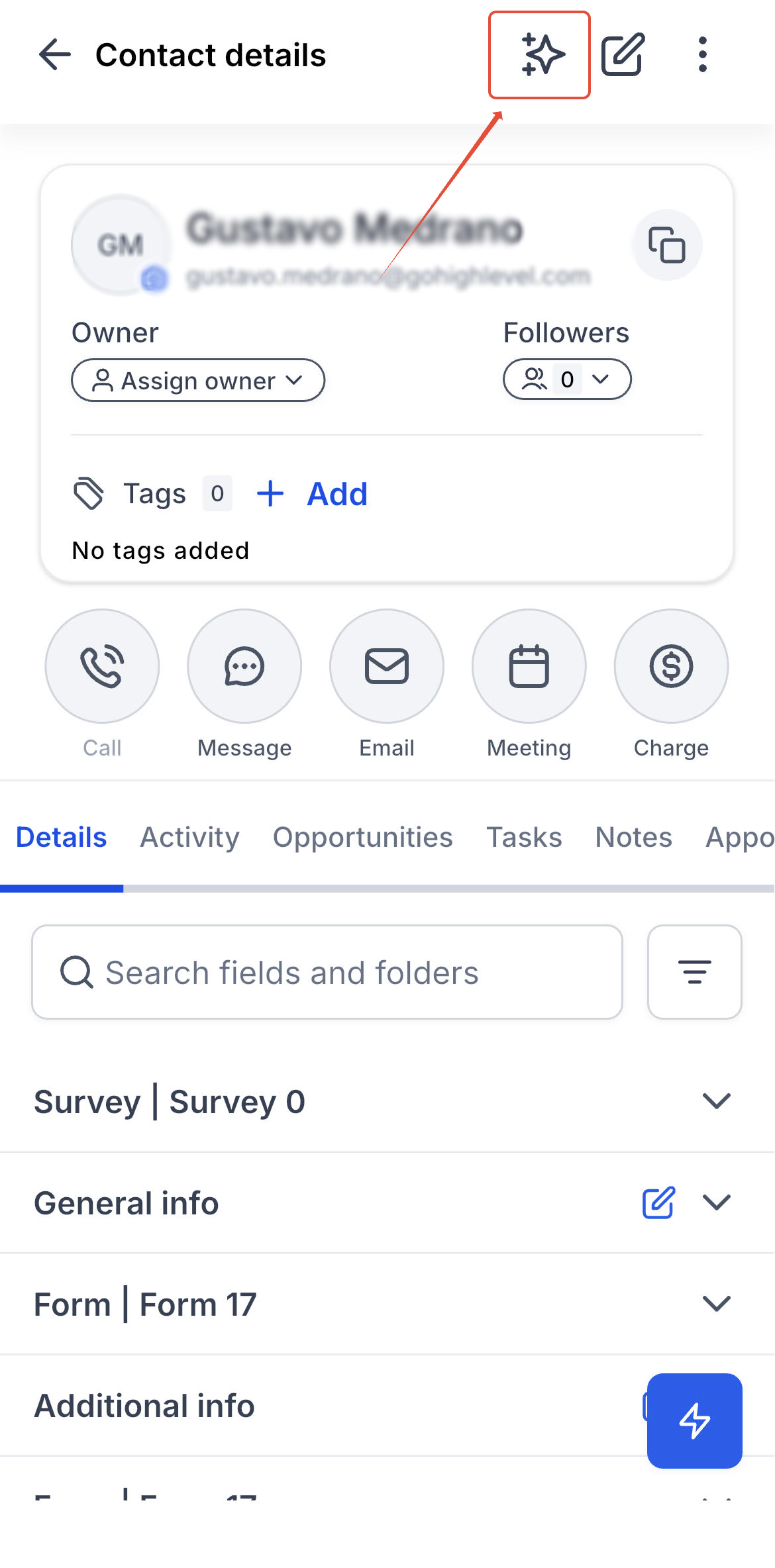
Review the Summary: View recent messages, upcoming appointments, open opportunities, and tasks.
Choose an Action: Select Prep Me, Summarize, or Dictate, or type your own question.
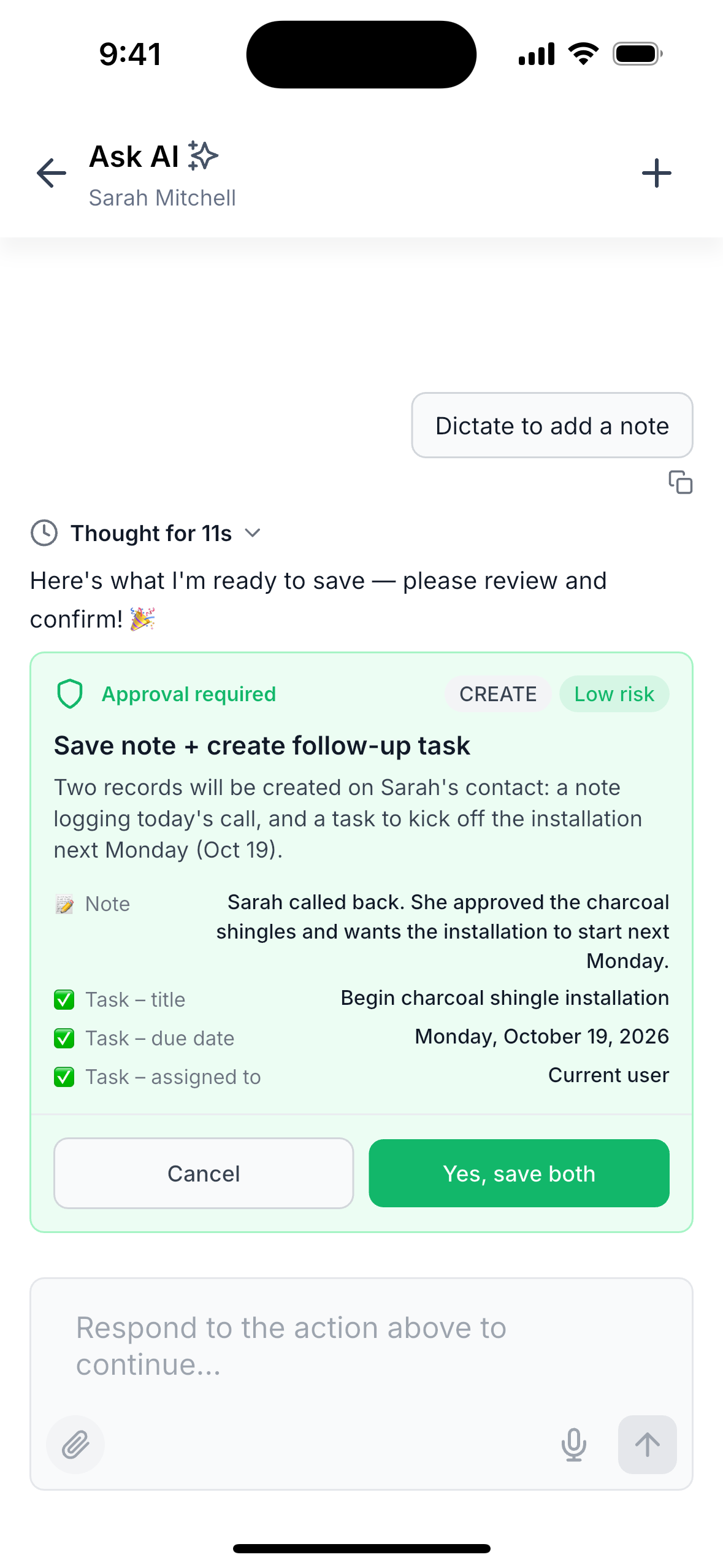
Approve Changes: Review and approve any proposed notes or tasks before saving.
Frequently Asked Questions
Q: Why can't I see the Prep Me button?
It only appears when the contact has an appointment within the next seven days.
Q: Why is some contact information missing?
The summary card only displays records you have permission to access.
Q: Can Ask AI create tasks from dictated notes?
Yes. Ask AI can propose a task when needed, but it must be approved before saving.
Q: Can I use Ask AI offline?
Previously loaded contact details may be available offline. Reconnect to refresh the information.
Q: Does Ask AI remember previous contact chats?
Opening Ask AI from a contact starts a fresh chat. You can also tap + after your first message to start over.
Q: Can I use full Voice Mode in a contact chat?
No. Full Voice Mode is not currently supported in contact-specific chats. Use Dictate to Add a Note.
Q: Why are opportunity amounts displayed without currency symbols?
AI-generated answers currently display deal amounts as plain numbers without currency symbols.