
Creator Studio: Example Sessions
Getting Started with Creator Studio
Creator Studio is Chat To Clients CRM's AI design studio. It creates social posts, ads, flyers, images, and short videos from a single prompt.
This article walks through three example sessions to help you understand how Creator Studio works, what results to expect, and how to make adjustments.
Before You Start
Creator Studio is a Labs feature. An agency admin must enable it for each sub-account.
Enable Creator Studio
Go to Agency Settings → Labs → Sub-Account.
Find Creator Studio and click Activate Feature.
Search for the sub-account, switch Enable on, and click Save.
Access Creator Studio
Open the sub-account.
Press ⌘K (or click Search).
Type Creator Studio and open it.
How to Create a Design
Open Creator Studio.
(Optional) Choose Design, Image, or Video clip under the prompt box.
Describe what you want to create. Include details such as:
Business name
Offer or promotion
Call to action (CTA)
Click Send to generate your content.
Results typically appear within 2–3 minutes.
To make changes:
Click Edit on a design to modify individual layers.
Type a follow-up message to request changes.
Example 1: Creating an Instagram Post
Prompt Used
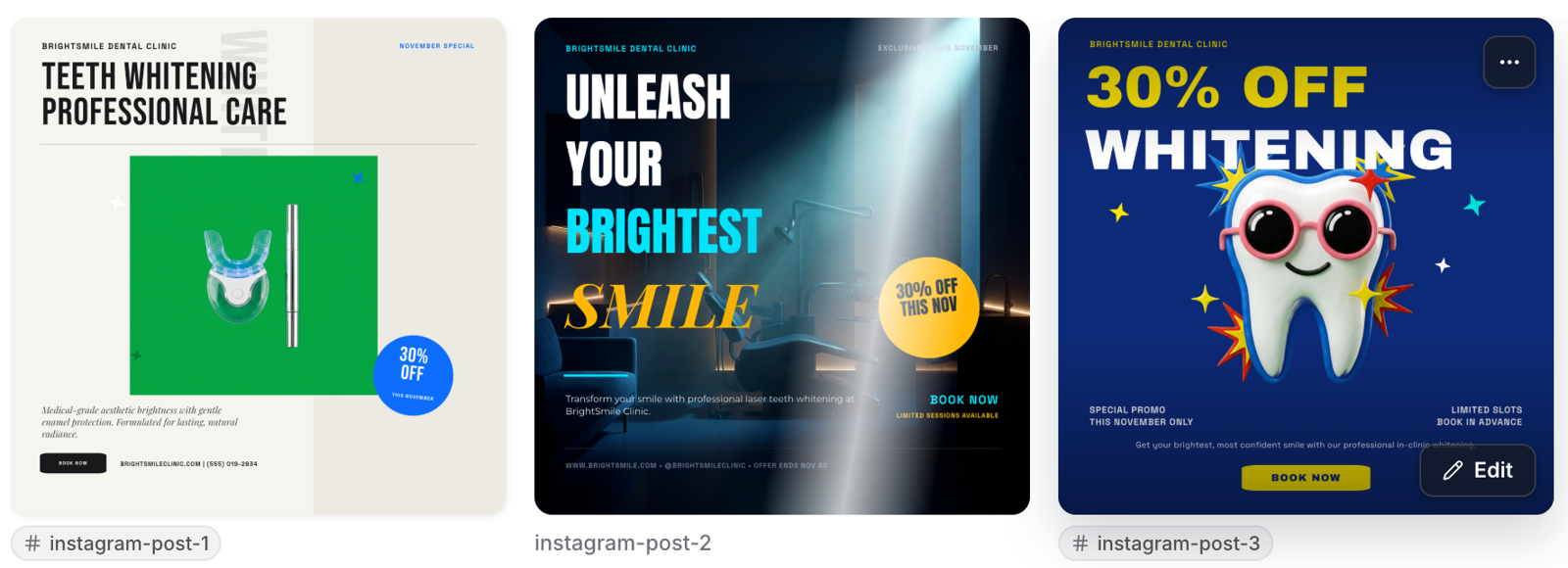
Create an Instagram post for BrightSmile Dental Clinic announcing a teeth-whitening offer: 30% off this November. Clean, modern, friendly look with a 'Book now' call to action.
What Happened
Creator Studio automatically selected Social media → Instagram Post and generated three design variations.
All three designs included the clinic name, promotional offer, and call-to-action button.
Session Details
| Item | Value |
|---|---|
| User Messages | 1 |
| Tools Used | 3 design generations |
| Rendering | 3 AI-generated Instagram post designs, every layer editable |
| Platform Actions | Saved as project "BrightSmile Whitening Offer" |
| Final Result | 3 posts with the offer, clinic name and "Book now" button, ready to edit or download |
| Total Session Cost | $1.20 |
Result
Three Instagram post designs for BrightSmile Dental Clinic
The designs are ready for further customization using the editor or for downloading.
Example 2: Creating a Facebook Ad
Prompt Used
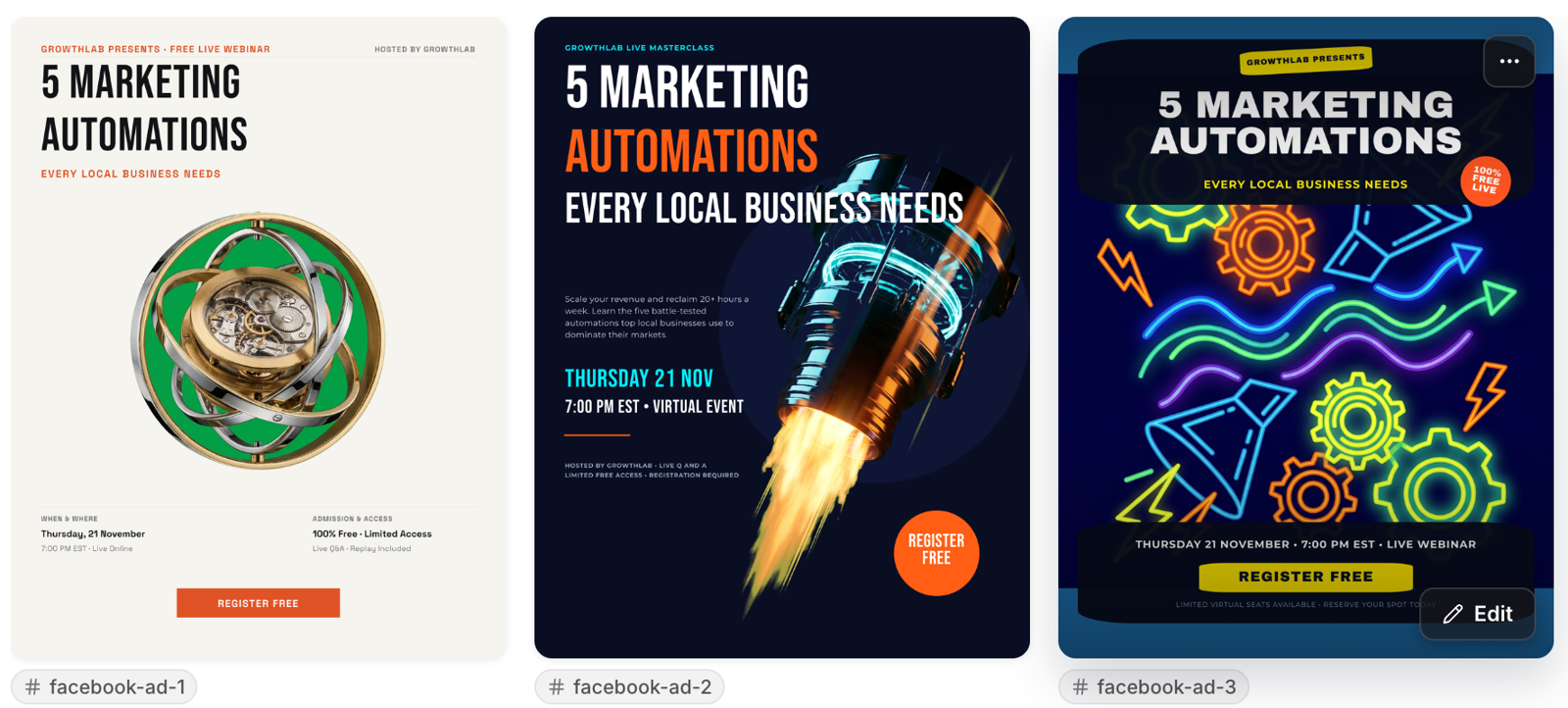
Create a Facebook ad for a free live webinar: '5 Marketing Automations Every Local Business Needs', Thursday 21 November at 7pm EST, hosted by GrowthLab. Bold, professional look with a 'Register free' call to action.
What Happened
Creator Studio generated three promotional designs in flyer format (8.5 × 11 inches).
It also provided four follow-up suggestions, including Resize to square 1:1 ad format.
Session Details
| Item | Value |
|---|---|
| User Messages | 1 |
| Tools Used | 3 design generations |
| Rendering | 3 AI-generated flyer designs (8.5 × 11 in) + 4 follow-up suggestions |
| Platform Actions | Saved as project "GrowthLab Webinar Ad" |
| Final Result | 3 webinar promos with title, date, host and "Register free" button; resize to 1:1 before running as a Facebook ad |
| Total Session Cost | $0.93 |
Result
Three webinar ad designs for GrowthLab
All three designs include the webinar title, date, host, and registration call to action.
Tip: Facebook ad requests may initially generate designs in flyer dimensions. To get the desired format:
Click the Resize to square 1:1 ad format suggestion.
Alternatively, specify the dimensions directly in your original prompt.
Example 3: Creating a Promotional Video
Prompt Used
Create a short promo video clip for Sweet Crumbs Bakery's festive holiday menu: fresh cinnamon rolls, gingerbread cookies and a Christmas fruit cake. Warm, cozy bakery mood, ending with 'Order now for pickup'.
What Happened
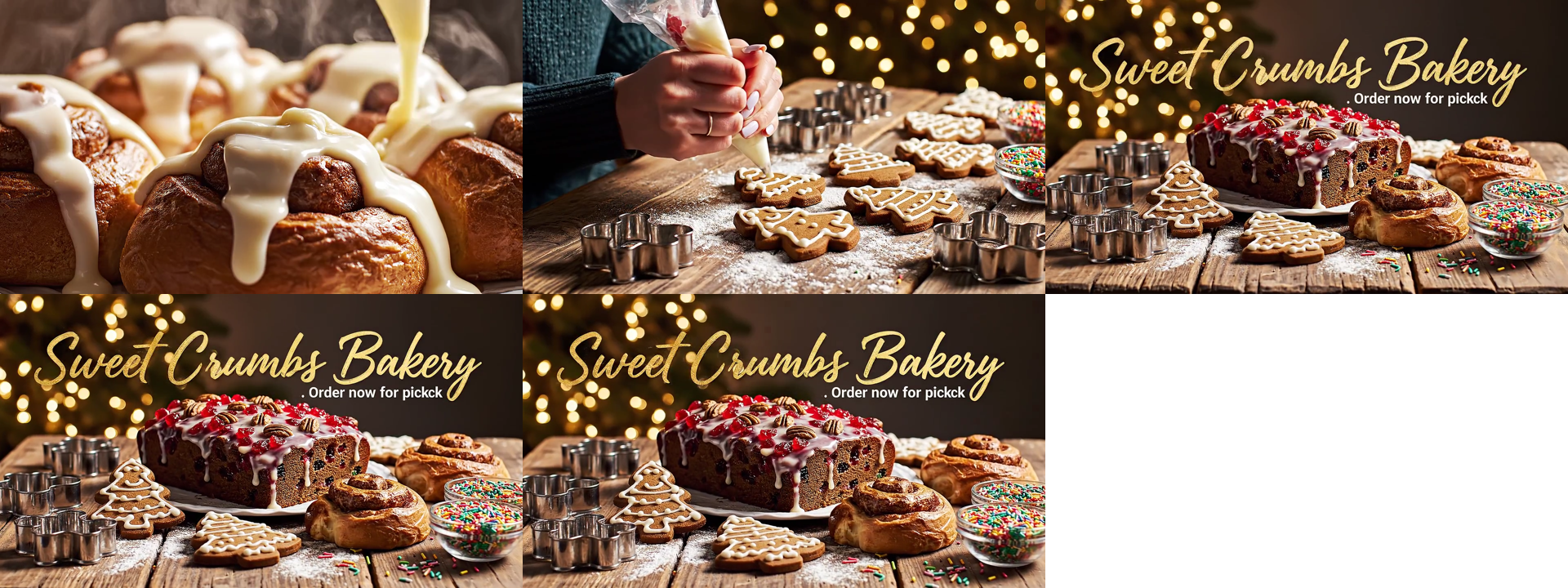
With Video clip selected, Creator Studio generated one 6-second promotional video.
The video contained the following sequence:
Cinnamon rolls
Gingerbread cookies
End card displaying the bakery name
Session Details
| Item | Value |
|---|---|
| User Messages | 1 |
| Tools Used | 1 video generation |
| Rendering | 6-second AI video, 1080p, no audio |
| Platform Actions | Saved as project "Sweet Crumbs Holiday…" |
| Final Result | Holiday promo video; the end card reads "Order now for pickck", so it needs a regenerate before use |
| Total Session Cost | $1.40 |
Result
Video frames: Cinnamon rolls → Gingerbread cookies → End card
The generated video successfully captured the intended holiday theme. However, the end card contained a spelling mistake.
Important: Text inside an AI-generated video cannot be edited directly. If the generated video contains incorrect or misspelled text, you must regenerate it.
Troubleshooting
If you encounter an issue while using Creator Studio, refer to the following solutions.
| Problem | What to Do |
|---|---|
| Creator Studio doesn't appear in the sub-account | Enable Creator Studio in Labs. Refer to the Before You Start section. |
| Design comes back in the wrong size | Use the Resize suggestion, or specify the size in your prompt (for example, "square 1:1"). |
| Spelling mistake in a video | Regenerate the video. Text inside generated videos isn't editable. |
| Video is widescreen when 1:1 was selected | This is a known issue. Regenerate the video and report the issue to the product team. |
Key Takeaways
Create multiple content types: Generate social posts, ads, flyers, images, and short videos using natural-language prompts.
Customize designs: Edit individual design layers or use follow-up prompts to make changes.
Specify dimensions: Include the preferred format or aspect ratio in your prompt to reduce the need for resizing.
Review generated content: Always check spelling, layout, and details before publishing or downloading.
Regenerate video content when needed: Unlike design layers, text generated inside videos cannot be edited directly.