
How to Fix WhatsApp Error #133010 – Account Is Not Registered
Fix WhatsApp Error #133010
Seeing “The account is not registered” even though your number looks connected? Refresh your Cloud API registration and get messages sending again.
Overview
Are you receiving Error #133010 – The account is not registered when trying to send WhatsApp messages, even though your WhatsApp number appears connected in Meta WhatsApp Manager?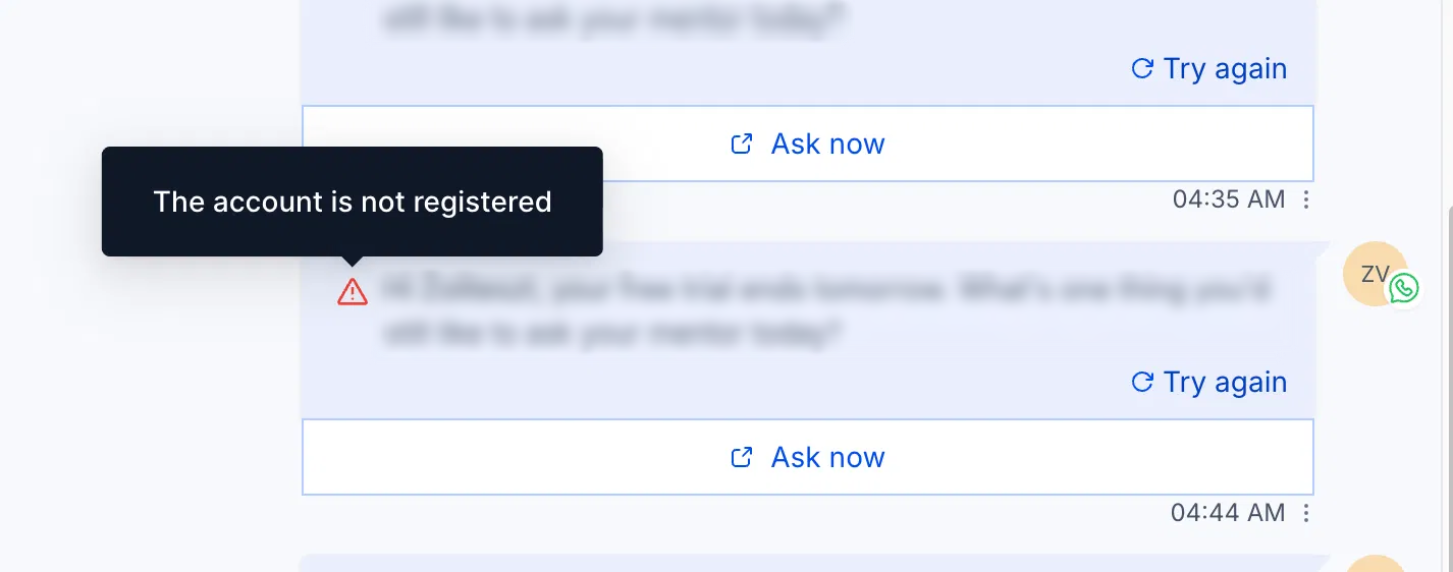
This error indicates that your phone number may no longer be actively registered with the WhatsApp Cloud API. Even if your WhatsApp Business Account is approved and your phone number shows as connected in Meta Business Manager, its Cloud API registration may need to be refreshed.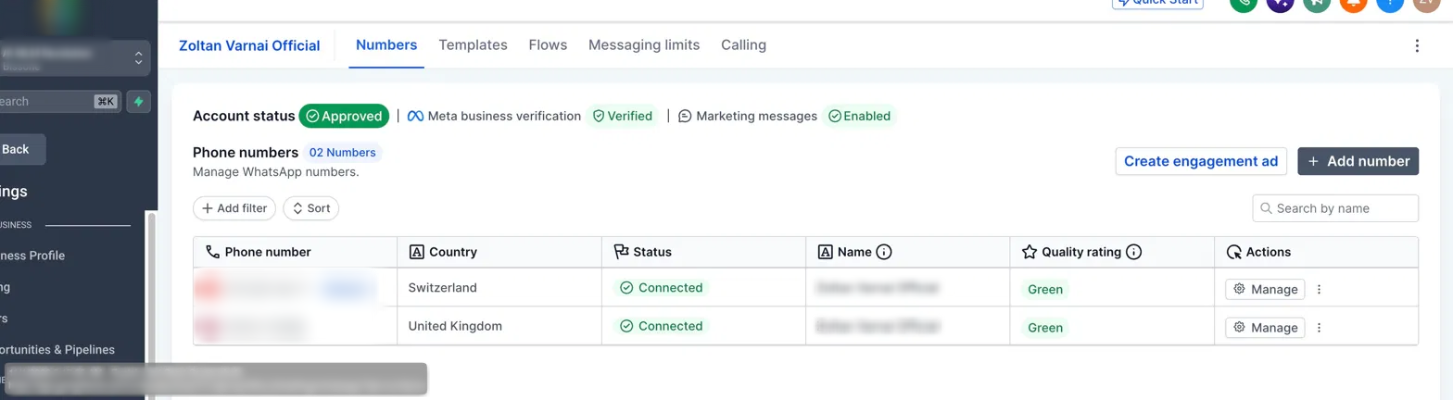
Follow the steps below to resolve this issue.
Fix It in 4 Steps
You may encounter the following error when sending WhatsApp messages:
This means WhatsApp Cloud API is unable to recognize your phone number as an actively registered number.
Your phone number may need to be registered again with WhatsApp Cloud API.
Open your WhatsApp Business Account
Access your WhatsApp Business Account through Meta.
Go to Phone Numbers
Navigate to WhatsApp Manager → Phone Numbers.
Select the affected number
Select the phone number that is showing the error.
Start the registration process
Follow Meta’s available registration or verification process.
Verify ownership if prompted
Verify ownership of your phone number using SMS or a voice call.
Complete the registration
Finish the registration process and confirm it completes successfully.
If re-registering your phone number does not resolve the issue, you may need to deregister and register it again.
Deregister the phone number
Deregister the affected phone number from WhatsApp Cloud API.
Start registration again
Initiate the registration process again.
Verify the phone number
Complete phone number verification using SMS or a voice call.
Confirm success
Confirm that the registration is successful.
If two-step verification is enabled for your WhatsApp phone number:
Have your PIN ready
Make sure you have the correct six-digit PIN.
Enter the PIN
Enter the PIN when prompted during registration.
Forgot your PIN?
Follow Meta’s PIN recovery instructions.
After successfully registering your phone number:
Return to your account
Go back to your account in the platform.
Open a test conversation
Open the WhatsApp conversation with a test contact.
Send a test message
Send a message to the test contact.
Confirm it sends
Confirm that the message is sent successfully.
If you have completed the above steps and are still receiving error #133010, please contact our Support Team.
Our team will review the information and assist you further.
Additional Resources
For more information, refer to Meta’s official documentation: