
Create Workflows with Social Planner Posts
TABLE OF CONTENTS
- What Is the Social Planner Posts Trigger?
- Before You Start
- How to Create a Workflow Using Social Planner Posts
- Example Use Cases
- Frequently Asked Questions
- Which post statuses can trigger a workflow?
- Can I filter workflows by social platform?
- Can I create workflows for specific social accounts?
- Can I create separate workflows for different content categories?
- Can I filter workflows by post type?
- Are social accounts connected through Integrations supported?
- When does the workflow trigger?
- Can I use this trigger in an existing workflow?
- Summary
Social Planner integrates with Workflows to help you automate actions based on your social media publishing activity. With the Social Planner Posts trigger, you can automatically initiate workflows when a post is submitted for approval, approved, rejected, scheduled, published, or fails to publish.
You can also filter workflows by category, platform, post type, social account, and tags to ensure that the right actions are triggered for the right posts.
This article explains how to configure the Social Planner Posts trigger, set up filters, and automate your social media publishing processes.
What Is the Social Planner Posts Trigger?
The Social Planner Posts trigger allows you to start a workflow when a Social Planner post meets your configured conditions.
For example, you can:
Notify your team when a post fails to publish.
Alert stakeholders when a post is submitted for approval.
Trigger follow-up actions when a post is approved.
Monitor successfully published posts.
Create different automation rules for specific platforms, accounts, or content categories.
This helps reduce manual monitoring and keeps your team informed throughout the social media publishing lifecycle.
Before You Start
Make sure that:
You have access to Automation → Workflows.
Your social accounts are connected through Social Planner.
You have created the categories and tags you want to use as workflow filters, if applicable.
Note: Only social accounts connected through Social Planner are supported. Social accounts connected through Integrations are not supported yet, support is in progress.
How to Create a Workflow Using Social Planner Posts
Follow these steps to create a new workflow or update an existing one.
Step 1: Open Workflows
Go to Automation → Workflows.
Click Create Workflow to create a new workflow, or open an existing workflow you want to update.
Step 2: Add the Social Planner Posts Trigger
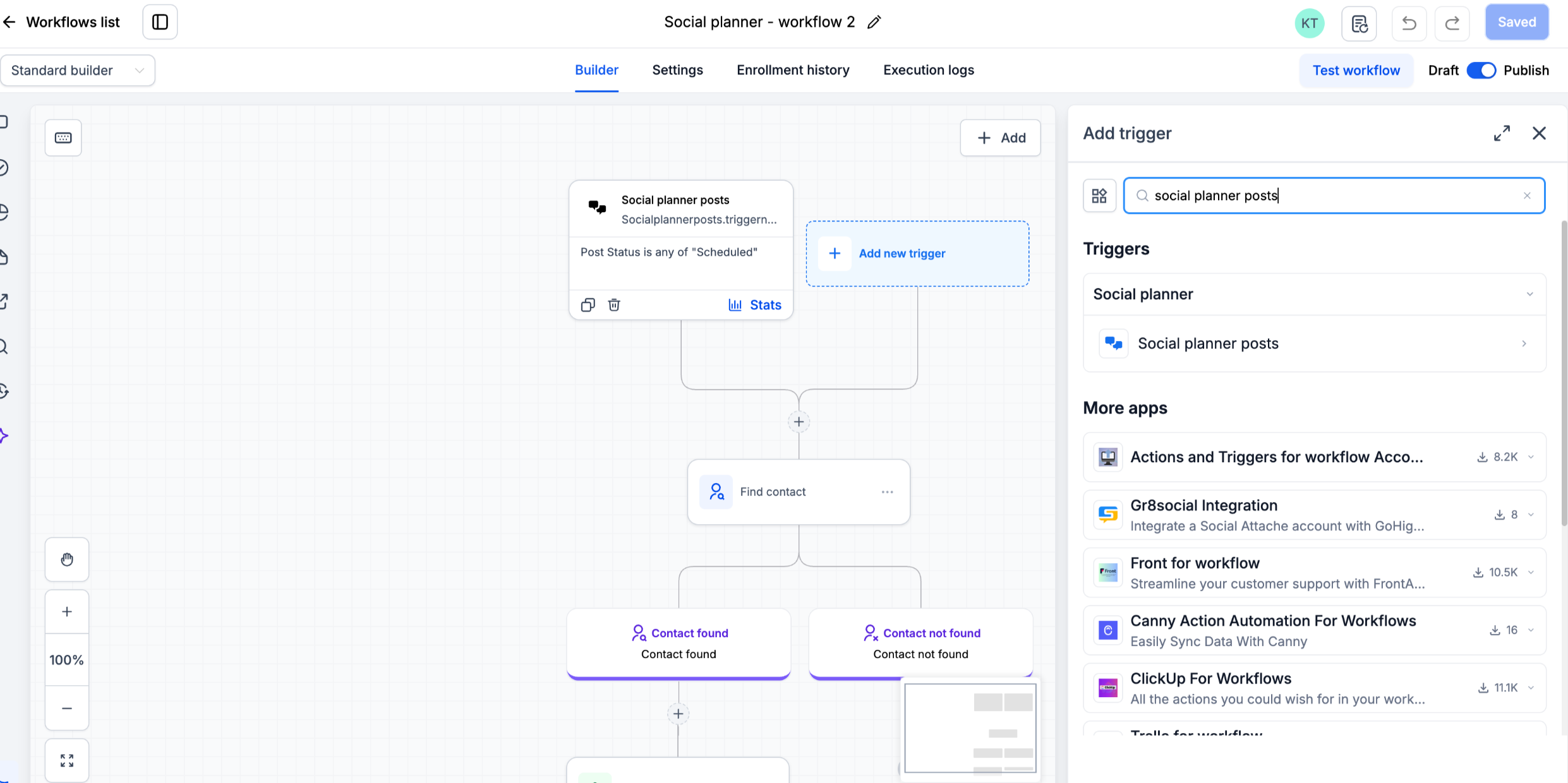
Click Add New Trigger.
Search for and select Social Planner Posts.
Configure the trigger conditions and filters based on the posts you want the workflow to monitor.
Step 3: Configure the Trigger Filters
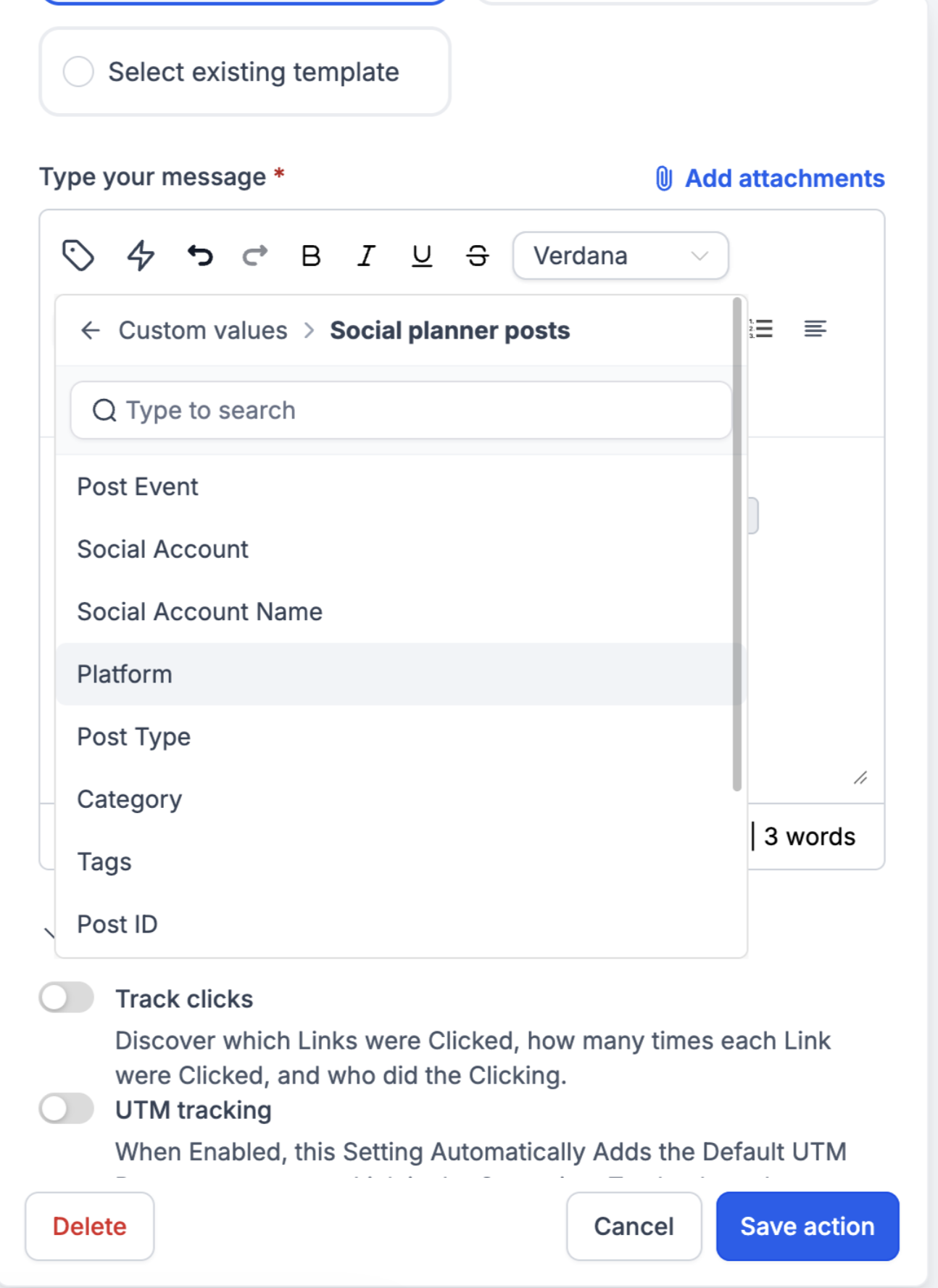
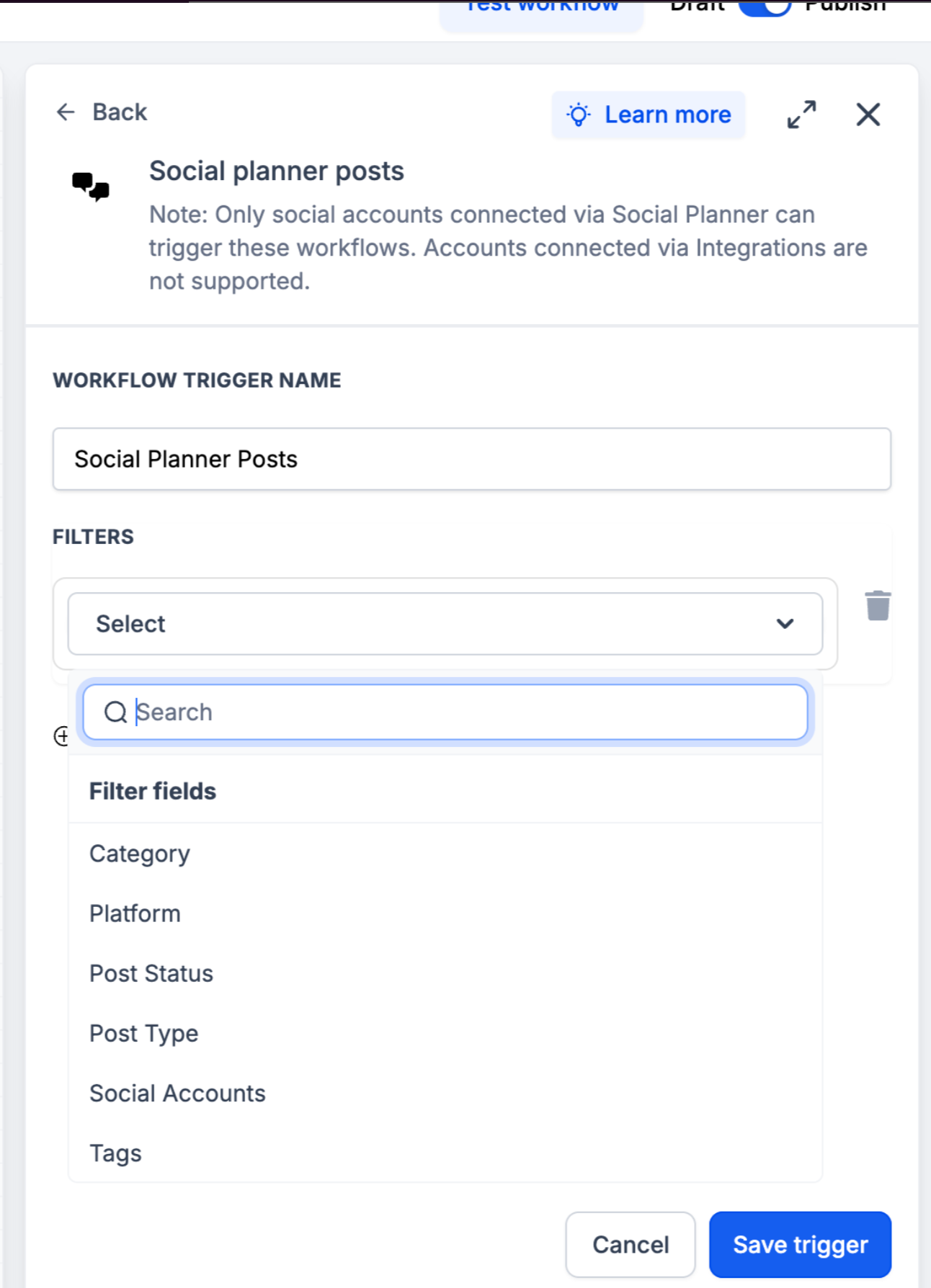
Use the available filters to control which social posts trigger the workflow.
Post Status
Select the status or publishing event that should trigger the workflow.
The available statuses are:
Approval Requested: Triggers when a post is submitted for approval.
Approved: Triggers when a post is approved.
Approval Rejected: Triggers when a post's approval is rejected.
Scheduled: Triggers when a post is scheduled for publishing.
Published: Triggers when a post is successfully published.
Failed: Triggers when a post fails to publish.
Choose the status that corresponds to the action you want to automate.
Example: Select Failed to initiate a workflow that notifies your team when a post fails to publish, allowing them to investigate and take corrective action.
Category
Use the Category filter to target posts belonging to specific content categories.
For example, you can create separate workflows for:
Promotional content
Product announcements
Educational posts
Campaign-specific content
This helps you apply different automation rules to different types of content.
Platform
Use the Platform filter to specify which social media platform the workflow should monitor.
Supported platform options include:
Facebook
Instagram
Bluesky
Google Business Profile (GBP)
LinkedIn
Pinterest
Threads
TikTok
YouTube
You can use this filter to create platform-specific workflows.
Example: Create a workflow that notifies your team whenever a TikTok post fails to publish.
Post Type
Use the Post Type filter to target specific types of social content.
Available options include:
Carousels
Posts
Reels
Shorts
Stories
This allows you to configure different automation rules based on the format of the content being published.
Social Account
Use the Social Account filter to target posts associated with specific connected Social Planner accounts.
This is especially useful for agencies managing multiple clients, brands, or social profiles. You can create separate workflows for different accounts without applying the same automation to every connected profile.
Tags
Use the Tags filter to target posts with specific existing tags.
Tags help you create more precise workflows for campaigns, content groups, or other publishing requirements.
For example, you can configure a workflow to monitor publishing events for posts carrying a particular campaign tag.
Step 4: Add Workflow Actions
After configuring the trigger and filters, add the actions you want the workflow to perform.
Depending on your requirements, these may include:
Sending internal notifications to your team.
Alerting the relevant stakeholders about approval decisions.
Initiating follow-up actions when posts are published.
Notifying the team when a post fails to publish.
You can combine multiple actions in the same workflow to automate more of your social publishing process.
Step 5: Save and Publish the Workflow
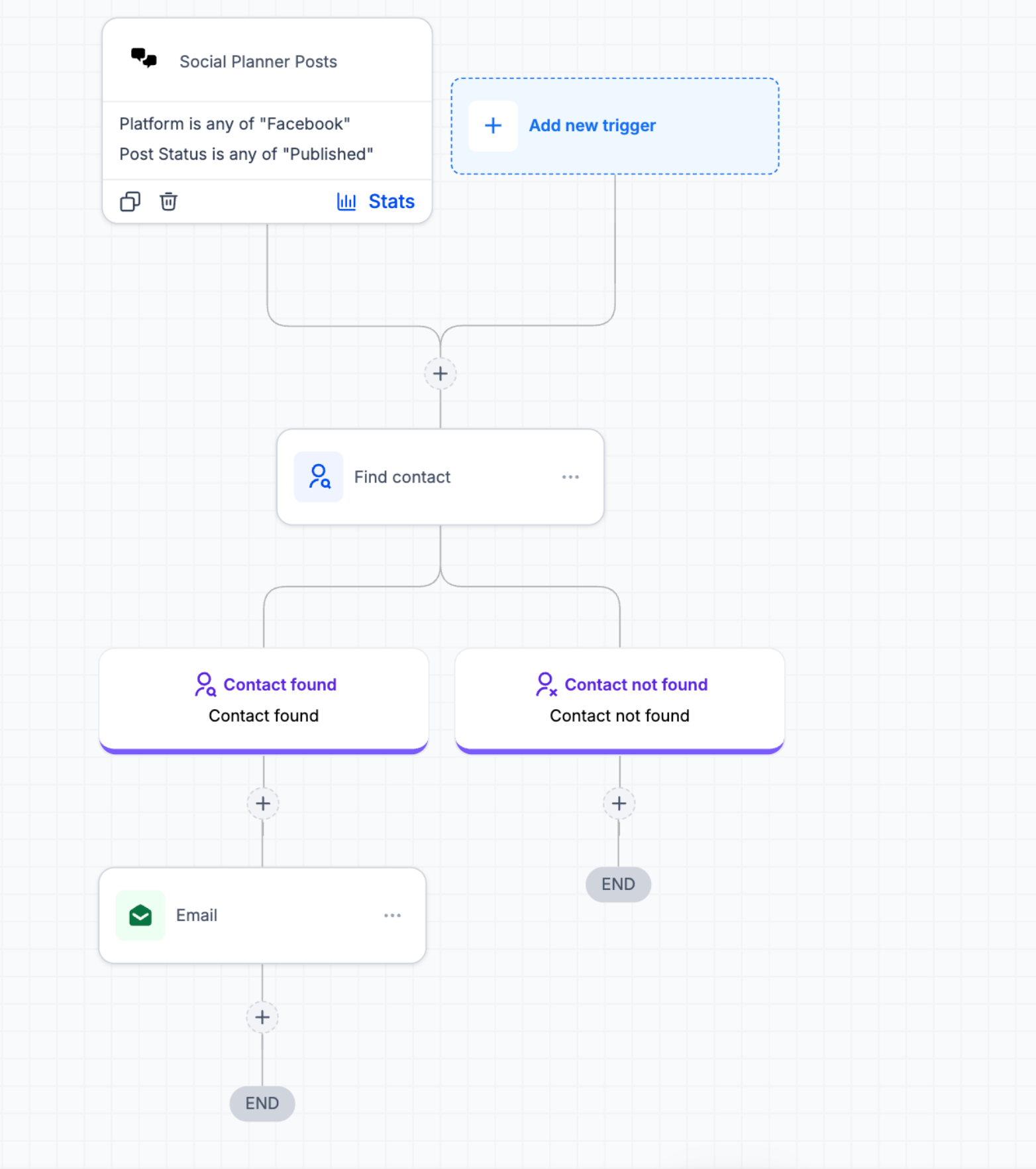
Review the trigger and its configured filters.
Verify that the workflow actions match your intended use case.
Save the workflow.
Publish the workflow to activate it.
Once active, the workflow triggers when a Social Planner post meets the configured conditions.
Example Use Cases
1. Notify the Team When a Post Fails
Goal: Ensure that publishing failures are noticed and addressed quickly.
Configure the workflow with:
Trigger: Social Planner Posts
Post Status: Failed
Action: Send an internal notification
When a post fails to publish and meets the configured conditions, the workflow notifies your team so they can investigate.
2. Track Posts Submitted for Approval
Goal: Keep stakeholders informed about posts awaiting approval.
Configure the workflow with:
Trigger: Social Planner Posts
Post Status: Approval Requested
Optional filters: Category, platform, social account, or tags
Action: Notify the relevant team members
This helps your team stay informed when content enters the approval process.
3. Automate Actions After Approval
Goal: Keep the publishing team informed when content is approved.
Configure the workflow with:
Trigger: Social Planner Posts
Post Status: Approved
Optional filters: Category or platform
Action: Send an internal notification or initiate another follow-up action
This reduces the need to manually check approval status.
4. Monitor Successfully Published Posts
Goal: Track publishing activity across selected social channels.
Configure the workflow with:
Trigger: Social Planner Posts
Post Status: Published
Optional filters: Platform, social account, category, or tags
Action: Trigger the relevant follow-up action
This helps your team monitor publishing activity for specific campaigns or social accounts.
5. Create Platform-Specific Automation
Goal: Apply different automation rules to different social channels.
Configure the workflow with:
Trigger: Social Planner Posts
Platform: Select the required platform
Post Status: Select the publishing event to monitor
Action: Add the appropriate workflow actions
You can create separate workflows for different platforms based on your team's operational needs.
Frequently Asked Questions
Which post statuses can trigger a workflow?
The Social Planner Posts trigger supports the following statuses: Approval Requested, Approved, Approval Rejected, Scheduled, Published, and Failed.
Can I filter workflows by social platform?
Yes. You can filter by Facebook, Instagram, Bluesky, Google Business Profile, LinkedIn, Pinterest, Threads, TikTok, and YouTube.
Can I create workflows for specific social accounts?
Yes. Use the Social Account filter to target posts associated with specific accounts connected through Social Planner.
Can I create separate workflows for different content categories?
Yes. Use the Category filter to apply different automation rules to posts belonging to specific categories.
Can I filter workflows by post type?
Yes. The available post type filters include Carousels, Posts, Reels, Shorts, and Stories.
Are social accounts connected through Integrations supported?
No. Only social accounts connected through Social Planner are supported currently. Support for accounts connected through Integrations is in progress.
When does the workflow trigger?
The workflow triggers when a Social Planner post meets the configured trigger conditions and filters.
Can I use this trigger in an existing workflow?
Yes. You can add the Social Planner Posts trigger to an existing workflow or use it when creating a new workflow.