
How to Use Claude and Gemini Models in Conversation AI
Chat To Clients CRM Conversation AI supports Anthropic Claude and Google Gemini alongside existing OpenAI models. You can select a primary model for each agent and configure an optional secondary model as a fallback. Switching models preserves existing prompts, actions, knowledge bases, and agent settings. This guide covers enabling the new providers, selecting models, and testing your agent.
TABLE OF CONTENTS
- What Is Claude and Gemini Model Support in Conversation AI?
- Key Benefits of Claude and Gemini Model Support
- Prerequisites and Limitations
- How to Set Up Claude and Gemini Models
- Supported Claude and Gemini Models
- Frequently Asked Questions
- Related Articles
What Is Claude and Gemini Model Support in Conversation AI?
Claude and Gemini Model Support lets you choose models from Anthropic, Google, or OpenAI directly within the Conversation AI agent editor. Each agent can use a different model, with an optional secondary model that automatically takes over if the primary model becomes unavailable.
Key Benefits of Claude and Gemini Model Support
Multi-provider support gives you greater flexibility when selecting AI models without rebuilding existing agents.
- More model choices: Select from Claude, Gemini, and supported OpenAI models.
- Agent-specific configuration: Choose models based on each agent's needs, speed, and relative cost.
- Automatic fallback: Configure a secondary model to take over when the primary model is unavailable.
- Existing settings preserved: Keep your current prompts, actions, knowledge bases, and channels.
- Cost visibility: Compare relative model costs ($ to $$$$) directly in the model dropdown.
Prerequisites and Limitations
Claude and Gemini support must be enabled in Labs before the additional models appear in Conversation AI. Confirm that your agent is available and review the selected model's cost before saving the configuration.
- Enable Conversations AI Provider Support under Settings → Labs.
- Create or select an existing Conversation AI agent.
- A secondary model is optional and must differ from the primary model.
- Model costs vary. Refer to the current in-app cost indicators and AI Product Pricing documentation.
How to Set Up Claude and Gemini Models
Enable the additional AI providers, select a model for your agent, and optionally configure a secondary fallback. Test the updated responses before using the agent in live conversations.
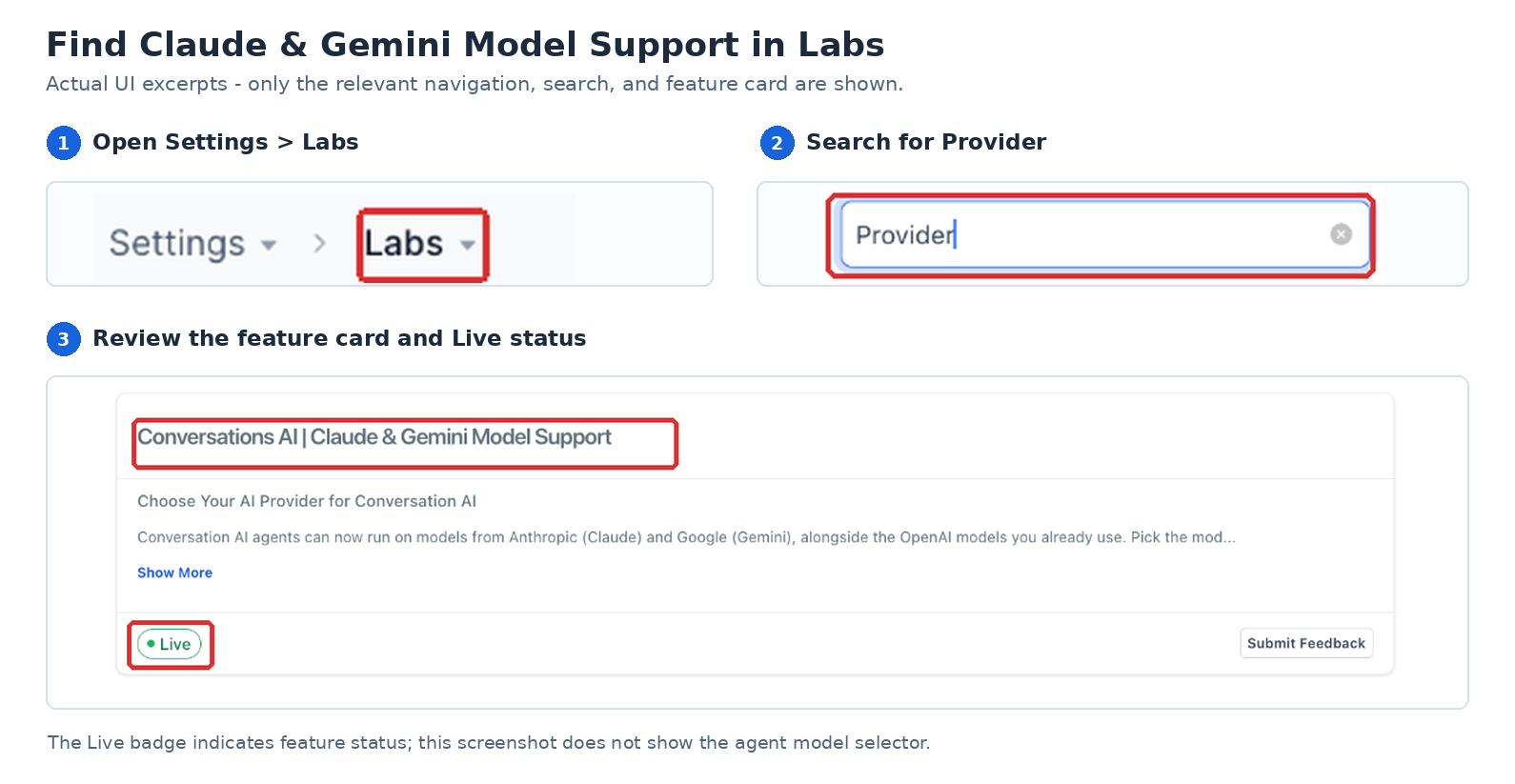
Step 1: Enable Claude and Gemini Support
Activate the feature in Labs to make the new providers available.
- From your Sub-Account view, click Settings in the left-hand menu.
- Select Labs.
- Locate Conversations AI Provider Support.
- Enable the feature.
Step 2: Select a Primary Model
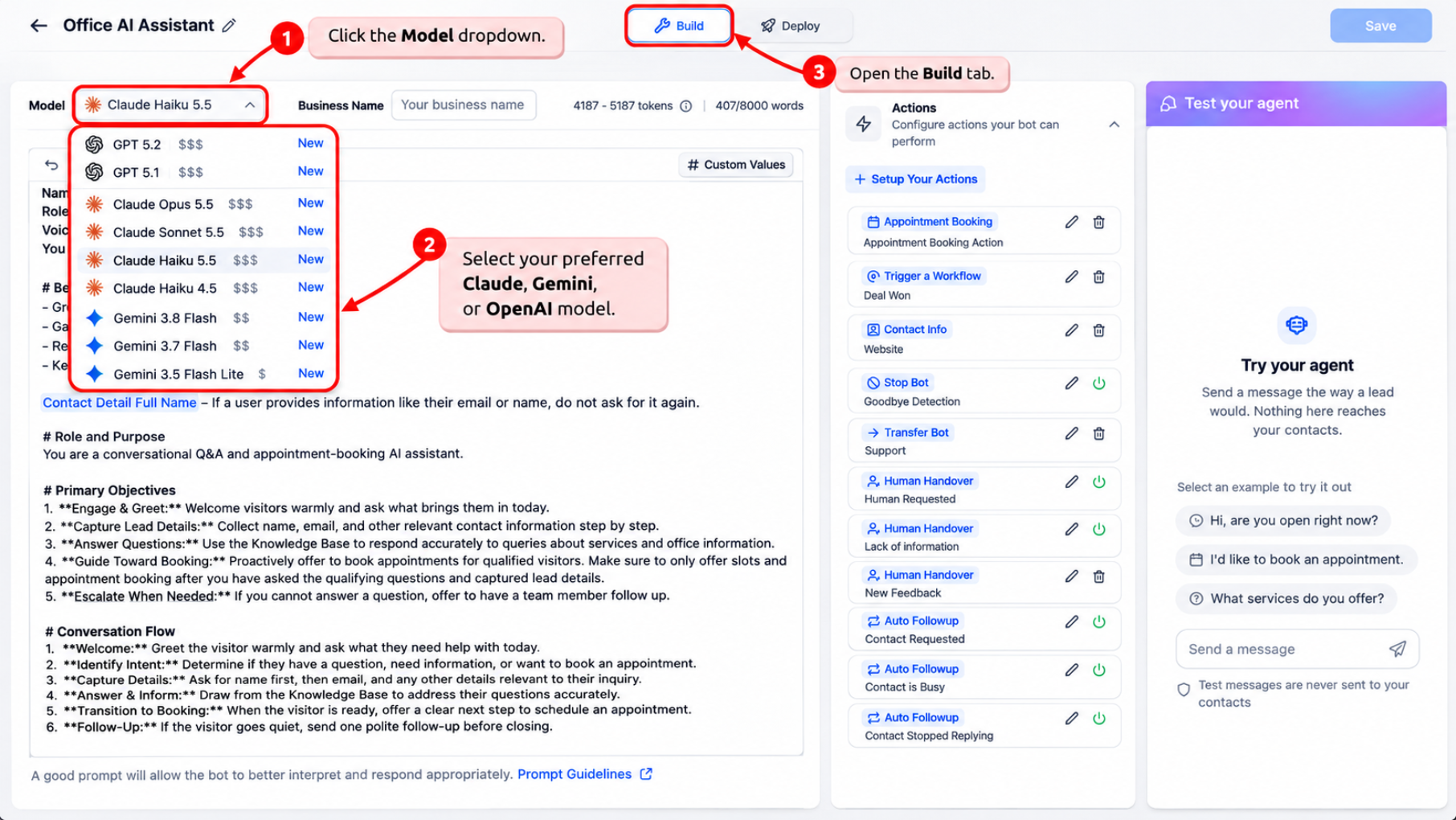
Choose the AI model your agent will use to generate responses.
- From your Sub-Account view, navigate to AI Agents → Conversation AI → Agents List.
- Select the agent you want to configure.
- Open the Build tab.
- Click the Model dropdown.
- Select your preferred Claude, Gemini, or OpenAI model.
Step 3: Configure a Secondary Model (Optional)
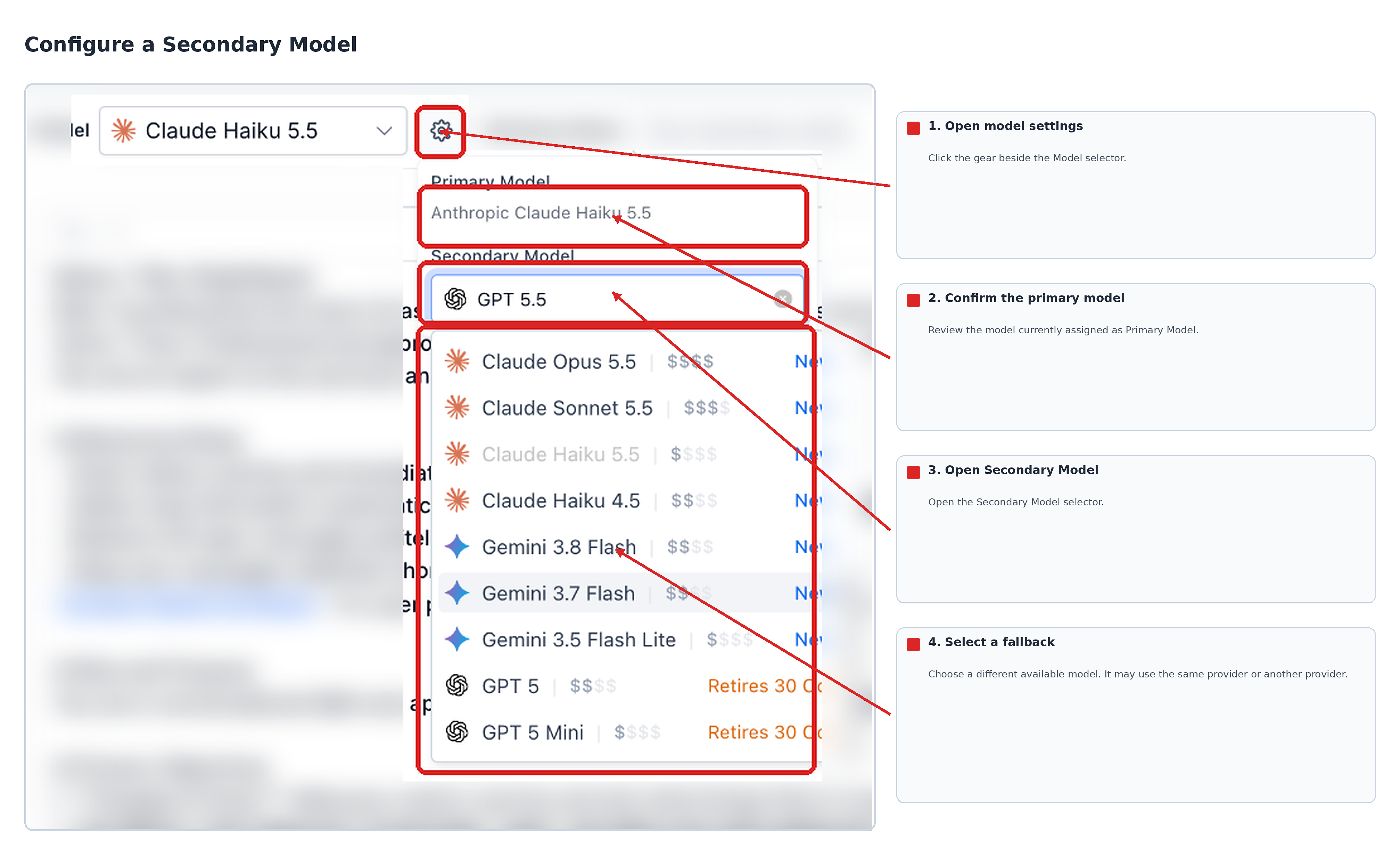
A secondary model provides an automatic fallback when the primary model is unavailable. It can use the same provider or a different provider.
- Click the settings (gear) icon beside the Model dropdown.
- Review the selected Primary Model.
- Open the Secondary Model dropdown.
- Select a different model from the available options.
Step 4: Test and Save Your Agent
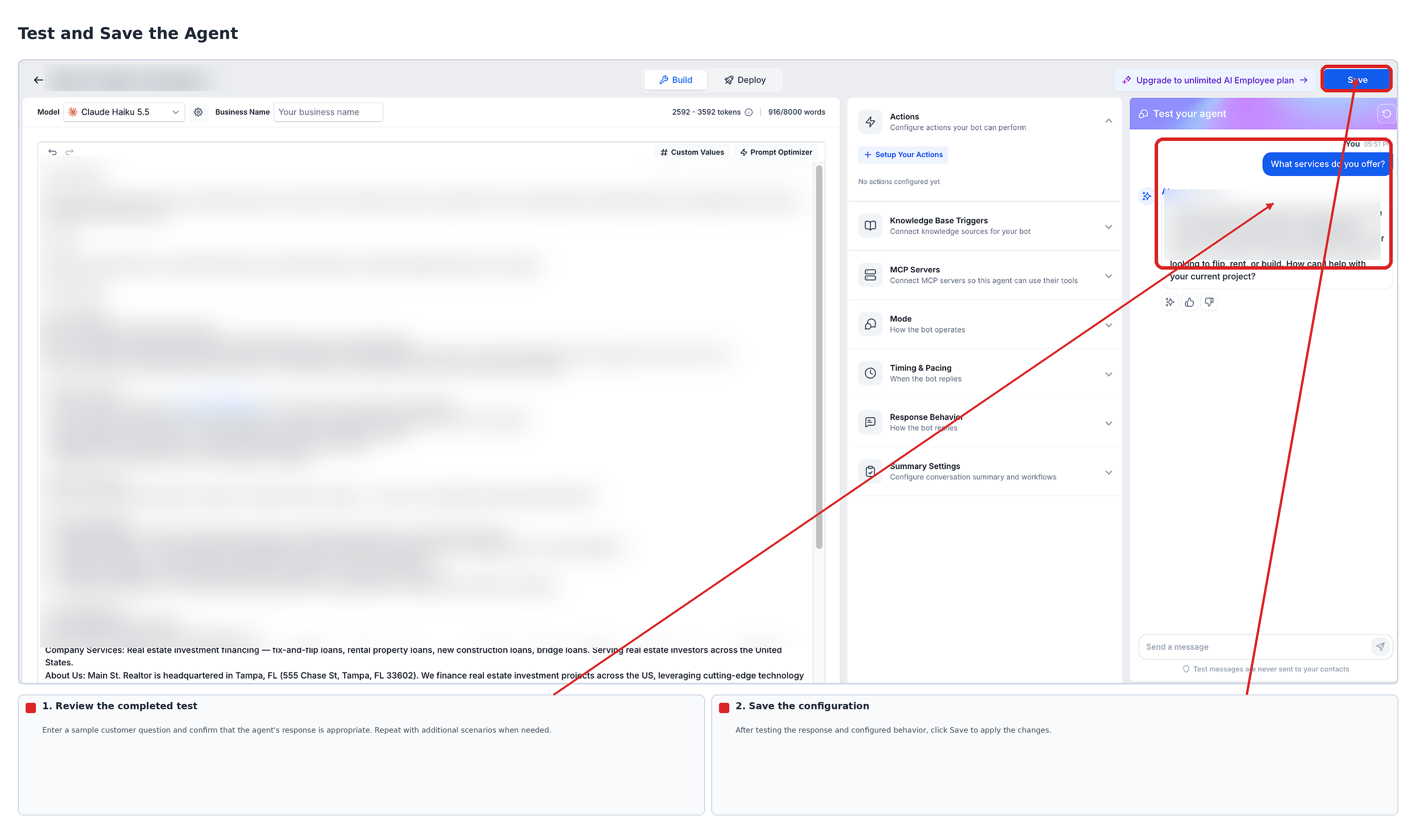
Test the selected model to confirm that your agent responds correctly before saving the changes.
- In the Test your agent panel, enter a sample customer question or select a suggested message.
- Review the agent's responses and verify that configured actions behave as expected.
- Test additional scenarios, such as appointment requests or business questions, as applicable.
- Click Save to apply the configuration.
Supported Claude and Gemini Models
Conversation AI adds seven models across two providers. Existing supported OpenAI models remain available in the same model dropdown. Review the options available in your agent's Model menu, as model availability and pricing can change.
Anthropic Claude
- Claude Opus 5.5
- Claude Sonnet 5.5
- Claude Haiku 5.5
- Claude Haiku 4.5
Google Gemini
- Gemini 3.8 Flash
- Gemini 3.7 Flash
- Gemini 3.5 Flash Lite
Frequently Asked Questions
Q: Can different Conversation AI agents use different AI providers?
Yes. Each agent has its own model configuration, allowing different agents within the same sub-account to use different providers.
Q: Can I change the primary model using Build with AI?
Yes. You can request a model change through Build with AI using natural-language instructions, such as "Switch the model to Claude."
Q: Does testing send messages to actual contacts?
No. The Test your agent panel simulates conversations without sending messages to real contacts.
Q: Does saving the model automatically activate the agent?
No. Saving retains the model configuration. Agent activation and channel settings are managed separately through the Deploy tab.