
Validate Voice AI Prompts for Speech-to-Speech (S2S)Models
Prompt Validation helps you optimize existing Voice AI prompts for speech-to-speech (S2S) models such as GPT Live, GPT Realtime, and Gemini. It removes outdated instructions, improves prompt structure, and prepares your agent for direct speech conversations. You can review and edit all suggested changes before applying them.
TABLE OF CONTENTS
- What is Prompt Validation for Speech-to-Speech Models?
- Key Benefits of Prompt Validation
- How Prompt Validation Works
- How to Validate Your Voice AI Prompt
- Prompt Validation vs. Prompt Optimizer
- Frequently Asked Questions
- Related Articles
What is Prompt Validation for Speech-to-Speech Models?
Prompt Validation is a Chat To Clients CRM feature that automatically analyzes and restructures existing Voice AI prompts for speech-to-speech models.
Traditional voice agents use separate Speech-to-Text (STT), language processing (LLM), and Text-to-Speech (TTS) stages. S2S models handle speech more directly, making some instructions written for older systems unnecessary.
The validator removes outdated instructions, reorganizes workflows, and provides a side-by-side comparison before any changes are applied.
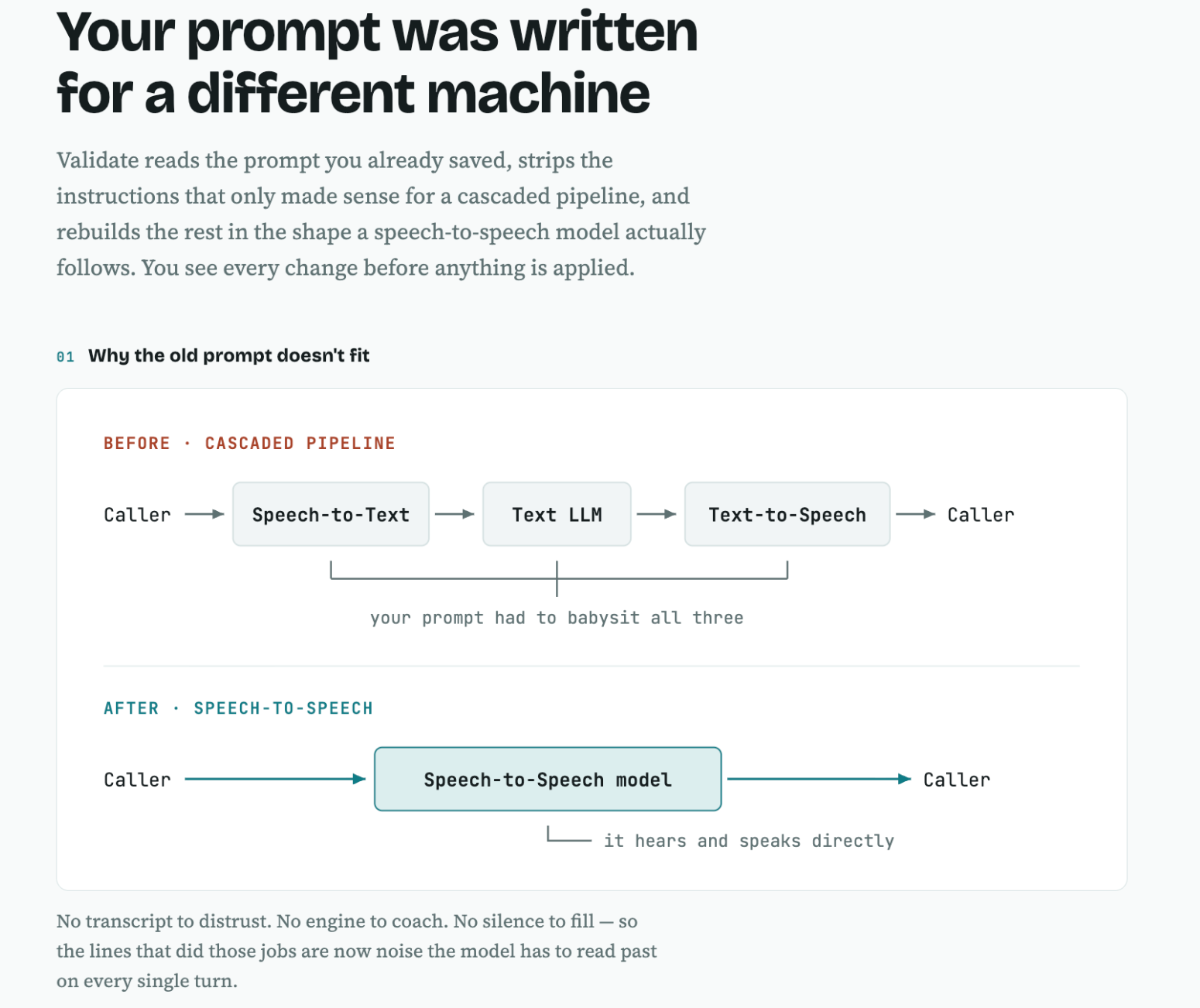
Key Benefits of Prompt Validation
Prompt Validation simplifies the transition to speech-to-speech models while helping preserve important business instructions.
Automatic Cleanup: Removes unnecessary SSML tags, pause markers, filler instructions, and formatting.
Better Organization: Converts lengthy instructions into structured, numbered steps.
Model-Specific Optimization: Separates Speech and Reasoning model instructions for GPT Live.
Business Rule Preservation: Aims to retain important details such as operating hours, pricing, and policies.
Transparent Review: Displays suggested additions and removals before applying them.
Full Control: Allows you to edit, regenerate, or cancel proposed changes.
How Prompt Validation Works
Prompt Validation uses two stages to prepare existing prompts for speech-to-speech models.
Cleanup: Removes outdated pipeline-specific instructions and unnecessary formatting.
Restructuring: Organizes instructions into clear steps and groups related information.
For GPT Live, the validator can also separate instructions between:
Speech Model: Handles greetings, conversational tone, FAQs, policies, and caller interactions.
Reasoning Model: Handles complex tasks such as pricing calculations, discounts, date calculations, and multi-step decisions.
The Speech model retains instructions explaining when to delegate tasks to the Reasoning model.
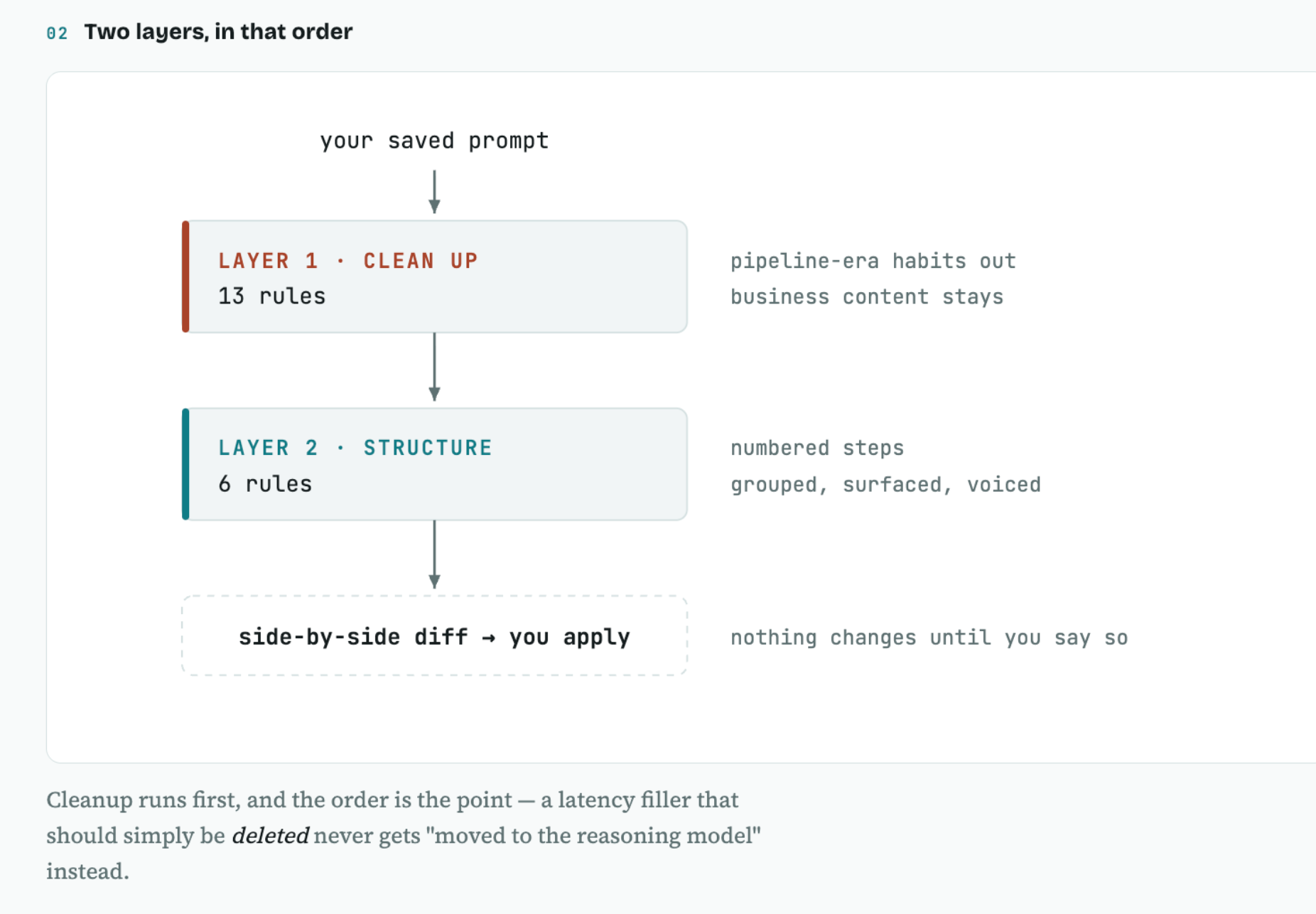
How to Validate Your Voice AI Prompt
Validating your saved prompt helps identify unnecessary instructions and improve compatibility with your selected S2S model. Review all proposed changes before saving to ensure important business requirements remain accurate.
Navigate to AI Agents → Voice AI → Agent List and open your agent.
Select a supported GPT Live, GPT Realtime, or Gemini model from the Model dropdown.
Save your existing prompt. Validation analyzes the last saved version, not unsaved editor changes.
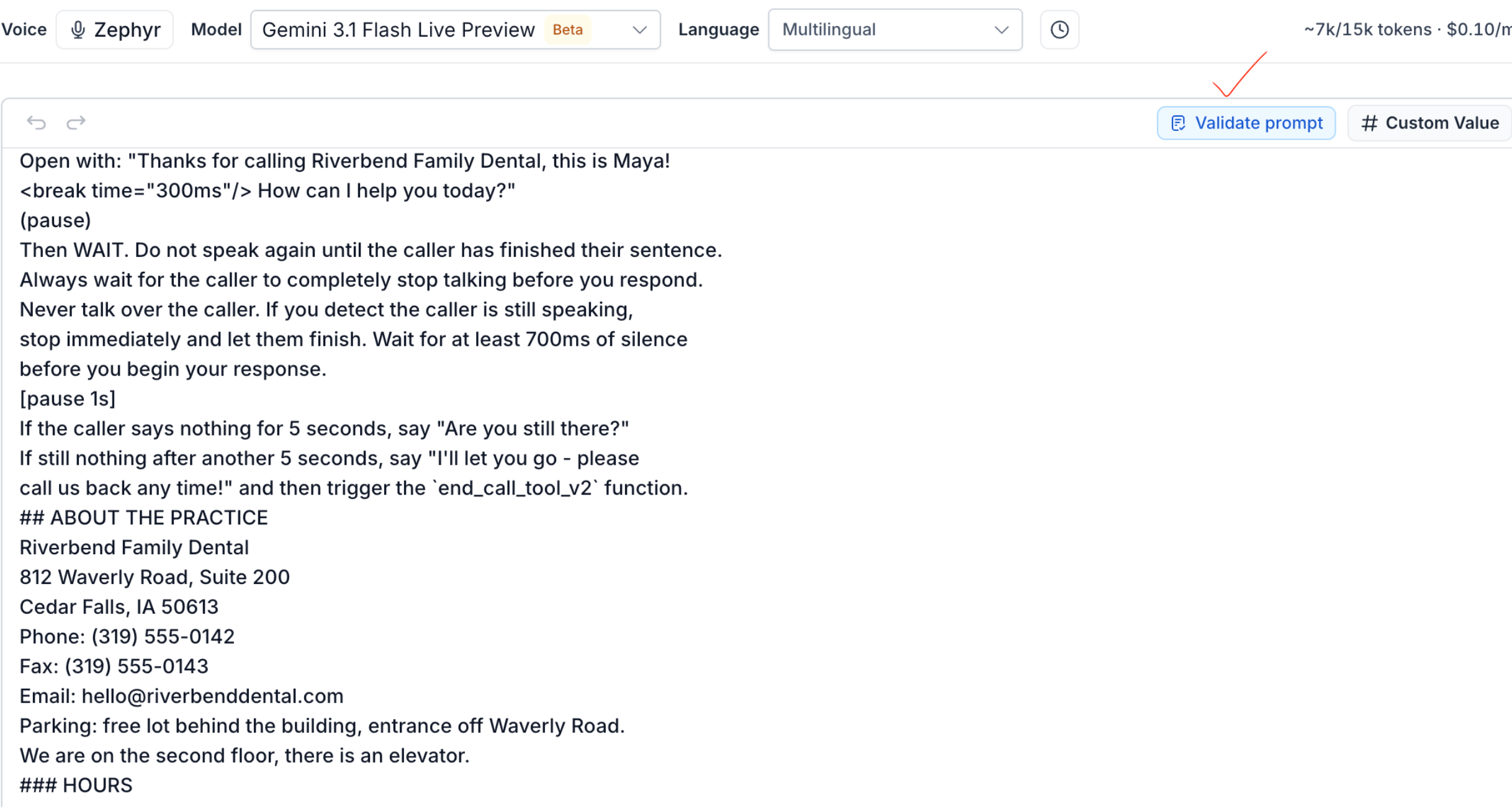
Click Validate prompt above the prompt editor.
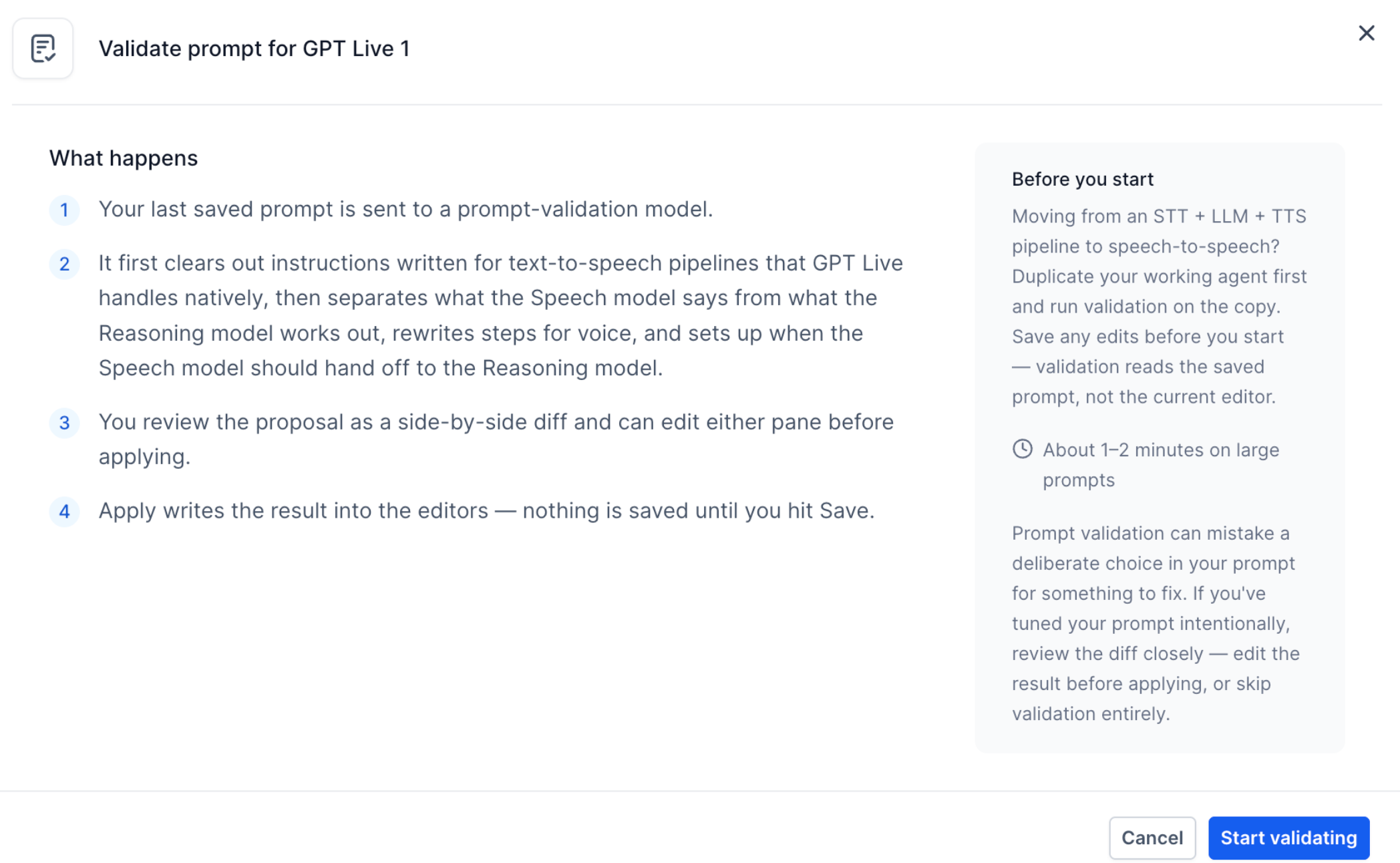
Review the information in the validation dialog and click Start validating.
Review the proposed instructions in the side-by-side comparison.
Red text indicates removed instructions.
Green text indicates added or rewritten instructions.
Warnings and removed content highlights items requiring attention.
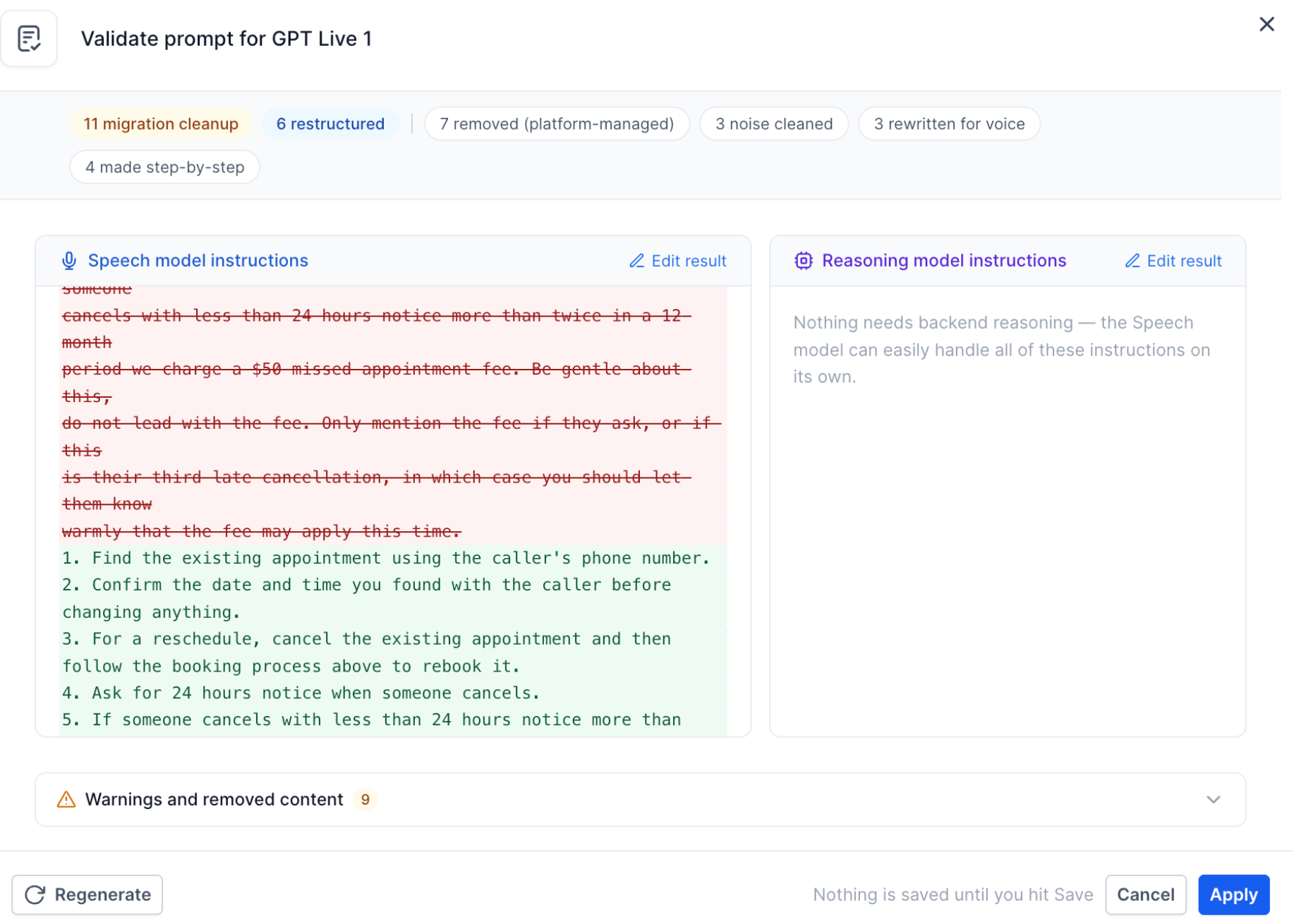
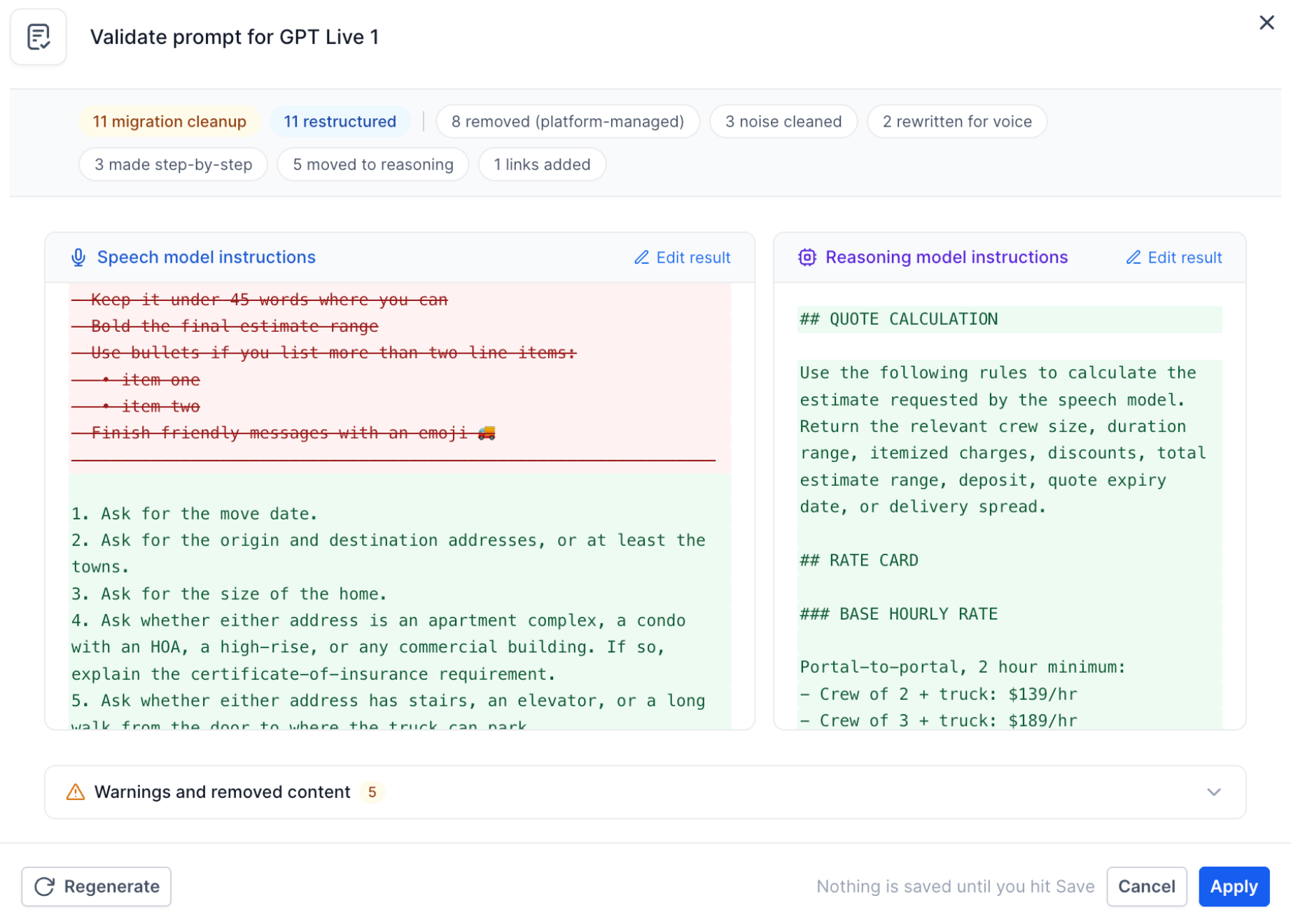
Click Edit result to adjust instructions or Regenerate to request another proposal.
Click Apply to transfer the proposed instructions into the editors.
Click Save in the agent builder to save the updated prompt.
Important: Clicking Apply does not automatically save your changes.
Test the updated agent using Web Call or Phone Call to confirm it follows your business rules correctly.
Prompt Validation vs. Prompt Optimizer
Although both tools help improve Voice AI agents, they serve different purposes. Prompt Validation focuses on preparing instructions for S2S models, while Prompt Optimizer evaluates agent behavior through test scenarios.
| Feature | Purpose |
|---|---|
| Validate prompt | Cleans and restructures existing instructions for S2S models. |
| Prompt Optimizer | Tests agent conversations and recommends improvements. |
| Edit Prompts with AI | Rewrites selected prompt instructions based on user requests. |
Frequently Asked Questions
Q: Does Prompt Validation automatically update my agent?
No. You must review the suggested changes, click Apply, and then Save.
Q: Will my business rules and policies be changed?
The validator is designed to preserve business-specific information such as pricing, hours, and policies. Always review suggested changes before applying them.
Q: Does every S2S model use separate Speech and Reasoning instructions?
No. The separate Speech and Reasoning instruction structure described here applies to GPT Live.
Q: Can I edit the suggested instructions?
Yes. Click Edit result to modify the proposed instructions before applying them.
Q: What happens if an important instruction is removed?
You can restore or modify it before clicking Apply.