
Getting Started with Client App Builder: Build Custom Web and Mobile Apps with AI
Client App Builder lets you create personalized, branded web portals and Android mobile apps using AI, without writing code.
Simply describe your business and the experience you want to create. AI helps plan your app, design its pages, connect existing Chat To Clients CRM features, and build a working experience that you can preview, customize, and publish.
Whether you're building a learning portal, coaching platform, membership experience, or branded mobile app, Client App Builder helps you bring your ideas to life using the Chat To Clients CRM tools and data you already have.
Availability: Client App Builder is available under Labs at the sub-account level.
In This Article
What is Client App Builder?
How to enable Client App Builder
Creating your first app
Choosing your starting point
Customizing your app with AI
Connecting Chat To Clients CRM features
Using Custom Objects in your app
Previewing and publishing your web app
Building and publishing Android apps
Managing your apps
Building with external AI tools (MCP)
Current limitations
Frequently asked questions
1. What Is Client App Builder?
Client App Builder is an AI-powered application builder that helps you create custom experiences for your clients and members.
Unlike traditional website builders, where you manually arrange every element, Client App Builder lets you describe what you want in natural language.
AI helps generate the design, pages, navigation, and supported functionality for your app.
What can you build?
Web Apps
Create fully customized, browser-based Client Portals where members can access courses, join communities, manage appointments, browse shared files, and interact with your business.
Mobile Apps
Create branded Android apps with personalized navigation, layouts, colors, and native mobile capabilities. Generate an installable Android APK directly from the builder.
How does it work?
Client App Builder follows a simple process:
Describe: Tell AI about your business and the experience you want.
Personalize: Answer setup questions and select your branding and design preferences.
Build: AI creates your app's pages, screens, and supported functionality.
Customize: Refine your app through conversations or available visual customization tools.
Preview: Explore your app before publishing.
Publish: Launch your web app or generate an installable Android app.
Your apps use your existing Chat To Clients CRM Client Portal infrastructure, including member accounts, courses, communities, and supported CRM data.
2. How to Enable Client App Builder
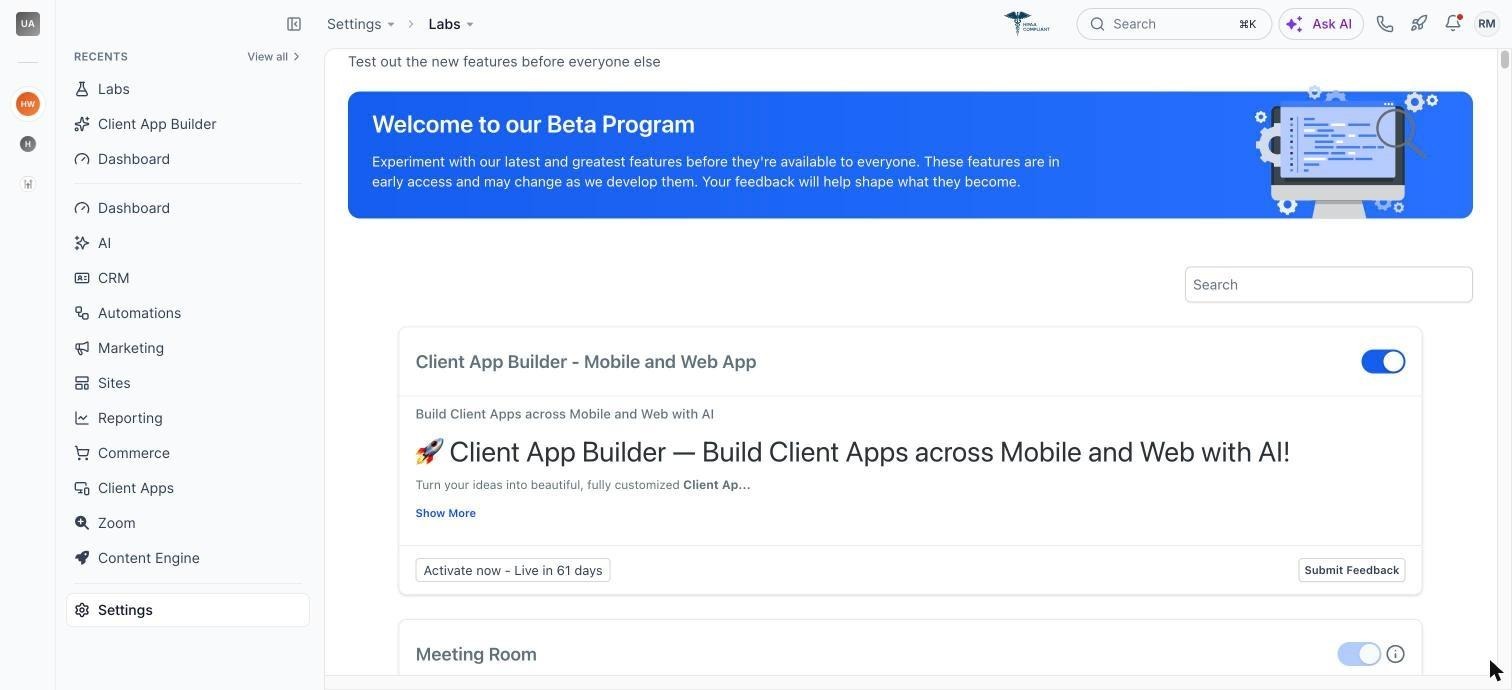
Client App Builder is currently available through Labs.
Step 1: Enable the feature
Open your Chat To Clients CRM account.
Navigate to Labs.
Find Client App Builder.
Enable the feature for your sub-account.
Step 2: Open Client App Builder
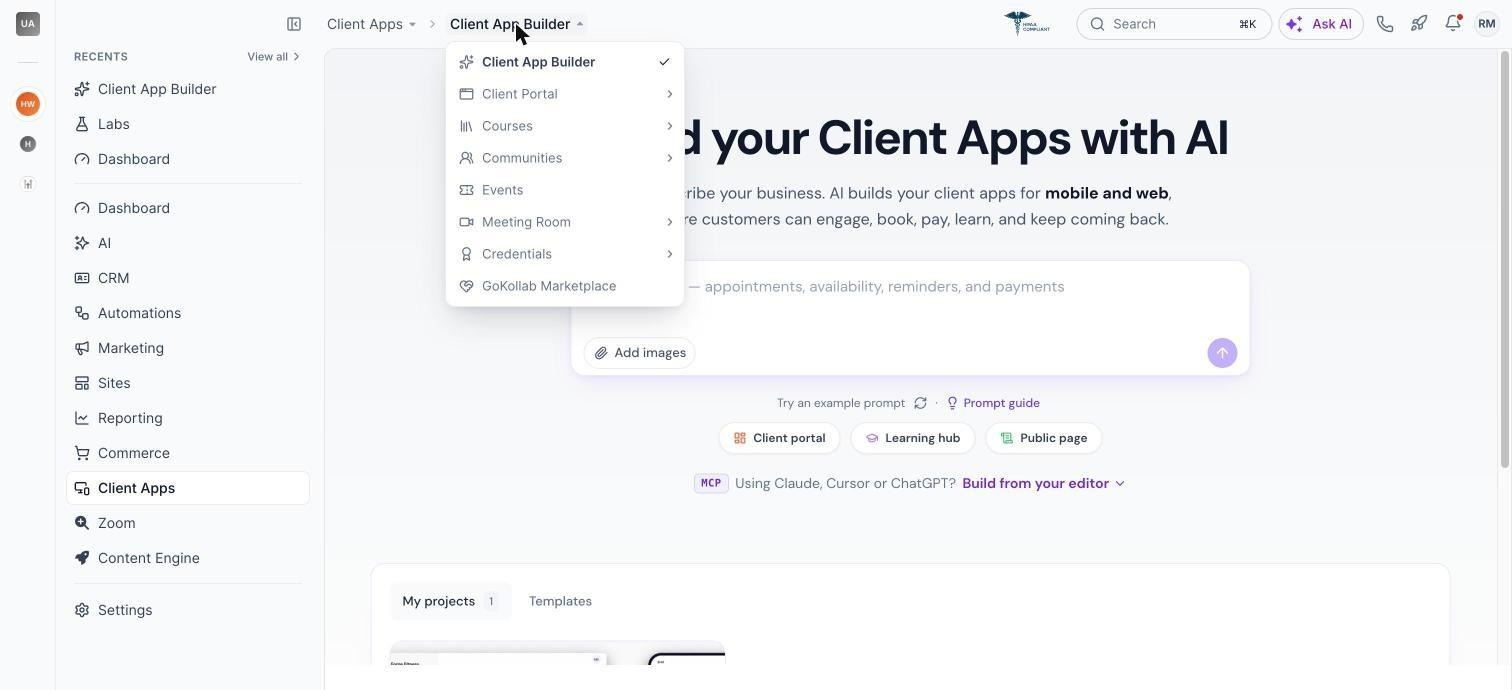
Once enabled, open Memberships → Client App Builder.
Depending on your account's navigation experience, Client App Builder may also appear under Client Apps → Client App Builder.
Note: Client App Builder operates at the sub-account level. Apps created in one sub-account are not automatically available in another.
3. Creating Your First App
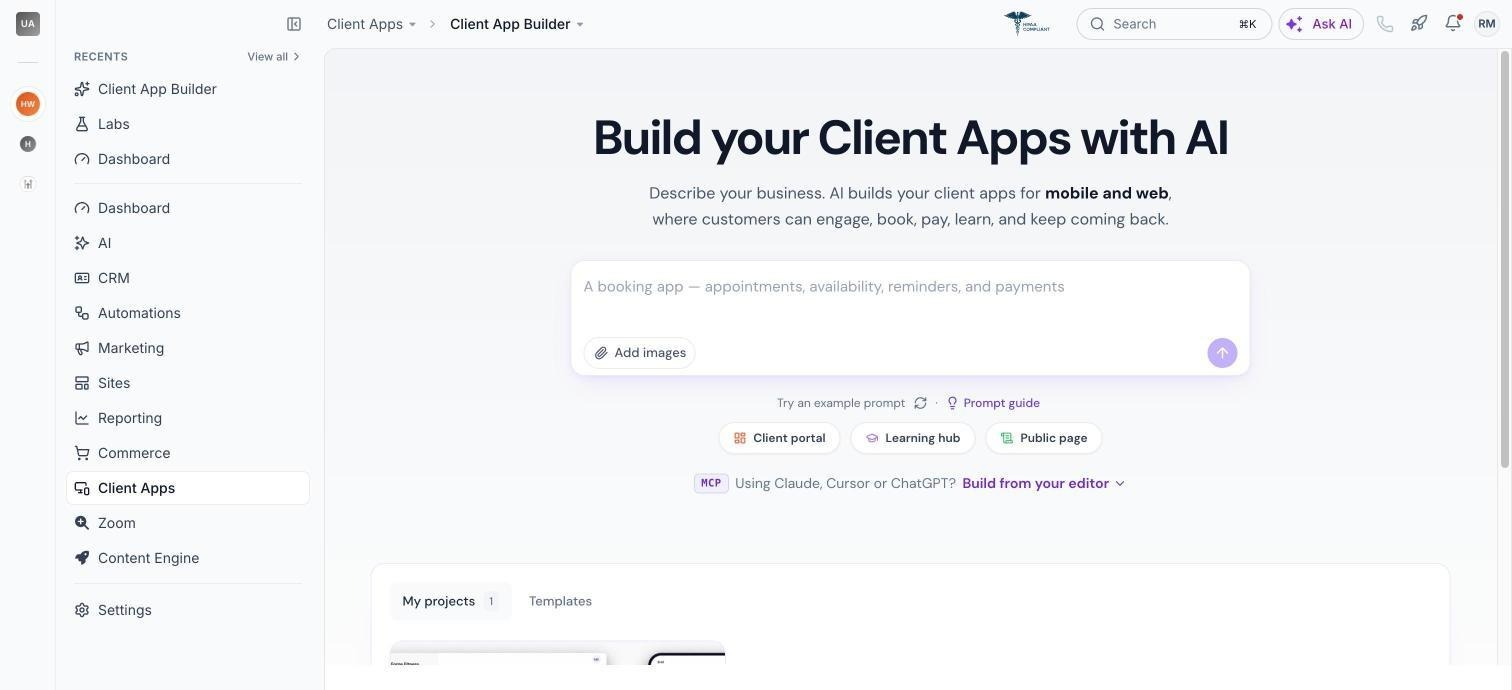
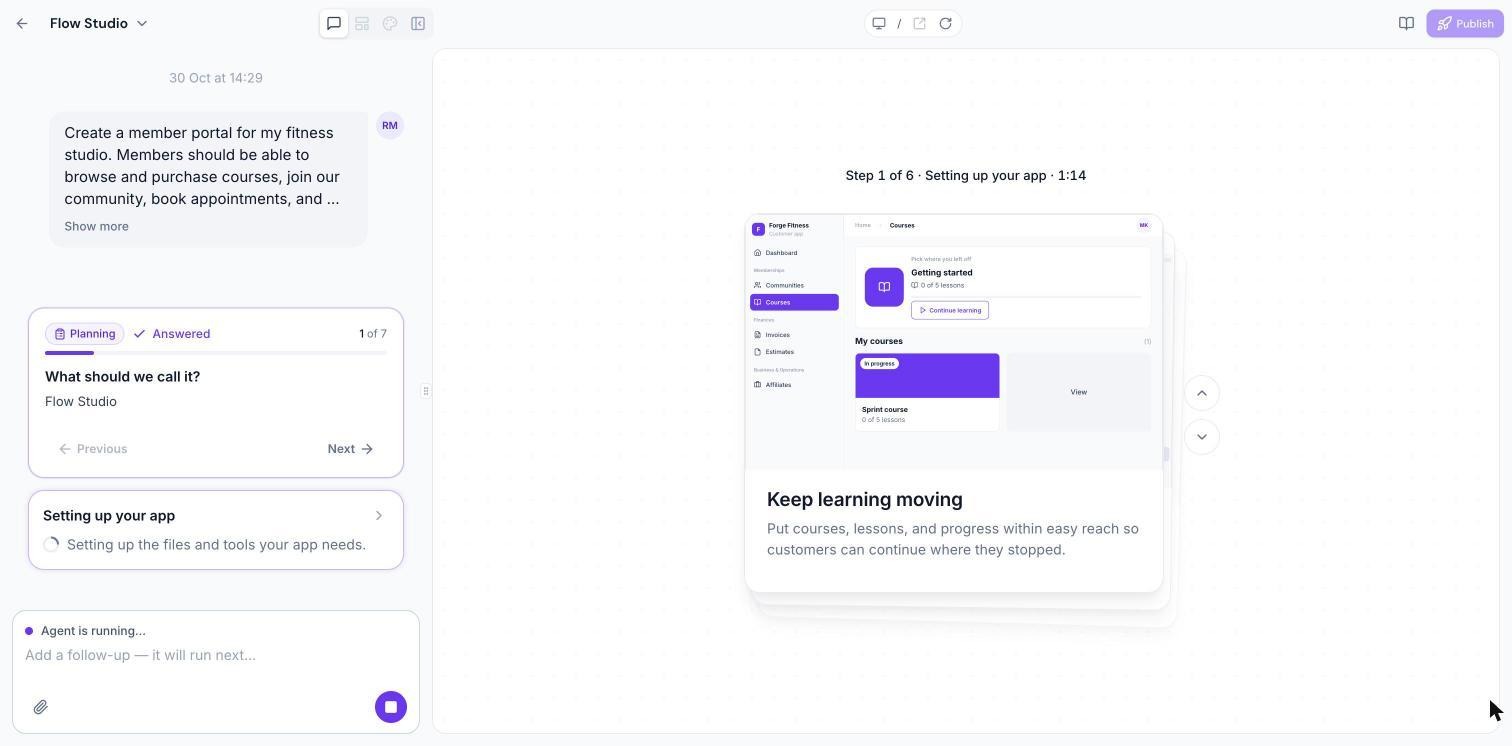
When you open Client App Builder, you'll see a prompt box where you can describe what you want to create.
You can start with a detailed description or choose one of the suggested ideas, such as appointment booking, events, or an agency client portal.
Step 1: Describe your app
For example:
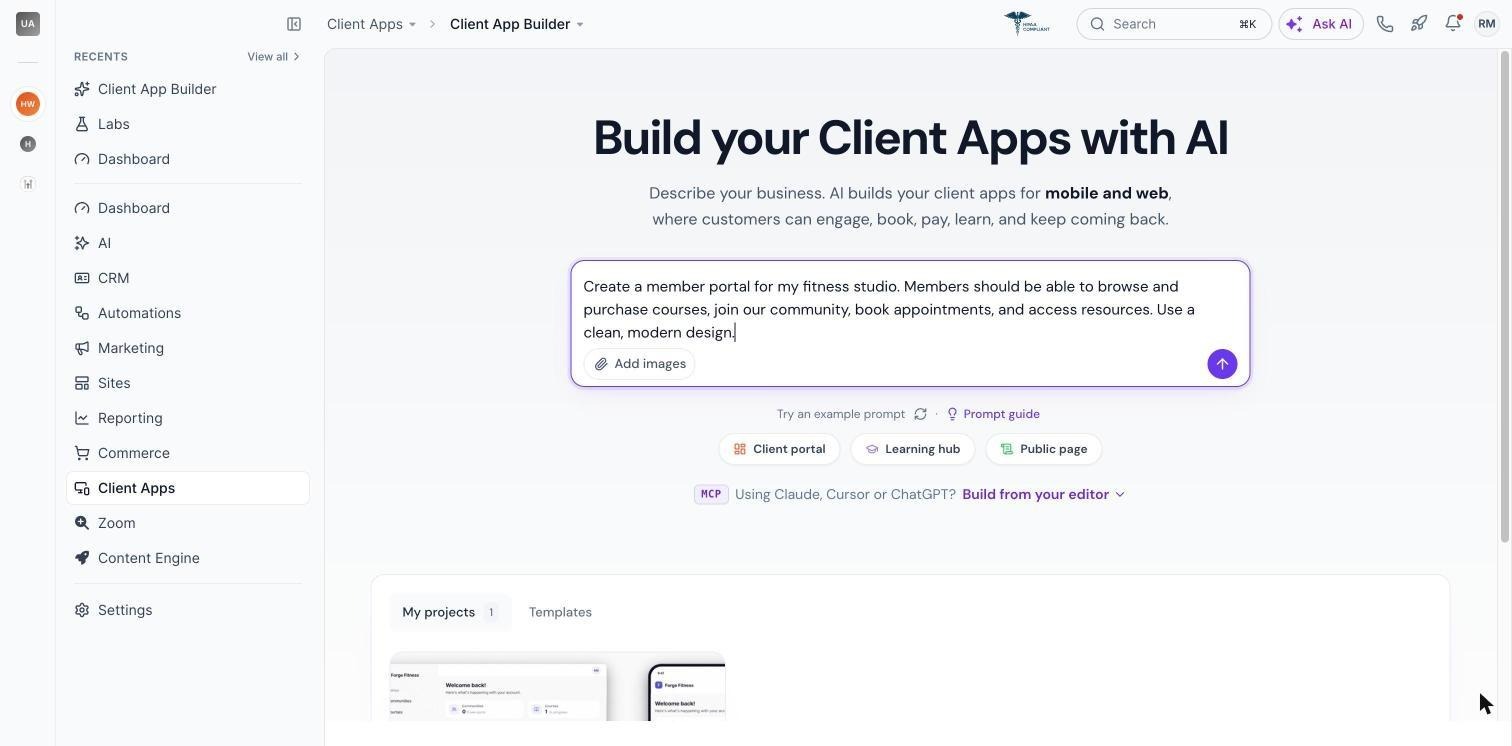
"Create a member portal for my fitness studio. Members should be able to browse and purchase courses, join our community, book appointments, and access resources. Use a clean, modern design with our brand colors."
The more context you provide about your business, audience, and desired functionality, the more tailored your initial app can be.
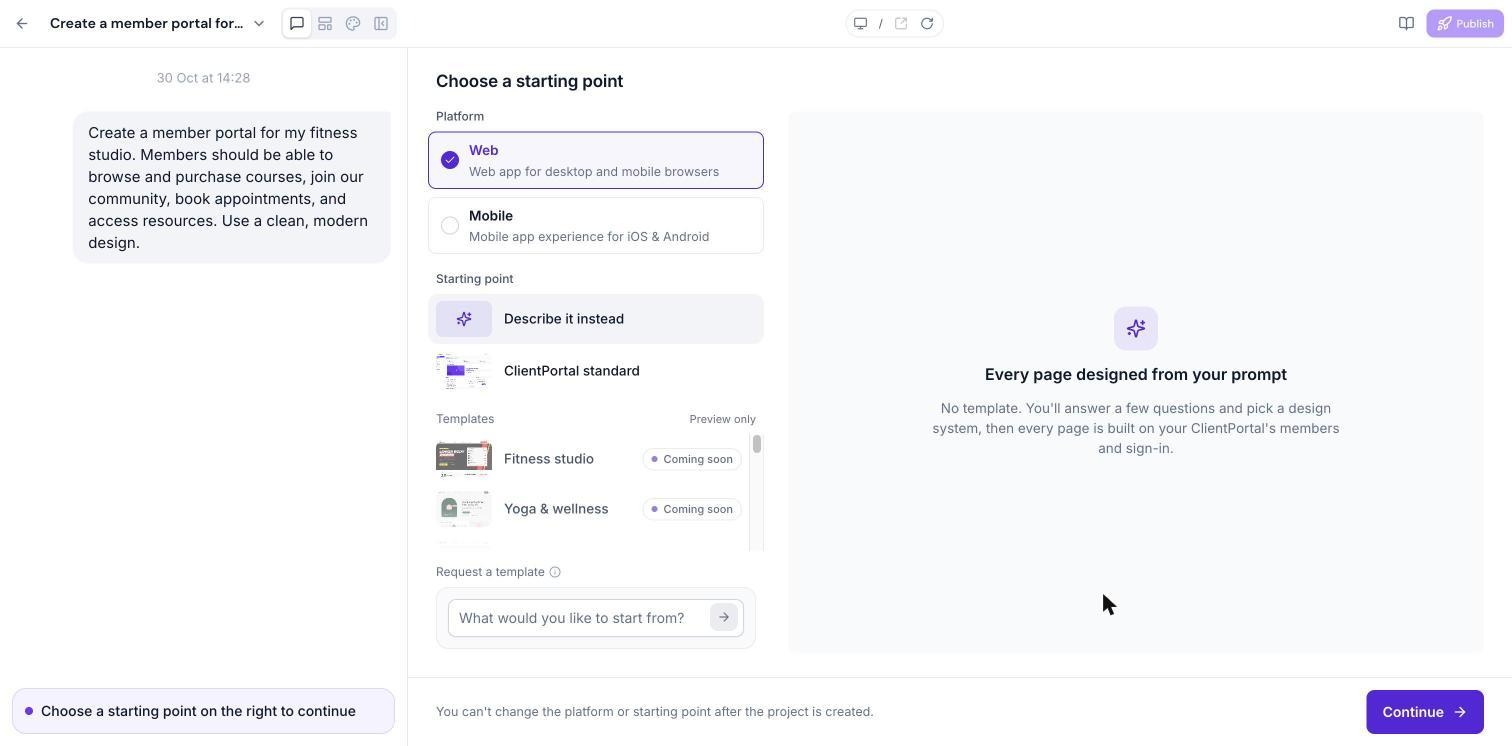
Step 2: Choose Web or Mobile
Select the type of app you want to build:
Web: A browser-based Client Portal experience.
Mobile: A branded Android mobile application.
AI may suggest an app type based on your prompt, but you can change it before creating the app.
Important: Once an app has been created, you cannot switch it between Web and Mobile. To use the other format, create a separate app.
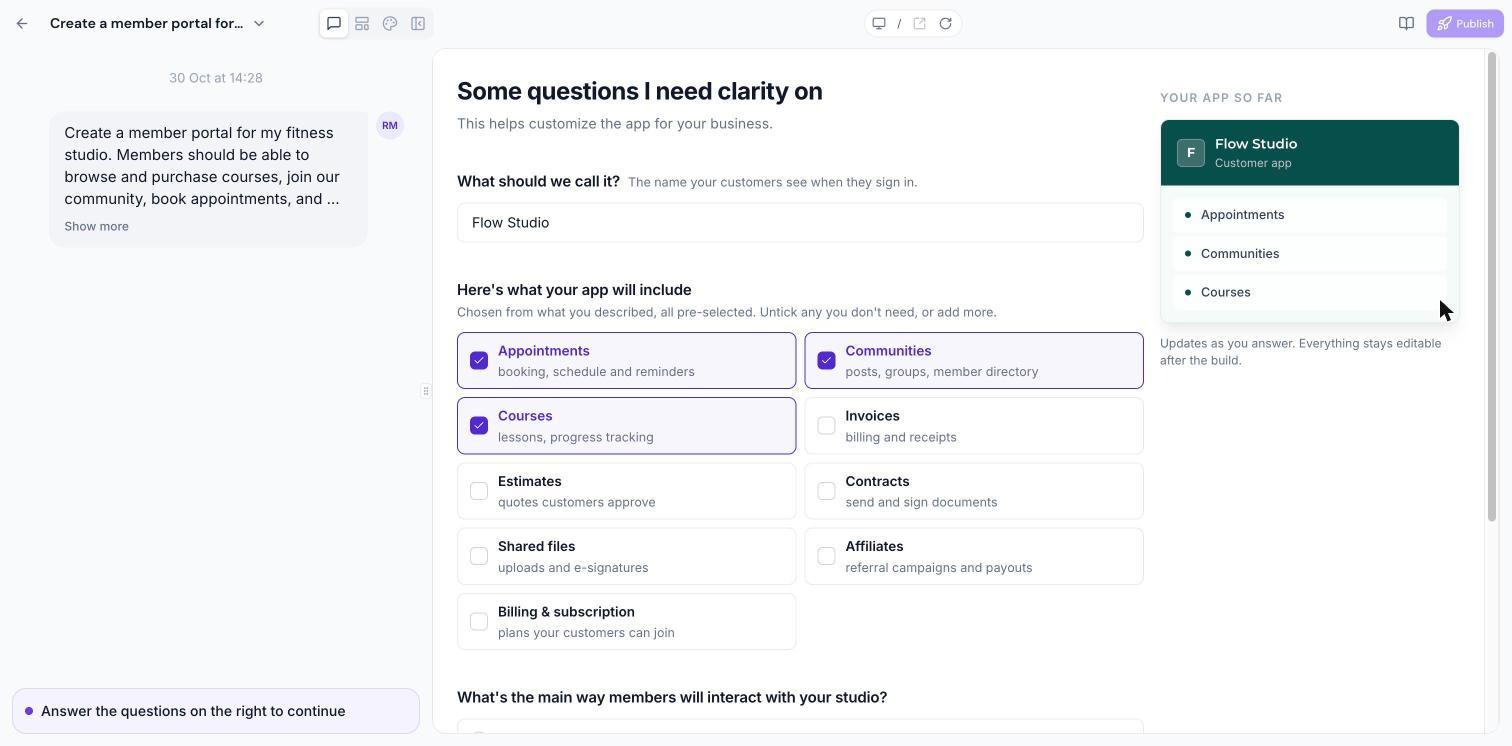
Step 3: Answer the setup questions
AI may ask questions about your business, app name, audience, required features, and who should be able to access the app.
These questions help tailor the generated experience to your needs.
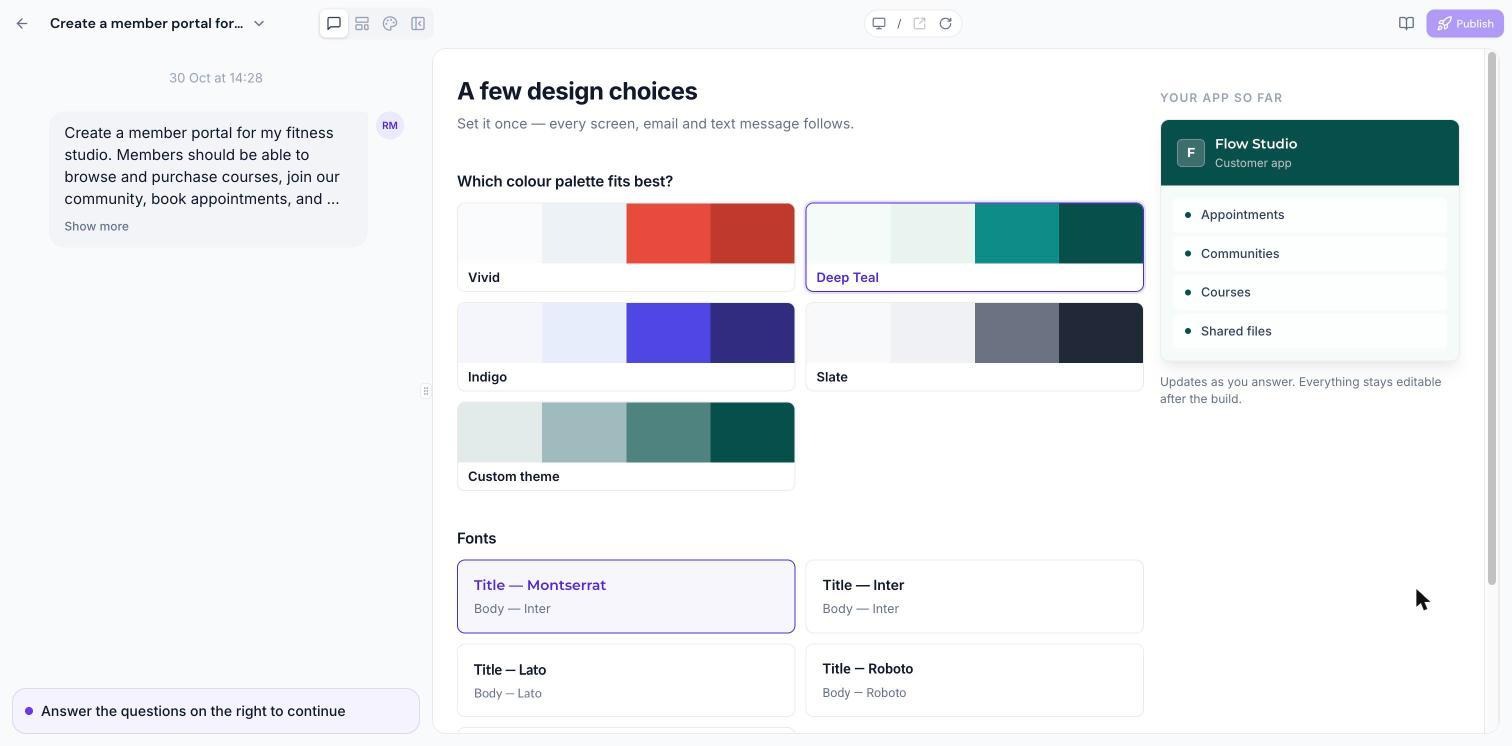
Step 4: Choose your design
Depending on your app type and starting point, you can choose from suggested design systems, colors, fonts, and existing brand boards.
For supported web experiences, you can explore additional design systems and attach images to guide the visual direction.
Step 5: Review and build
For supported web builds, AI presents a plan before generating the app.
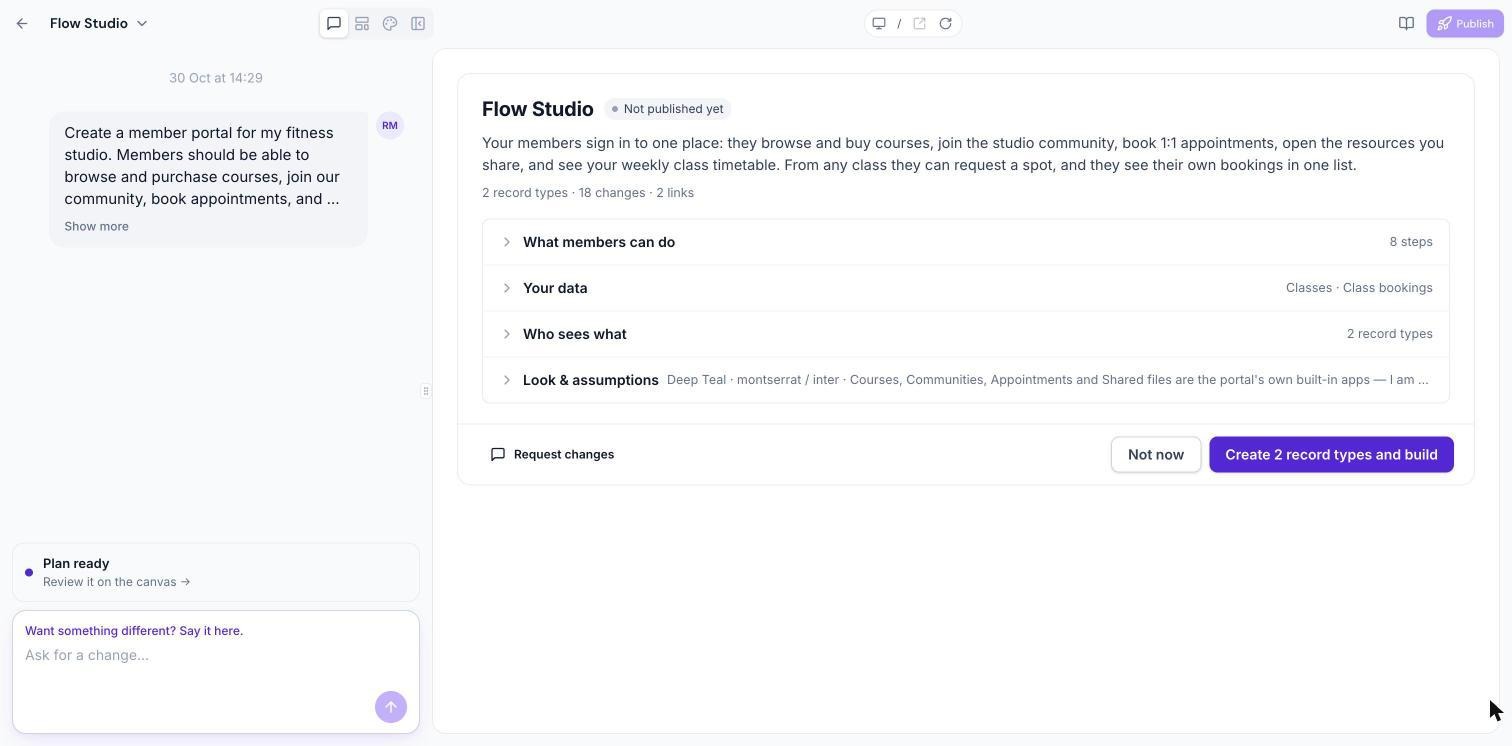
You can:
Approve & build: Continue with the proposed plan.
Refine: Request changes before building.
Reject: Decline the proposed plan.
Once the build starts, you can follow its progress and access the preview when it's ready.
4. Choosing Your Starting Point
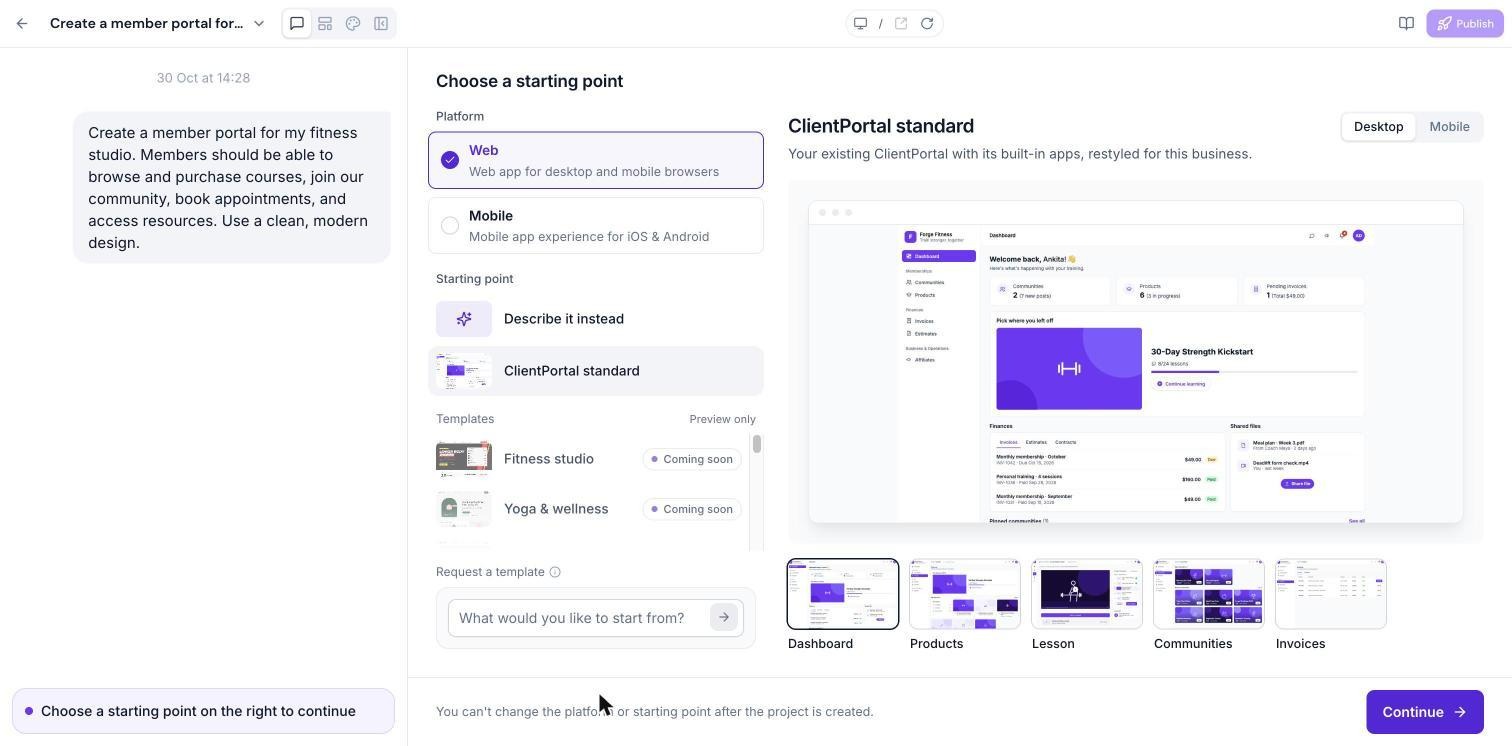
Client App Builder provides two ways to create an app.
Option A: Describe It Instead (Vibe Coding)
Choose this option when you want AI to create a custom experience from your description.
AI generates pages, layouts, and navigation based on your business requirements and design preferences.
This is ideal when you want a distinctive experience rather than a standard Client Portal layout.
For example:
"Build a coaching portal with a personalized welcome dashboard, upcoming sessions, available programs, and a member community."
For supported web apps, you can also use visual editing, AI-suggested next steps, and page-building prompts to continue developing your experience.
Option B: ClientPortal Standard
Choose this option when you want to start with the familiar Chat To Clients CRM Client Portal experience and customize its appearance and navigation.
You can personalize supported built-in pages, adjust branding, and configure layouts without rebuilding the entire experience from scratch.
For standard web apps, available starting features include dashboards, products, lessons, communities, and invoices. Mobile functionality may differ.
Which should you choose?
Choose Describe It Instead for a more custom AI-generated experience. Choose ClientPortal Standard when you want to retain the familiar portal structure while personalizing its design and navigation.
5. Customizing Your App with AI
Your first build is only the beginning.
Client App Builder lets you continue refining your experience through natural-language conversations.
Make changes through chat
Use the message box to request updates such as:
"Make the homepage more modern and minimal."
"Move Courses to the top of the navigation."
"Add a page for upcoming workshops."
"Change the primary color to match my brand."
"Make the course cards more prominent."
Follow-up requests generally preserve your existing design unless you specifically request a redesign.
Use visual editing
For web apps created with Describe It Instead, you can select elements directly in the preview using Visual edits.
Select the elements you want to modify, then describe the change.
You can select up to 20 elements in a single visual-edit request.
Build missing pages
If your generated web app includes a link to a page that hasn't been built yet, you may see a Build this page option.
Use it to prepare a request for AI to generate the missing page.
Customize layouts and themes
For ClientPortal Standard apps, the Customizer provides additional controls after the preview is ready.
Depending on your app type, you can customize:
Brand colors, fonts, logos, and app identity.
Navigation items, icons, and ordering.
Default pages and opening screens.
Mobile bottom tabs, header styles, and account placement.
Custom navigation links and supported pages.
For mobile apps, you can also configure whether the app initially opens in Light or Dark mode.
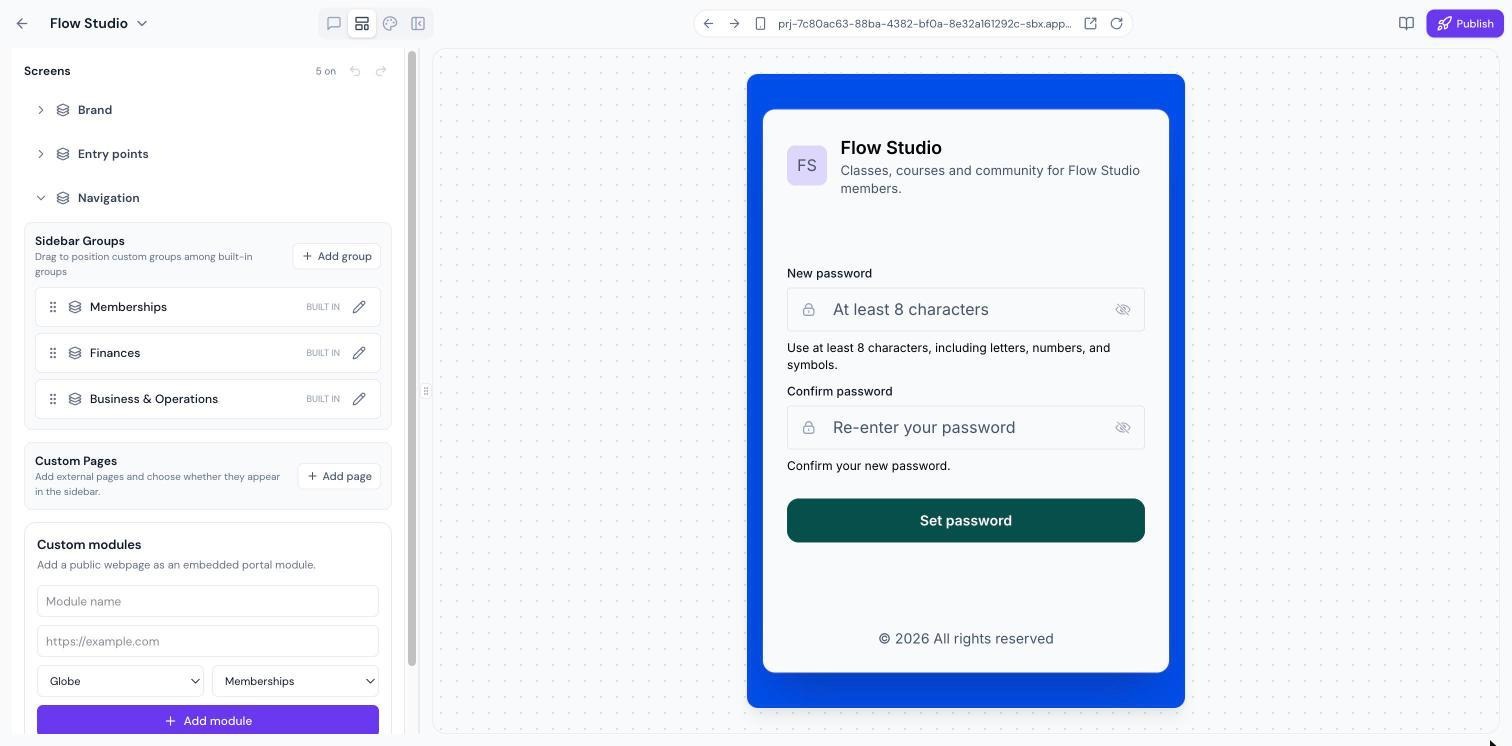
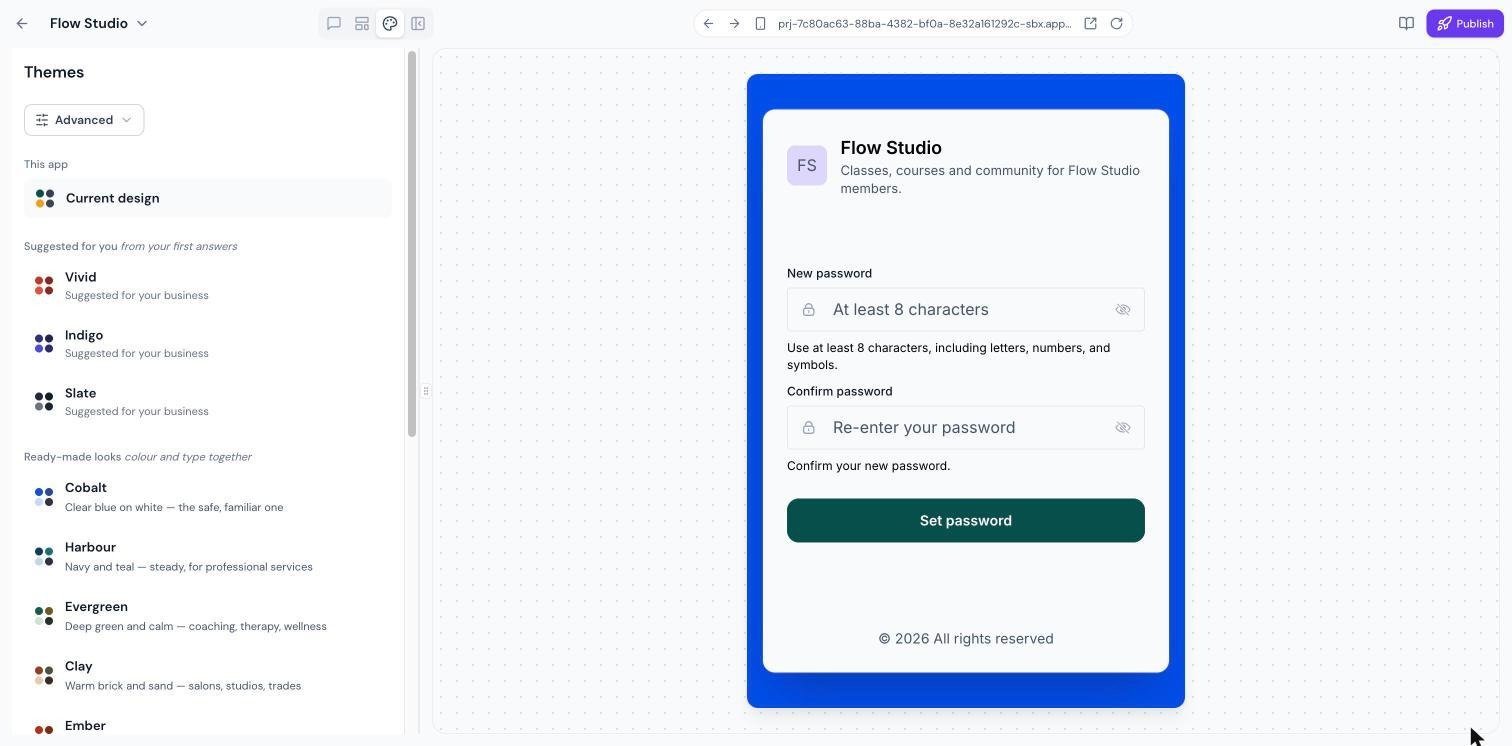
Note: The Layout and Theme Customizer is available for ClientPortal Standard apps. Apps created using Describe It Instead are primarily customized through AI prompts and supported editing tools.
6. Connecting Chat To Clients CRM Features
One of the biggest advantages of Client App Builder is that your app can use existing Chat To Clients CRM functionality.
You don't need to recreate your membership infrastructure or maintain separate member accounts.
Supported features include:
Courses
Let members browse courses, purchase available content, access lessons, track learning progress, and join supported live sessions.
Communities
Provide access to community groups, feeds, invitations, and supported discovery experiences.
Appointments
Allow members to access appointment-related experiences through supported Client Portal functionality.
Shared Files
Make resources and files available to members through your app.
Member Accounts
Use existing Client Portal authentication, including sign-in, sign-up, and password recovery.
CRM Data
Use supported CRM information and Custom Objects to create interactive, data-driven member experiences.
These features operate through Chat To Clients CRM's existing systems, helping keep your member experience connected to your business.
7. Using Custom Objects in Your App
Custom Objects let you go beyond displaying information by allowing members to submit and interact with records stored in your Chat To Clients CRM CRM.
For example, you could build a portal where members submit coaching applications, property inquiries, or service requests.
How Custom Objects work
Describe the information you want members to submit or manage.
If the request requires stored CRM data, AI asks whether you want to use Custom Objects.
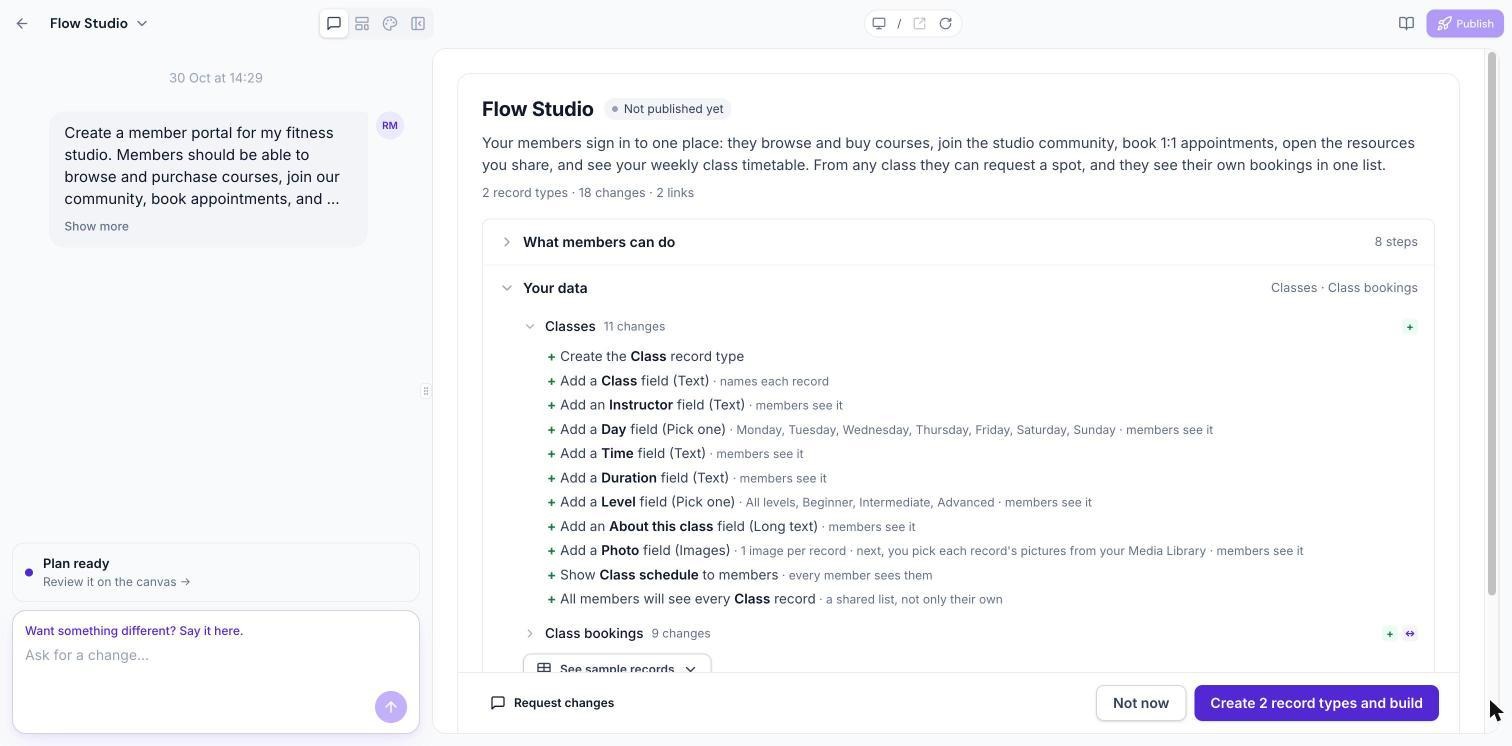
AI proposes a data structure, including fields, dropdown options, and supported relationships.
Review the proposed structure, sample records, and member visibility.
Approve the plan or request changes.
AI creates the approved objects and connected app experience.
Member visibility
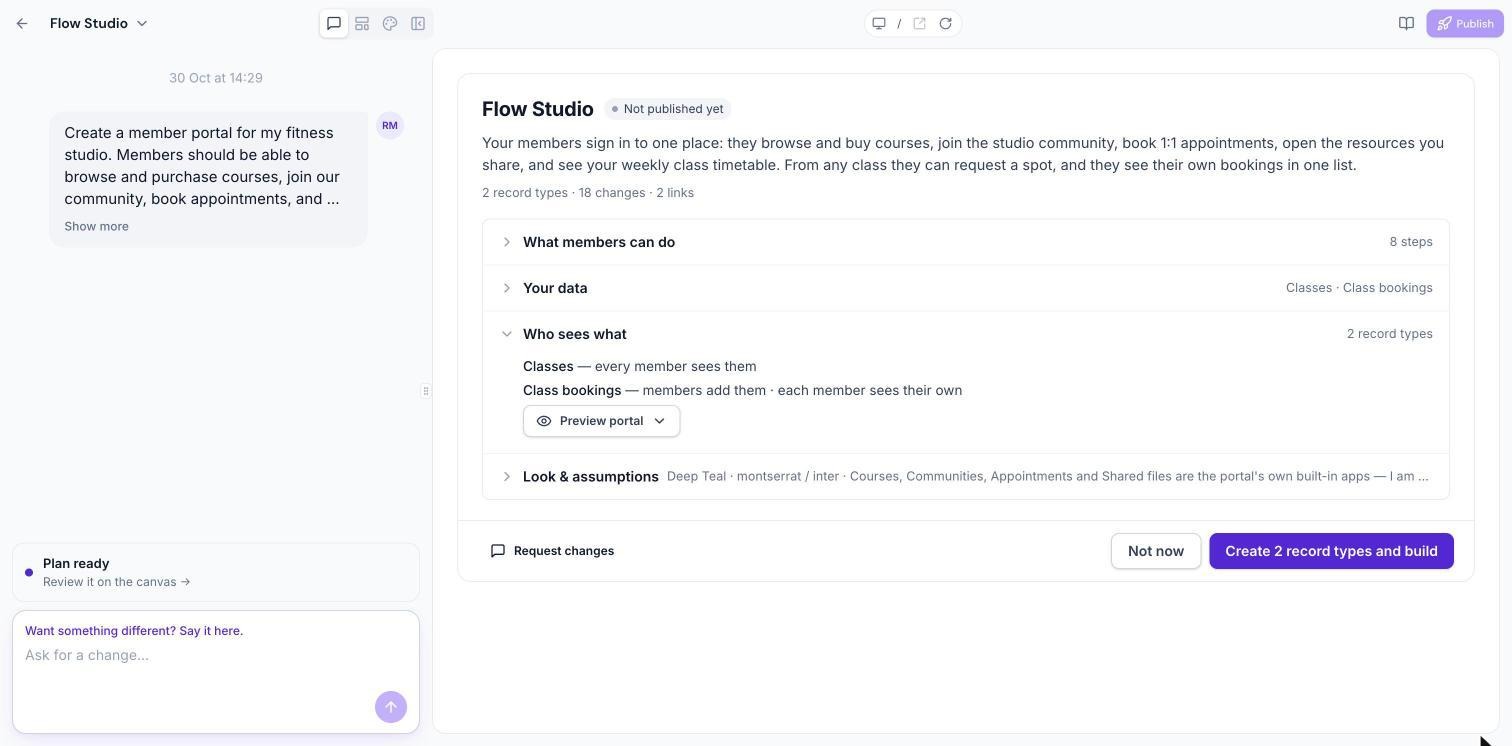
Depending on your configuration, members can be allowed to view:
Their own records.
Records associated with their company.
All records in read-only mode.
Payments and records
Supported web experiences can also include payment actions using Chat To Clients CRM invoices when a payment provider is connected.
Custom Objects support up to three objects per change, subject to the CRM's overall limit of ten Custom Objects per sub-account.
Important: Custom Objects are supported in web and mobile experiences, but some capabilities, including record-based payments and media attachments, are currently web-only.
8. Previewing and Publishing Your Web App
Preview your app
Client App Builder provides a live preview so you can explore the experience as you build it.
For web apps, preview controls include:
Desktop, tablet, and mobile viewport sizes.
Back and forward navigation.
Reload.
Open in a new tab.
Copy preview URL.
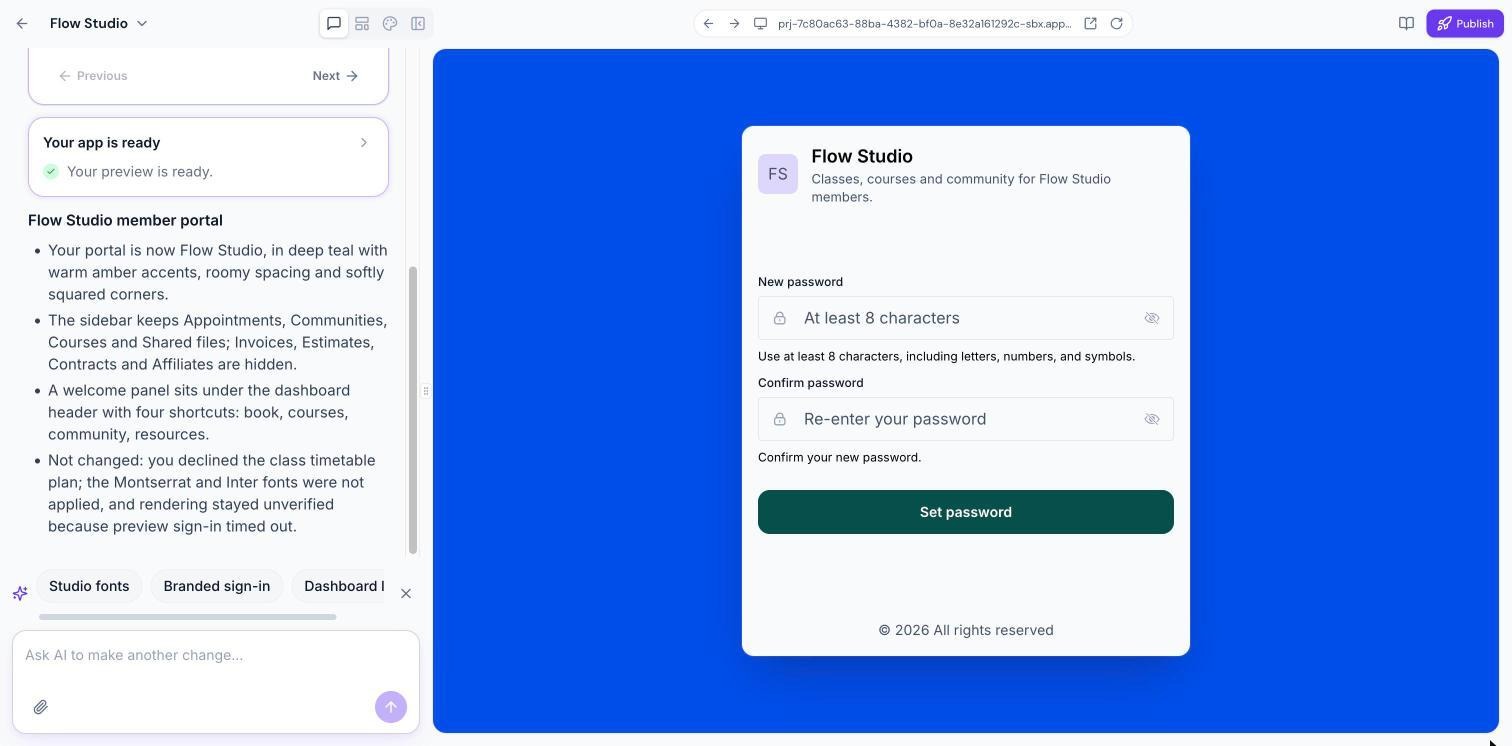
If your preview has been inactive for an extended period, it may pause to conserve resources. Return to the builder to resume it.
Published apps are not affected by an idle preview.
Publish your web app
When you're satisfied with your app:
Open the publishing controls.
Choose an available address on app.clientclub.net.
Review any warnings about linked pages that haven't been built.
Build missing pages or choose to publish with those pages incomplete.
Publish your app.
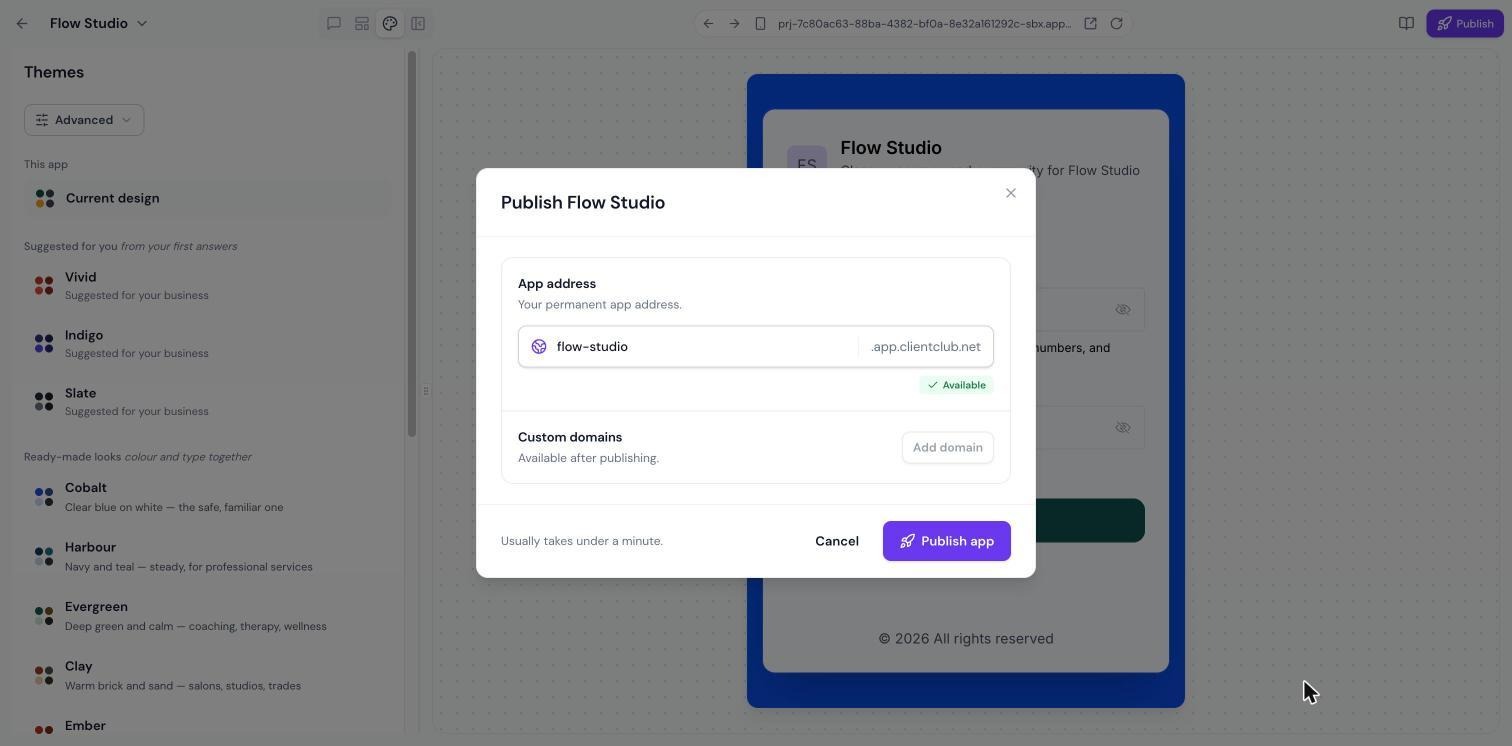
You can publish additional changes later or unpublish the app when needed.
Connect a custom domain
You can also connect your own domain to a published web app.
Client App Builder provides a guided domain connection process, with manual DNS configuration available when needed.
Up to 10 custom domains can be connected to a web app.
Note: You cannot use a domain that is already assigned as your sub-account's active Client Portal domain.
9. Building and Publishing Android Apps
Client App Builder also supports branded Android mobile applications.
Customize your mobile experience
Depending on your starting point, you can configure supported mobile features such as:
App name, branding, colors, and fonts.
Bottom navigation tabs and header layout.
Opening screen after sign-in.
Community and course navigation.
Custom pages and external modules.
Device capabilities such as camera and photo access.
New members can sign up using a join code.
Preview your mobile app
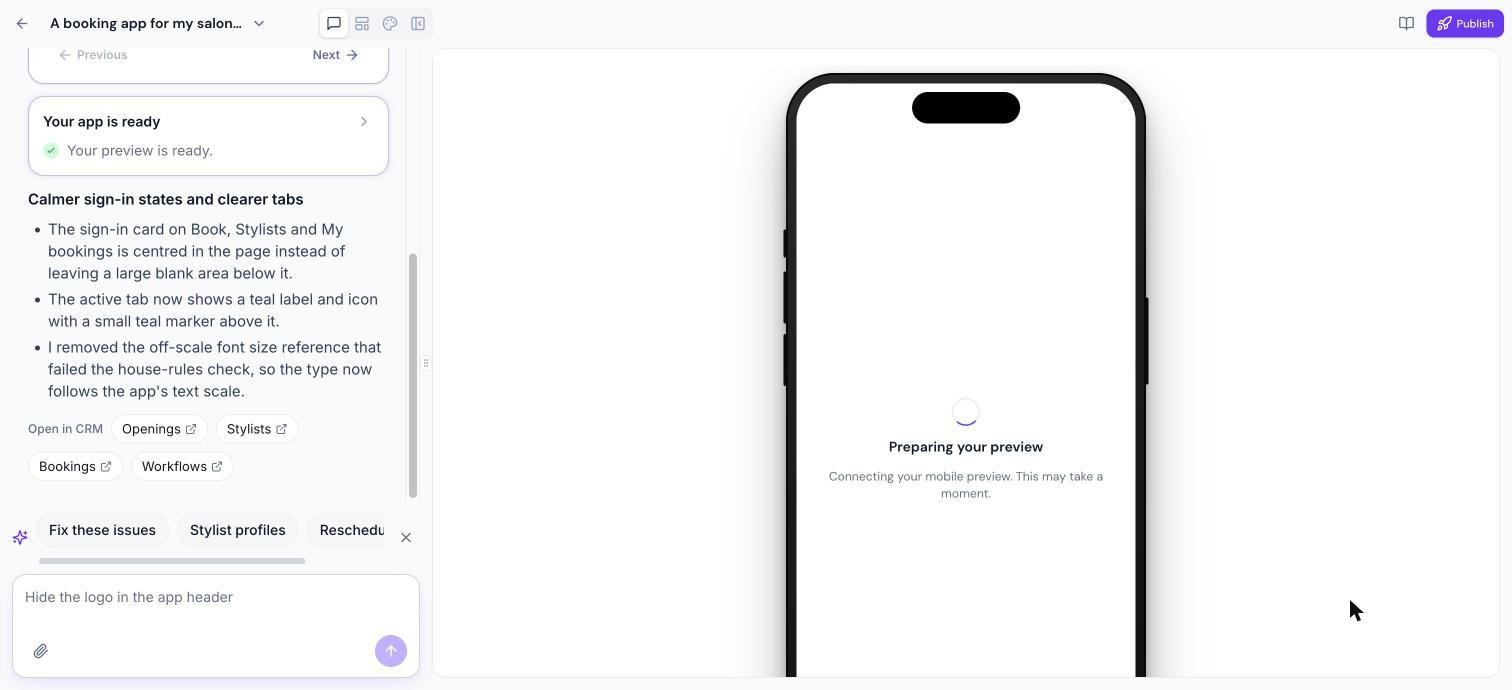
The builder displays your mobile experience inside a phone frame, allowing you to inspect the design and navigation before generating an installable app.
Generate your Android APK
When you're ready:
Open your mobile app's publishing controls.
Provide the required app identity and branding assets.
Start the Android APK build.
Monitor the build status.
Download the signed APK when it's ready.
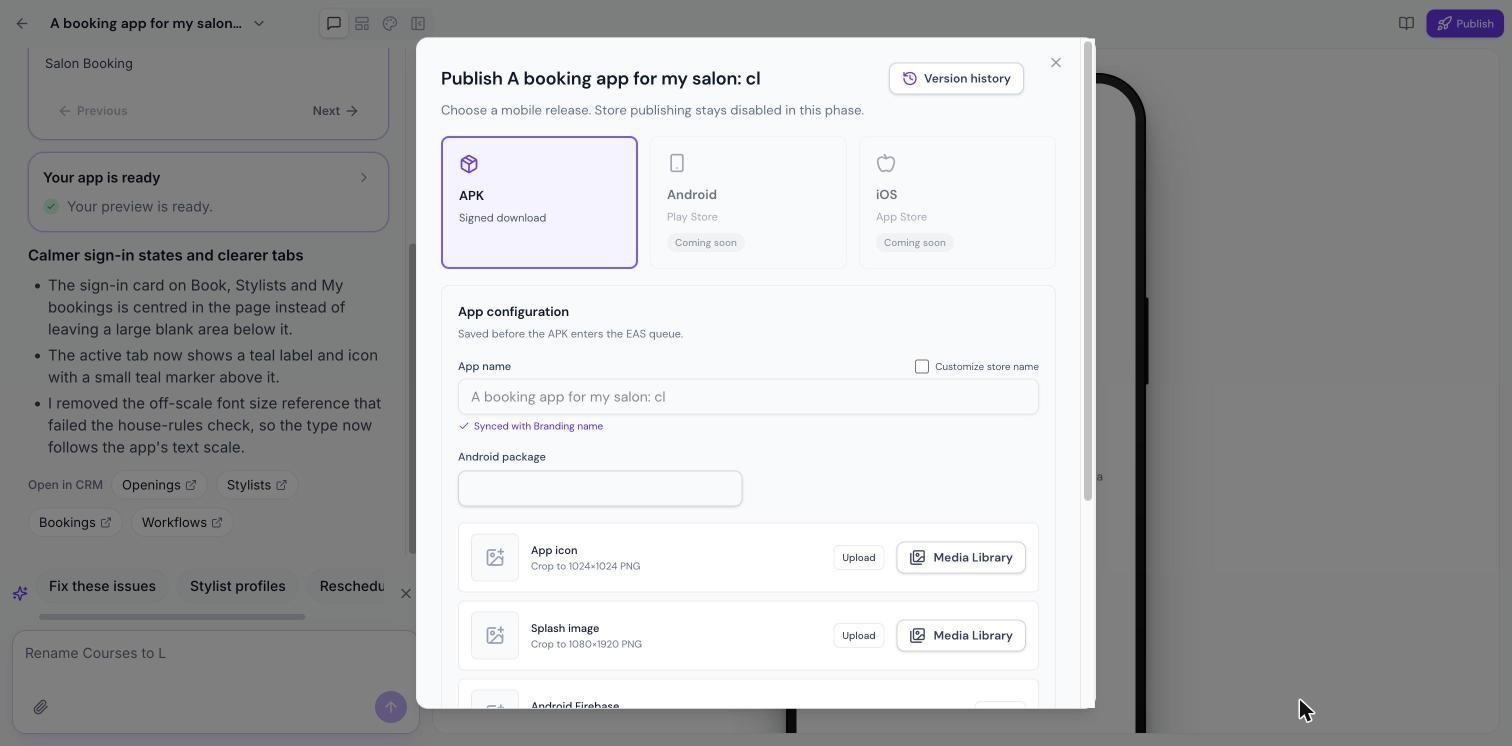
A typical APK build takes approximately 15–25 minutes.
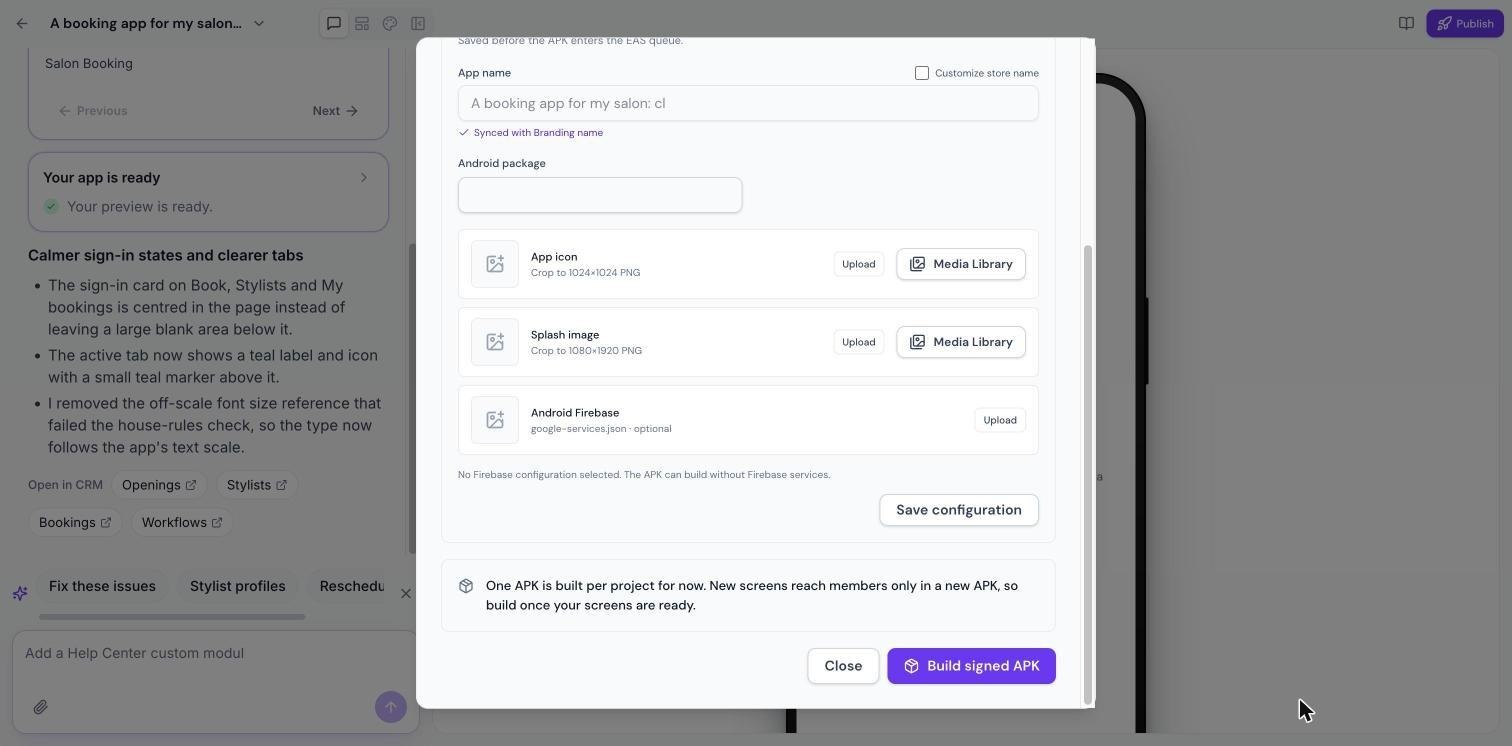
Required Android assets
Asset | Requirement |
App name | 1–30 characters |
App icon | PNG, 1024 × 1024 pixels, up to 5 MB |
Splash screen | PNG, 1080 × 1920 pixels, up to 5 MB |
Firebase configuration | Optional google-services.json, up to 5 MB, matching the package ID |
Important mobile publishing limitations
Currently, Client App Builder supports downloading Android APKs, not direct publishing to Google Play or the Apple App Store.
Only one signed APK can be generated per app at this time.
For ClientPortal Standard mobile apps, supported design and configuration updates can be published to installed apps. For apps built using Describe It Instead, new AI-generated screens require a new APK, which is not currently supported.
Plan and test your Android experience carefully before generating your signed APK.
iOS app generation is not currently available.
10. Managing Your Apps
Client App Builder provides a project dashboard where you can access and manage your apps.
From the home screen, you can view recent projects or open All projects.
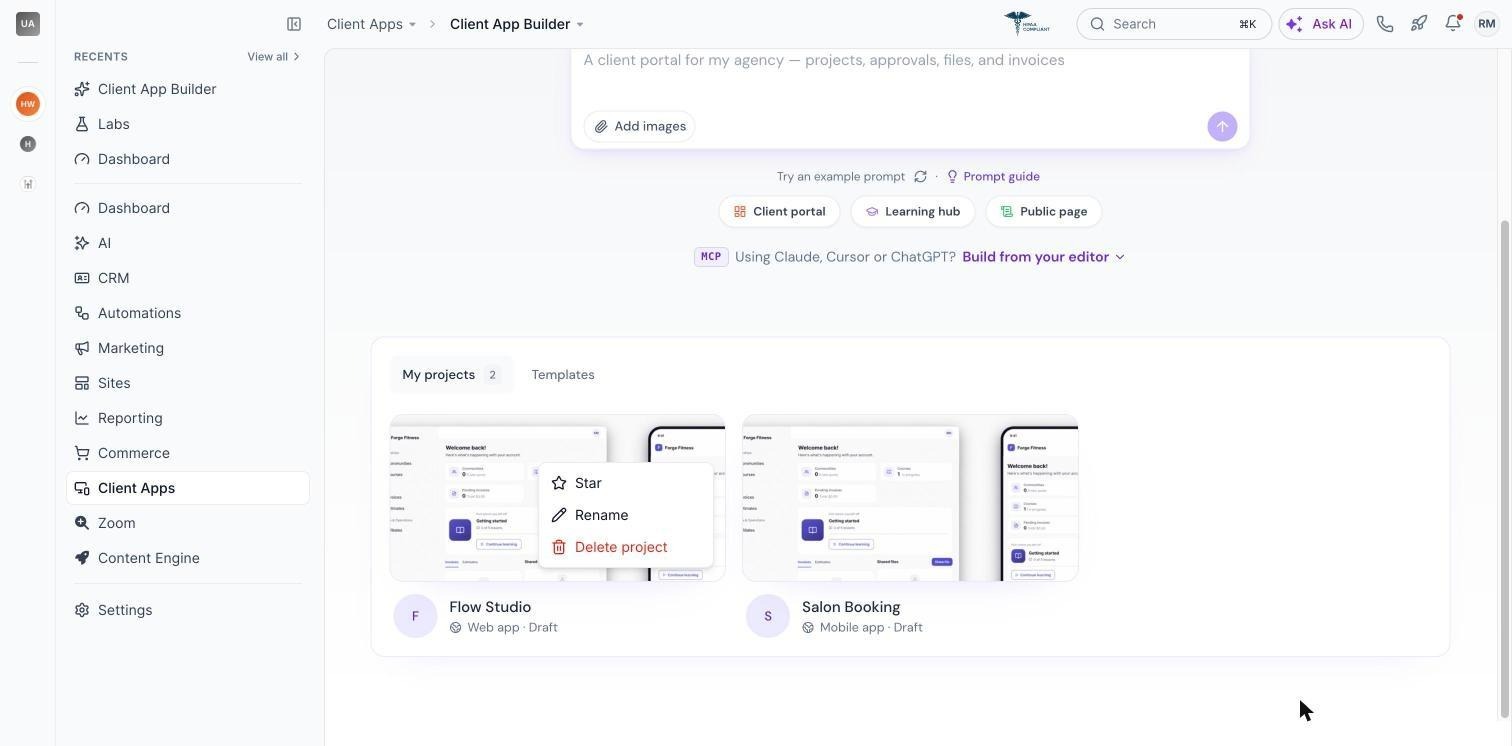
Available management options include:
Search for existing apps.
View recent and starred projects.
Star or unstar an app.
Rename an app.
Delete an app.
Identify web and mobile projects and their status.
App limits
You can create up to 5 apps per sub-account, combining web and mobile projects.
If you've reached the limit, you'll need to delete an existing app before creating another.
Important: Deleting an app is permanent from the user interface. Review your decision carefully before confirming.
Who can access your apps?
Access depends on your Chat To Clients CRM sub-account role.
Admins can view, edit, and delete apps created within the sub-account.
Standard users can create apps and manage the apps they own, but cannot see other users' apps.
Users who have access to open an app can also access its publishing controls.
11. Building with External AI Tools (MCP)
For advanced users, Client App Builder also supports building web apps through compatible external AI development tools using Chat To Clients CRM's Model Context Protocol (MCP) integration.
Supported setup options include Claude, Claude Code, ChatGPT, Codex, Cursor, and VS Code.
How it works
Open the Build from your editor section in Client App Builder.
Choose your preferred supported AI tool.
Follow the displayed MCP connection instructions.
Sign in to Chat To Clients CRM.
Select the sub-account you want to work with.
Approve the requested access.
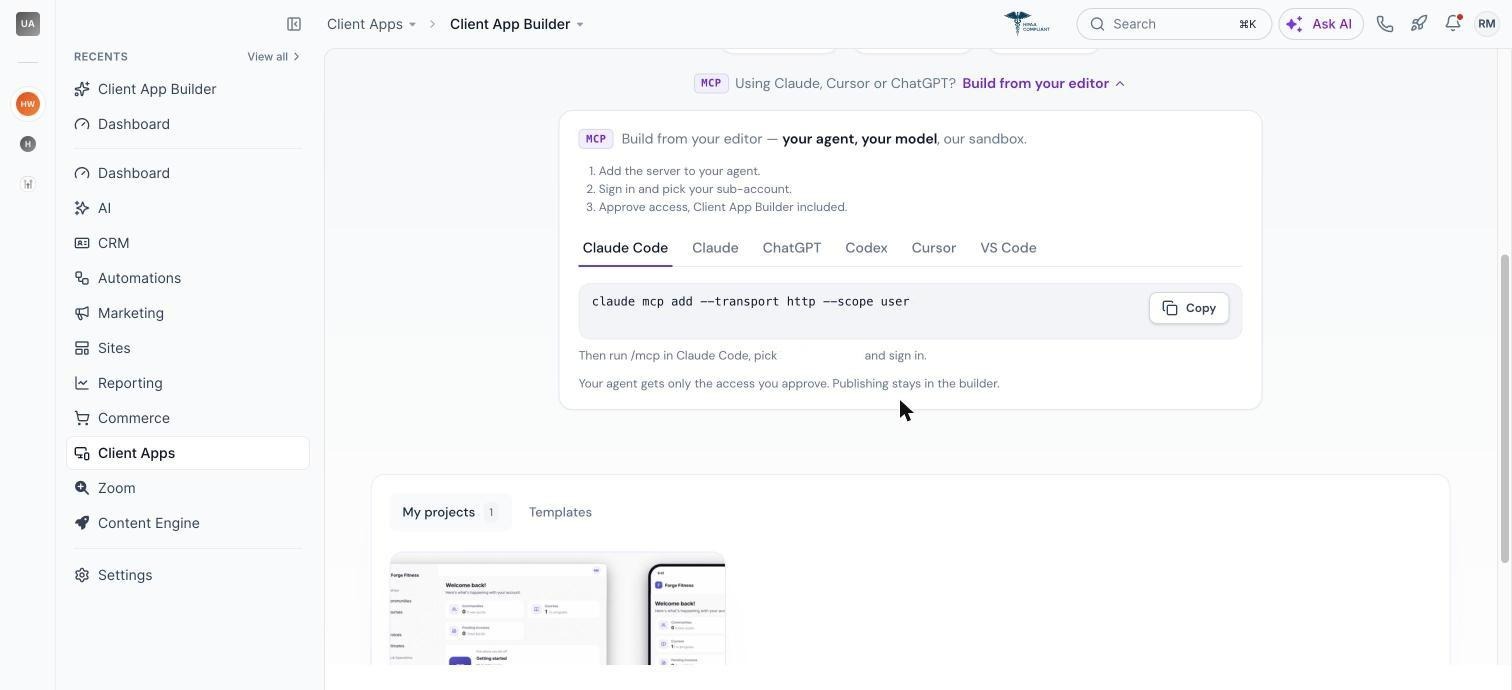
Once connected, supported tools can help create apps, initiate builds, check progress, answer setup questions, and edit app files.
Important: MCP access does not currently support publishing or unpublishing apps, managing secrets, or building mobile apps in production.
12. Current Limitations
Client App Builder continues to evolve. Keep the following limitations in mind when planning your app.
Capability | Current support |
Web app creation | Supported |
Android app creation | Supported |
iOS app creation | Not yet available |
Google Play / App Store publishing | Not yet available |
Custom web domains | Supported, up to 10 |
Apps per sub-account | 5 |
AI-generated Custom Objects | Supported, subject to CRM limits |
Ready-made industry templates | Coming soon |
Web app duplication | Not currently available |
Web version history and restore | Not currently available |
Custom server-side code and databases | Not supported |
Third-party npm package installation | Not supported |
Custom payment checkout | Not supported; supported payments use Chat To Clients CRM invoices |
Desktop apps and PWA generation | Not yet available |
Builder interface language | English |
Client App Builder is designed to build experiences on top of supported Chat To Clients CRM capabilities. It is not a general-purpose backend development environment.
13. Frequently Asked Questions
Do I need coding experience to use Client App Builder?
No. You can describe the experience you want in natural language, and AI helps build it. You can continue refining your app through conversations and available customization controls.
Can I use my existing Chat To Clients CRM courses and communities?
Yes. Client App Builder integrates with supported Client Portal features, including courses, communities, shared files, appointments, and member accounts.
Can I create both web and mobile apps?
Yes. You can create both app types within the same sub-account, subject to the combined limit of five apps. Each app must be created as either Web or Mobile.
Can I convert a web app into a mobile app later?
No. The app type cannot be changed after creation. You must create a separate app for the other platform.
Can I use my own domain?
Yes, for web apps. You can connect up to ten custom domains per app, provided they meet the domain requirements.
Can I publish an app to the Apple App Store or Google Play?
Not currently. Android APK generation is supported, but direct app-store publishing and iOS app generation are not yet available.
Can I make changes after publishing?
Yes, you can continue editing your projects. Web apps can be republished with updates.
For mobile apps, update behavior depends on the starting point. ClientPortal Standard supports publishing certain changes to installed apps, while new AI-generated screens in Describe It Instead require an APK rebuild, which is not yet available.
Can members submit information through my app?
Yes. Custom Objects allow you to create supported forms and record-based experiences that store information in your Chat To Clients CRM CRM.
Can I add payments to my app?
Supported web experiences can use Chat To Clients CRM invoice-based payment actions. Custom shopping carts, coupons, and independent checkout systems are not currently supported.
Can I use an external AI coding tool?
Yes. Supported MCP integrations allow compatible external AI tools to work with web app projects. Publishing must still be completed through Client App Builder.
What happens if an AI build stops or fails?
You can review the available build status or error details and send another prompt to continue or fix the issue.
If a build is interrupted, the builder provides an option to continue through a new message. Mobile build checks may also identify the affected file and location.
Why is my preview taking time to load?
A preview may pause after a period of inactivity. When you return, the builder can restart the preview environment. This does not affect your published app.
Can I restore a deleted app?
Deleted apps cannot currently be restored through the Client App Builder interface. Make sure you no longer need an app before deleting it.
Start Building with Client App Builder
Whether you're creating a custom member portal or launching a branded Android experience, Client App Builder gives you a way to bring your ideas to life using AI and the Chat To Clients CRM tools you already use.
Enable Client App Builder in Labs, describe your app, and start building.