Communities - Analytics
Community Analytics gives community admins and owners a centralized dashboard to track revenue, membership, traffic, and engagement. This article shows you how to access the dashboard, filter data by date range, and understand key performance metrics and activity trends. You'll also learn how to identify and export inactive members.
TABLE OF CONTENTS
- What is Community Analytics?
- Limitations and Important Considerations
- How To Access Community Analytics
- Understanding the Community Analytics Dashboard
- Related Articles
What is Community Analytics?
Community Analytics is a dedicated dashboard in Chat To Clients CRM Communities that provides visibility into how your community is performing. It brings together earnings, membership activity, traffic sources, peak activity hours, and engagement metrics in one place.
Community admins and owners can compare performance across different date ranges, understand member participation, identify inactive members, and make informed decisions about growing and managing their communities.
Limitations and Important Considerations
Historical traffic: Visits recorded before traffic tracking became available are not backfilled.
Activity-based reporting: Inactive members are determined by tracked activity within the selected date range.
Period comparisons: Percentage changes depend on data from the previous equal-length reporting period.
Community timezone: Time-based analytics use the community's timezone instead of UTC.
How To Access Community Analytics
Community Analytics is accessible from your group's settings. Once you reach the dashboard, you can review performance metrics and choose the reporting period that best fits your needs.
Log in to your account.
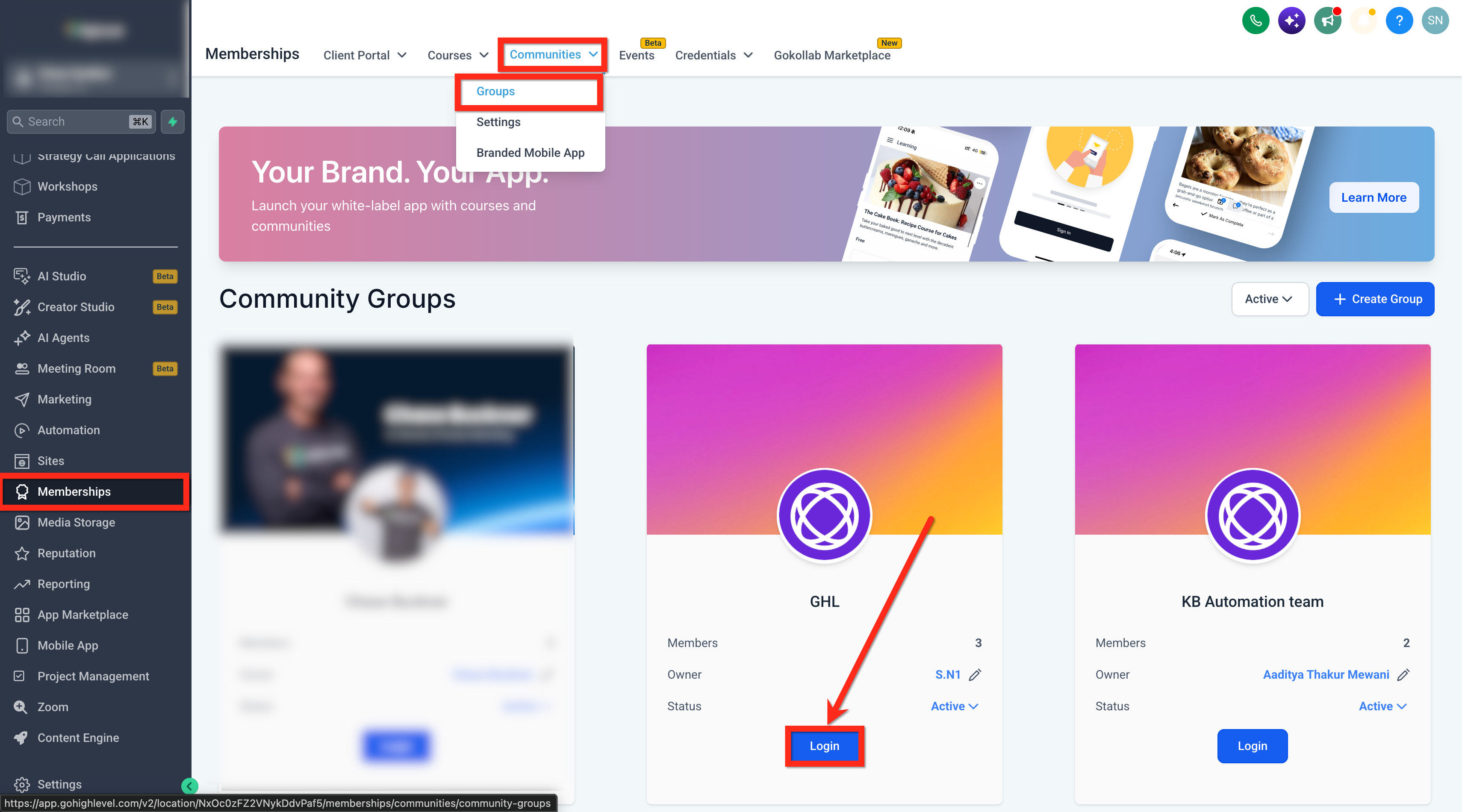
Select Memberships from the left-hand navigation menu.
Select Communities.
Select Groups.
Locate the group you want to review and select Login to your group.
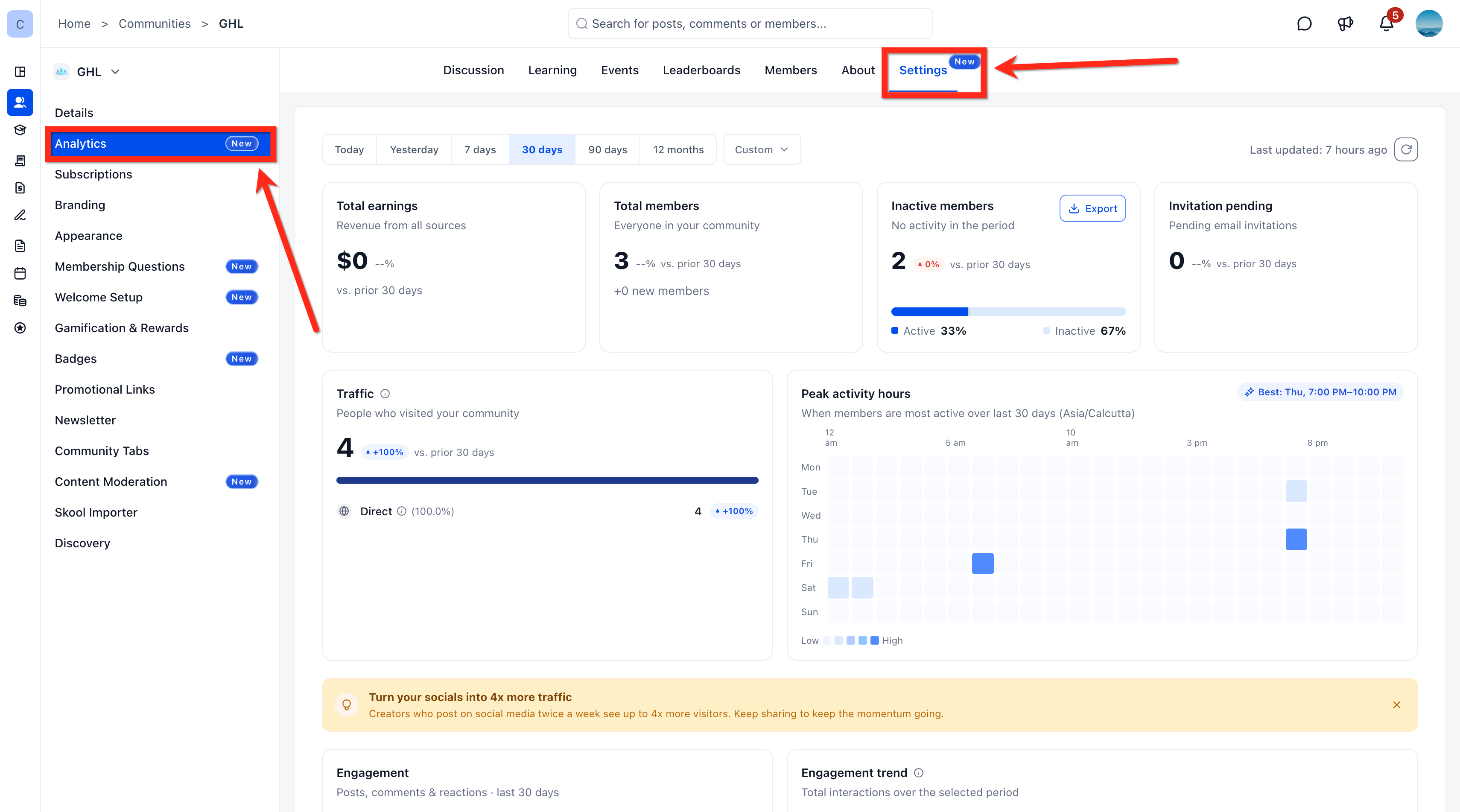
Inside the community, select Settings from the top navigation menu.
From the settings sidebar, select Analytics.
Understanding the Community Analytics Dashboard
The dashboard organizes performance information into reporting cards, charts, and activity visualizations. Each area provides a different view of your community's earnings, membership, visitors, or engagement.
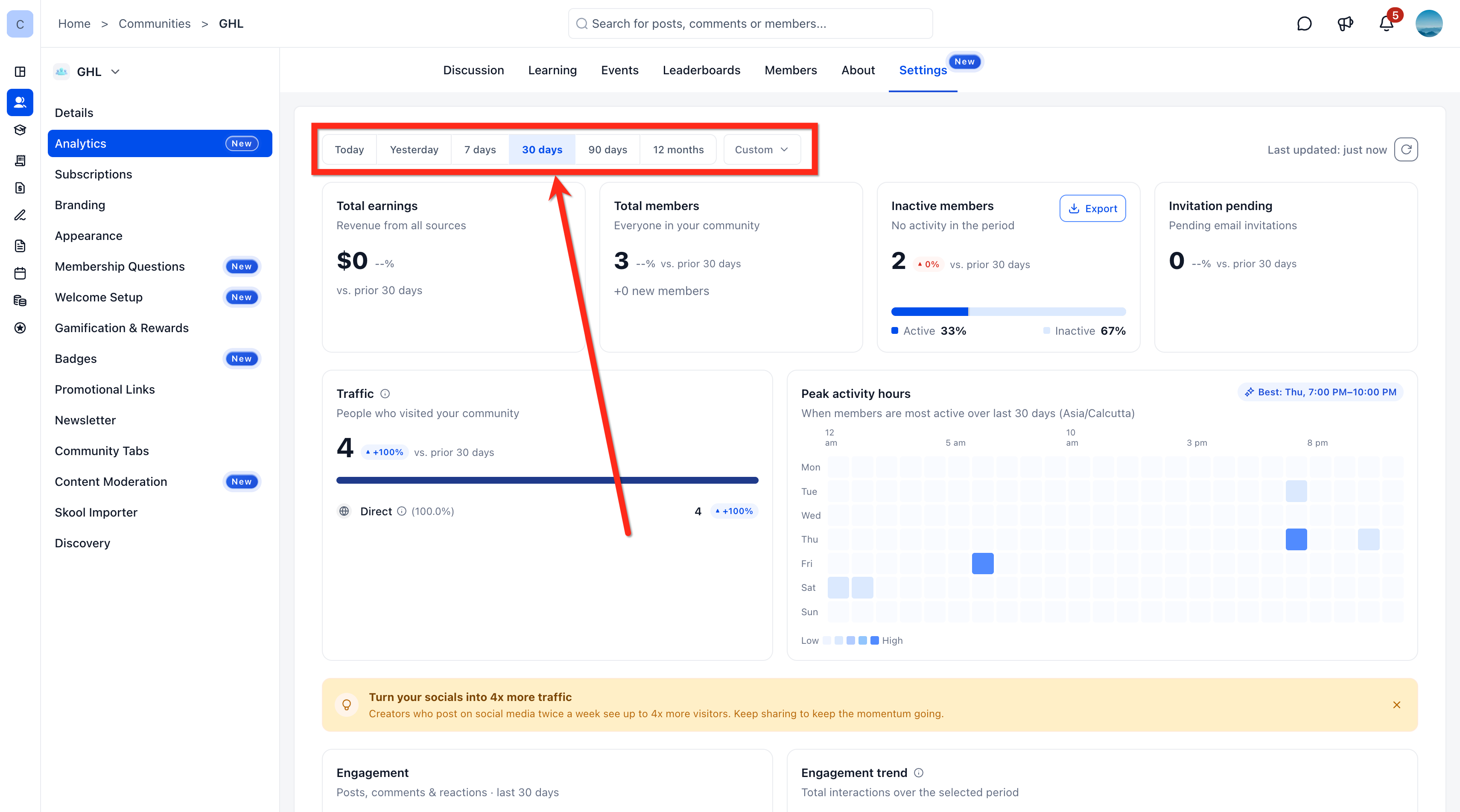
Selecting a Date Range
Date filters help you review community performance over a specific period. The dashboard uses the selected range across its reporting cards, making it easier to compare metrics consistently.
The available date filters are:
Today
Yesterday
7 days
30 days
90 days
12 months
Custom
By default, the dashboard displays the last 30 days.
You can select another preset or use Custom to specify a reporting period.
Understanding Key Performance Metrics
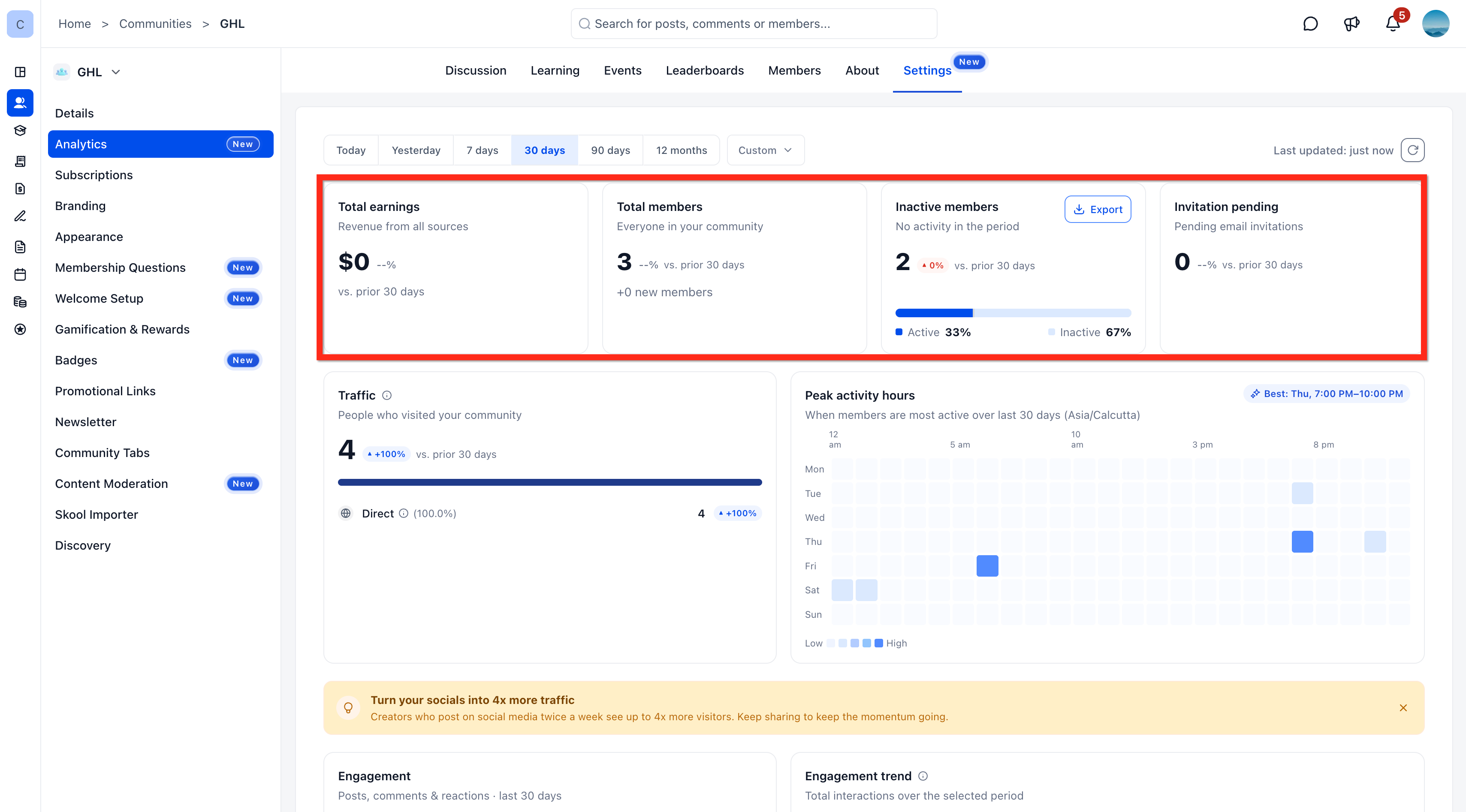
The performance cards provide a snapshot of your community's financial activity, membership, inactivity, and pending invitations.
Total earnings
Total earnings represents net transaction revenue attributed to your community.
The value includes purchases after subtracting refunds and chargebacks. Earnings are displayed in the sub-account or location currency.
Total members
Total members represents the current active membership roster of your community.
The dashboard also displays the number of new members who joined during the selected reporting period.
This helps distinguish the current membership total from membership growth during that period.
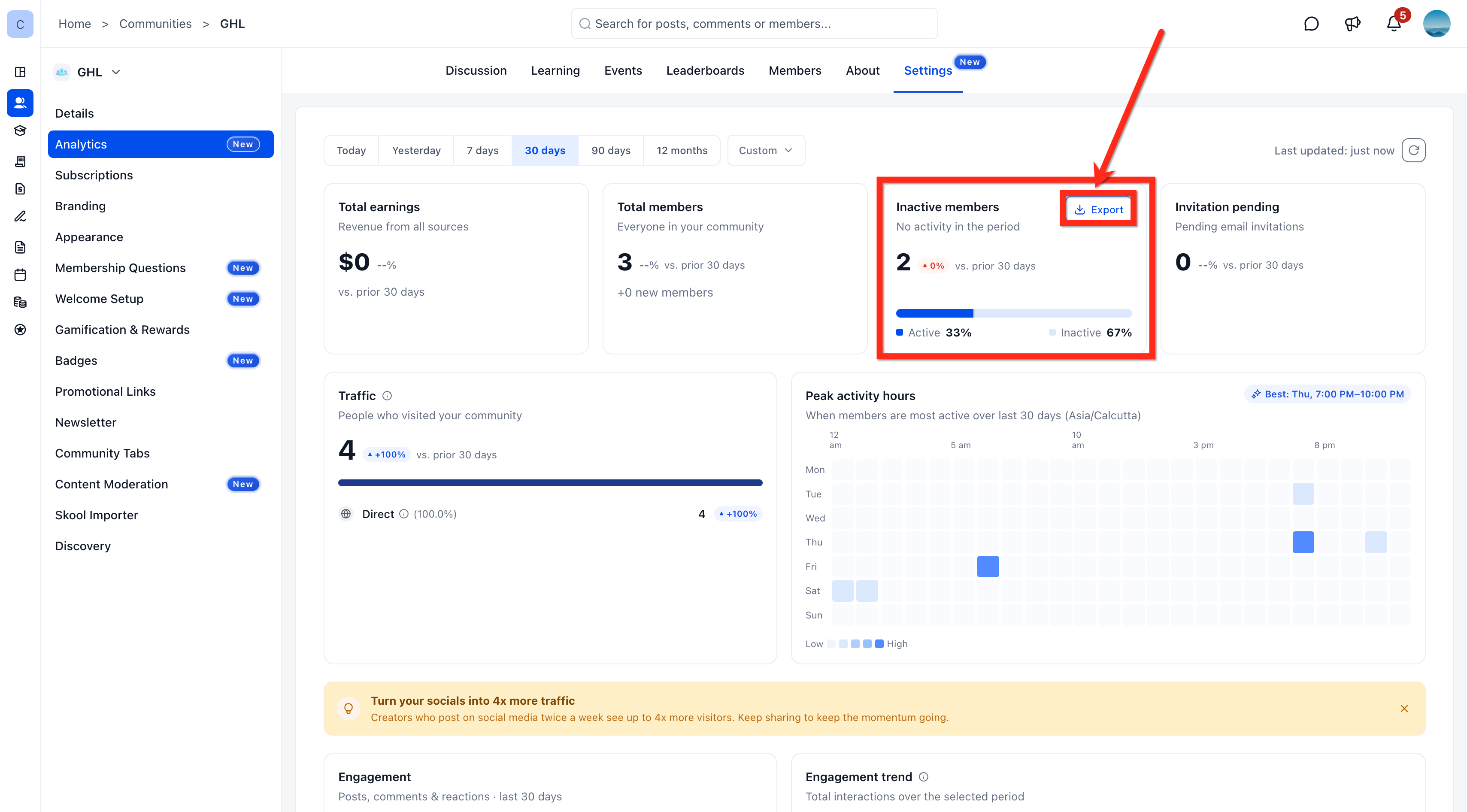
Inactive members
Inactive members are members of the current active membership roster who have no tracked analytics activity during the selected date range.
The dashboard displays the inactive-member count and a visual comparison of active versus inactive members.
The activity-based calculation is:
Active members = Total members − Inactive members
This activity classification helps identify members who may need additional engagement.
Invitation pending
Invitation pending shows email invitations that remain outstanding as of the end of the selected reporting period.
This metric helps community owners and admins monitor invitations that have not yet been cleared.
Analyzing Traffic Sources
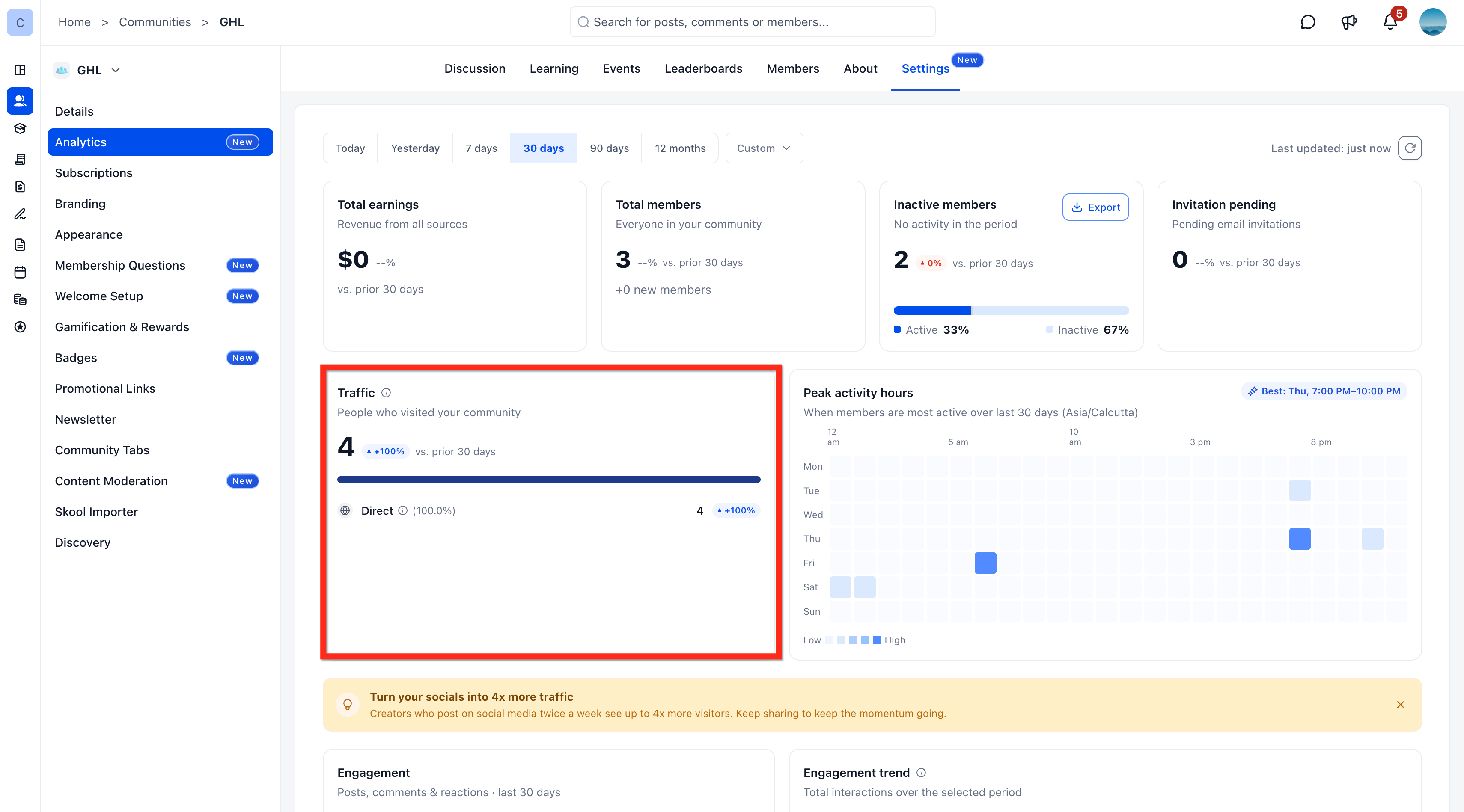
Traffic analytics help you understand where community visits originate. You can review the traffic total, compare reporting periods, and examine the contribution of individual sources.
The dashboard supports the following traffic categories:
Direct
Instagram
YouTube
Facebook
LinkedIn
Other
The dashboard displays up to four named traffic sources based on their volume. Remaining sources are grouped under Other.
Each displayed source includes its contribution to traffic and a comparison with the previous reporting period.
Automated bots and crawlers are excluded from traffic capture.
Identifying Peak Activity Hours
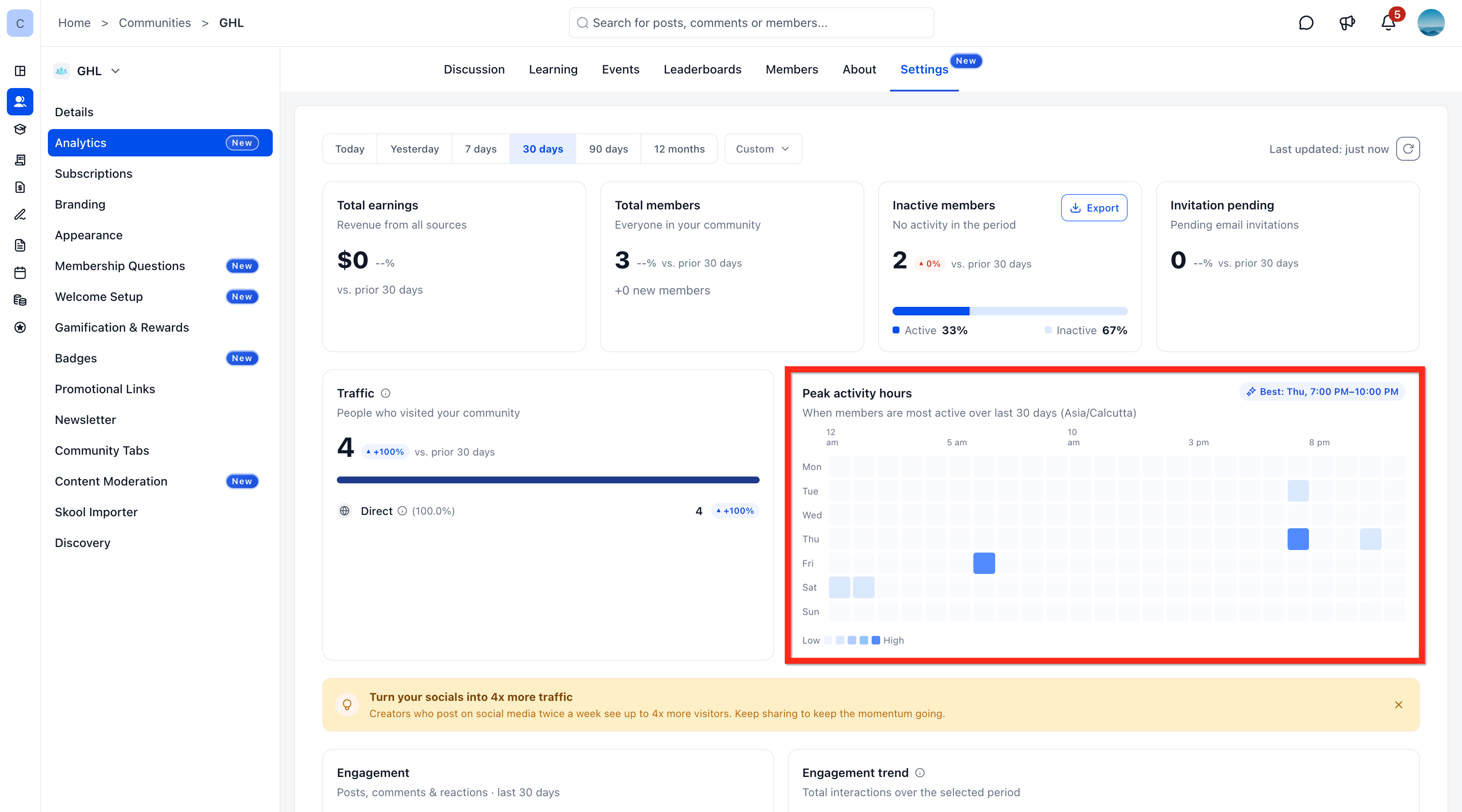
Peak activity hours help you understand when community members are most active. You can use these insights to plan announcements, discussions, and other activities around periods of higher participation.
The dashboard displays a heat map organized by day of the week and hour of the day.
Darker cells: Indicate higher activity levels.
Lighter cells: Indicate lower activity levels.
Busiest block: Highlights the day and time with the highest recorded activity.
Timezone: Activity is displayed using the community's timezone rather than UTC.
Tracking Community Engagement
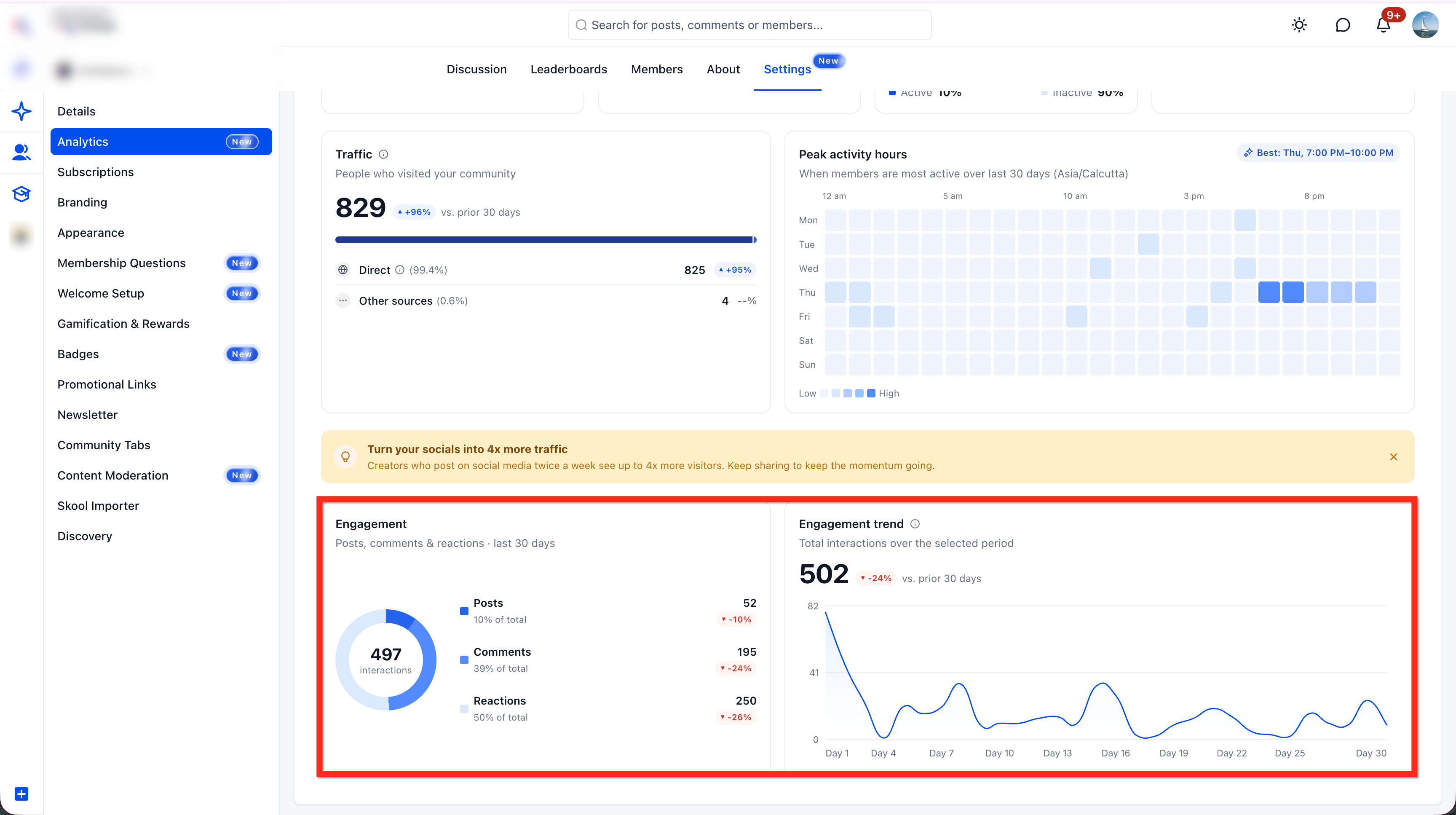
Engagement analytics show how members interact with content in your community. These metrics help you understand participation levels and monitor changes over time.
The Engagement card displays a breakdown of three interaction types:
Posts: The number of posts created during the reporting period.
Comments: The number of comments recorded during the reporting period.
Reactions: The number of reactions recorded during the reporting period.
A chart displays the distribution of these interactions, including their share of the reported breakdown.
The Engagement trend chart shows how total interactions change throughout the selected period.
Together, these visualizations help identify participation patterns and changes in community engagement.
Exporting Inactive Members
Community Analytics allows admins and owners to download inactive-member data for the selected reporting period. This export can help teams identify members for re-engagement or maintain records of community activity.
To export inactive members:
Select the date range you want to review using the filters at the top of the dashboard.
Locate the Inactive members card.
Click Export to download the inactive-member data as a CSV file.