
Router Action
Table of Contents
- Overview
- Key Benefits
- Action Name
- Action Description
- Action Details
- How to Configure
- Behaviour and Logic
- Testing the Router
- Use Case
- FAQs
Overview
The Router action sends a contact down every branch whose conditions match. The branches run one after another, from left to right. Use it when one contact can qualify for more than one path, such as a form lead who picks several services at once.
Router belongs to the same family as If/Else. The difference is how many branches run. If/Else sends the contact into the first branch that matches and ignores the other branches, even when the contact matches them too. Router checks every branch and runs each one that matches.
Key Benefits
- Every match runs: a contact who matches three branches goes into all three, not only the first one.
- Predictable order: branches run from left to right, and you can drag them into the order you need.
- Three branch types: use Custom rules, Always run or Fallback to decide when each branch runs.
- Familiar conditions: build each rule with fields, operators, conditions and rule groups.
- Fewer duplicate workflows: one Router replaces extra branches or workflows that you built to catch a second or third match.
- Clear test results: the test output shows which branch conditions passed and why.
Action Name
Router
Action Description
Send the contact down every branch whose conditions match. Branches run one after another, left to right.
Action Details
| Field | Description | Mandatory |
|---|---|---|
| Action Name | The name shown on the workflow canvas. Defaults to “Router”. | Yes |
| Branches | The list of branches in this Router, in run order. Use Add branch to add a branch, the drag handle to change the order, and the delete icon to remove a branch. | Yes |
| Branch Name | The name of the branch, for example “Branch 1”. It shows on the canvas above the branch. | Yes |
| Branch Type | Custom rules: runs only when the conditions below match. Always run: runs for every contact, with no conditions. Fallback: runs only when no other path matched. | Yes |
| Only Continue If | Shown for Custom rules. The conditions the contact must match. Select a field, select an operator and enter a value. Use Add condition and Add rule group for more conditions. | Yes, for Custom rules |
How to Configure
The steps below follow the most common journey: a trigger brings in a contact, and the Router sends that contact into each branch it matches.
Step 1: Add the Router action
In the workflow builder, click the + icon where the Router should go. In the Actions panel, search for Router and select it. The Router appears on the canvas with its branches below it.
Step 2: Open a branch
In the Router panel, the Branches list shows every branch. Click a branch to open its settings. Enter a Branch Name. Click Back to branches to return to the list.
Step 3: Choose the Branch Type
Open the Branch Type dropdown and select one option:
- Custom rules: the branch runs only when the conditions below match.
- Always run: the branch runs for every contact, with no conditions.
- Fallback: the branch runs only when no other path matched.
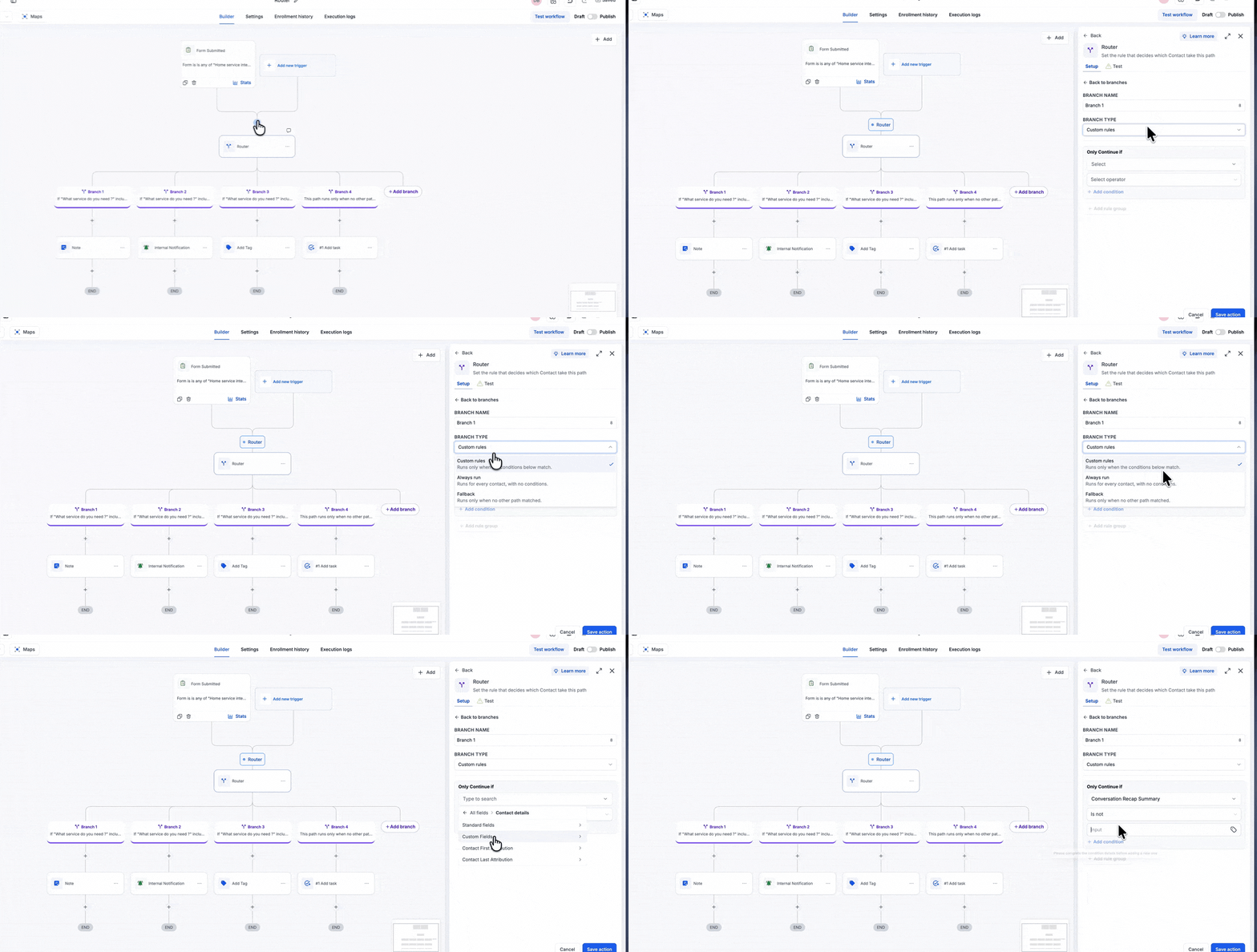
Selecting the Router action, choosing the Branch Type and setting a condition.
Step 4: Set the conditions
For Custom rules, build the rule under Only Continue If. Select a field, for example a contact field or a custom field. Select an operator, such as is, is not, contains, does not contain, is any of (comma separated), is none of (comma separated) or is not empty. Enter the value. Click Add condition or Add rule group to add more conditions. Save the branch.
Step 5: Add more branches
Click + Add branch on the canvas, or Add branch in the Branches list. Set the Branch Name, the Branch Type and the conditions for each new branch. Add as many branches as your use case needs.
Step 6: Set the run order
Branches run from left to right. To make a branch run first, drag it by its handle to the top of the Branches list. The canvas updates to show the new order.
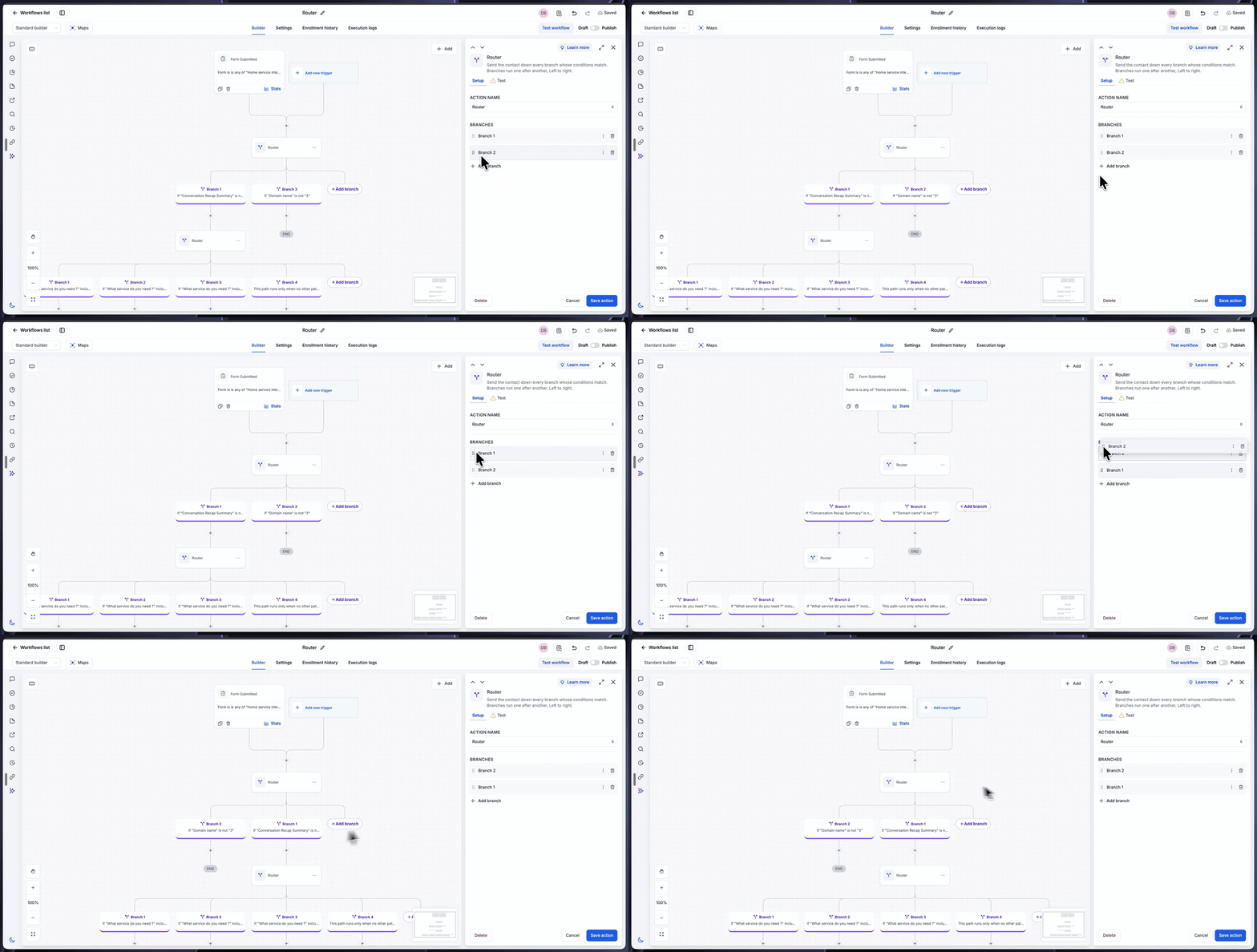
Dragging Branch 2 above Branch 1. Branch 2 now runs first.
Step 7: Save and add the next steps
Click Save action. Then click the + icon under each branch and add the actions that branch should run, such as a note, an internal notification, a tag or a task.
Behaviour and Logic
| Rule | What happens |
|---|---|
| Which branches run | Every branch whose conditions match runs. A contact who matches three branches goes into all three. |
| Run order | Matching branches run one after another, from left to right. The order in the Branches list is the run order. |
| Custom rules | The branch runs only when the contact matches its conditions. |
| Always run | The branch runs for every contact, with no conditions. |
| Fallback | The branch runs only when no other path matched. |
| Compared with If/Else | If/Else runs only the first branch that matches. Router runs every branch that matches. |
Testing the Router
Use Test workflow to check the Router on a real event before you publish.
- Input: open the Router step and the Test tab. The Input lists each branch condition and its rule, for example Branch 1 · condition 1.
- Run the test: select a real event, such as a recent Form Submitted event, and run the test for the Router action.
- Output: the Action tested banner confirms the run. The Output lists each branch condition with Passed and the reason, including the actual value the contact had. For example: Passed, includes HVAC (actual: HVAC, Plumbing, Electrical).
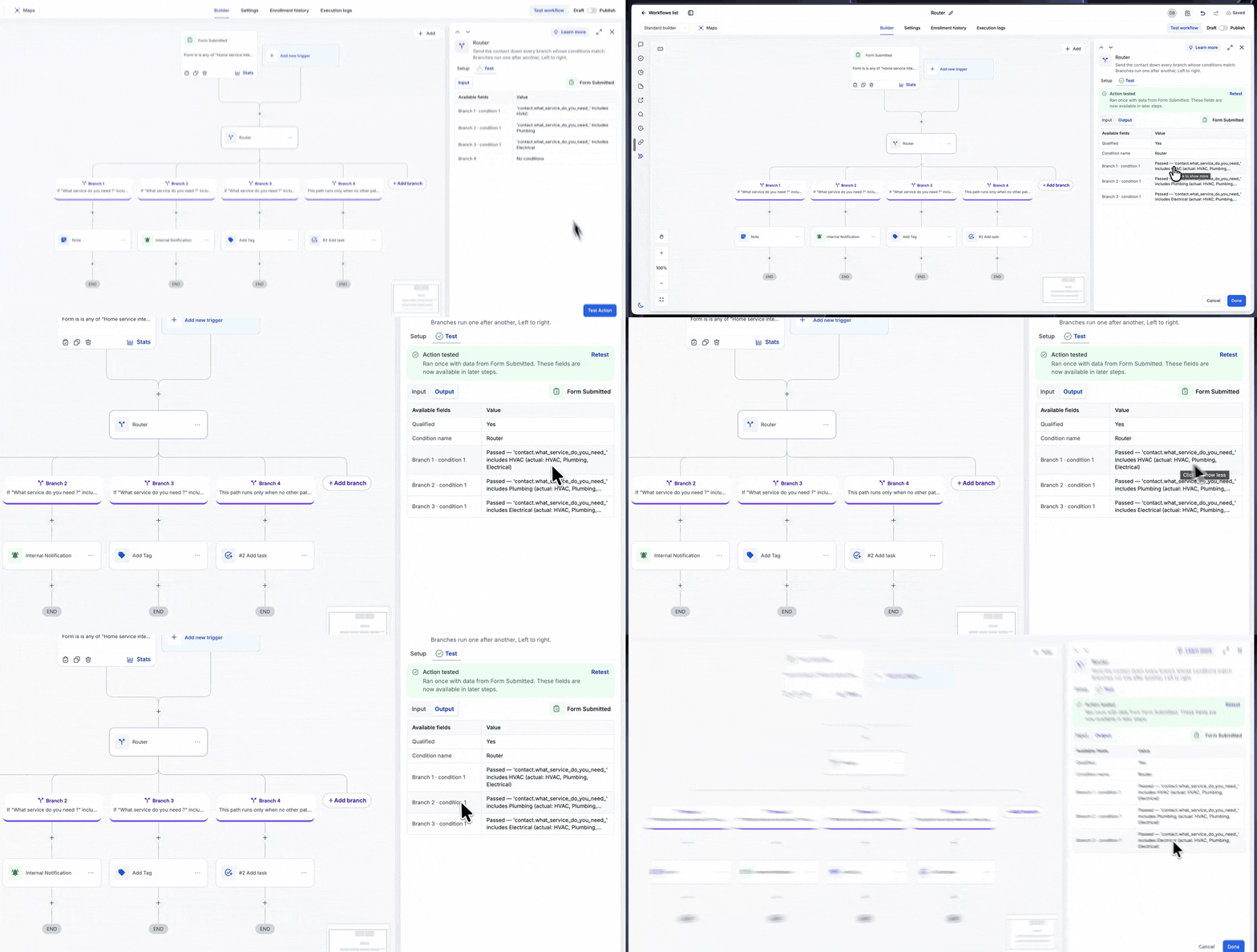
The test output shows Branch 1, Branch 2 and Branch 3 passed, each with its reason.
Use Case
Scenario: a home services business asks one question on its form: “What service do you need?” The lead can select more than one option: HVAC, Plumbing, Electrical or Carpentry. Each service has its own team and its own follow up steps.
- Trigger: Form Submitted, for the home services form.
- Action: Router with four branches.
- Branch 1: Custom rules. The service includes HVAC.
- Branch 2: Custom rules. The service includes Plumbing.
- Branch 3: Custom rules. The service includes Electrical.
- Branch 4: Fallback, for leads that match no other branch.
- Inside each branch: the next steps for that team, such as a note, an internal notification, a tag or a task.
- Result: a lead who selects HVAC, Plumbing and Electrical goes into Branch 1, Branch 2 and Branch 3, in that order. With If/Else, only the HVAC branch would run.
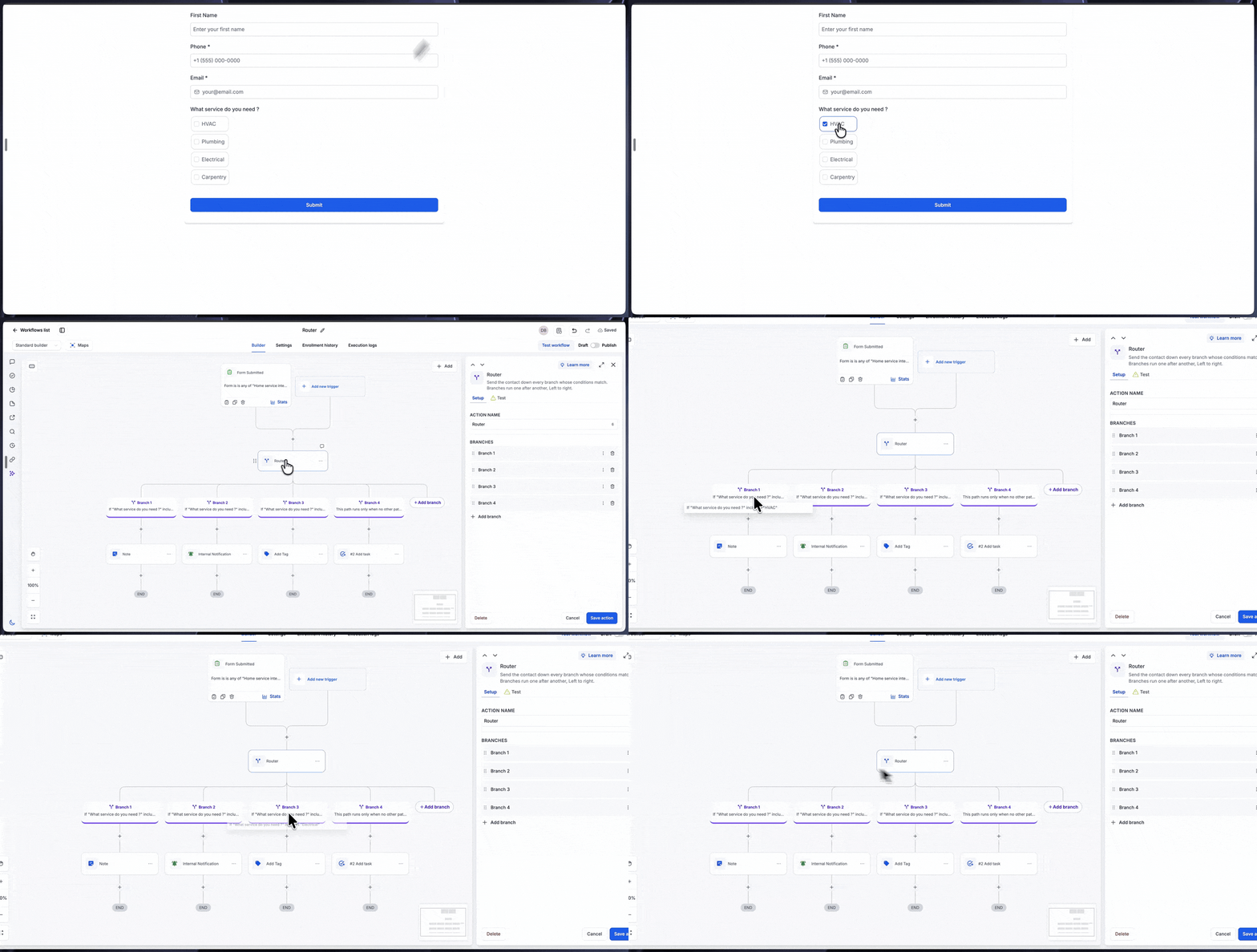
The form question with multiple selections, and the Router branches for each service.
FAQs
Q: What is the difference between Router and If/Else?
If/Else sends the contact into the first branch that matches and ignores the rest. Router sends the contact into every branch that matches, one after another, from left to right.
Q: In what order do the branches run?
From left to right, in the order of the Branches list. Drag a branch to the top of the list to make it run first.
Q: Do the matching branches run at the same time?
No. They run one after another.
Q: How do I make a branch run for every contact?
Set its Branch Type to Always run. It runs for every contact, with no conditions.
Q: How do I handle contacts that match no branch?
Add a branch with the Branch Type set to Fallback. It runs only when no other path matched.
Q: How can I check which branches a contact will go into?
Test the Router with Test workflow on a real event. The Output lists each branch condition with Passed and the reason.