
Calendar View Settings
Calendar view settings let you personalize how the Calendar view looks and behaves for you. Choose the timezone appointments are shown in, how finely the day and week grids are divided, how events are colored, and how working hours, empty staff lanes, and buffer time appear. These are display settings only. They don't change availability, scheduling rules, or what customers see on your booking pages.
TABLE OF CONTENTS
- What Are Calendar View Settings?
- How to Open Calendar View Settings
- Settings Are Personal to Each User
- View Appointments In
- Grid Interval
- Color Events By
- Staff Colors (Admins Only)
- Grey Out Hours Outside Working Time
- Hide Empty Rows and Columns
- Show Buffer Time
- Export Your Calendar View
- Frequently Asked Questions
- Related Articles
What Are Calendar View Settings?
Calendar view settings are display preferences for the unified calendar in Calendars → Calendar view. They are grouped in one panel with two tabs:
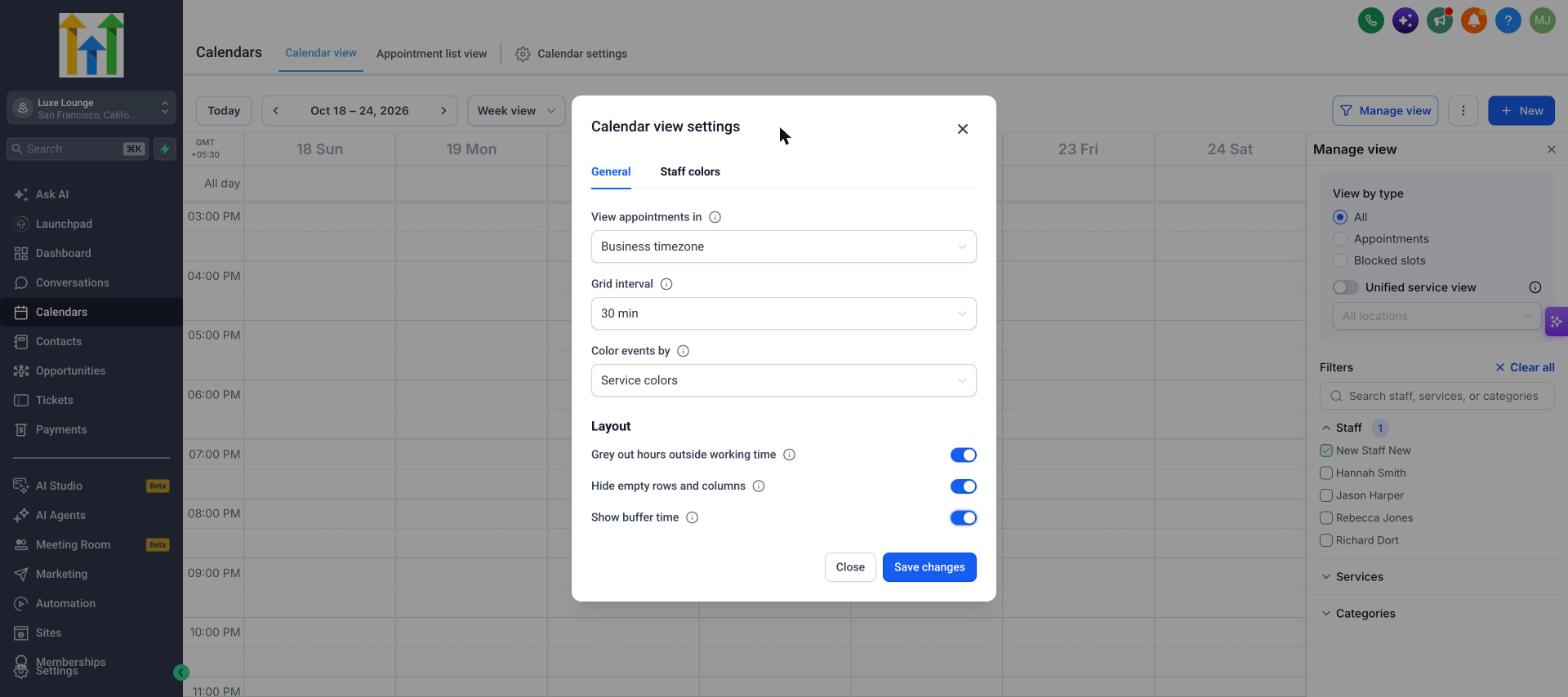
- General: Your timezone, grid interval, event colors, and layout options (grey out hours, hide empty rows and columns, and show buffer time).
- Staff colors: Where admins choose the color for each staff member. This tab is only visible to admins.
Key Benefits of Calendar View Settings
- Your timezone: See appointment times on your own clock.
- Your grid: Divide the day finely for short appointments, or coarsely for a quick overview.
- Color at a glance: Tell staff, calendars, and services apart without opening each appointment.
- Working hours and buffers: Spot time outside a staff member's working hours and time blocked by buffers.
- Focused day view: Hide staff who have no appointments.
- Just for you: Set up the calendar the way you work without changing anyone else's view.
How to Open Calendar View Settings
- Go to Calendars and open Calendar view.
- Click the more options (⋮) menu next to Manage view.
- Select Calendar view settings.
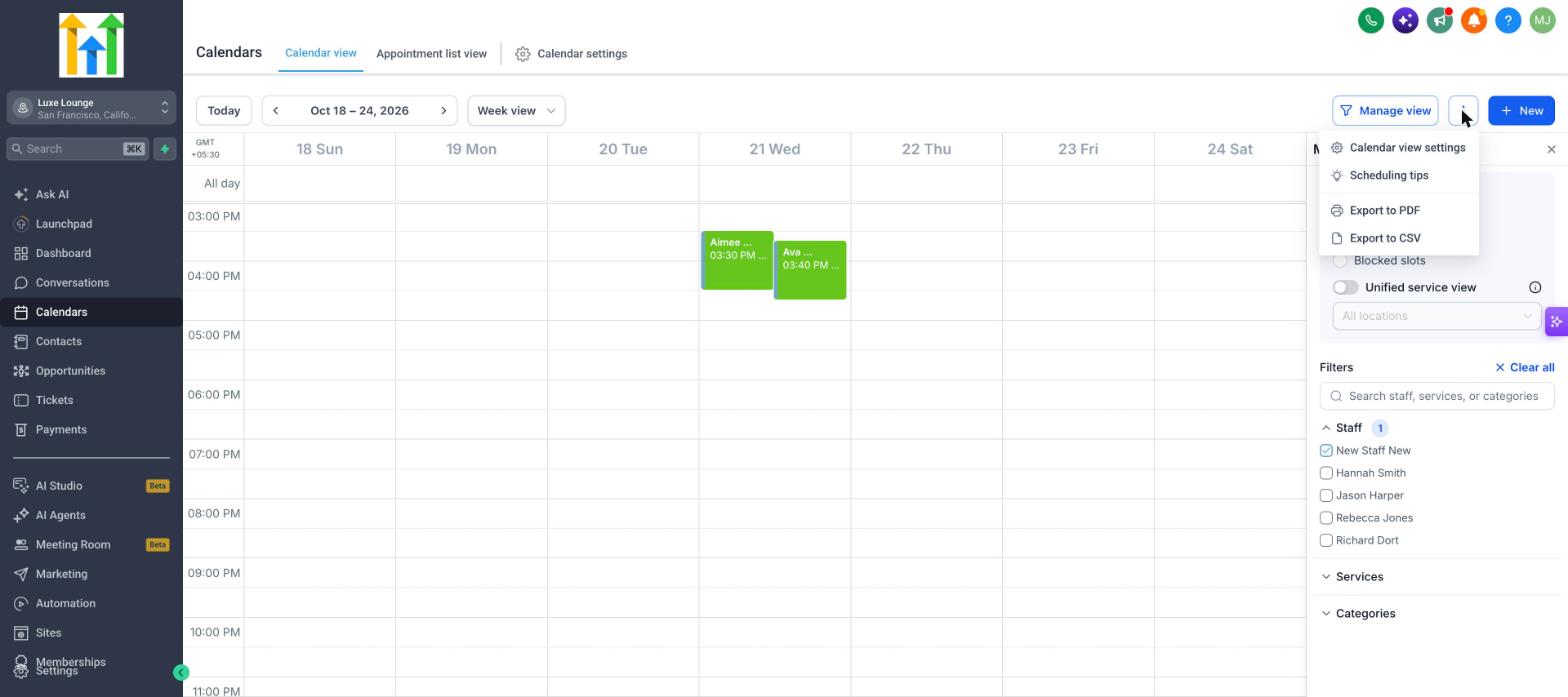
The same menu also has Export to PDF and Export to CSV. See Export Your Calendar View.
The Calendar view settings panel opens on the General tab. Change the settings you want, then click Save changes. Click Close to leave without saving. Save changes stays unavailable until you change a setting, and your saved settings are remembered the next time you open the Calendar view.
Settings Are Personal to Each User
Each user chooses their own settings on the General tab. Your settings are for you only and never change what other users see.
- Changing your timezone, grid interval, event colors, or layout options doesn't affect any other user's calendar.
- Settings don't change staff availability, scheduling rules, buffers, or how customers book.
- Example: Two team members open the same calendar. One uses a 15 min grid and hides empty columns. The other uses a 60 min grid and keeps every column visible. Each person sees their own setup.
- Staff colors are the exception. They are set by admins for everyone, and only admins see the Staff colors tab. Users who aren't admins see only the General tab.
View Appointments In
Choose the timezone used to display appointment times.
- It applies to appointment times throughout the app and in your appointment-related emails.
- Choose from Recommended timezones, Business timezone, or All timezones.
- Business timezone: Keeps your viewing timezone aligned with the business timezone. If the business timezone changes, your viewing timezone adjusts to match automatically.
- It's just for you. It doesn't affect your availability or how others book with you.
- Example: Your business is in New York and you work from London. Select a London timezone and every appointment time appears on your own clock, with no manual conversion.
The "View in timezone" setting moved out of Meetings Preferences and the Services/Rentals Global Settings. Any timezone you set before carries over automatically.
For more detail, see View Calendar & Appointments in User Timezone.
Grid Interval
Sets the default time slot size for the Day and Week grids, which is how finely each hour is divided. Choose 15 min, 30 min, or 60 min.
- 15 min: Four rows per hour. Best for short appointments that need precise placement.
- 30 min: Two rows per hour.
- 60 min: One row per hour. Fewer rows, so the day is easier to scan at a glance.
Color Events By
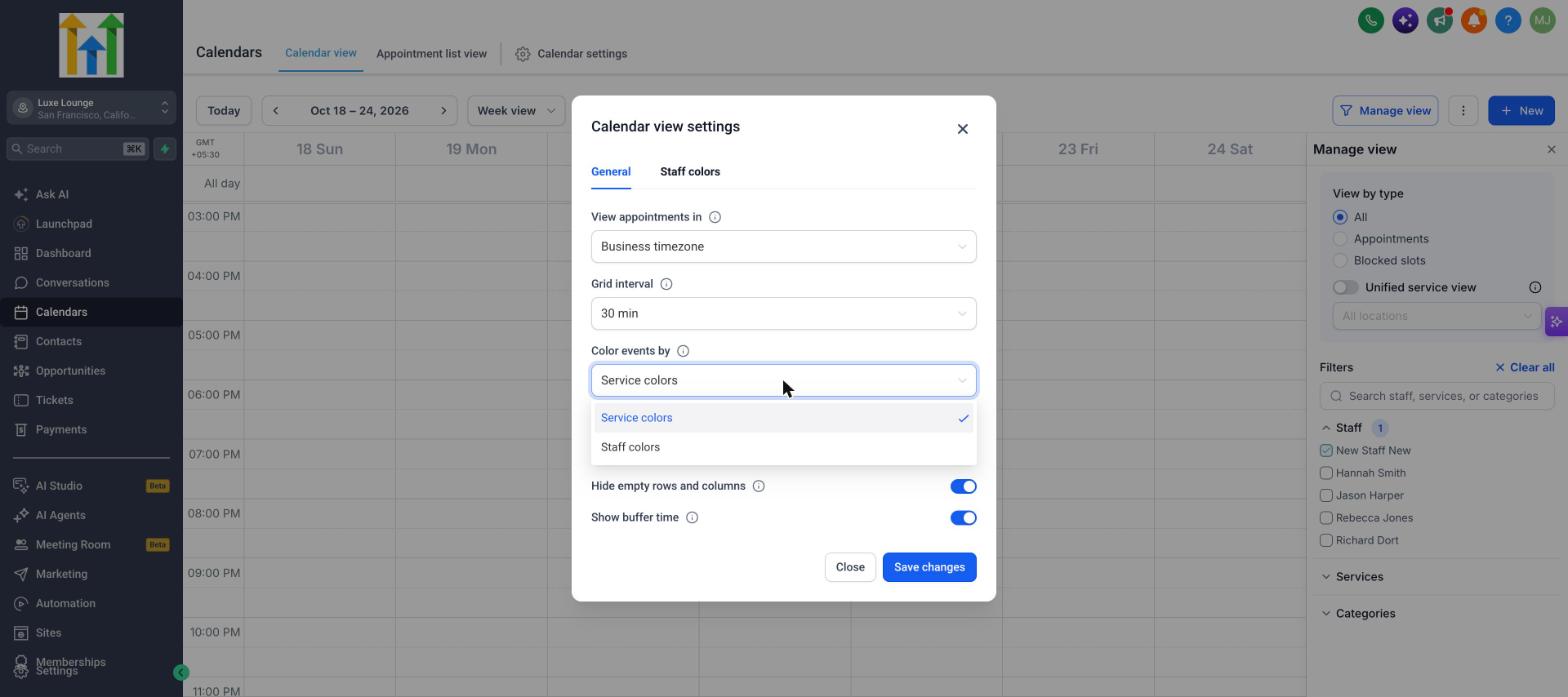
Each event tile on the calendar shows two colors: one fills the tile and the other appears on the tile's left strip. Choose which color fills the tile.
- Calendar/service colors: The tile is filled with the calendar or service color. The assigned staff member's color appears on the left strip. The name of this option follows what your calendar shows, so you may see Service colors instead.
- Staff colors: The tile is filled with the assigned staff member's color. The calendar or service color appears on the left strip.
- Rental bookings are always colored by status, whichever option you choose.
Staff Colors (Admins Only)
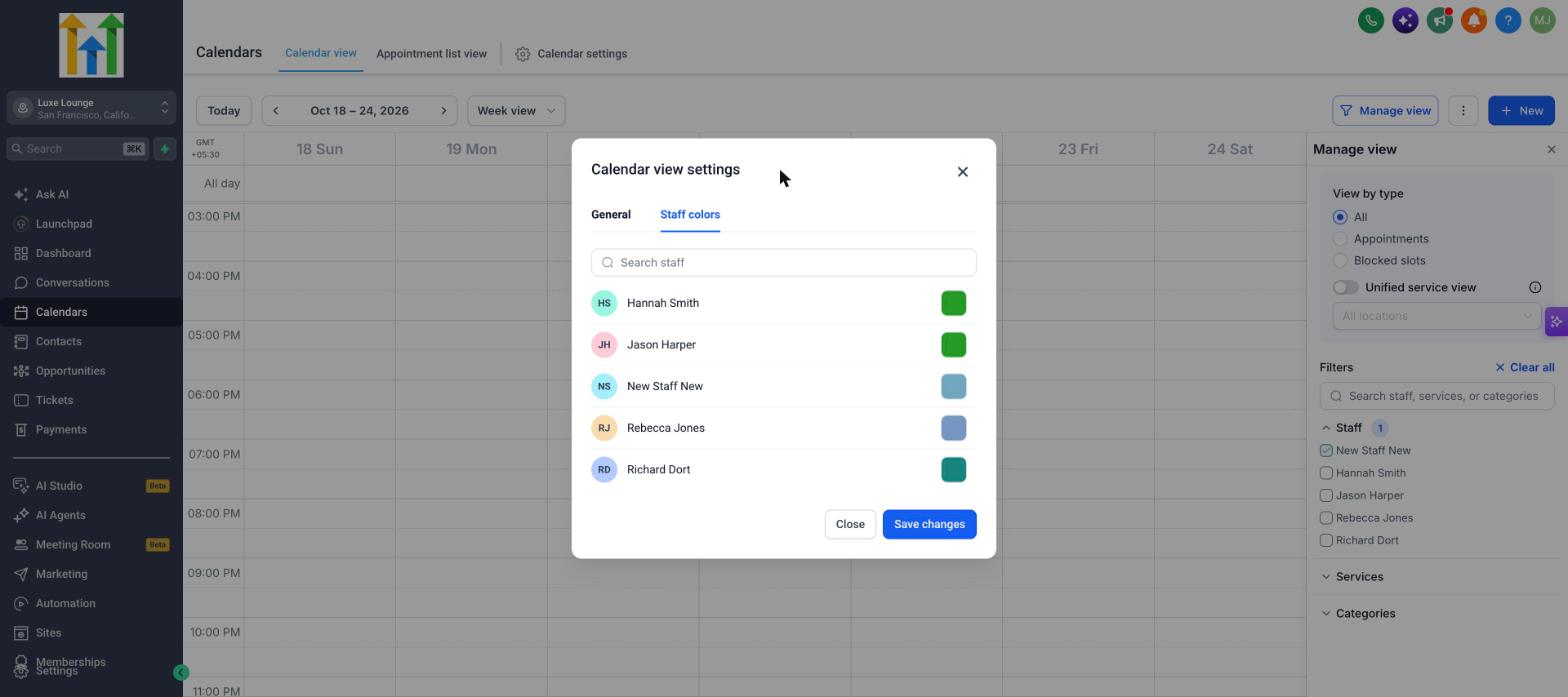
The Staff colors tab is where admins choose the color for each staff member. An admin sets these colors for everyone: when an admin saves a color for a staff member, that color applies for all users. The tab is only visible to admins, and users who aren't admins don't see it. The colors are used for the tile or the left strip, depending on Color events by.
- Open Calendar view settings and select the Staff colors tab.
- Search for a staff member, or scroll the list.
- Click the color swatch next to their name. In the color picker, drag in the color area, move the hue slider, enter a HEX value, or choose one of the preset colors.
- Click Save changes.
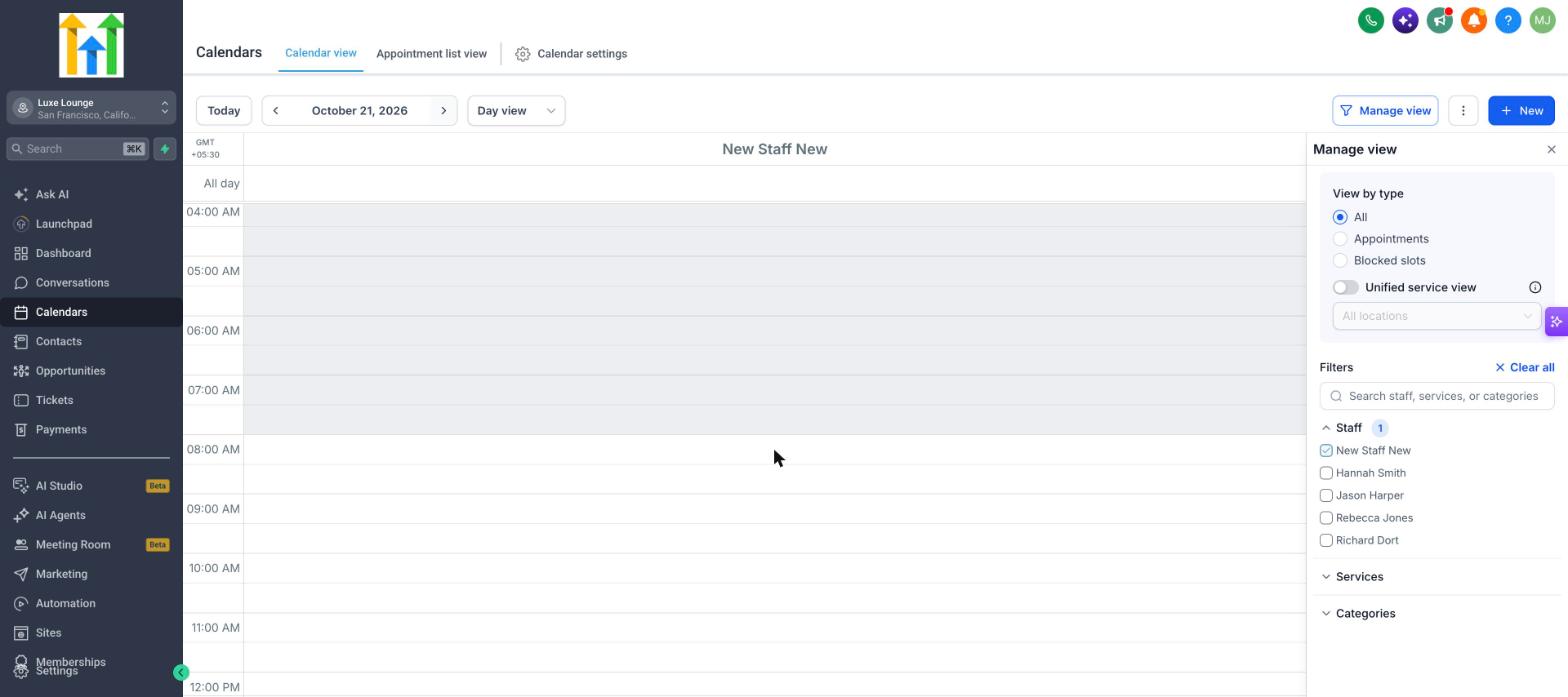
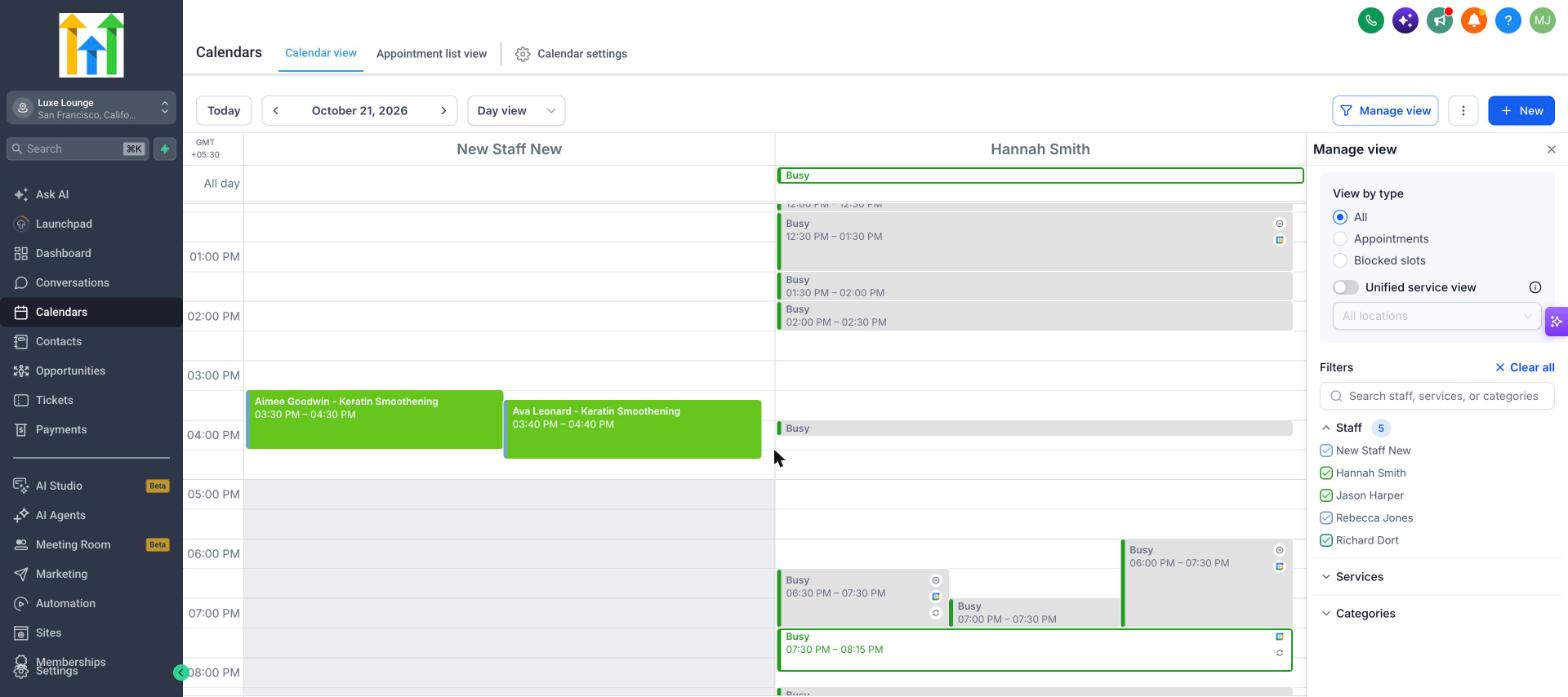
Grey Out Hours Outside Working Time
Shades the hours when a staff member isn't working, so you can see at a glance which parts of the day are outside their availability.
How It Works
- We combine every active schedule for the user: the schedules associated with any of their calendars and any active custom schedule.
- Any hour that isn't available after combining all of those schedules is greyed out. An hour that is available in at least one active schedule stays white.
- Greyed out hours are shown in the Day and Week views.
Example: Jane is assigned to two calendars. Consultations is available 9 AM to 1 PM and Follow-ups is available 12 PM to 5 PM. We combine the two schedules into 9 AM to 5 PM, so only the hours before 9 AM and after 5 PM are greyed out. If Follow-ups were available 3 PM to 6 PM instead, the combined hours would be 9 AM to 1 PM and 3 PM to 6 PM, so 1 PM to 3 PM would be greyed out as well.
Example in Day view: You select Jane and Sam in the Users filter. Jane works 9 AM to 5 PM and Sam works 10 AM to 6 PM. Jane's column is greyed out before 9 AM and after 5 PM, and Sam's column is greyed out before 10 AM and after 6 PM.
Note : Schedules that are not assigned to any calendar are considered inactive and not accounted while greying out hours.
When It Applies
- In the Day view, it works with one or more users selected. Each user's column is greyed out based on that user's own working hours.
- In the Week view, it works only when a single user is selected.
- It works only with the Users (staff) filter. If you filter by calendars, groups, services, or categories, no hours are greyed out.
- If a staff member is available around the clock, there is nothing to grey out.
Hide Empty Rows and Columns
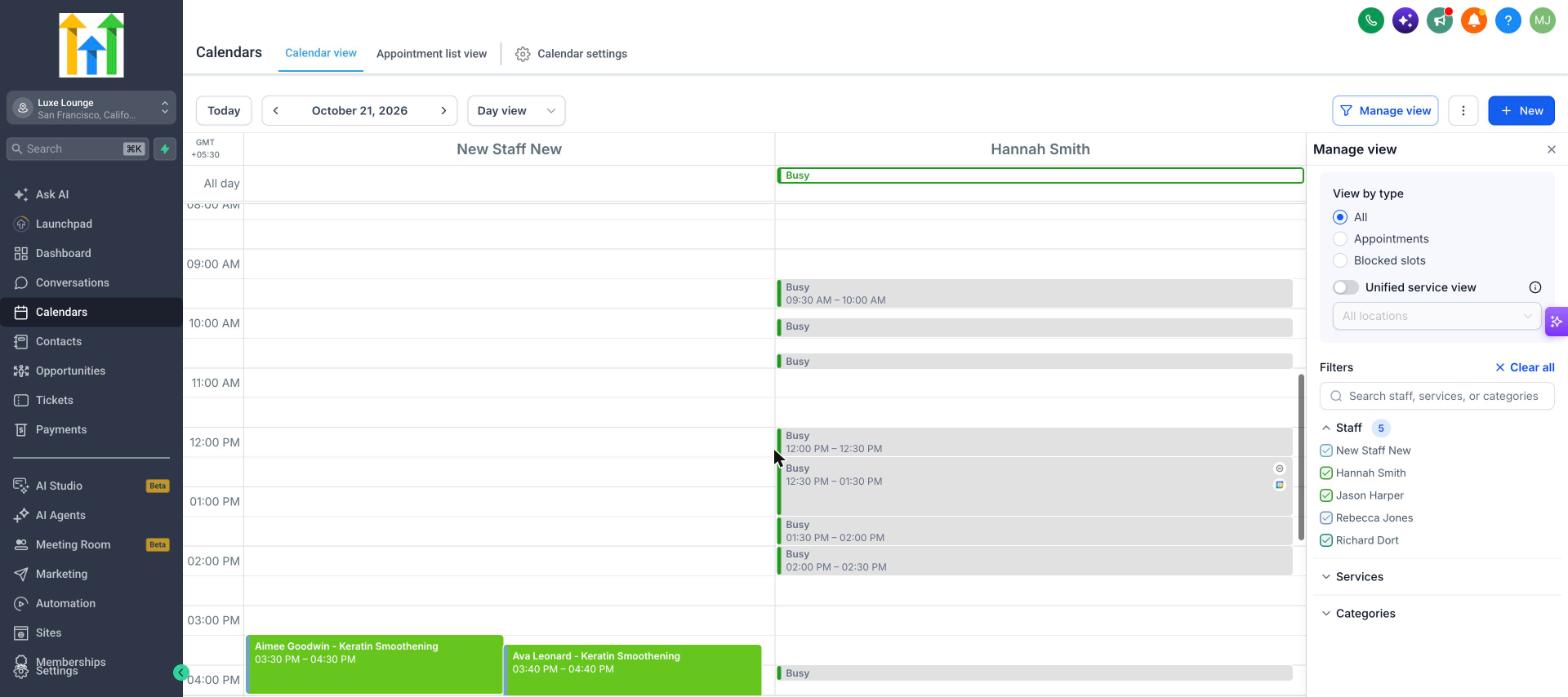
Removes lanes that have no appointments in the current range, so the calendar shows only the staff, resources, or listings that have something scheduled.
How It Works
- It works in the Day view only. Week view and Month view aren't affected.
- A user who has no appointments or other events on the day you're viewing is hidden. Events include busy time from a linked calendar and blocked time. Their column returns on a day when they have something scheduled.
- It applies to rental listings in the same way. A listing with nothing scheduled on the day is hidden.
- If none of the selected users has anything scheduled that day, every user is hidden and the day appears with no user columns. The same happens for rental listings when none of them has anything scheduled.
Example: You select five staff members in Manage view and open a day in Day view. Only two of them have something scheduled, so you see two columns. The other three appear again on a day when they have something scheduled, or when you turn this setting off.
Show Buffer Time
Shows the buffer time before and after staff appointments on the calendar, wherever a slot is blocked because of buffers.
- Buffer blocks are shown in the Day and Week views.
- Turning this on only displays buffers. Your buffer settings don't change.
- Turning it off hides the buffer blocks from the calendar. It doesn't remove the buffer or make that time available.
- Buffer time is set in each calendar's availability settings. For setup steps, see Pre and Post Buffers.
Export Your Calendar View
Export what you're looking at from the same more options (⋮) menu next to Manage view.
- Export to PDF: Exports the current calendar view.
- Export to CSV: Exports the appointments in the current view. This option is unavailable when the view has no appointments to export, and CSV exports don't include blocked slots.
Exports reflect the filters and date range you have applied in Manage view.
You can only select upto 7 resources in the day view while exporting to PDF to ensure that the appointments are readable.
Frequently Asked Questions
Q: Do my settings change what other users see?
No. Each user's General settings are for themselves and don't affect any other user. Staff colors are the exception: admins set them for everyone.
Q: Why don't I see the Staff colors tab?
The Staff colors tab is only visible to admins.
Q: If I change a staff member's color, who sees it?
Everyone. Admins set staff colors for everyone.
Q: Do these settings change availability or how customers book?
No. They only change how your calendar is displayed. Availability, buffers, and scheduling rules are configured elsewhere and aren't affected.
Q: Why aren't hours greyed out on my calendar?
Confirm that Grey out hours outside working time is on, that you're filtering by users (staff) and not by calendars, groups, services, or categories, and that you're in Day or Week view. In Week view, only a single user can be selected. If the staff member is available around the clock, there is nothing to grey out.
Q: Does grey out work with more than one user?
Yes, in Day view. Each selected user's column is greyed out based on their own working hours. In Week view, grey out works only with a single user.
Q: Why are some of the users I selected missing from my day view?
Hide empty rows and columns hides users who have no appointments or other events on that day. Turn the setting off in Calendar view settings to see every selected user.
Q: Does Hide empty rows and columns work in Week or Month view?
No. It works in Day view only.
Q: Can every user disappear from my day view?
Yes. If none of the selected users has anything scheduled that day, all of them are hidden. The same applies to rental listings.
Q: Does turning off Show buffer time remove the buffer?
No. It only hides the buffer blocks from the calendar. The buffer still affects availability.
Q: Which grid intervals can I choose?
15 min, 30 min, or 60 min.
Q: Does the timezone setting affect my availability?
No. View appointments in only changes how appointment times are displayed to you.