
Workflow Triggers - Google Sheets
Google Sheets workflow triggers in Chat To Clients CRM let you automatically start workflows when spreadsheets or worksheets are created, new rows are added, or existing rows are updated. This article explains the four available Google Sheets triggers, how to configure them, and important considerations for tracking spreadsheet changes.
TABLE OF CONTENTS
- What Are Google Sheets Workflow Triggers?
- How to Set Up a Google Sheets Workflow Trigger
- Google Sheets Trigger Use Cases
- Start a Workflow When a New Inquiry Is Added
- Start a Workflow When an Existing Row Changes
- Start a Reporting Process When a New Tab Is Added
- Start a Workflow When a Spreadsheet Is Created
- Important Considerations
- New Spreadsheet Row Uses Row Position Tracking
- New Rows and Updated Rows Are Different Events
- Frequently Asked Questions
- Related Articles
What Are Google Sheets Workflow Triggers?
Google Sheets workflow triggers connect events in your spreadsheets to Chat To Clients CRM automations. Instead of manually checking spreadsheets for new or updated information, you can configure workflows to start when specific Google Sheets events occur.
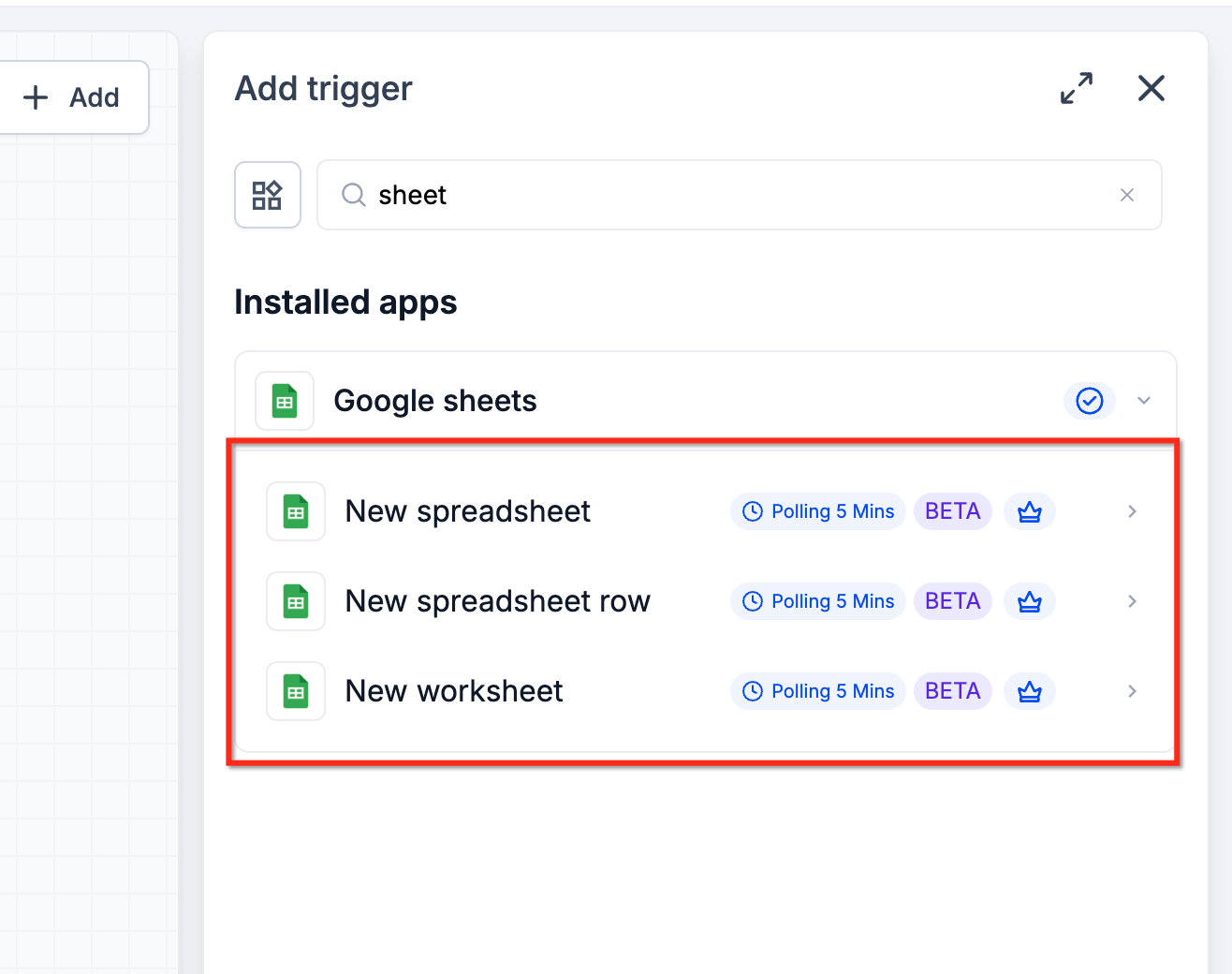
Chat To Clients CRM supports four Google Sheets triggers:
| Trigger | Description |
|---|---|
| New spreadsheet | Starts a workflow when a new Google Sheets file is created in the selected Google Drive. |
| New spreadsheet row | Starts a workflow when a new row is appended after the last row of a selected worksheet. |
| Updated spreadsheet row | Starts a workflow when a cell in an existing row is modified. This trigger does not fire for newly added rows. |
| New worksheet | Starts a workflow when a new worksheet tab is added to a selected spreadsheet. |
How to Set Up a Google Sheets Workflow Trigger
Step 1: Add a Google Sheets Trigger
Navigate to Automation > Workflows.
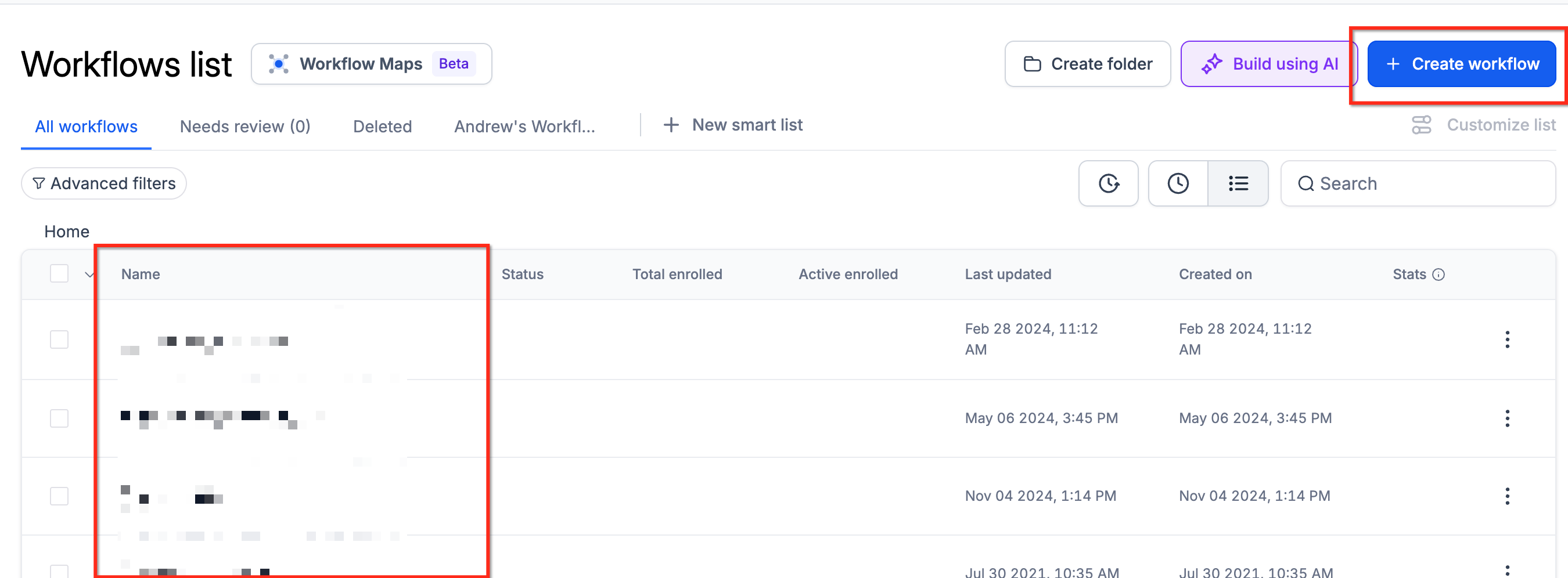
Open the workflow you want to configure.
Click Add Trigger.
Search for the trigger name or open the Google Sheets category.
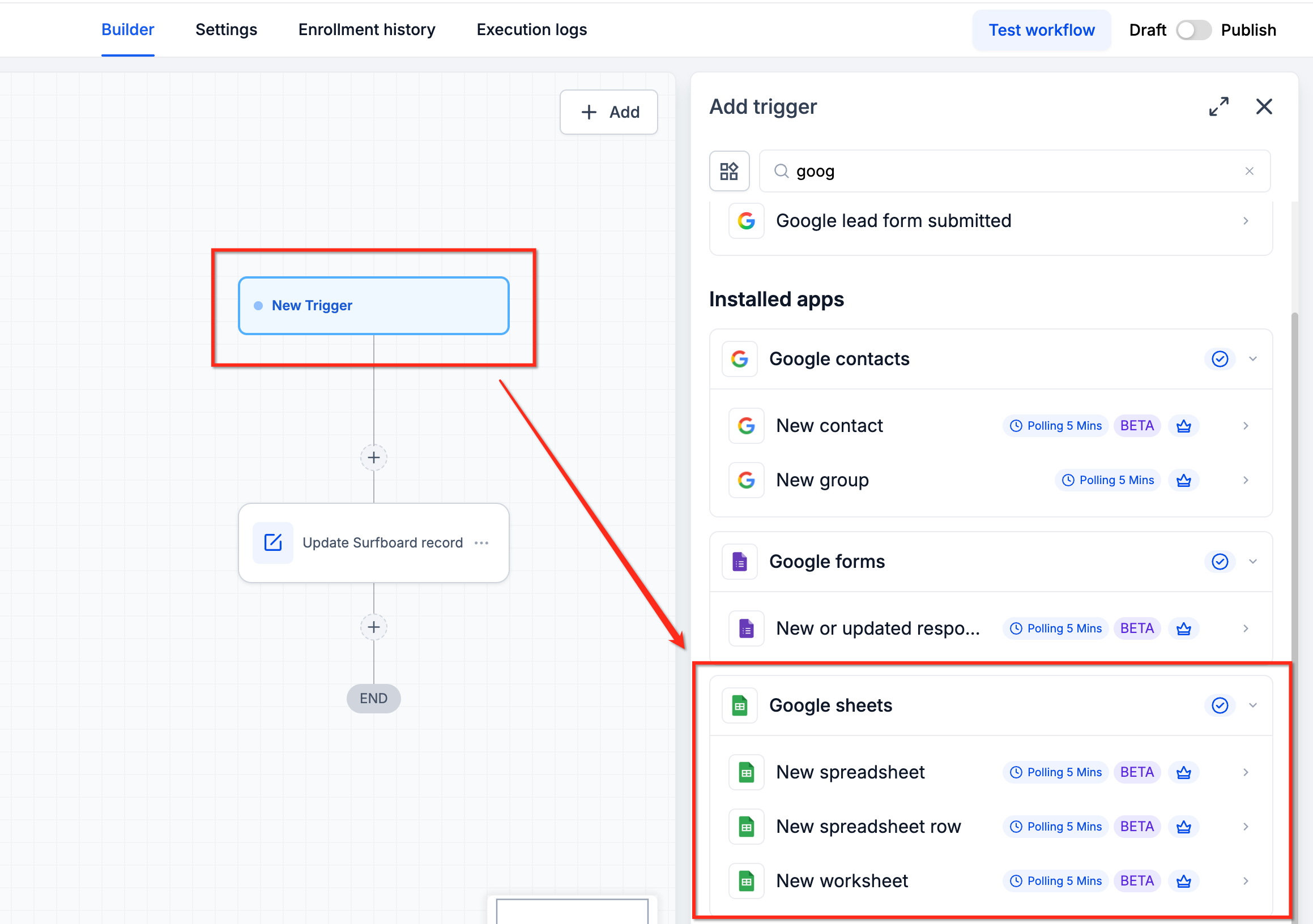
Select the trigger that matches the event you want to monitor.
Step 2: Select Your Google Sheets Source
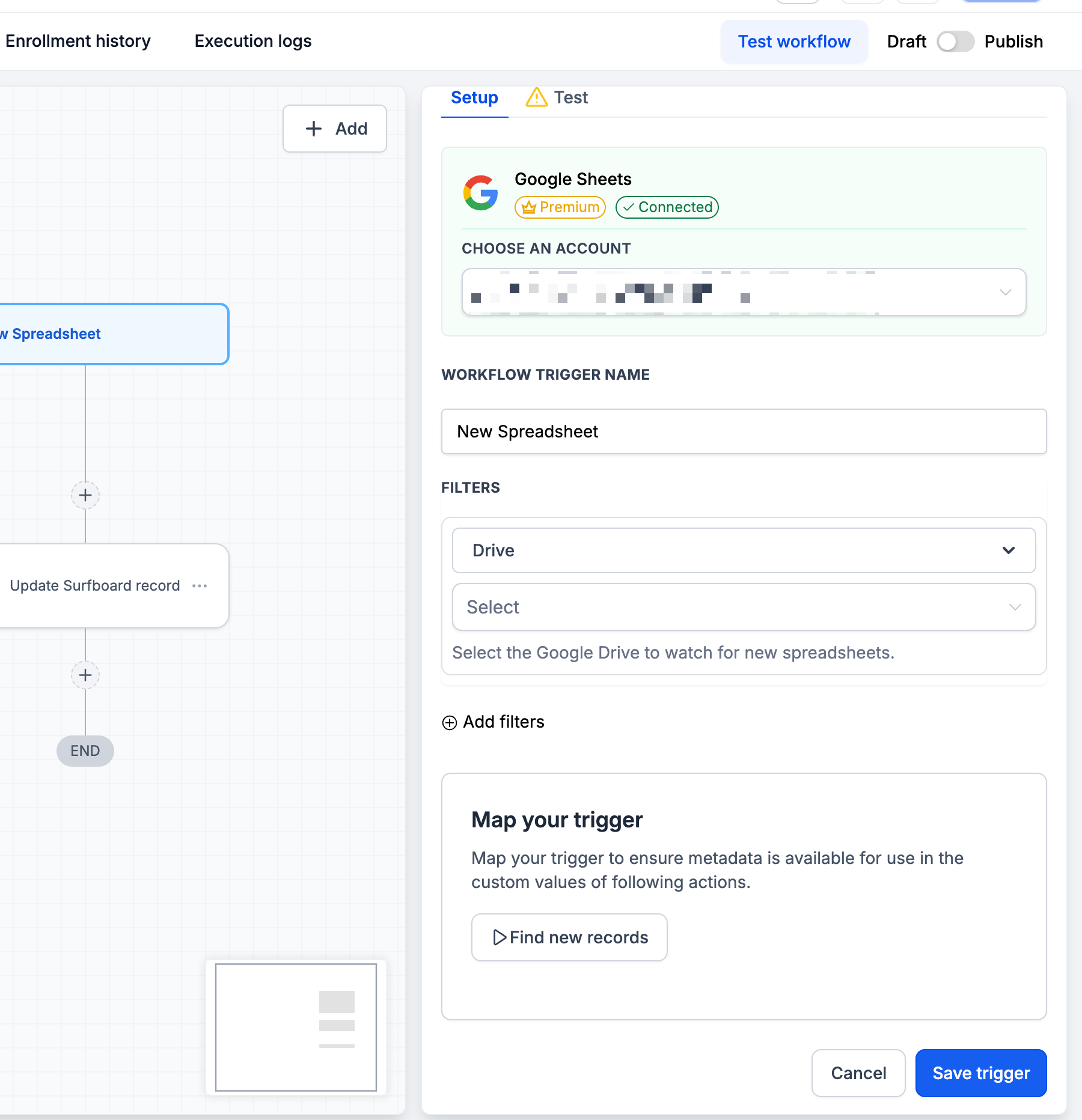
Choose the Google account and spreadsheet resources that the workflow should monitor.
Select your connected Google account.
Choose the Google Drive.
Step 3: Configure Trigger Data
Configure the available data for use in subsequent workflow actions.
Select Find new records.
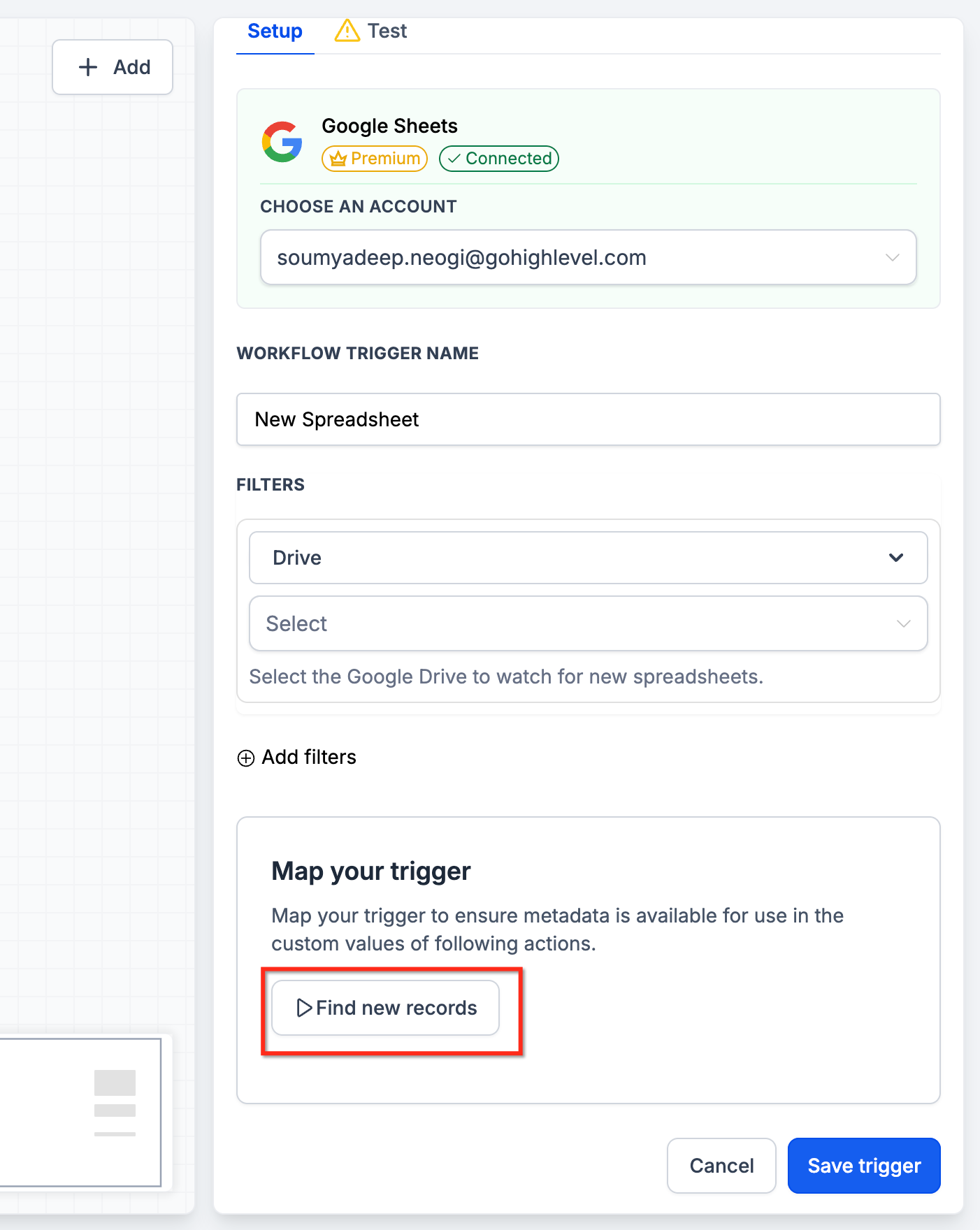
Choose a mapping reference.
Use the available trigger data in the following workflow actions.
Step 4: Save and Test the Workflow
Save the trigger and workflow.
Select Test Workflow.
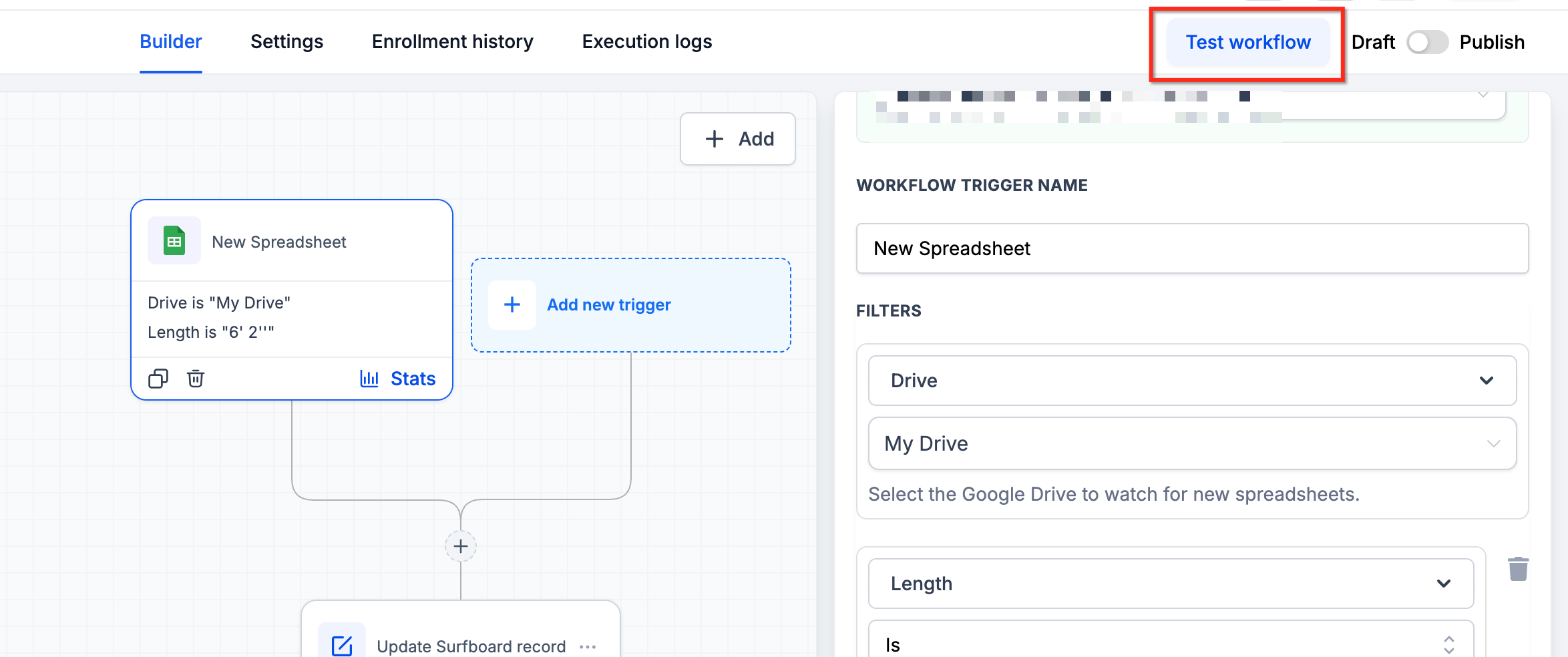
Test the workflow using a matching Google Sheets event.
Review the test results.
Publish the workflow when it is ready.
Google Sheets Trigger Use Cases
Start a Workflow When a New Inquiry Is Added
Trigger: New spreadsheet row
When a team appends a new inquiry to the bottom of a worksheet, the trigger starts a workflow. This can help automate lead intake processes that begin with information collected in Google Sheets.
Start a Reporting Process When a New Tab Is Added
Trigger: New worksheet
When a new worksheet tab is added to the selected spreadsheet, the trigger starts a workflow. This is useful for recurring processes, such as monthly reporting workflows that use separate worksheet tabs.
Start a Workflow When a Spreadsheet Is Created
Trigger: New spreadsheet
When a new Google Sheets file is created in the selected Drive, the trigger starts a workflow. This can help initiate internal processes based on newly created spreadsheets.
Important Considerations
Google Sheets is labeled Premium in the workflow builder. Premium usage charges may apply when these triggers run.
For more information, see How to Enable and Rebill Workflow Premium Features.
New Spreadsheet Row Uses Row Position Tracking
The New spreadsheet row trigger tracks row positions to identify newly appended records. For reliable behavior, append new records to the bottom of the worksheet.
Be aware of the following limitations:
Inserting rows in the middle: Can cause rows at the end of the worksheet to trigger again.
Deleting rows: Can cause subsequently added rows to be skipped.
Avoid inserting or deleting rows in the middle of a worksheet when using the New spreadsheet row trigger.
New Rows and Updated Rows Are Different Events
The New spreadsheet row and Updated spreadsheet row triggers monitor different types of spreadsheet changes.
Use New spreadsheet row when you want a workflow to start after a new row is appended.
Use Updated spreadsheet row when you want a workflow to start after a cell in an existing row is modified.
The Updated spreadsheet row trigger does not activate when a new row is added.
Frequently Asked Questions
Can I start a workflow when a new row is added to Google Sheets?
Yes. Use the New spreadsheet row trigger to start a workflow when a new row is appended after the last row of the selected worksheet.
Does the Updated spreadsheet row trigger fire when I add a new row?
No. This trigger monitors changes to cells in existing rows. Use New spreadsheet row to monitor newly appended rows.
Can I trigger a workflow when a new tab is added to a spreadsheet?
Yes. Use the New worksheet trigger and select the spreadsheet you want to monitor.
Can I trigger a workflow when a new spreadsheet is created?
Yes. Use the New spreadsheet trigger and select the Google Drive you want to monitor.
What happens if I insert or delete rows in the middle of a worksheet?
The New spreadsheet row trigger tracks row positions. Inserting rows in the middle can retrigger rows at the end. Deleting rows can cause newly appended rows to be skipped.
Do Google Sheets workflow triggers have premium charges?
Google Sheets is labeled Premium in the workflow builder, and premium usage charges may apply.