
Slack Workflow Triggers: Setup, Filters, and Examples
Slack triggers start Chat To Clients CRM workflows when activity happens in your connected Slack workspace. Use them to route requests, welcome new channel members, and notify teams when messages, mentions, or emoji reactions arrive.
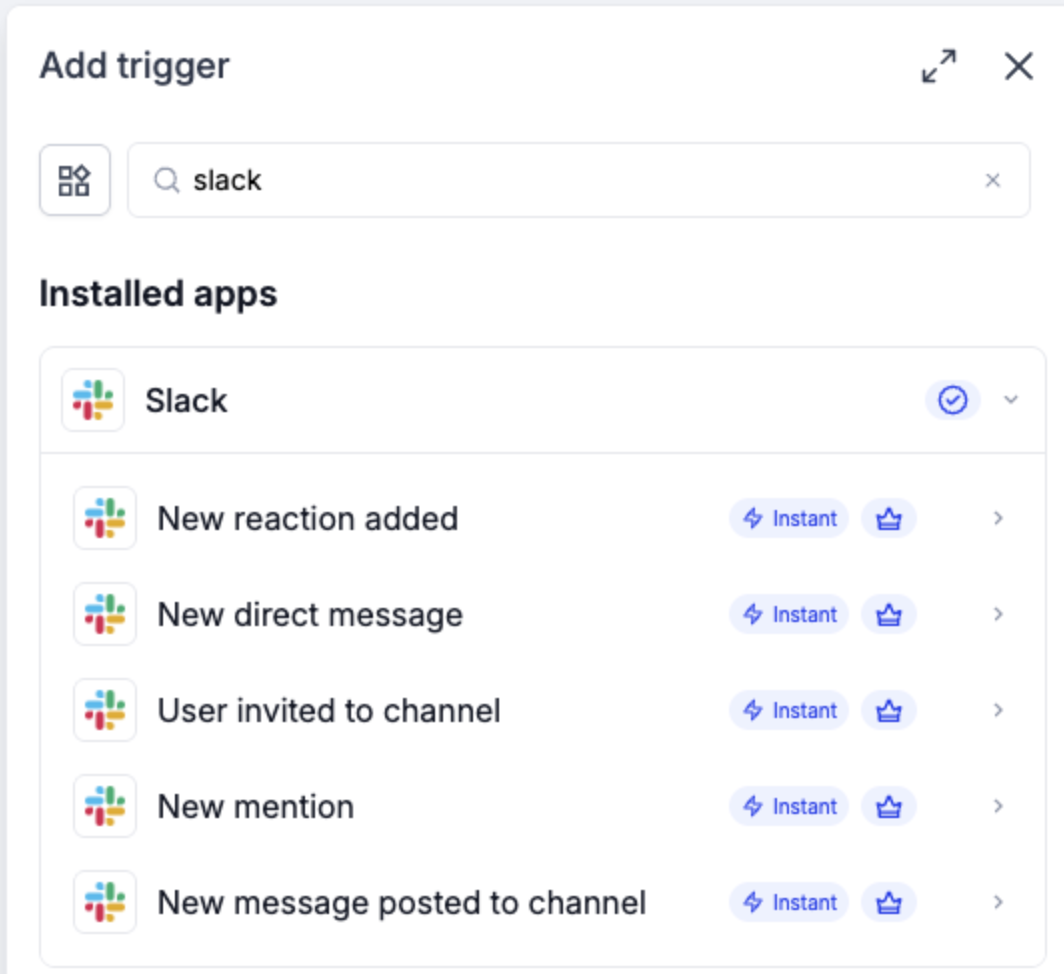
This article covers all five Instant Slack triggers: New Reaction Added, New Direct Message, User Invited to Channel, New Mention, and New Message Posted to Channel. Each is marked Premium in the workflow builder.
TABLE OF CONTENTS
- What Are Slack Workflow Triggers?
- Key Benefits of Slack Workflow Triggers
- Available Slack Triggers
- How to configure a Slack Trigger
- Map event data and test the workflow
- New Reaction Added
- New Direct Message
- User Invited to Channel
- New Mention
- New Message Posted to Channel
- Frequently asked questions
What Are Slack Workflow Triggers?
Slack workflow triggers allow you to start Chat To Clients CRM workflows automatically when specific activities occur in your connected Slack workspace. Instead of manually monitoring Slack conversations, you can use these triggers to respond to incoming requests, welcome new team members, track message reactions, and notify other teams.
Chat To Clients CRM provides five Instant Slack triggers for direct messages, channel invitations, app mentions, channel messages, and emoji reactions. Each trigger is a Premium feature and can be configured directly from the Workflow Builder.
A Slack trigger starts a workflow when a matching event occurs in Slack, while a Slack action performs a task, such as posting a notification to a channel or sending a direct message. You can combine these capabilities to automate communication between Slack channels and teams.
Key Benefits of Slack Workflow Triggers
Slack workflow triggers help teams respond to conversations and requests without continuously monitoring their channels. By connecting Slack events to Chat To Clients CRM workflows, you can streamline internal communication and automate routine follow-up tasks.
Automated Request Routing: Start workflows when someone sends a direct message or @-mentions your Slack app, making it easier to notify the appropriate team.
Faster Team Onboarding: Automatically send welcome messages or onboarding resources when users join selected Slack channels.
Improved Feedback Tracking: Monitor emoji reactions on messages to initiate review notifications or follow-up processes.
Cross-Team Communication: Notify other teams when new messages are posted in shared request channels.
Reduced Manual Monitoring: Respond to supported Slack events automatically without having to continuously check conversations.
Flexible Workflow Automation: Combine Slack triggers with Chat To Clients CRM workflow actions to create automated processes that match your team's needs.
Available Slack Triggers
Chat To Clients CRM provides five Instant Slack triggers that respond to different types of workspace activity. Selecting the appropriate trigger helps ensure your workflow starts only when the intended Slack event occurs.
| Trigger | Starts when | Scope |
|---|---|---|
| New Reaction Added | An emoji reaction is added to a message in the selected channel. | Selected Slack channel |
| New Direct Message | Someone sends a direct message to the connected Slack app (bot). | Connected Slack app (bot) |
| User Invited to Channel | A user joins or is invited to the selected channel. | Selected channel |
| New Mention | The Slack app (bot) is @-mentioned in a channel it has been added to. | Selected channel containing the app |
| New Message Posted to Channel | A new message is posted to the selected public or private channel. | Selected public or private channel |
Important: Slack triggers are Premium workflow features. Premium executions may incur usage charges depending on your account configuration and available allowances. For additional information, see How to Enable and Rebill Workflow Premium Features.How to configure a Slack Trigger
- Go to Automation > Workflows and open the workflow you want to configure.
- Click Add trigger, search for Slack, and choose the event you want to monitor.
- Select the correct Connected account for the Slack workspace. If no account is connected, complete the Slack connection flow first.
- Keep the default Workflow trigger name or give it a descriptive name.
- Configure the trigger’s channel or filters. The four channel-based triggers require a selected channel; New Direct Message has optional text and sender filters. See the trigger-specific sections below.
- If later actions need Slack event details, use Map your trigger as described below.
- Click Save trigger, then add the workflow actions for your use case.
Search for Slack in Add trigger to see the five available instant triggers.
Map Event Data and Test the Workflow
Mapping makes the Slack event’s metadata available in the custom values of following actions. Use the fields returned by your sample record when configuring those actions.
- Create a new Slack event that matches the selected trigger and its configured filters. Each trigger section below includes an example test event.
- Under Map your trigger, click Find new records.
- Select a returned record as the mapping reference, then use the available trigger values in your later workflow actions.
- Review the trigger and actions before enabling the workflow. When you are ready for live events, publish the workflow, create a new matching event in Slack, and check Execution logs to confirm the expected steps run.
If no records are returned, confirm the connected account, channel, and filters, create another matching event, and click Find new records again.
The channel names in the examples below are illustrative. Select channels available in your own connected Slack workspace.
New Reaction Added
The New Reaction Added trigger starts a workflow when an emoji reaction is added to a message in the Slack channel you select.
Setup: Select the channel whose message reactions you want to monitor.
Configuration:
Connected account: Select the Slack account associated with the workspace.
Channel: Choose the Slack channel whose message reactions you want to monitor.
Map your trigger: Capture a matching reaction event to make its available information accessible to subsequent workflow actions.
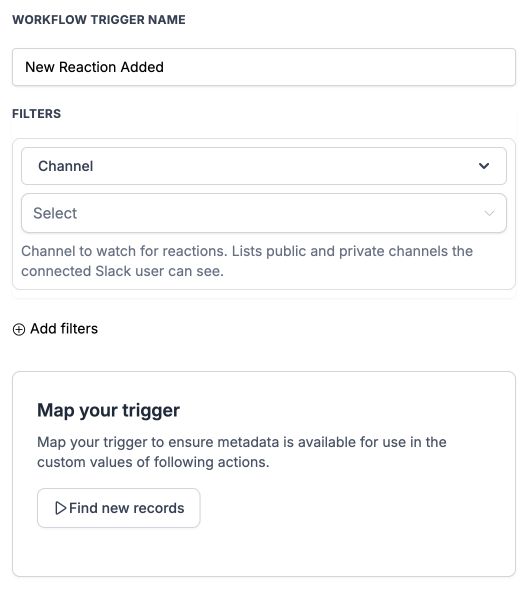
New Reaction Added setup fields in the workflow builder.
Test event: Add an emoji reaction to a message in that channel.
Example
Your team reviews requests in #content-review. When a message receives an emoji reaction, send a notification to #review-updates so the team can follow up.
Workflow Configuration Example:
- Trigger: New Reaction Added
Channel: #content-review - Action: Use the Slack Message action to send a notification to #review-updates. Add the details you need from the mapped trigger record.
New Direct Message
The New Direct Message trigger starts a workflow when a direct message is sent to your connected Slack app (bot).
Setup: Listen for DMs sent to the Slack app (bot). Use Add filters if you want to limit the trigger by message text or sender.
Optional filters
- Filter by text contains: Limit the trigger to DMs containing a phrase. Matching is case-insensitive. Press Enter / Return to add a phrase. Text is required once this filter is added; remove it to match every message.
- Sender: An optional sender filter is available under Add filters.
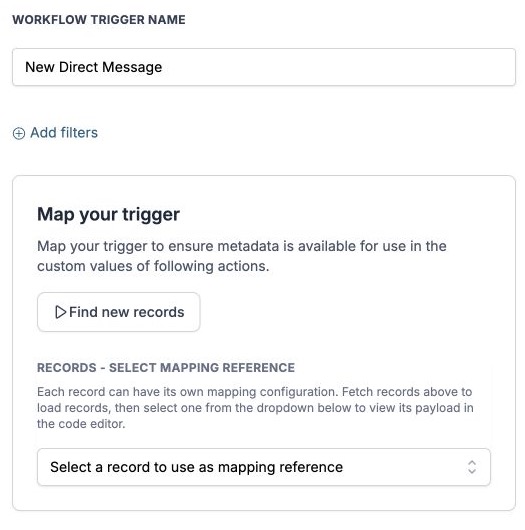
New Direct Message setup fields in the workflow builder.
Test event: Send a new direct message to the connected Slack app (bot).
Example
Team members send requests directly to your Slack app. When a new DM arrives, notify #internal-help so the team can review it.
Workflow Configuration Example:
- Trigger: New Direct Message
- Action: Use the Slack Message action to post a notification in #internal-help. Include relevant details from the mapped trigger record.
User Invited to Channel
The User Invited to Channel trigger starts a workflow when a user joins or is invited to the Slack channel you select.
Setup: Select the channel you want to watch for new members. Both joining and being invited are covered.
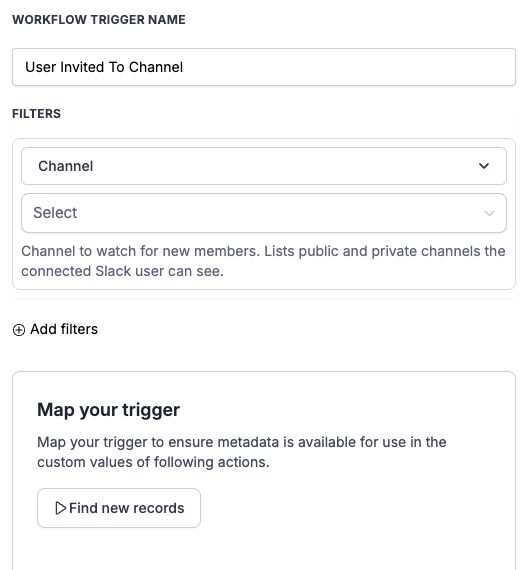
User Invited to Channel setup fields in the workflow builder.
Test event: Have a user join or be invited to that channel.
Example
When a teammate joins or is invited to #new-starters, post a welcome message in that channel with a link to your onboarding resources.
Workflow Configuration Example:
- Trigger: User Invited to Channel
Channel: #new-starters - Action: Use the Slack Message action to post the welcome message in #new-starters.
New Mention
The New Mention trigger starts a workflow when your Slack app (bot) is @-mentioned in a channel it has been added to.
Setup: Add the Slack app (bot) to the channel, then select that channel in the trigger. The message must @-mention the app itself.
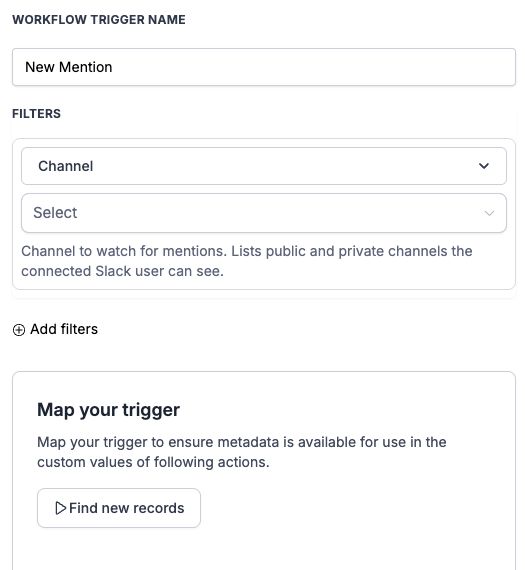
New Mention setup fields in the workflow builder.
Test event: Post a new message that @-mentions the Slack app in that channel.
Example
Your team @-mentions the Slack app in #ops-requests when they need help. Use the trigger to notify #ops-triage of each new request.
Workflow Configuration Example:
- Trigger: New Mention
Channel: #ops-requests - Action: Use the Slack Message action to post a notification in #ops-triage. Include relevant details from the mapped trigger record.
New Message Posted to Channel
The New Message Posted to Channel trigger starts a workflow when a new message is posted to the public or private Slack channel you select.
Setup: Select the public or private channel whose new messages you want to monitor.
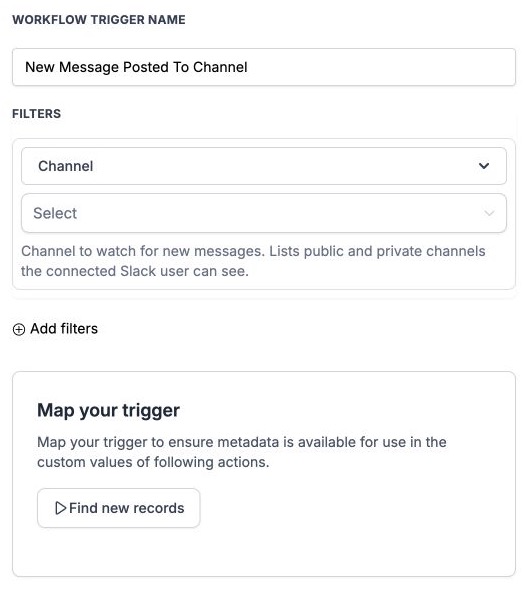
New Message Posted to Channel setup fields in the workflow builder.
Test event: Post a new message in that channel.
Example
Team members post requests in #service-requests. When a new message is posted, notify #service-triage so the team can review it.
Workflow Configuration Example:
- Trigger: New Message Posted to Channel
Channel: #service-requests - Action: Use the Slack Message action to send a notification to #service-triage. Include relevant details from the mapped trigger record.
Frequently asked questions
Q. Why is my channel missing?
Channel lists include public and private channels visible to the connected Slack user. Check that you selected the correct Slack account and that this user can access the channel.
Q. Why doesn’t a direct message between teammates start the workflow?
New Direct Message listens for messages sent to the Slack app (bot). A conversation between two people is outside the event described by this trigger.
Q. Why doesn’t a mention start the workflow?
Confirm that the app has been added to the selected channel and that the new message @-mentions the app itself. Also check that the workflow is enabled for live events.
Q. Why are no sample records available?
Create a new event that matches the selected trigger and filters, then click Find new records again. Use the test event shown in that trigger’s section.
Q. Can I use Slack event details in later actions?
Yes. Select a record in Map your trigger, then choose the available trigger values in following actions. Use the fields actually returned by your sample record.
Q. How do I avoid a notification loop?
For New Message Posted to Channel, send workflow-generated Slack notifications to a different channel from the channel being monitored. This helps avoid a notification starting the same workflow again.
Q. Are these Premium triggers?
Yes. All five are marked Premium in the workflow builder.