
How to Organize Contact Documents Using Folders
Organizing documents within individual contact records helps you keep important files accessible and easy to manage. Chat To Clients CRM allows you to create custom folders, organize documents into nested folders, move files between folders, and recover deleted content from Trash. This article explains how to manage contact documents while understanding the restrictions that apply to system folders.
TABLE OF CONTENTS
What Are Contact Document Folders?
Contact Document Folders allow you to organize files within individual contact records using custom folders and subfolders. Each contact has an independent folder structure, so changes to one contact's documents do not affect other contacts.
Chat To Clients CRM supports two types of folders:
System Folders: Predefined folders, such as Internal, Sent, and Received. These folders cannot be deleted, and files within them are currently protected from deletion and movement.
Custom Folders: User-created folders that can be nested, moved, and deleted. Files uploaded to custom folders can also be moved or deleted.
How to Create Folders and Subfolders
Custom folders help you group related documents within a contact record. You can also create subfolders to organize files across multiple levels.
Go to Contacts and open a contact record.
Open the Documents panel.
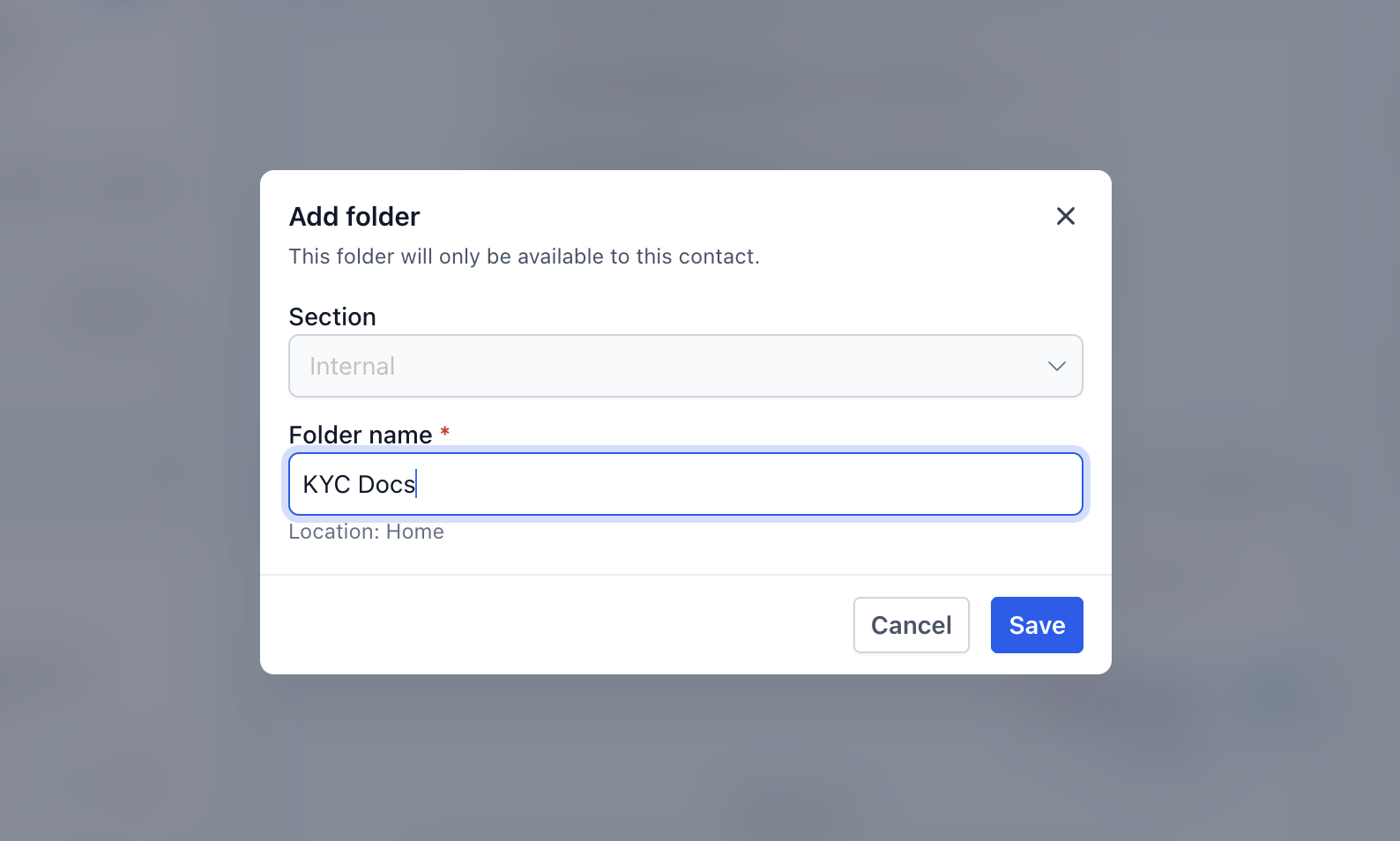
Click the + icon to add a folder.
Enter the Folder name and confirm the location under Section.
Click Save.
To create a subfolder, open the desired parent folder and repeat the process.
How to Move Files and Folders
You can reorganize documents and custom folders without re-uploading files. Custom folders can also be moved between different folder levels.
Open the contact's Documents panel.
Locate the file or custom folder you want to move.
Open the action menu and select Move to.
Choose the destination folder and confirm.
You can also select a supported file and use the move action in the selection toolbar.
Important: Moving files under system folders is not currently supported.
How to Delete Files and Folders
Deleting unnecessary files and custom folders helps keep your contact documents organized. Deleted items are moved to Trash instead of being permanently removed immediately.
Open the contact's Documents panel.
Locate the file or custom folder you want to delete.
Open the action menu and select Delete.
Confirm the deletion if prompted.
Important: System folders cannot be deleted. Files within system folders are currently protected from deletion. Deleting a custom folder also moves its contents to Trash.
How to Restore Deleted Files and Folders
Trash allows you to recover deleted files and custom folders within 60 days of deletion. Restoring a deleted folder also restores its contents, including any nested folders and files.
Open the contact's Documents panel.
Click Trash at the bottom of the panel.
Locate the deleted file or folder.
Select the item and choose Restore.
Important: Files and folders are permanently deleted after 60 days and cannot be recovered.