
How to Set Up Welcome DMs and Onboarding Steps in Communities
Welcome new members to your Chat To Clients CRM Community with automated direct messages (DMs) and customizable onboarding steps. Admins and owners can personalize welcome messages, guide members through important activities, and help them get involved. A Get Started checklist also helps new members track their onboarding progress.
TABLE OF CONTENTS
- What Are Welcome DMs and Onboarding Steps in Communities?
- Key Benefits of Welcome DMs and Onboarding Steps
- Automated Welcome DMs
- Customizable Onboarding Steps
- Get Started Checklist for New Members
- How to Set Up Welcome DMs and Onboarding Steps
- Frequently Asked Questions
- Related Articles
What Are Welcome DMs and Onboarding Steps in Communities?
Welcome DMs and onboarding steps help admins and owners create an engaging experience for new members. They combine personalized welcome messages with guided activities that encourage members to explore and participate in the community.
Welcome DMs are automatic messages sent to new members when they join. Admins and owners can customize the message and select who sends it.
Onboarding Steps are up to five configurable activities that guide members through actions such as updating their profiles, engaging with posts, RSVPing to events, and watching introductory videos.
Eligible new members see these activities in a Get Started checklist on their community home/feed, where they can complete tasks and track their progress.
Key Benefits of Welcome DMs and Onboarding Steps
A structured onboarding experience helps members feel welcomed, understand where to begin, and become involved in community activities.
Personalized Welcome: Automatically greet members with customized messages.
Easy Onboarding: Guide members through important community activities.
Better Engagement: Encourage participation in discussions, events, and other activities.
Flexible Setup: Customize and reorder up to five onboarding steps.
Progress Tracking: Help members monitor their onboarding progress.
Time Savings: Reduce the effort required to welcome members individually.
Automated Welcome DMs
Automated welcome DMs allow admins and owners to greet new members without manually starting conversations. Messages can introduce the community, share resources, and encourage members to participate.
Welcome messages support:
Text formatting and personalized content.
Links and mentions.
Member-name tokens.
Media attachments.
Selection of the admin or owner who sends the DM.
Customizable Onboarding Steps
Onboarding steps give new members clear actions to follow when joining a community. Admins and owners can configure up to five steps and arrange them in their preferred order.
Supported activities include:
Profile Updates: Encourage members to complete their profiles.
Post Engagement: Guide members toward community discussions.
Event RSVPs: Encourage participation in community events.
Introductory Videos: Help members learn about the community.
Custom Steps: Create additional activities with optional links.
Steps can be customized and reordered to match your community's onboarding goals.
Get Started Checklist for New Members
The Get Started checklist helps eligible new members follow their onboarding activities directly from the community home/feed. It provides a clear view of their tasks and progress.
Members can:
View assigned onboarding activities.
Complete onboarding steps.
Track their progress.
Dismiss the checklist after completing their onboarding.
How to Set Up Welcome DMs and Onboarding Steps
Properly configuring Welcome Setup ensures new members receive a consistent introduction and clear guidance when they join your community.
Step 1: Access Welcome Setup
Log in to your Chat To Clients CRM sub-account.
Navigate to Memberships > Communities > Groups.
Open the community you want to configure.
Go to Settings > Welcome Setup.
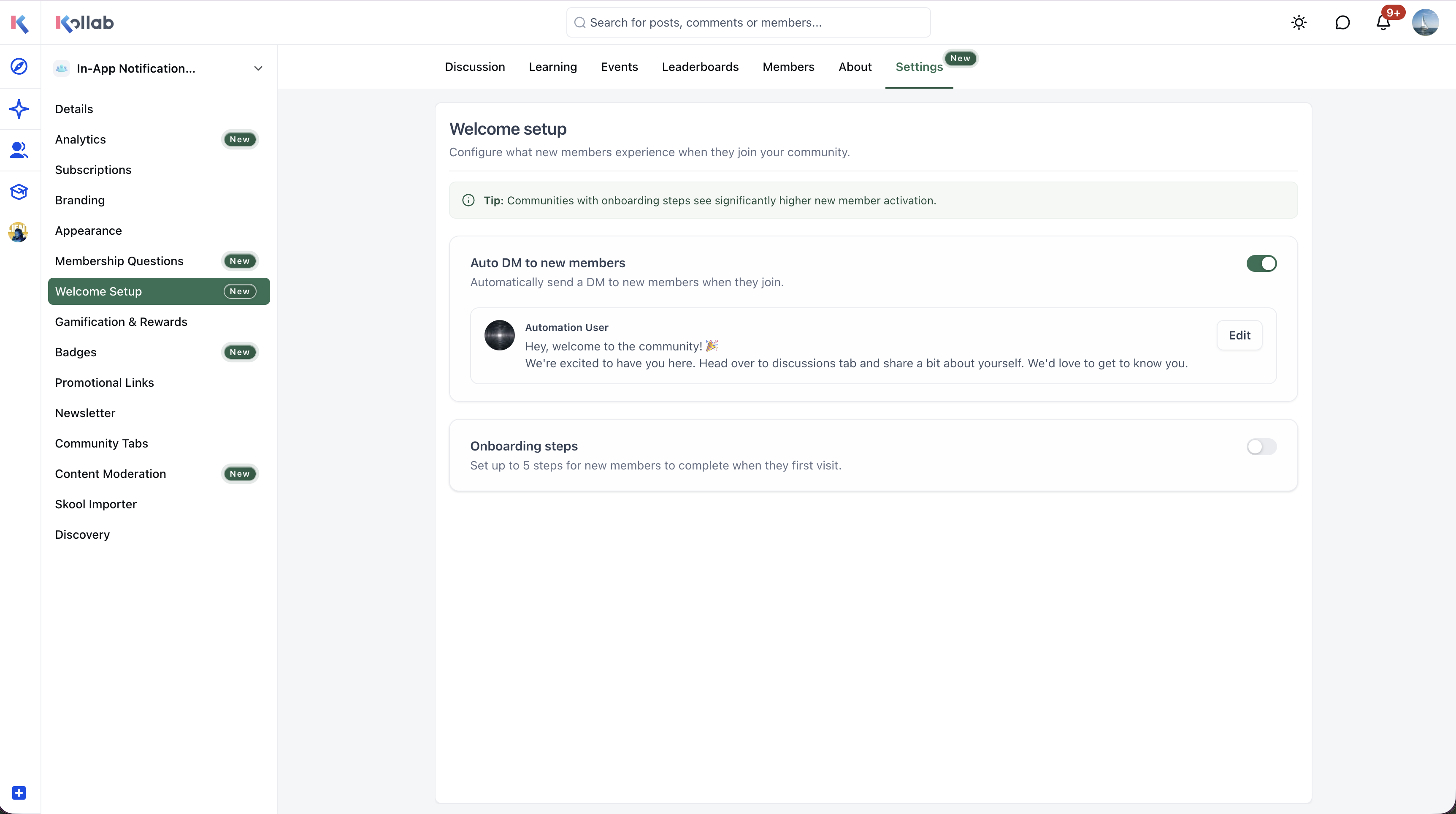
Step 2: Configure Automated Welcome DMs
Locate the automated welcome DM settings.
Enable the welcome message.
Enter and customize your message using formatting, links, tokens, mentions, or attachments.
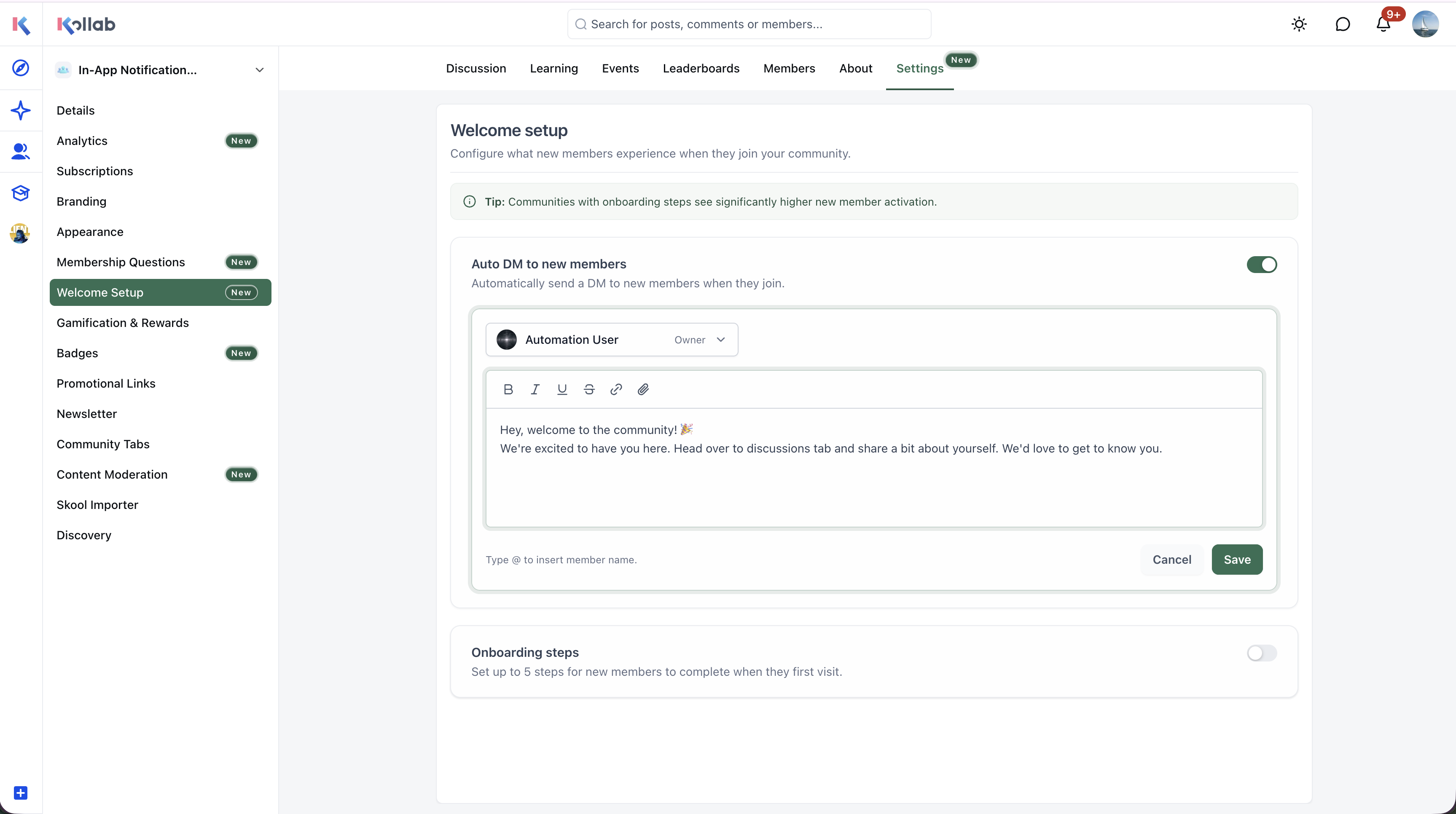
Select the admin or owner who will send the message.
Save your configuration.
Step 3: Configure Onboarding Steps
Open the onboarding steps configuration in Welcome Setup.
Add an onboarding activity or create a custom step.
Customize the activity and include an optional link when needed.
Add additional steps, up to a maximum of five.
Reorder the steps and save your changes.
Step 4: Review the Onboarding Experience
Review your welcome message, selected sender, onboarding activities, and included links to ensure everything is configured correctly. When possible, check the experience using an eligible new member account.
Note: The exact navigation controls, eligibility rules, and completion behavior should be verified in the current interface before publication.Frequently Asked Questions
Q: Who can configure welcome DMs and onboarding steps?
Community admins and owners can configure these features.
Q: Can I choose who sends the automated welcome DM?
Yes. You can select a community admin or owner as the sender.
Q: How many onboarding steps can I add?
You can configure up to five onboarding steps.
Q: Can I create custom onboarding steps?
Yes. Custom steps can include optional links to relevant resources.
Q: Can I change the order of onboarding steps?
Yes. Admins and owners can reorder onboarding activities.
Q: Can members dismiss the Get Started checklist?
Yes. Members can dismiss the checklist after completing their onboarding activities.