
How to Fix Errors and Use Recommendations in Forms, Surveys & Quizzes
Forms, Surveys, and Quizzes can contain configuration mistakes that are difficult to locate when saving. Chat To Clients CRM's Recommendations & Error Detection experience identifies existing validation errors and directs you to the affected elements. It also offers optional recommendations for common setup oversights and Insights for reviewing key configuration details. Use this guide to find and fix errors, assess suggestions, and review your setup before sharing your asset.
Table of Contents
What is Recommendations & Error Detection in Forms, Surveys & Quizzes?
Recommendations & Error Detection is a builder experience that helps you identify configuration errors, review suggested improvements, and understand how your Forms, Surveys, and Quizzes are configured.
The experience provides three capabilities:
Error Detection: Identifies existing validation errors when you attempt to save. Each error includes information about the affected element and an action to help you locate and resolve it.
Recommendations: Highlights optional improvements, such as replacing placeholder URLs, updating default field names, reviewing payment test mode, and enabling bot protection.
Insights: Displays important configuration details, including conditional logic, custom fields, payment mode, email notifications, and auto responder status.
When you correct a validation error, Chat To Clients CRM automatically marks it as resolved in the error list. This makes it easier to track outstanding issues without manually checking each one.
Key Benefits of Recommendations & Error Detection in Forms, Surveys & Quizzes
Finding configuration problems before sharing your Form, Survey, or Quiz helps you maintain clear field labels, check important settings, and resolve issues without manually searching through every element.
Faster error identification: See which fields or elements contain validation errors instead of searching through the entire builder.
Easier troubleshooting: Select an error to navigate directly to the affected element and review what needs to change.
Automatic resolution tracking: See resolved errors crossed off the list while you work through outstanding issues.
Proactive configuration suggestions: Identify overlooked settings, placeholder content, and other common setup issues.
Better configuration visibility: Review key settings in Insights without checking each configuration individually.
Prerequisites and Limitations
Recommendations & Error Detection supports both newly created and existing Forms, Surveys, and Quizzes. Understanding the difference between validation errors and optional suggestions helps you determine which issues must be addressed before saving.
Supported products: Forms, Surveys, and Quizzes.
Existing and new assets: The experience works with previously created assets and newly created ones.
Error Detection trigger: Existing validation errors are identified when you attempt to save.
Validation coverage: Error Detection focuses on existing errors related to custom field creation, duplicate custom fields, and Form, Survey, or Quiz elements.
No additional validation rules: This update improves how existing validation errors are presented and resolved. It does not introduce new validation restrictions.
Blocking errors: Existing validation errors must be corrected before the affected asset can be saved.
Optional recommendations: Recommendations provide suggestions for improving a configuration. They are separate from blocking validation errors.
Recommendations control: The release states that Recommendations can be enabled or disabled from Settings.
How To Setup Recommendations & Error Detection in Forms, Surveys & Quizzes
You can use these capabilities while creating or editing a Form, Survey, or Quiz in Chat To Clients CRM. The following workflows cover accessing the builder, resolving save errors, reviewing recommendations, and checking configuration insights.
Open the Form, Survey, or Quiz Builder
Start from the Sub-Account view to access the asset you want to review. The same general navigation applies to all three products, although the asset lists and editing controls may differ.
From your Sub-Account view, select Sites in the left-hand navigation menu.
Select Forms, Surveys, or Quizzes from the product navigation.
Select Builder to view the available assets.
Locate the existing Form, Survey, or Quiz you want to edit.
Click the three-dot menu (⋮) beside the asset.
Select Edit to open its builder.
Select the Edit tab if another builder tab is currently open.
The workflows below use an existing asset. Recommendations & Error Detection also supports newly created Forms, Surveys, and Quizzes.
Identify and Fix Save Errors
Error Detection helps you identify configuration issues that prevent an asset from saving. Instead of searching through fields manually, use the error summary to locate each affected element and correct the problem.
To find and resolve validation errors:
From the Sub-Account view, select Sites in the left-hand menu.
Select Forms, Surveys, or Quizzes.
Select Builder.
Click the three-dot menu (⋮) beside the asset and select Edit.
In the builder, select the Edit tab.
Click Save in the upper-right corner.
If the asset contains validation errors, review the Action required error list.
Select an error or its action link to navigate to the affected element.
Review the error message displayed beside the element.
Correct the issue using the appropriate field or element controls.
Check the error list. Chat To Clients CRM automatically crosses off the issue after detecting that it has been resolved.
Repeat the process for any remaining errors.
Click Save again after resolving the blocking errors.
Examples of errors that may appear
Duplicate custom field name: An existing field already uses the specified name. The error list provides a Rename the field action.
Missing field name: A custom field requires a name before it can be saved. The error list provides a Name the field action.
Missing product: A product element has no products or bump products assigned. The error list provides an Add products action.
Missing image: An image element does not contain an image. The error list provides an Add image action.
Error messages also appear near the affected elements. For example, the builder may show Name already used,
Name required, or No image added.
Track resolved errors
As you address each issue, the error list updates automatically. Resolved items display a completed state with a checkmark and strikethrough, helping you distinguish completed fixes from remaining errors.
Review Recommendations
Recommendations help you identify common setup oversights that may not prevent an asset from saving. Each suggestion provides context and, where available, an action link to help you review the affected configuration.
To review recommendations:
From the Sub-Account view, click Sites in the left-hand menu.
Select Forms, Surveys, or Quizzes.
Select Builder.
Click the three-dot menu (⋮) beside the asset and select Edit.
Select the Edit tab in the builder.
Click Recommendations in the upper-right toolbar.
Select the Recommendations tab in the panel.
Expand a category, such as Fields, Payments, or Settings.
Review the recommendation and its suggested action.
Select the available action link to access the relevant configuration.
Make the necessary changes using the displayed controls.
Click Save to save your edits.
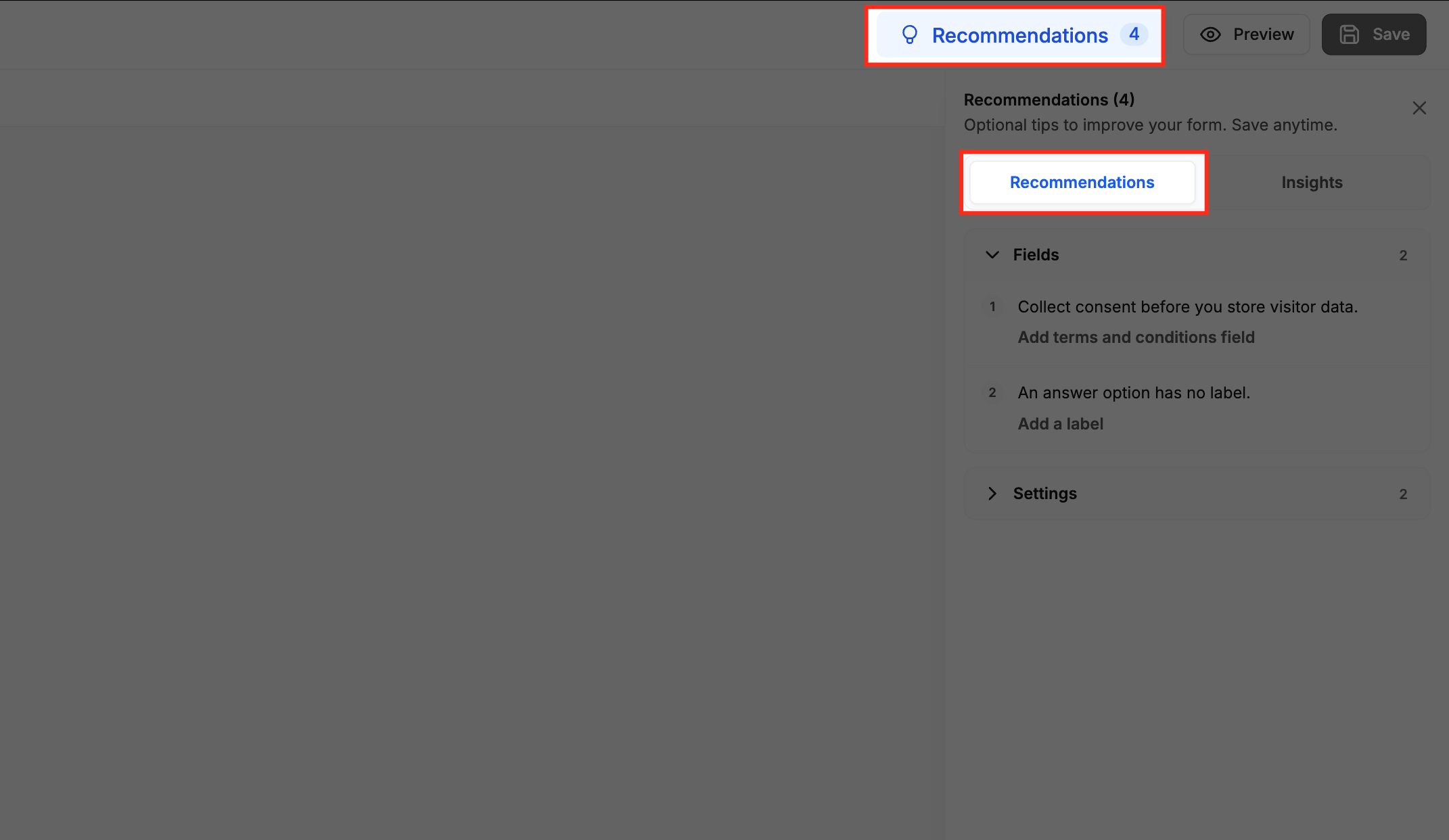
Common recommendation types
Placeholder URLs: Identify links that still reference example URLs, such as
example.com. Replace them with the appropriate destination URLs.Default custom field names: Identify new custom fields that still use default or placeholder names. Use meaningful names to make the fields easier to recognize.
Missing answer labels: Identify choice options that do not have labels and add the missing text.
Payment test mode: Identify when a payment element remains in Test Mode. The recommendation warns that no money will be collected while this mode is active.
Bot protection: Receive a recommendation to enable bot protection to help reduce unwanted spam submissions.
Recommendations are optional suggestions. The panel identifies them as tips for improving the asset and displays the message Save anytime.
The release also states that Recommendations can be enabled or disabled from Settings.
Review Insights
Insights provides a quick overview of how the current Form, Survey, or Quiz is configured. This helps you check important settings without reviewing each feature individually.
To open Insights:
From the Sub-Account view, select Sites in the left-hand navigation.
Select Forms, Surveys, or Quizzes.
Select Builder.
Click the three-dot menu (⋮) beside the asset and select Edit.
Select the Edit tab in the builder.
Click Recommendations in the upper-right toolbar.
Select the Insights tab.
Review the configuration information displayed for the asset.
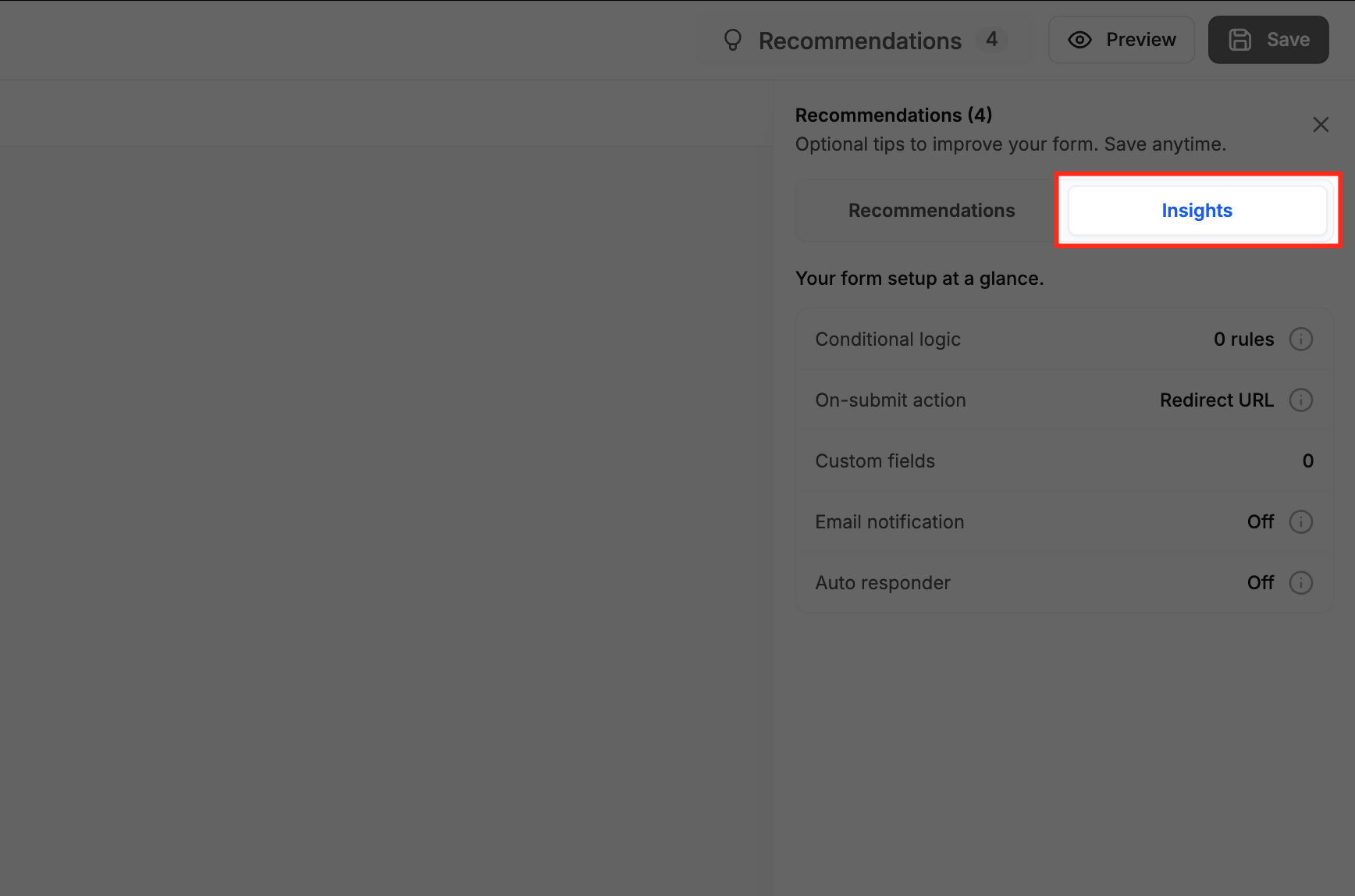
Information available in Insights
| Insight | What it shows |
|---|---|
| Conditional logic | The number of conditional logic rules configured. |
| On-submit action | The configured action that occurs after submission. |
| Custom fields | The number of custom fields used. |
| Payment mode | Whether the payment configuration is in Test Mode or Live Mode. |
| Email notification | Whether email notifications are enabled or disabled. |
| Auto responder | Whether automated responses are enabled or disabled. |
The displayed values reflect the configuration of the asset being reviewed. For example, the supplied screenshot shows one conditional logic rule, ten custom fields, and payment mode set to Test.
Use Insights to review these settings alongside the recommendations before making additional changes.
Frequently Asked Questions
Q: Can I save a Form, Survey, or Quiz while recommendations are still listed?
Yes. Recommendations are optional improvement suggestions, and the panel displays Save anytime. However, existing blocking validation errors must still be resolved before saving.
Q: Does Error Detection also check the answers visitors enter when submitting a published form?
The new Error Detection workflow focuses on configuration errors encountered while saving in the builder. Chat To Clients CRM documents separate respondent-facing validation that identifies missing or invalid inputs during submission.
Q: Why does Insights show the payment mode as Test?
Insights reports the asset's current payment configuration. If the payment mode is Test, the Recommendations panel can warn that no money will be collected in that mode. Review the configuration before collecting live payments.
Q: What happens if I fix one error but other errors remain?
The resolved error is automatically crossed off the error list. Outstanding errors remain available for review and must be corrected before the affected asset can be saved.