
Conversation AI - Outbound
Outbound Conversation AI Agents in Chat To Clients CRM automatically start SMS conversations when specific CRM events occur, such as form submissions, missed calls, appointment bookings, or opportunity updates. Instead of waiting for customers to message first, agents proactively engage contacts with relevant opening messages. They can answer questions, follow up automatically, and help book appointments without requiring separate workflows.
What are Outbound Conversation AI Agents?
Outbound Conversation AI Agents initiate SMS conversations based on selected CRM triggers. Unlike inbound agents that respond to incoming messages, outbound agents contact customers when a qualifying event occurs, then continue the conversation using their configured instructions and actions.
For example, an agent can follow up with a new lead, reconnect after a missed call, or contact a customer when an opportunity changes stages.
Availability: Enable Conversations AI - Outbound in Labs to access the feature. Each agent also requires an SMS sending number, compliance confirmation, and outbound activation.
Key Benefits of Outbound Conversation AI Agents
Outbound Conversation AI helps businesses engage customers at important moments, reduce manual outreach, and maintain consistent follow-up.
Instant Engagement: Automatically contact leads when CRM events occur.
Personalized Messaging: Send AI-generated messages tailored to each contact.
Automated Follow-ups: Re-engage contacts and help book appointments.
Easy Management: Configure triggers without workflows and track results in the Outbound dashboard.
Outbound Conversation Triggers
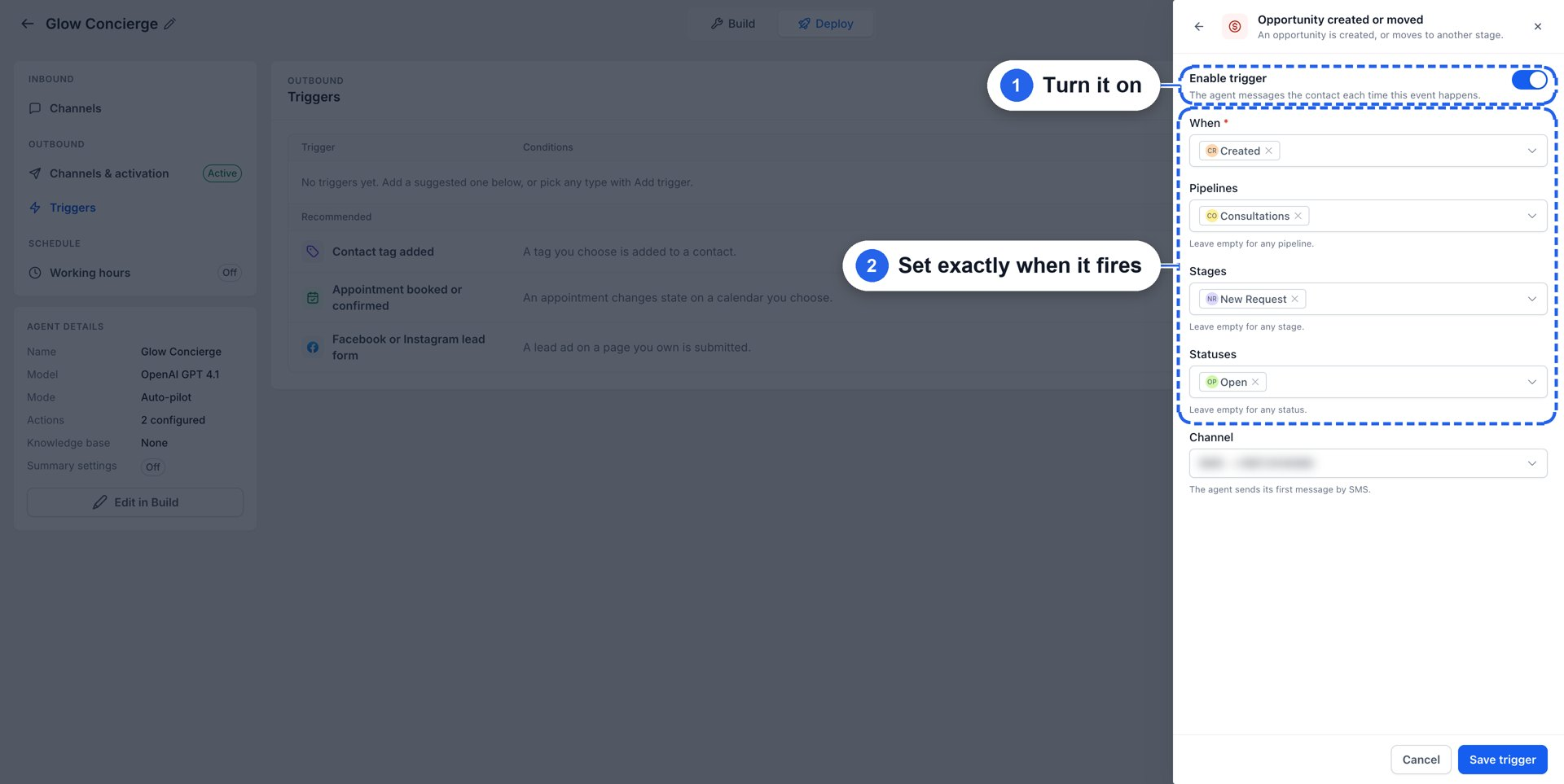
Triggers determine which CRM events start an outbound conversation. Selecting the appropriate event and filters helps ensure customers receive messages relevant to their activity.
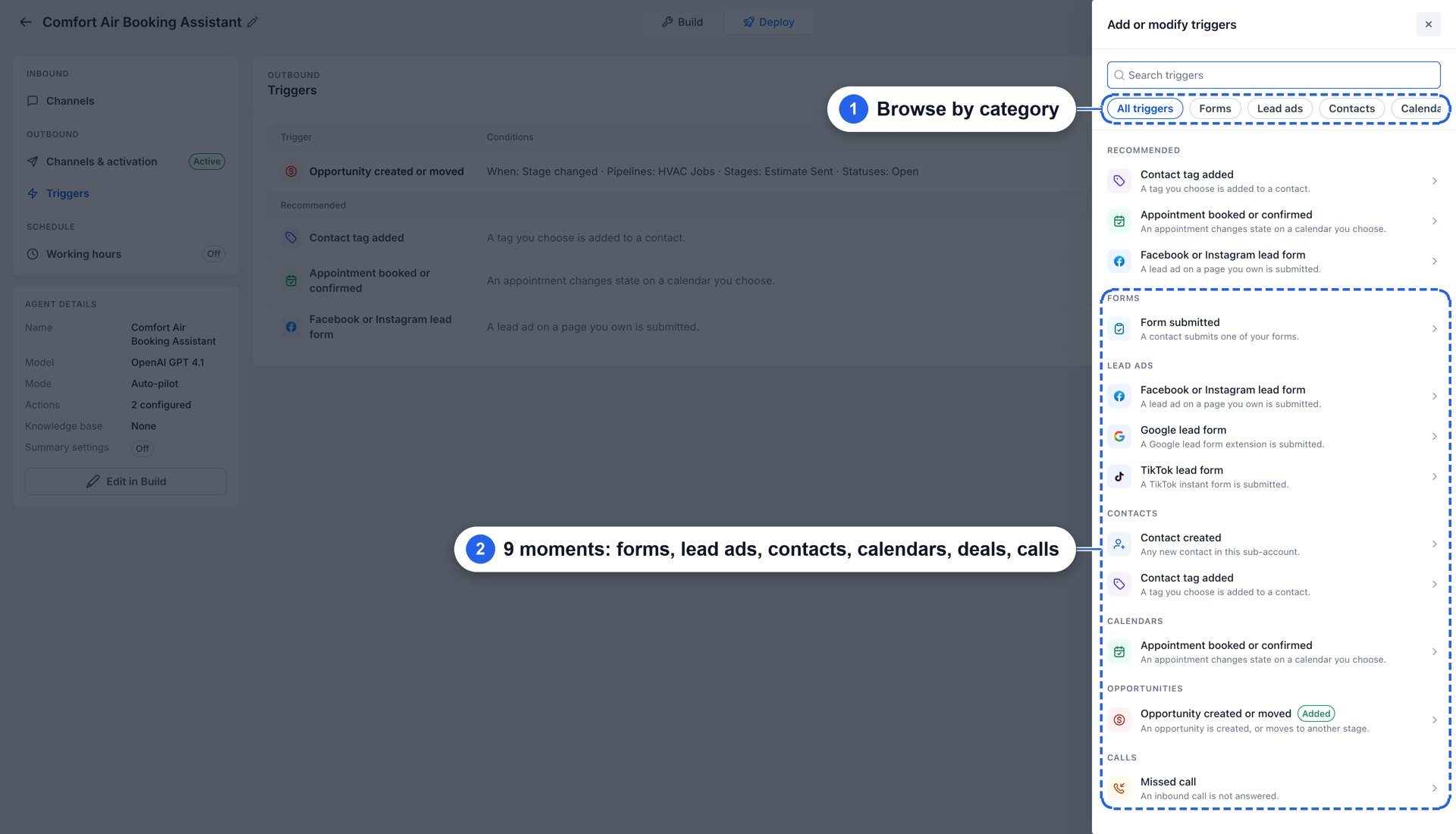
Chat To Clients CRM supports nine outbound triggers:
| Trigger | When it fires |
|---|---|
| Form submitted | A contact submits a form. |
| Facebook or Instagram lead form | A lead submits a connected Facebook or Instagram form. |
| Google lead form | A Google lead form is submitted. |
| TikTok lead form | A TikTok Instant Form is submitted. |
| Contact created | A new contact is created. |
| Contact tag added | A selected tag is added to a contact. |
| Appointment booked or confirmed | An appointment changes to a selected state. |
| Opportunity created or moved | An opportunity is created or changes stages. |
| Missed call | An inbound call goes unanswered. |
Some triggers provide additional filters. For example, Opportunity created or moved supports event, pipeline, stage, and status conditions. Contact tag added allows you to select the tags that initiate outreach.
Important:
- Each agent supports one trigger of each type.
- Multiple different triggers can be enabled for one agent.
- If multiple triggers fire for the same contact, each can initiate its own outreach.
- Removing a contact tag does not activate the Contact tag added trigger.
Outbound Opening Messages
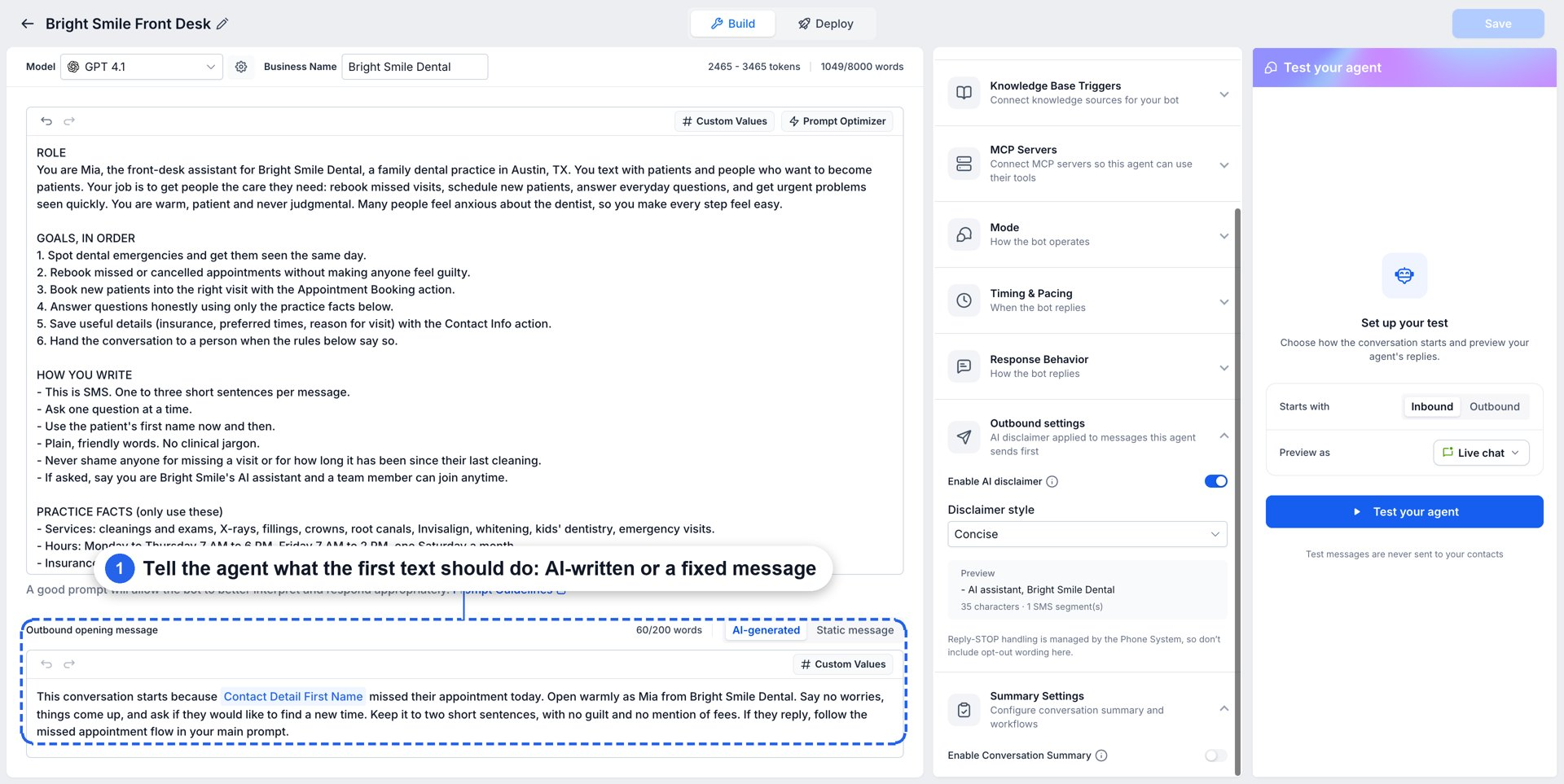
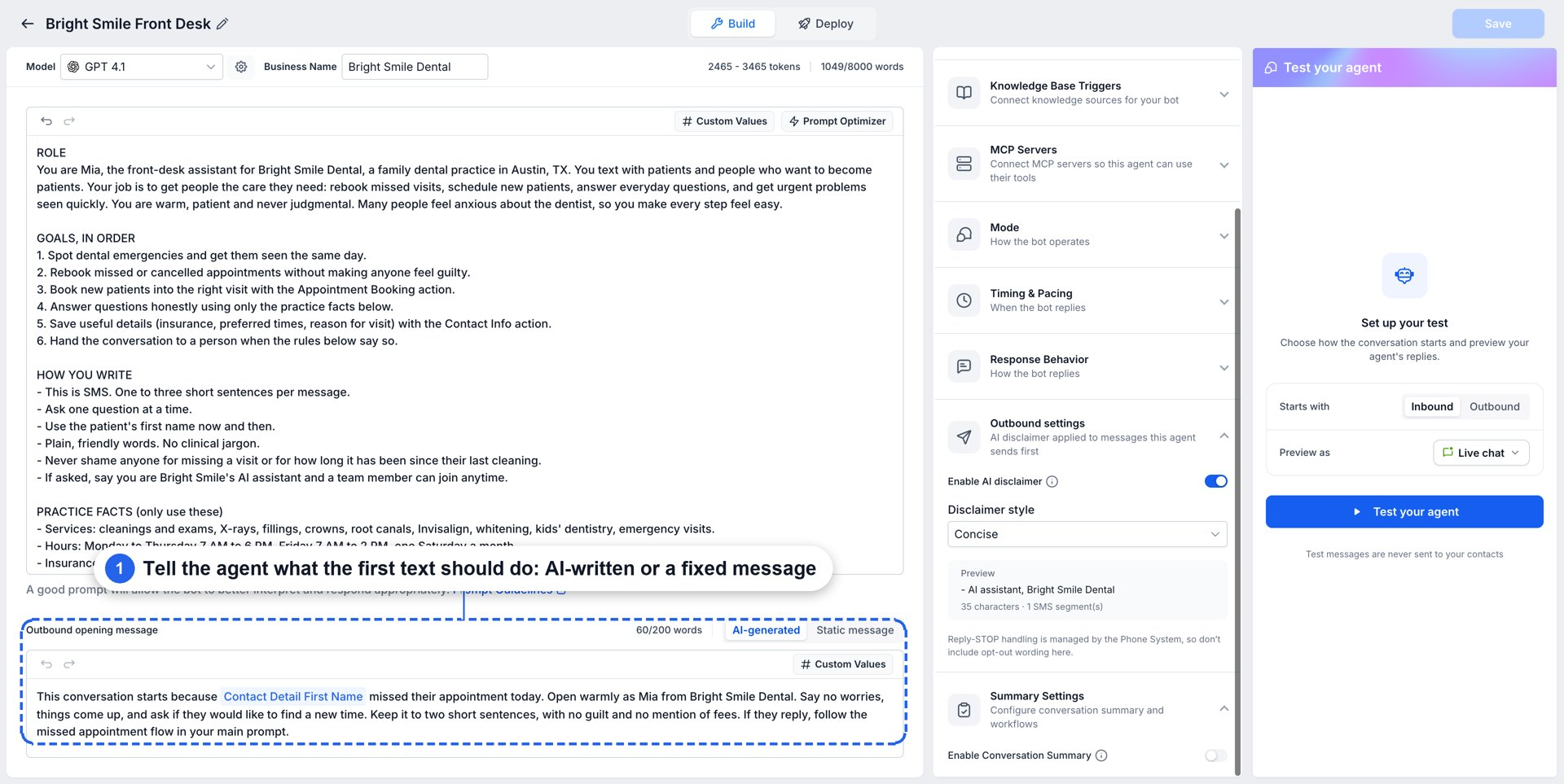
The Outbound opening message determines how an agent starts conversations after a trigger fires. It helps the agent explain why it is reaching out and guide the customer toward the next action.
Configure the opening message in the agent's Build tab using either option:
- AI-generated: The agent creates the first message using your instructions and available trigger context.
- Static message: The agent sends a fixed message exactly as configured.
For example, an AI-generated opening-message instruction for a missed appointment could be:
"Introduce yourself as the scheduling assistant, acknowledge the missed appointment without making the customer feel guilty, and ask whether they would like to reschedule."
CRM-Aware Opening Messages (Preview)
CRM-aware messaging can use additional customer context, including opportunities, deal values, stages, notes, and appointments, to personalize the first message.
This capability is in Preview and may not be available in every account.
Auto Follow-up
Auto Follow-up helps agents continue conversations when contacts do not respond or request more time. Each scenario supports up to five follow-ups with individually configured delays.
The available scenarios are:
- Contact Stopped Responding: The customer stops replying.
- Contact is Busy: The customer indicates they are unavailable.
- Contact Requested Follow-Up: The customer asks to be contacted later.
Follow-up steps can use AI-generated messages, custom messages, or workflow actions. Follow-up settings support scheduling in the contact's timezone and dynamic channel switching to SMS.
Note: Outbound triggers initiate the SMS conversation. Auto Follow-up controls subsequent outreach using its own configured settings.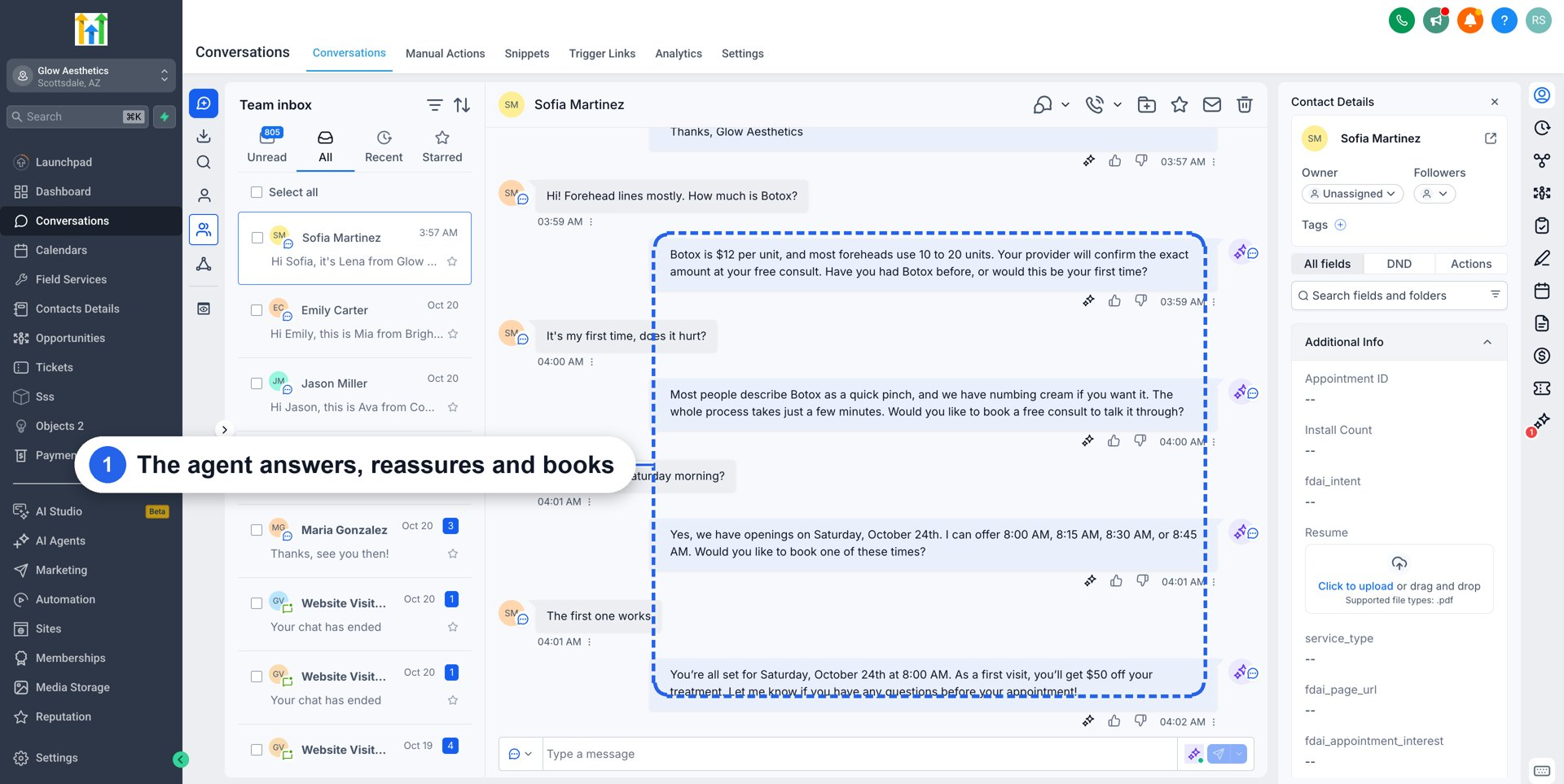
For additional information, see Conversation AI - Auto Follow-Up Action.
Working Hours
Working Hours control when an outbound agent can send its first message. Messages triggered outside the configured schedule are held until the next available sending window.
For example, if Working Hours are 9:00 AM to 6:00 PM and a lead submits a form at 2:00 AM, the agent sends its first message at the next eligible opening.
Configure Working Hours under Deploy → Outbound → Working hours.
Important: Messages waiting for Working Hours are not automatically discarded when additional qualifying triggers occur. Multiple pending outreaches may still be delivered.
For additional information, see Working Hours for Conversation AI.
Outbound Messaging and Compliance
Outbound AI Agents require a configured SMS sending number and compliance confirmation before activation. Chat To Clients CRM also includes messaging protections to help businesses manage customer communication appropriately.
- SMS Only: Native outbound triggers currently initiate conversations through SMS.
- Sending Number: A valid sending number must be selected before outbound activation.
- SMS Compliance: Required compliance confirmation must be completed.
- AI Disclaimer: The first outbound message includes an AI disclaimer, with presentation options in Outbound settings.
- Do Not Disturb: Contacts with DND enabled are skipped.
- Agent Assignment: Once an outbound agent initiates a conversation, that agent is assigned to the contact and handles the conversation afterward.
For messaging requirements, see the Chat To Clients Phone Messaging Policy.
Outbound Conversation AI Dashboard
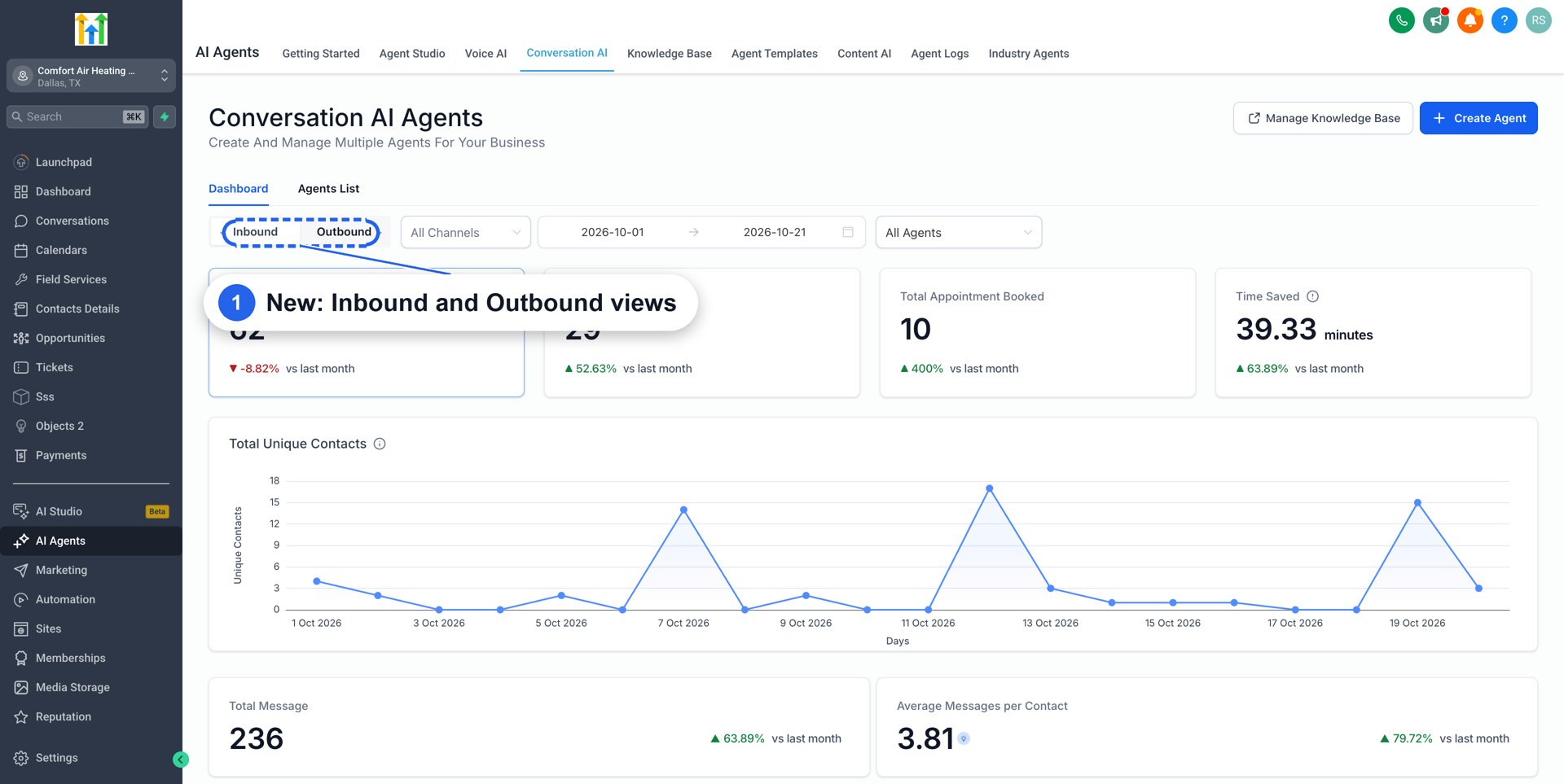
The Outbound dashboard helps businesses measure the results of proactive AI conversations. Separate Inbound and Outbound views make it easier to evaluate performance by conversation type.
Navigate to AI Agents → Conversation AI → Dashboard → Outbound.
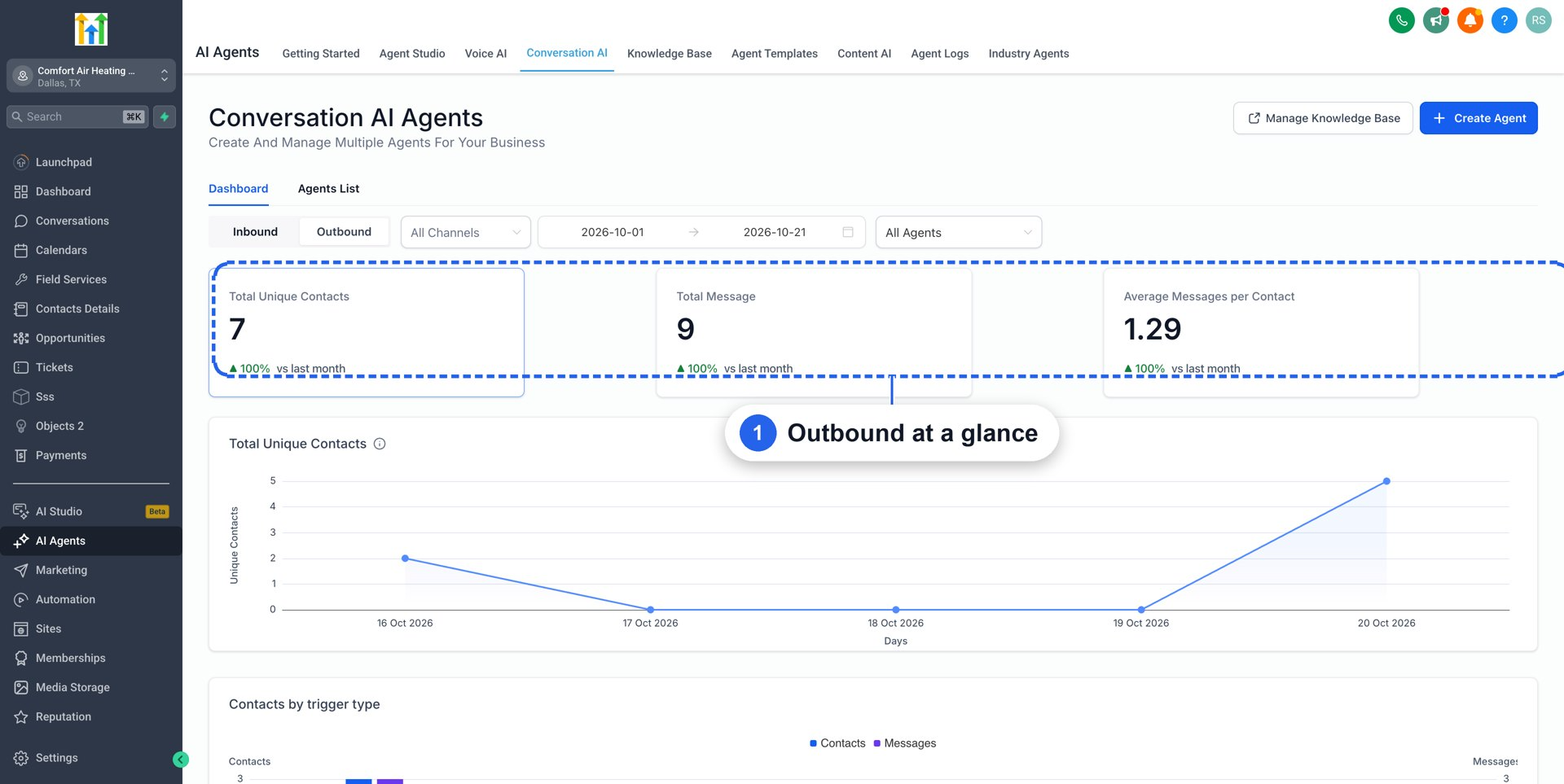
Available reporting includes:
- Total Unique Contacts: Unique contacts reached through outbound messaging.
- Total Messages: Outbound messages sent, including follow-ups.
- Average Messages per Contact: Average outbound message volume per contact.
- Contacts Over Time: Daily outbound contact trends.
- Contacts by Trigger Type: Contacts and messages associated with individual triggers.
- Conversation Details: Individual conversations and available summaries.
Filter results by channel, date range, or agent.
Reporting Note: Follow-up messages count toward overall message totals, while the trigger-type breakdown counts the first outreach associated with each conversation.
Frequently Asked Questions
Q: Do Outbound Conversation AI Agents require a workflow?
No. Outbound triggers are configured directly within the agent, so a separate workflow is not required to initiate conversations.
Q: Can multiple triggers initiate conversations with the same contact?
Yes. Each qualifying trigger can initiate a separate outreach, including messages deferred by Working Hours. Each agent supports one trigger of each type.
Q: What happens when an outbound agent contacts a customer?
The initiating agent becomes assigned to the contact and handles the subsequent conversation using its configured instructions and actions.
Q: Why might an outbound message not be sent immediately?
The message may be waiting for the next configured Working Hours window. Also verify that outbound messaging is activated, the trigger conditions are met, the SMS sending number and compliance confirmation are configured, and the contact is not marked as Do Not Disturb.
Related Articles
- How to Set Up a Conversation AI Bot
- Conversation AI - Auto Follow-Up Action
- Working Hours for Conversation AI
- Appointment Booking in Conversation AI
- Conversation AI Agents Dashboard