
Multi-Line Dialer
Most outbound calls are never answered, so your team spends the day listening to phones ring. The multi-line dialer calls up to three contacts at the same time and connects you to the first person who picks up.
You build a call list once, press start, and keep talking.
The multi-line dialer is in private beta. If you do not see it in your account, please reach out to support.
How it works
- You choose how many contacts to ring at the same time: 1, 2 or 3.
- The dialer calls that many contacts at once and connects you to the first person who answers.
- The other calls stop as soon as someone answers.
The second person hears your callback message and moves to the top of your list, so they are the next person you call.
That contact waits 15 minutes before the dialer tries them again. If it happens to the same contact twice, the dialer calls them on their own next time, so they do not keep getting missed calls.
Before you start
Turn on multi-line dialing
- Go to Settings → Phone System.
- Select the Voice tab.
- Under Other Settings, select Outbound Calls.
- Turn on the Multi-line dialing switch.
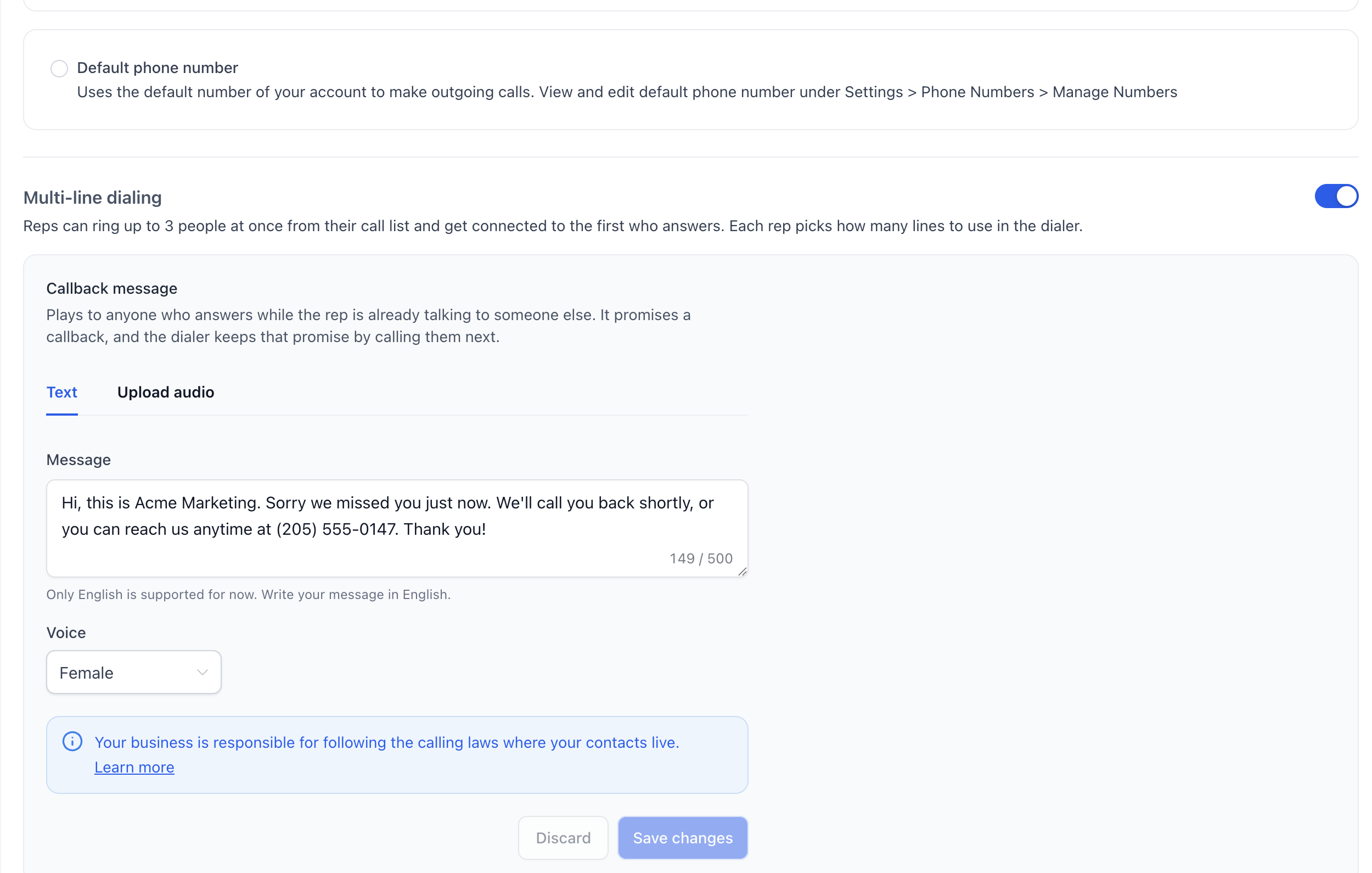
Each person on your team then picks how many lines they want to use in their own dialer. Turning this off puts everyone back to one call at a time.
Set up the callback message
This message plays to anyone who answers while you are already talking to someone else. It tells them you will call back, and the dialer keeps that promise by calling them next.
You have two options under Callback message:
| Option | How it works |
|---|---|
| Text | Write what you want callers to hear, up to 500 characters, then pick a Voice. The phone system reads it out on the call. Only English is supported for now. |
| Upload audio | Upload your own recording instead. |
Select Save changes when you are done. A message you change does not affect calls that are already ringing.
Keep it short and say who you are. For example: "Hi, this is Acme Marketing. Sorry we missed you just now. We'll call you back shortly, or you can reach us anytime at (205) 555-0147. Thank you!"
Your business is responsible for following the calling laws where your contacts live.
Add contacts to your call list
You can build your call list from Contacts or from Opportunities. Either way the contacts are added in the order they appear in your list, and you can add more at any time, including while you are dialing.
- Go to Contacts.
- Select the contacts you want to call. Filter or search first if you want a specific group.
- Select More → Call.
- Go to Opportunities.
- Switch to the list view using the list icon at the top right. The board view does not have a Call action.
- Select the opportunities you want to call.
- Select Call in the bar that appears.
Opportunities are called on their primary contact's phone number. An opportunity whose contact has no phone number is skipped.
Start dialing
- Open the dialer with the phone icon in the top bar.
- Select the Call list tab. The badge shows how many contacts are waiting for you.
- Under Ring at once, choose 1 contact, 2 contacts or 3 contacts.
- Select Start dialing.
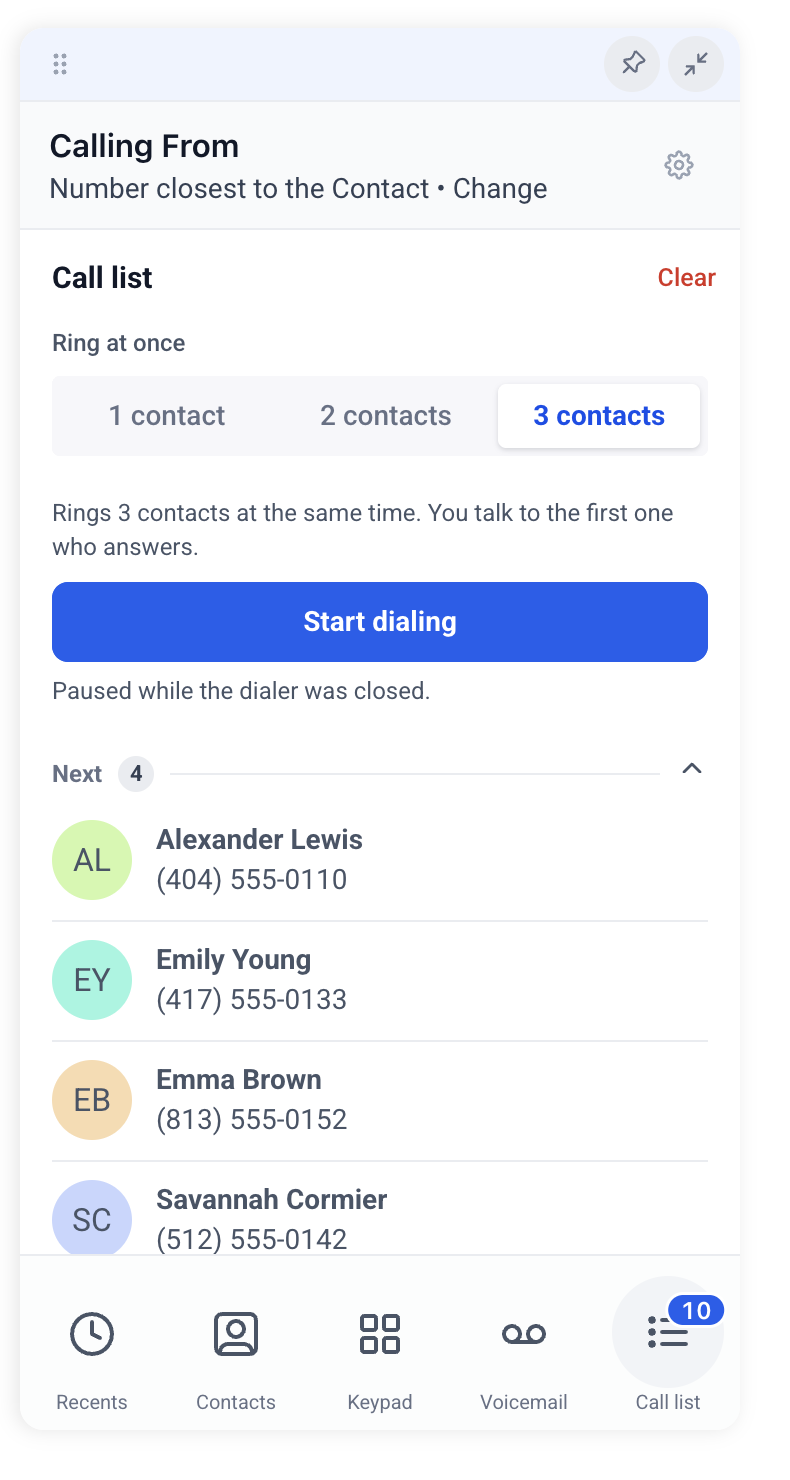
When a call ends, pick a disposition and the dialer moves on to the next contacts on its own. You can change how many contacts to ring at once between rounds.
What the call list shows
| Element | What it means |
|---|---|
| Next | The contacts the dialer will call, in order. The top rows are always the next calls. |
| Waiting | Contacts the dialer cannot call right now. Each row says why and when they become available, for example "Quiet hours, opens in 4h 15m". They rejoin the end of Next on their own. |
| Hover a contact | Call that person on their own straight away, or remove them from the list. |
| Clear | Empties the whole list. The contacts themselves are not changed. |
If you close the dialer in the middle of a session, the list pauses and tells you so. Select Start dialing to pick up where you left off.
Frequently asked questions
The multi-line dialer is new and we are still improving it. If something did not work the way you expected, tell our support team and your feedback reaches the product team.