
How to Filter and View Associated Records in Smart Lists
Chat To Clients CRM lets you filter Contacts by records associated with them, such as Companies, Pets, and Policies. You can save these filters as Smart Lists and display linked records directly in the Contacts table. Association columns help you review relationships without opening each Contact. This article explains how to filter Contacts, save Smart Lists, and customize association columns.
TABLE OF CONTENTS
- What Are Association Filters and Columns in Smart Lists?
- Key Benefits of Association Filters and Columns
- How to Filter Contacts by Associated Records
- How to Display Association Columns
- Understanding Association Labels
- Association Filter Operators
- Viewing Associated Records in Columns
- Primary Company and Additional Company
- Custom Object Associations
- Frequently Asked Questions
- Related Articles
What Are Association Filters and Columns in Smart Lists?
Association filters find Contacts based on their relationships with other records. Association columns display those linked records in the Contacts table.
For example, a veterinary clinic can filter Contacts associated with pets named Mango or Jasper, save the results as a Smart List, and display each Contact's associated pets.
An association label describes the relationship between records, such as Owned Pet, Additional Company, or Policy.
These features use existing associations; they do not create new relationships.
Key Benefits of Association Filters and Columns
Association filters and columns help you organize Contacts using the relationships most relevant to your business.
Targeted Segmentation: Find Contacts linked to specific Companies, Pets, Policies, or other supported records.
Reusable Smart Lists: Save association filters for future use.
Better Visibility: View linked records directly in the Contacts table.
Relationship-Based Filtering: Find Contacts with or without associations.
Clearer Company Details: Distinguish Primary Company from other Company relationships.
Customizable Columns: Display only the association labels you need.
How to Filter Contacts by Associated Records
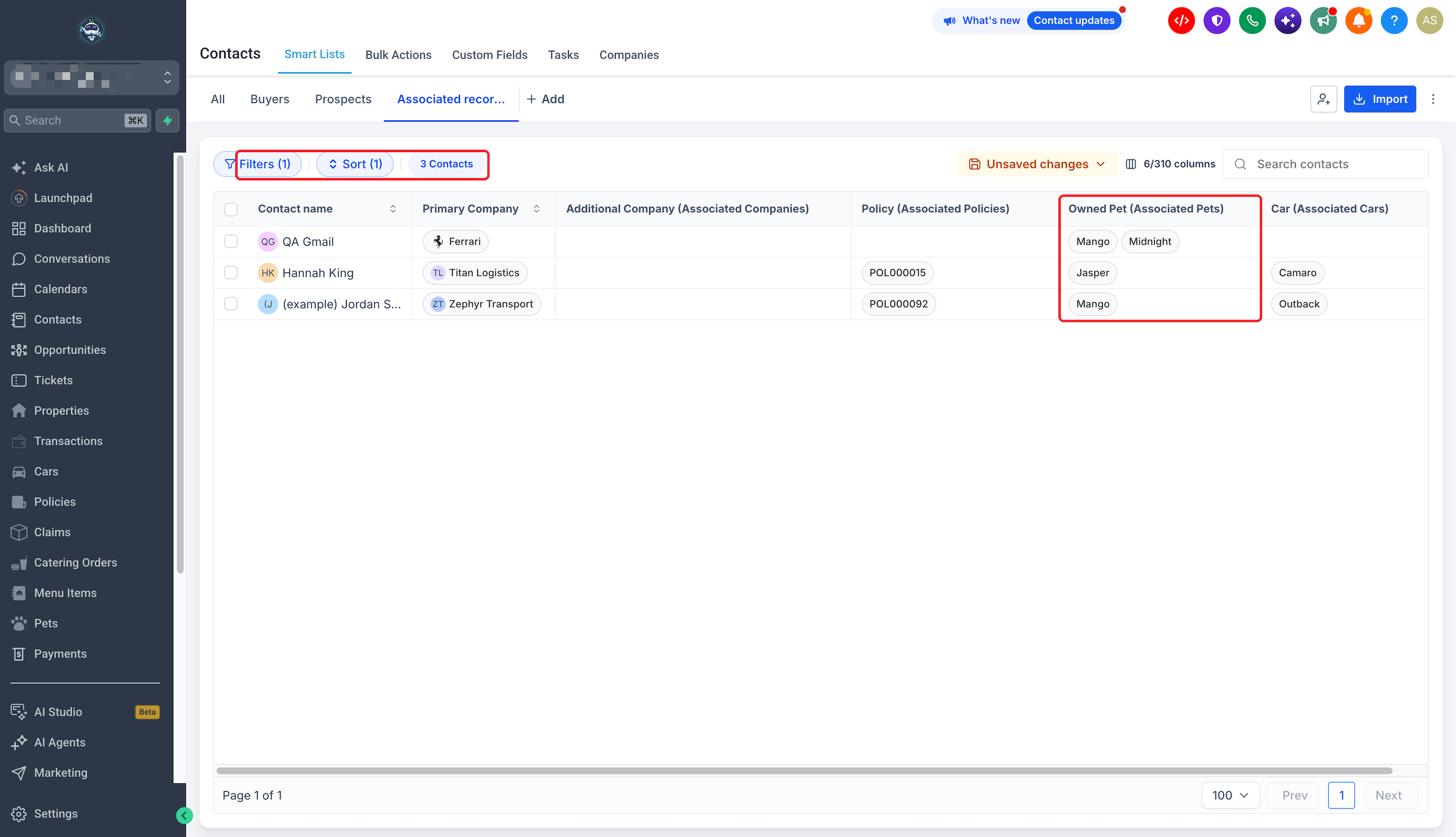
Association filters let you find Contacts based on specific linked records. The following example finds Contacts associated with Mango or Jasper.
Step 1: Open Filters
Go to Contacts → Smart Lists.
Open the Contact list you want to filter.
Click Filters.
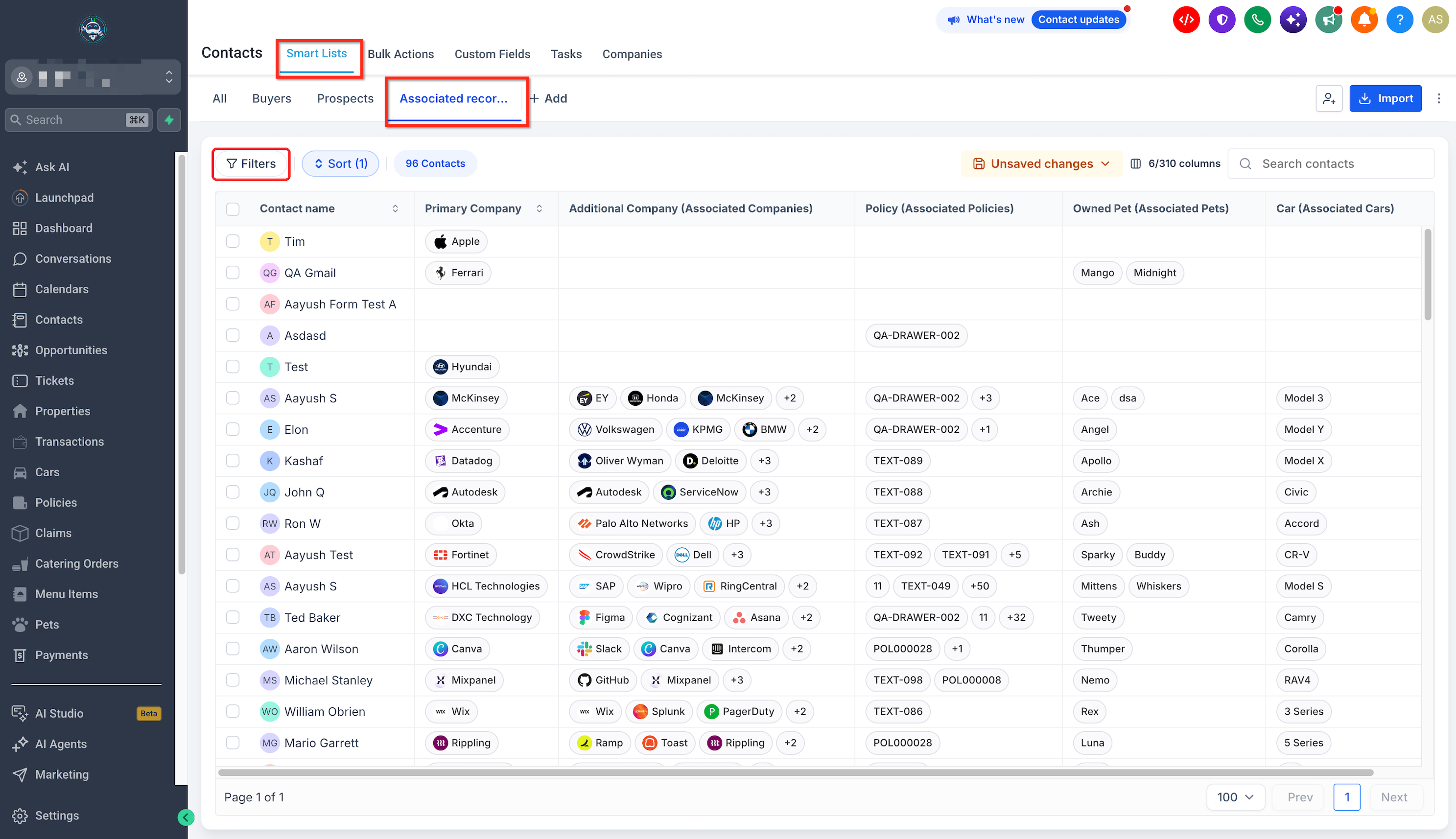
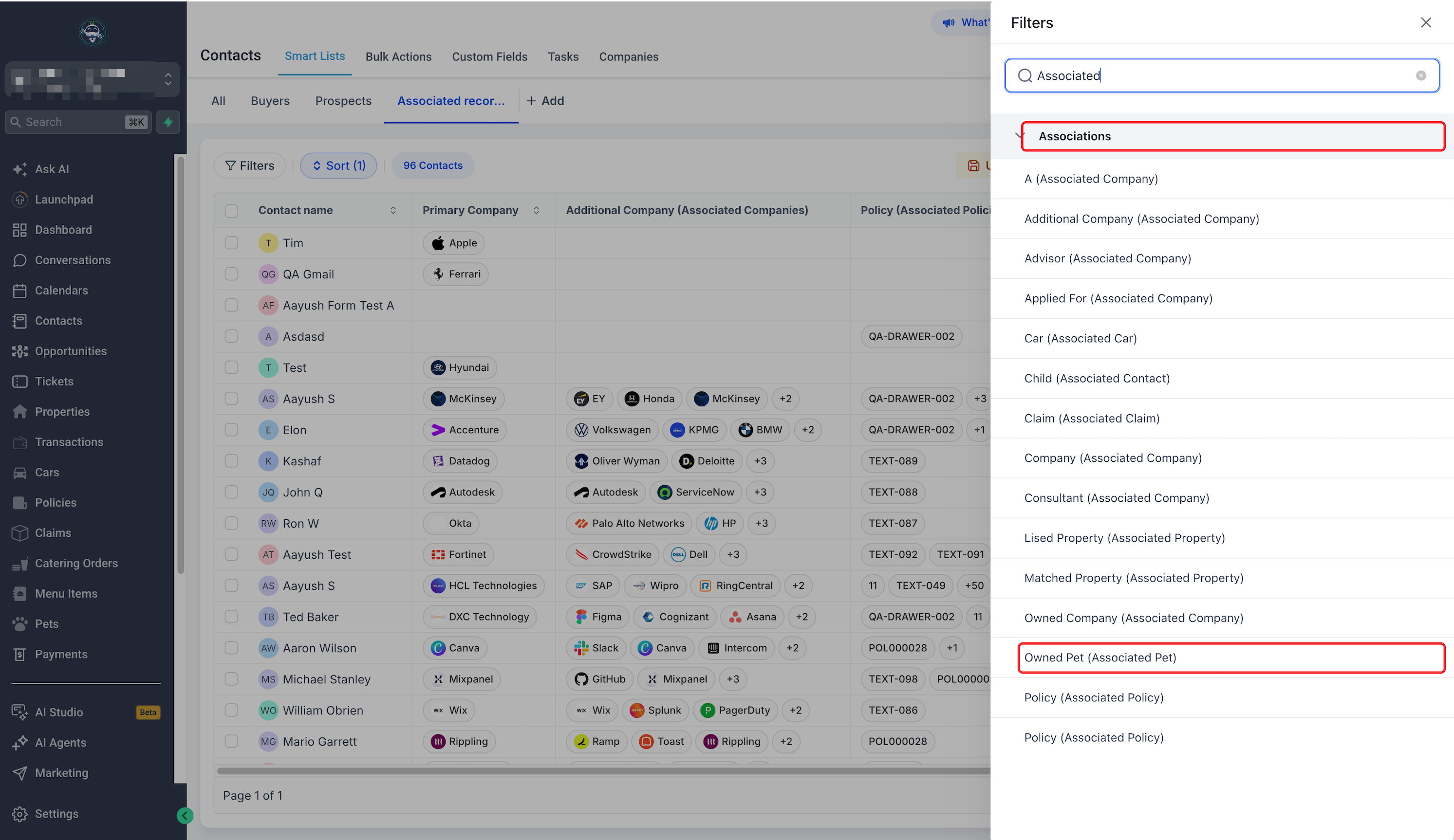
Step 2: Choose an Association Field
Expand Associations in the Filters panel.
Select the relationship you want to filter.
For this example, select Owned Pet (Associated Pet).
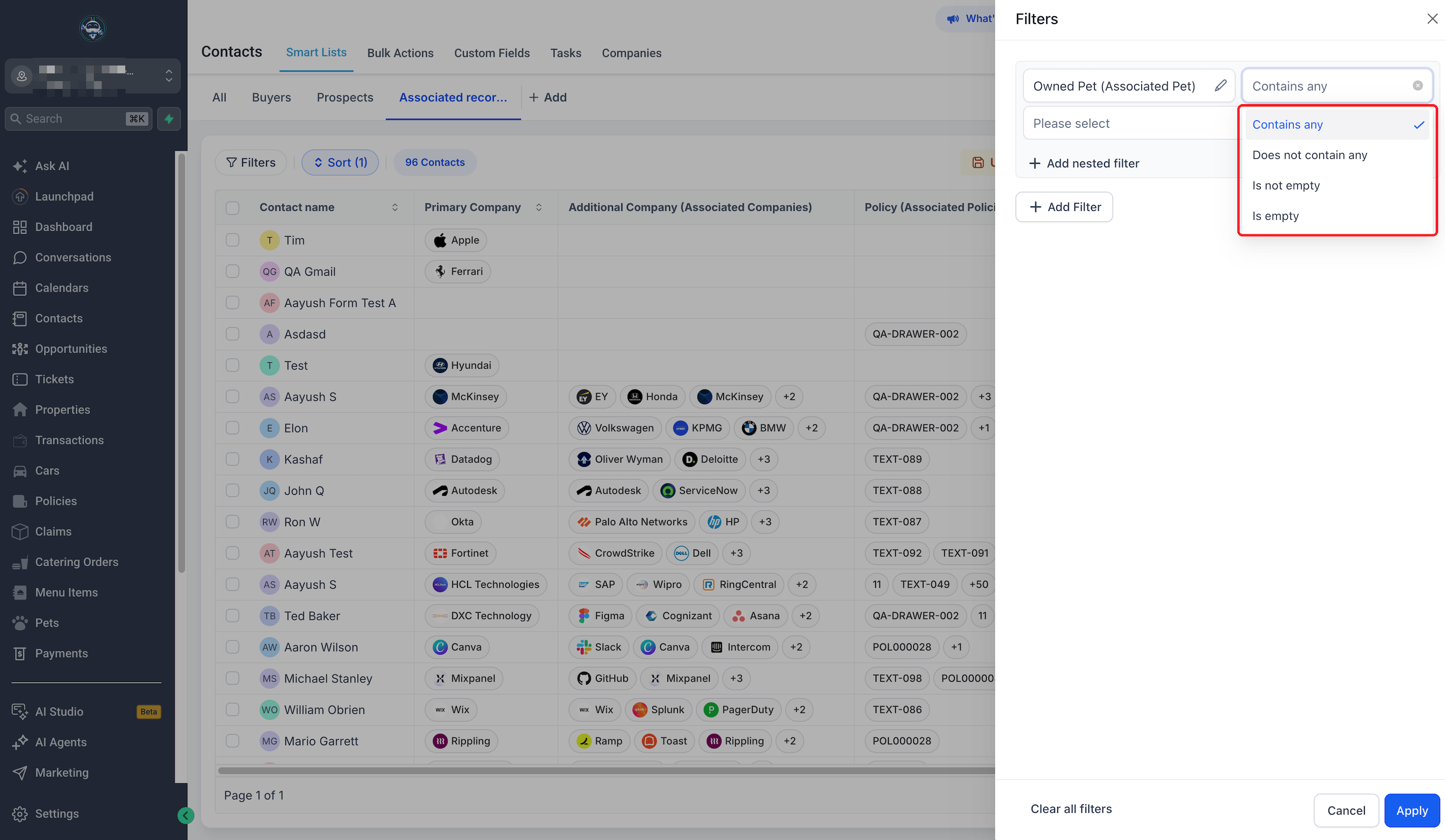
Step 3: Select an Operator
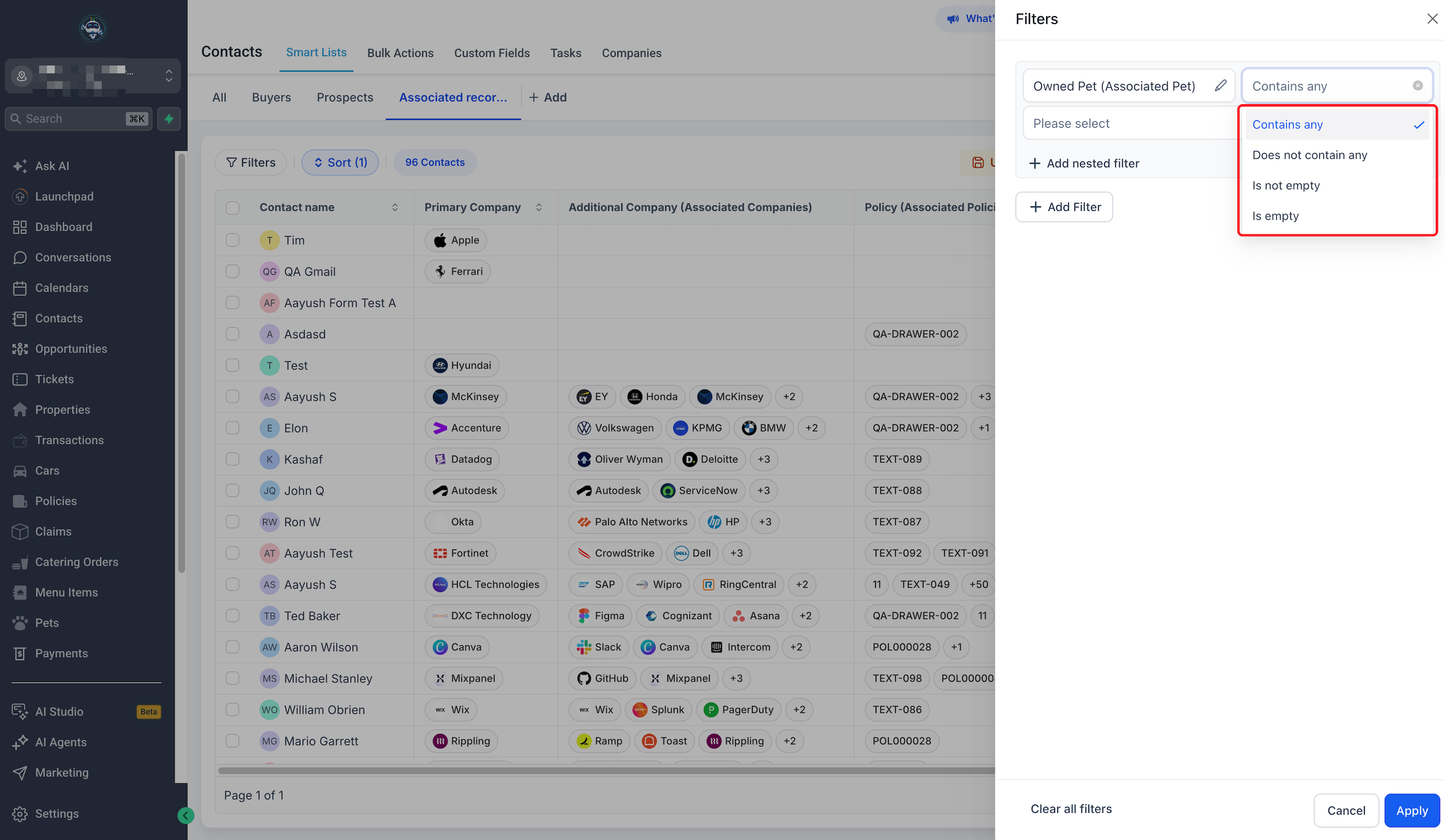
Open the operator dropdown.
Choose the operator that matches your goal.
For this example, select Contains any.
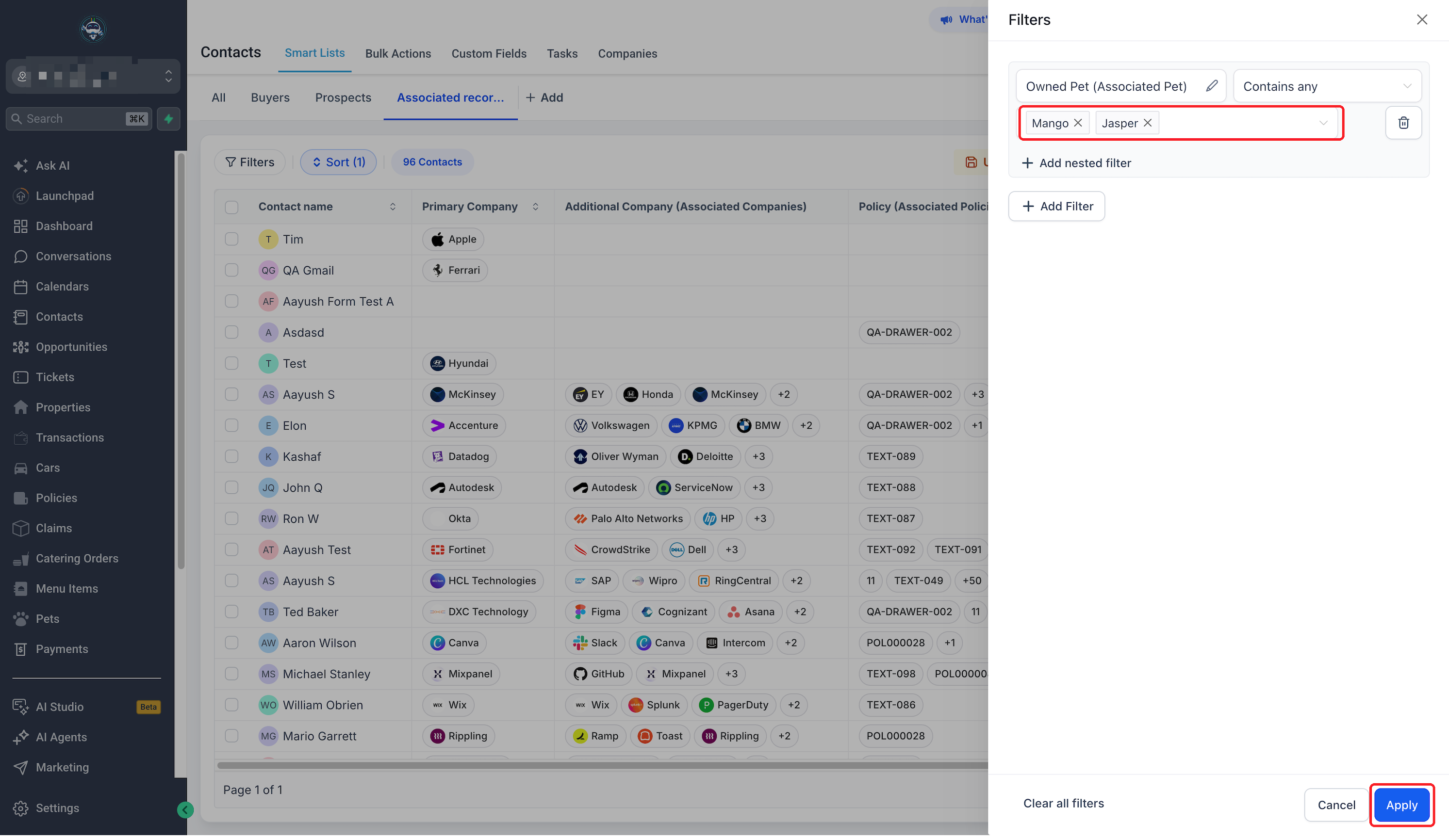
Step 4: Select Records and Apply
Select the associated records you want to match.
Click Apply.
For this example, select Mango and Jasper.
Step 5: Review Matching Contacts
The Contacts table displays records matching the applied filter.
Review the results to confirm they match your intended audience.
Step 6: Save the Smart List
Saving your filter lets you reopen the segment without configuring it again.
Click Unsaved changes.
Select Save as new smartlist.
Enter a name.
Click Create.
The saved Smart List appears as a tab.
Tip: Combine association filters with other Contact filters to create more specific audiences.
How to Display Association Columns
Association columns let you see linked records beside Contact information.
Step 1: Open Manage Fields
Go to Contacts → Smart Lists.
Open the relevant Contact list.
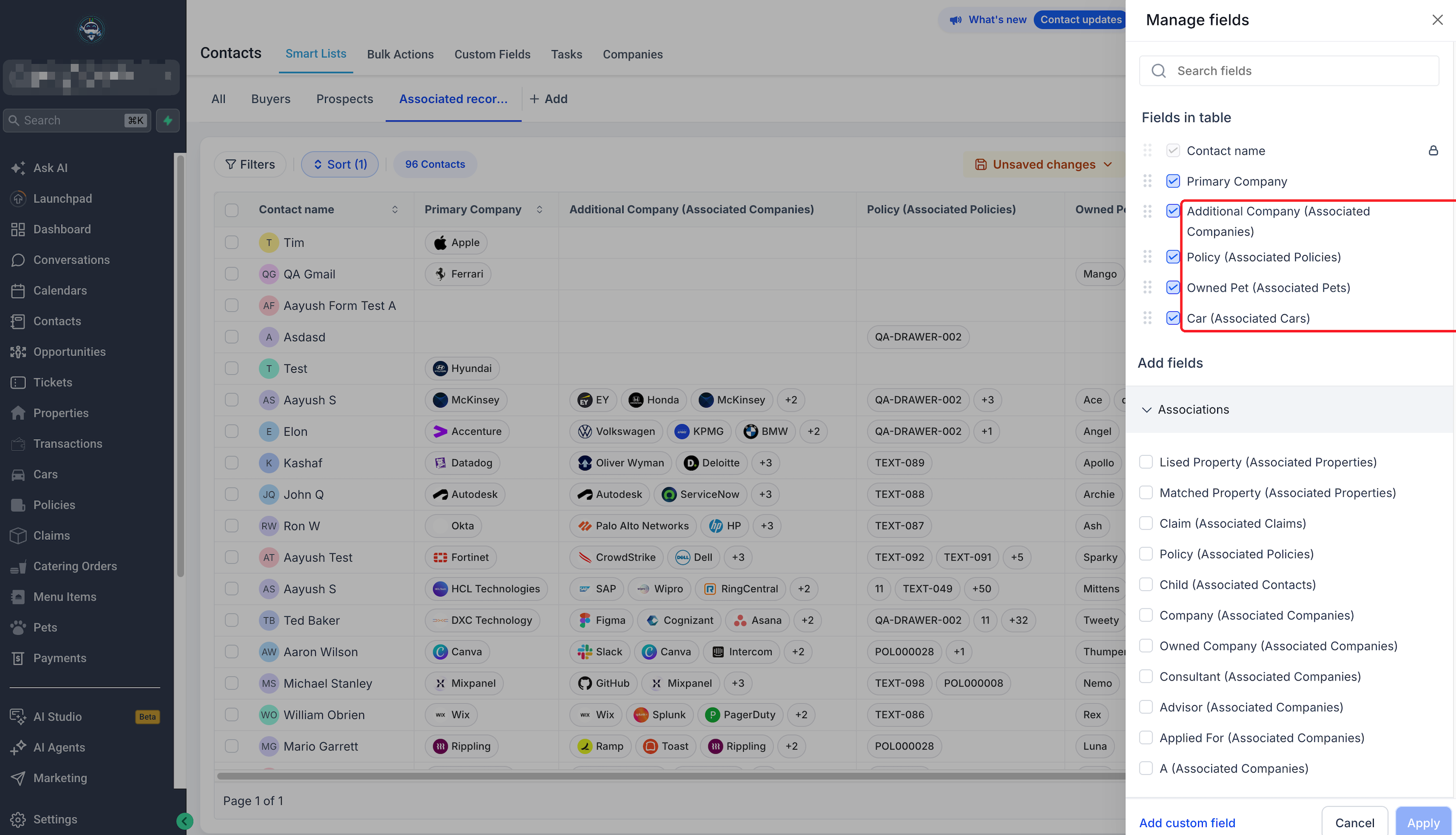
Click the column-count control to open Manage fields.
Step 2: Select Association Labels
Expand Associations under Add fields.
Select the relationship labels you want to display.
Click Apply.
For example, select Additional Company, Policy, Owned Pet, and Car.
Step 3: Review the Added Columns
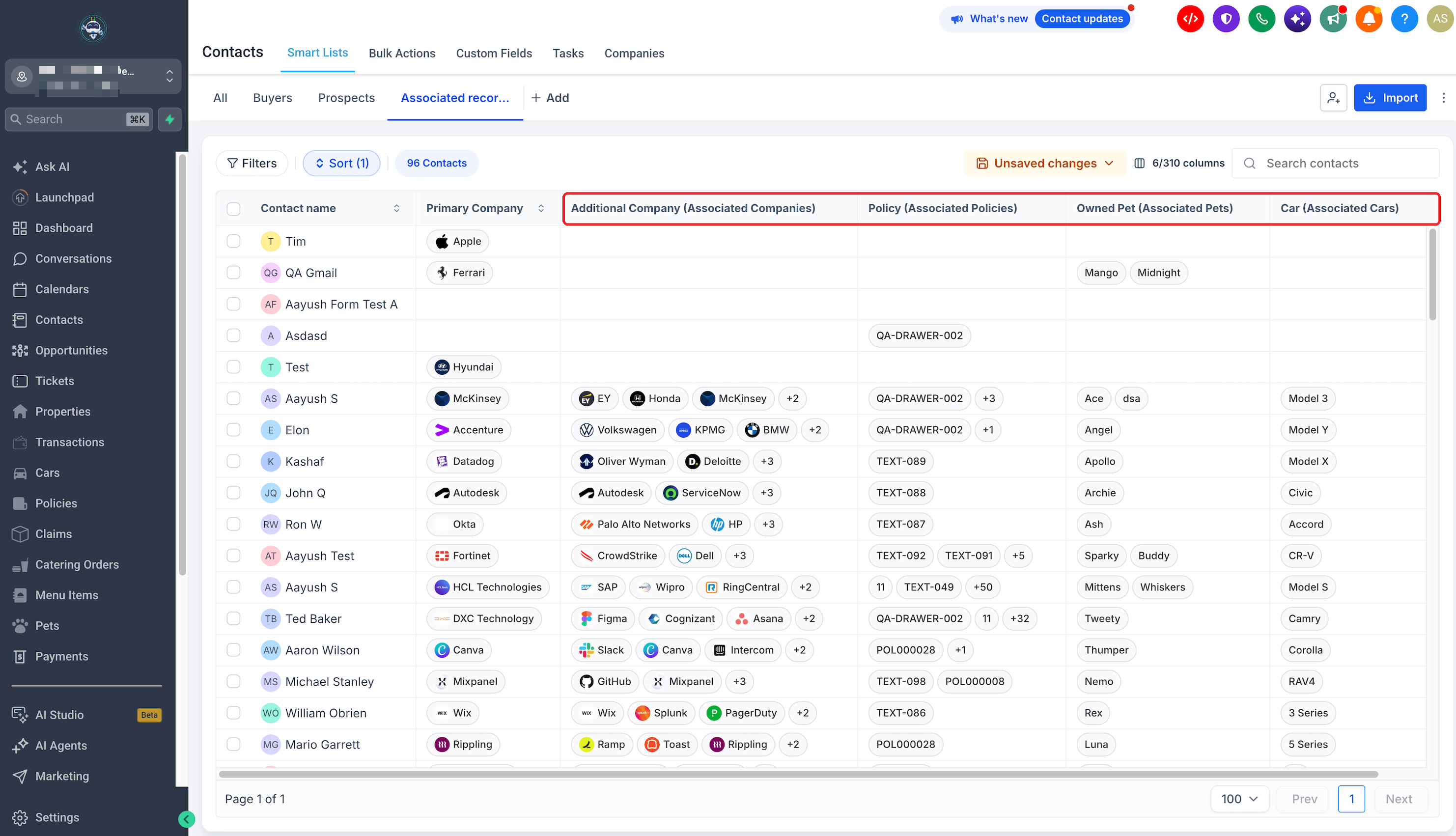
The selected relationships appear as separate columns in the Contacts table.
Each column displays records associated through its selected label.
Step 4: View Additional Linked Records
If a cell contains more linked records than it displays, hover over +N to see additional entries.
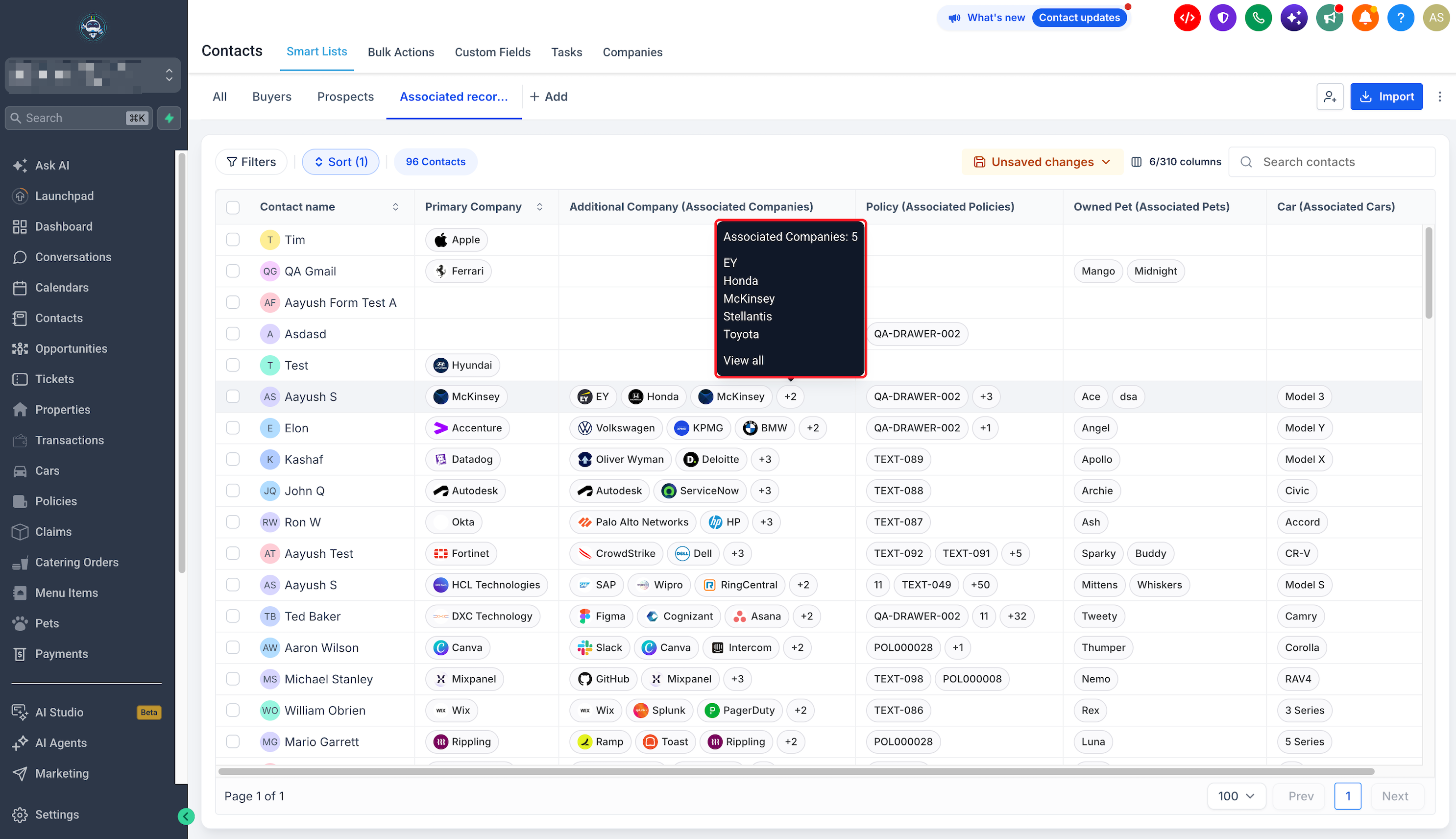
Tip: Select only the association columns needed for your workflow to keep the table easy to read.
Understanding Association Labels
Association labels describe how records are connected. Different labels can represent different relationships to the same type of record.
| Association Label | Example |
|---|---|
| Primary Company | A Contact's primary linked Company |
| Additional Company | Other Companies associated with the Contact |
| Owned Pet | Pets linked to the Contact |
| Policy | Policies linked to the Contact |
| Car | Cars linked to the Contact |
Available labels depend on the objects and relationships configured in your Chat To Clients CRM location.
For setup instructions, see Associating Contacts using Custom Labels.
Association Filter Operators
Association filters provide four operators for finding Contacts based on linked records.
| Operator | Purpose |
|---|---|
| Contains any | Find Contacts linked to at least one selected record |
| Does not contain any | Find Contacts not linked to the selected records |
| Is not empty | Find Contacts with a record linked under the selected label |
| Is empty | Find Contacts without a record linked under the selected label |
For example, select Owned Pet (Associated Pet), choose Contains any, and select Mango and Jasper to find Contacts linked to either pet.
Contains any and Does not contain any require record selection. Is empty and Is not empty check whether a relationship exists under the selected label.
Note: Does not contain any is different from Is empty. The exact handling of Contacts with no associations under Does not contain any should be verified.
Viewing Associated Records in Columns
Association columns display linked records directly in the Contacts table.
You can select individual relationship labels through Manage fields → Associations. Each label appears as a separate column, even when multiple labels refer to the same object type.
Linked-Record Chips and +N
Linked records appear as chips containing their names.
When more records are linked than can be displayed in a cell, a +N indicator appears. Hover over the indicator to view additional records.
The release also describes opening a linked record by selecting its chip.
Primary Company and Additional Company
The Primary Company column identifies a Contact's primary linked Company. It replaces the previous Company name column label described in the release.
Other Company relationships, such as Additional Company, can appear in separate association columns.
This helps distinguish primary Company information from additional relationships.
Note: The updated column label does not establish changes to existing Company records or association limits.
Custom Object Associations
Supported Custom Object associations can also appear in Contact filters and columns.
For example, a location with a configured Pet object and Owned Pet relationship can use that label to filter Contacts associated with specific pets.
Available options depend on the objects and relationships configured in your location.
For object setup instructions, see Creating and Editing Custom Objects.
Frequently Asked Questions
Q: What is an association label?
A: It identifies the relationship between records, such as Owned Pet or Additional Company.
Q: Can I filter by multiple associated records?
A: Yes. Use Contains any and select multiple records to find Contacts linked to at least one of them.
Q: How do I find Contacts without a particular relationship?
A: Select the association label and choose Is empty.
Q: What is the difference between Contains any and Is not empty?
A: Contains any matches selected records. Is not empty checks whether a linked record exists under the chosen label.
Q: Can I combine association filters with other filters?
A: Yes. Association filters can be combined with other Contact filters.
Q: Can I save my association filters?
A: Yes. Apply the filters, then select Unsaved changes → Save as new smartlist.
Q: Why can't I see a particular association label?
A: Available labels depend on the objects and relationships configured in your location.
Q: What does +N mean in an association column?
A: It indicates additional linked records that are not currently displayed in the cell.
Q: Are Primary Company and Additional Company the same?
A: No. Primary Company identifies the primary linked Company, while Additional Company represents a separate labeled relationship.
Q: Can I filter Contacts using Custom Object associations?
A: Supported Custom Object associations can be used where available. The options depend on your location's configured objects and relationships.