
How to Register Your RCS Sender
RCS (Rich Communication Services) lets your business send branded, verified messages that show your logo, colors and contact details, along with images, videos and tappable buttons, right inside the customer's messaging app.
Before you can send RCS messages, you need to register an RCS sender. This guide walks you through each step of the registration, what to have ready, and what happens after you submit.
Before You Begin
Registration goes faster when you have these ready before you start:
Country selection is final once you submit. Submitting a sender for the US charges a one-time US registration fee to your account, and live messages are billed at your plan's RCS usage rates.
Open RCS Messaging and Start a Registration
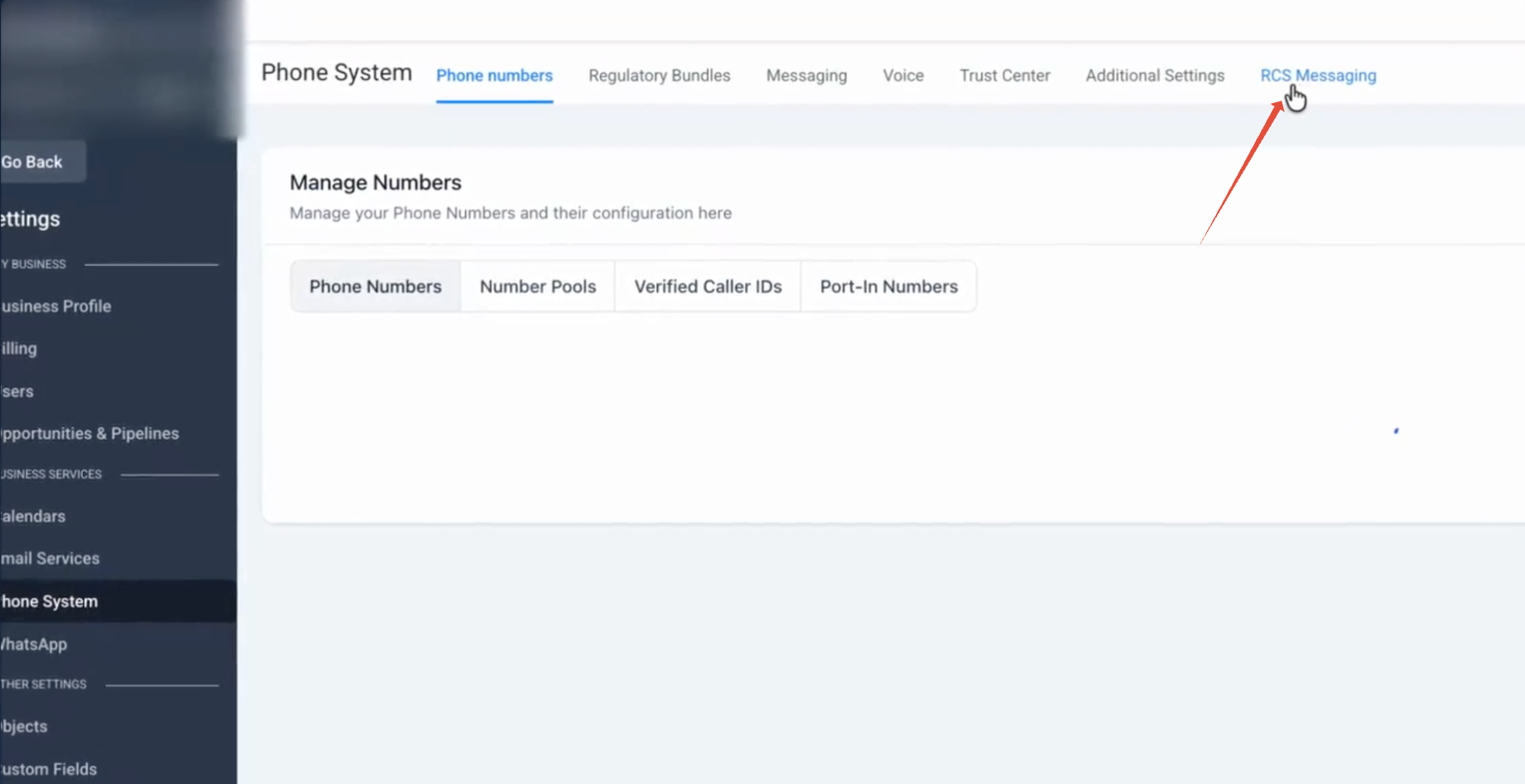
Navigate to Settings → Phone System and open the RCS Messaging tab.
Under RCS senders, click + Start new registration. Any registration you haven't finished appears under Drafts with a Resume button.
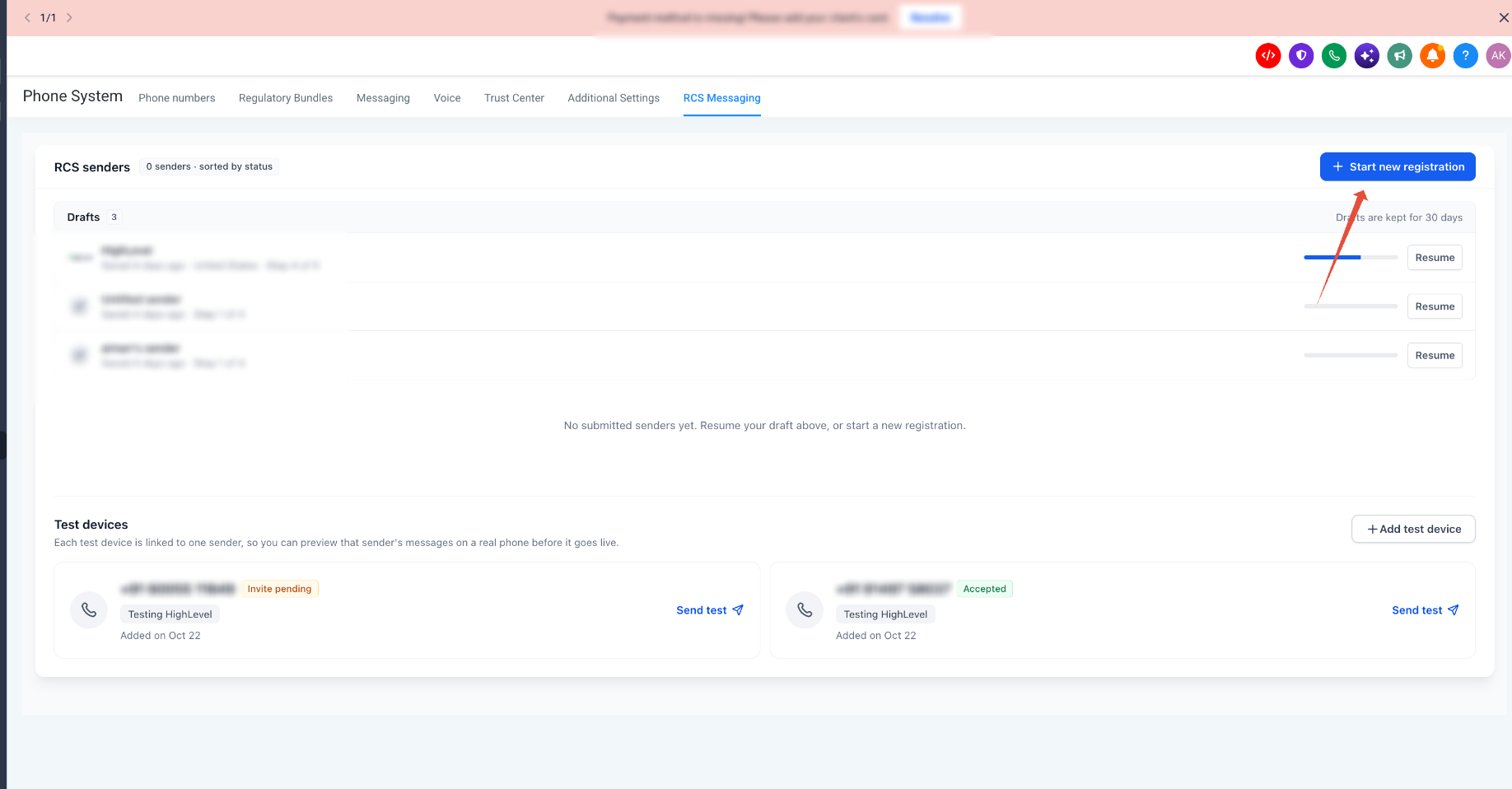
Progress saves automatically, so you can leave and resume any time.
Step 1: Brand Identity
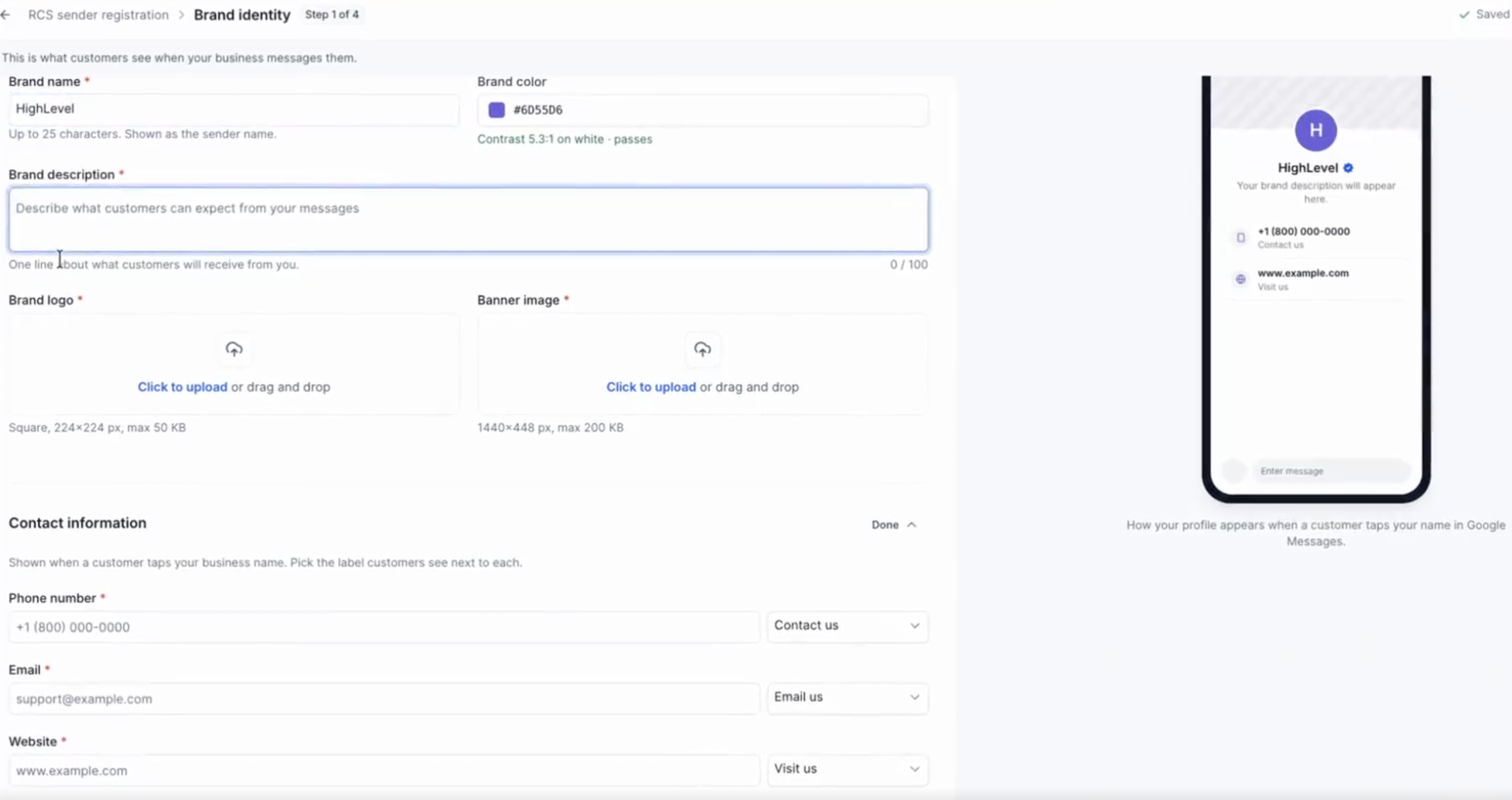
This is what customers see when your business messages them. The phone preview on the right updates as you type, showing how your profile appears when a customer taps your name in Google Messages.
- Brand name — up to 25 characters. Shown as the sender name.
- Brand color — the platform checks contrast against white so your buttons stay readable.
- Brand description — one line (up to 100 characters) about what customers will receive from you.
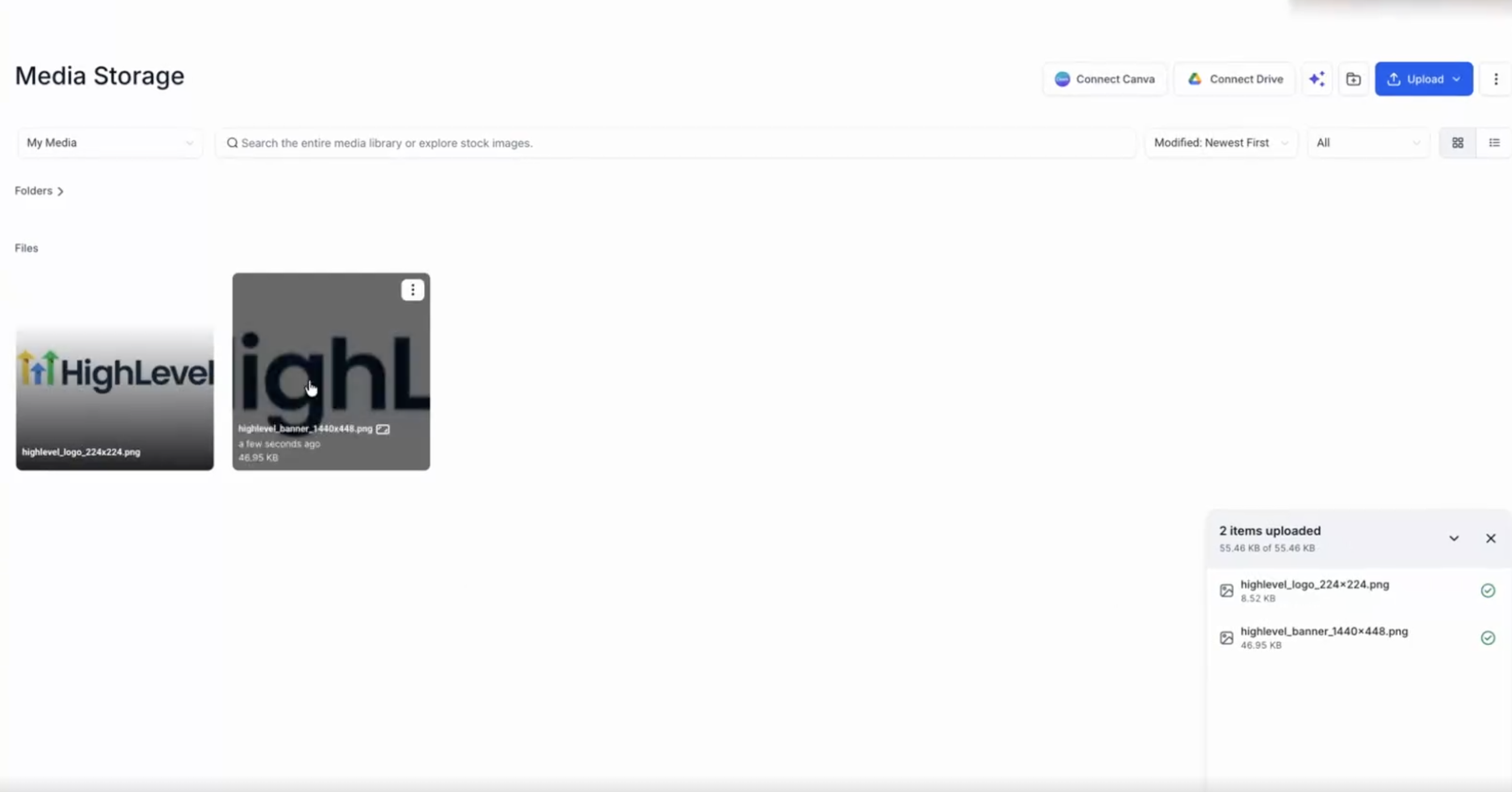
Click Click to upload under Brand logo and Banner image. Media Storage opens, where you can upload a file and click Insert media. Use a 224×224 px logo (max 50 KB) and a 1440×448 px banner (max 200 KB).
These show when a customer taps your business name. Enter a Phone number, Email and Website, and pick the label customers see next to each (for example Contact us, Email us, Visit us).
Under Privacy & terms, add your Privacy policy URL and Terms of service URL, then click Continue.
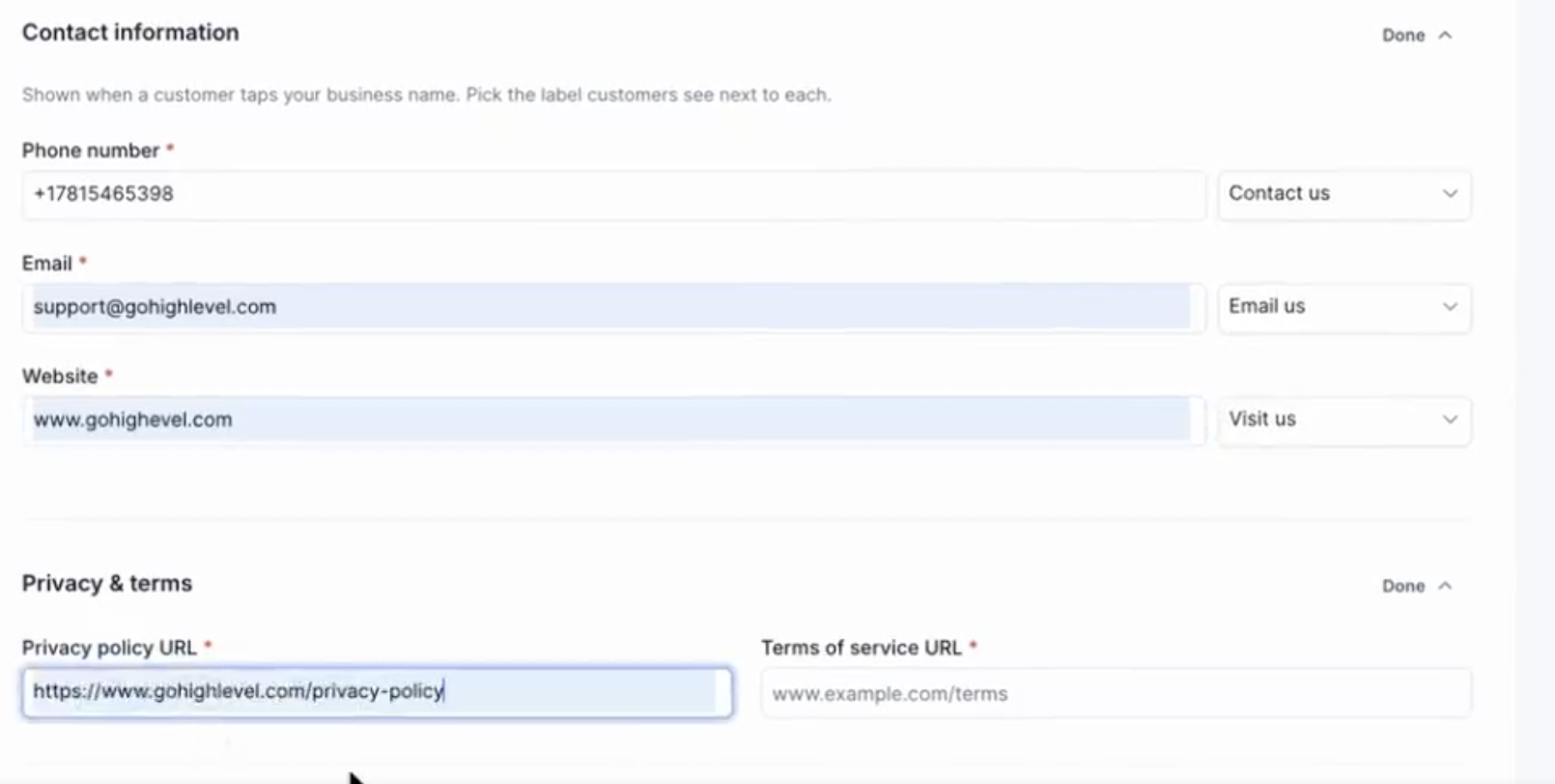
Use customer-facing details, such as a shared support inbox and main business line, rather than a personal email or phone number.
Step 2: Countries
Select every country you plan to message, then click Continue. Available countries include Austria, Belgium, Canada, Czech Republic, Denmark, Finland / Åland Islands, France, Germany, Ireland, Italy, Mexico, the Netherlands, Norway, Poland, Portugal, Romania, Singapore, Slovakia, Spain, Sweden, the United Kingdom and the United States.
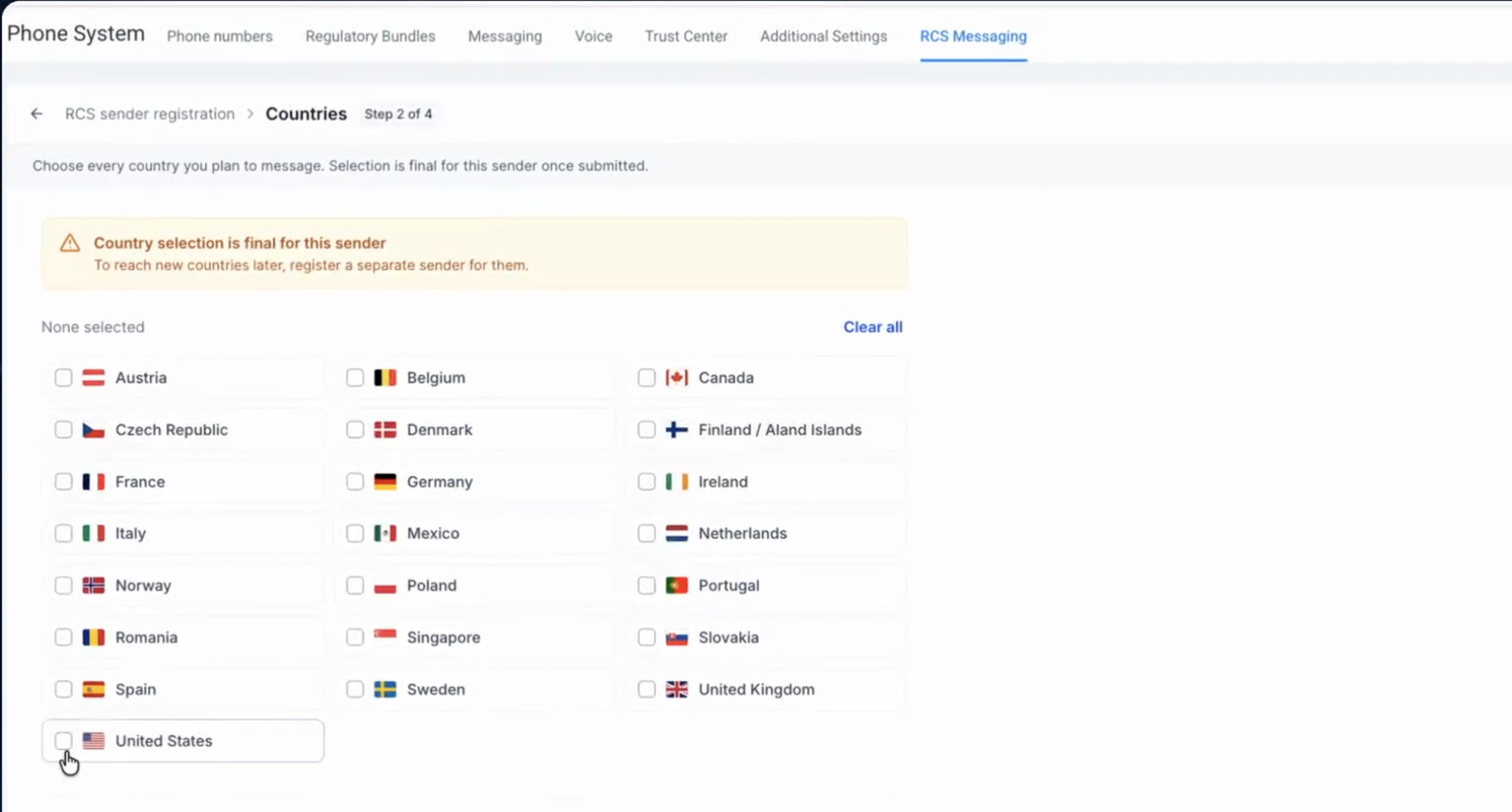
Country selection is final for this sender. To reach new countries later, register a separate sender. Selecting the United States adds a one-time registration fee.
Step 3: Sender Details
Tell reviewers who is responsible for this sender, what you'll send, and how customers opted in.
Enter the First name, Last name, Email and Business title of an owner or manager of the subaccount having same email domain as of the brand. Google and carriers may contact this person to verify details.
- Website URL
- Use case description — what you'll send and why.
- Trigger event description — what causes a message to go out, for example a customer books an appointment or an order ships.
- Opt-in description — how customers agree to receive messages, what they see when they do, and how they can opt out.
- Access instructions — where reviewers can see your sign-up flow for themselves. A link to the page on your website works best.
Upload a Screenshot of your opt-in page (SVG, PNG, JPG or GIF) and a Demo video (MP4, up to 25 MB) recording the opt-in and opt-out flow on a real number. Click What to submit for guidance.
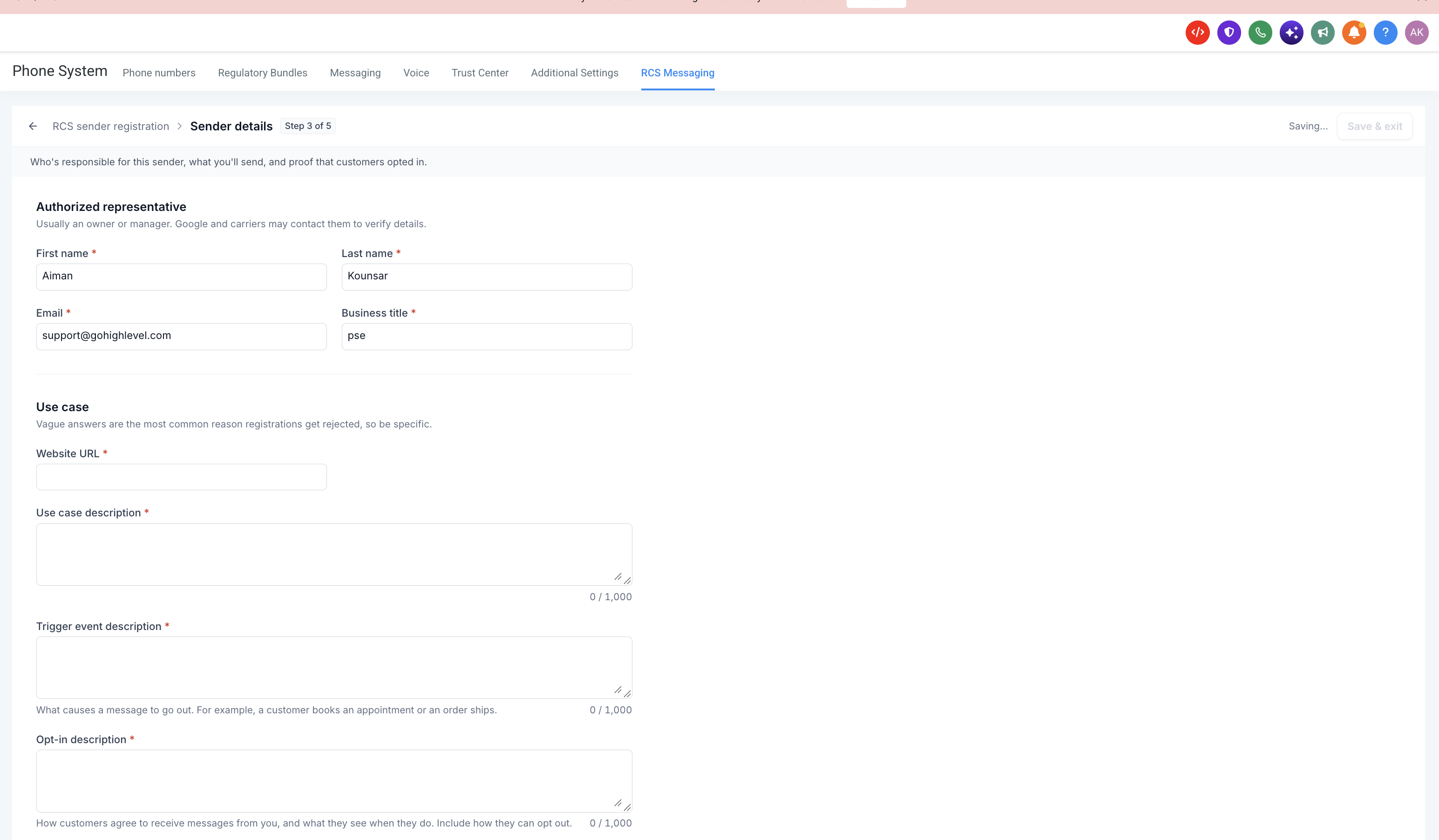
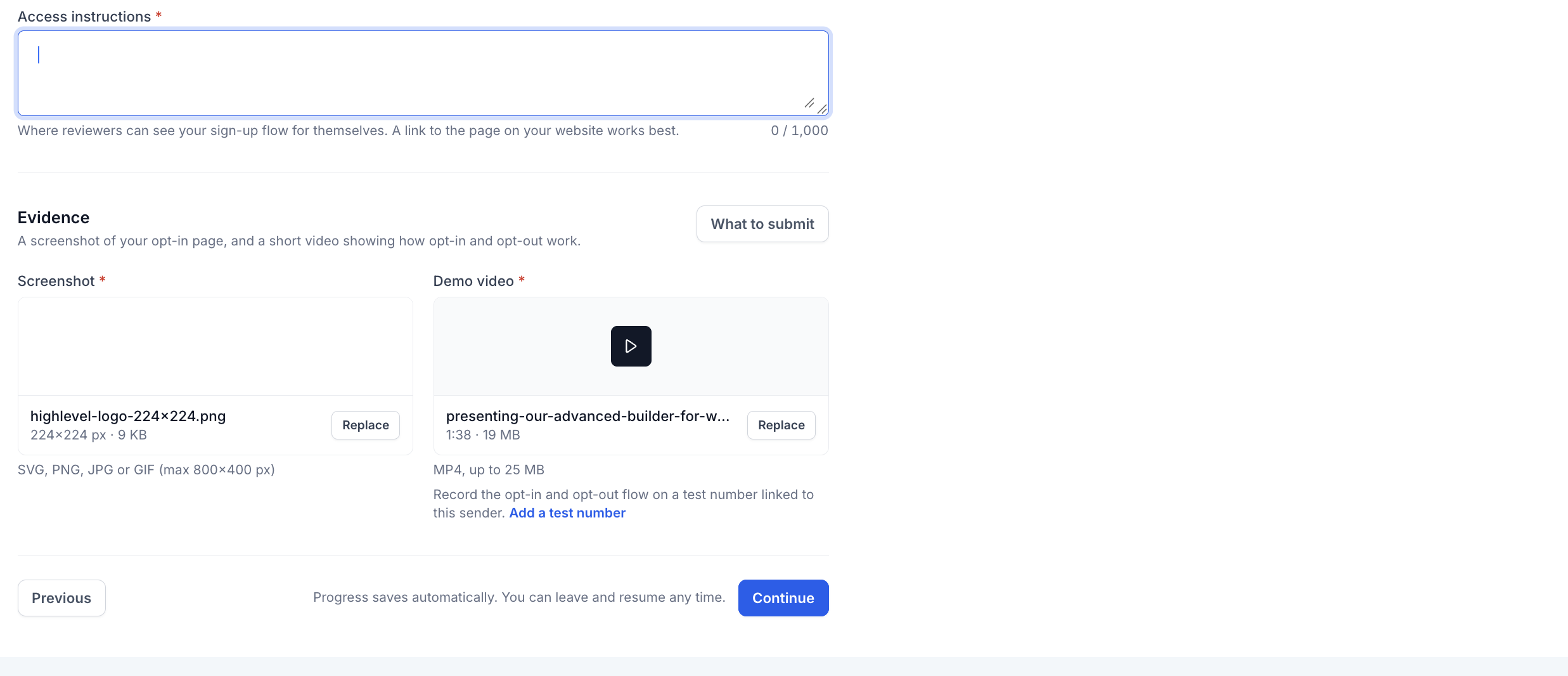
Vague answers are the most common reason registrations get rejected. Describe real messages, real triggers and the exact opt-in wording customers see.
Step 4: US Carrier Registration
To message customers in the US, carriers ask for a few extra business details to verify you're a real business. Fill in:
- Business details — legal business name, entity type, industry and Tax ID (EIN). Your Business address is pre-filled from your account; click Edit to change it.
- Monthly website visits and RCS messages per month — a rough estimate is fine.
- Use case — choose from the dropdown (for example, two-factor authentication).
- Campaign overview — starts from your use case details. US carriers review this separately, so adjust it if your US messaging differs.
- Messaging flow — a real example of a message you'd send.
- HELP sample flow — what customers receive when they reply HELP.
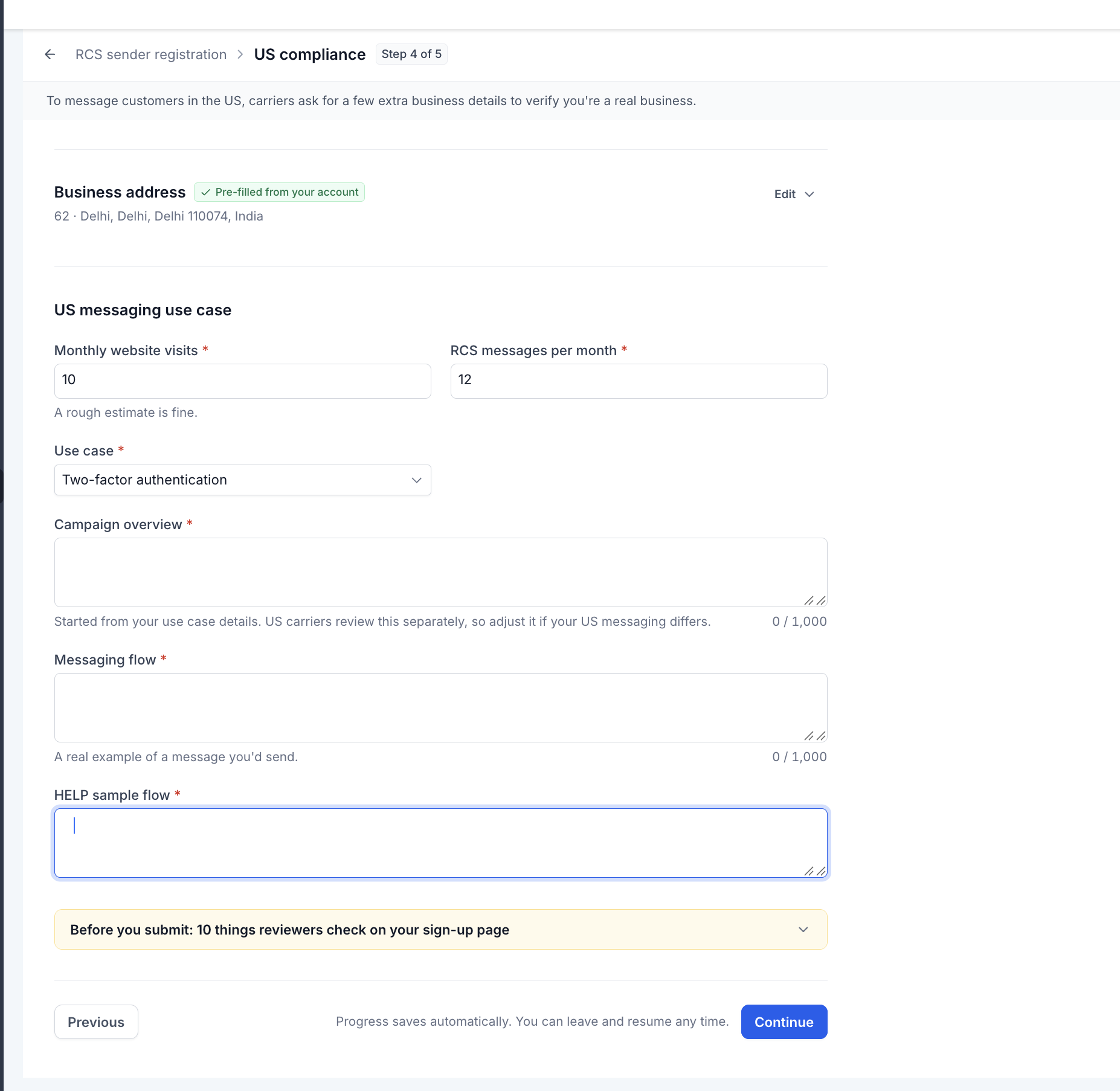
Expand Before you submit: 10 things reviewers check on your sign-up page at the bottom of this step and make sure your opt-in page meets each one.
Step 5: Review and Submit
Check everything before you submit. Reviewers see exactly what's on this page. Use Edit on any section to make changes, then click Submit for review.
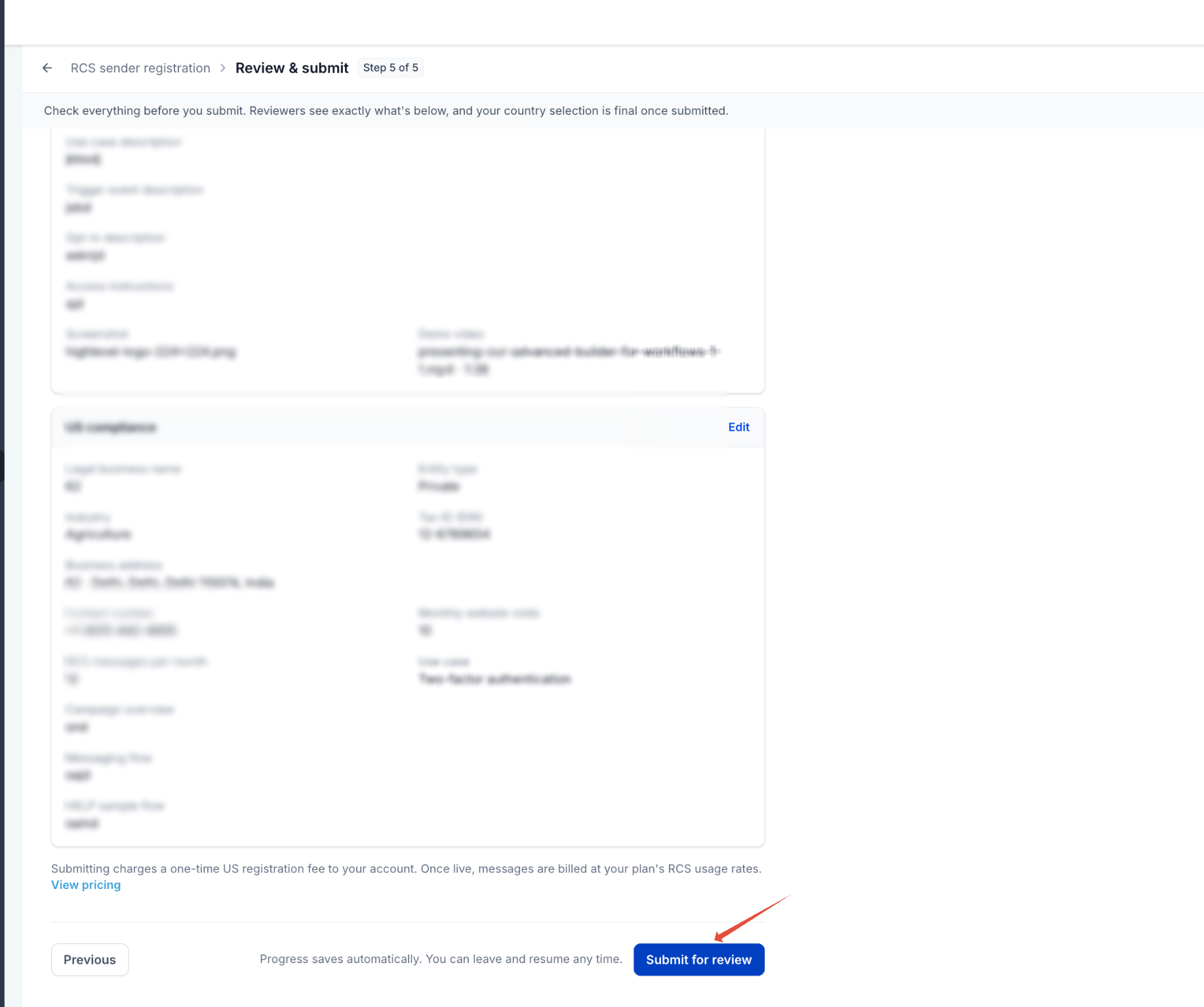
Your sender shows as In review in the RCS senders list while Google and US carriers review your registration. Once approved, your branded sender goes live.