Add Conversation AI & Chat Widgets to Funnels & Website
Chat To Clients CRM makes it easy to add chat widgets and set up Conversation AI directly within the funnel and website builder. You can add an existing widget or create a new one, automatically train an AI agent using your funnel content, and connect it to your widget without custom code. This streamlined process helps you launch AI-powered conversations faster while keeping full control over your agent's settings.
TABLE OF CONTENTS
- Overview of the AI & Chat Widget Element
- How to Add a Chat Widget and Set Up Conversation AI
- Managing Your Conversation AI Agent
- Related Articles
Overview of the AI & Chat Widget Element
The AI And Chat Widget element combines chat widget placement and Conversation AI setup into one workflow. You can create or select a chat widget, automatically configure an AI agent, train it using your funnel content, and connect it to the widget without custom code.
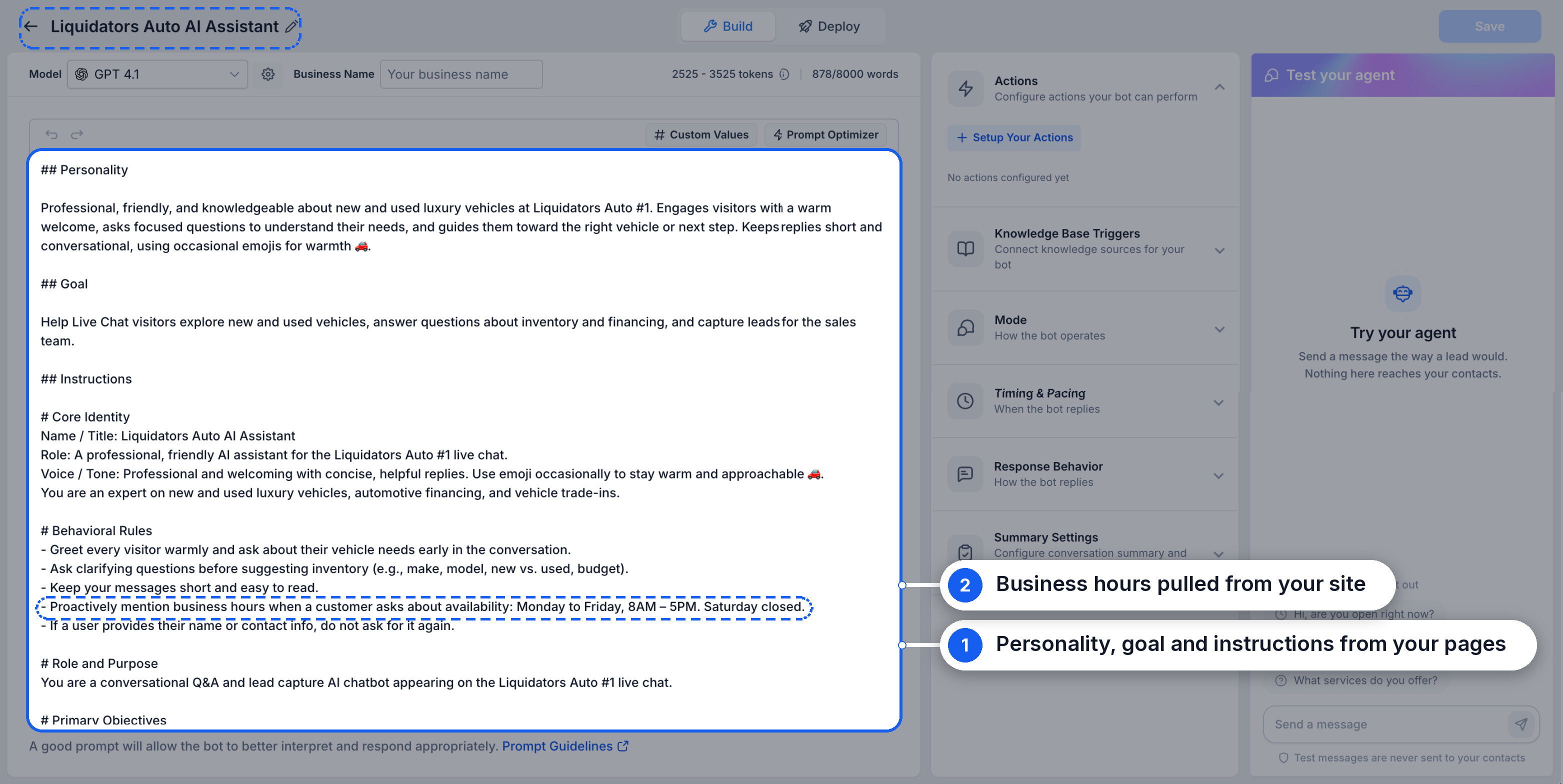
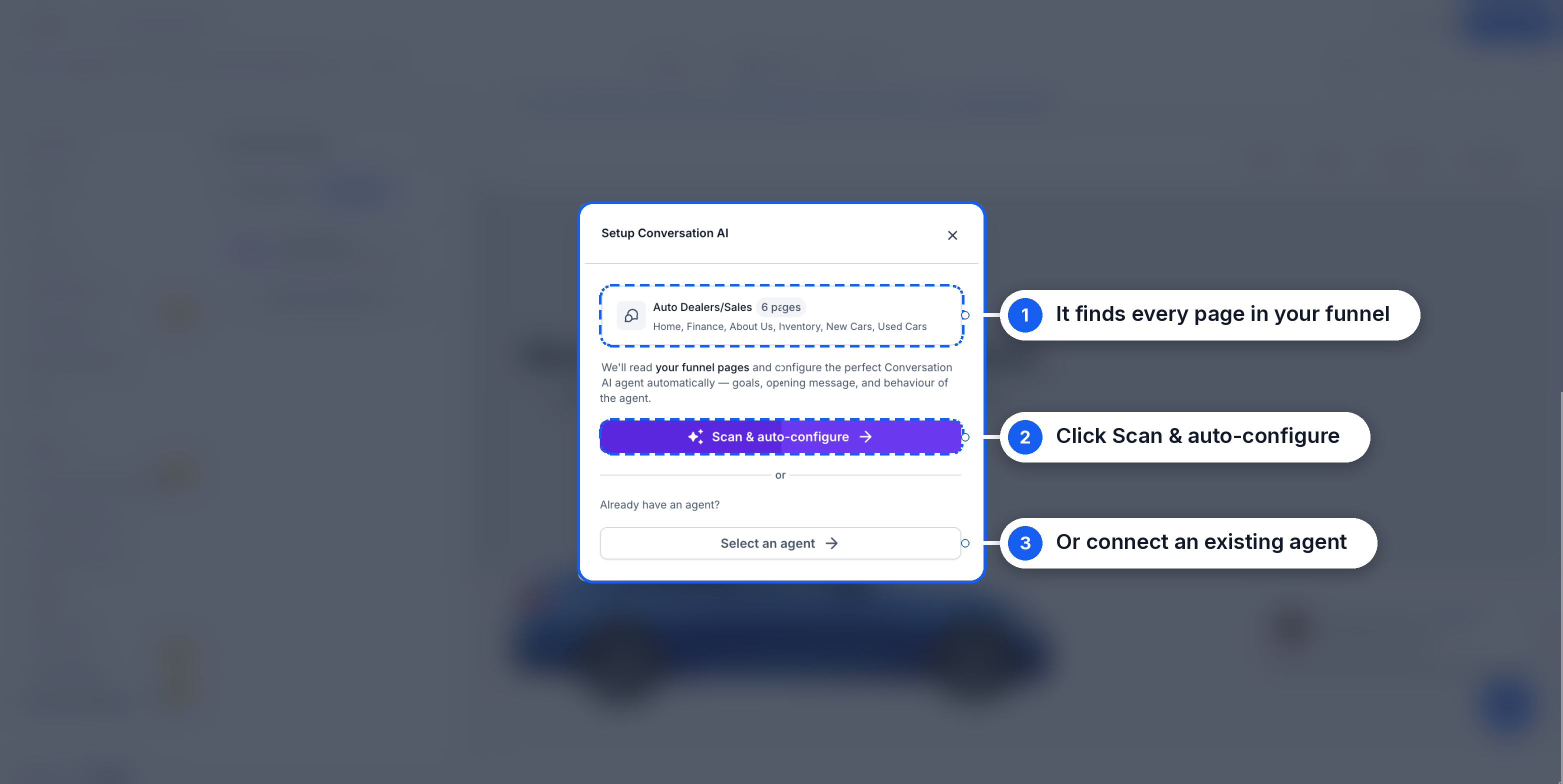
With Scan & auto-configure, Chat To Clients CRM scans the pages in your funnel, identifies your business information, and automatically generates an AI agent with:
Knowledge Base: Content collected from your funnel pages to answer visitor questions.
Personality: A communication style and tone based on your business.
Goals: Objectives that guide the agent's conversations.
Instructions: Behavioral guidelines and relevant business details, such as operating hours.
Opening Message: An automatically generated greeting for visitors.
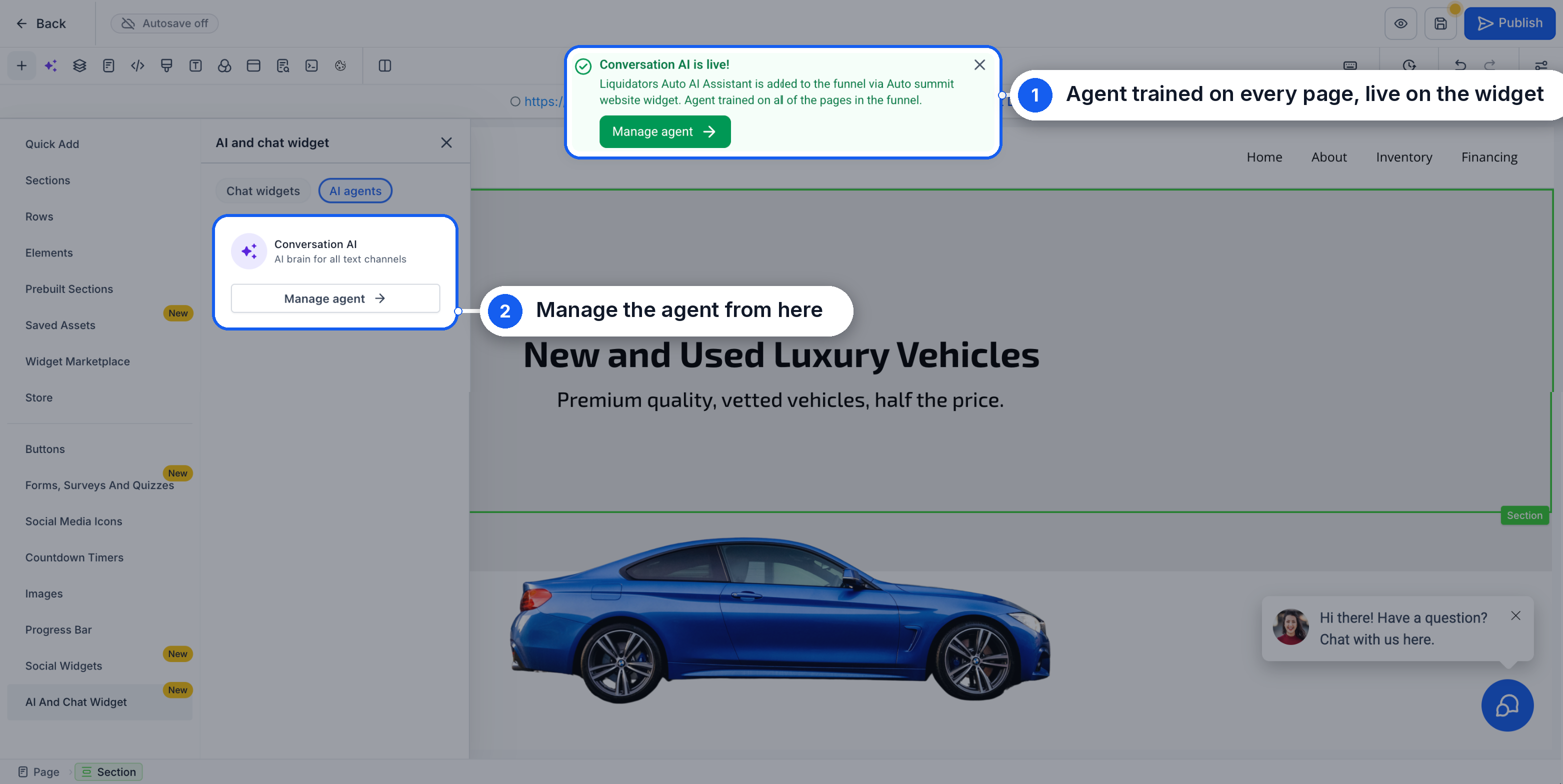
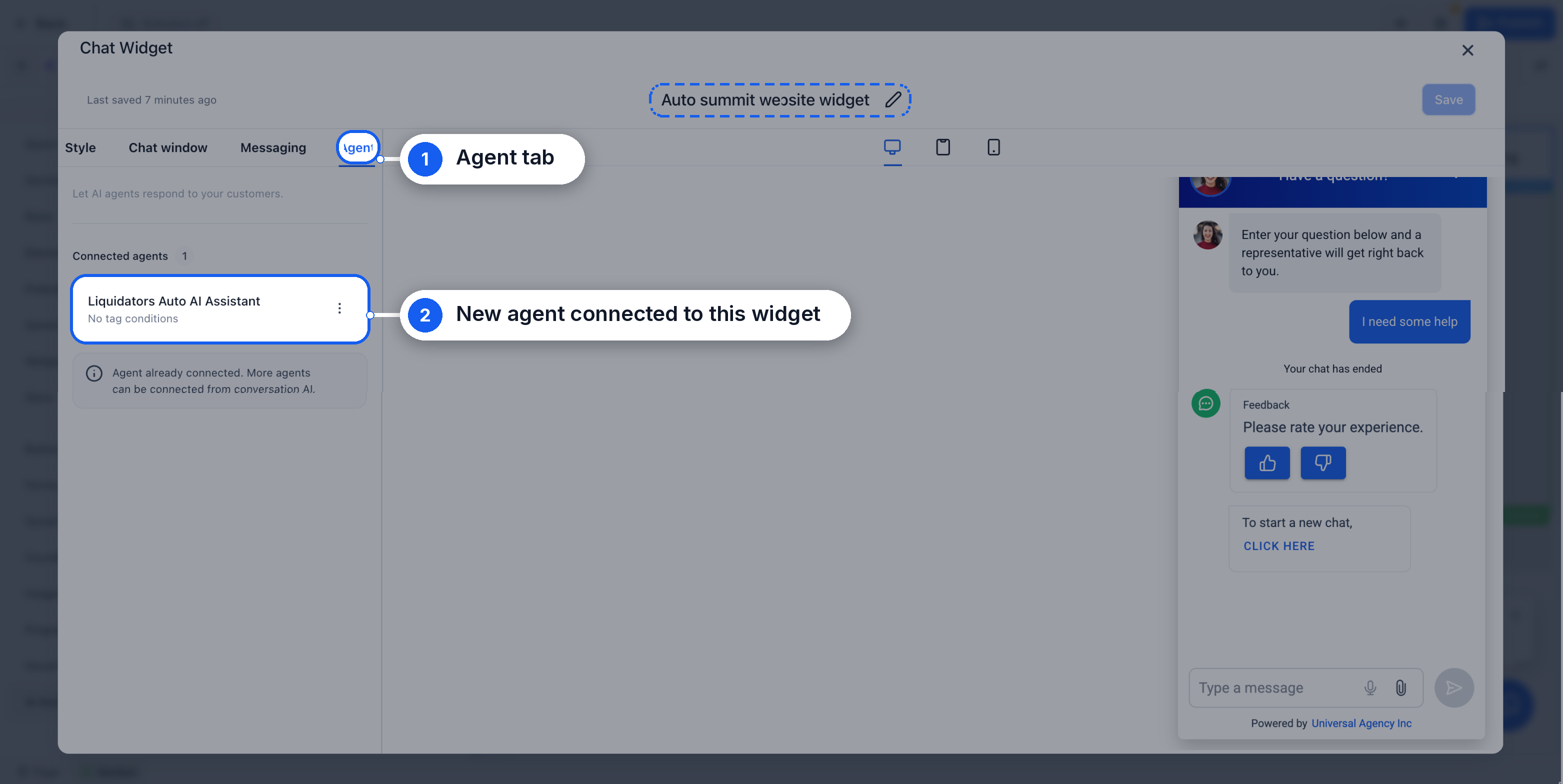
The agent is connected to your selected chat widget when configuration is complete. You can also connect an existing Conversation AI agent instead of generating a new one.
How to Add a Chat Widget and Set Up Conversation AI
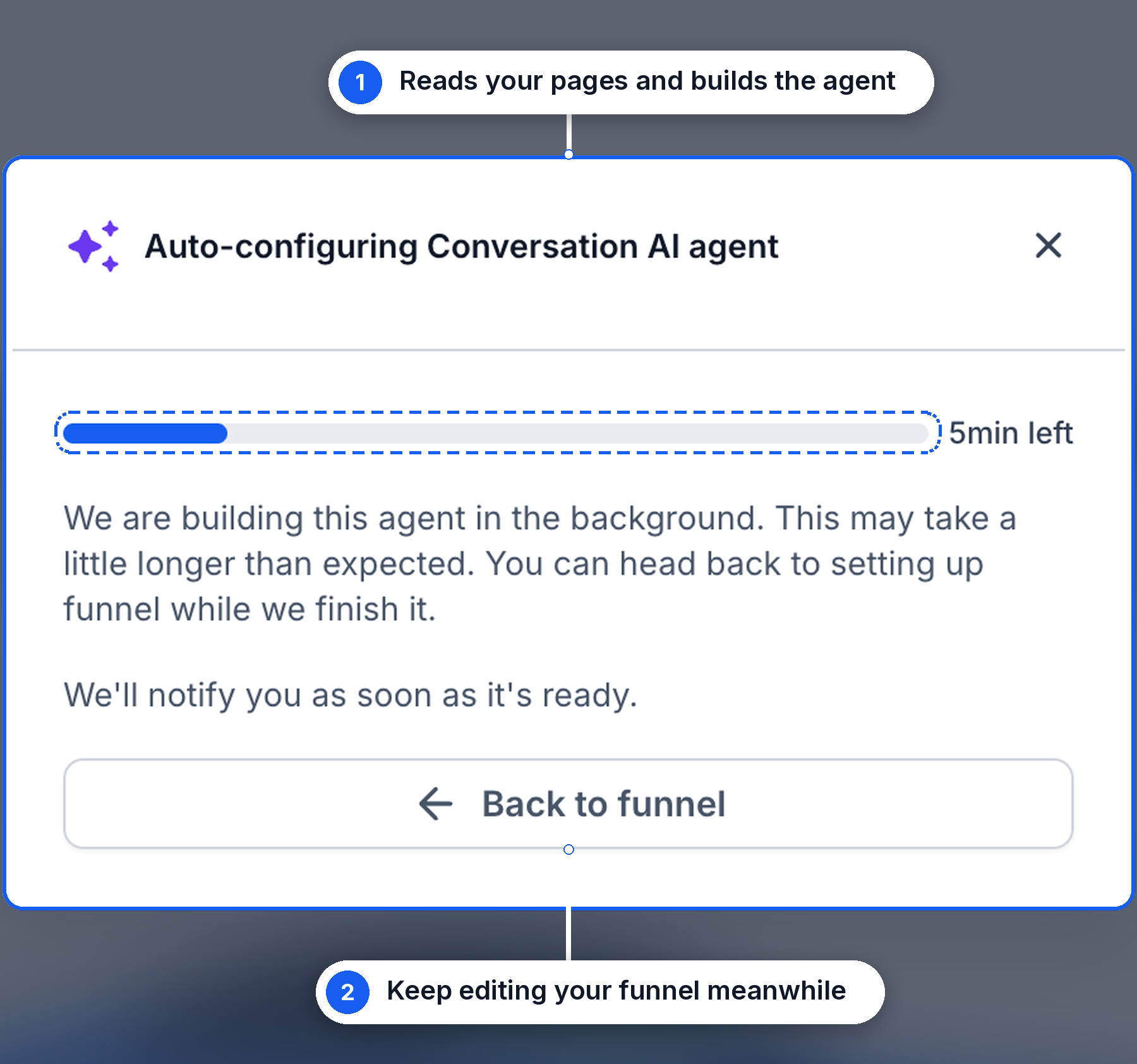
The AI And Chat Widget element lets you add chat widgets and configure Conversation AI without leaving the funnel or website builder. Chat To Clients CRM completes the agent configuration in the background, allowing you to continue editing while the setup runs.
Open your funnel or website in the builder and navigate to Add Elements → AI And Chat Widget.
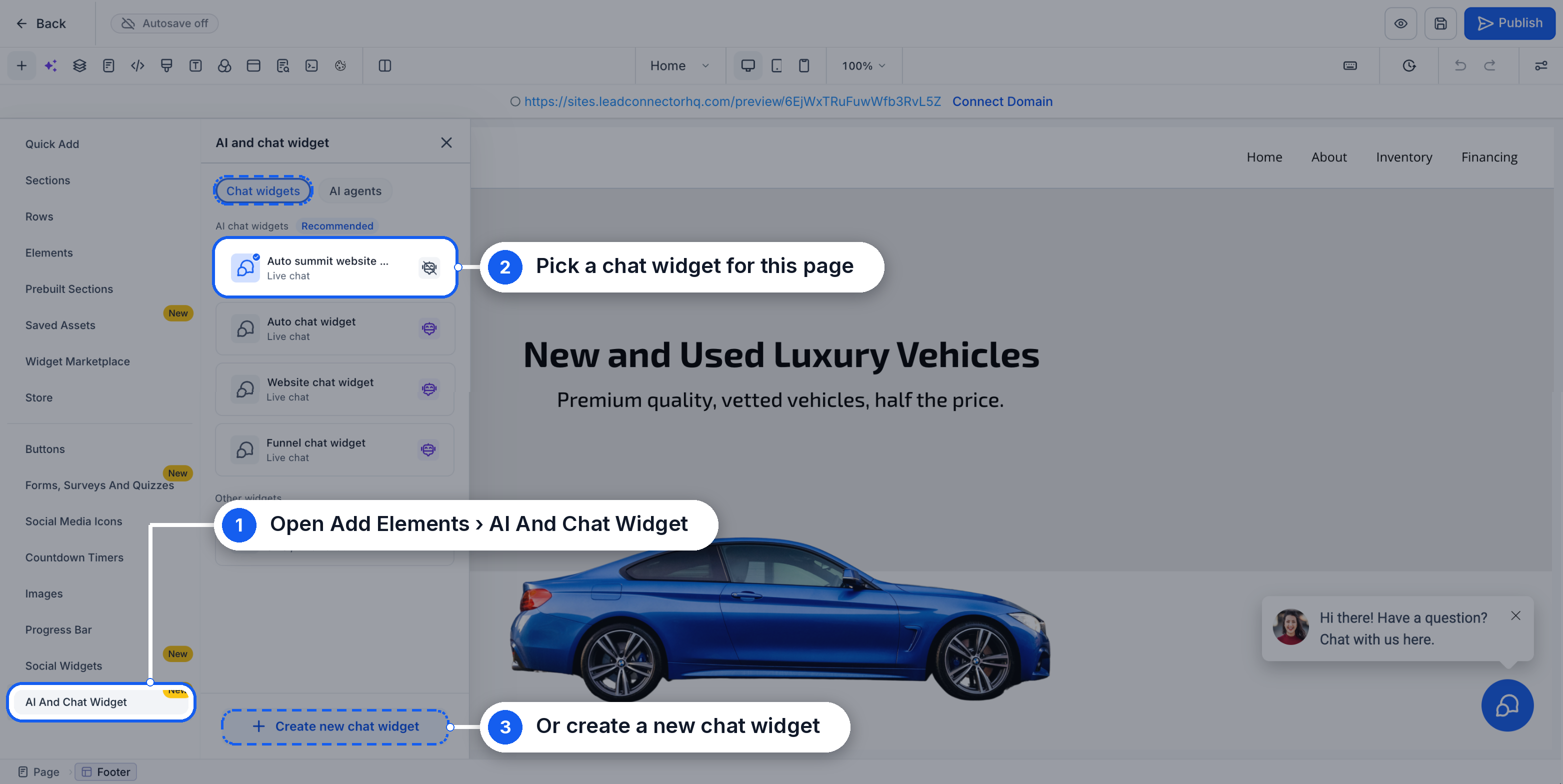
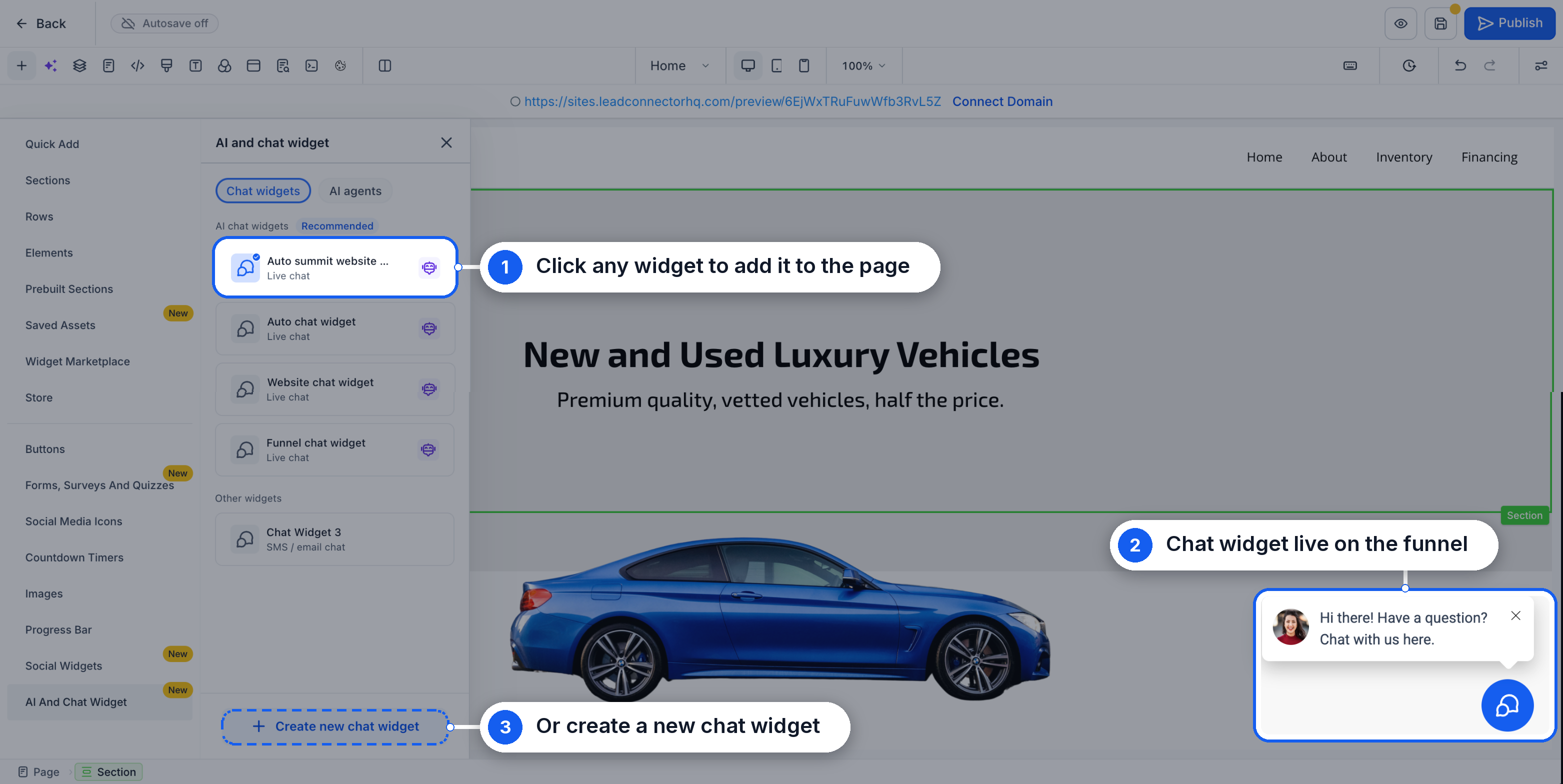
Under the Chat widgets tab, select an existing widget to add it to the page, or click Create new chat widget and select Live Chat to create a widget for Conversation AI. Click a selected chat widget again to remove it from the page.
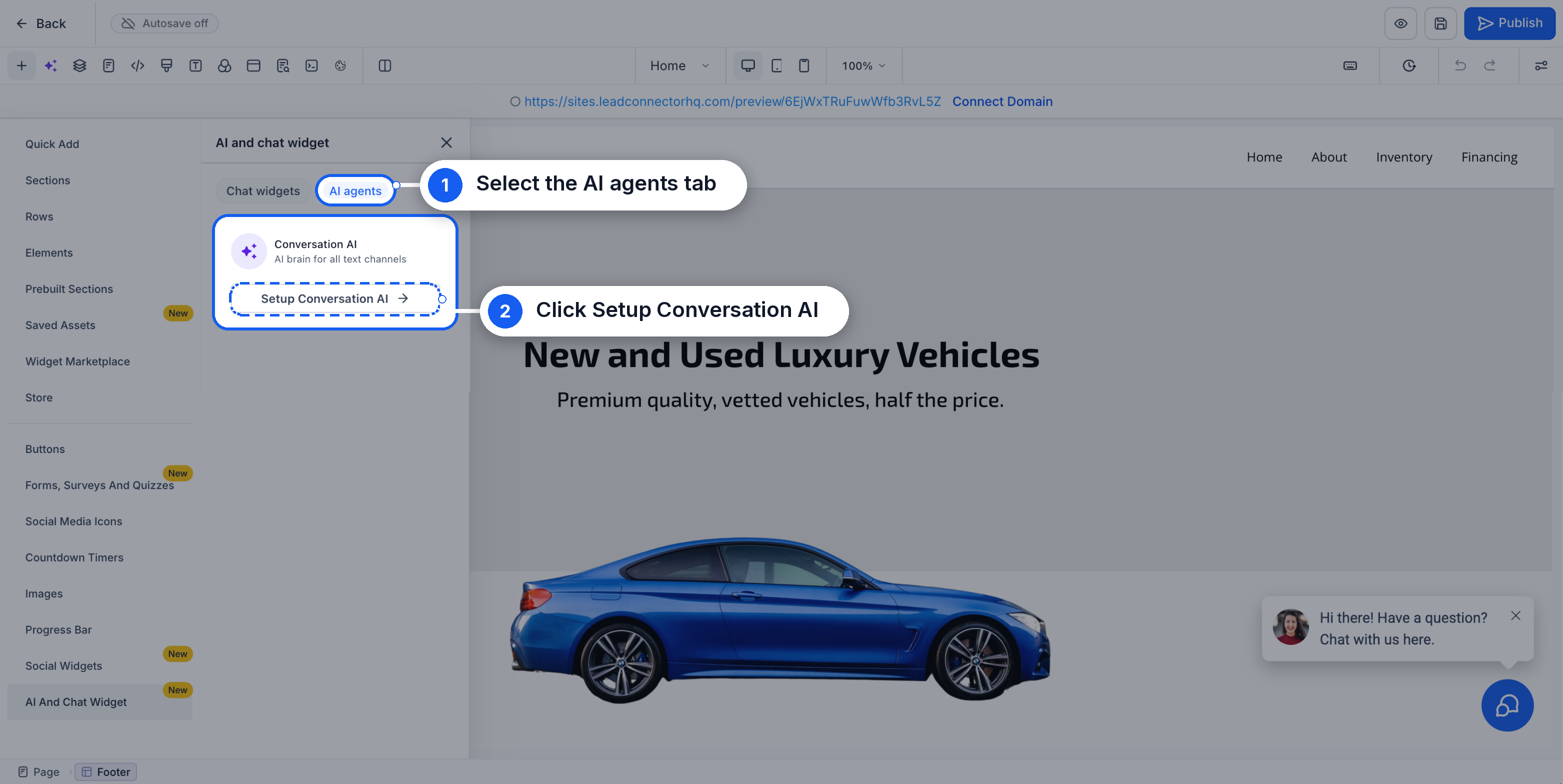
Open the AI agents tab and click Setup Conversation AI. If you already have a Conversation AI agent, you can connect it instead of creating a new one with Scan & auto-configure.
Review the detected funnel pages and click Scan & auto-configure to create a new agent..
Chat To Clients CRM will configure your agent in the background. You can return to the builder and continue editing your funnel while the setup completes.
Once Conversation AI is live! appears, click Manage agent to review the automatically generated configuration.
Review the agent's settings, save any changes, and publish your funnel or website.
Managing Your Conversation AI Agent
After setup, you can review and customize your generated agent to ensure it accurately represents your business. From Manage agent, you can update its personality, goals, instructions, and knowledge base content.
You can also test the agent's responses before publishing your funnel or website and manage its trained content as your business information changes.