
Using Custom CSS and JavaScript with the Custom Navigation
Custom Navigation introduces a redesigned interface that may affect existing custom CSS and JavaScript used to customize the appearance and behavior of Chat To Clients CRM. To prevent compatibility issues, legacy custom code is disabled by default when Custom Navigation is enabled, but your existing code is not deleted.
This article explains how existing CSS and JavaScript are handled in Custom Navigation, how to reuse your custom code, and the known compatibility limitations.
TABLE OF CONTENTS
Custom CSS and JavaScript in the Custom Navigation
Custom CSS and JavaScript are configured at the agency level and normally apply across all sub-accounts. Because Custom Navigation uses a different interface structure, code written for the previous navigation may not work as expected.
To prevent compatibility issues, Chat To Clients CRM automatically disables legacy custom CSS and JavaScript for agency and sub-account views using Custom Navigation. Your existing code is not deleted, and sub-accounts still using the previous navigation remain unaffected.
Agencies can choose to reuse their legacy code through White Label settings, although compatibility is not guaranteed.
Important: Legacy custom CSS and JavaScript are configured at the agency level and cannot be independently disabled for individual sub-accounts through White Label settings.
How to Preview Custom Navigation with Custom CSS
Before enabling Custom Navigation, you can preview how the redesigned interface appears with or without your existing custom CSS.
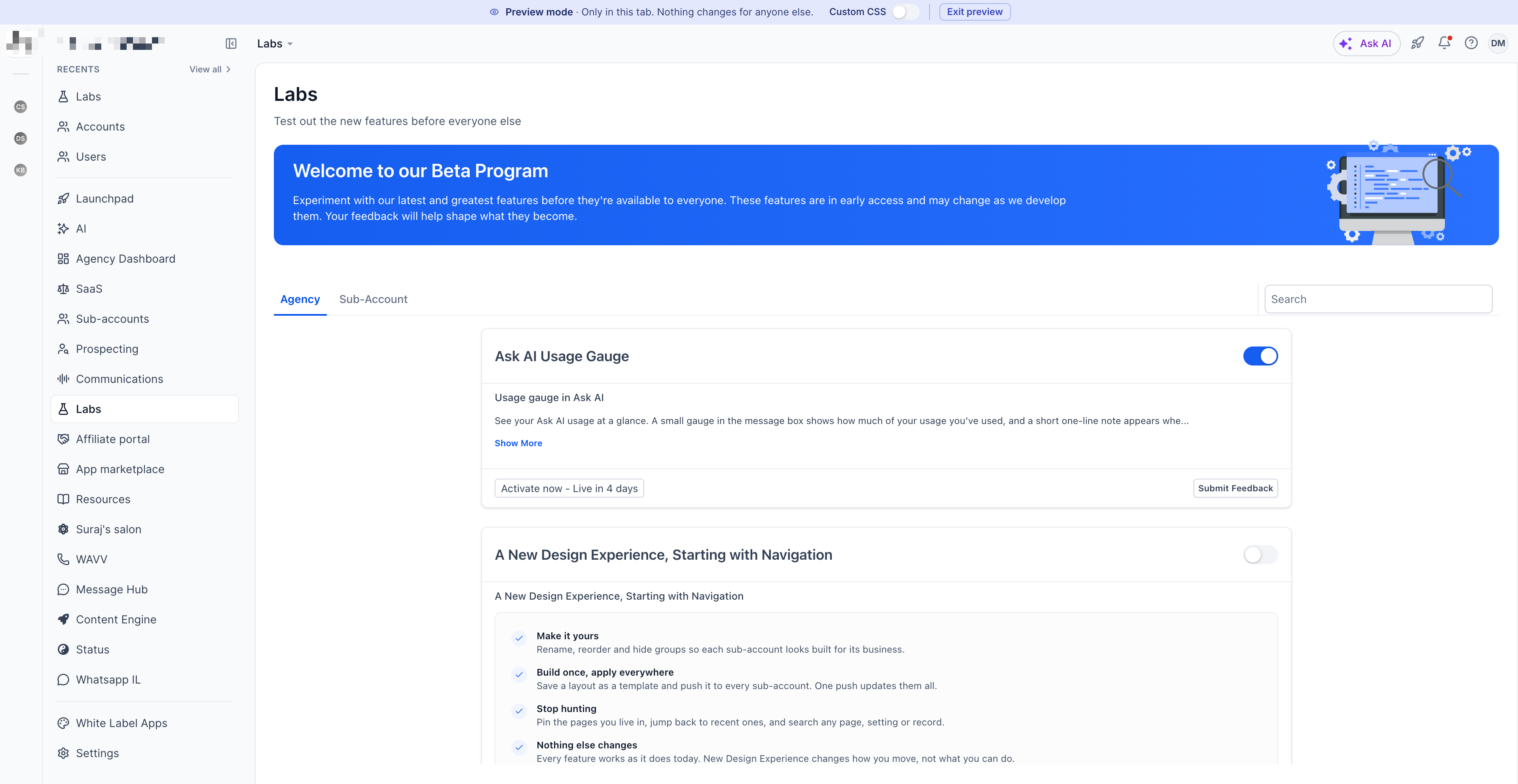
Navigate to Settings > Labs from Agency View or an eligible sub-account.
Locate New Design Experience Starting with Navigation.
Click Preview to open Custom Navigation in a new browser tab.
Use the custom CSS control to compare the interface with your existing styling enabled or disabled.
Review the navigation menu, icons, text, and other elements for potential styling conflicts.
Preview mode does not enable Custom Navigation or change your existing navigation settings.
How to Reuse Legacy Custom CSS and JavaScript
If you want to continue using your existing custom CSS and JavaScript with Custom Navigation, you can enable the legacy custom code option in White Label settings.
Open Agency View.
Navigate to Settings > Company > White Label.
Locate the Custom Navigation section and find the option to reuse legacy custom code.
Enable the toggle to allow your existing custom CSS and JavaScript to run with Custom Navigation.
Note: The legacy custom code option appears when Custom Navigation is enabled. Reusing existing code may affect the appearance or behavior of the redesigned interface. If you encounter compatibility issues, disable the reuse option to stop applying legacy custom code to Custom Navigation.
Known Compatibility Limitations
Because Custom Navigation uses a different interface structure, some custom CSS and JavaScript designed for the previous navigation may not work as intended. The following are known compatibility considerations when reusing legacy custom code.
| Customization | Potential Impact |
|---|---|
| Dark Mode | Custom Navigation does not currently support dark mode. Existing dark-mode CSS may cause navigation text or items to become difficult to read or disappear entirely. |
| Sidebar Styling | Custom CSS that adds or modifies sidebar elements may no longer work correctly because the underlying navigation structure has changed. |
| Custom JavaScript | Scripts that modify or reposition navigation elements may no longer work as expected. Some functionality previously handled through custom scripts, such as pinning navigation items, may now be available natively. |
| Custom Menu Links | Custom menu links continue to work, but CSS or JavaScript used to style or reposition them may not be compatible with the new navigation. |
| Marketplace Apps | Marketplace apps that inject their own CSS or JavaScript may cause styling or layout issues, even when legacy custom code is disabled. |
The legacy custom code toggle only controls CSS and JavaScript configured through your agency's White Label settings. It does not affect code injected by installed Marketplace apps.
If the navigation continues to display incorrectly after disabling legacy custom code, check whether installed Marketplace apps are injecting CSS or JavaScript. Custom Navigation does not currently provide a way to automatically detect or disable app-injected styling.