
How to Create and Edit Files with Ask AI
Ask AI in Chat To Clients CRM lets you create documents, presentations, spreadsheets, and reports using simple instructions. You can upload reference files, apply your business branding, and request changes without switching between applications. Generated files can be previewed, downloaded, or saved to Media Storage. This article explains how to create, edit, and manage files with Ask AI.
TABLE OF CONTENTS
- What is File Generation and Editing in Ask AI?
- Key Benefits of Creating Files with Ask AI
- How to Create and Edit Files with Ask AI
- Supported File Types
- Creating On-Brand Files
- Working with Uploaded Files
- Reviewing Generated Files
- Editing Files and Managing Versions
- Previewing, Downloading, and Saving Files
- Using Scheduled Tasks for Recurring Files
- Frequently Asked Questions
- Related Articles
What is File Generation and Editing in Ask AI?
File generation and editing lets you create downloadable files and work with existing documents using natural-language requests.
For example, you can ask Ask AI to create a six-slide client performance presentation using uploaded campaign data. Ask AI can organize the information, generate charts, and apply available Brand Board settings.
You can then review the presentation, request revisions, and download the finished file.
Note: Downloadable files are different from structured Ask AI responses, such as tables and diagrams displayed directly in chat.
Key Benefits of Creating Files with Ask AI
Ask AI simplifies creating business files by combining content generation, design, and editing in one workflow.
Multiple Formats: Create PDFs, Word documents, PowerPoint presentations, and Excel workbooks.
Brand Consistency: Use available Brand Board colors, fonts, and logos.
File Analysis: Upload documents or data for summarization and analysis.
Research Support: Generate researched content with source references where available.
Automated Review: Check generated pages and layouts during creation.
Easy Editing: Request revisions through chat or by selecting an area in a supported preview.
File Management: Preview, download, or save files to Media Storage.
Recurring Tasks: Use supported Scheduled Tasks for repeatable file-generation requests.
How to Create and Edit Files with Ask AI
Clear instructions and relevant source material help Ask AI generate files that match your requirements.
Step 1: Open Ask AI
Open Ask AI in Chat To Clients CRM.
Start a new conversation.
Step 2: Request a File
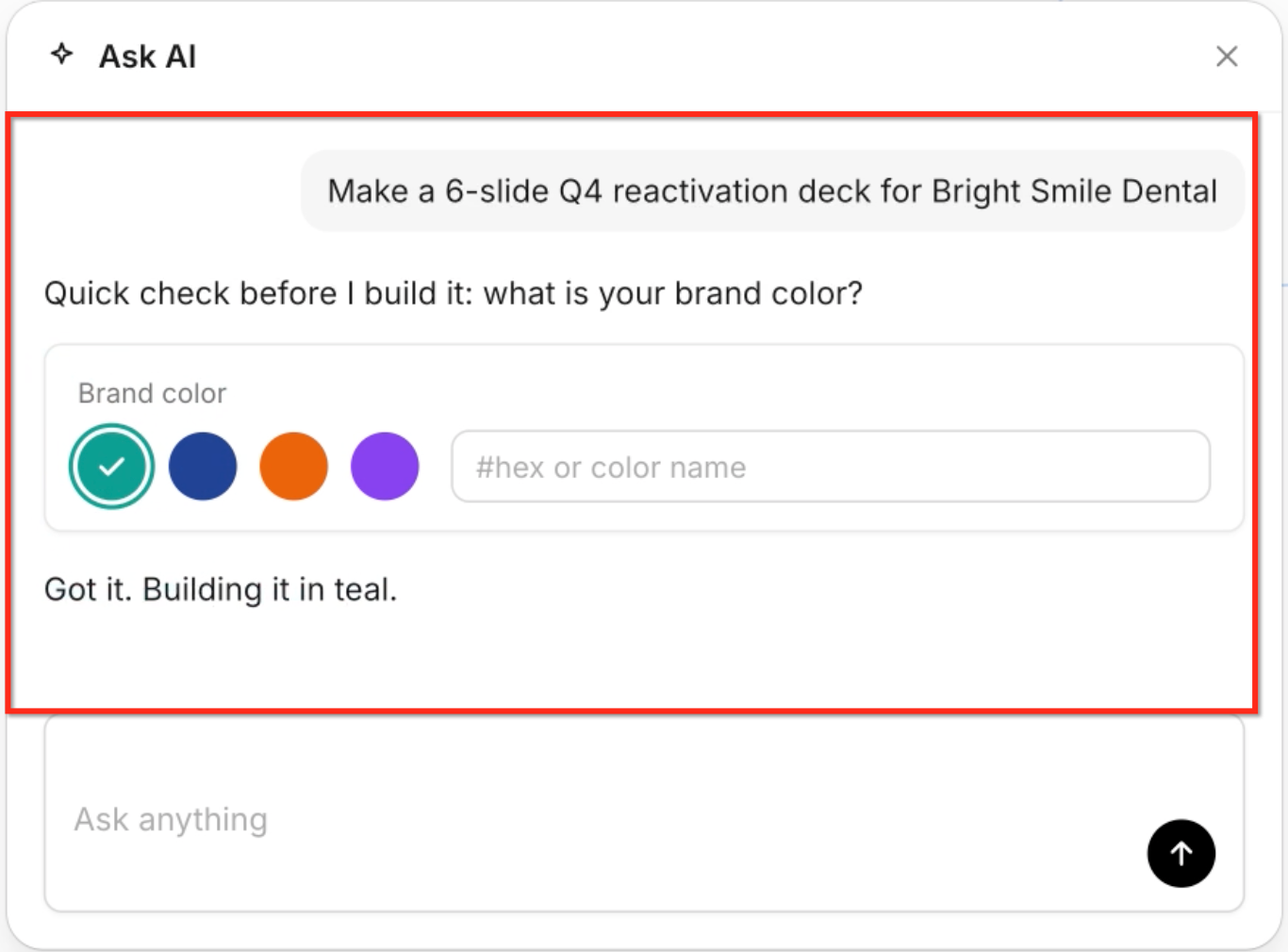
Describe the file you want.
Specify the format, topic, and intended audience.
Include any content or design requirements.
Submit your request.
Example prompt:
Step 3: Upload Supporting Files
Attach the supported documents or data files.
Explain how Ask AI should use them.
Request any necessary analysis.
For example, upload a campaign CSV and ask Ask AI to calculate performance metrics for the presentation.
Step 4: Confirm Branding and File Details
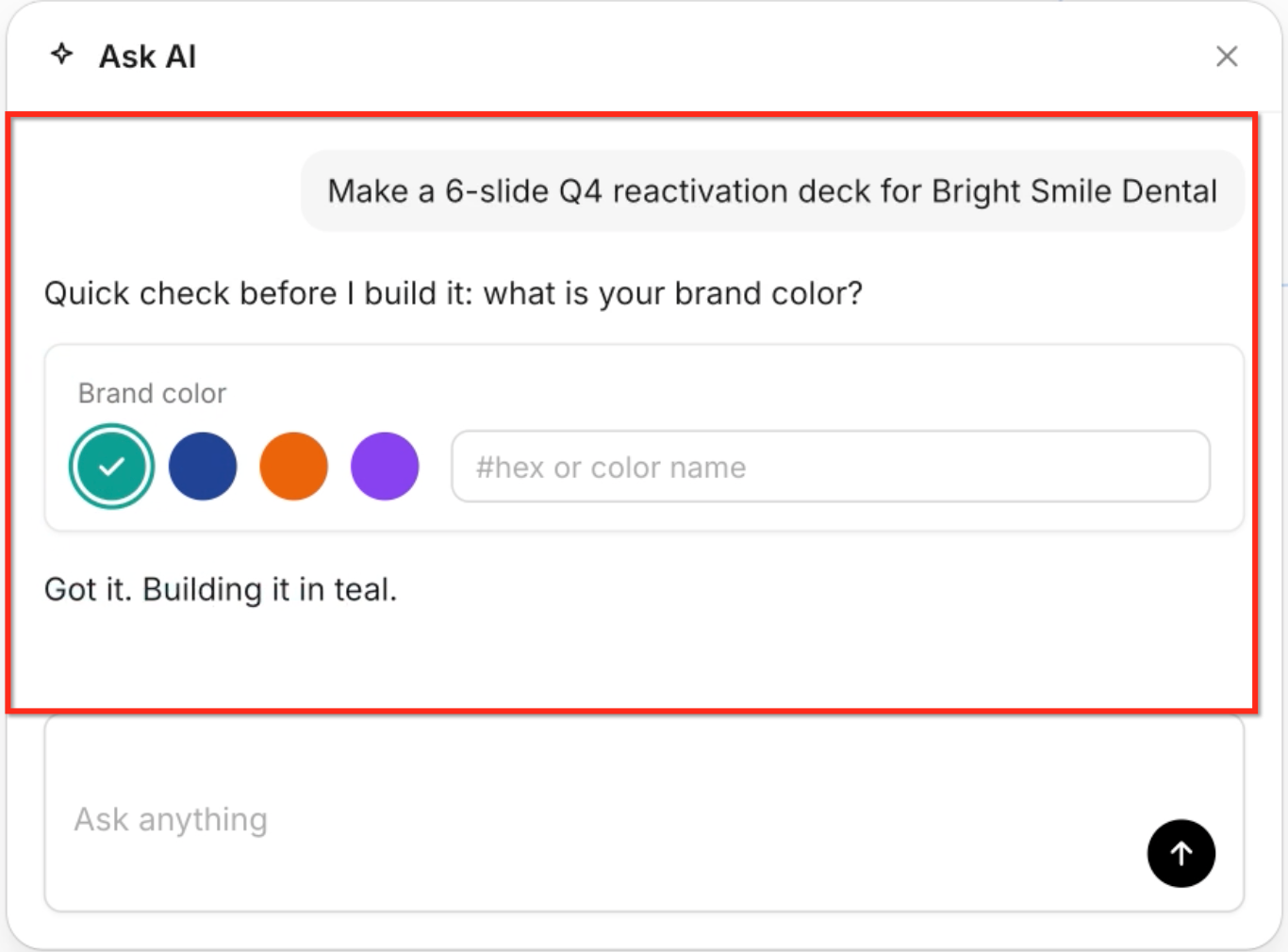
Review any questions Ask AI asks.
Confirm the format and content requirements.
Provide branding details when prompted.
Continue with file generation.
Step 5: Review the Generated File
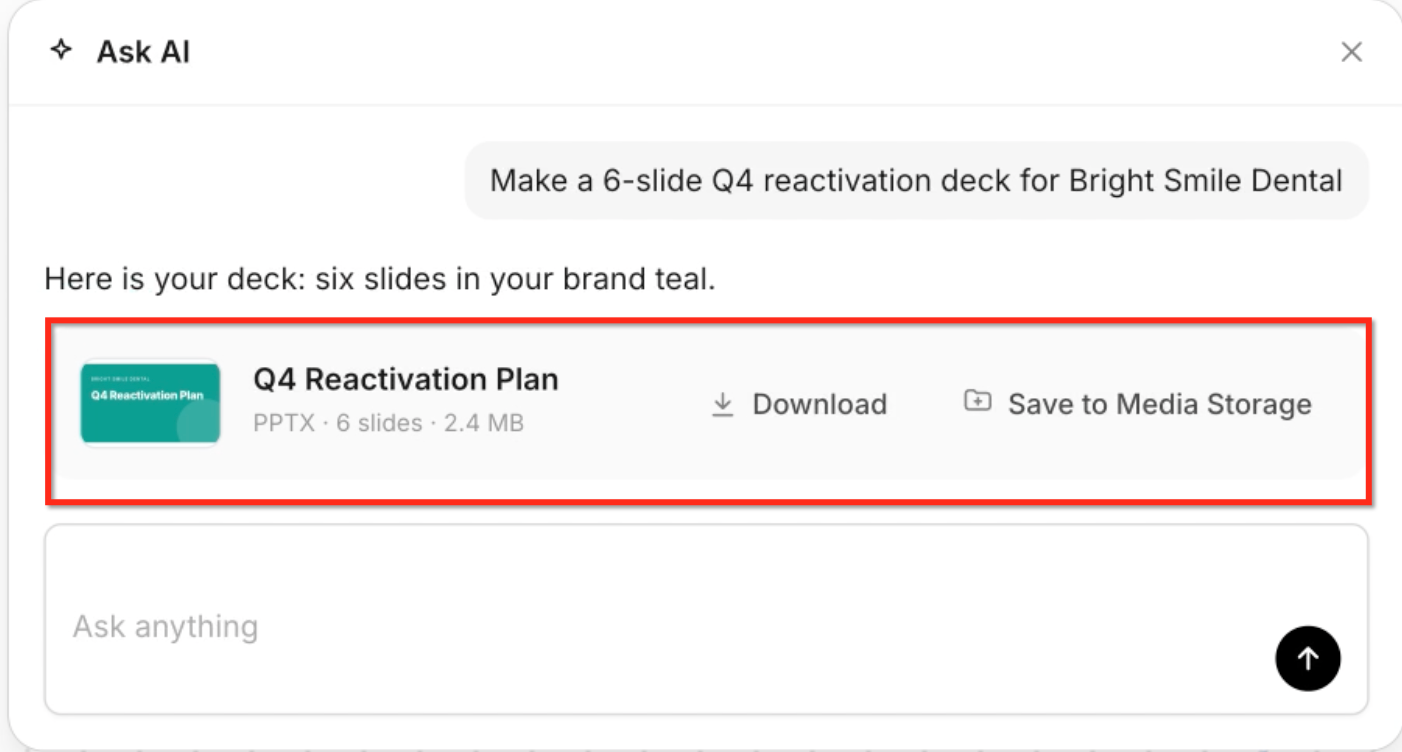
Open the generated file card.
Click Preview.
Review the content, layout, and visuals.
Verify important information and calculations.
Step 6: Request Revisions
Describe the changes you want in Ask AI.
If supported, select an area in the preview.
Enter your revision request.
Review the updated file.
Step 7: Download or Save the File
Open the completed file card.
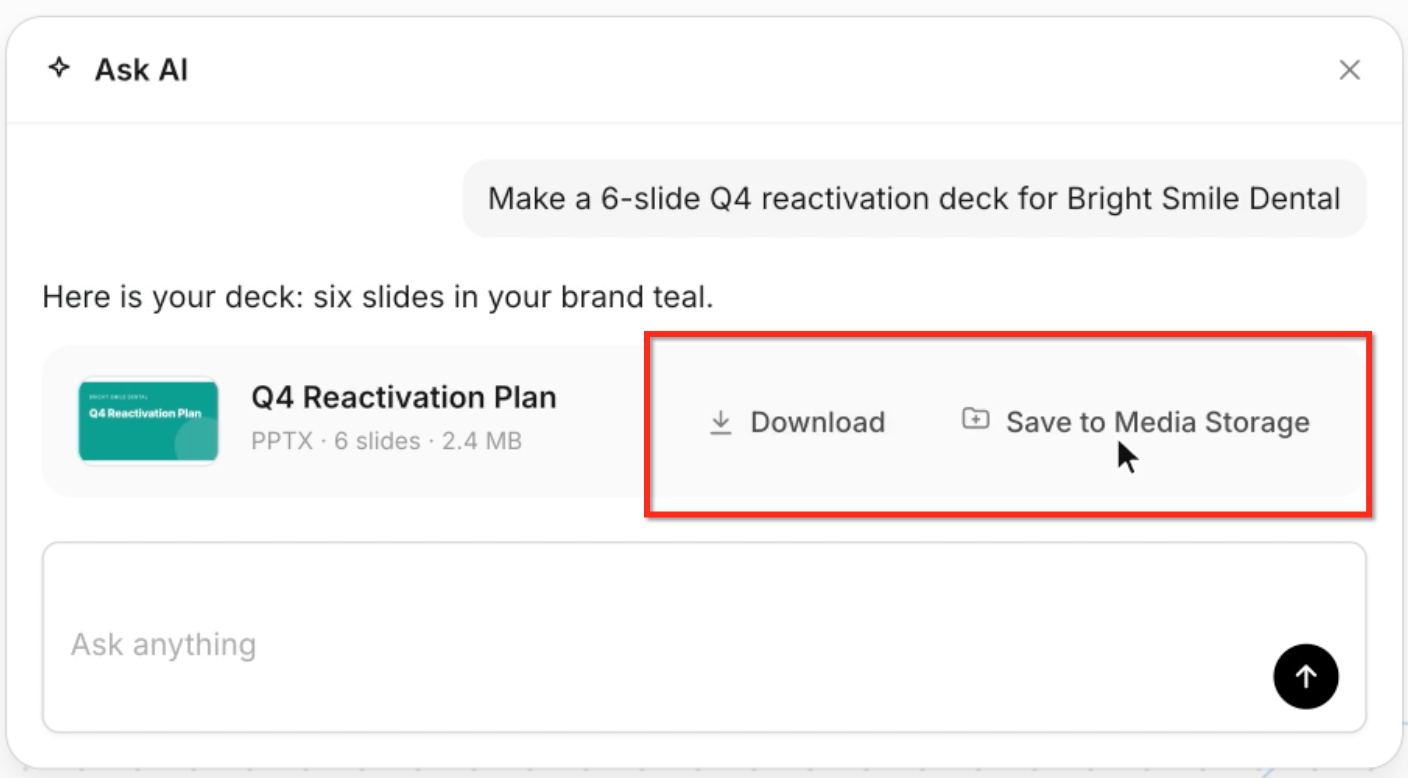
Click Download to save the file locally.
Alternatively, click Save to Media Storage.
Confirm the save action if prompted.
Supported File Types
Ask AI supports creating common business files and working with uploaded content. Available operations may differ by format.
| File Type | Common Use |
|---|---|
| Reports and shareable documents | |
| Word | Editable documents and proposals |
| PowerPoint | Presentations and pitch decks |
| Excel | Budgets and data workbooks |
| Images | Visual references |
| CSV | Tabular data |
| Markdown | Structured text |
| Text | Notes and reference material |
| JSON | Structured data |
Important: Supported upload, generation, and editing operations may vary. Not every format is necessarily available for every action.
Creating On-Brand Files
Ask AI can use available Brand Board settings to help generated files match your business identity.
Supported branding information described in the release includes:
Brand colors
Fonts
Logos
Visual styling for charts and diagrams
Ask AI may request additional details, such as a preferred brand color, before generating a file.
For Brand Board setup instructions, see How to Create a Brand Board.
Working with Uploaded Files
Uploaded documents and data provide information Ask AI can use to create or update files.
Depending on the supported format, you can ask Ask AI to:
Summarize documents.
Search for information within uploaded files.
Analyze CSV or spreadsheet data.
Create reports from existing information.
Prepare revised files based on uploaded content.
For example, upload a campaign CSV and ask Ask AI to create a presentation summarizing the results.
Important: Review sensitive files before uploading them and confirm that you are authorized to use the information.
Reviewing Generated Files
Ask AI can organize file creation into stages such as planning, writing, building, and reviewing.
The release describes an automated review process that checks generated pages before delivery.
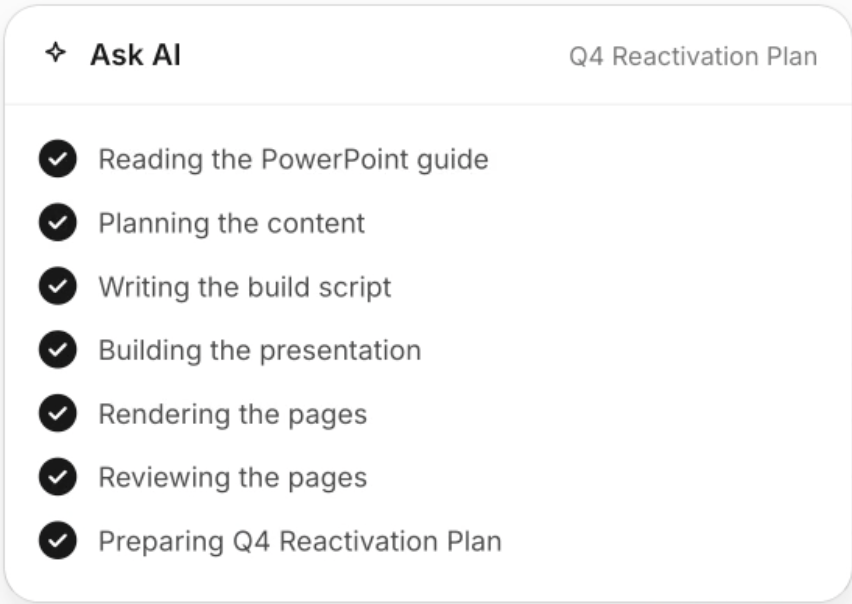
Generated files may include charts, diagrams, formulas, or source links when relevant.
Important: Review important facts, calculations, formulas, citations, and formatting before sharing a file. Automated checks do not guarantee complete accuracy.
Editing Files and Managing Versions
You can request changes to a generated file without recreating it from the beginning.
Edit Through Chat
Describe the changes you want, such as:
Shorten the introduction.
Update a presentation headline.
Replace chart data.
Adjust formatting.
Edit a Selected Area
For supported previews, select part of the file and describe the change.
For example, select a presentation headline and ask Ask AI to make it shorter.
Previewing, Downloading, and Saving Files
Generated file cards provide access to completed files.
Available actions include:
Preview: Review the generated file.
Download: Save a copy to your device.
Save to Media Storage: Store the file in Chat To Clients CRM.
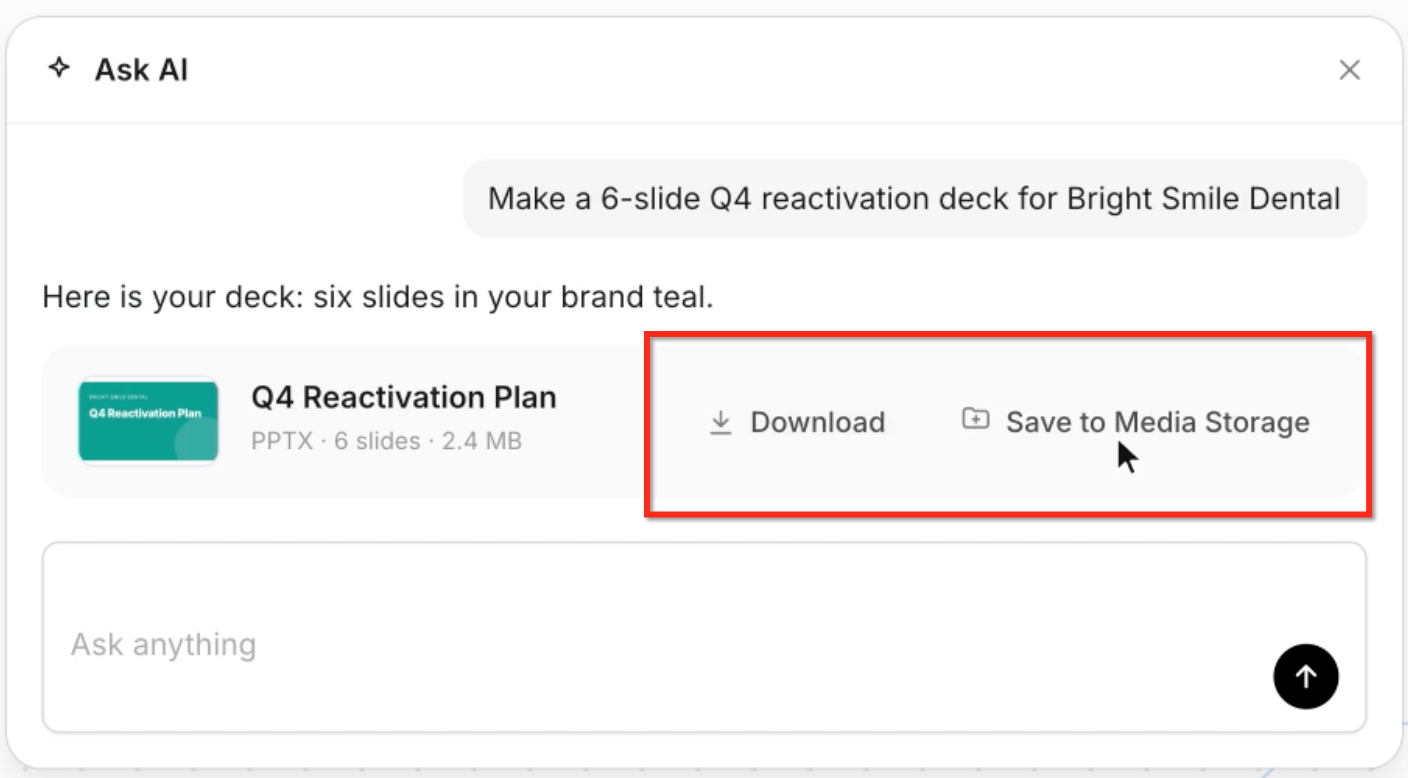
For more information, see How to Access and Manage Media Storage Using Ask AI.
Using Scheduled Tasks for Recurring Files
Scheduled Tasks can automate recurring Ask AI requests, such as preparing monthly business reports.
For example, you can schedule a prompt to create a monthly performance summary using available information.
Scheduled Tasks supports recurring prompts and task-run history.
Note: Confirm that file generation is supported for your scheduled workflow. Automatic file delivery and Media Storage saving should not be assumed.
For setup instructions, see How to Use Scheduled Tasks in Ask AI to Automate Prompts.
Frequently Asked Questions
Q: What files can Ask AI create?
A: The release describes PDF, Word, PowerPoint, and Excel generation. Other supported file categories may be available for analysis or related operations.
Q: Can I upload an existing document?
A: Yes. Ask AI can use supported uploaded files for summarization, analysis, or preparing new content.
Q: Can Ask AI apply my Brand Board?
A: Yes. Ask AI can use available branding information, including colors, fonts, and logos. Additional confirmation may be required.
Q: Can Ask AI research content for a report?
A: Yes. The release describes researched content with clickable source links. Review important claims and sources before sharing the file.
Q: Can Ask AI create spreadsheets with formulas?
A: The release describes generating Excel workbooks with editable formulas. Verify important calculations before relying on them.
Q: Can I edit a file after generating it?
A: Yes. Request changes through chat or select an area in a supported preview.
Q: Can I access earlier file versions?
A: The release describes versioned revisions. The exact controls for accessing earlier versions require confirmation.
Q: Where can I save generated files?
A: Use the file card to download the file or select Save to Media Storage.
Q: Can I generate recurring reports?
A: Scheduled Tasks supports recurring Ask AI prompts. Confirm the available file-generation and delivery options for your workflow.
Q: Does Ask AI guarantee that generated files are accurate?
A: No. Ask AI performs automated checks, but important facts, calculations, and formatting should still be reviewed.