
How to Use the New WordPress Site Menu
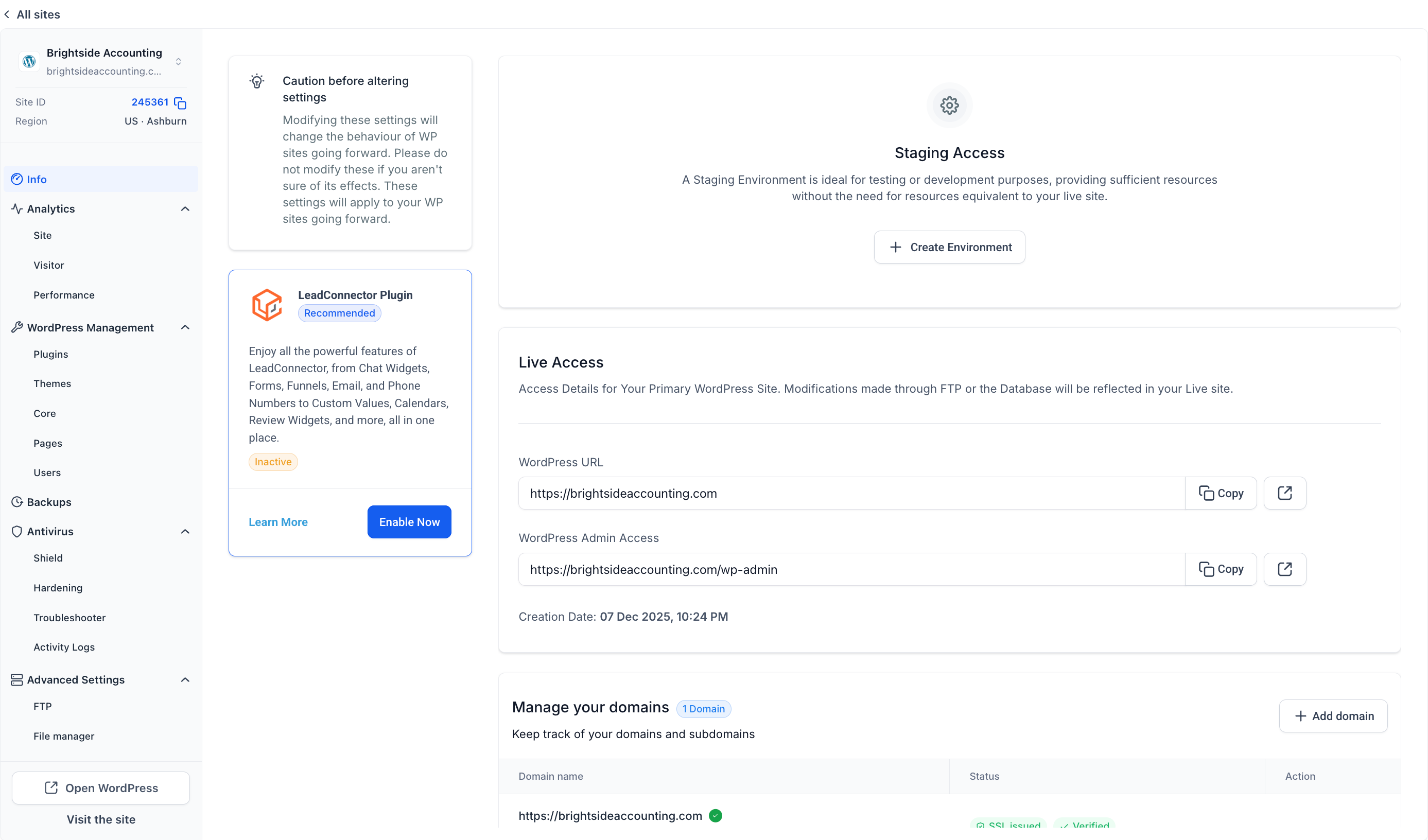
Find every tool for your WordPress site in one place. Each site now opens to a single page with a menu on the left that groups every tool by what it does, and the sites list shows the key numbers for every site in one table. This guide covers how to open a site, what is in each menu group, how to switch between sites and how to use the sites list.
TABLE OF CONTENTS
- What is the WordPress Site Menu?
- Key Benefits of the New Site Menu
- How to Open a Site
- What is in Each Menu Group
- How to Switch Between Sites
- How to Use the Sites List
- Frequently Asked Questions
- Related Articles
What is the WordPress Site Menu?
The site menu is the panel on the left of every WordPress site page. The site name, address, Site ID and region sit at the top. Below them, every tool for the site is grouped into sections, and Open WordPress and Visit the site sit at the bottom.
Key Benefits of the New Site Menu
- Everything in one place: Every tool for the site is one click away from the same page.
- Grouped by what you want to do: Analytics, site management, backups, security and advanced settings each have their own group.
- Switch sites quickly: Jump to another site from the top of the menu without going back to the list.
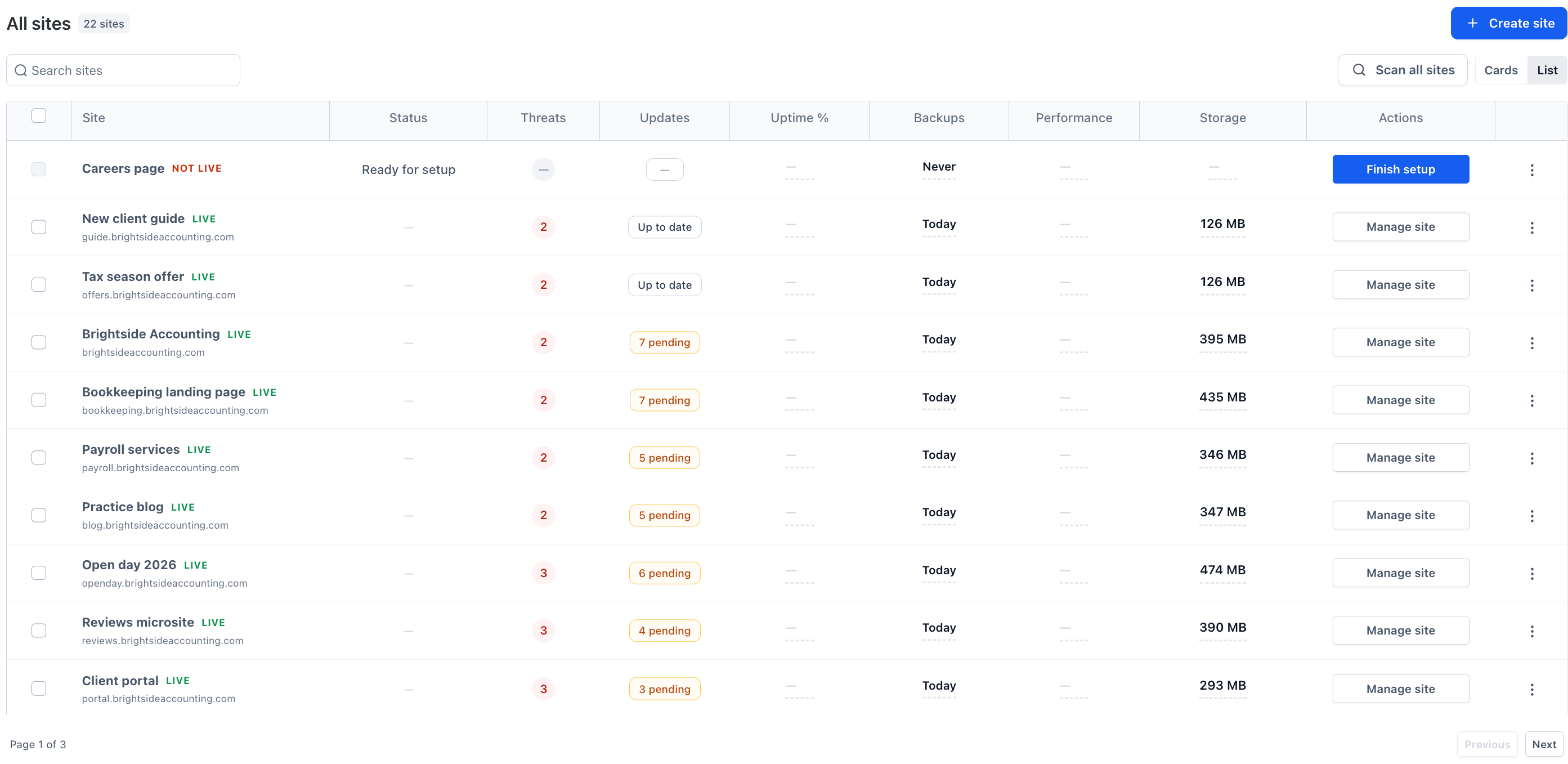
- See every site at a glance: The sites list shows status, threats, updates, uptime, backups, performance and storage for each site.
How to Open a Site
- Go to Sites.
- Click on WordPress.
- Find your site and click Manage site. The site opens on Info.
Note: A site that is not set up yet shows Finish setup instead of Manage site.
What is in Each Menu Group
- Info: The site at a glance, with live access, staging and domains.
- Analytics: Site, Visitor and Performance.
- WordPress Management: Plugins, Themes, Core, Pages and Users.
- Backups: Your site backups.
- Antivirus: Shield, Hardening, Troubleshooter and Activity Logs.
- Advanced Settings: FTP, File manager, Cache management, Search and replace, WordPress debugging, Server settings and Delete site.
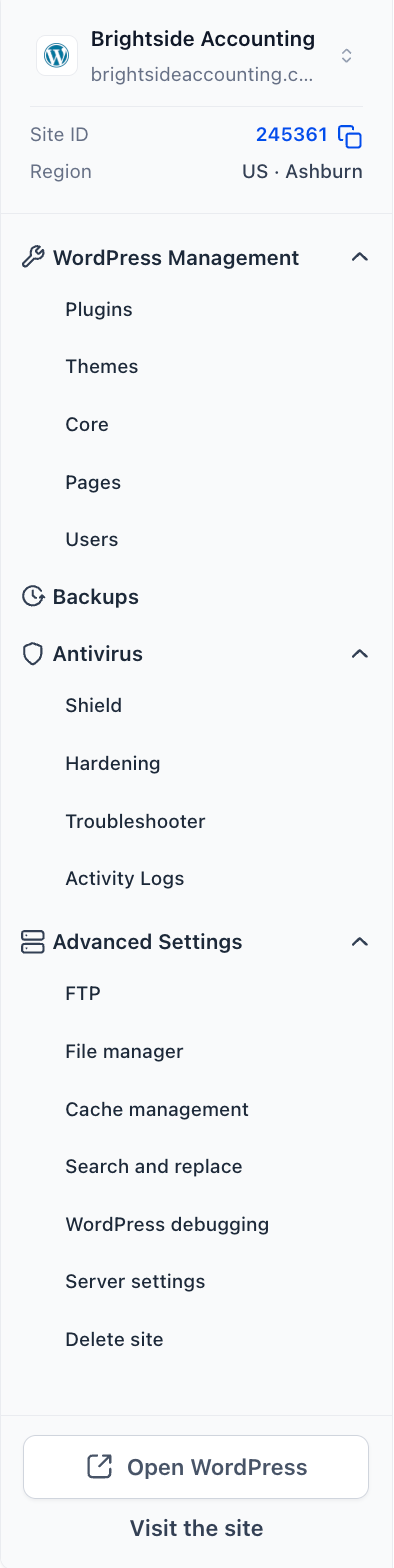
Note: The Troubleshooter and Activity Logs now sit in the Antivirus group. They work as before.
Each group can be collapsed or expanded with the arrow next to its name.
How to Switch Between Sites
- Click the arrows next to the site name at the top of the menu.
- Search for a site, or pick it from the list.
- The site opens on the same page layout.
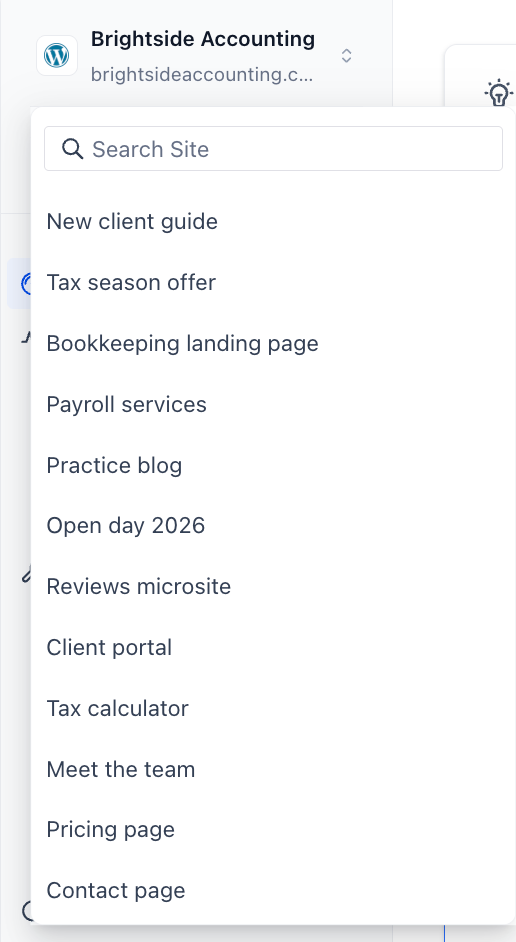
To go back to all your sites, click All sites at the top of the page.
How to Use the Sites List
- Go to Sites → WordPress.
- Use Search sites to find a site by name.
- Switch between List and Cards to change how sites are shown.
- Check the columns for each site: Status, Threats, Updates, Uptime %, Backups, Performance and Storage.
- Use the action button on each row, for example Manage site or Finish setup.
- Use Previous and Next to move between pages.
Frequently Asked Questions
Q: Where did the Troubleshooter and Activity Logs go?
They are in the Antivirus group of the site menu, next to Shield and Hardening.
Q: How do I get to WordPress admin from the site page?
Click Open WordPress at the bottom of the site menu.
Q: How do I see my live site?
Click Visit the site at the bottom of the site menu.
Q: How do I copy my Site ID?
Click the copy icon next to the Site ID at the top of the site menu.
Q: Did any of my settings change?
No. Only where things sit in the menu has changed. Your sites and their settings are the same.
Related Articles
- How to Use Antivirus for WordPress Sites
- How to Use the WordPress Plugin Troubleshooter
- WordPress Access & Activity Logs