
Use Association Labels to Define Contact Roles in Companies
Association labels describe a Contact's role within a Company, such as Employee, Billing contact, or Decision maker. Create the roles your business needs, apply them to Contact and Company relationships, and use them to identify stakeholders or select Contacts for Company emails.
TABLE OF CONTENTS
What are Contact Association Labels
Association labels define the relationship between a Contact and a Company. They help your team identify each person's responsibilities and understand how records are connected.
You can configure association labels in the following ways:
Single label: Use the same label when viewing the relationship from either record.
Paired labels: Name each side separately. For example, use Employer for Companies and Employee for Contacts.
Multiple roles: Apply more than one label to the same Contact and Company when a person has several responsibilities.
Primary Company: Keep this built-in relationship for the Contact's main Company. Custom association labels can be used alongside it.
For example, you can create a Billing contact label for someone responsible for payment communication or a Decision maker label for someone involved in proposals and account reviews. If a Contact has both responsibilities, you can assign both labels to the same relationship.
How to Create an Association Label
Create association labels to define how Contacts and Companies are related. You can choose whether the label appears the same on both records or uses a different name for each side of the relationship.
Go to Settings > Objects, open Companies or Contacts, and select Associations.
Click Create association. From Companies, select Contacts as the other object; from Contacts, select Companies.
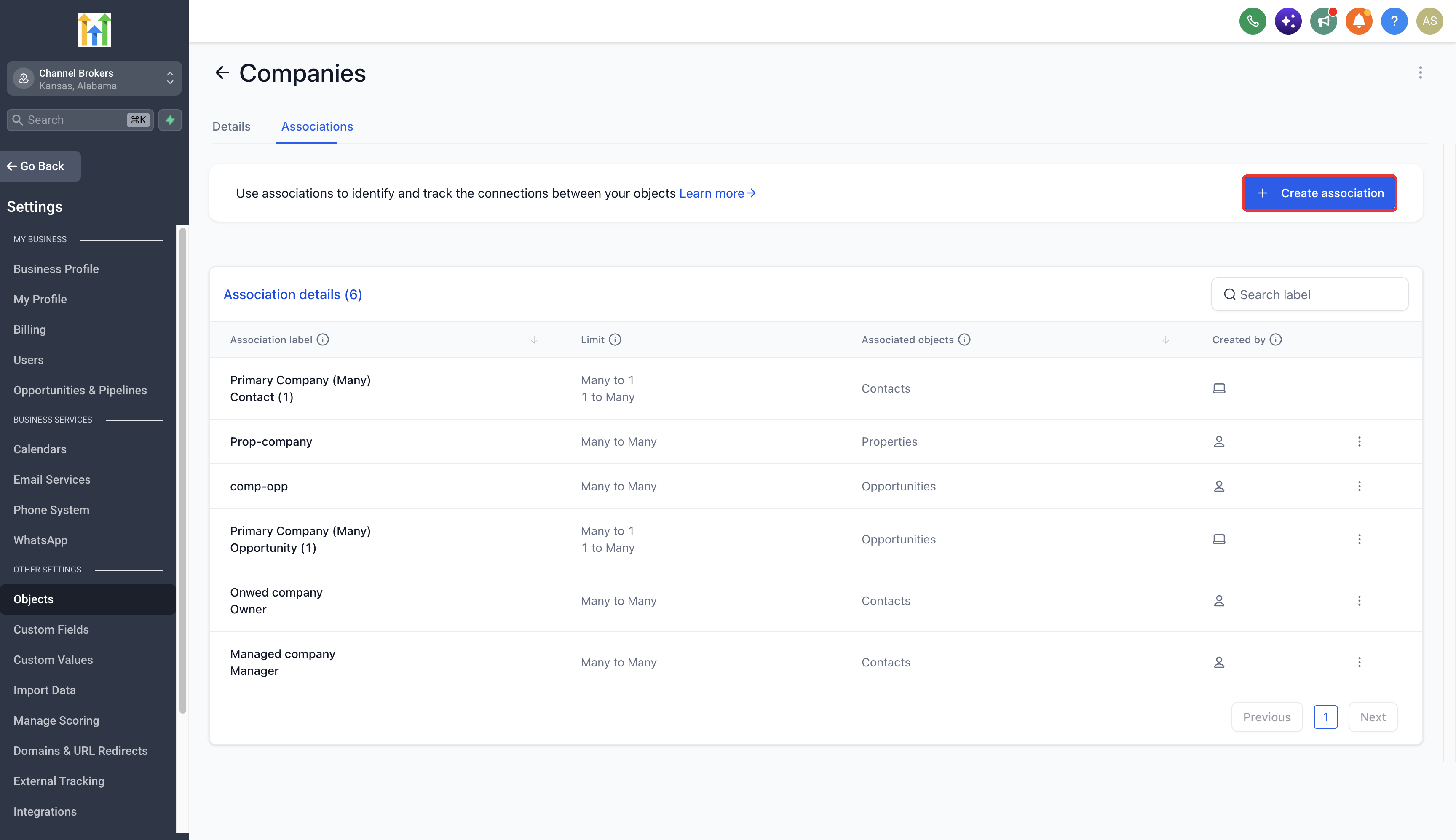
Choose A single label or A pair of labels and enter the label names.
Configure the relationship limits in both directions and review the preview.
Click Save.
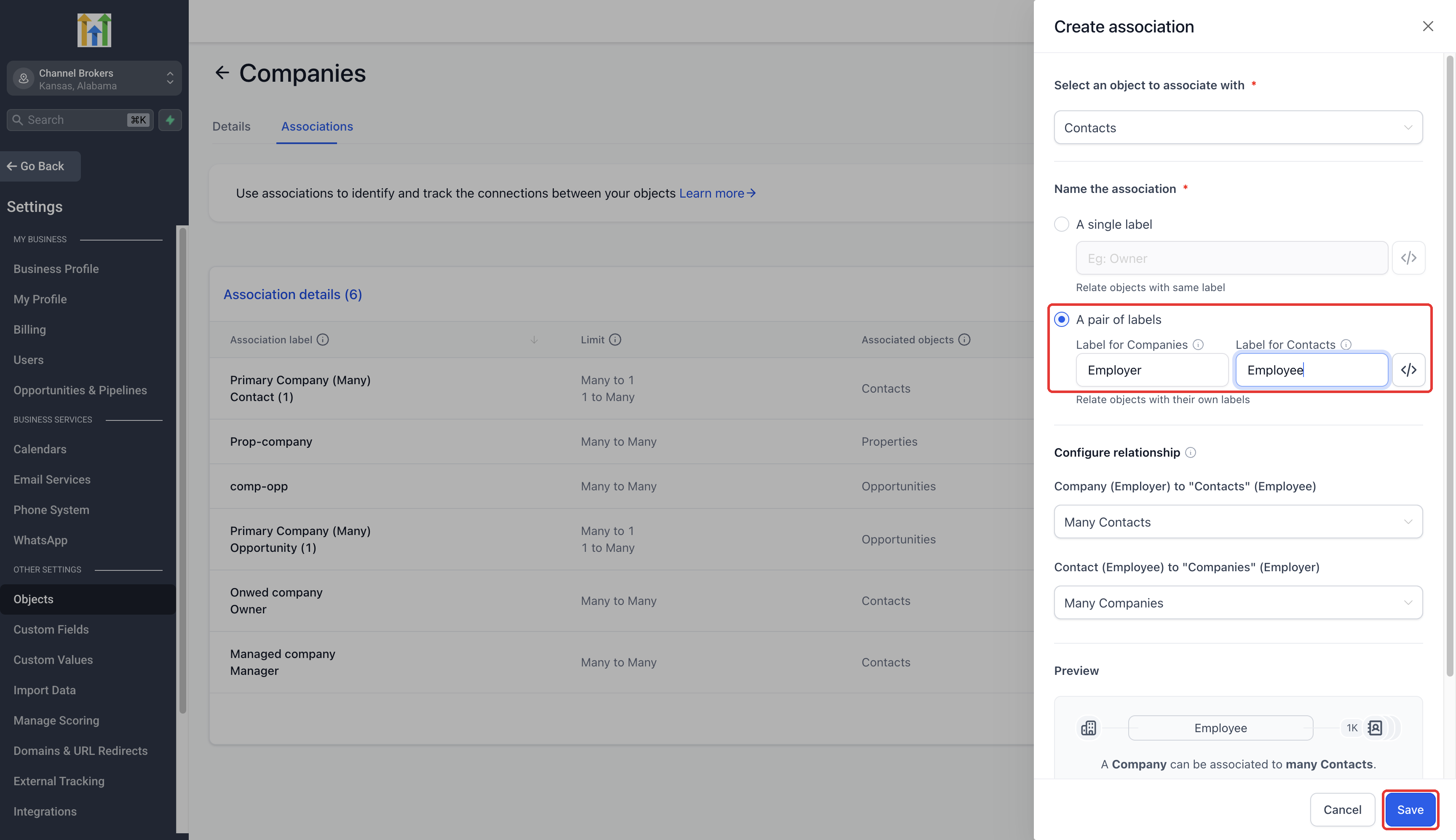
Association limits determine how many records can be linked under an association. Once a configured limit is reached, additional associations beyond that limit are prevented.
The system-defined Primary Company relationship cannot be converted into a custom label. Create custom labels alongside it instead.
How to Assign Association Labels to Contacts
Once you've created association labels, you can apply them when linking Contacts to Companies. This helps your team identify each Contact's role directly from the associated records.
Open a Company record and select Associations.
Click Add next to Contacts.
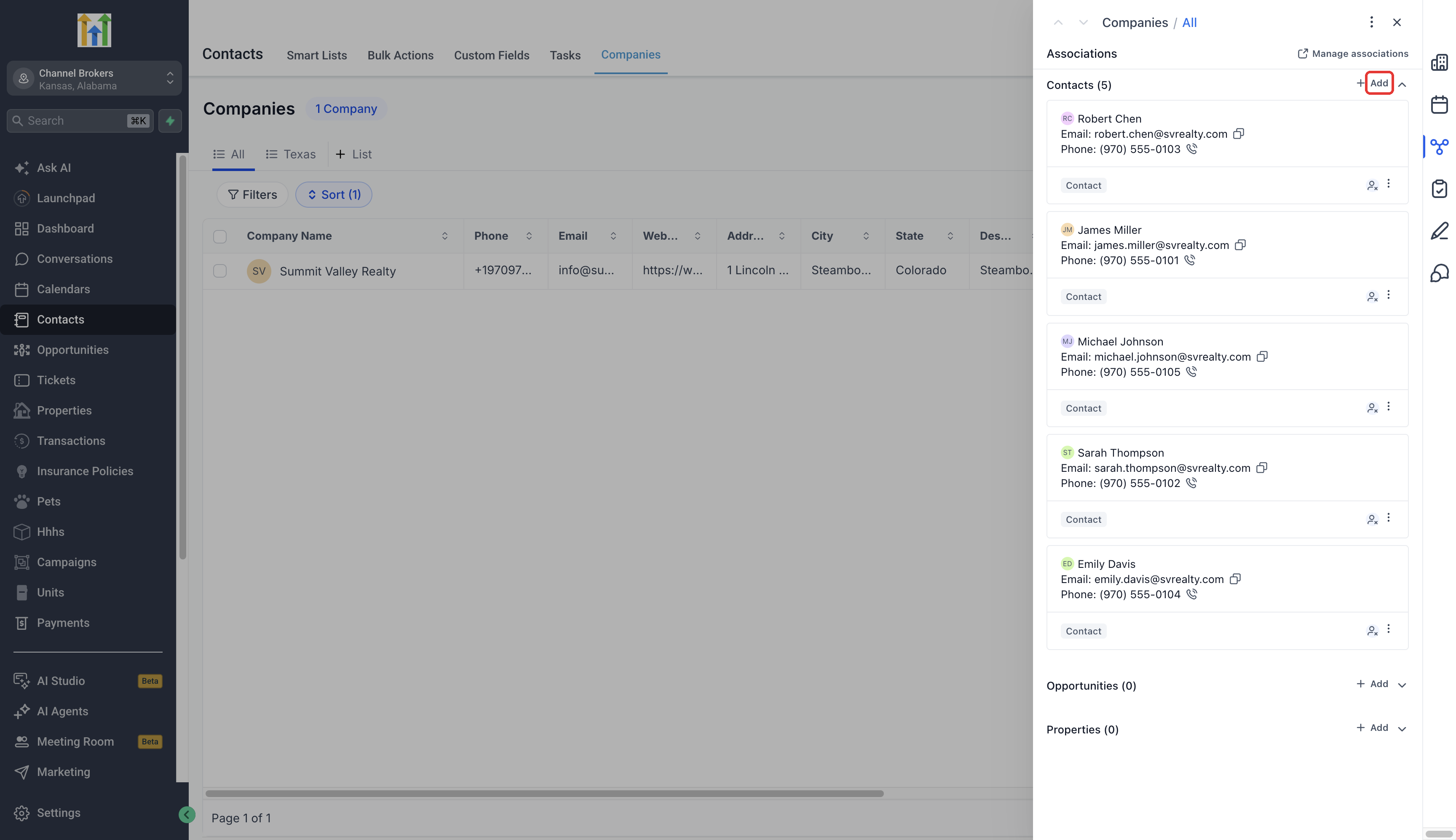
Search for and select the Contact you want to associate.
Choose the appropriate association label and click Save.
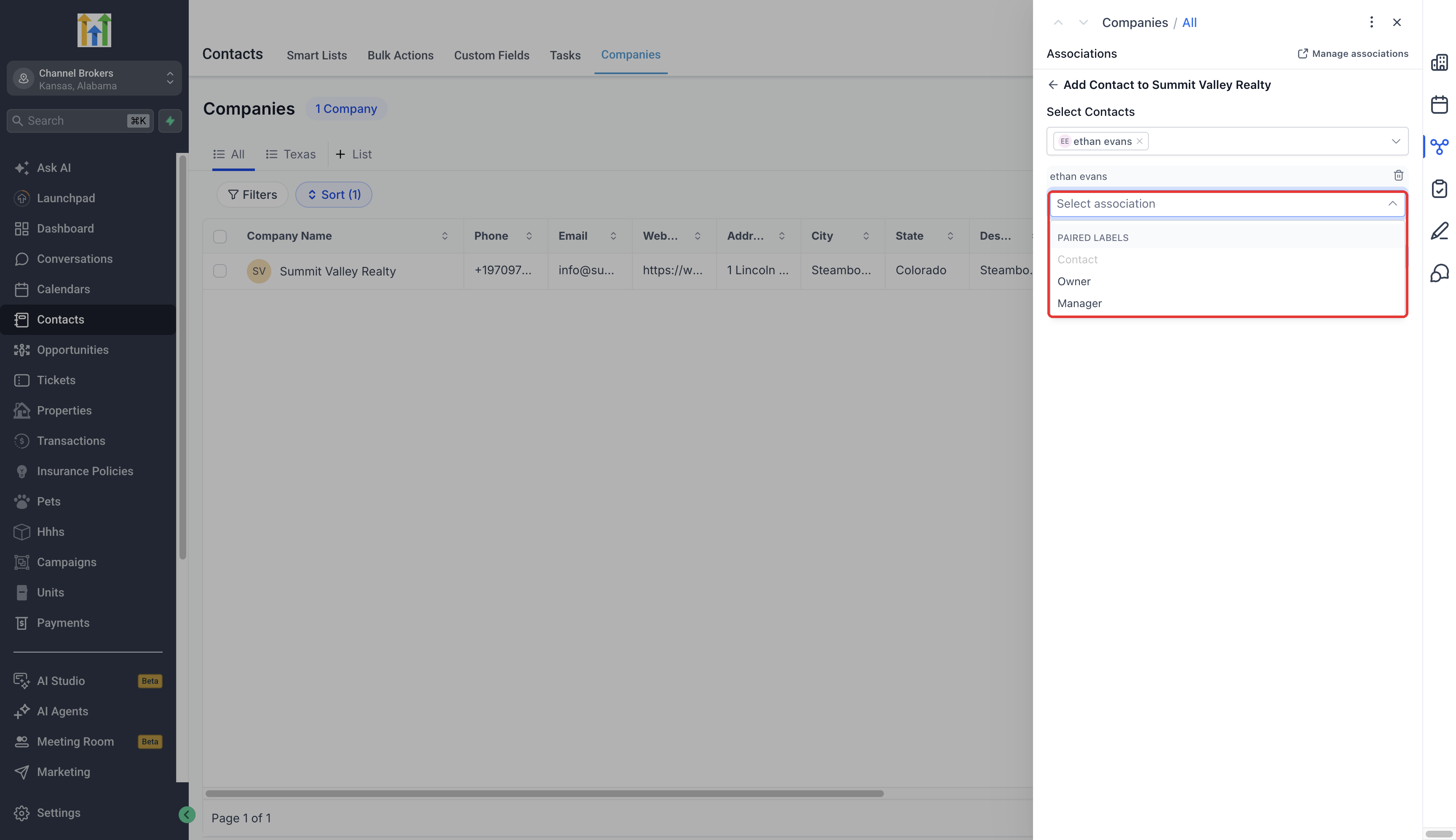
You can also create the association from a Contact record by adding the Company under its Associations tab.
Edit or Add Additional Contact Roles
Contact responsibilities can change over time, and one person may have several roles within the same Company. You can update existing labels or assign additional labels without creating duplicate Contact records.
Open the Company's Associations tab.
Find the Contact and click the three-dot menu on their association card.
Select Edit label.
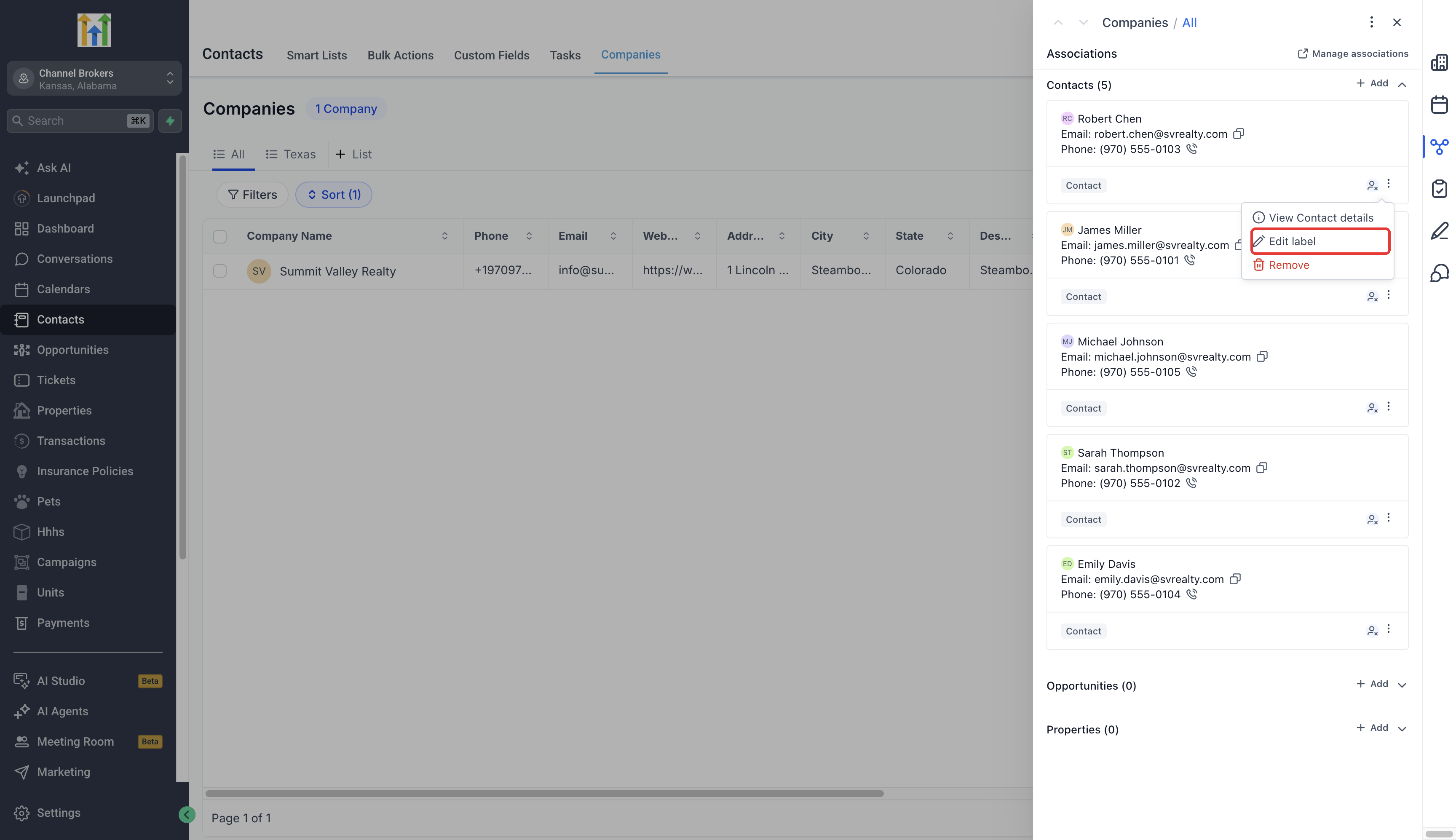
Update the assigned label or add another label to give the Contact multiple roles.
Click Save.
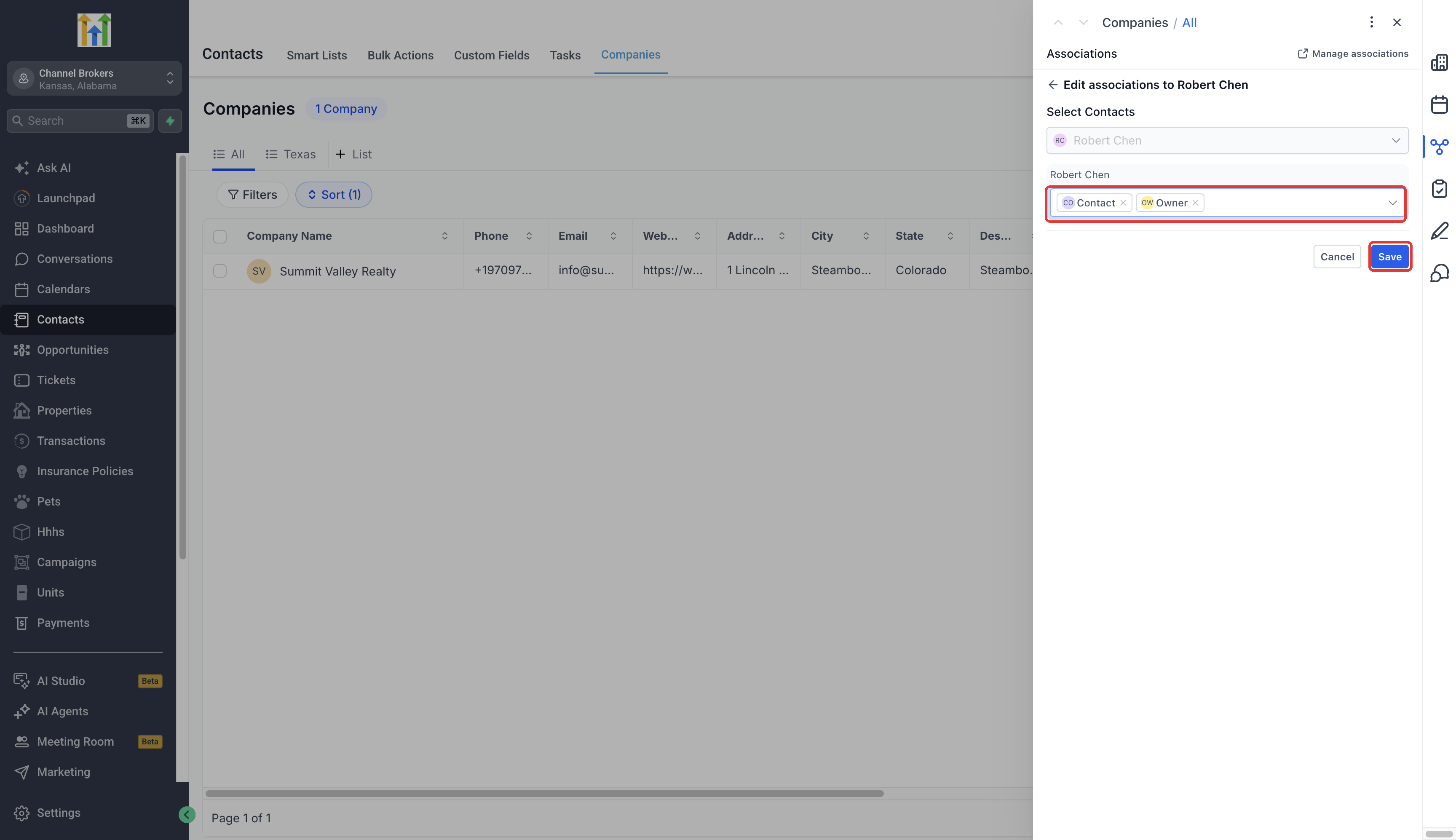
Note: The system Primary Company label is protected from removal through the label editor.
View Contact Roles in Companies
Association labels make it easier to identify the people responsible for different areas of a Company. You can review roles within individual Company records or display them directly in the Companies list.
View roles in a Company record
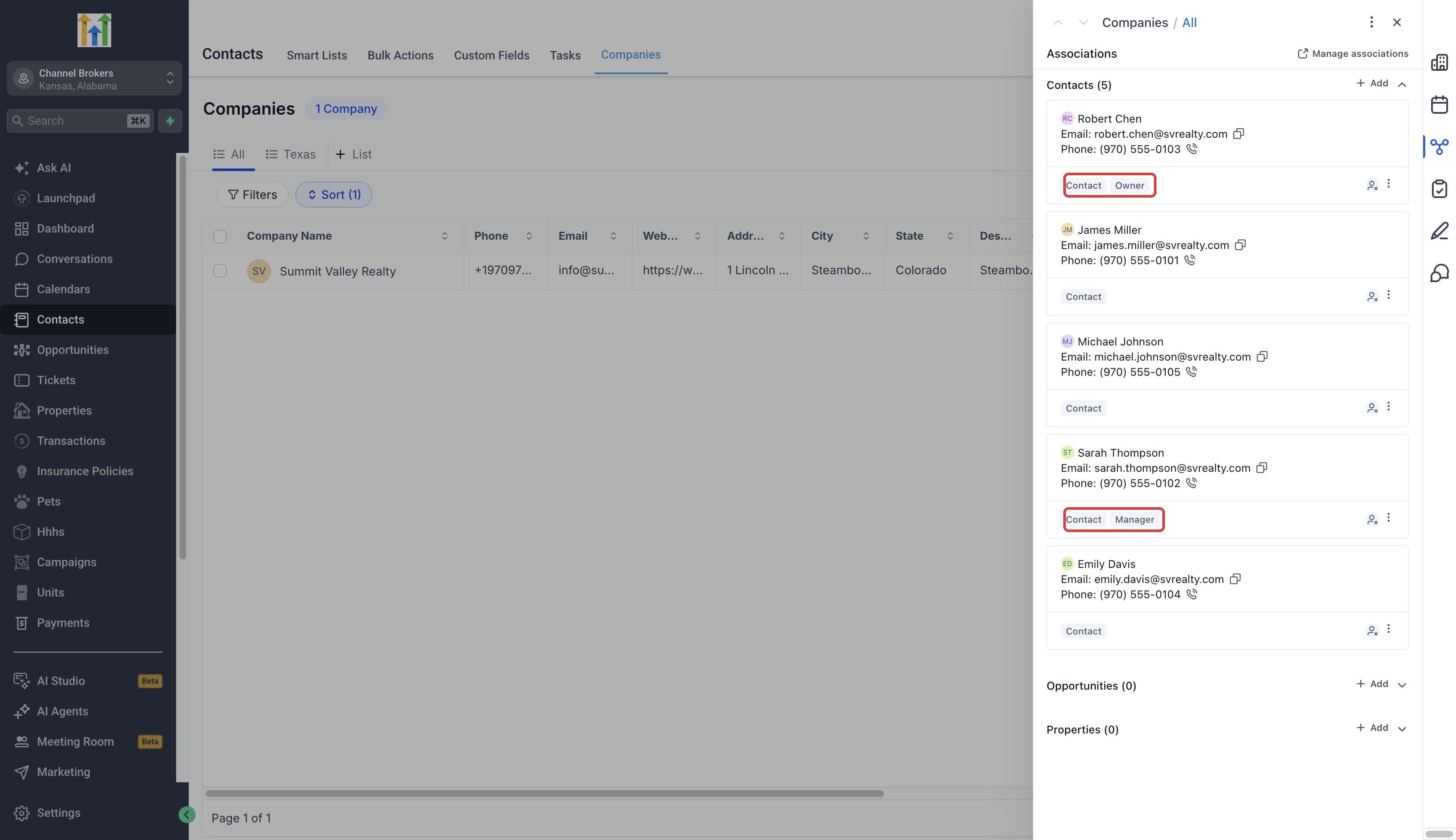
Open a Company's Associations tab to see its associated Contacts and their assigned roles.
For example, Manager may identify Sarah Thompson's role, while Owner identifies Robert Chen's role. Custom association labels can appear alongside the built-in Contact relationship.
View roles in the Companies list
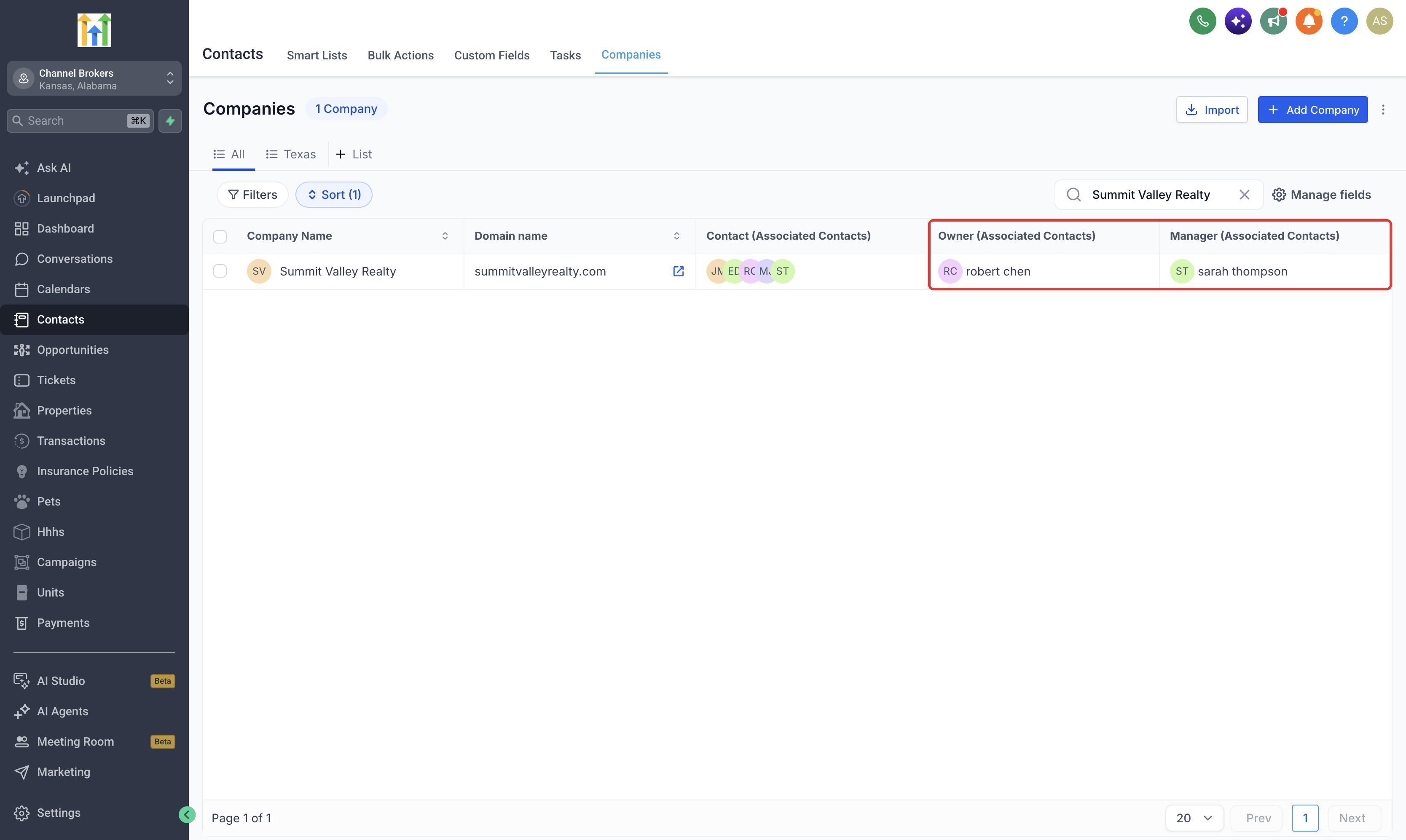
To see Contact roles across multiple Companies without opening each record:
Open the Companies list.
Click Manage fields.
Add the Contact association columns for the roles you want to display.
Column names reflect the association labels configured for your location.
Send Emails to Contacts Based on Their Roles
Association labels can also help you send targeted emails to Contacts based on their responsibilities within selected Companies. For example, you can email Billing contacts about account updates or Decision makers about an upcoming review.
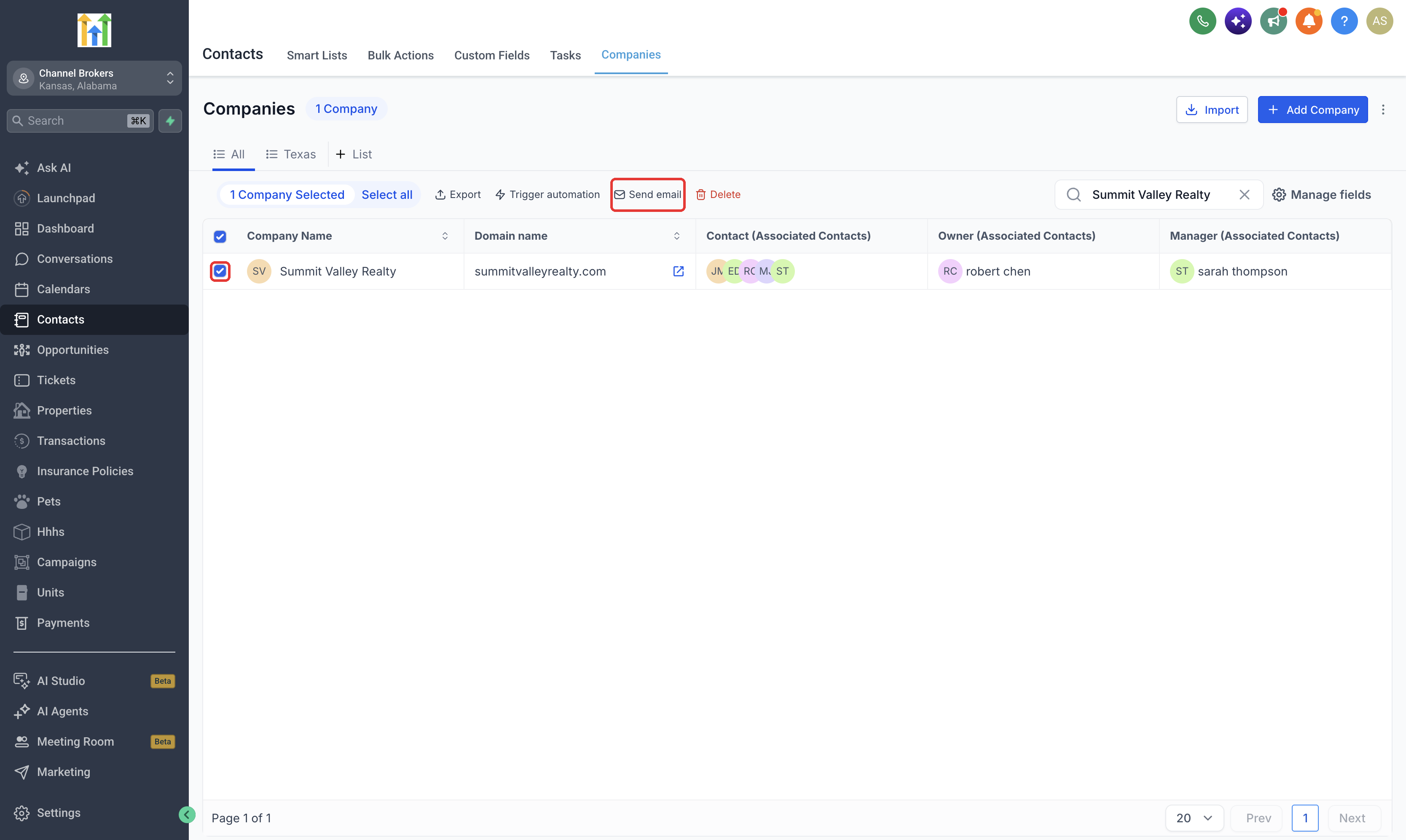
Open Companies and select the Companies whose Contacts you want to email.
Click Send email, review the selected Companies, and proceed to the email form.
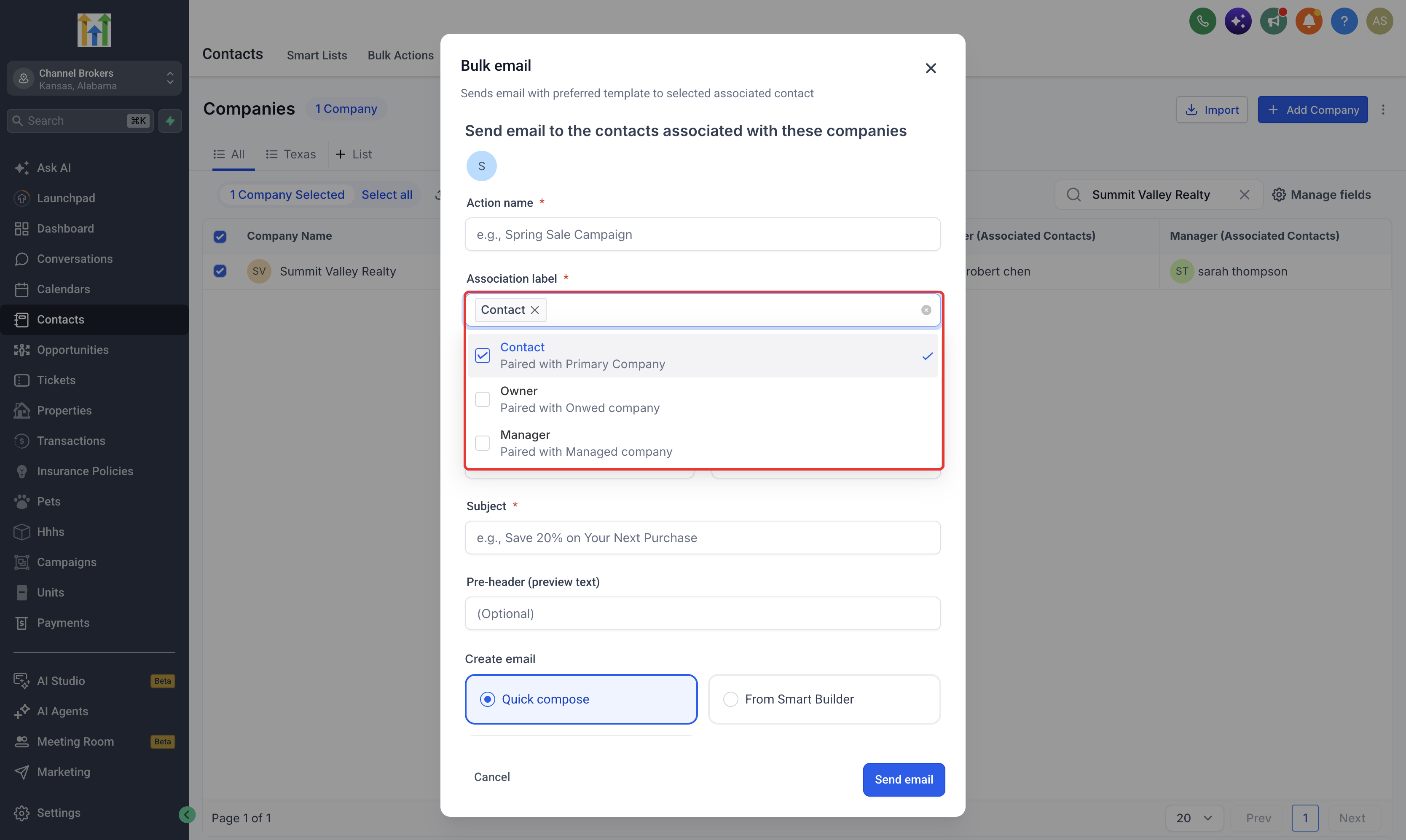
Under Association label, select the roles you want to include, such as Billing contact, Owner, or Manager.
Under Email recipients, choose who should receive the email.
All associated contacts: Include all matching Contacts.
Most recently associated contact: Include the most recently associated matching Contact.
Earliest associated contact: Include the earliest associated matching Contact.
Complete the email and review its audience and settings before sending.
Important details
Multiple labels: When multiple association labels are selected, matching Contacts are combined into a deduplicated audience so a Contact is not included more than once.
Primary Company included: The Contact-side label appears as Contact, paired with Primary Company. Including this relationship keeps Email recipients set to All contacts.
Recipient selection: The three Email recipients options are available when only custom association labels are selected.
Final recipient count: The audience is resolved when the bulk action runs. Final numbers appear in the bulk action statistics.
Frequently Asked Questions
Q: Can I turn Primary Company into a custom label?
No. Primary Company is a built-in system relationship for the Contact’s main Company and is protected from removal in the label editor. Create a new custom role alongside it instead.
Q: Can a Contact have more than one role at the same Company?
Yes. The same Contact and Company can be linked under multiple labels, such as Owner and Decision maker. Add the new label next to the existing one using Edit label, then click Save.
Q: What is the difference between a single label and a pair of labels?
A single label uses the same name when you view the relationship from either record. A pair of labels names each side separately, for example Employer for Companies and Employee for Contacts.
Q: Where can I see which role each Contact holds?
Open the Company’s Associations tab to see each Contact’s roles on their card. You can also open Manage fields on the Companies list and add the Contact association columns for the roles you need.
Q: What happens if I select several labels when emailing Contacts?
Matching Contacts are combined into a deduplicated audience, so each Contact is included once.