
Add Association Columns and Filter Contacts by Associated Records in Smart Lists
Association columns show which Custom Object and Company records are linked to each Contact. Use association filters to turn those relationships into segments, such as owners of selected pets or Contacts linked to selected Companies. Combine association criteria with other Contact filters and save them as Smart Lists for focused, repeatable follow-up.
TABLE OF CONTENTS
- Before you begin
- Add association columns
- Understand Primary Company
- Filter Contacts by associated records
- Choose a filter operator
- Example segments
- Troubleshoot columns and filters
Before you begin
- Configure the relationships: Make sure the association labels you need are defined for Contacts and that the relevant records are linked.
- Choose the label: A label describes the relationship, such as Owned Pet or Additional Company. Multiple labels can connect Contacts to the same object type.
Add association columns
- Go to Contacts > Smart Lists and open the list you want to review.
- Open the columns control above the table. In the field picker, find Associations.
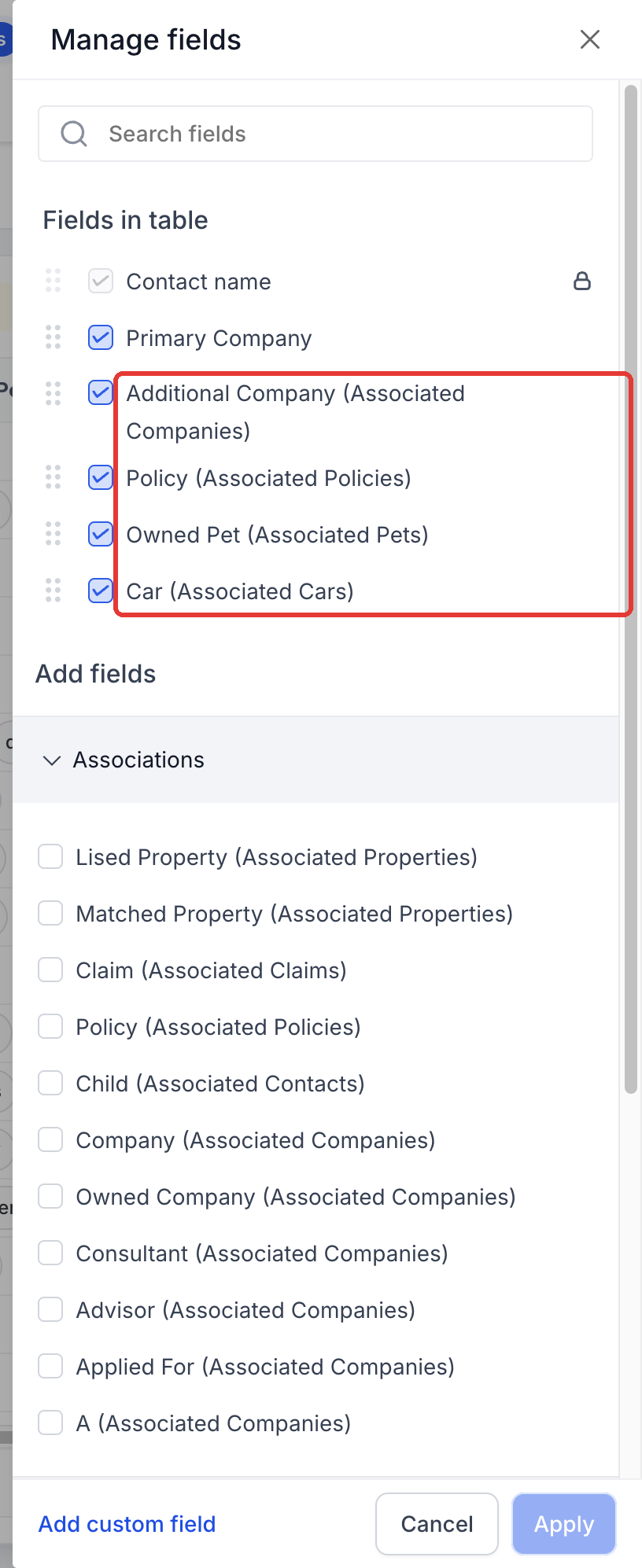
- Select each association label you want to display. Each label adds its own column, even when several labels point to the same object.
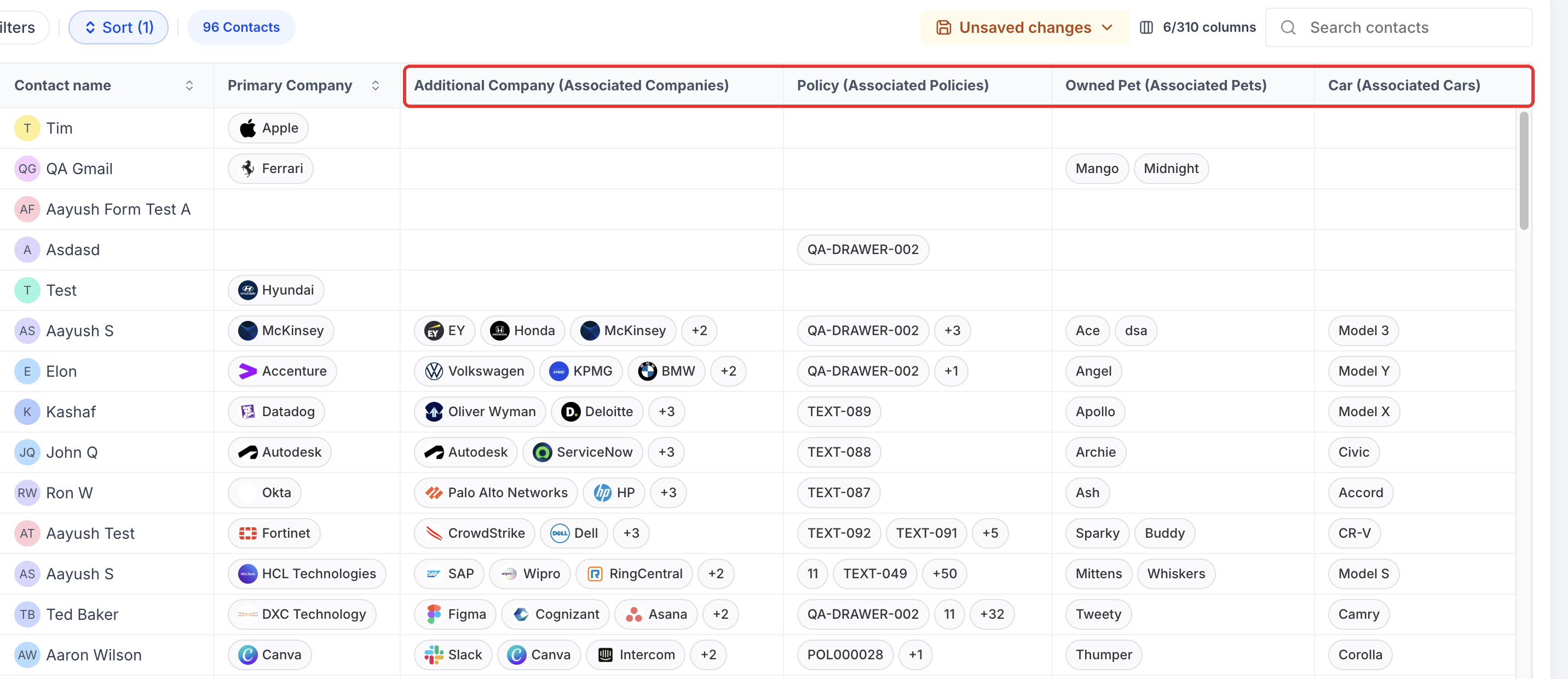
- Review the associated-record chips in each Contact row. Click a chip to open that linked record.
Step 1: Click the columns control above the list to open Manage fields.

Step 2: Under Associations, select the labels to show, then click Apply.
Step 3: Each label appears as its own column, with linked records shown as chips.
Step 4: Hover a +N indicator to see the other linked records, or click View all.
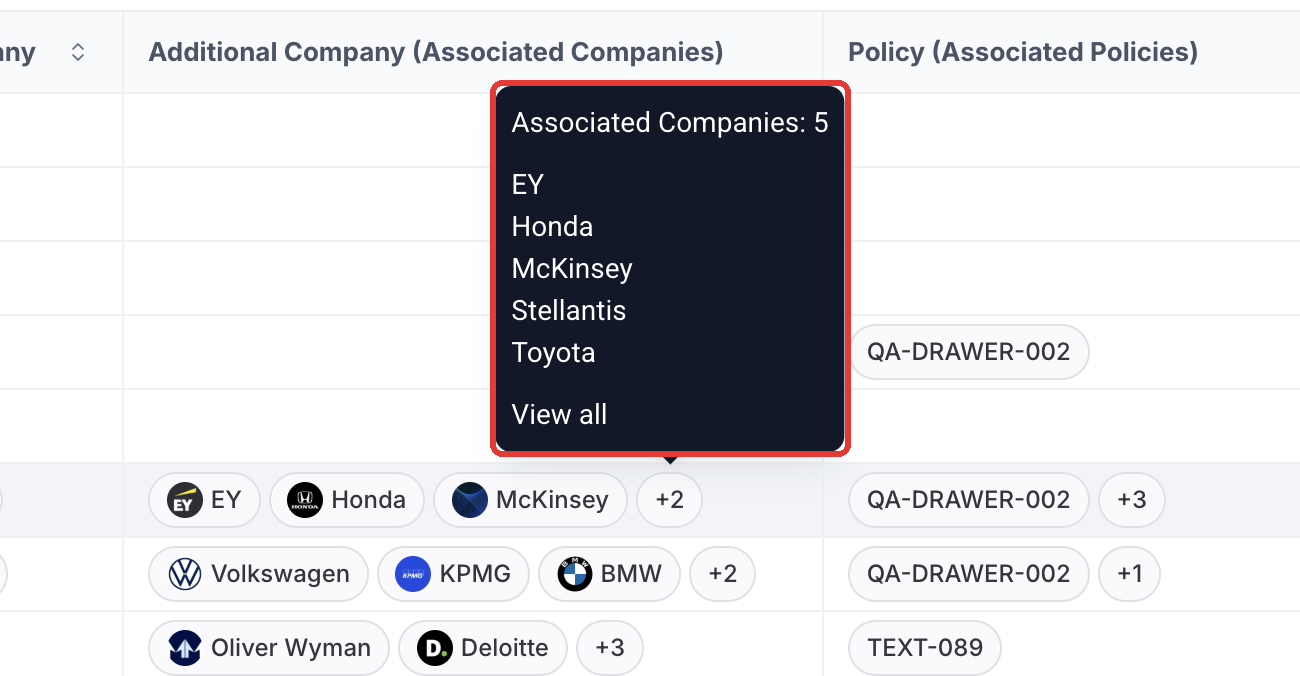
A +N indicator means more records are linked under that label than are currently shown. A blank cell means there is no displayed linked record for that relationship.
Understand Primary Company
The existing Company name column is labelled Primary Company and shows a chip for the Contact’s primary Company. Additional Company relationships are displayed through their association-label columns. Object names reflect your location’s naming settings.
Filter Contacts by associated records
- Open Filters above the Contact list and add a filter.
- Choose the association field for the relationship you want to check, such as Owned Pet (Associated Pets).
- Select Contains any, Does not contain any, Is not empty, or Is empty.
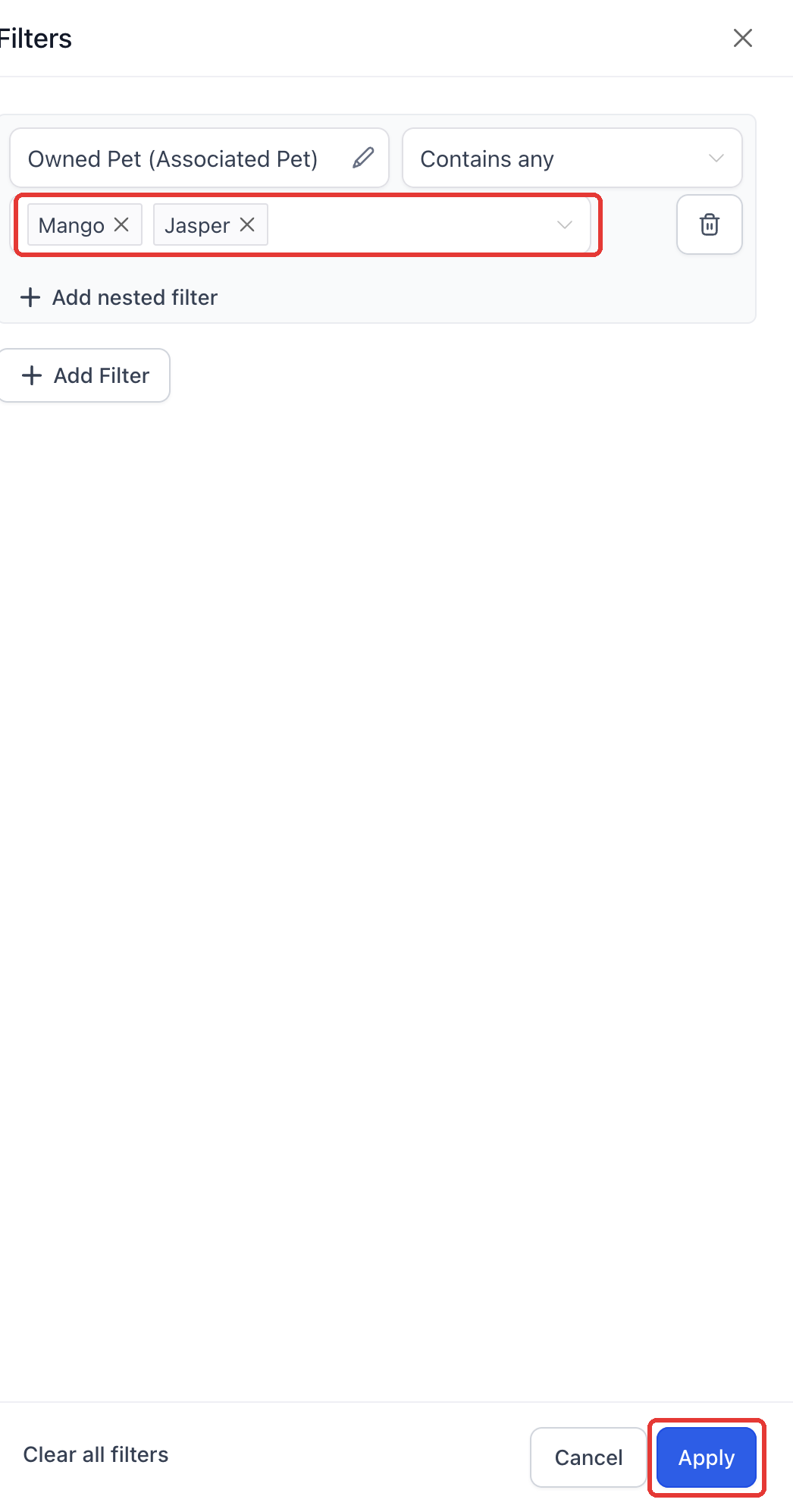
- For Contains any or Does not contain any, use the record picker to search for and select the associated records to compare. Empty operators do not require a record value.
- Add other criteria as needed and click Apply. Save the criteria as a Smart List when you want to reuse them.
Step 5: Click Filters above the list.

Step 6: Search for the association field. Each label is listed under Associations.
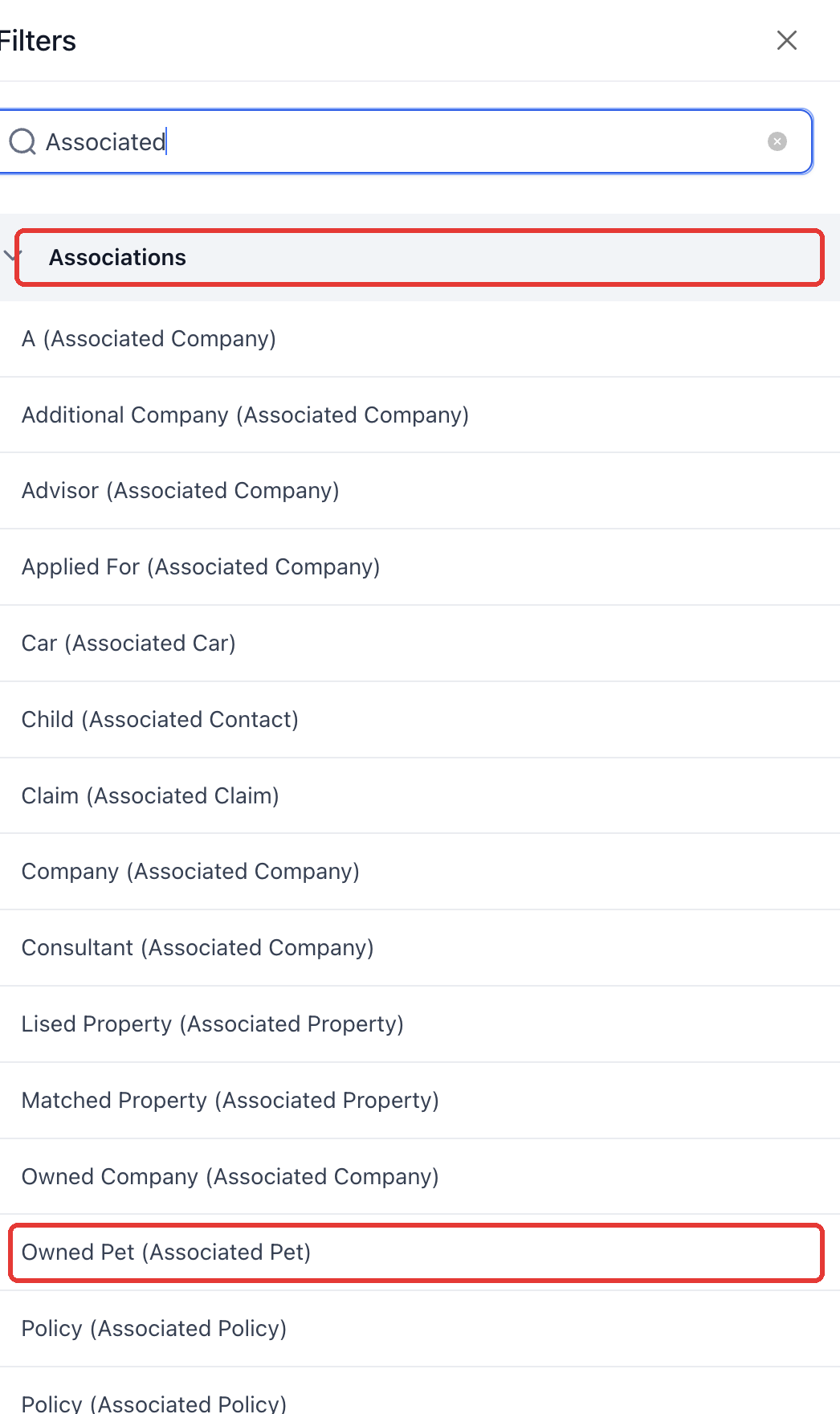
Step 7: Choose an operator: Contains any, Does not contain any, Is not empty, or Is empty.
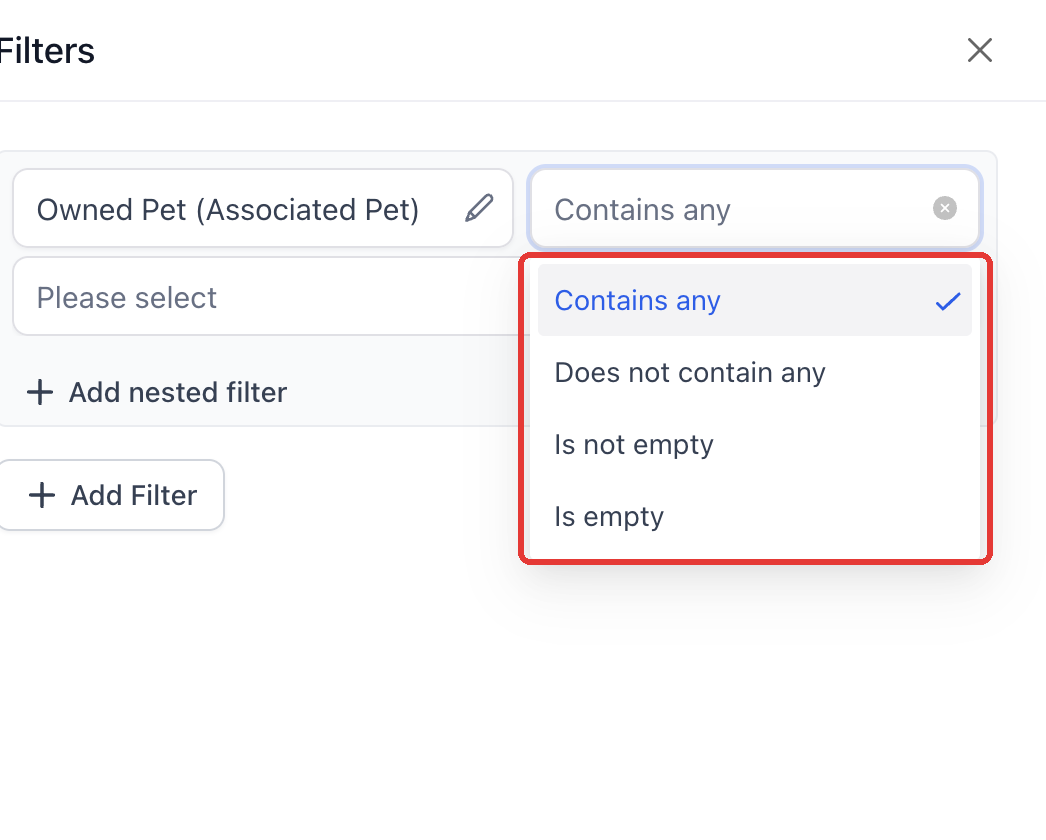
Step 8: Select the linked records to match, then click Apply.
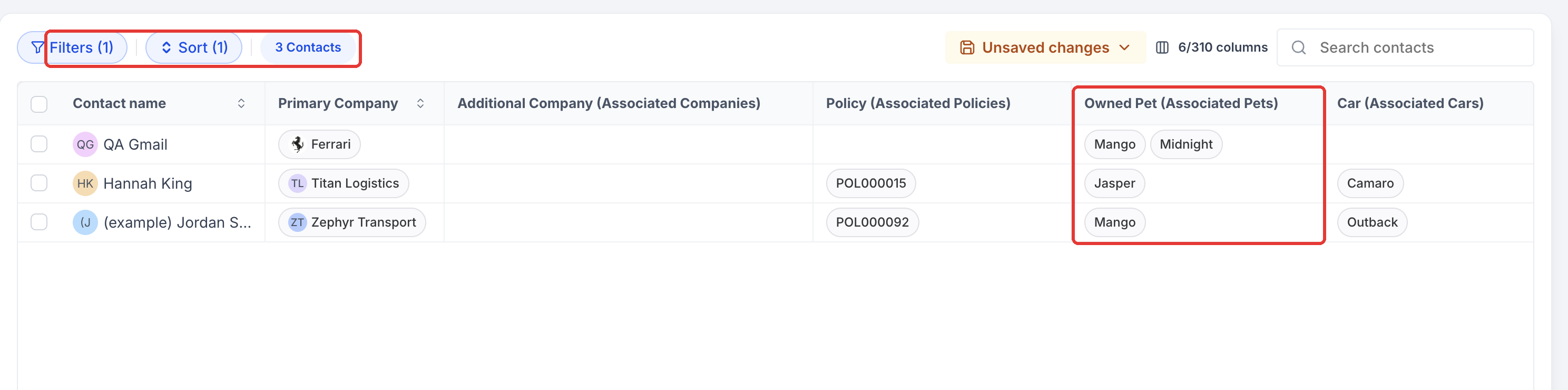
Step 9: The list shows only Contacts linked to the selected records.
Choose a filter operator
- Contains any: Find Contacts associated with any of the selected records under the chosen label.
- Does not contain any: Exclude Contacts associated with any of the selected records under the chosen label.
- Is not empty: Find Contacts with an association under the chosen label without selecting a specific linked record.
- Is empty: Find Contacts without an association under the chosen label.
Choose the empty operators when you need to check whether the relationship exists. Choose Contains any or Does not contain any when you need to compare particular linked records.
Example segments
- Owners of selected pets: A veterinary team wants to follow up with the owners of Mango or Jasper. Choose the Owned Pet association field and select those pet records in the matching-record filter. Save the resulting Contacts as a Smart List for communication about those pets.
- All Contacts with owned pets: Use Owned Pet with Is not empty to build a list of Contacts who have at least one pet linked under that relationship. Combine it with other Contact criteria when you need a narrower audience.
- Contacts linked to selected Companies: An account team wants to organise outreach for McKinsey and EY. Choose the relevant Company relationship, such as Additional Company, and select those Company records. Save the matching Contacts as a Smart List for account follow-up.
- Contacts linked to a policy: Choose the Policy association field and select a policy record to group its linked Contacts for policy-specific follow-up.
- Contacts missing an additional Company: Use Additional Company with Is empty to identify Contacts without that relationship. Review the list to find records whose Company links still need to be completed.
Troubleshoot columns and filters
- A label is missing: Check that the association is configured for Contacts and that you are looking under Associations in the picker.
- A row has no chip: Check the Contact’s associations under that specific label. A relationship under another label belongs in a different column.
- Results differ from expectations: Confirm the label, operator, selected records, and any other filters applied to the list.
- Names differ from this guide: Your location can use renamed objects and its own association labels.