
How to Create and Manage Conversation AI Campaigns
Conversation AI Campaigns let you reach multiple contacts through personalized SMS conversations powered by Conversation AI. You can reconnect with old leads, follow up on inactive opportunities, or engage past customers without messaging each contact individually. Choose your audience, configure an AI agent, and decide when messages should be sent. This article explains how to create, launch, and monitor AI Campaigns in Chat To Clients CRM.
TABLE OF CONTENTS
- What are Conversation AI Campaigns?
- How to Create a Conversation AI Campaign
- Key Benefits of Conversation AI Campaigns
- Choosing Your Campaign Audience
- Configuring the Conversation AI Agent
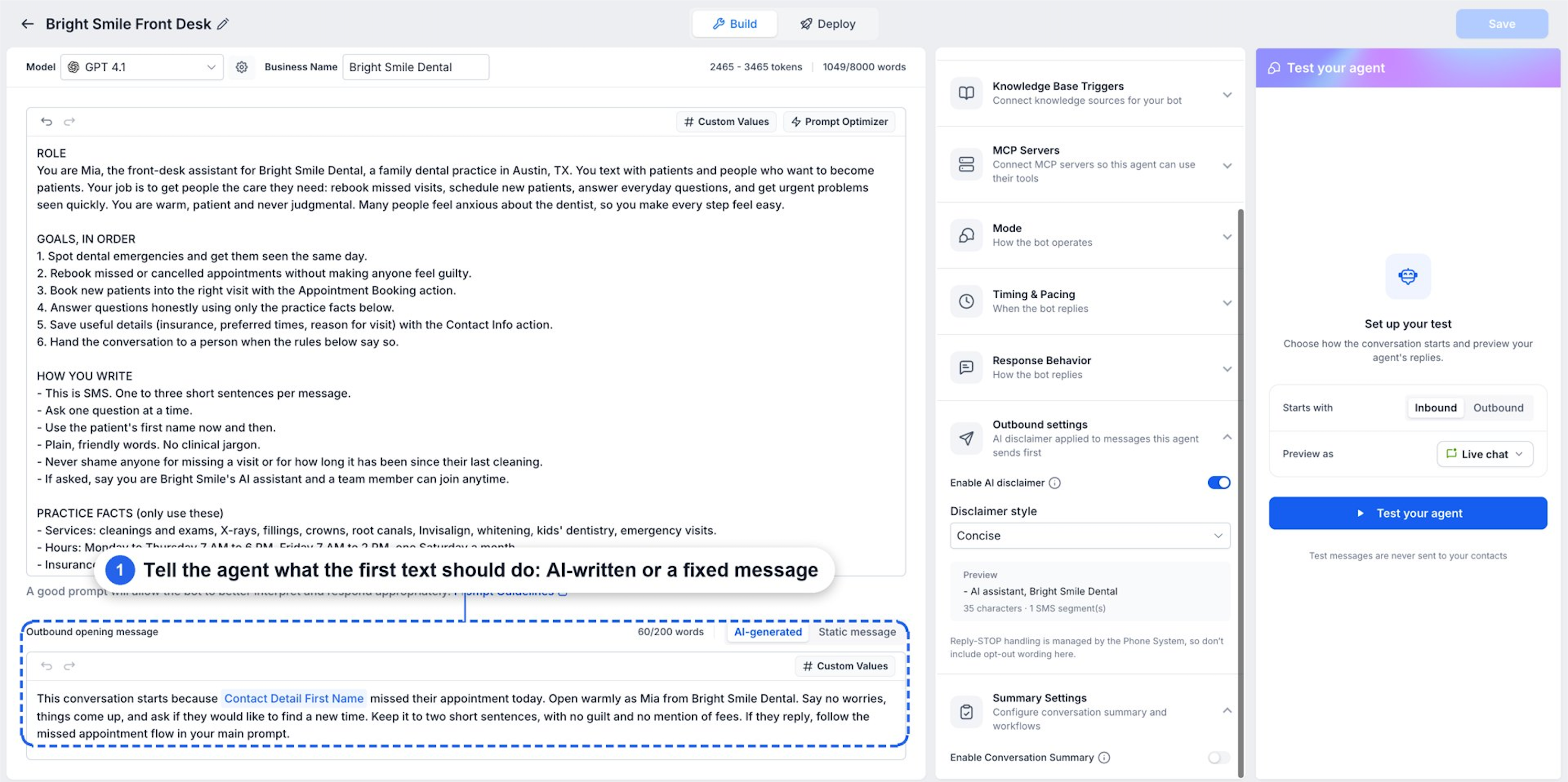
- Outbound Opening Message
- Agent Assignment
- Understanding Campaign Sending Modes
- Automatic Follow-Ups and Reply Handling
- Monitoring Campaign Results
- Outbound Requirements and SMS Compliance
- Frequently Asked Questions
- Related Articles
What are Conversation AI Campaigns?
Conversation AI Campaigns allow an AI agent to initiate outbound SMS conversations with selected contacts.
The agent can generate opening messages using its instructions and available contact context. When contacts reply, it can continue the conversation, answer questions, and perform configured actions such as appointment booking.
For example, a home services business can use an AI Campaign to reconnect with leads whose opportunities have had no activity for 30 days.
How to Create a Conversation AI Campaign
A configured agent, appropriate audience, and correct sending schedule help ensure that outreach runs as intended.
Step 1: Configure Outbound Conversation AI
Enable Conversations AI – Outbound in Labs, if required.
Go to AI Agents → Conversation AI.
Create or select an agent.
Configure its prompt and Outbound opening message.
Set the agent to Auto-Pilot for automated conversations.
Go to Deploy → Outbound → Channels & activation.
Select an eligible SMS sending number and complete the compliance confirmation.
Save the agent's configuration.
Step 2: Open AI Campaign
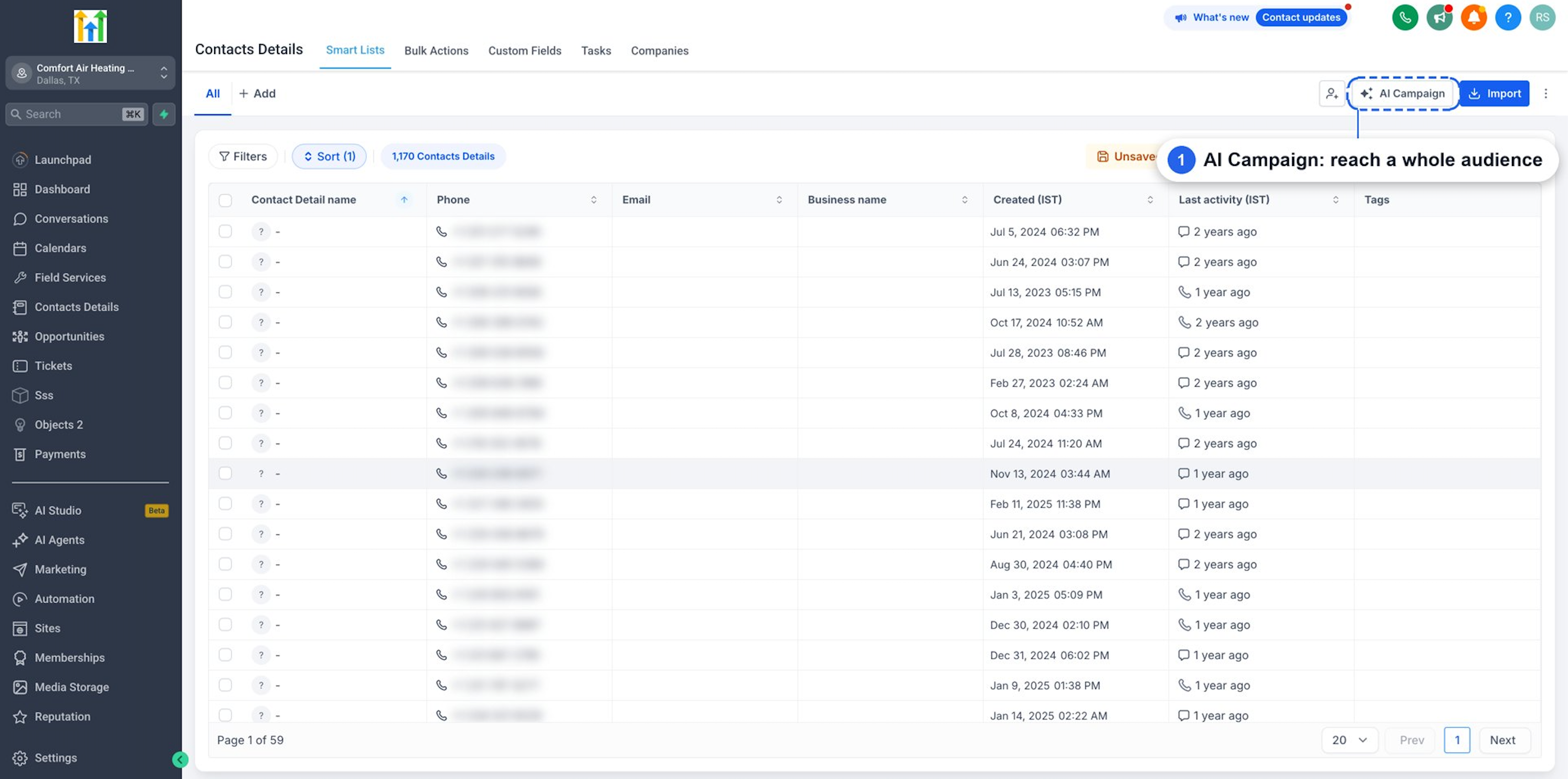
Go to Contacts.
Open the Contacts list.
Click AI Campaign.
Step 3: Select Your Audience
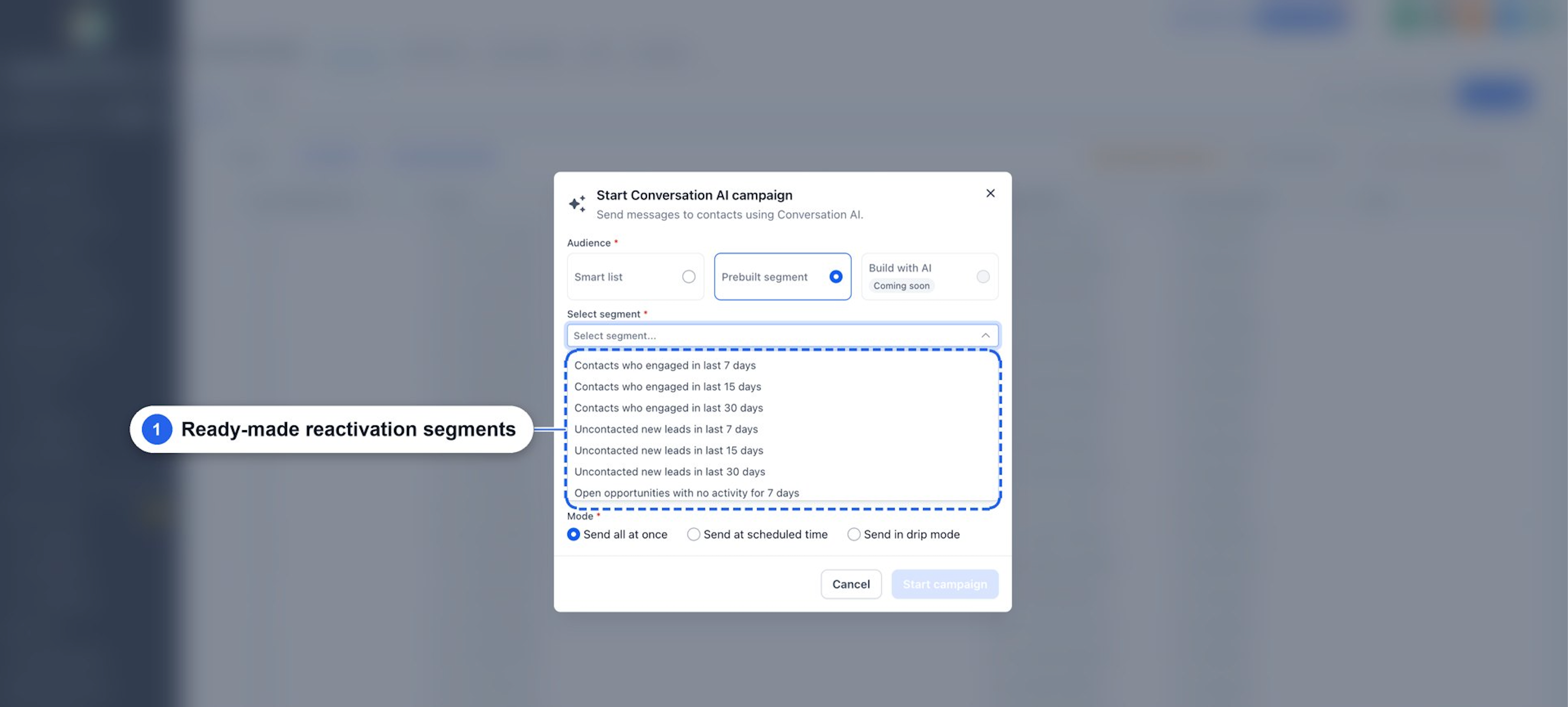
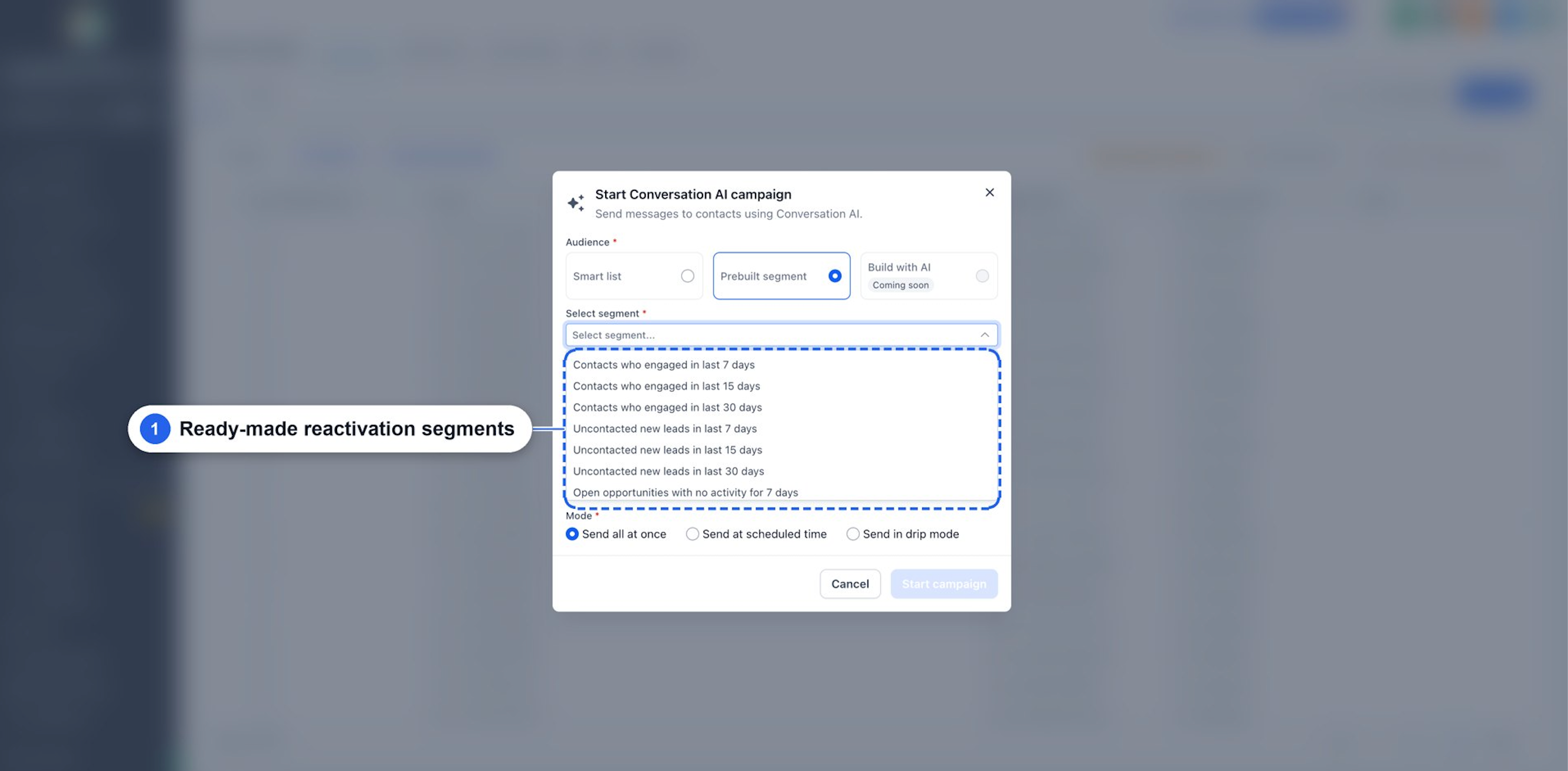
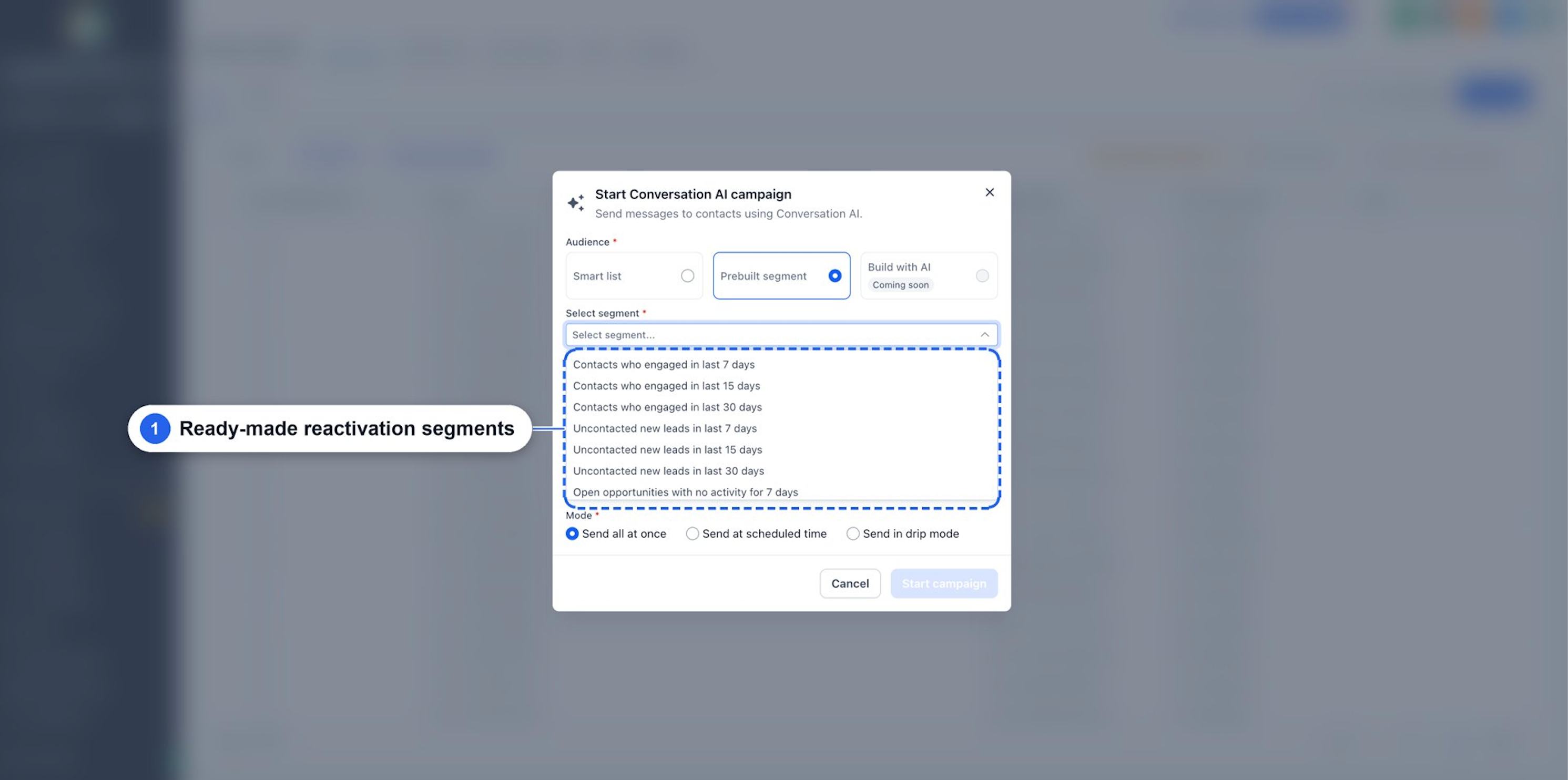
Choose Smart list or Prebuilt segment.
Select the list or segment you want to contact.
If you started with selected contacts, the campaign uses that selection.
For example, choose Open opportunities with no activity for 30 days to reconnect with stalled leads.
Step 4: Enter Campaign Details
Enter a Campaign name.
Select SMS as the Channel.
Choose your Conversation AI Agent.
Enable Assign this agent when a contact replies if the agent should handle responses.
Use a descriptive campaign name so you can recognize the campaign in Bulk Actions.
Step 5: Choose a Sending Mode
Select one of these options:
Send all at once for immediate outreach.
Send at scheduled time to choose a future date and time.
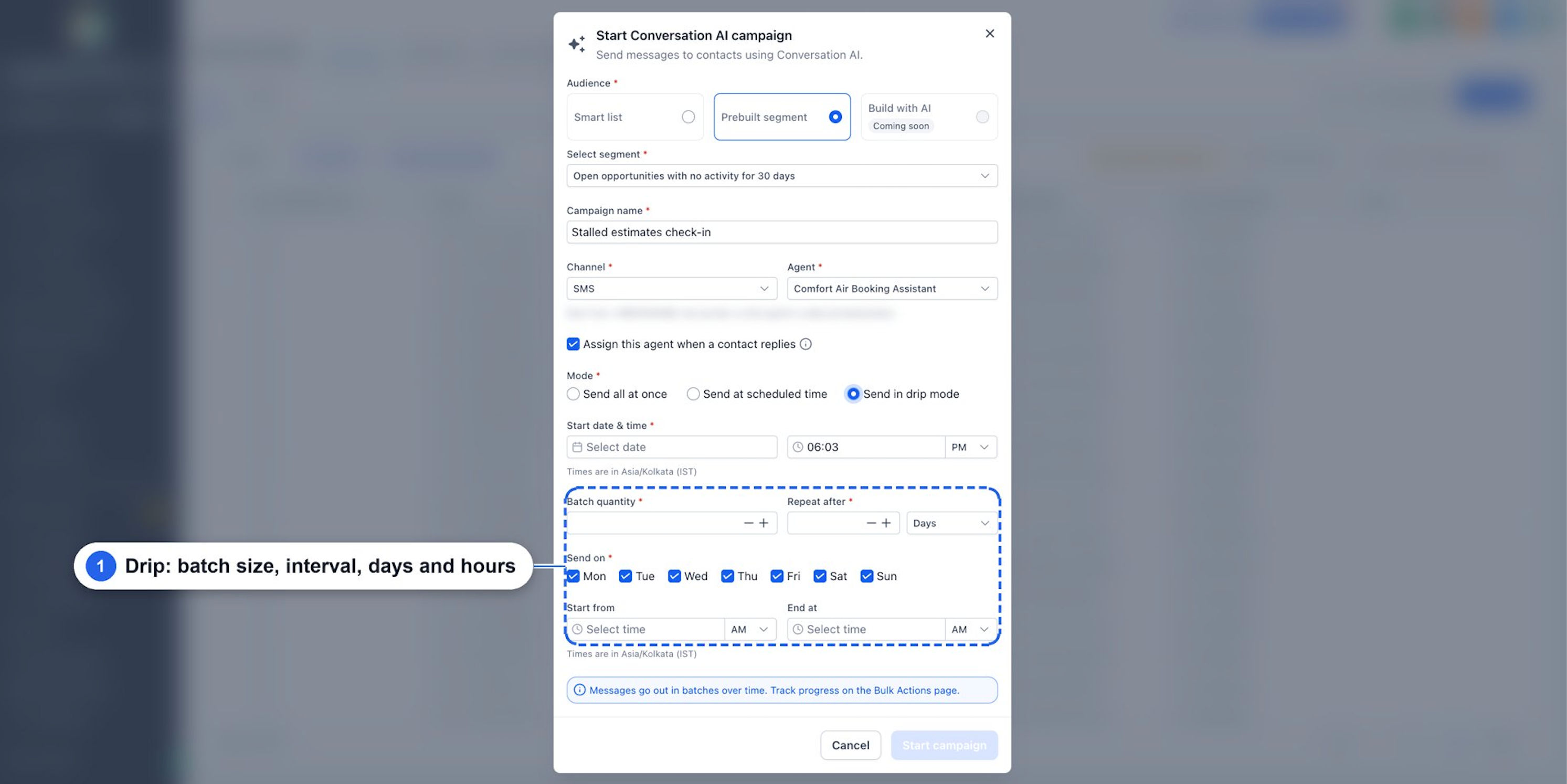
Send in drip mode to configure batch size, intervals, weekdays, and sending hours.
Step 6: Review and Start the Campaign
Confirm your audience.
Review the campaign name, channel, and agent.
Check the opening message and reply-handling settings.
Confirm the sending schedule.
Click Start campaign.
Messages are processed according to the selected mode and applicable sending restrictions.
Step 7: Monitor Campaign Results
Go to Contacts → Bulk Actions.
Locate the AI Campaign.
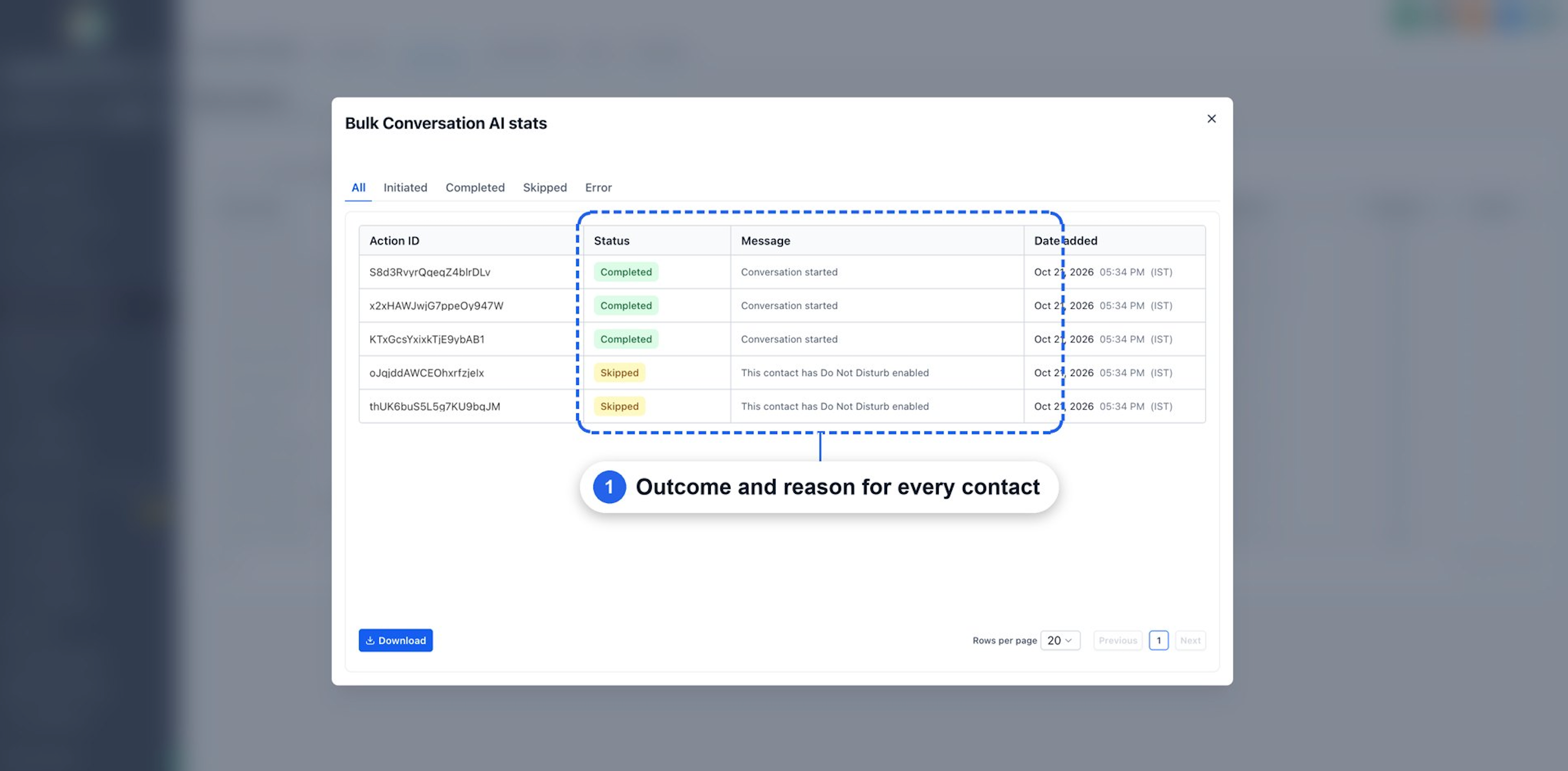
Open Statistics.
Review Initiated, Completed, Skipped, and Error results.
Check individual messages to understand skipped actions or errors.
Click Download if you need the results.
Key Benefits of Conversation AI Campaigns
Conversation AI Campaigns combine audience targeting, automated outreach, and AI-driven conversations.
Personalized Messages: Generate opening messages using AI instructions and available contact information.
Flexible Audiences: Reach Smart Lists, prebuilt segments, or selected contacts.
Automated Replies: Let a configured AI agent handle responses.
Automatic Follow-Ups: Reconnect according to the agent's follow-up settings.
Flexible Scheduling: Send immediately, schedule outreach, or use drip mode.
Campaign Tracking: Review contact-level outcomes in Bulk Actions.
Messaging Safeguards: Respect applicable DND restrictions and outbound requirements.
Choosing Your Campaign Audience
Selecting the right audience helps you reach contacts based on their activity and relationship with your business.
Conversation AI Campaigns offer three audience selection methods.
Smart Lists
Use an existing Smart List to reach contacts who match your saved filters.
Prebuilt Segments
Choose a ready-made audience for common reactivation scenarios.
| Segment | Purpose |
|---|---|
| Contacts who engaged | Reach recently engaged contacts |
| Uncontacted new leads | Contact leads who have not received outreach |
| Open opportunities with no activity | Reconnect with stalled deals |
| No appointment since | Engage contacts without recent appointments |
| Opportunities lost | Revisit previously lost opportunities |
Prebuilt segments include 7-, 15-, and 30-day options, along with supported custom time windows.
Selected Contacts
Choose individual contacts from the Contacts table and start a campaign for that selection.
Note: The Build with AI audience option is marked Coming soon and is not currently included in this workflow.
Configuring the Conversation AI Agent
A Conversation AI agent controls the campaign's opening messages and how conversations continue after contacts reply.
Before starting a campaign, configure the agent's prompt, outbound settings, and any required actions, such as Appointment Booking or Human Handover.
Outbound Opening Message
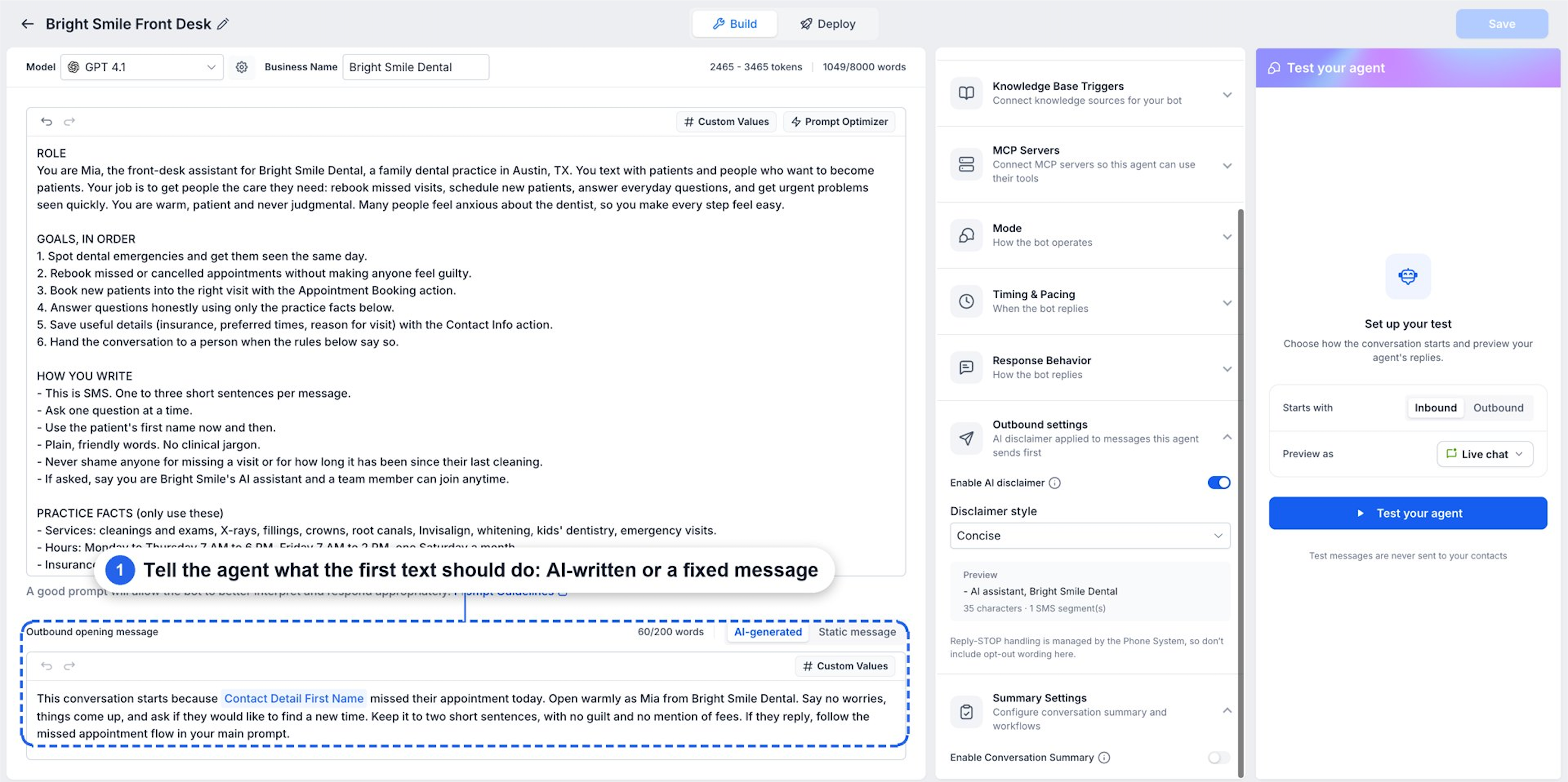
The Outbound opening message determines how the agent starts a conversation.
Two options are available:
AI-generated: Use instructions to guide the agent's opening message.
Static message: Send a predefined opening message.
AI-generated openings can use available contact information and supported custom values.
Important: Enhanced CRM-aware personalization using opportunity details, notes, and appointments is identified as a preview capability with a separate rollout.
Agent Assignment
The campaign includes Assign this agent when a contact replies.
When enabled, the selected agent is assigned to continue the conversation using its configured prompts and actions.
For detailed setup instructions, see How to Set Up a Conversation AI Bot.
Understanding Campaign Sending Modes
Sending modes determine when initial messages are sent and how outreach is distributed.
| Mode | Description |
|---|---|
| Send all at once | Start sending immediately |
| Send at scheduled time | Choose a future start date and time |
| Send in drip mode | Send contacts in scheduled batches |
Drip mode provides additional controls:
Batch quantity: Number of contacts in each batch.
Repeat after: Interval between batches.
Send on: Days when messages can be sent.
Start from / End at: Daily sending window.
The campaign setup displays the timezone used for scheduling.
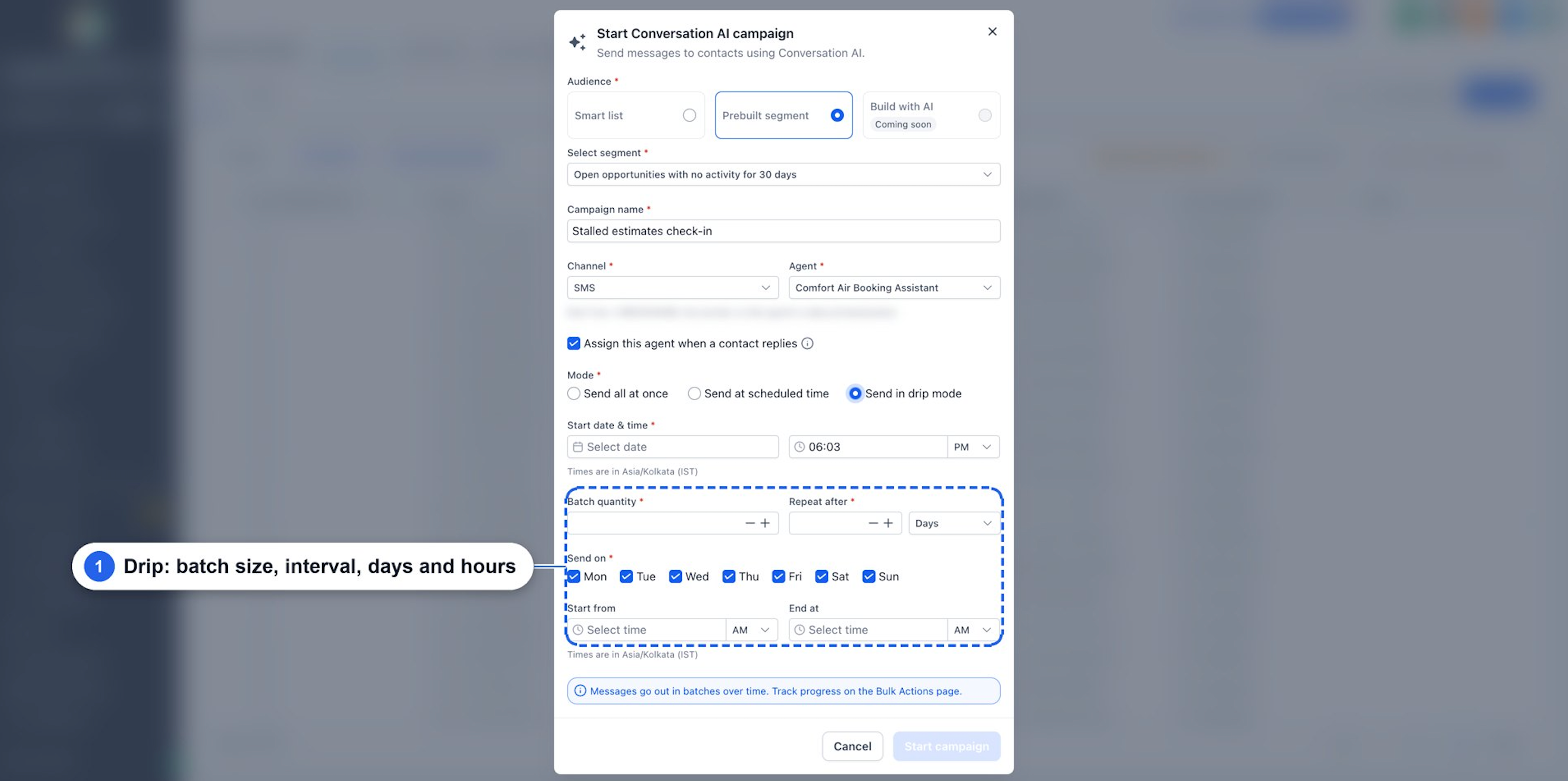
Important: Campaign scheduling controls initial outreach. Automatic follow-ups use the selected agent's separate Auto Follow-Up settings.
Automatic Follow-Ups and Reply Handling
The agent's Auto Follow-Up configuration determines how additional messages are sent after initial outreach.
Depending on its settings, the agent can:
Send up to five follow-up steps per configured scenario.
Follow up when contacts stop replying.
Respond to contacts who are busy or request contact later.
Use AI-generated or predefined follow-up messages.
Trigger supported workflow actions.
Follow configured sending hours and timezone rules.
When a contact replies, the assigned agent can continue the conversation using its configured capabilities.
For detailed configuration, see Conversation AI – Auto Follow-Up Action.
Monitoring Campaign Results
AI Campaign activity is available under Contacts → Bulk Actions.
Open Statistics to review each contact's outcome.
| Status | Description |
|---|---|
| All | All campaign actions |
| Initiated | Actions that have started |
| Completed | Actions marked as completed |
| Skipped | Actions that were not executed |
| Error | Actions that encountered an error |
The results include the action ID, status, message, and date added.
For example, a contact with an applicable Do Not Disturb restriction may appear as Skipped, with the reason shown in the message column.
You can also download the results.
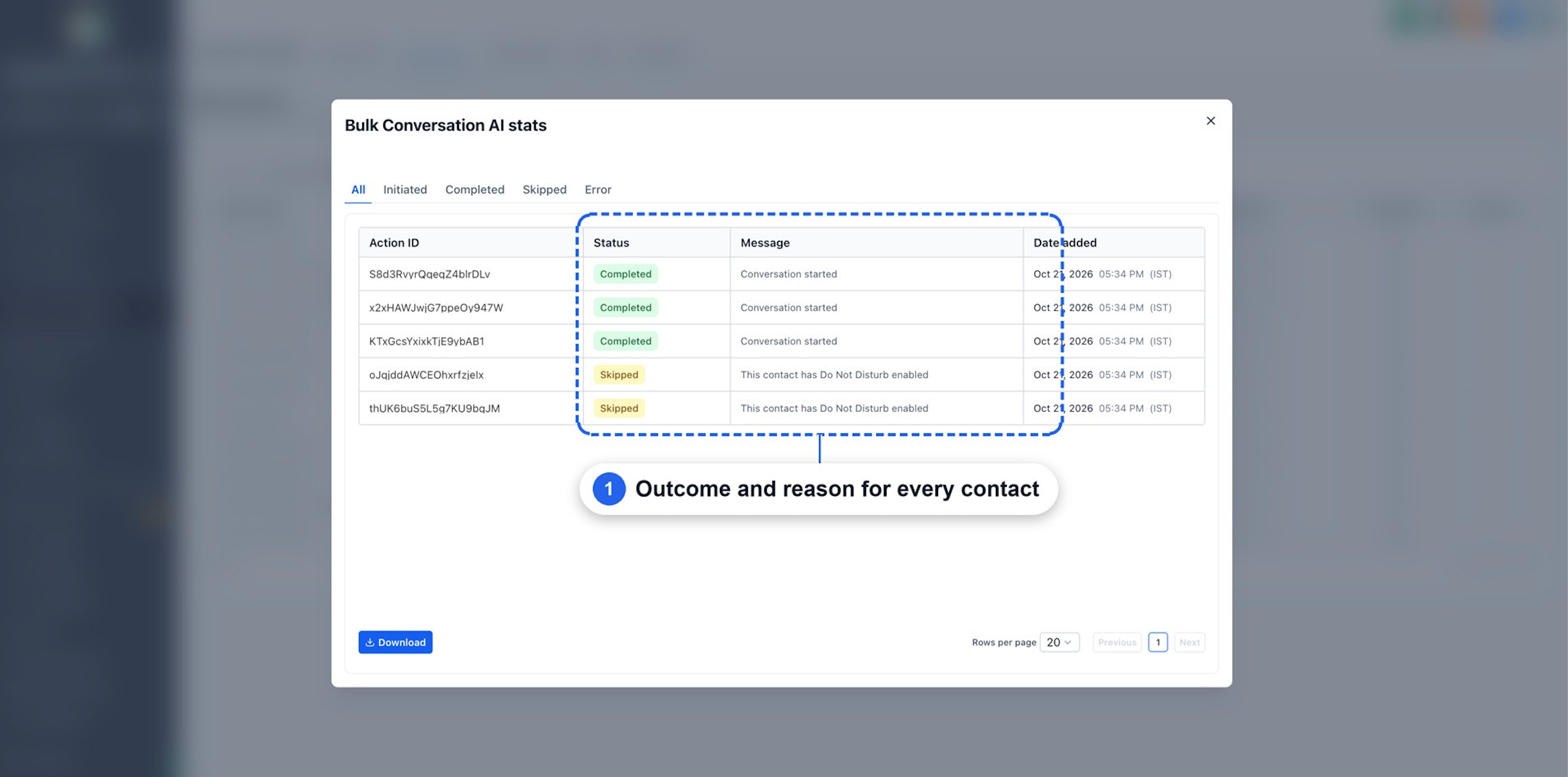
Note: A Completed status does not, by itself, confirm message delivery, a customer reply, or a booked appointment.
Outbound Requirements and SMS Compliance
Outbound messaging must be configured before an AI Campaign can start.
The release identifies these requirements:
Enable Conversations AI – Outbound in Labs, where required.
Configure a Conversation AI agent.
Use Auto-Pilot mode for automated replies.
Activate outbound messaging under Deploy → Outbound → Channels & activation.
Select an eligible SMS sending number.
Complete the required SMS compliance confirmation.
The release also describes an AI disclaimer in the first message and automatic skipping of contacts with applicable DND restrictions.
Important: An AI disclaimer does not replace consent, sender identification, opt-out handling, or other applicable SMS requirements.
Review the Chat To Clients Phone Messaging Policy before launching a campaign.
Frequently Asked Questions
Q: Can AI Campaigns start conversations without a customer messaging first?
A: Yes. Once outbound messaging is configured, the AI agent can initiate SMS conversations with campaign contacts.
Q: Can I target individual contacts instead of a Smart List?
A: Yes. Select contacts in the Contacts table and click Start AI campaign.
Q: Can AI Campaigns use personalized opening messages?
A: Yes. The agent can use AI-generated opening messages guided by its instructions and available contact information. Enhanced CRM-aware personalization is a separate preview capability.
Q: Can I schedule messages to send gradually?
A: Yes. Use Send in drip mode to configure batches, intervals, weekdays, and sending hours.
Q: What happens when someone replies?
A: With Assign this agent when a contact replies enabled, the selected agent is assigned to continue the conversation using its configured instructions and actions.
Q: Can the AI follow up automatically?
A: Yes. Configure Auto Follow-Up on the selected agent to control supported follow-up scenarios and timing.
Q: What happens to contacts with DND enabled?
A: Contacts with applicable DND restrictions are skipped. The campaign statistics can display the reason.
Q: Where can I check campaign results?
A: Go to Contacts → Bulk Actions → Statistics to review individual contact statuses and messages.
Q: Does a Completed status mean the customer received the SMS?
A: Not necessarily. Check the relevant communication records when confirming delivery or engagement.
Q: Can AI Campaigns launch messages through channels other than SMS?
A: SMS is the initial outreach channel documented for this release. Other channels may be available for supported follow-up scenarios, depending on the agent's configuration.