
Conversations - Search Messages by Keyword
The Keyword Search feature helps you quickly find specific messages across your Conversations inbox or within an individual conversation, without manually scrolling through message history. This article explains how keyword search works, how to find and filter messages, and how to navigate search results.
TABLE OF CONTENTS
- What is Keyword Search in Conversations?
- How to Use Keyword Search in Conversations
- Tips for Better Search Results
- Frequently Asked Questions
- Related Articles
What is Keyword Search in Conversations?
Keyword Search allows you to find messages containing specific words, phrases, or numbers directly within Conversations inbox. You can search for a quoted price, customer complaint, product name, promised date, or any other detail mentioned in a previous conversation.
The feature offers two ways to search:
| Search Type | Where to Access | What It Does |
|---|---|---|
| Cross-Conversation Search | Search icon at the top of the Conversations list | Finds conversations containing your keyword and displays matching message previews. |
| In-Conversation Search | Search icon in an open conversation's header | Finds and highlights matching messages within a single thread, with navigation between matches. |
You can also use the main search box to find contacts by name, email address, or phone number.
How to Use Keyword Search in Conversations
You can search across your entire accessible inbox or within a specific contact's conversation.
Search Across All Conversations
Use this option when you remember what was said but aren't sure which contact mentioned it.
Important:

• If multiple messages from the same contact match your search, the conversation appears once, showing the most recent matching message in the preview.

• Search includes all conversations you have permission to view. If your access is restricted to assigned conversations, only those conversations appear in the results.
Go to Conversations from the left menu.
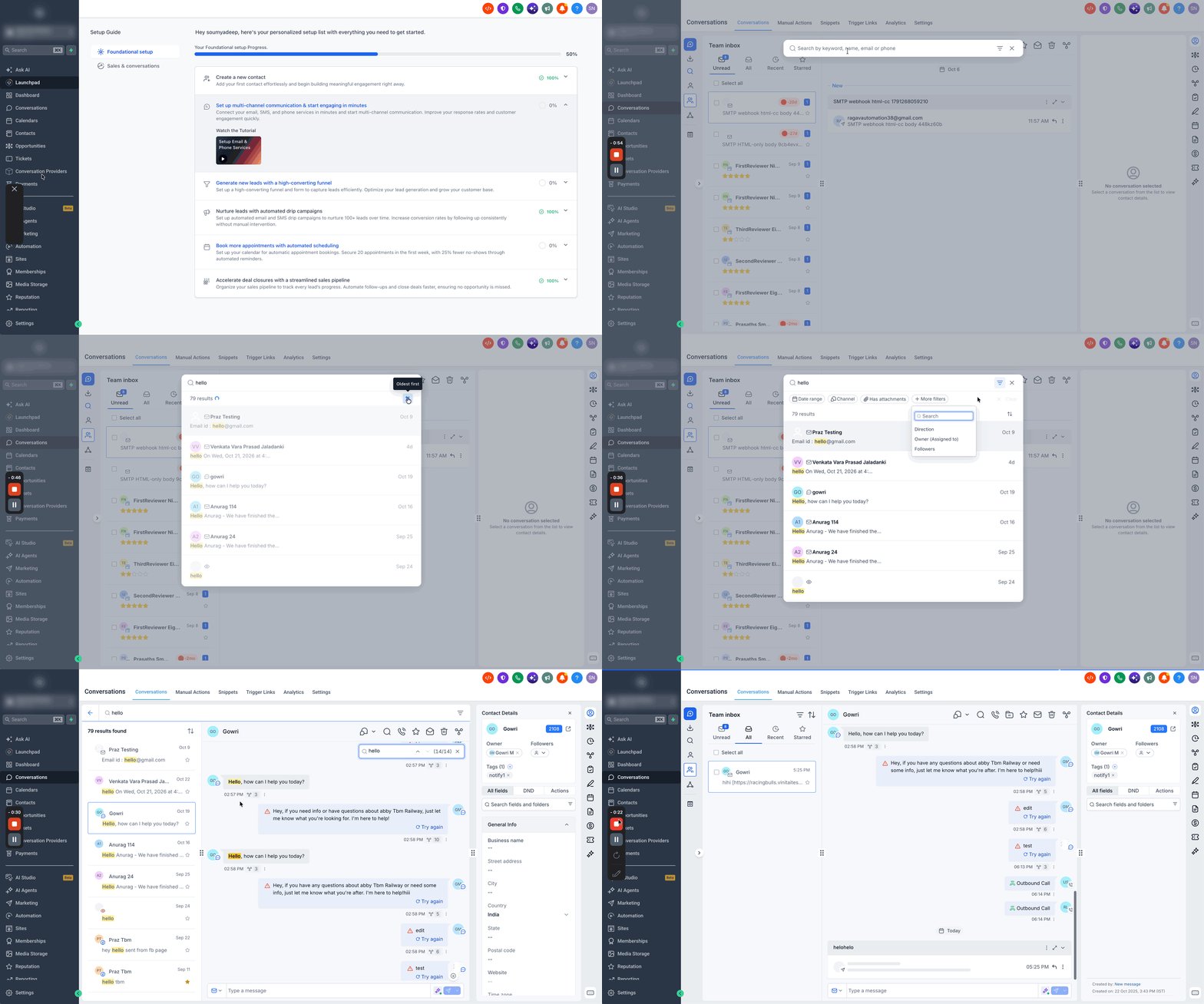
Click the Search icon at the top of the conversation list. A search box appears with the placeholder Search by keyword, name, email or phone.
Enter a keyword or phrase. Results appear as you type, with the total number of matches displayed at the top. Each result includes the contact name, channel icon, date, and a message preview with the matching keyword highlighted in yellow.
Click a result to open the matching conversation, or press Enter to view the full results list. The conversation opens with the keyword automatically entered in the in-conversation search.
Use the Sort icon next to the result count to arrange results by newest or oldest.
Click the Back arrow beside the search box to return to your normal inbox.
Search Within a Conversation
Use this option when you already know the contact but need to find a specific message, such as a price you quoted or a date they confirmed.
Note: In-conversation search covers the contact's full message history, including older messages that aren't currently visible. Older matching messages load automatically when you navigate to them.Open the contact's conversation in Conversations.
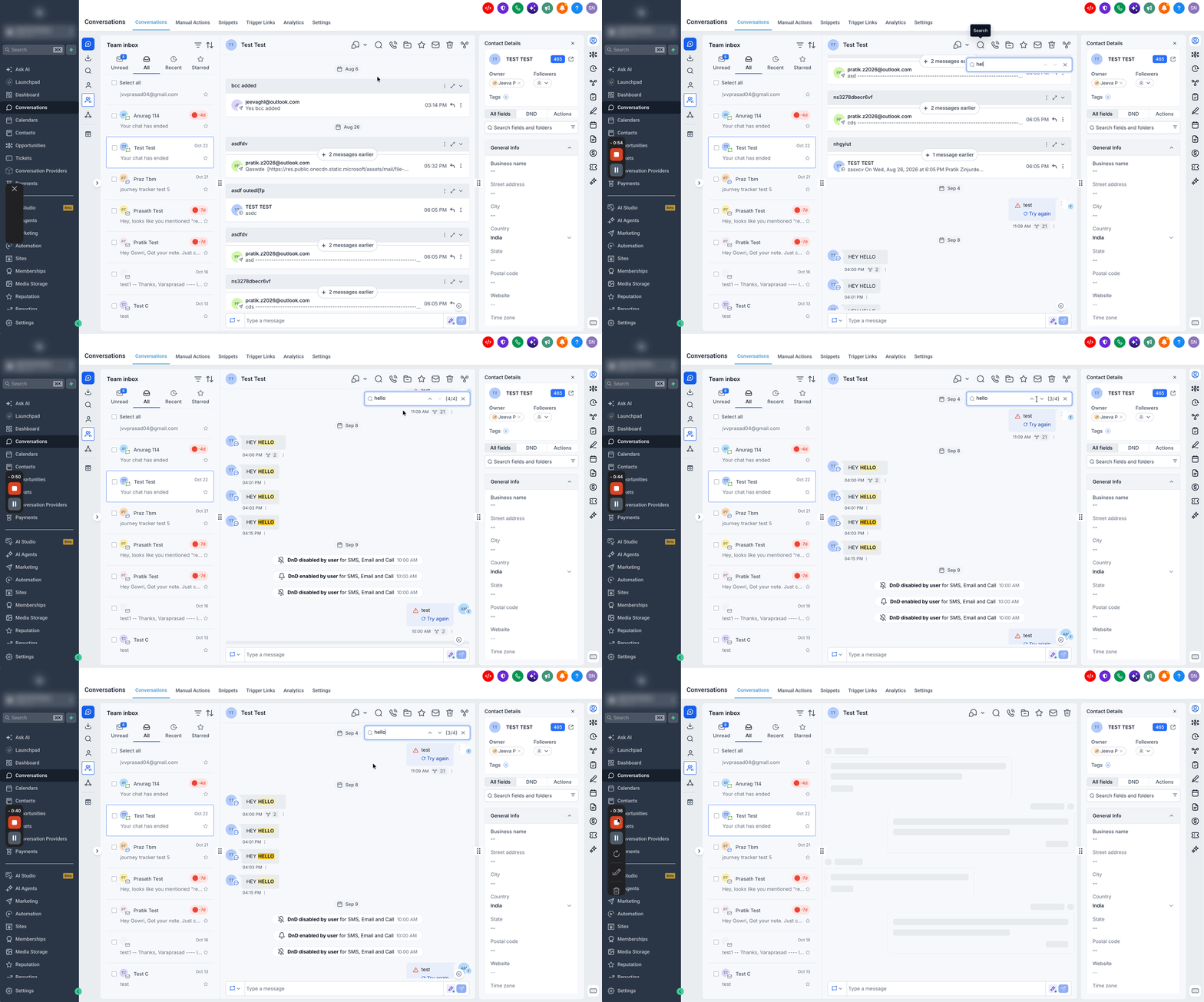
Click the Search icon in the conversation header. A search box appears at the top-right of the message thread. If you opened the thread from a cross-conversation search, the keyword is already filled in.
Enter the word or phrase you want to find. Matching messages are highlighted in yellow, and a counter displays your position among the matches, such as 4/4.
Use the Up and Down arrows beside the counter to move between matching messages. The thread automatically scrolls to each match and keeps it highlighted.
Click X to close the search box. The conversation remains at your current position.
Narrow Search Results with Filters
If your keyword returns too many results, you can apply filters to find the relevant conversations more quickly.
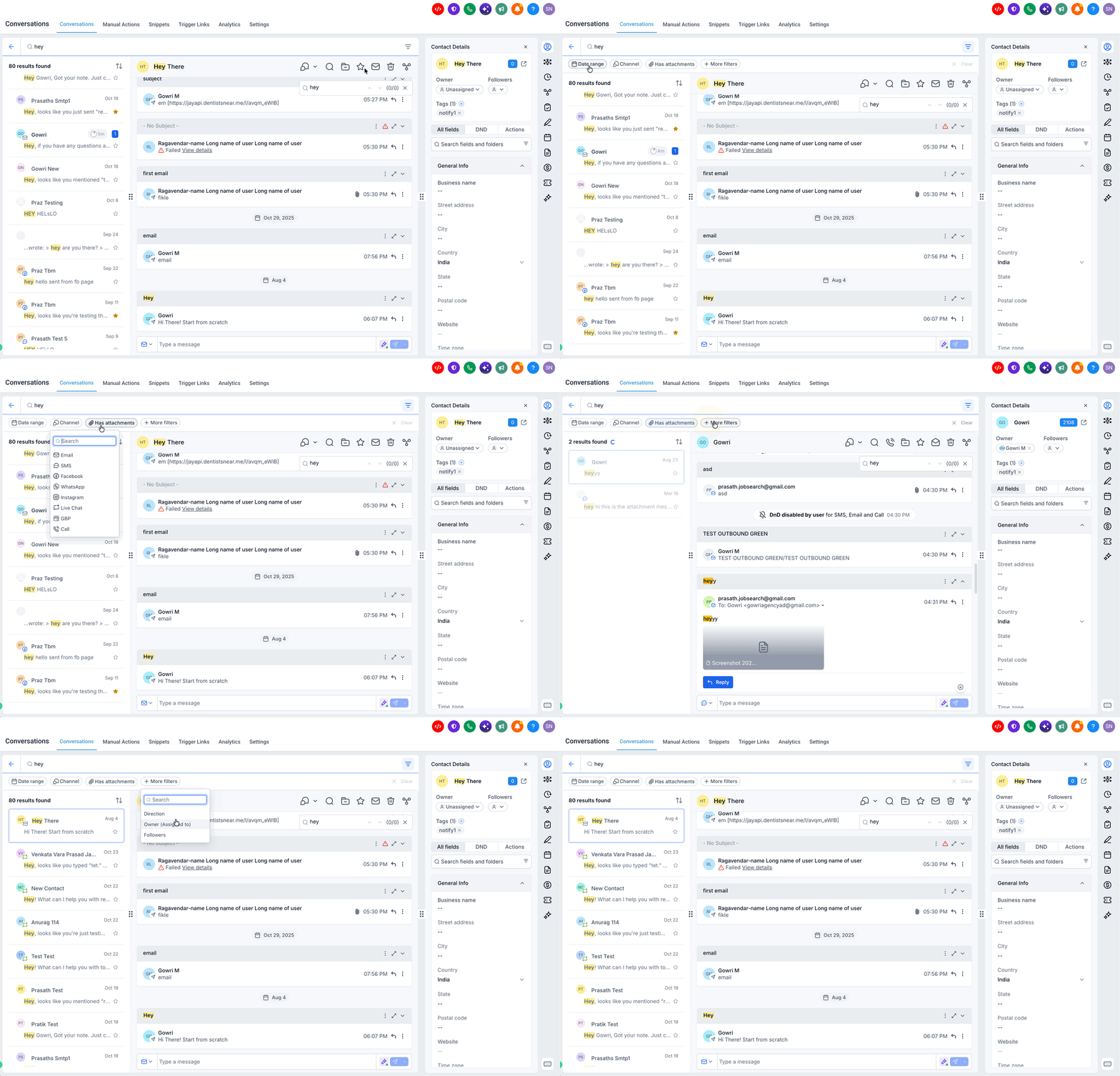
After searching for a keyword, click the Filter icon at the top-right of the results list.
Choose the filters you want to apply. Filter chips appear above the search results, and the total result count updates as filters are applied.
Review the filtered conversations and select the matching result.
Click Clear at the end of the filter row to remove all applied search filters.
Available Search Filters
| Filter | What It Does |
|---|---|
| Date Range | Limits results to messages sent or received within a selected period. Choose dates manually or use Today, Last 7 Days, Last 30 Days, or Last 90 Days, then click Confirm. |
| Channel | Filters by one or more channels, including Email, SMS, Facebook, WhatsApp, Instagram, Live Chat, GBP, and Call. |
| Has Attachments | Shows conversations where the matching message contains an attachment. |
| Direction | Filters messages by inbound or outbound direction. Available under More Filters. |
| Owner | Narrows results based on the assigned conversation owner. Available under More Filters. |
| Followers | Filters conversations based on their followers. Available under More Filters. |
Tips for Better Search Results
Keep these tips in mind when searching messages:
Minimum characters: Enter at least 3 characters to start searching.
Case-insensitive search: Searching for "Refund", "refund", or "REFUND" returns the same results.
Partial word matching: Searching for "invoic" can find messages containing "invoice" or "invoicing".
Multiple words: Searches containing multiple words find messages with all those words, regardless of their order.
Exact phrases: Use double quotation marks to search for an exact phrase, such as
"not interested".Numbers: You can search for numbers just like words. For example, searching for "299" can help locate a quoted price of $299.
Combine filters: Use date range, channel, attachments, direction, owner, and follower filters to narrow down cross-conversation results.
Frequently Asked Questions
Q: Does keyword search replace the existing contact search?
Yes. The same search box lets you find contact names, email addresses, phone numbers, and message content. Contact name matches appear first.
Q: Do my existing inbox filters affect keyword search results?
No. Keyword search starts across all conversations you have permission to access, regardless of your current inbox filters. You can apply filters within the search results to narrow them down.
Q: Can agency users search conversations across multiple sub-accounts?
No. Keyword search is limited to the sub-account you're currently working in.
Q: Are archived conversations included in keyword search?
Yes. Archived conversations appear in search results, but deleted conversations do not.
Q: Who can use keyword search?
Any user with access to Conversations in the sub-account can use keyword search. No additional keyword-search permission is required.
Search results respect existing access permissions. For example, users restricted to assigned conversations can only find messages within those conversations.
Q: Why does nothing happen when I start typing?
Keyword search requires at least 3 characters before displaying results. Until then, the search box indicates how many more characters are needed.
Q: Why is a conversation missing from my search results?
This may happen if:
A search filter is still applied.
The conversation has been deleted.
You don't have permission to view the conversation.
Click Clear to remove filters. If the conversation is still missing, check its assignment and your access permissions with your administrator.
Q: Why does in-conversation search miss some messages?
In-conversation search respects any message-type filters applied to the thread.
For example, if the conversation is filtered to show only WhatsApp messages, the search will only return matching WhatsApp messages.
Remove the message-type filter to search across all available channels in that conversation.