
Online Booking Page in Field Services
Your online booking page is how customers find your services, check that you cover their address, pick a time and book or send a request, any time of day, without calling your office. This article walks through what customers see at each step, what you need to set up first, and how to share the page.
Note: Field Services is currently in private beta and is available to selected accounts. Features and screens may change as we improve them.
In this article
- What is the online booking page?
- Before you share your booking page
- What customers see, step by step
- Instant booking or booking request
- Payment on the booking page
- Share your booking page
- Tips for a page that converts
- Frequently asked questions
- Related articles
What is the online booking page?
The online booking page is a branded, customer-facing page for your business. Customers can:
- Browse your services and add-ons.
- Check that you serve their address.
- Pick a time that works for them.
- Enter their details and pay, or send a request for your team to review.
It works on desktop, tablet and mobile, and every service also has its own direct booking link. You control how it looks in the Booking Page Editor in Field Services, and how it behaves in Field Services Settings: Online Booking.
Before you share your booking page
The page is built from the rest of your Field Services setup. Check these first so customers see a page that works:
| Set up | Why it matters | Learn more |
|---|---|---|
| Services | Only services appear on the page, and a service with no staff assigned cannot be booked online. | Services and Add-ons in Field Services |
| Staff | Open times come from staff working hours, assigned services and service areas. | Staff in Field Services |
| Service areas | Customers are checked against your coverage before they pick a time. | Service Areas in Field Services |
| Booking rules and payments | Decide how customers pick a time, whether they book instantly or send a request, and how they pay. | Field Services Settings: Online Booking |
| Look and wording | Add your logo, colors and the text customers see at every step. | Booking Page Editor in Field Services |
What customers see, step by step
1. Browse your services
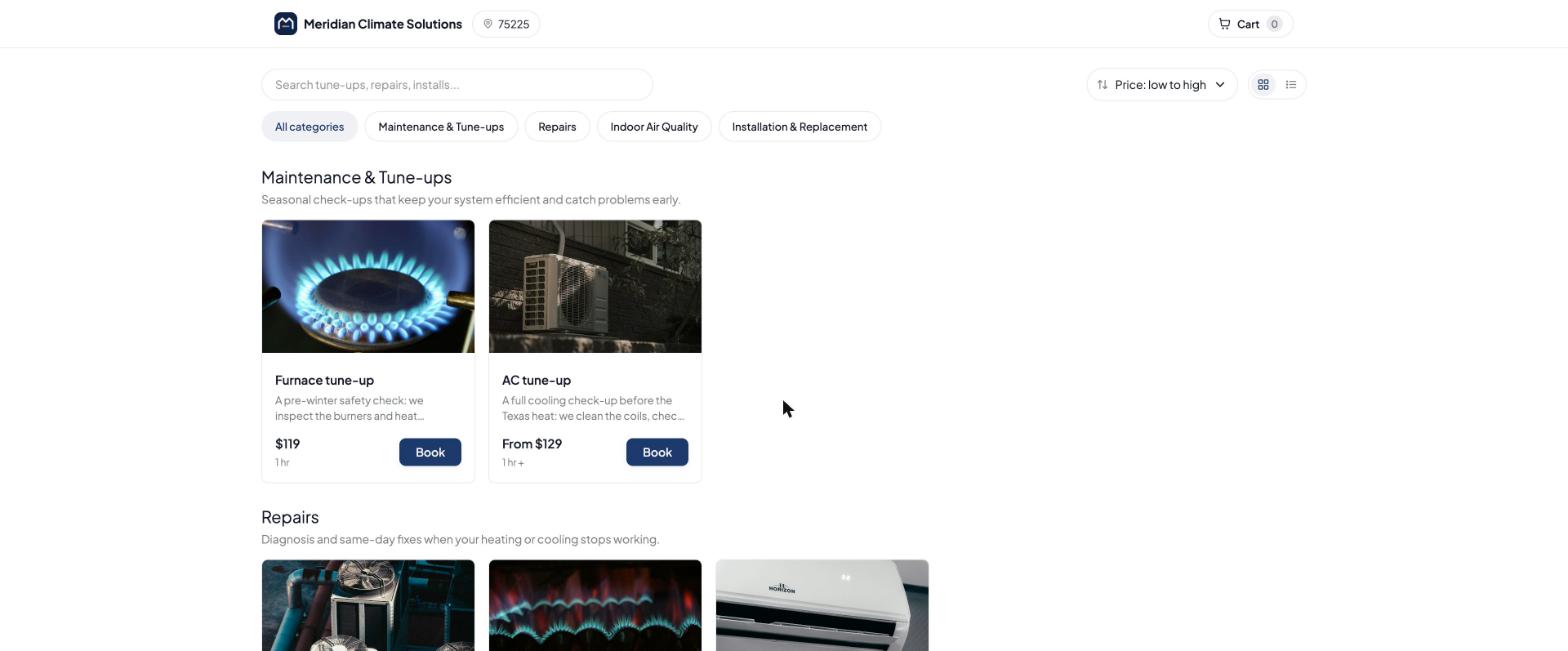
Customers land on your catalog. Services are grouped by category, with a search box and filters to help them find what they need. The top bar shows their service address and their cart.
2. Check the address
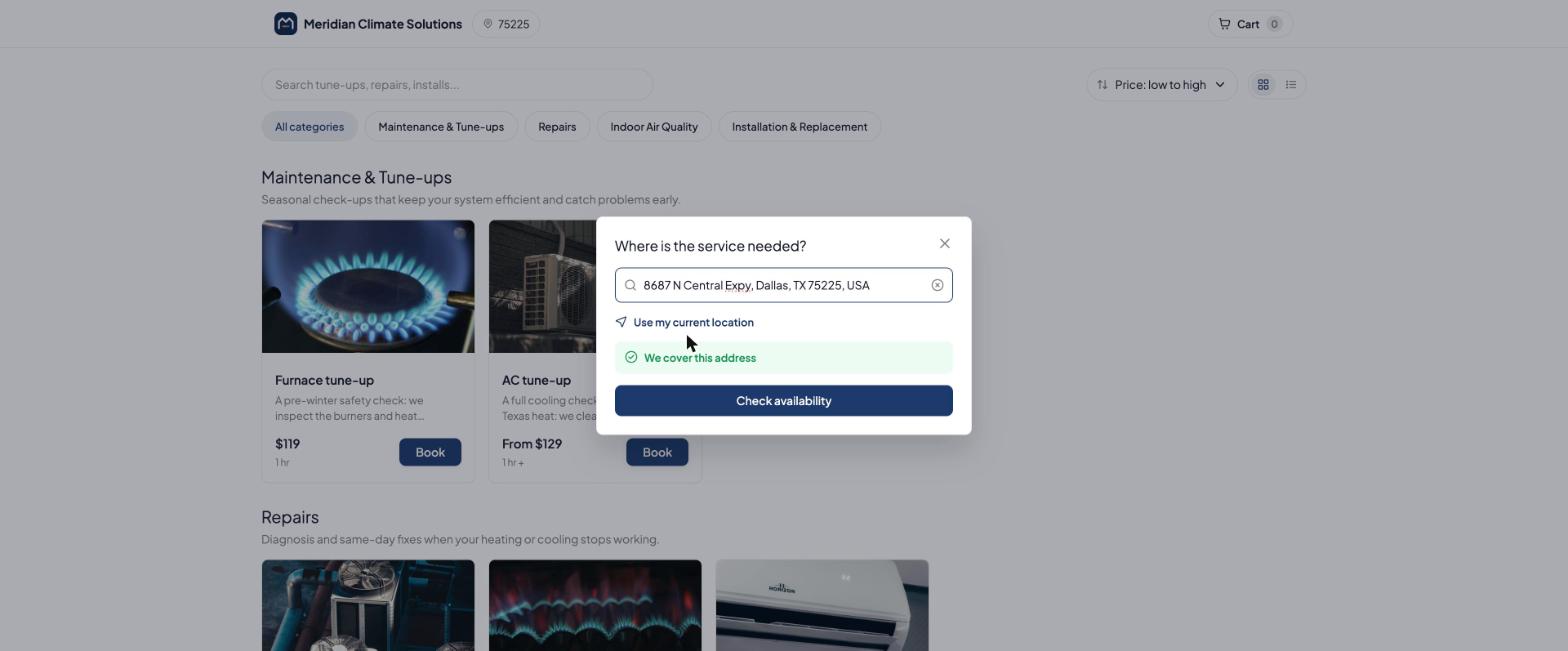
Before booking, customers enter the address where the service is needed, or use their current location. The page checks it against your service areas and tells them straight away whether you cover it.
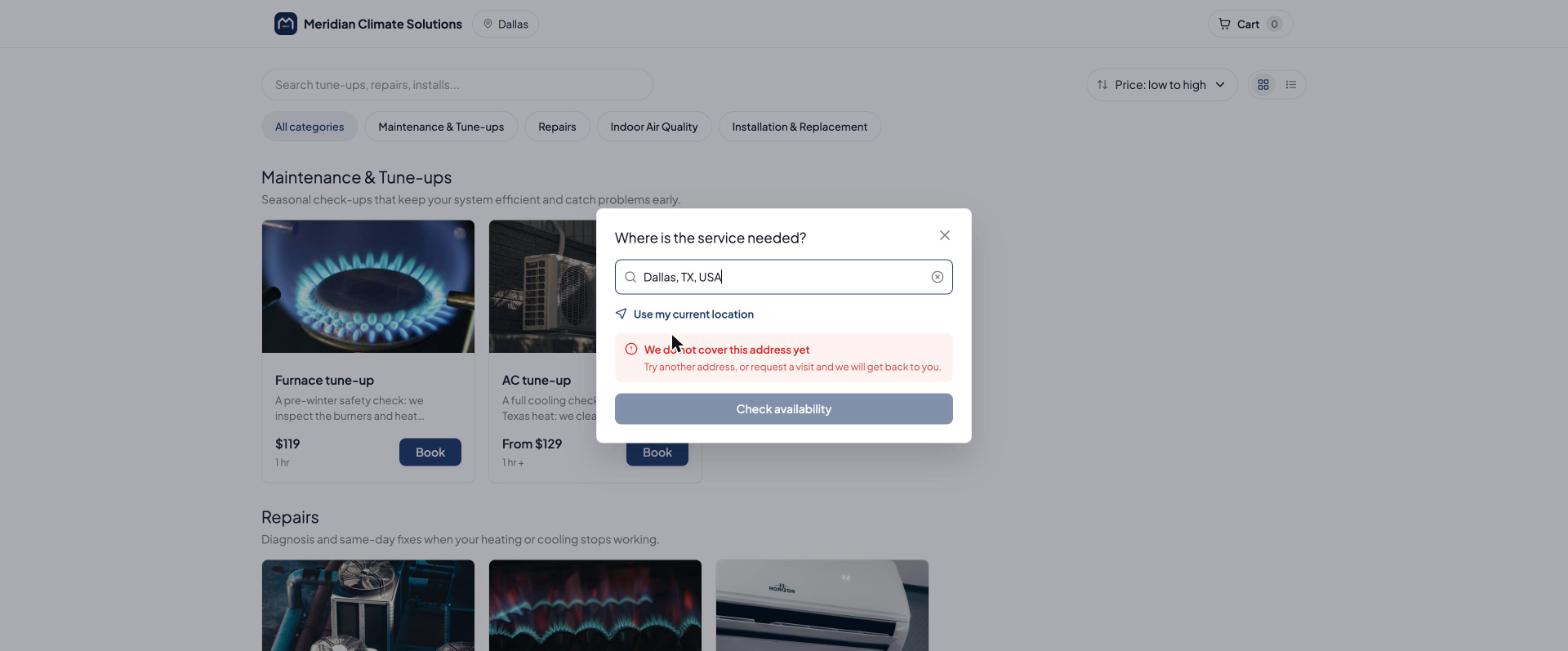
If the address is outside your service areas, what happens next depends on your Bookings outside service areas policy:
- Block booking: Customers cannot book that address.
- Allow booking with review: Customers can still book, and your team reviews the booking. They see the message you wrote for them.
See Service Areas in Field Services to set this policy.
3. Choose a service
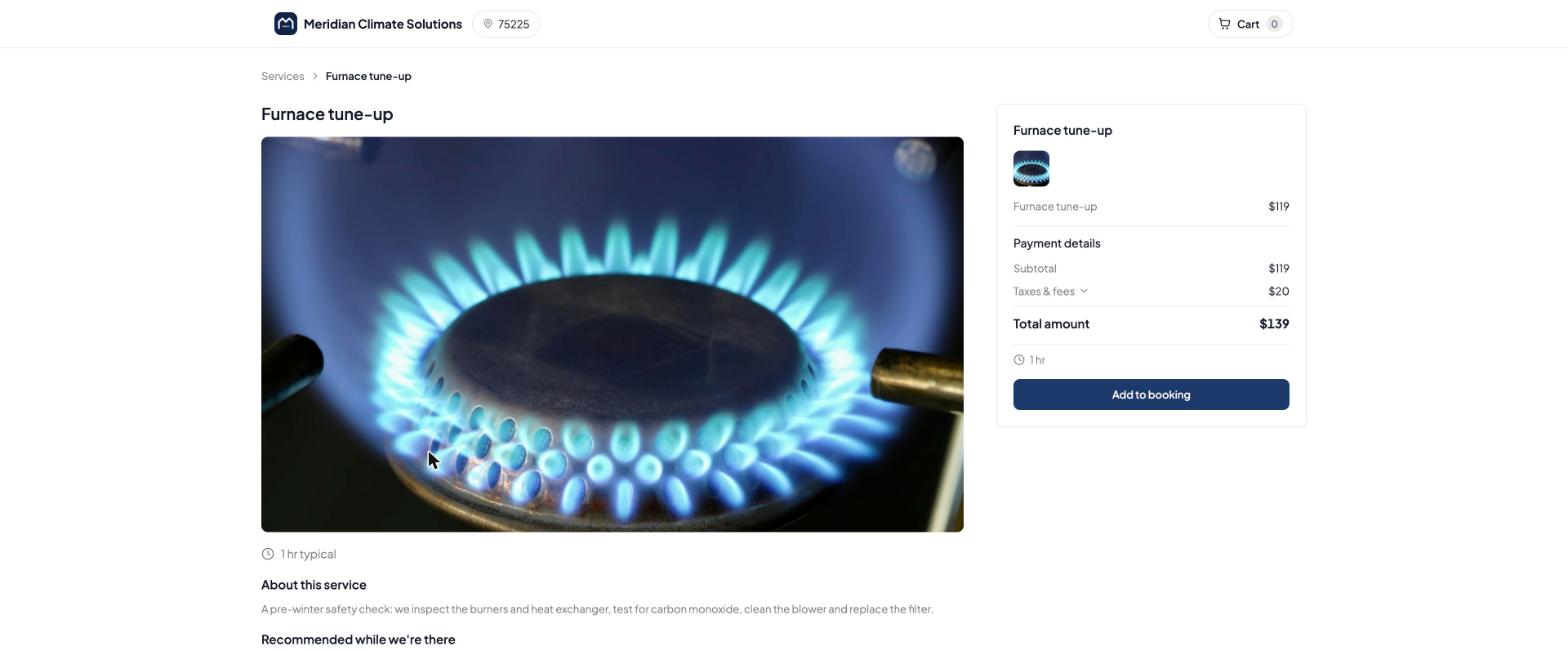
The service page shows the details, price and any options or add-ons. Customers add what they want to their booking.
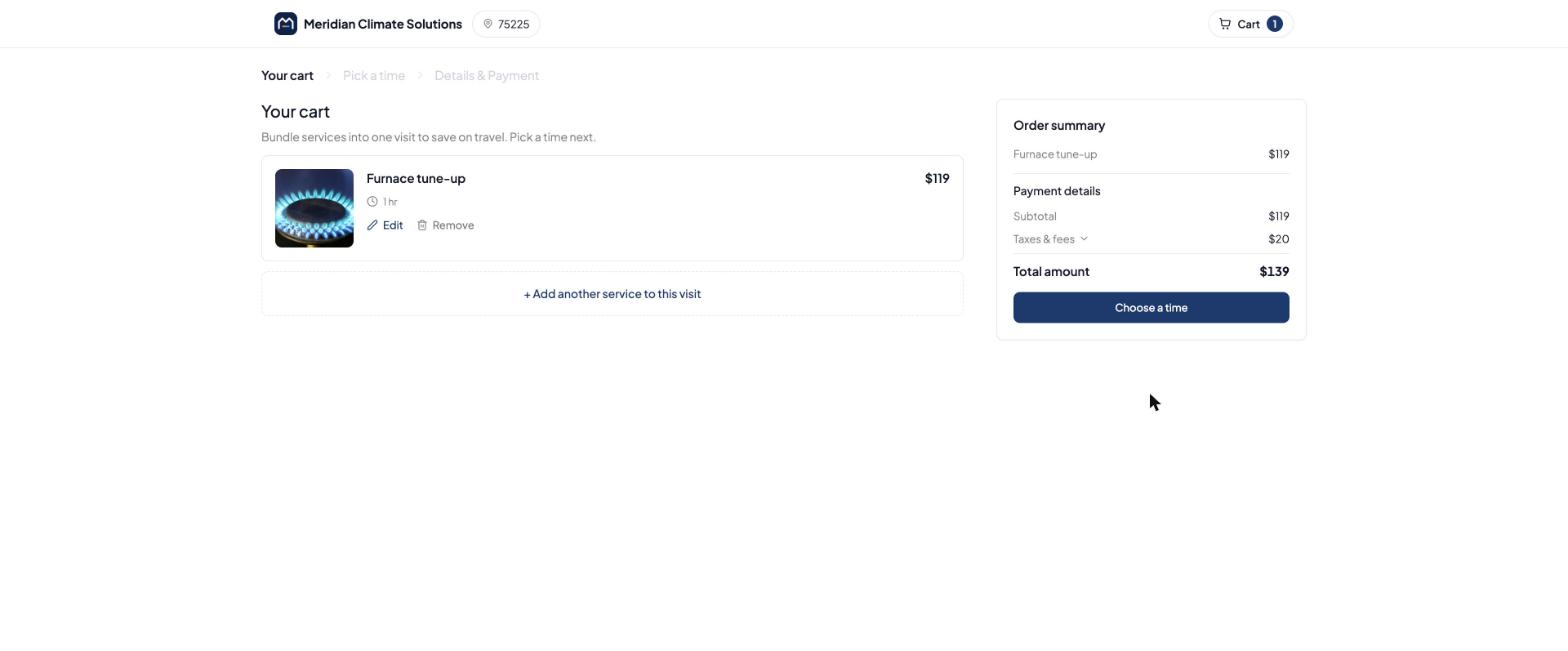
4. Review the cart
Customers can book more than one service in the same visit. The cart shows each service with an order summary of the subtotal, taxes and fees, and the total. They can edit or remove a service, or add another, before choosing a time.
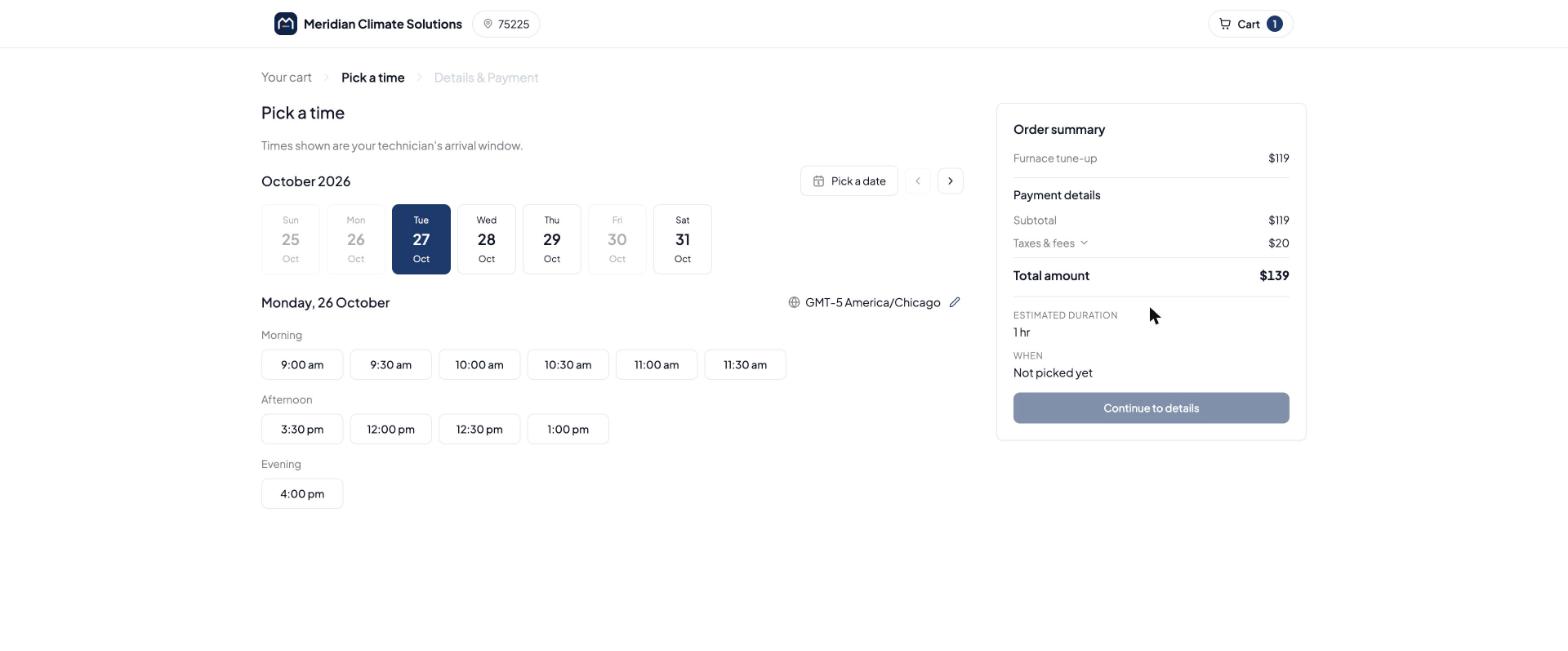
5. Pick a time
Customers choose a date and then a time. Open times are grouped by morning, afternoon and evening, and the time zone is shown. Depending on your booking rules, customers pick an exact time, a time window, or just a date. See Field Services Settings: Online Booking.
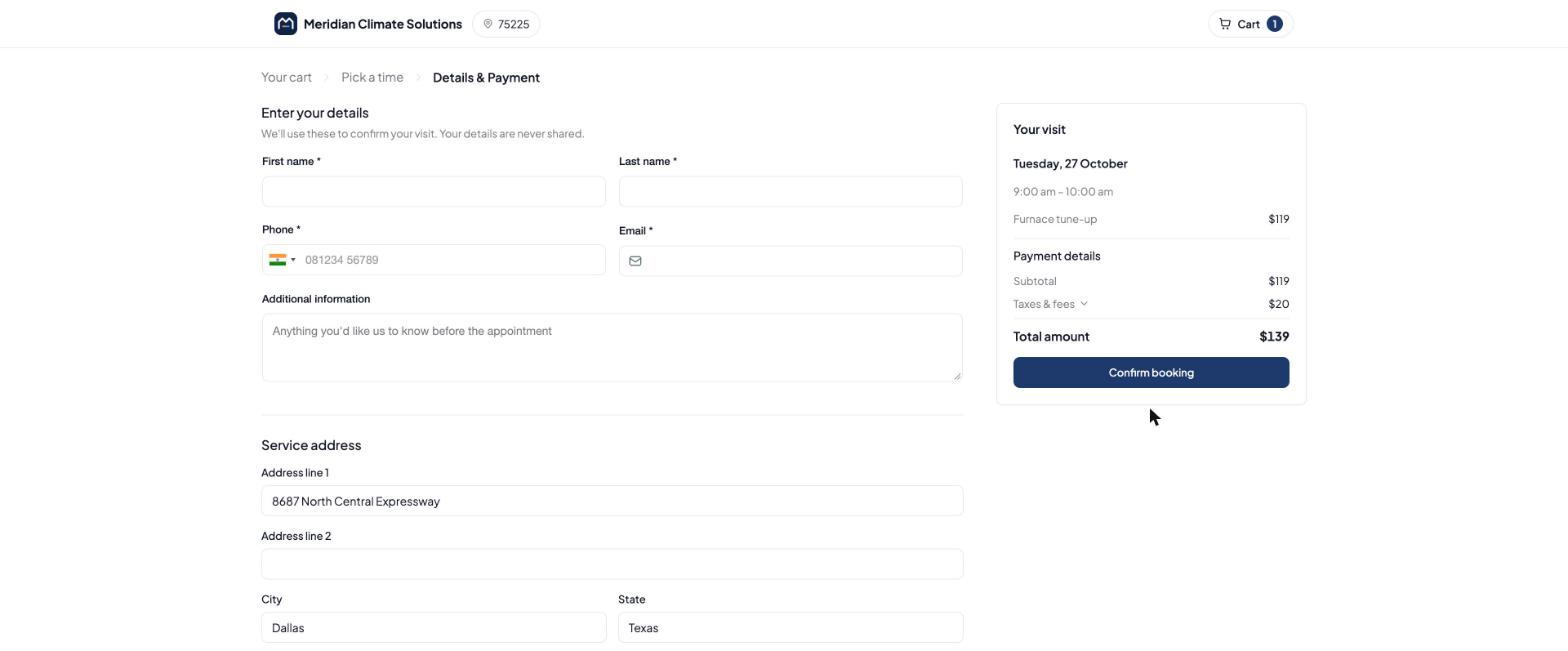
6. Enter details and confirm
Customers enter their contact details and the service address, add any notes for your team, and complete the payment step you set up. Then they confirm the booking.
7. Confirmation
After booking, customers see a confirmation page with the message you wrote. You can also send confirmation and reminder messages. See Notifications in Field Services.
Instant booking or booking request
You choose what happens when a customer submits the page, in Field Services Settings > Online booking > Booking rules.
| Mode | What the customer does | What your team does |
|---|---|---|
| Instant booking | Picks an open time and the visit is booked straight away. | Sees the visit on the schedule. See Schedule in Field Services. |
| Booking request | Sends a request without picking a confirmed time. | Reviews the request, then schedules the visit. See Requests in Field Services. |
With instant booking, you can also let customers send a request when no times are open, so they are not turned away.
Payment on the booking page
Payment options are set in Field Services Settings > Online booking > Payments: pay online, pay in-person, or card on file only. If you have not connected a payment provider yet, choose Pay in-person so customers can still complete a booking. See Field Services Settings: Online Booking.
Share your booking page
- Whole page: Use the Booking page link in the booking page editor, or click View booking page to open it. Click the arrow next to it to share the link.
- One service: Open Services & staff > Services, then use Share booking link on a service to send customers straight to it.
Note: If you change your booking page link, links you have already shared will stop working.
Add the link to your website, Google Business Profile, email signature and social profiles. See AI Receptionist and Google Organic Booking in Field Services for Google organic booking.
Tips for a page that converts
- Test it yourself. Open the page, book a service for a real address in your area, then try an address outside it.
- Keep descriptions short. Customers decide faster with a clear name, price and duration.
- Use add-ons. Offer useful extras on the service page so customers can add them in one click.
- Preview on mobile. Most customers book from a phone, so check the mobile preview in the editor.
Frequently asked questions
Why do customers see no available times?
Check that at least one staff member is assigned to the service, serves the customer's service area and has working hours in the days shown. Also review your minimum notice and booking window in Booking rules.
Why can't a customer book their address?
The address is outside all your service areas and your policy is set to Block booking, or the area has no staff assigned. See Service Areas in Field Services.
Why is a service missing from the page?
A service must have at least one staff member assigned to be bookable online. See Services and Add-ons in Field Services.
Can customers book more than one service at once?
Yes. They can add several services to the cart and book them together.
Do customers get a confirmation?
They see a confirmation page after booking, and you can turn on email, SMS or WhatsApp notifications. See Notifications in Field Services.
Can I use my own branding?
Yes. Add your logo, colors, fonts and wording in the booking page editor. See Booking Page Editor in Field Services.