
Send SMS Action for Custom Object and Company Workflows
Use the Send SMS action in Custom Object and Company workflows to message Contacts associated with the enrolled record. Choose recipients using relationship labels, personalise messages with record and Contact fields, and track delivery results directly from the workflow.
TABLE OF CONTENTS
- Before you begin
- Add and configure Send SMS
- Choose the recipients
- Company association labels
- Write and personalise the message
- Review the results
- Troubleshoot missing messages
- Frequently Asked Questions
Before you begin
- Feature access: Enable the Send SMS action in Labs for the location.
- Associated Contacts: Make sure the record is linked to the intended Contacts under the labels you will select.
- SMS readiness: Check that the location is configured to send SMS and that recipient Contacts have valid phone numbers and can receive SMS.
Add and configure Send SMS
- Go to Automation > Workflows and open a Custom Object or Company workflow.
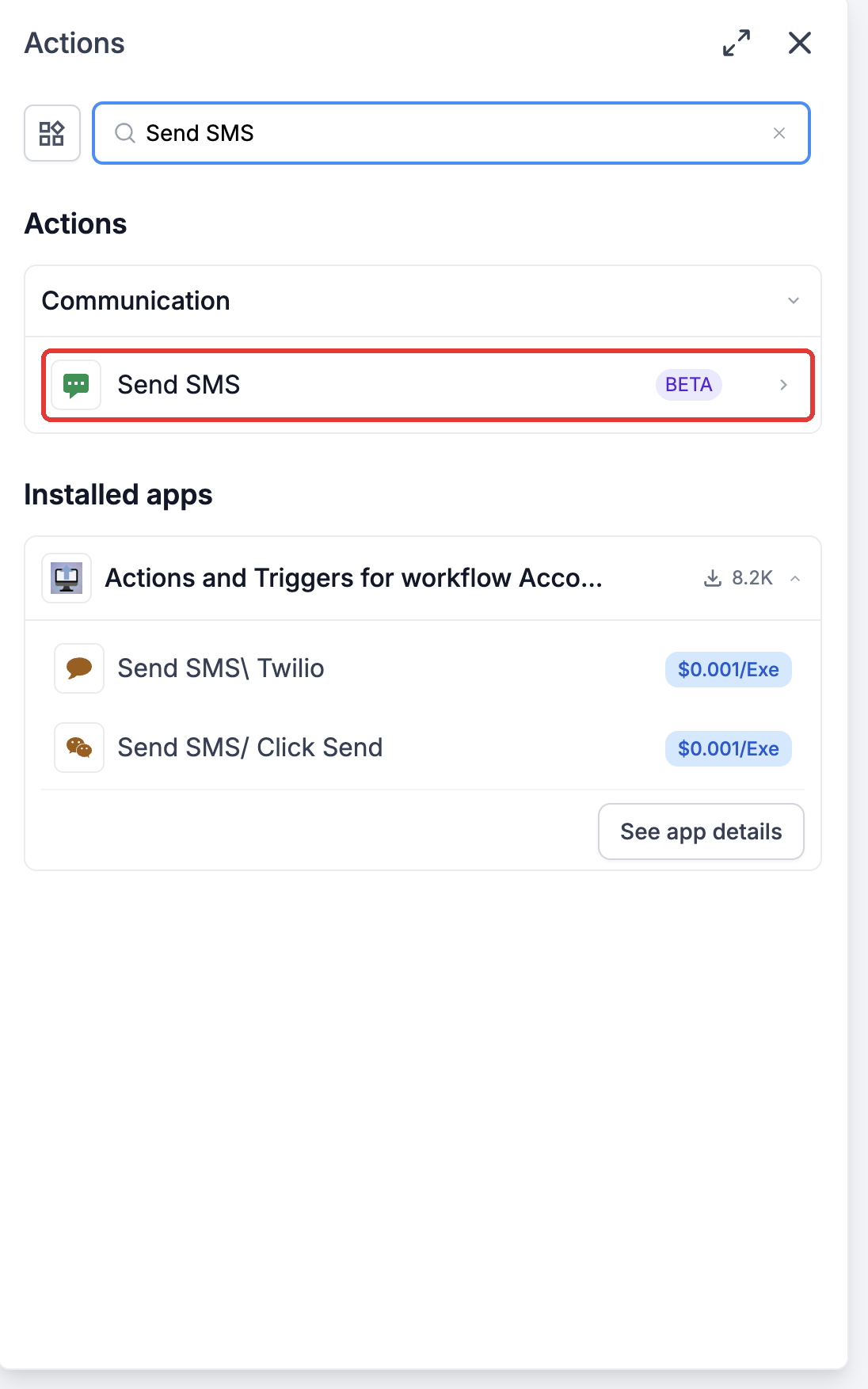
- At the relevant point in the workflow, add an action and choose Communication > Send SMS.
- Choose an SMS recipients option and at least one Association label.
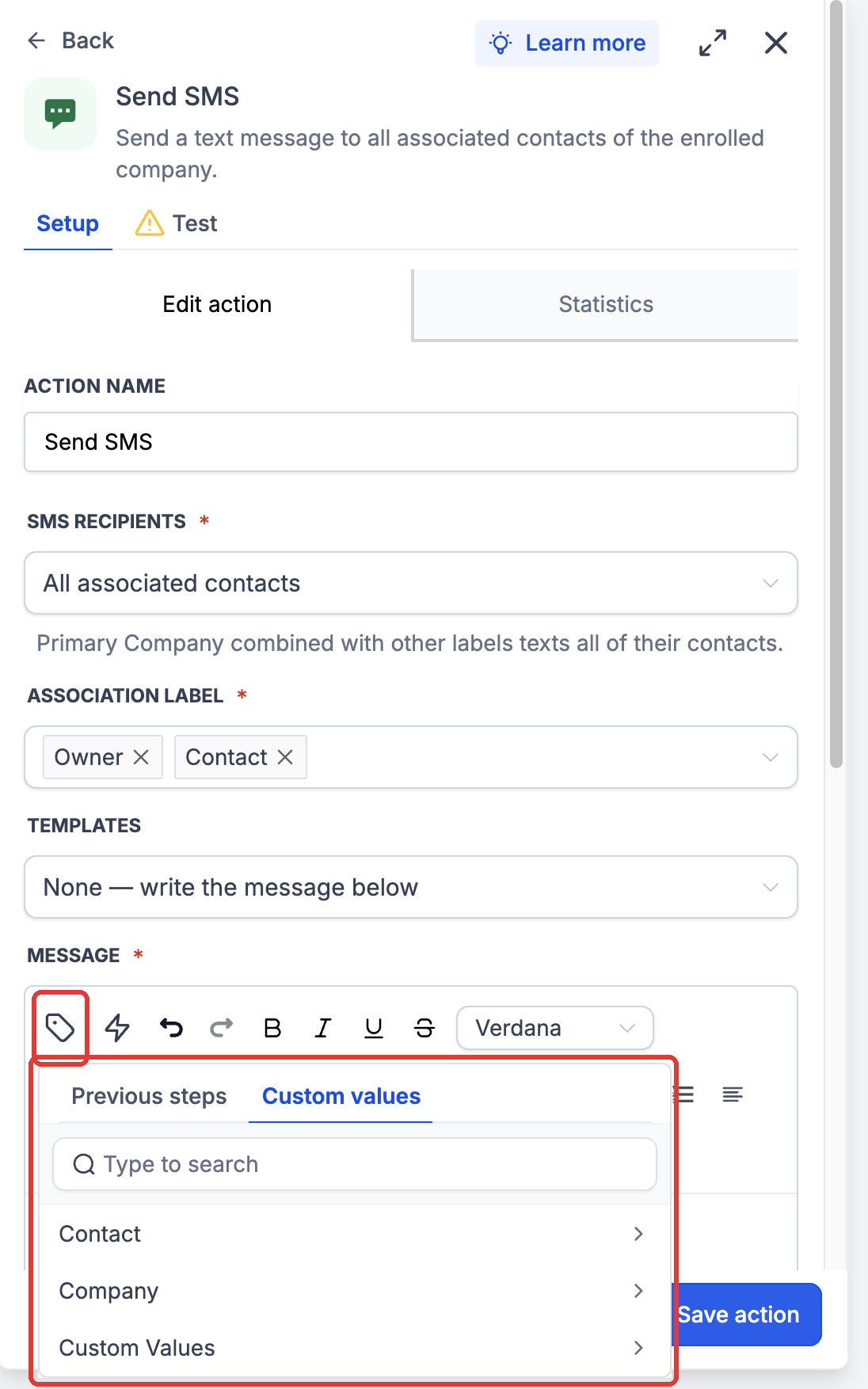
- Select a template, or choose None to write the Message. Use the custom value picker to add enrolled Custom Object or Company fields alongside recipient Contact fields. Add attachments if needed.
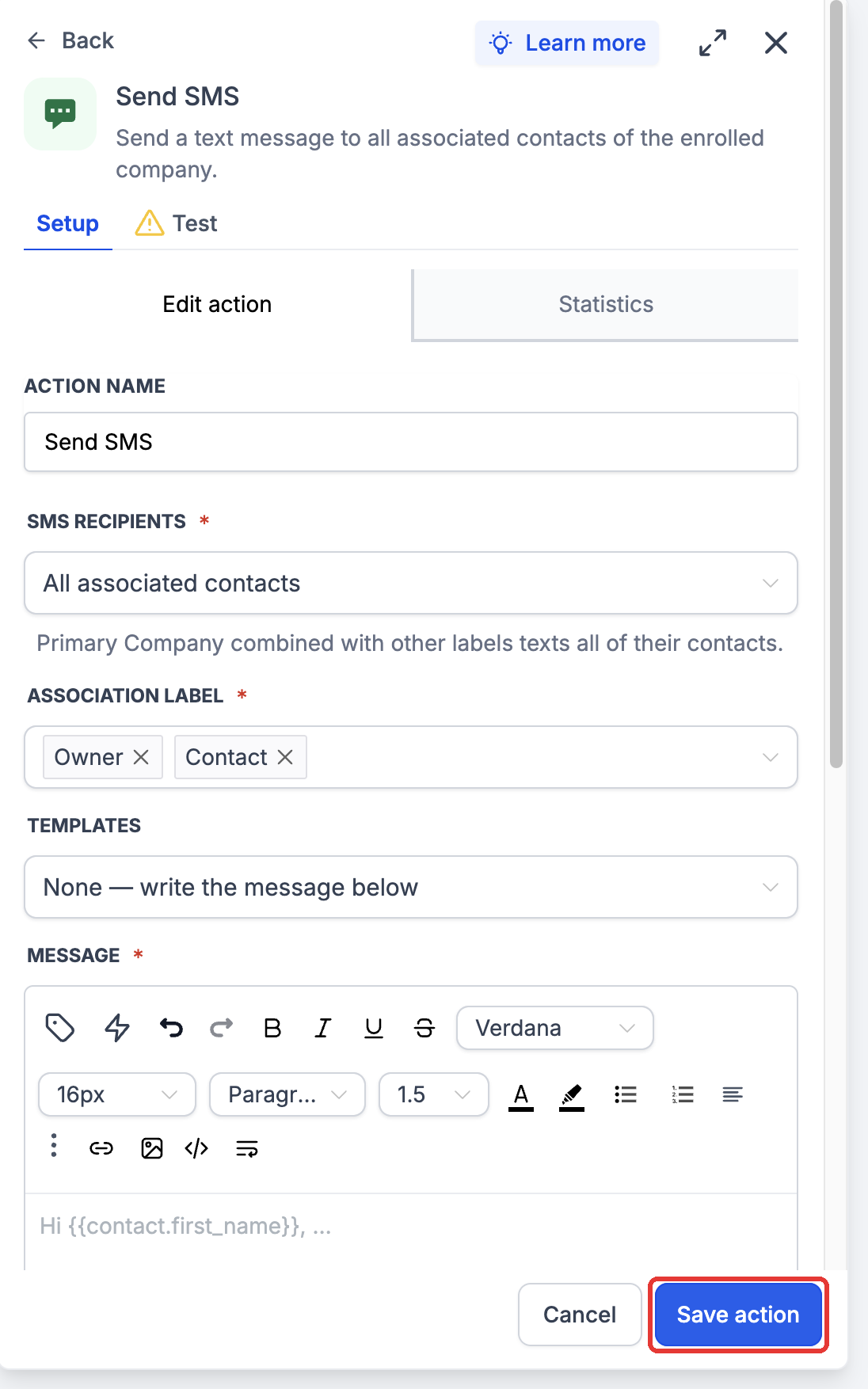
- Choose Save action. Review the recipient rules and the rest of the workflow before publishing.
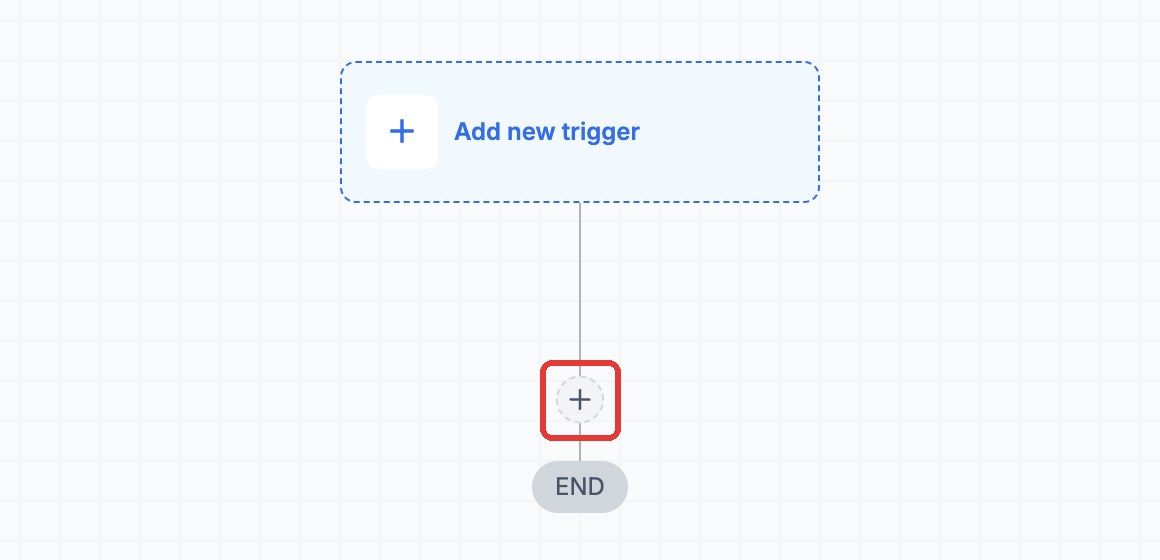
Step 1: In a Company or Custom Object workflow, click + to add an action.
Step 2: Under Communication, choose Send SMS.
Choose the recipients
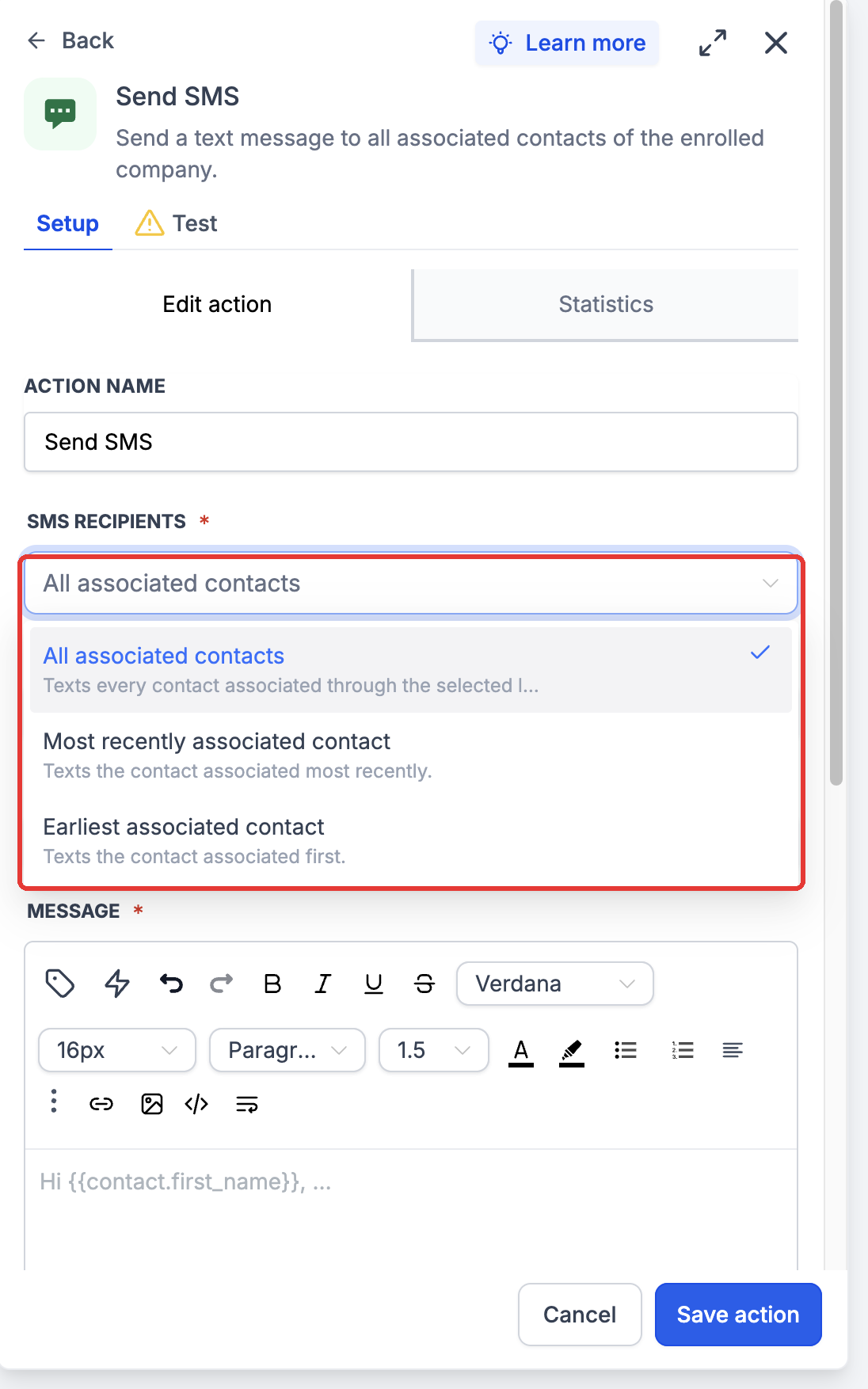
- All associated contacts: Texts every matching Contact associated through the selected labels.
- Most recently associated contact: Targets the Contact associated most recently, where this option is available.
- Earliest associated contact: Targets the Contact associated first, where this option is available.
Most recent and earliest refer to when the Contact was associated, rather than when the Contact record was created. A Contact matching multiple selected labels receives one SMS from that action run.
Step 3: Choose who receives the SMS: all associated contacts, the most recently associated contact, or the earliest associated contact.
Company association labels
Company association labels determine which Contacts associated with the enrolled Company receive an SMS. You can target Contacts linked through Primary Company or other configured relationship labels, depending on the available recipient options.
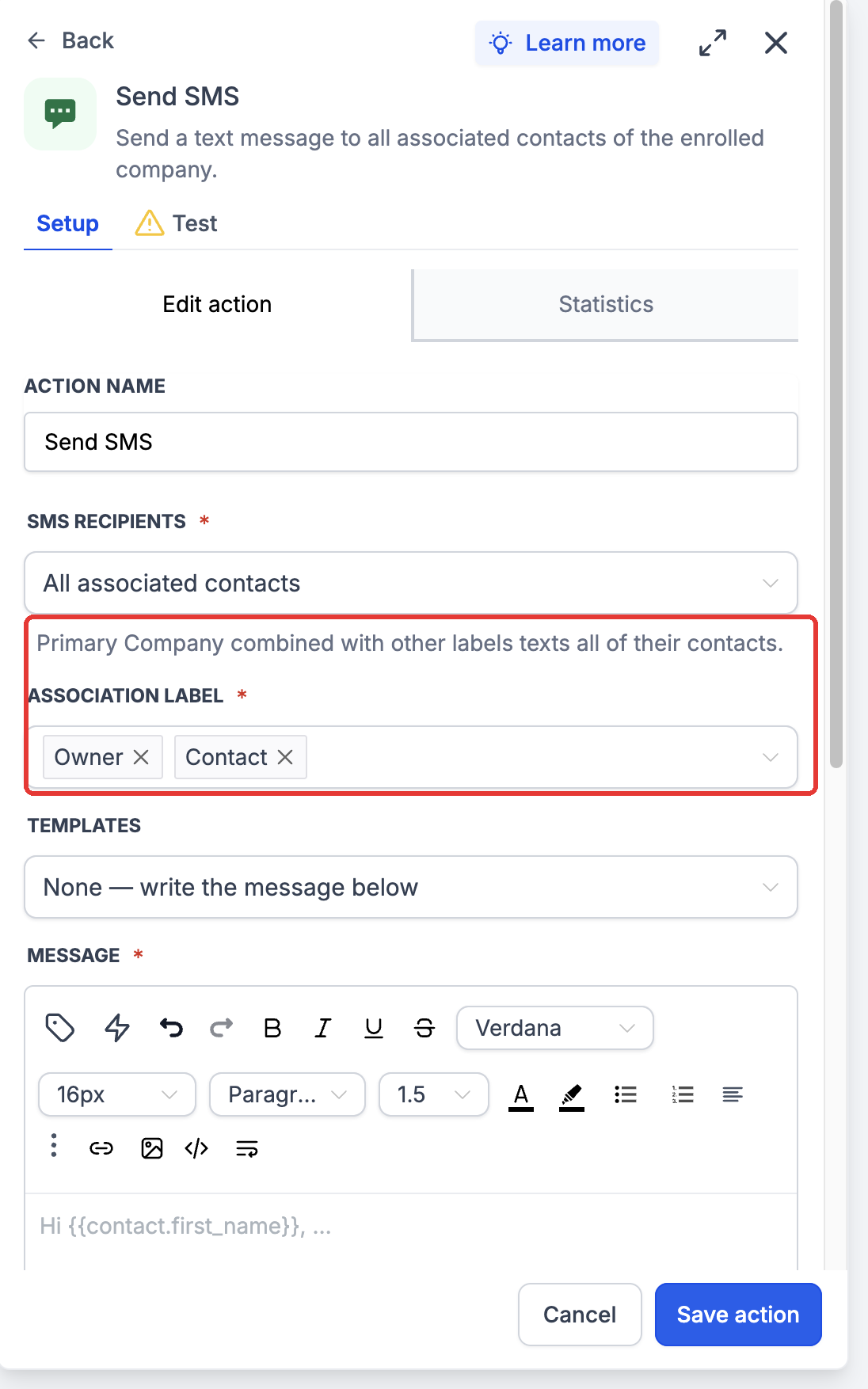
Choose Contact (paired with Primary Company) to target Contacts whose Primary Company is the enrolled Company. You can also select the location’s other Company-to-Contact labels, such as Owner or Manager.
When Primary Company is combined with another label, the action uses All associated contacts. Most recently associated contact and Earliest associated contact are unavailable for that combination. Review the on-screen guidance after changing labels.
Step 4: Choose one or more association labels.
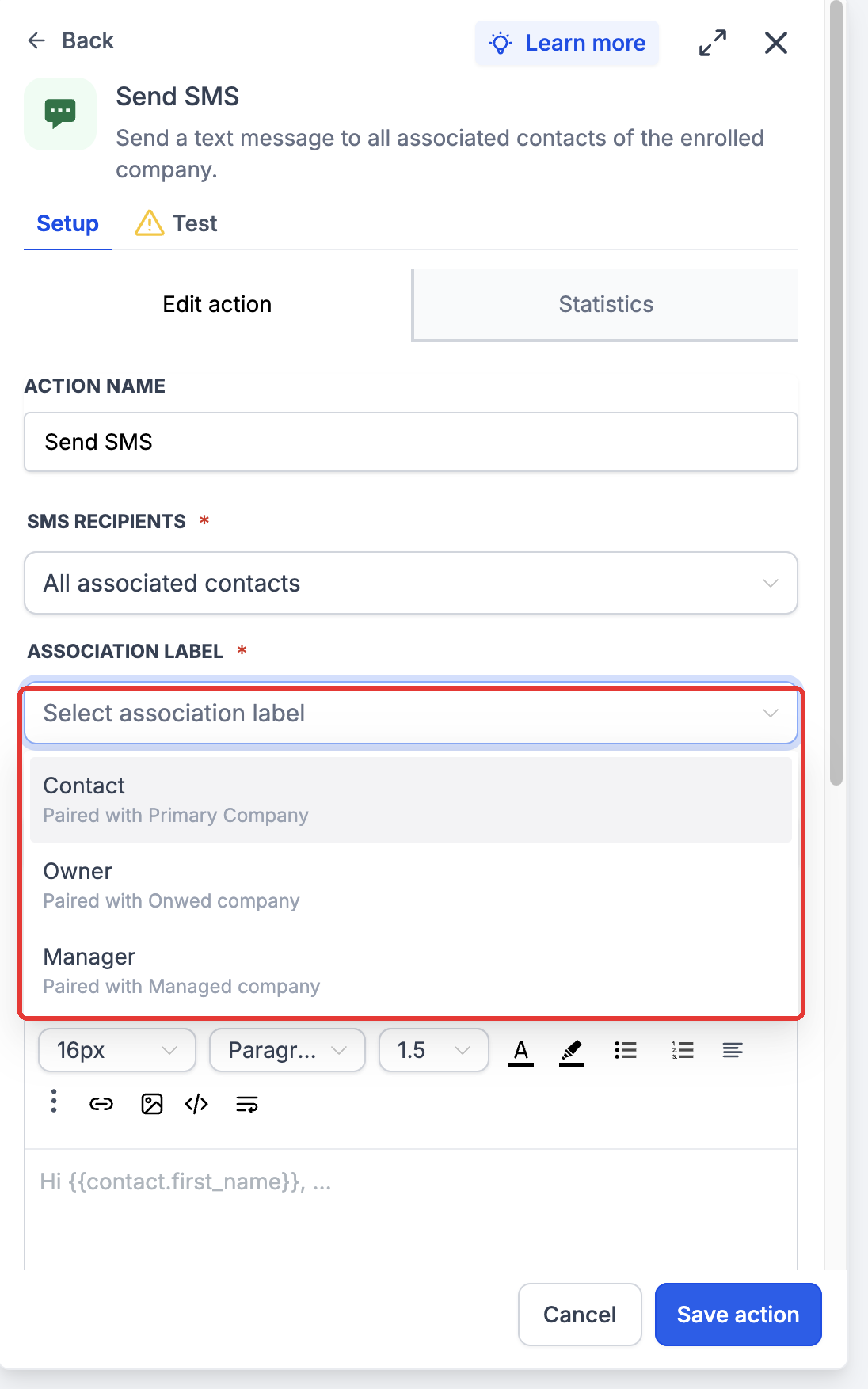
Step 5: When labels are combined, the action explains who will be texted.
Step 6: Write the message. Use the custom value picker to personalise it.
Step 7: Click Save action.
Write and personalise the message
Select an SMS template or choose None to write the message directly. When a template is selected, its content is used for the send. To return to a typed message, select None.
Open the custom value picker in the Message editor to combine fields from the enrolled Custom Object or Company with recipient Contact fields. For example, include a policy’s name and renewal date alongside the Contact’s first name. Record values come from the enrolled record; recipient values are filled separately for each Contact. This enables contextual communication from the workflow managing the record.
Example: Hi [Contact first name], your [Policy name] policy renews on [Renewal date]. Reply to arrange a review with our team. Insert the actual dynamic fields using the picker; the bracketed labels here illustrate the values to include.
Attachment options in the panel include System upload, Media library, Text, and URL. Review the resulting message and attachment requirements for your SMS service.
Review the results
Use Execution logs and the Send SMS action's Statistics to review message outcomes. Statistics provide delivery statuses and per-recipient details, including failure reasons when available.
After the workflow runs, check Execution logs for the action outcome. Open the action’s Statistics to review Delivered, Undelivered, Failed, Pending, and Opted out statuses, with per-recipient phone numbers, timestamps, and failure reasons where available.
Contacts skipped before a message is created, such as a Contact with no phone number or a do-not-contact restriction, may not appear in the message statistics. Use the execution details as well as the statistics when investigating a missing send.
Troubleshoot missing messages
- No matching Contacts: Confirm the enrolled record has Contacts linked under the selected labels. Recheck the recipient mode and whether the selected labels still exist.
- Only Primary Company Contacts receive SMS: Review Association label. Select the additional Company relationship labels needed for the intended recipients.
- Most recent or earliest is unavailable: Check whether Primary Company is combined with another label. That combination sends to all matching Contacts.
- A recipient did not receive the SMS: Check their phone number and SMS restrictions, then review Execution logs and the message’s delivery or failure status.
- Personalisation is incomplete: Check that the relevant Contact and enrolled-record fields contain values and that you selected the intended merge fields.
Workflow scope: The Custom Object record or Company remains the enrolled record. Its selected associated Contacts receive the SMS messages.
Frequently Asked Questions
Q1. Can I send SMS to multiple Contacts associated with the same record?
Yes. Select All associated contacts and choose the relevant Association labels. The action sends an SMS to each matching Contact.
Q2. Will a Contact receive duplicate SMS messages if they match multiple Association labels?
No. If a Contact matches multiple selected labels, they receive only one SMS from that action run.
Q3. Can I personalise SMS messages using both Custom Object or Company fields and Contact fields?
Yes. Use the custom value picker to combine enrolled-record fields with recipient Contact fields. For example, include a policy renewal date alongside the recipient's first name.
Q4. Can I send an SMS without using a template?
Yes. Select None under Templates to compose the message directly in the Send SMS action.
Q5. Where can I check whether an SMS was delivered successfully?
Open the workflow's Execution logs and the Send SMS action's Statistics. You can review delivery statuses and per-recipient results, including failure reasons when available.