
Manage appointments for Companies
Use the Appointments tab to review appointments linked to a Company. You can start a new booking from the Company or associate an appointment that already exists in the location.
For example, keep account meetings, quarterly reviews, and onboarding calls on the Company they belong to.
Note

This feature is available only through a private beta and applies only to locations where it has been enabled.
TABLE OF CONTENTS
- Use a Company as a hub for its meetings
- Open the Appointments tab
- Start a new booking
- Review Associated objects
- Link an existing appointment
- Frequently asked questions
- Publication notes
Use a Company as a hub for its meetings
The Appointments tab gives you the Company's meeting history and lets you act on it from the same place.
- Get context: See every upcoming and past appointment linked to the Company before you call or meet.
- Take action: Book a meeting or service, or link an appointment that is already scheduled, without leaving the Company.
- Use it as a hub: Keep account reviews and onboarding calls on the Company, so anyone who opens the account sees its meetings.
Open the Appointments tab
- Go to Contacts → Companies and open a Company.
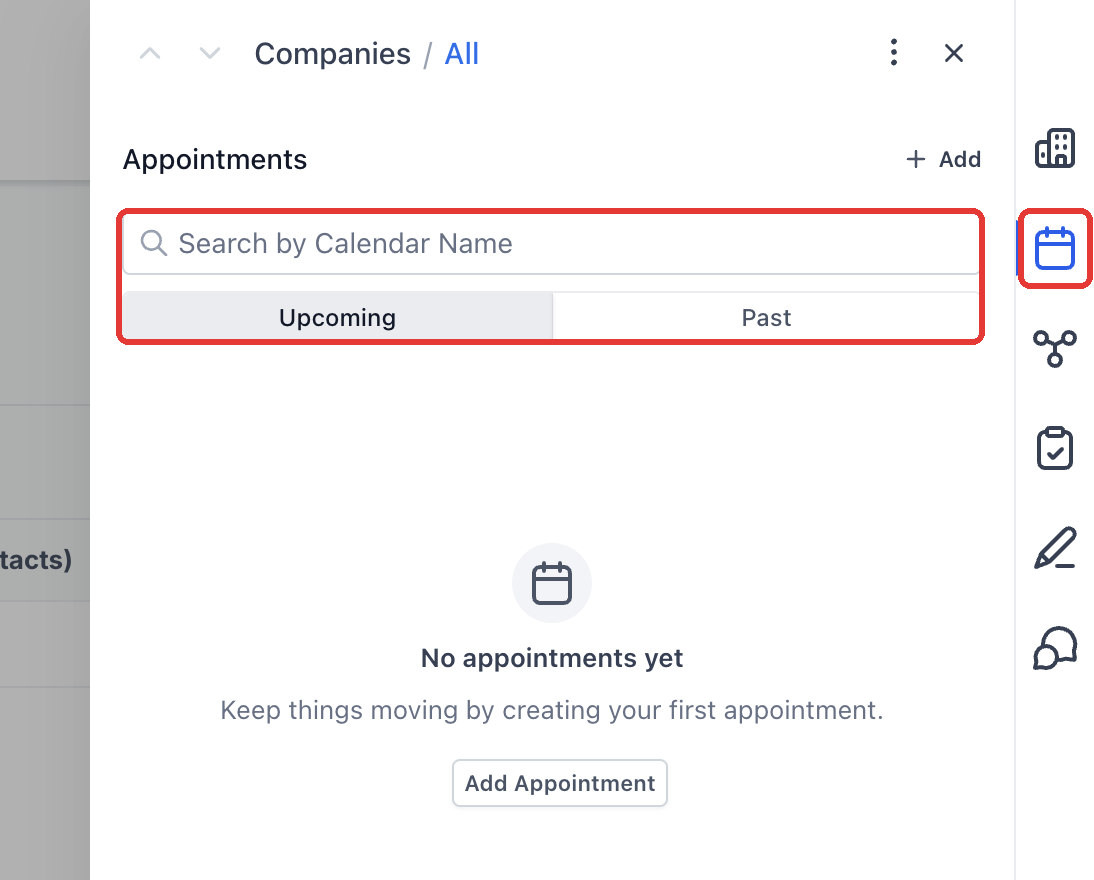
- Select Appointments from the side panel's right-hand tab rail.
- Switch between Upcoming and Past to review linked appointments.
- Use Search by Calendar Name to filter the list.
The tab shows appointments associated with the selected Company. An empty tab does not establish that a Contact has no other bookings.
Step 1: Open a Company and select Appointments on the right.
Start a new booking
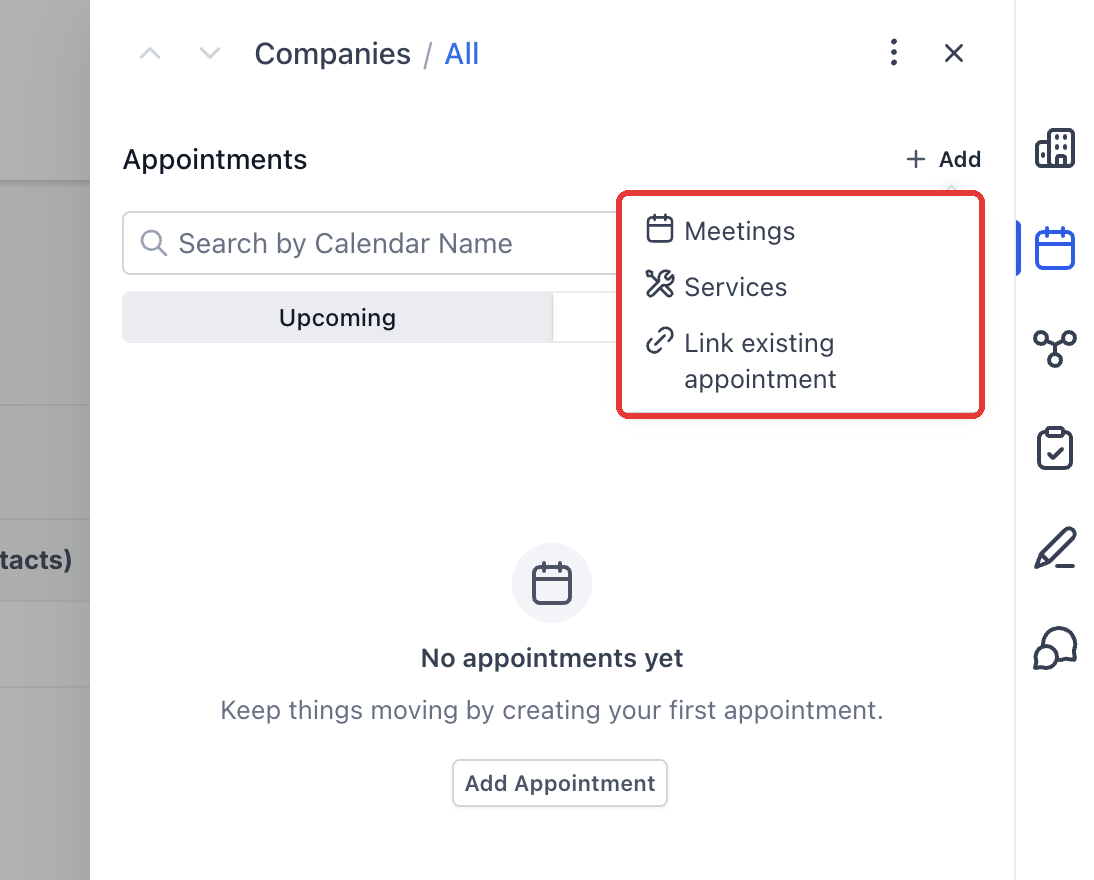
- In the Appointments tab, click Add.
- Choose Meetings or Services, depending on the booking you need.
Step 2: Click Add, then choose Meetings, Services, or Link existing appointment.
- Complete the booking details in the form that opens.
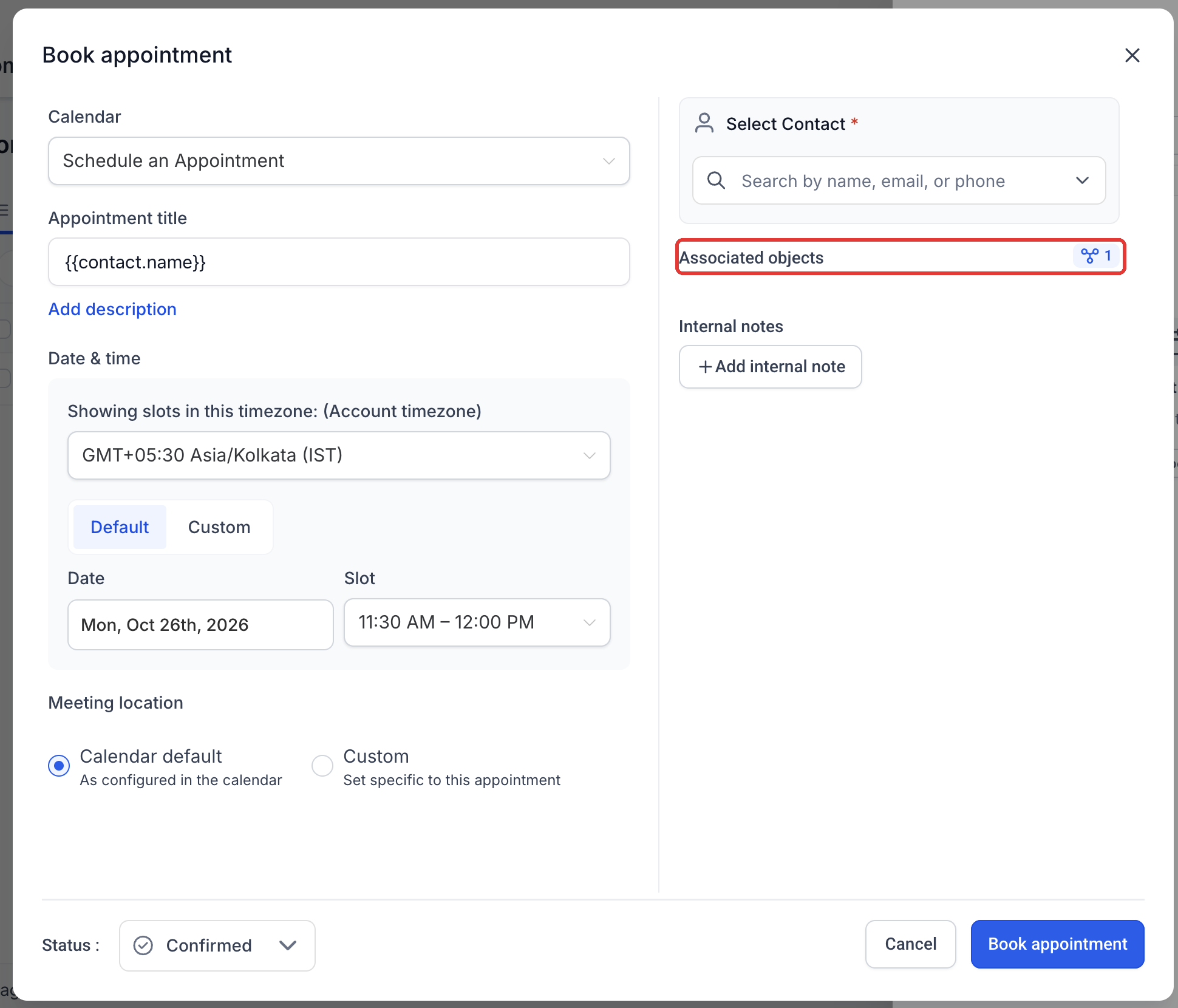
For Meetings, choose the calendar, date, time, and Contact. Review the title, meeting location, status, and any other required details before selecting Book appointment.
Step 3: In Book appointment, choose the calendar, slot and Contact. Associated objects shows the linked Company.
Review Associated objects
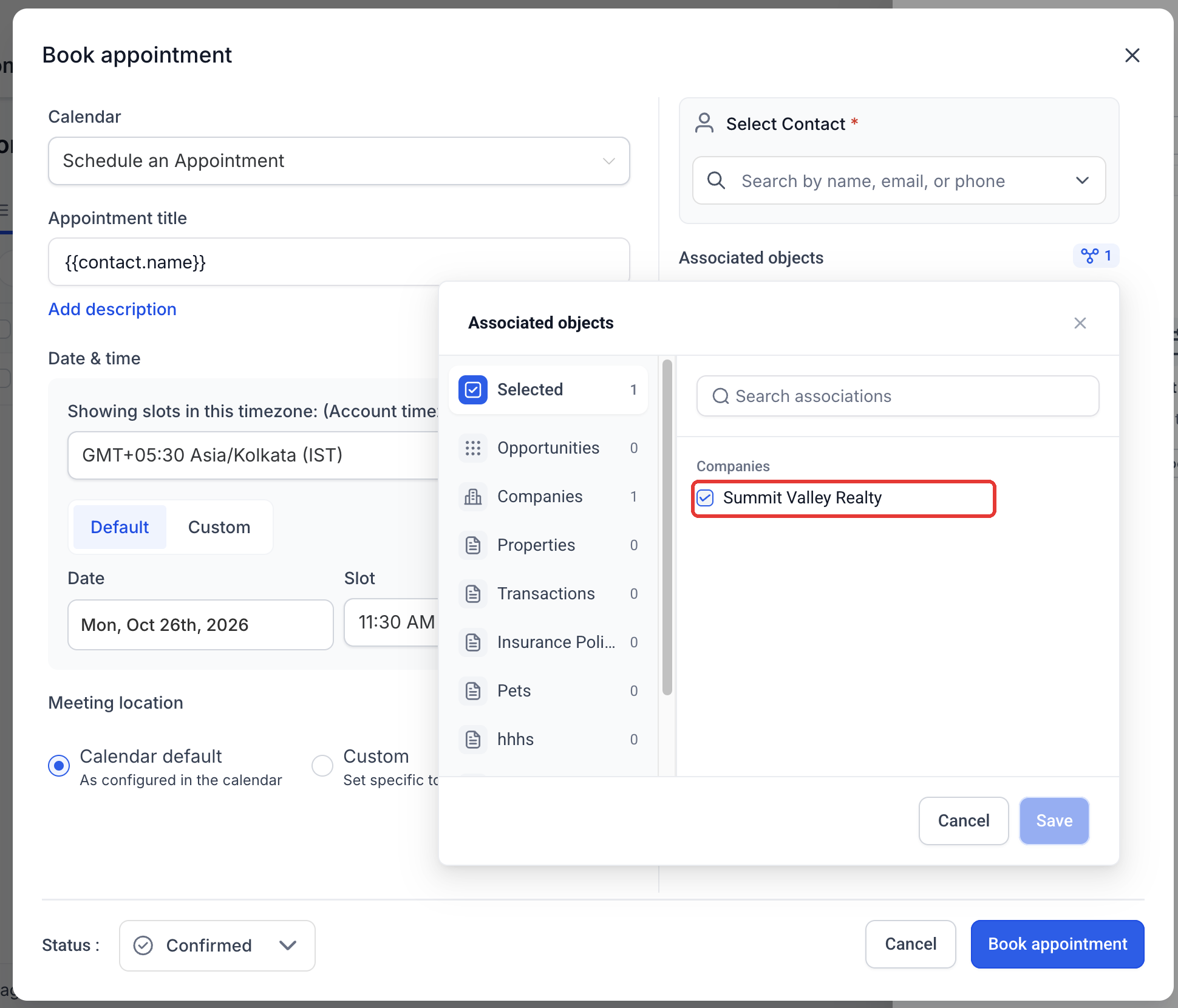
In the meeting booking form, select Associated objects to review which records are linked to the appointment.
- The selector includes Companies and the Custom Objects available in the location, as well as Opportunities.
- Use the record-type tabs and search to find records.
- Review the selected records before saving the selection and confirming the appointment.
When starting a meeting from a Company, the current Company is preselected under Associated objects. Always check the selection before confirming the booking.
Step 4: Open Associated objects to review the linked records. The current Company is preselected.
Link an existing appointment
- Open the Company's Appointments tab.
- Select Add → Link existing appointment.
- Search for the appointment in the current location.
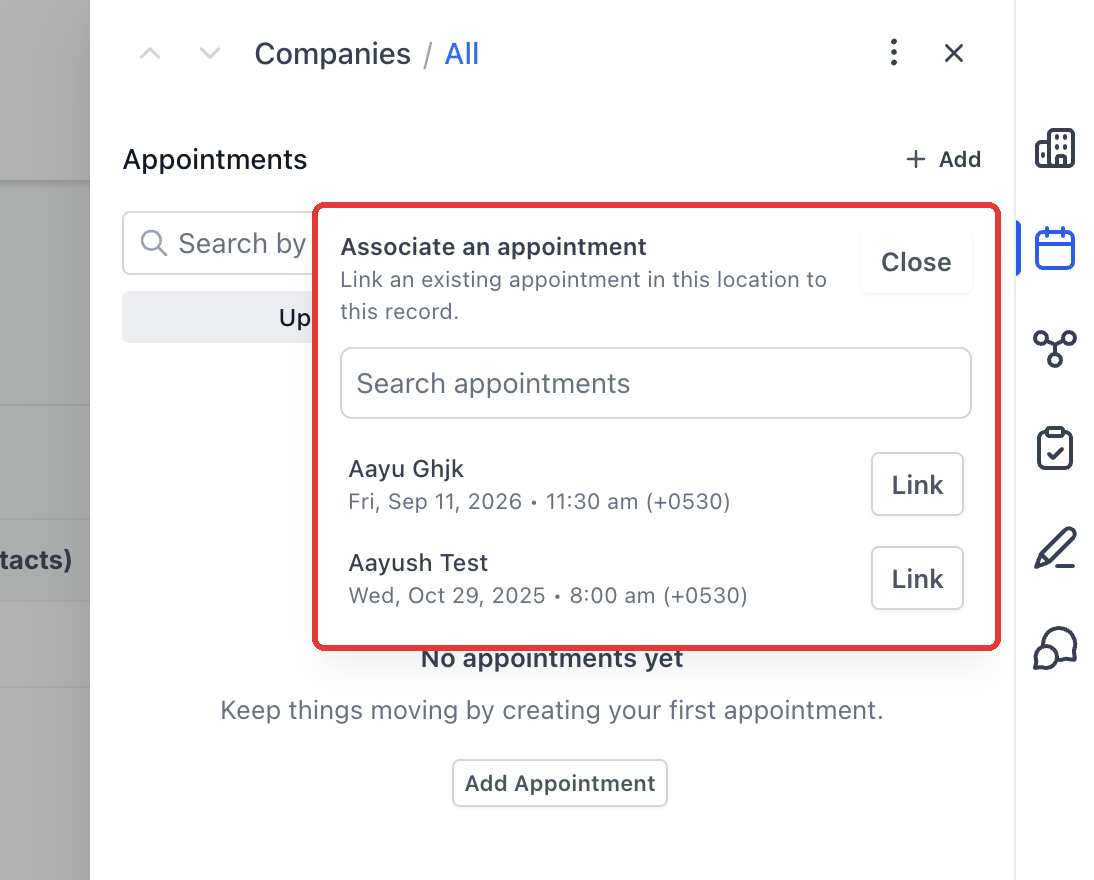
- Select Link beside the appointment you want associated with the Company.
Use this option when a meeting has already been booked and needs to be connected to the relevant Company.
Step 5: To use a booking that already exists, choose Link existing appointment, search, and click Link.
Frequently asked questions
Q: Do I need to create another appointment if it is already booked?
No. Use Add → Link existing appointment to find the booking and associate it with the Company.
Q: Can an appointment be associated with different record types?
Yes. Associated objects supports Companies and Custom Object records alongside Opportunities. Review the selection in the booking form.
Q: Why is the Appointments tab empty?
Check both Upcoming and Past, and clear any calendar-name search. If the appointment has not been associated with this Company, use Link existing appointment to find it in the location.