
How to Manage Appointments for Custom Objects and Companies
Manage appointments directly from Custom Object and Company records in Chat To Clients CRM. Review upcoming and past appointments, book a new meeting, or link an existing booking without leaving the record. Keep property viewings, policy renewal meetings, and Company account reviews connected to the records they concern. This guide covers viewing, booking, and linking appointments.
Note: This feature is available only to locations enrolled in the private beta.
TABLE OF CONTENTS
- What Are Appointments for Custom Objects and Companies?
- Key Benefits of Record-Level Appointments
- Prerequisites and Limitations
- How to Manage Record-Level Appointments
- Frequently Asked Questions
- Related Articles
What Are Appointments for Custom Objects and Companies?
Record-level appointments let you manage meetings associated with a Custom Object or Company. For example, a Property record can show scheduled viewings, while a Company record can show account review meetings.
The Appointments tab displays Upcoming and Past appointments linked to the selected record. You can review bookings, create a new meeting, or connect an appointment scheduled elsewhere in the same location.
Key Benefits of Record-Level Appointments
Connecting appointments to CRM records gives your team meeting history and scheduling actions in one place.
- Centralized history: Review upcoming and past appointments for each record.
- In-context booking: Schedule meetings directly from Custom Object and Company records.
- Automatic record selection: Meetings started from a record have that record preselected under Associated objects.
- Existing bookings: Link an appointment that's already scheduled without creating a duplicate.
- Quick search: Narrow the appointment list by calendar name.
- Flexible associations: Review and select additional supported records before confirming a meeting.
Prerequisites and Limitations
This feature is available only to locations participating in the private beta. You must have access to the relevant Custom Object or Company record.
- The Appointments tab must be enabled for your location.
- Meeting bookings require a calendar, date, time, and Contact.
- Existing appointments can be linked from the same Chat To Clients CRM location.
- The current record is preselected under Associated objects when starting a Meeting from that record.
- Services is available from the Add menu, but its remaining booking steps may differ from Meetings.
How to Manage Record-Level Appointments
Start from the Custom Object or Company record that needs a meeting. Use its Appointments tab to review bookings, create appointments, or link existing meetings.
Open Appointments from a Custom Object Record
Custom Object records can display the appointments associated with them. Use the Upcoming and Past views to review scheduling history.
- Open the Chat To Clients CRM Sub-Account view.
- Select the relevant Custom Object type from the left navigation, such as Properties or Insurance Policies.
- Open the record you want to review.
- Select Appointments from the record's side panel.
- Switch between Upcoming and Past to review linked appointments.
- Use Search by Calendar Name to filter the list.
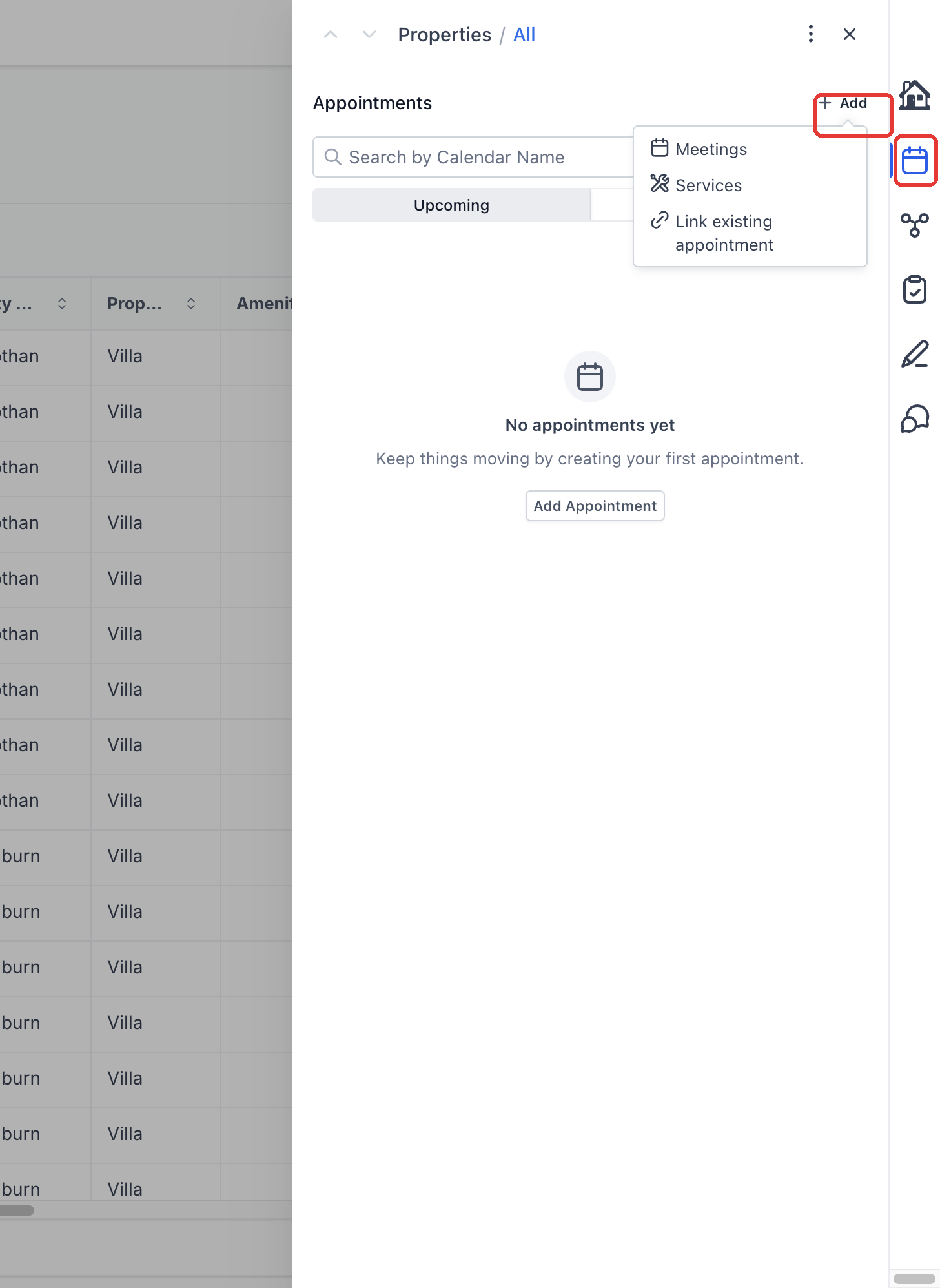
Note: The Appointments tab shows bookings associated with the selected record. Other appointments in the location may need to be linked before they appear here.
Open Appointments from a Company Record
Company records provide the same appointment-management workflow, keeping account reviews and other related meetings connected to the business.
- Open the Chat To Clients CRM Sub-Account view.
- Select Contacts from the left navigation.
- Select the Companies tab.
- Locate and open the Company record you want to review.
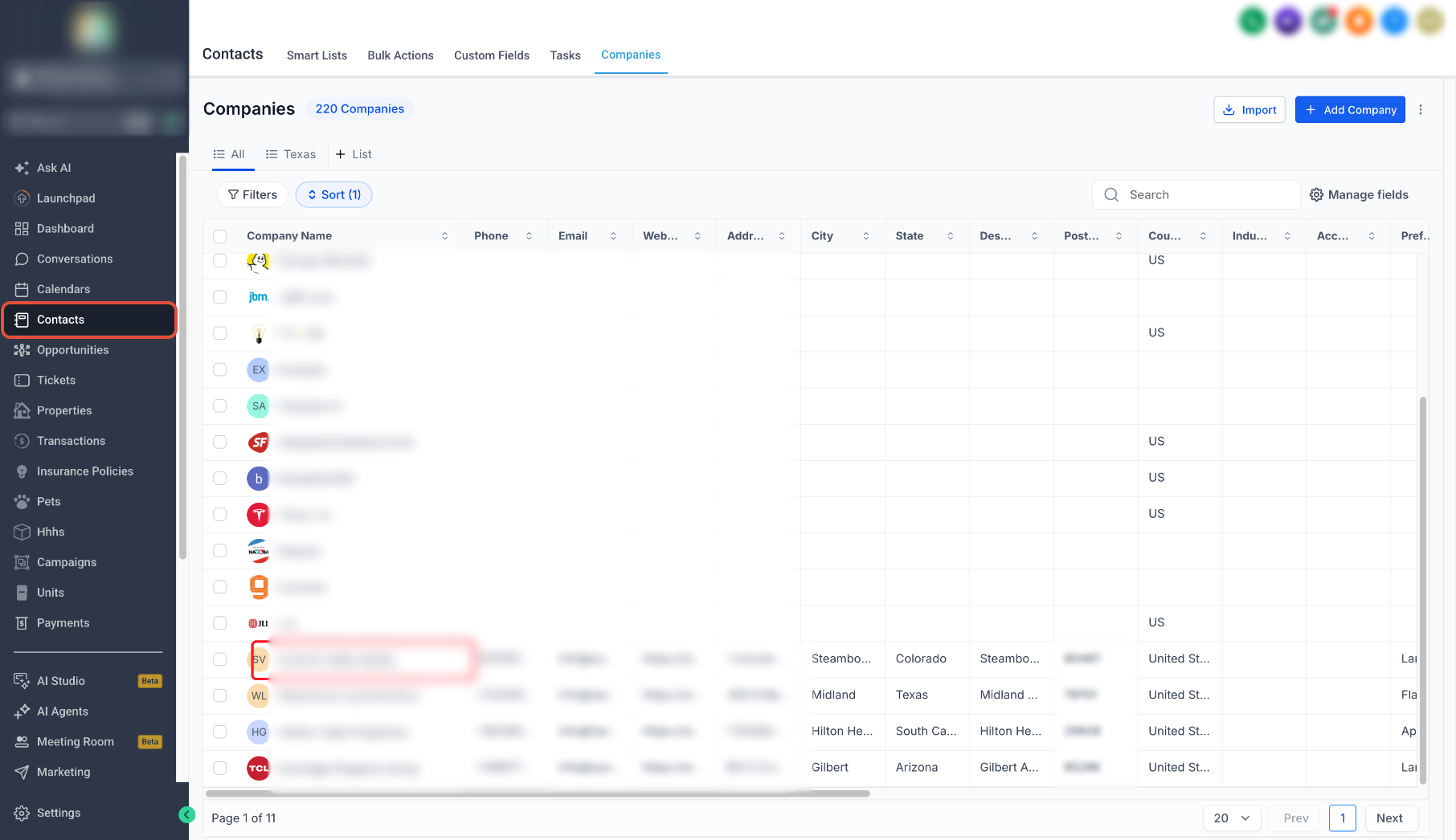
- In the Company's right-hand side panel, locate the vertical tab rail.
- Select the calendar icon to open Appointments.
- Review the Upcoming and Past appointments associated with the Company.
- Use Search by Calendar Name to narrow the list if needed.
Book a New Meeting
Starting a Meeting from a record keeps that record selected while you schedule the appointment. You can review additional associations before confirming the booking.
- From the Chat To Clients CRM Sub-Account view, open the relevant Custom Object record or go to Contacts > Companies and open a Company record.
- Select Appointments in the side panel.
- Click Add.
- Choose Meetings.
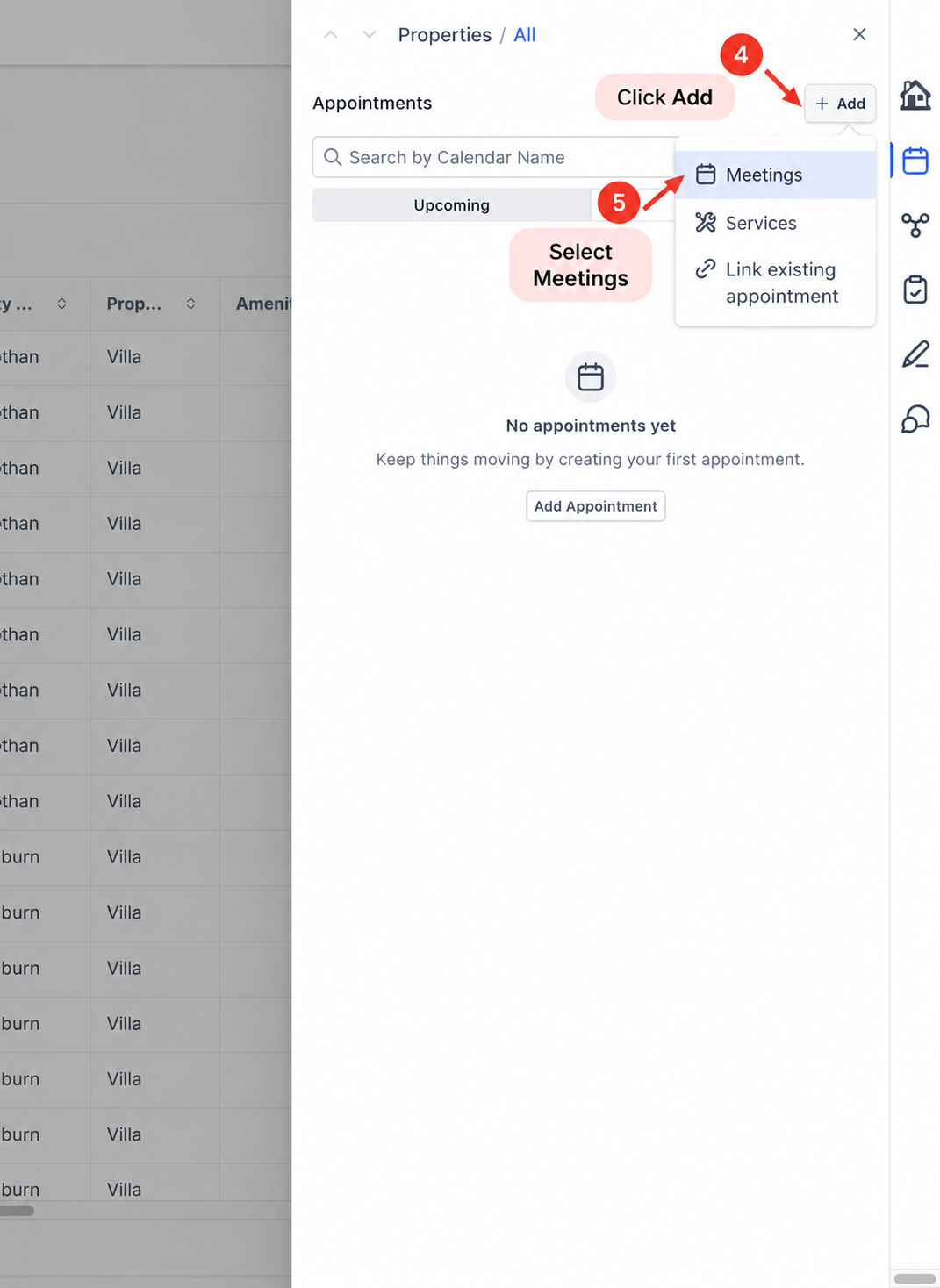
- Select the calendar for the meeting.
- Choose the appointment date and time.
- Select the Contact attending the meeting.
- Review the appointment title, meeting location, status, and other required details.
Review Associated Objects and Complete Booking
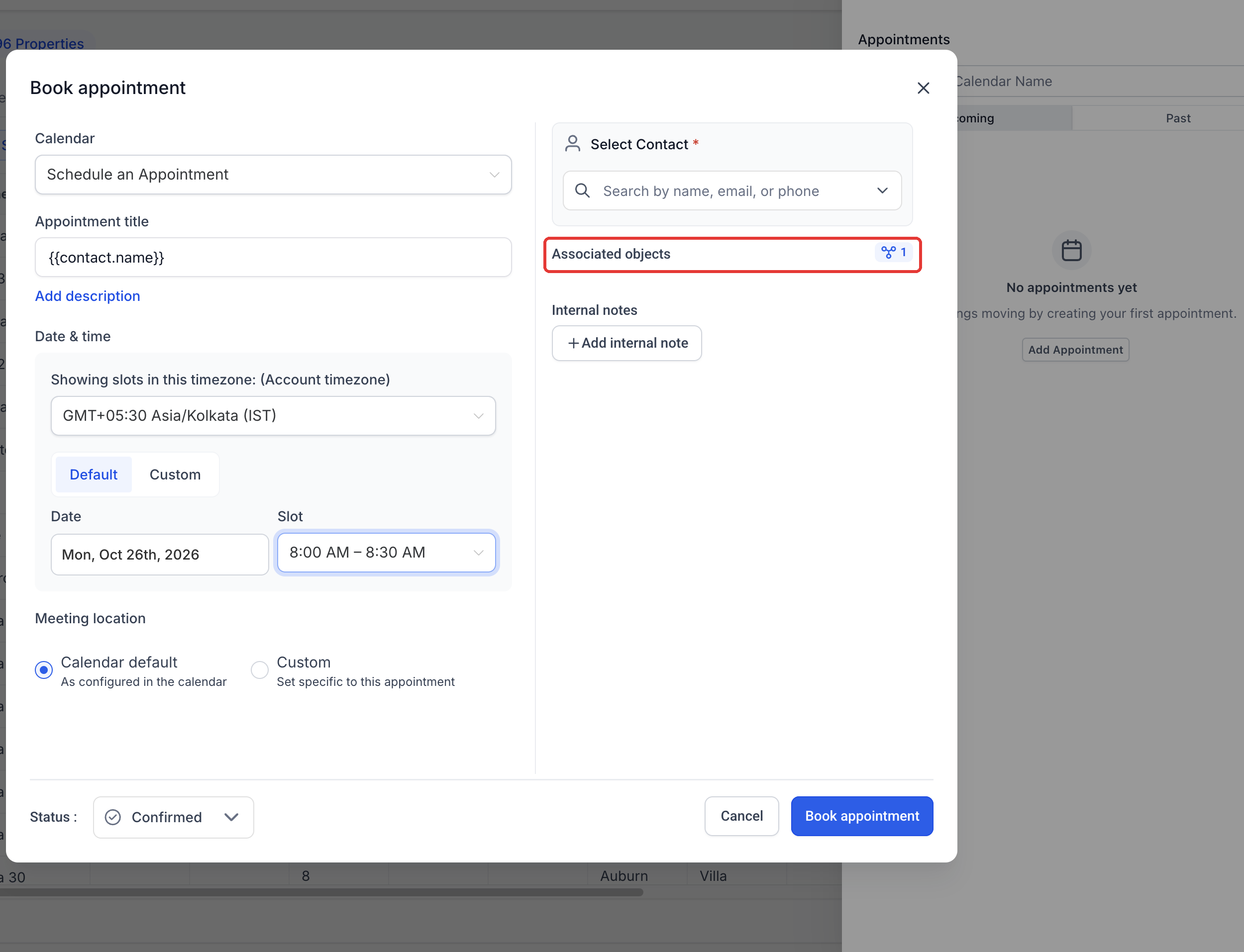
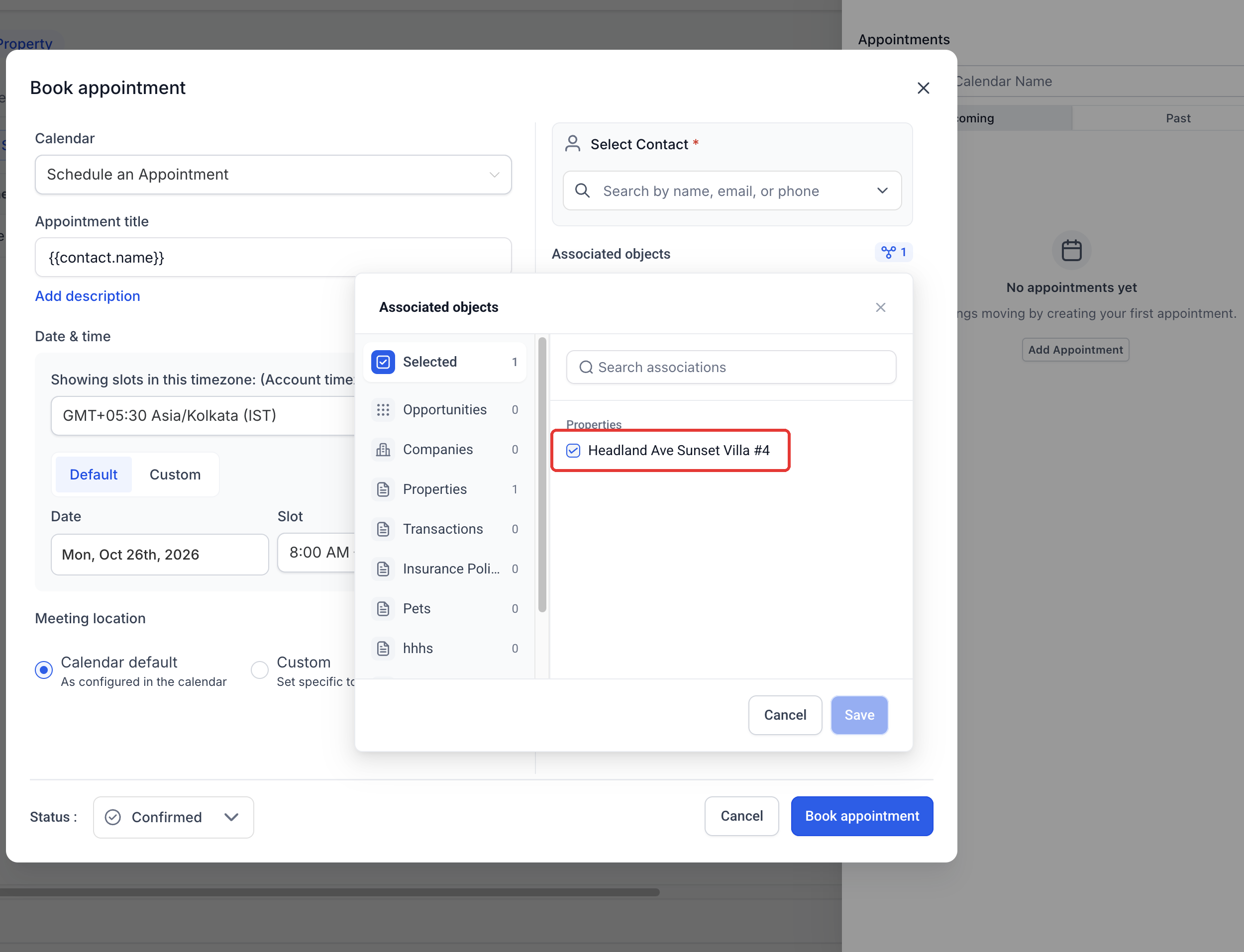
The Associated objects selector controls which supported CRM records are connected to the meeting. The record you started from is preselected.
- In the booking form, open Associated objects.
- Confirm that the current Custom Object or Company record is selected.
- Use the available record-type options and search to select additional supported records, if needed.
- Review the selected associations.
- Click Book appointment to confirm the booking.
Start a Service Booking
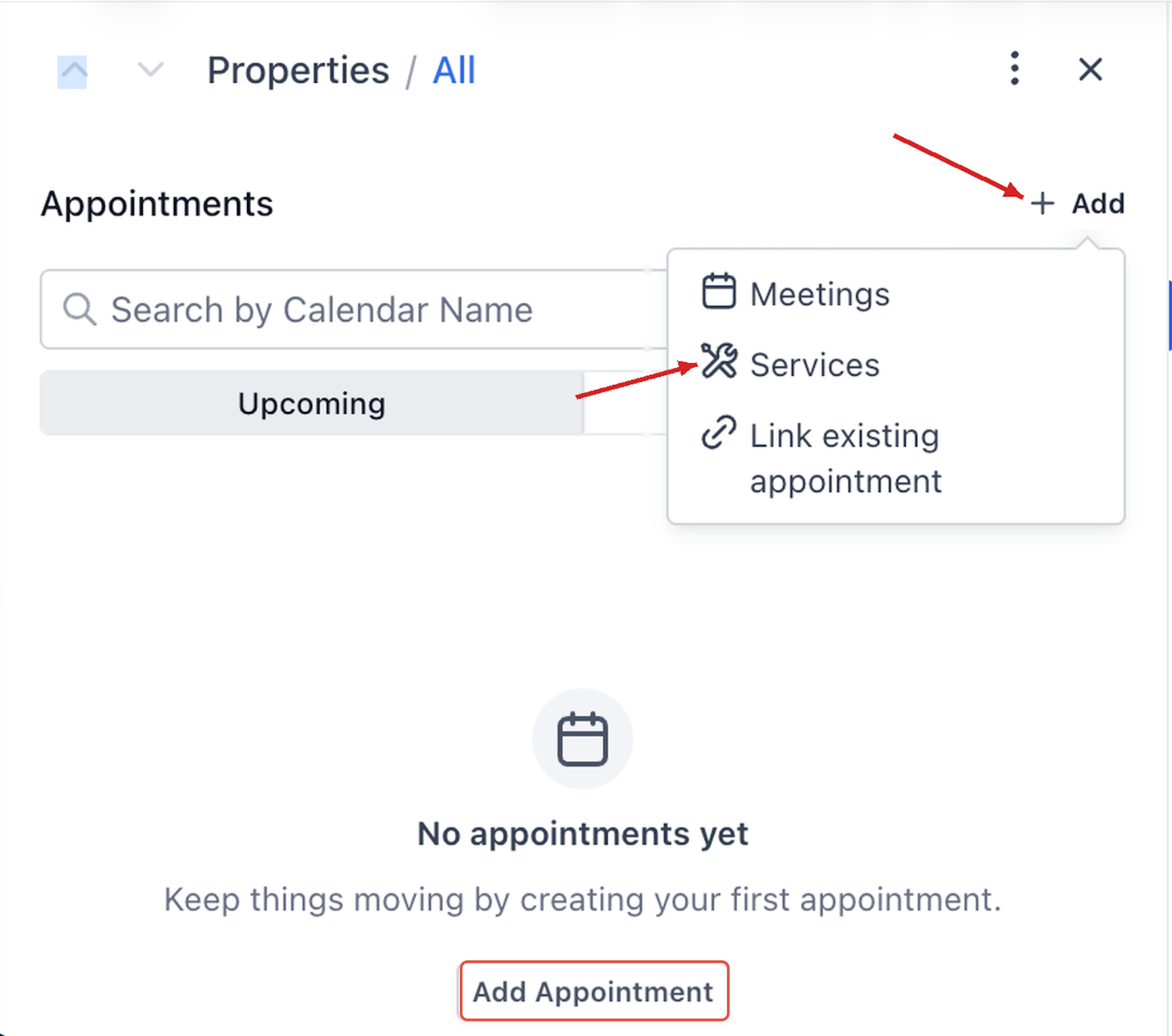
The same Add menu lets you start a Service booking from a Custom Object or Company record.
- Open the Chat To Clients CRM Sub-Account view.
- Open the relevant Custom Object record or go to Contacts > Companies and open a Company record.
- Select Appointments from the side panel.
- Click Add.
- Select Services.
Link an Existing Appointment
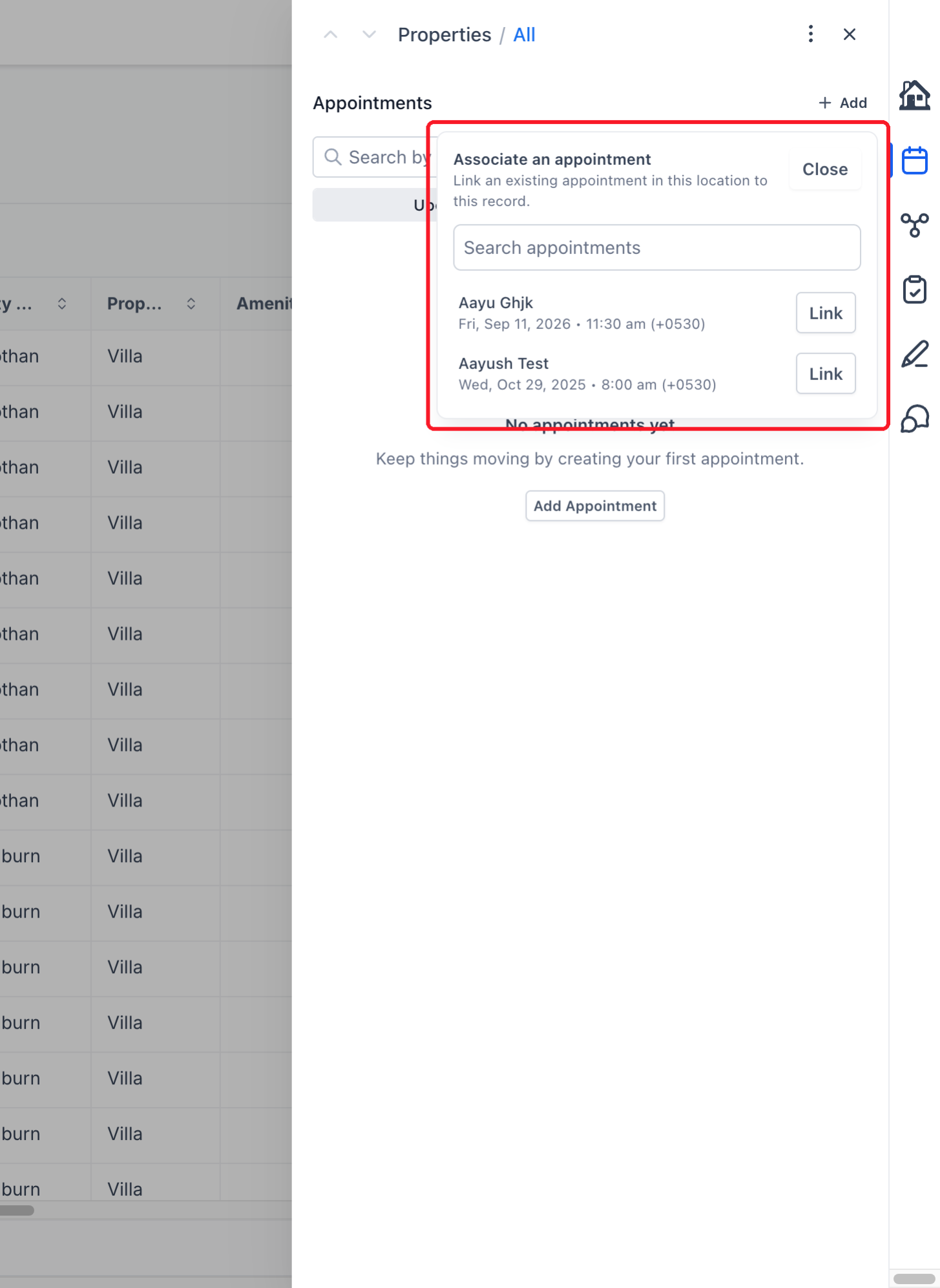
If a meeting is already scheduled, link that booking to the record instead of creating a duplicate. The search includes appointments in the current Chat To Clients CRM location.
- From the Chat To Clients CRM Sub-Account view, open the relevant Custom Object record or go to Contacts > Companies and open a Company record.
- Select Appointments in the record's side panel.
- Click Add.
- Select Link existing appointment.
- Search for the appointment in the current location.
- Locate the correct booking and click Link.
Frequently Asked Questions
Q: Why is the Appointments tab empty?
The tab shows only appointments associated with the current record. Check both Upcoming and Past, and clear any calendar-name search. If a booking exists but is not linked, use Link existing appointment.
Q: Can I link an appointment booked elsewhere in the location?
Yes. Use Add > Link existing appointment to connect a booking from the same location without creating another appointment.
Q: Is the current record automatically linked when booking a Meeting?
The current Custom Object or Company record is preselected under Associated objects. Review the selection before confirming the booking.
Q: Can I associate a meeting with multiple record types?
Yes. The Associated objects selector supports Companies, Custom Object records, and other available record types.
Q: Why can't I see the Appointments tab?
This feature is in private beta. Confirm that your location has been enrolled and that the feature is enabled.