
Link conversations to Custom Object records
Link messages to Custom Object records, such as Properties and Insurance Policies, to keep communication connected to the records it concerns. A message stays in the Contact's conversation and also appears on each record it is linked to.
For example, connect property enquiries to a Property record, project updates to a Project record, or renewal discussions to an Insurance Policy.
Note

This feature is available only through a private beta and applies only to locations where it has been enabled.
TABLE OF CONTENTS
- How to View and Link Conversations to Custom Objects and Companies
- Use a Custom object record as a hub for its communication
- View a record's conversations
- Start a conversation from a record
- Link messages from the inbox
- Frequently asked questions
How to View and Link Conversations to Custom Objects and Companies
Link messages to Custom Object records and Companies to keep communication connected to the records it concerns. Each record has its own Conversations feed, where you can review linked messages, reply, or start new conversations. Messages remain in the Contact's original conversation while also appearing on each linked record.
For example, keep property enquiries on a Property, renewal discussions on an Insurance Policy, or account-related conversations on a Company.
Note: This feature is currently available through a private beta and applies only to locations where it has been enabled. Locations can be added through the beta access form.
Use a Custom object record as a hub for its communication
The Conversations tab gives you the record's communication history and lets you act on it from the same place.
- Get context: Read the messages linked to the record, filtered by Contact or Channel.
- Take action: Reply, or start a new conversation with the record already linked.
- Use it as a hub: Keep enquiries on a Property and renewal discussions on an Insurance Policy, so anyone who opens the record sees the conversation.
View a record's conversations
- Select a Custom Object from the left sidebar and open a record.
- Select Conversations in the side panel.
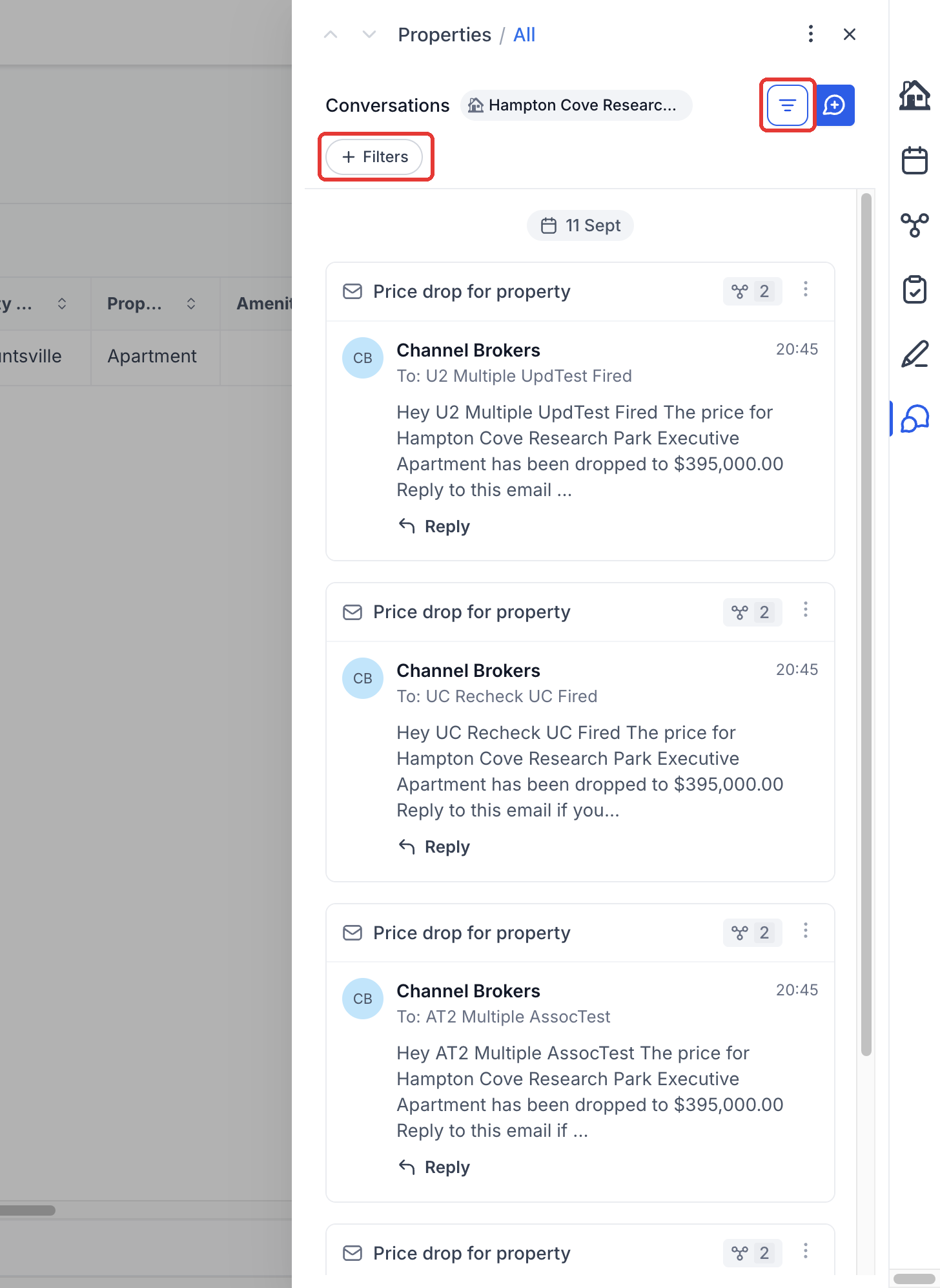
- Use Toggle filters → Filters to narrow the feed by Contact or Channel.
The feed contains messages linked to the selected record. An empty feed does not mean the Contact has no other conversations.
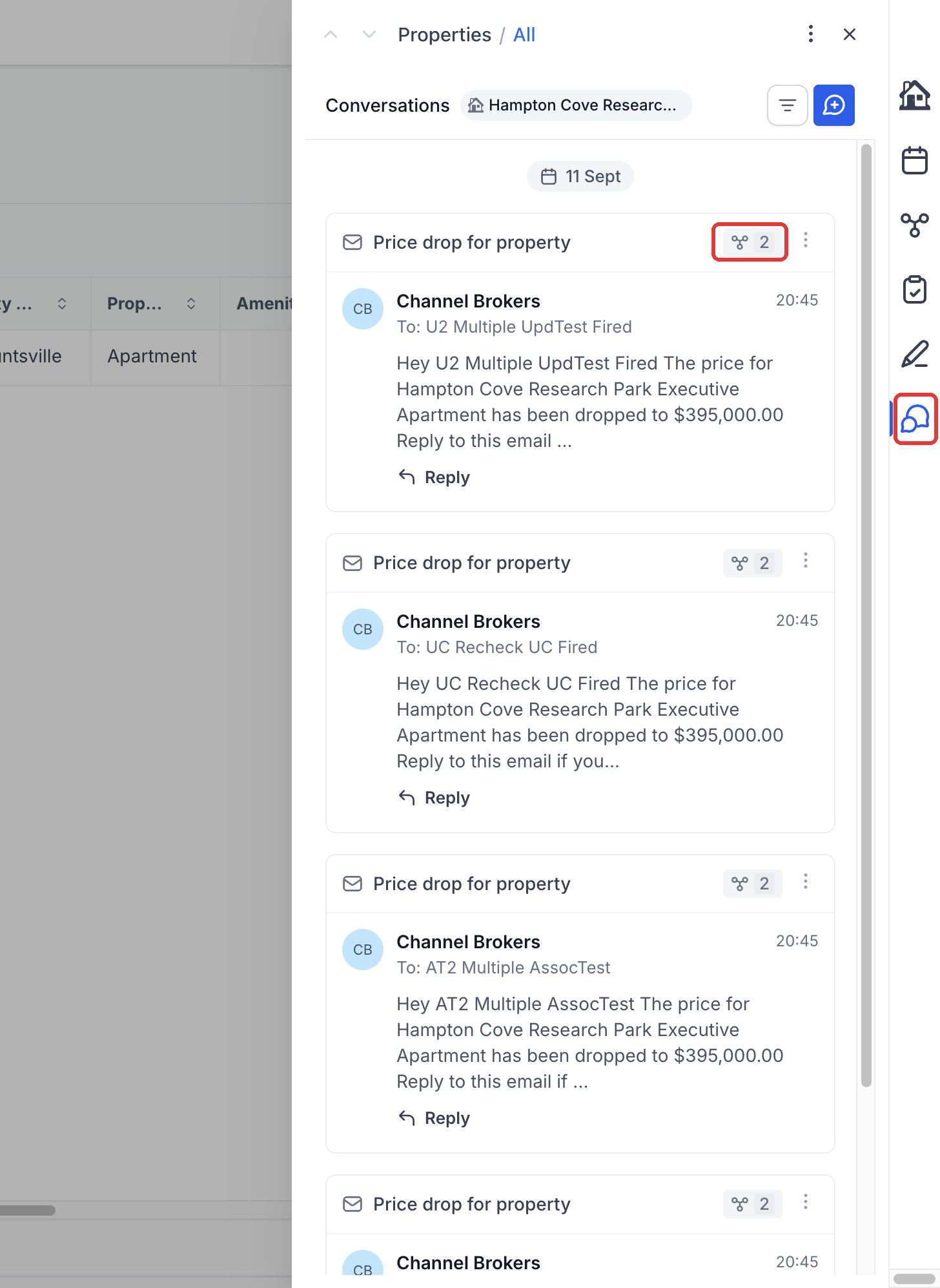
Step 1: Open a record and select Conversations on the right. The badge on each message shows how many records it is linked to.
Step 2: Use the filter icon to narrow the feed by Contact or Channel.
Start a conversation from a record
- In the record's Conversations tab, select Create a conversation or Create new conversation.
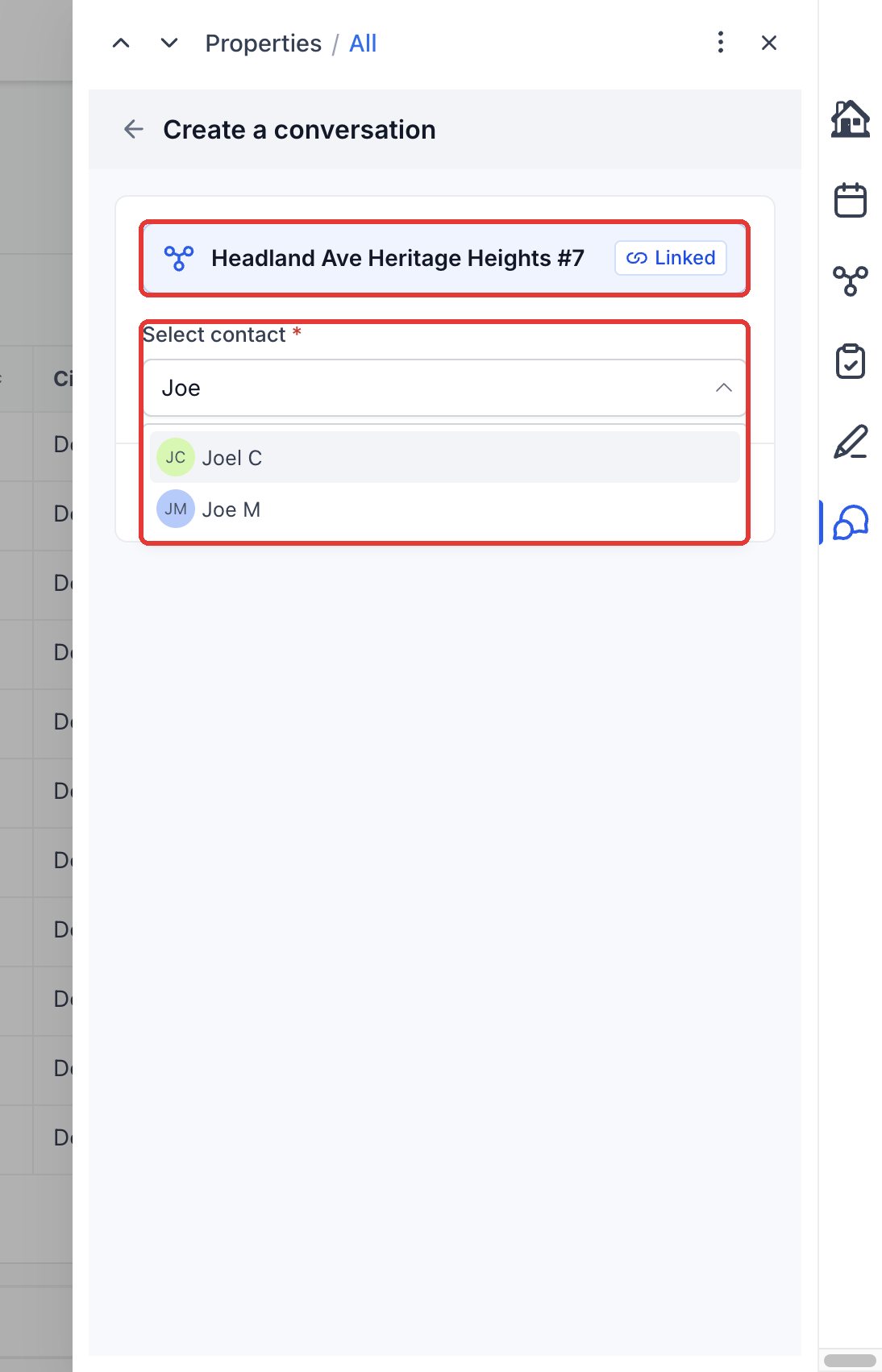
- Confirm that the current record is shown as Linked.
- Under Select contact, choose the Contact you want to communicate with.
- Select Create conversation to continue.
The Contact identifies the person involved in the conversation. The Custom Object record supplies its record context.
Step 3: Click Create a conversation. The current record is already Linked. Choose the Contact and continue.
Link messages from the inbox
Open Conversations and select the Contact's thread. You can associate messages while composing, on an existing message, or in bulk.
While composing a message
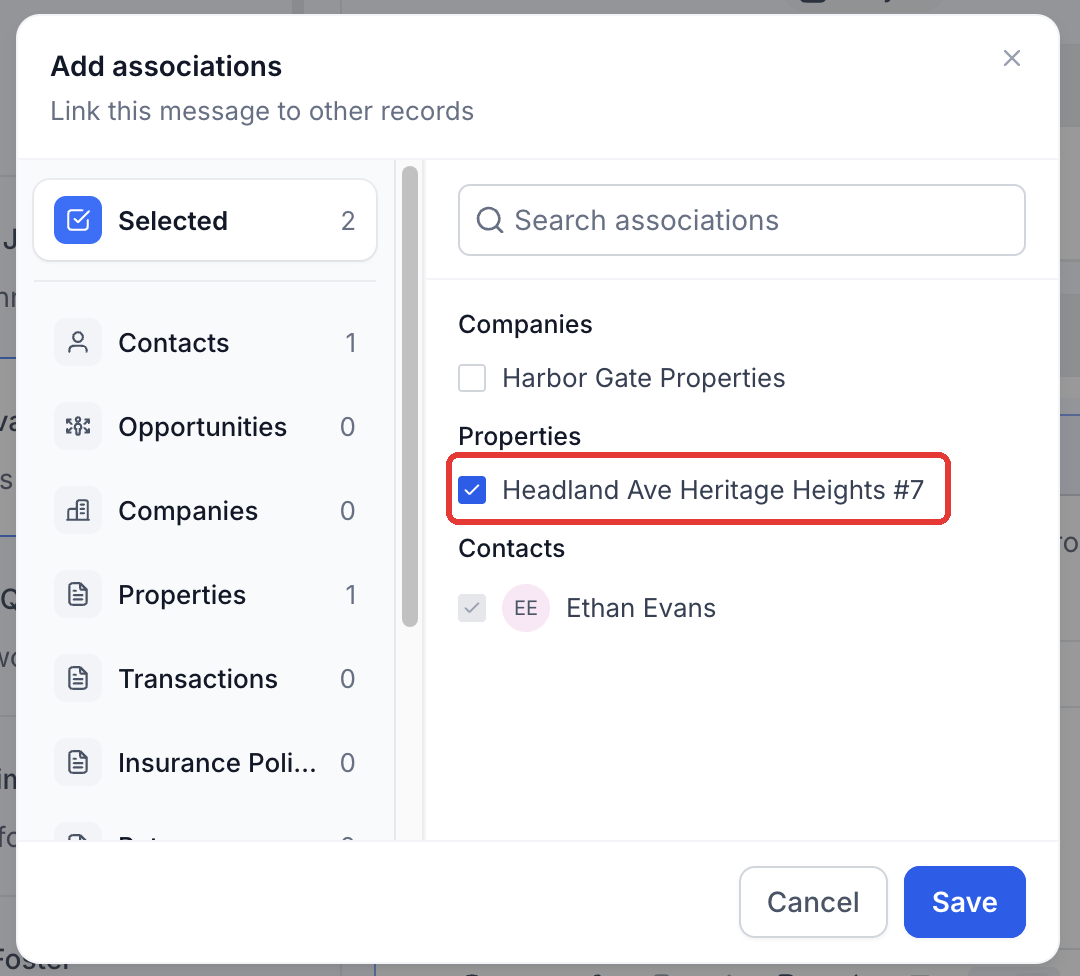
Select the associations icon in the composer. Select the Custom Object type, find the record, review the selected records, and select Save. Review the message and recipients before sending.
Step 4: In Conversations, the associations button in the composer shows how many records the message will be linked to.
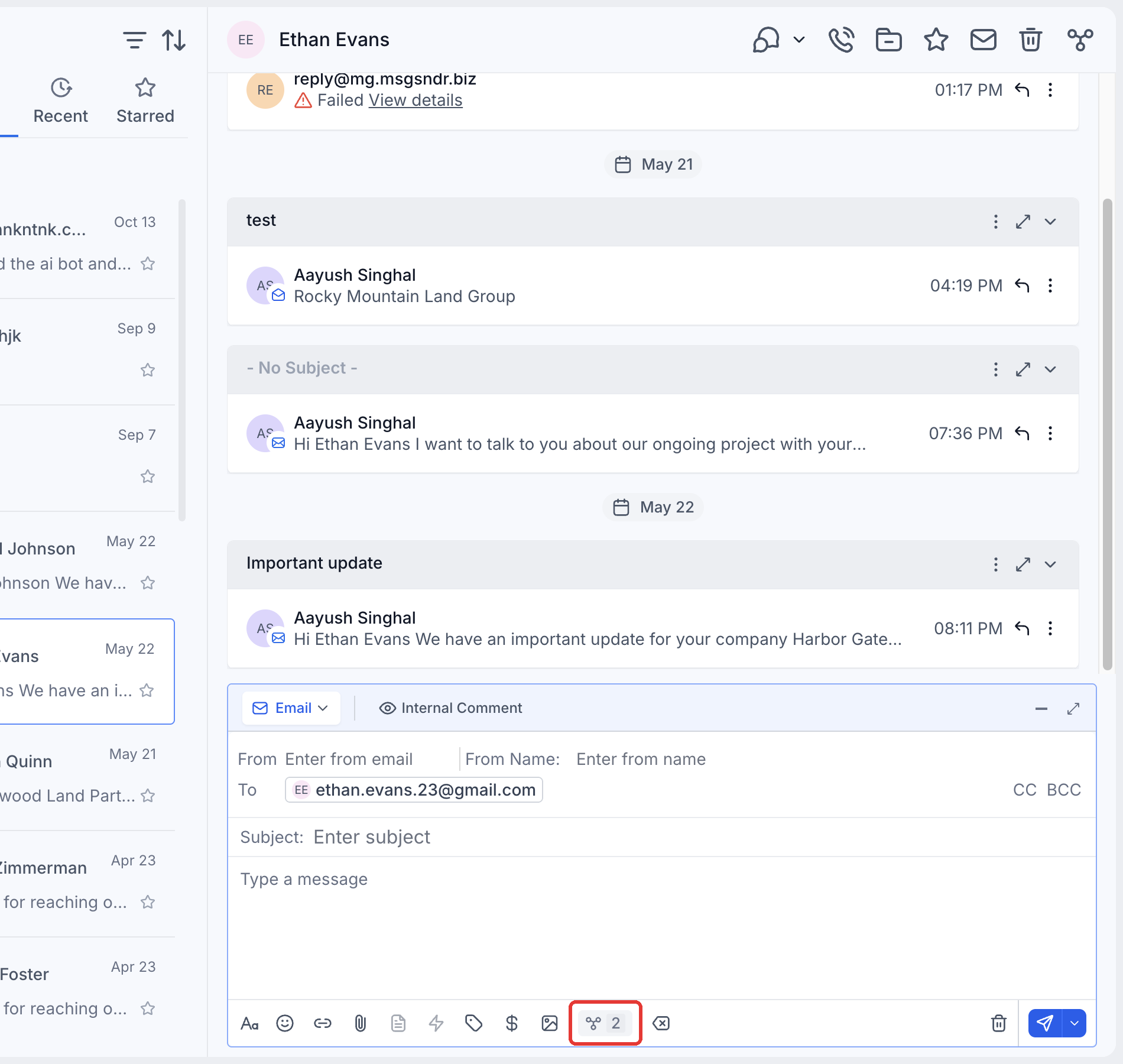
Step 5: Review or change the records before sending. Here the message is linked to a Property.
On an existing message
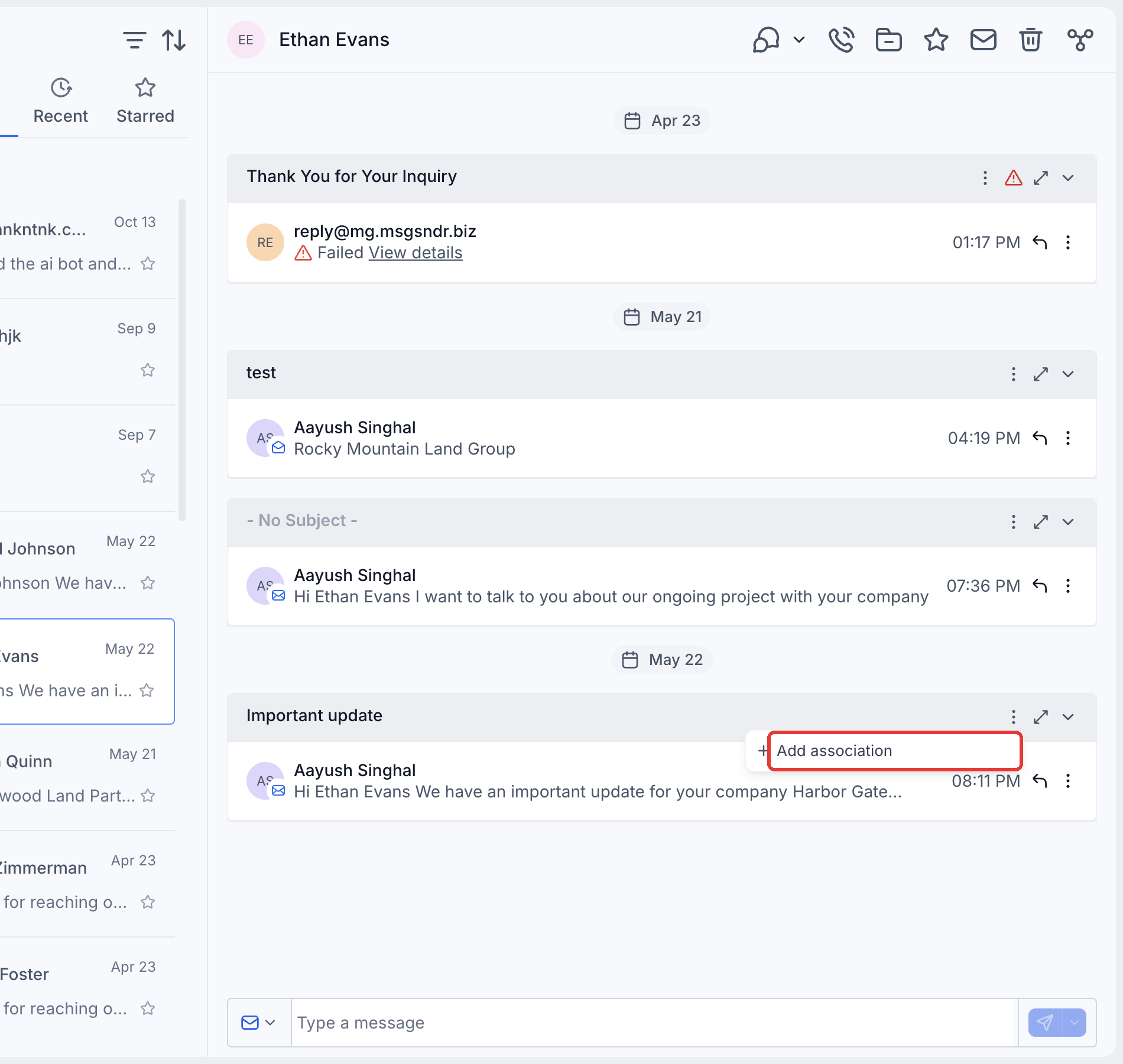
- Open the three-dot menu on the message and choose Add association. For an email, use the three-dot menu on the email's header.
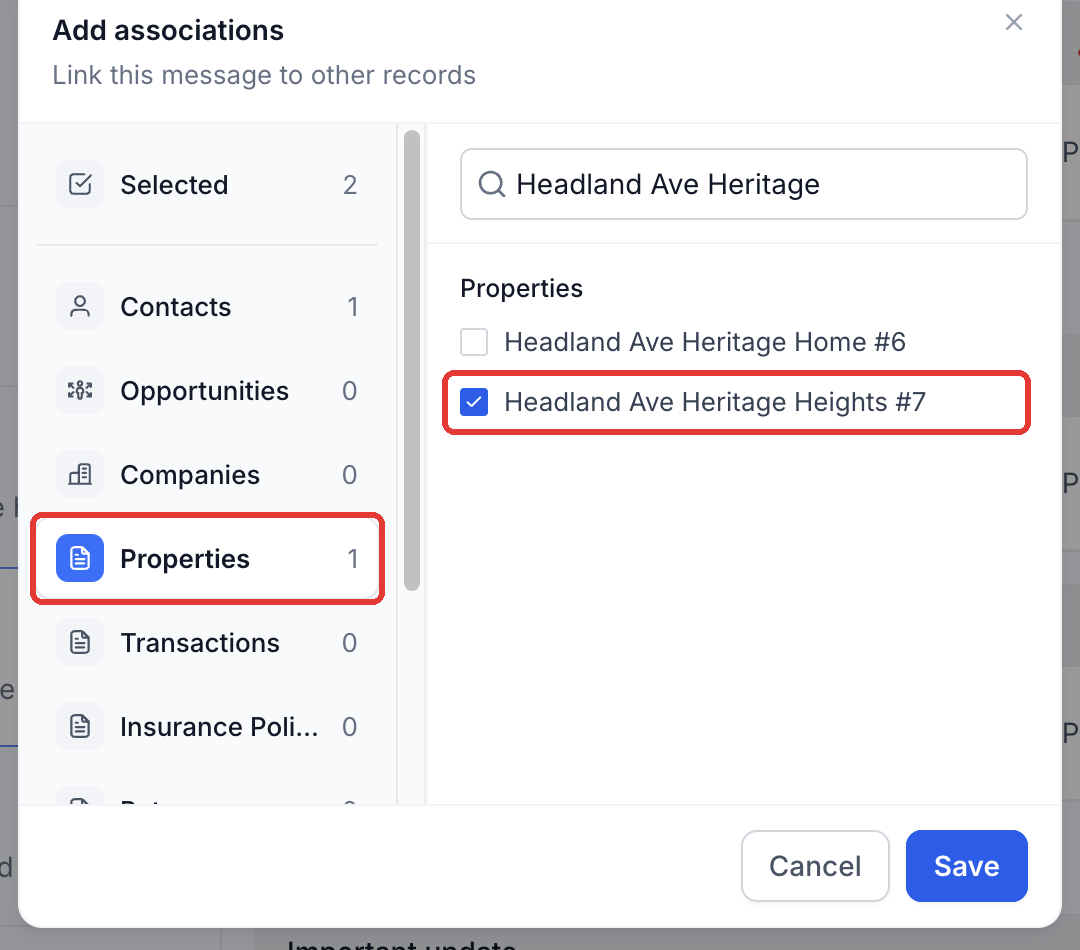
- Select the relevant Custom Object type, such as Properties.
- Search for the record and select it.
- Select Save.
The message's association badge displays its linked-record count. Select the badge to review or update its associations.
Step 6: For an existing email, open the three-dot menu on the email's header and choose Add association.
Step 7: Choose the Custom Object type, such as Properties, search, select the record, and click Save.
For several messages
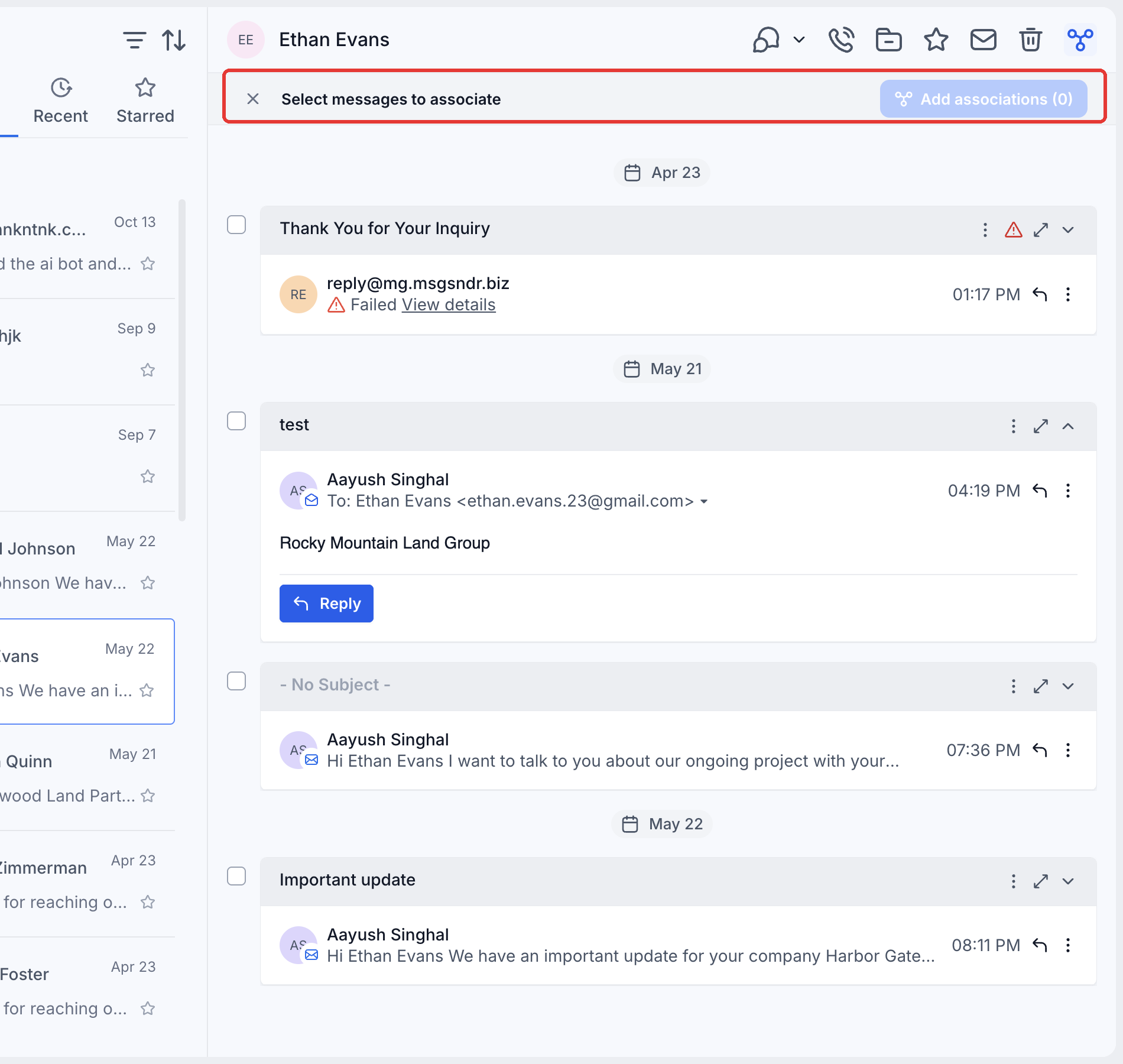
- Select Bulk associate messages in the conversation header.
- Select the messages you want to associate.
- Select Add associations and choose the records.
- Select Save.
Step 8: To link several messages, click Bulk associate messages, select them, then choose Add associations.
Frequently asked questions
Q: Does linking a message remove it from the Contact's conversation?
No. The message remains in the Contact's conversation and also appears on each linked record.
Q: Can the same message be linked to multiple records?
Yes. A message can be linked to multiple Custom Object records, Companies, and other supported record types.
Q: Can I view conversations from multiple Contacts on one Company record?
Yes. A Company's Conversations feed displays messages linked to that Company, including messages involving different Contacts. Use Contact filters to narrow the feed.
Q: Can I start a conversation directly from a Company or Custom Object record?
Yes. Open the record's Conversations tab, select Create a conversation, choose a Contact, and continue. The current record is already linked.
Q: Which messages cannot be linked to records?
Group SMS and internal chat messages cannot be linked to records.
Q: Is this feature available to all locations?
No. It is currently part of a private beta and is available only to enabled locations