
How to Use Comments on Blog Posts
Let readers join the conversation on your blog. With Blog Comments, readers can comment on your blog posts, reply to each other and react, while you approve, answer and manage every comment from one place. This guide covers how to add comments to your blog posts, what readers see, how to moderate comments and how to configure comment settings.
TABLE OF CONTENTS
- What are Blog Comments?
- How to Add Comments to Your Blog Posts
- What Readers See on Your Blog Post
- How to Manage Comments
- How to Configure Comment Settings
- Frequently Asked Questions
- Related Articles
What are Blog Comments?
Blog Comments adds a comment section to your blog posts. You add the Comments element once to your blog post page, and every post on that blog site gets a comment section. Readers sign in with their email to comment, and you review and reply to comments from the Comments tab of your blog site.
Key Benefits of Blog Comments
- Build a community: Give readers a place to ask questions, share opinions and come back to your content.
- Answer as your brand: Replies from your team carry a Moderator badge, so readers can tell your answers apart from other comments.
- Stay in control: Require approval before comments go live, and reply to, approve or delete any comment.
- One place to manage everything: See every comment across your blog site with totals, trends, filters and search.
- Search-friendly: Published comments are part of the page, so search engines can read them.
How to Add Comments to Your Blog Posts
Comments are added to the blog post page of your blog site. Once added, the comment section appears on every post of that blog site.
Step 1: Open Your Blog Post Page
- Go to Sites.
- Click on Blogs and open your blog site.
- Click on Edit blog site and open the blog post page in the builder.
Step 2: Add the Comments Element
- Open the elements panel and find the Comments element (marked New).
- Drag it onto the blog post page, usually below the post content.
Step 3: Customize the Comment Section
- Choose whether readers can add emoji and image attachments.
- Edit the heading and the sign-in text shown to readers.
- Style the colors, fonts and sizes to match the rest of your site.
Step 4: Save and Publish
- Click Save, then Publish.
- Open any post on your blog site to see the comment section live.
Note: The Comments element is available on blog post pages only. It is not added to the blog home page.
What Readers See on Your Blog Post
Signing In to Comment
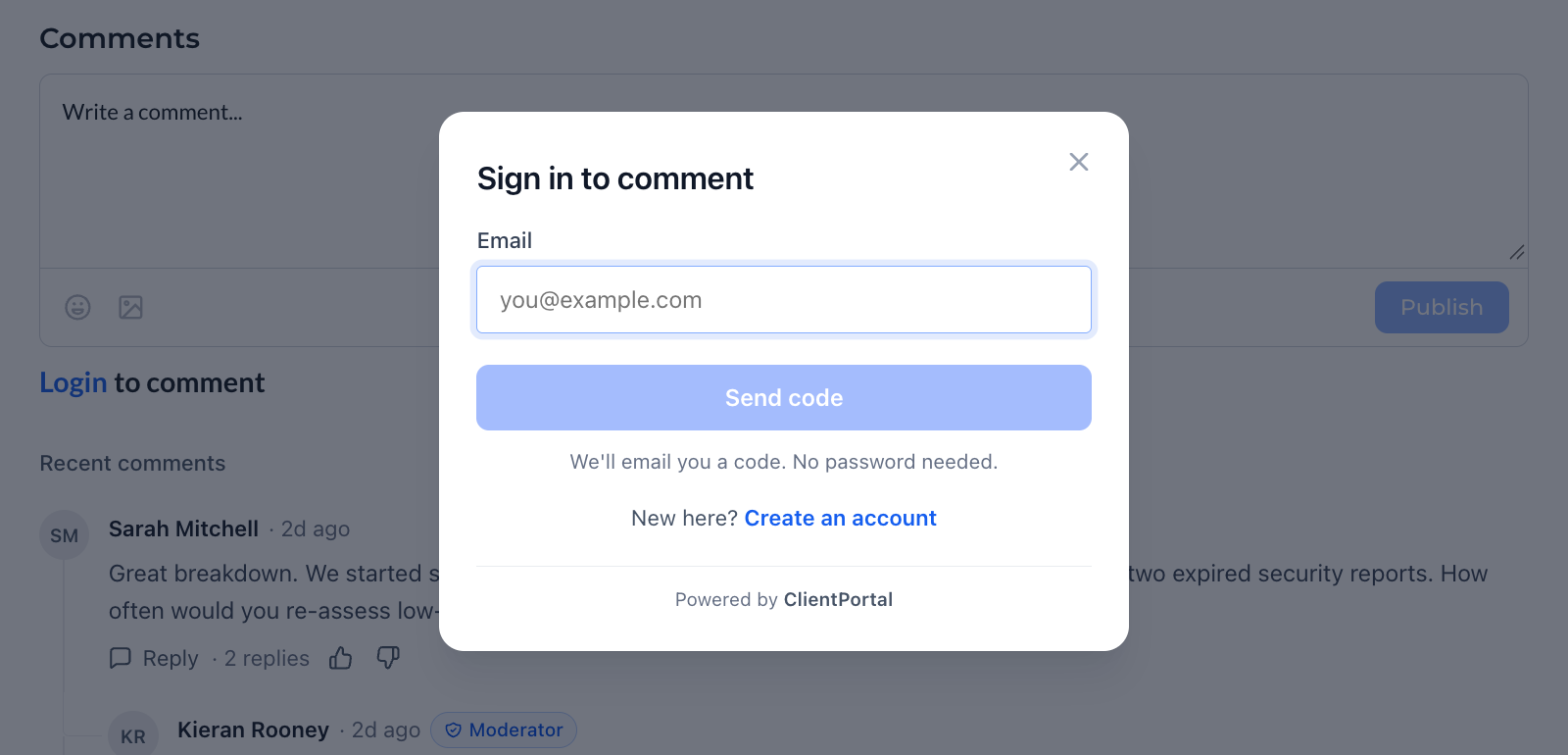
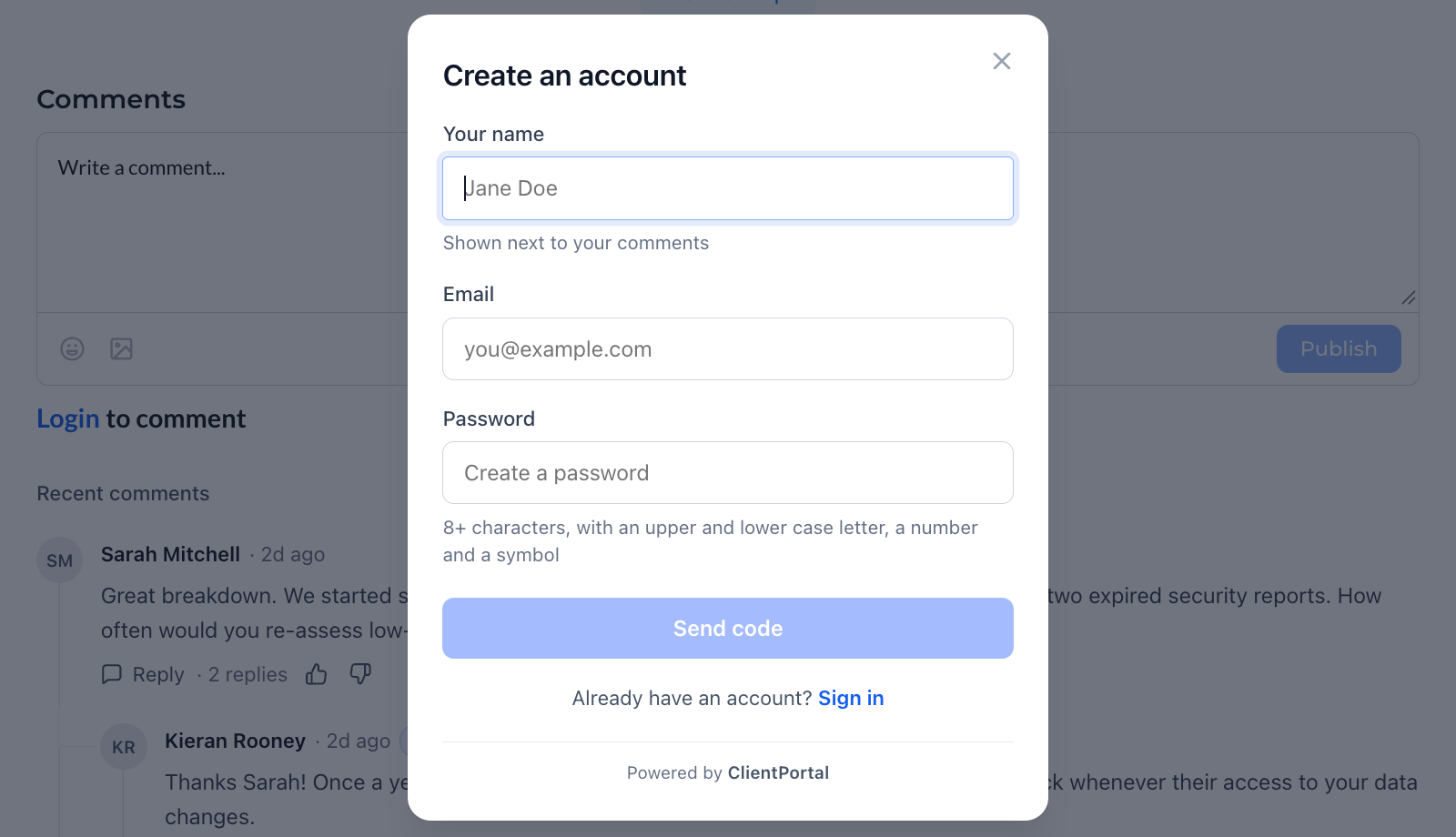
Readers can read comments without signing in. To comment, reply, like or dislike, they sign in from the comment section.
- Returning readers enter their email and receive a one-time code. No password is needed.
- New readers click Create an account and add their name, email and a password.
Commenting, Replying and Reacting
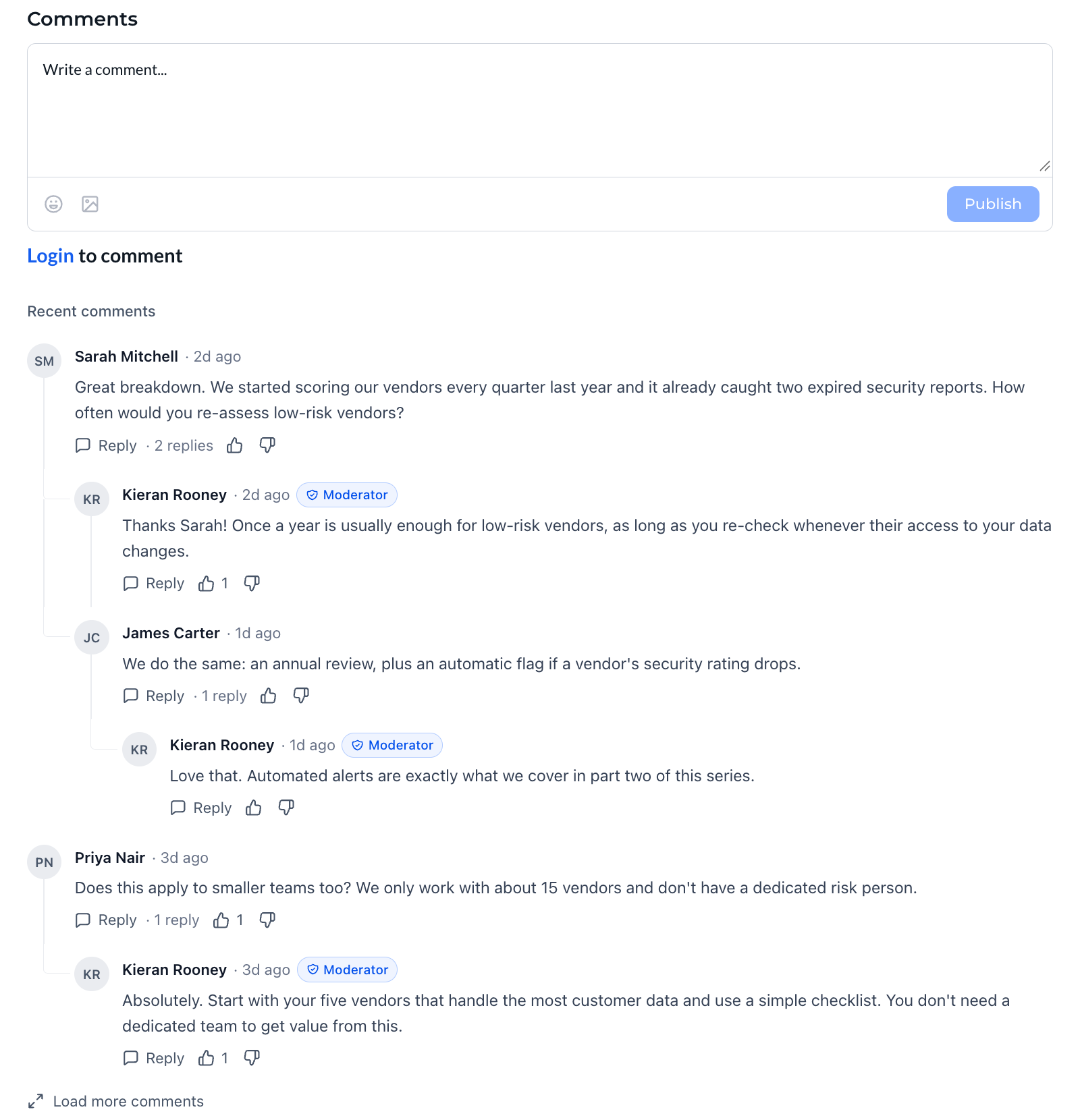
- Comment and reply: Readers write a comment or reply to another reader. Replies can be nested up to three levels.
- Emoji and images: Readers can add emoji and attach one image per comment.
- Like or dislike: Readers can react to any comment.
- Moderator badge: Replies from your team show a Moderator badge.
- Load more: Long discussions load in pages with Load more comments.
Note: When approval is required, a new comment is visible only to the reader who wrote it until you approve it.
How to Manage Comments
Step 1: Open the Comments Tab
- Go to Sites → Blogs and open your blog site.
- Click on the Comments tab.
Step 2: Review Your Comments
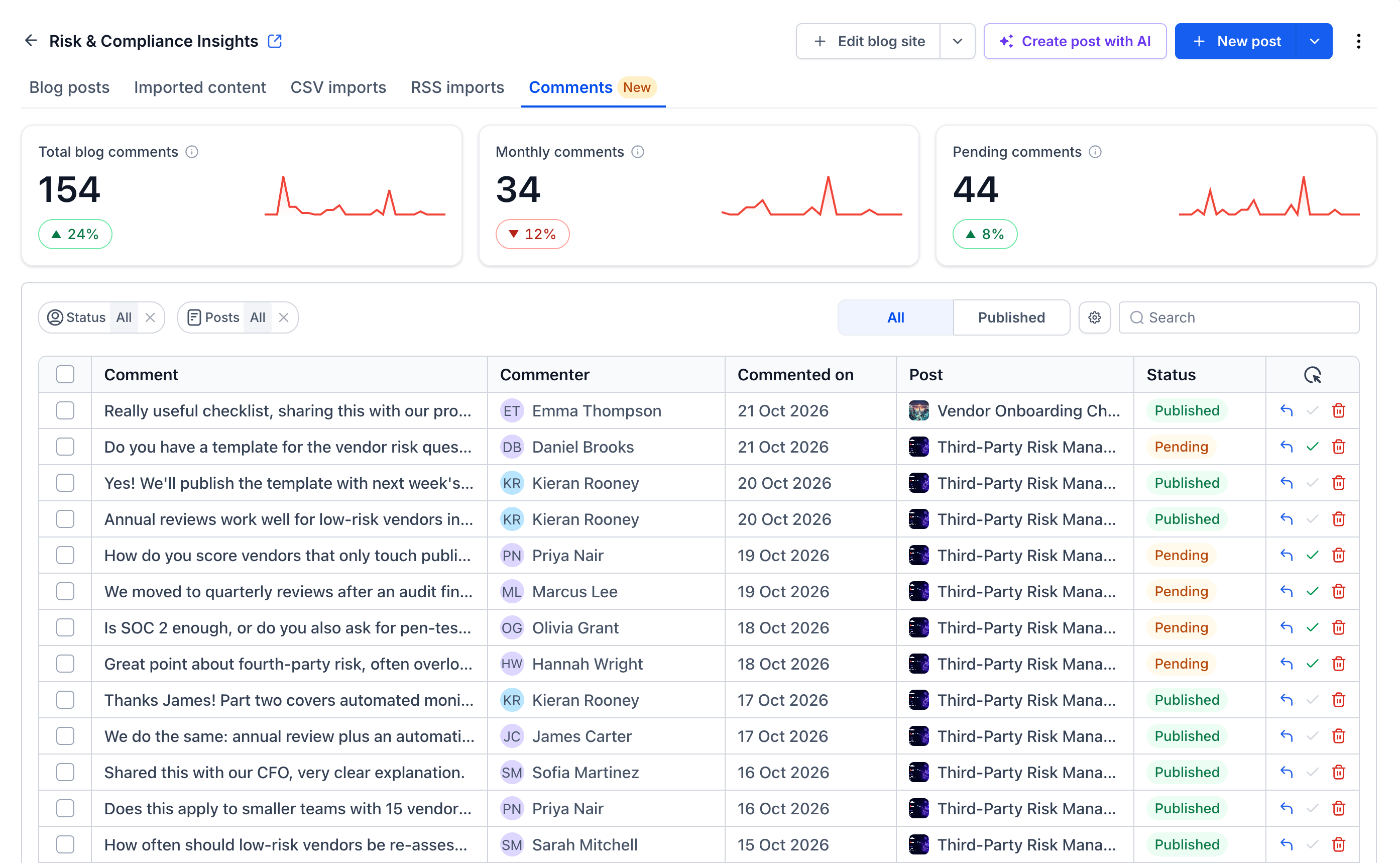
- Check Total blog comments, Monthly comments and Pending comments at the top, each with a trend line.
- Use the Status and Posts filters, or search, to find specific comments.
- Use the actions on each row to Reply, Approve or Delete a comment.
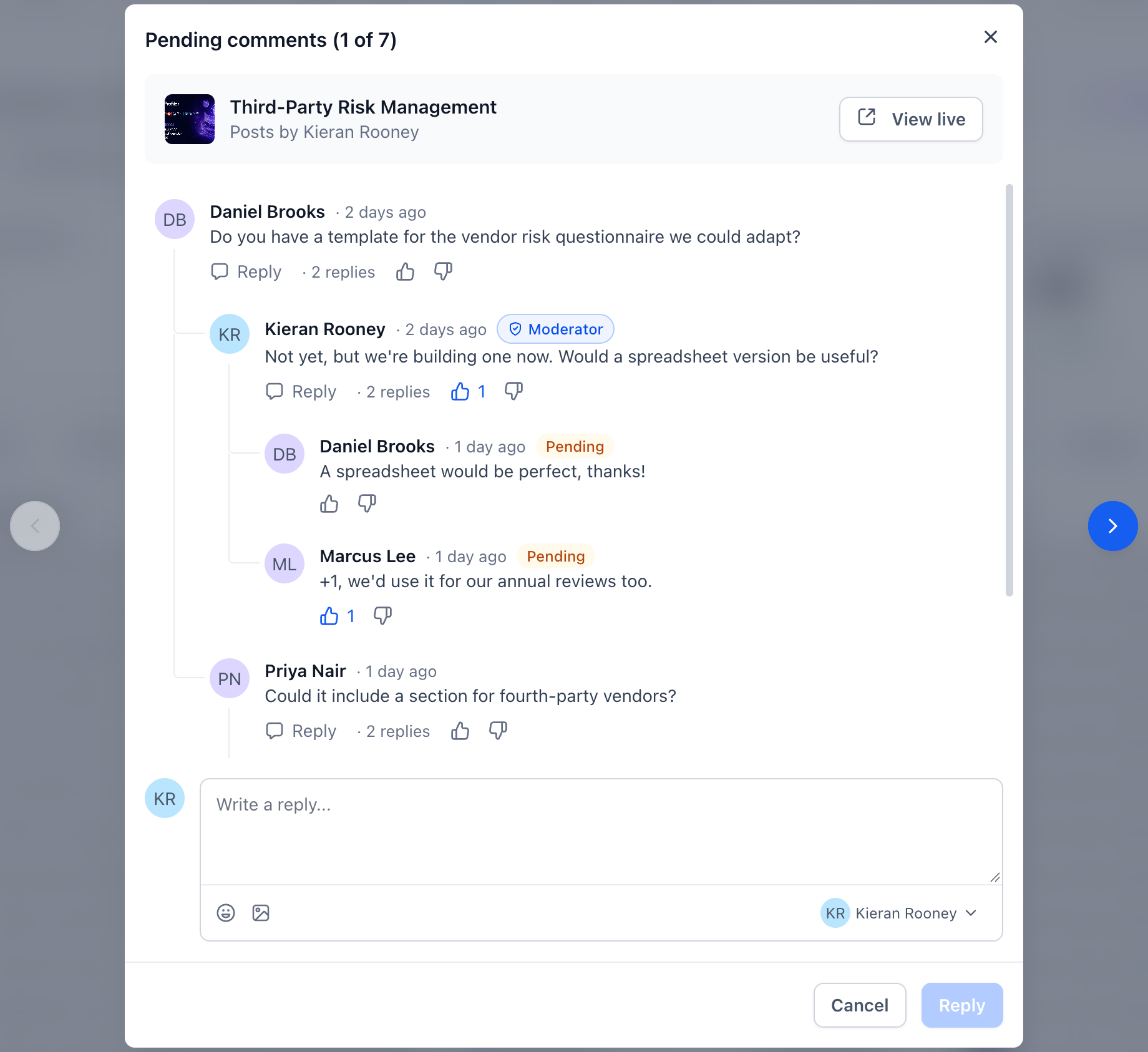
Step 3: Reply to Pending Comments One by One
- Click Reply on a pending comment. The Pending comments window opens with the full conversation for context.
- Choose the author you want to reply as from the dropdown in the reply box.
- Type your reply and click Reply. Your reply appears on the post with the Moderator badge.
- Use the arrows to move to the next pending comment, or click View live to open the post.
How to Configure Comment Settings
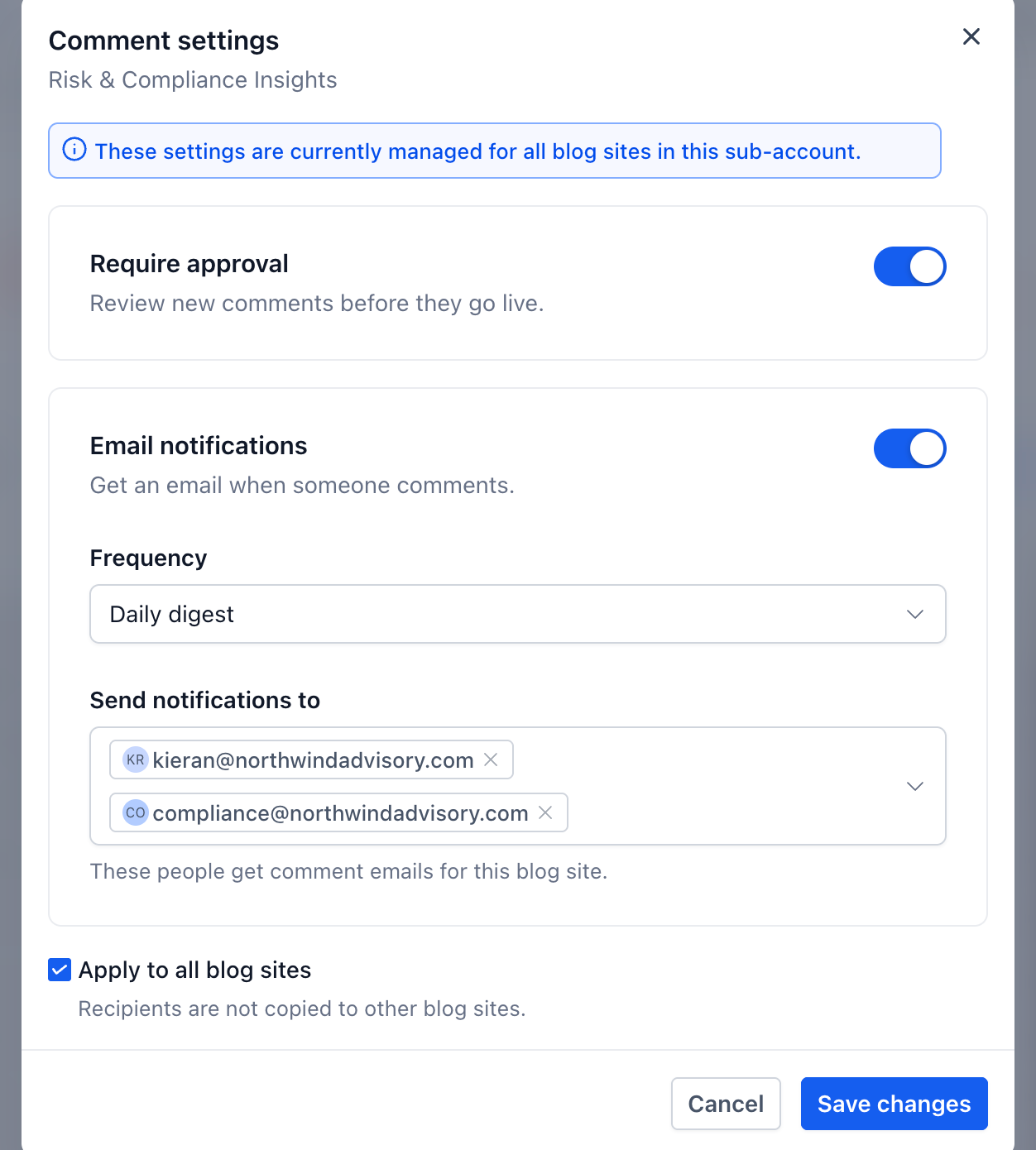
- In the Comments tab, click the settings icon next to the search bar.
- Turn on Require approval to review new comments before they go live.
- Turn on Email notifications and choose a Frequency: Every comment or Daily digest.
- Under Send notifications to, select who should receive comment emails for this blog site.
- Select Apply to all blog sites to use the same settings across all blog sites in the sub-account. Notification recipients are not copied to other blog sites.
- Click Save changes.
Frequently Asked Questions
Q: Do readers need an account to read comments?
No. Anyone can read published comments. Readers sign in only to comment, reply, like or dislike.
Q: Can I turn off comments for a single blog post?
Not at the moment. Comments are added to the blog post page, so removing the Comments element removes comments from every post on that blog site.
Q: Who can see a comment that is waiting for approval?
Only the reader who wrote it, and your team in the Comments tab. It becomes public once approved.
Q: How many images can a reader attach to a comment?
One image per comment.
Q: How deep can replies go?
Replies can be nested up to three levels.
Q: Who receives comment notification emails?
The people you select under Send notifications to in Comment settings, either for every comment or as a daily digest.
Q: Can search engines see comments?
Yes. Published comments are part of the page, so search engines can read them.