
Booking Page Editor in Field Services
Your booking page is where customers see your services, pick a time, and book or send a request. The booking page editor lets you brand the page, change the wording on every step, and see your changes live before you share the link. This article walks through the editor.
Note: Field Services is currently in private beta and is available to selected accounts. Features and screens may change as we improve them.
In this article
- Where to find the booking page editor
- Understanding the editor
- Editor sections
- Preview and share your booking page
- Frequently asked questions
- Related articles
Where to find the booking page editor
- Go to Field Services > Field Services Settings.
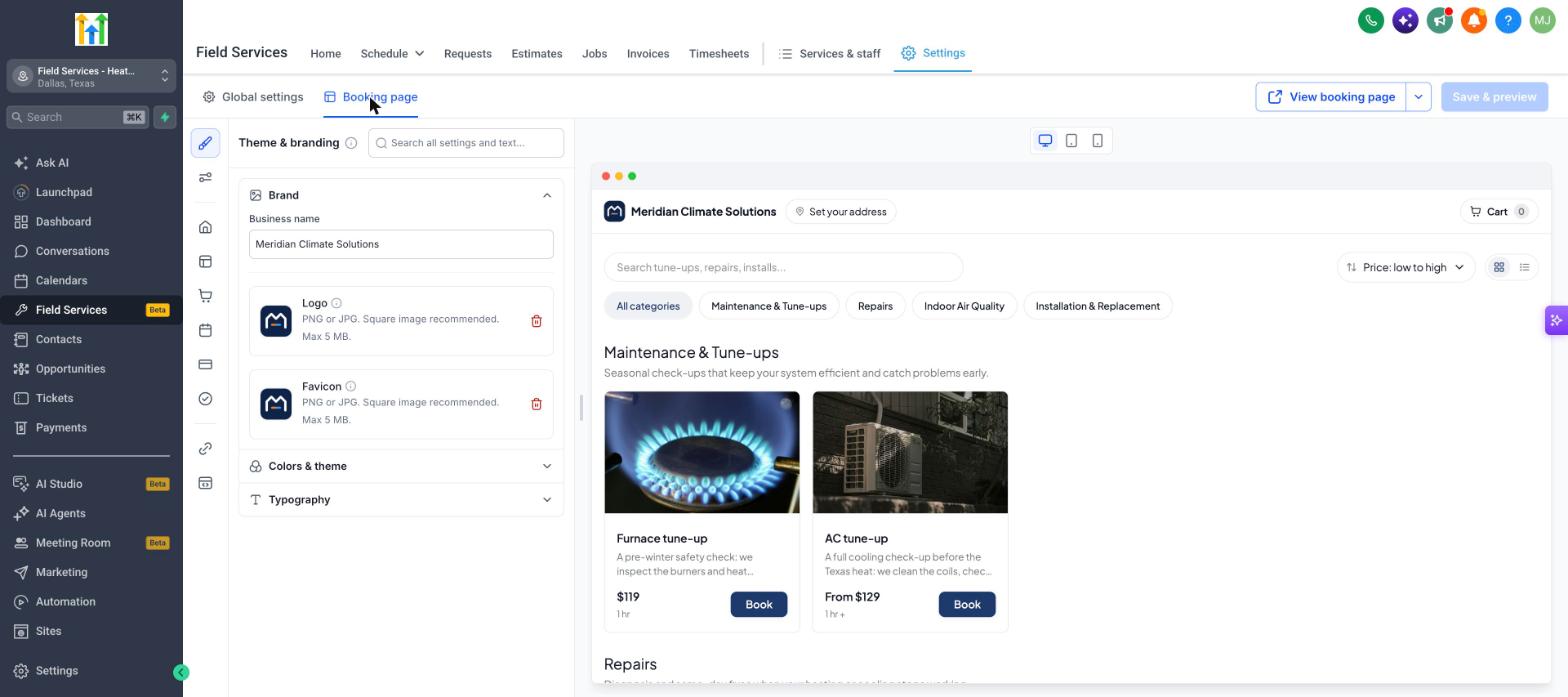
- Click the Booking page tab at the top.
Understanding the editor
- Icon rail (far left): Each icon opens a section of the booking page. Hover over an icon to see its name.
- Settings panel: The options for the section you picked. Use Search all settings and text at the top to find any setting or any piece of wording.
- Live preview (right): Shows your booking page. Switch between Desktop, Tablet and Mobile previews with the icons above it.
Editor sections
Theme & branding
- Brand: Set your Business name and upload a Logo and a Favicon (PNG or JPG, square image recommended, up to 5 MB).
- Colors & theme: Choose your colors.
- Typography: Choose your fonts.
General
- Booking page link: The link customers use. Use lowercase letters, numbers and hyphens. Changing it breaks links you have already shared.
- Language: The language of the booking page.
- Reset to default: Reset the text and layout of individual pages, or the entire booking page. Your link, brand name, logo, favicon and tracking stay as they are.
Landing
The first page customers see. Edit the Top bar (address button and cart label), the Address picker, Search & filters and the Service list.
Service details
The page for a single service. Edit the Options heading and sub text, the Add-ons section and the Continue button.
Cart
Edit the cart Heading and Sub text, how Cart items look, the Continue button and the Empty cart message. Customers can add more than one service before they pick a time.
Time selection
Edit the Heading and Sub text, the Calendar & times, the messages shown for No availability and No availability this week, and the Continue button.
Details & payment
- Contact details: Choose the Form customers fill in, whether to Remember returning Contacts, and whether to Show consent checkbox. Edit the details heading and sub text.
- Service address: Wording for the address step.
- Payment: Wording for the payment step. If no payment provider is connected, the page shows that no payment provider was found. See Field Services Settings: Online Booking.
- Continue button.
Confirmation
- After booking: Choose what happens after a booking, for example show the confirmation page. Edit the Heading and Message.
- Contact button and Terms & conditions.
Link & tracking
Add your Meta Pixel ID and map booking steps to Meta events:
| Booking step | Meta event |
|---|---|
| Booking page viewed | PageView |
| Service added | AddToCart |
| Time selected | Schedule |
| Checkout started | InitiateCheckout |
| Payment details submitted | AddPaymentInfo |
| Booking completed | Purchase |
Custom code
Add your own CSS and Script to all pages or to a specific page. Click any element in the preview to get its selector.
Preview and share your booking page
- Click Save & preview to save your edits and refresh the preview.
- Click View booking page to open the live page in a new tab.
- Click the arrow next to View booking page to share the booking link.
You can also share a link to a single service from Services & staff > Services > Share booking link. See Services and Add-ons in Field Services.
Frequently asked questions
Do my changes go live right away?
Click Save & preview to save them. Customers see the saved version.
Why do customers see a message about payment?
If online payment is selected but no payment provider is connected, checkout shows a message. Connect a provider, or switch to Pay in-person in your payment settings.
Can I change the booking link?
Yes, in General. Remember that links you shared before will stop working.