
Field Services Settings: Online Booking
Online booking settings control how customers book with you: how they pick a time, how far ahead they can book, how they pay, and which form they fill in when they ask for service. This article walks through each setting.
Note: Field Services is currently in private beta and is available to selected accounts. Features and screens may change as we improve them.
In this article
- Where to find online booking settings
- Booking rules
- Payments
- Request form
- Frequently asked questions
- Related articles
Where to find online booking settings
- Go to Field Services > Field Services Settings.
- Stay on the Global settings tab.
- Under Online booking, choose Booking rules, Payments or Request form.
Use the search box at the top of the settings menu to find any setting by name. Click Save changes at the top right after you make changes. Click View booking page to see what customers see.
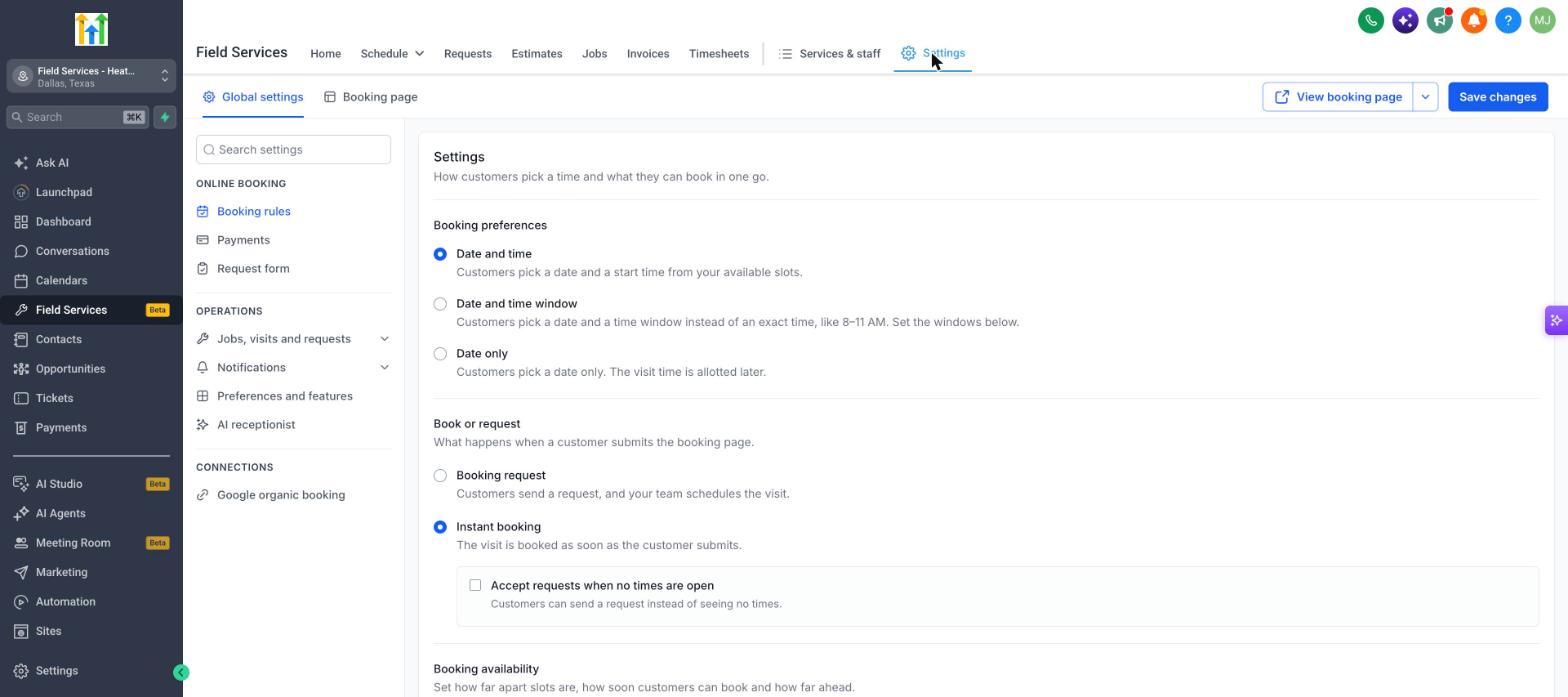
Booking rules
Booking preferences
Choose how customers pick a time:
| Option | What customers do |
|---|---|
| Date and time | Pick a date and a start time from your available slots. |
| Date and time window | Pick a date and a time window, like 8 to 11 AM, instead of an exact time. Set the windows below the option. |
| Date only | Pick a date only. You set the visit time later. |
Book or request
Choose what happens when a customer submits the booking page:
| Option | What happens |
|---|---|
| Booking request | Customers send a request, and your team schedules the visit. |
| Instant booking | The visit is booked as soon as the customer submits. Tick Accept requests when no times are open to let customers send a request instead of seeing no times. |
Booking availability
| Setting | What it does |
|---|---|
| Slot interval | How far apart the bookable times are, in minutes. |
| Minimum notice | How soon before a visit customers can book, in days. |
| Booking window | How far ahead customers can book. Choose Date-based to show a rolling number of days from today, or a range-based window. Tick Count available days only to count only days that have availability. |
Contact assignment
Turn this on to assign the Contact to the visit's staff member each time a visit is booked.
Payments
- Payment mode: Switch between Test and Live. In test mode no real transactions are processed. Use test mode while you set things up.
- Currency: Choose the currency for your prices. If you change it, update each service's price to match.
- Payment provider: If you see No default payment provider found, click Manage payment providers to connect one. Online payment needs a provider.
Booking payment options
| Option | What happens |
|---|---|
| Online payment | Contacts pay online when they book. Tick Allow deposit or full payment choice to let them choose between paying the deposit or the full amount. |
| Pay in-person | Contacts pay when your staff arrive. No card or payment details are collected during booking. |
| Card on file only | Card details are collected for security, but no charge is made at booking. |
Taxes: Manual taxes are set on each service or its product. Once set, taxes show in the booking details.
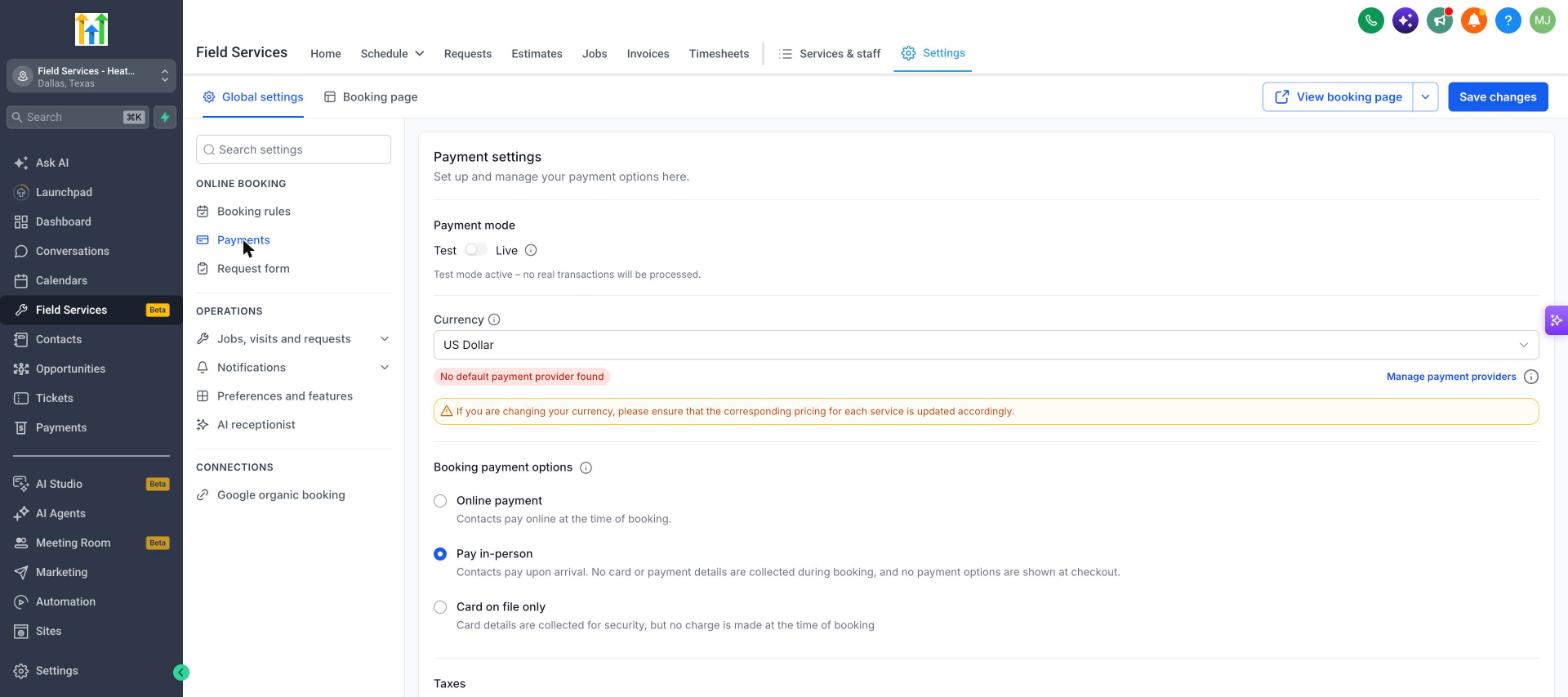
Note: If you have not connected a payment provider yet, select Pay in-person so customers can complete a booking.
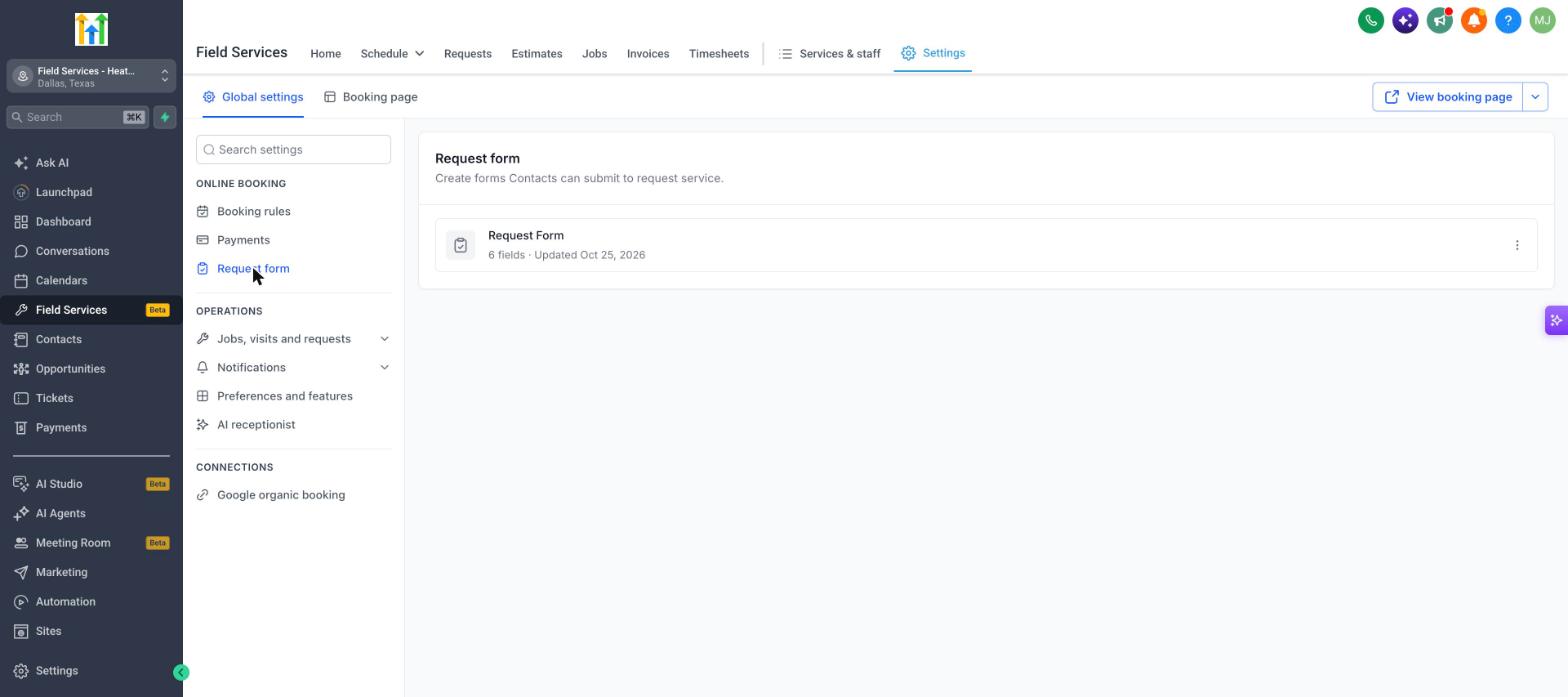
Request form
The request form is the form customers fill in to ask for service on your booking page. A default Request Form is created for you and is marked Used on booking page. The list shows how many fields it has and when it was last updated. Click the three dots to Edit form or Copy shareable link.
Frequently asked questions
What is the difference between Booking request and Instant booking?
With Booking request, the customer sends a request and your team picks the time. With Instant booking, the customer picks an open time and the visit is booked immediately.
Why can't customers pay online?
Connect a payment provider in Manage payment providers, switch to Live mode when you are ready, and choose Online payment.
Do these settings apply to visits my team creates in the app?
No. Minimum notice and the booking window apply to customers on the booking page. Your team can schedule any time inside the app.