
Notifications in Field Services
Keep customers and your team informed without manual follow-up. Field Services can send email, SMS and WhatsApp messages at the moments that matter, from a new request to a completed visit. This article shows what is available, how to turn each notification on and how to edit the message.
Note: Field Services is currently in private beta and is available to selected accounts. Features and screens may change as we improve them.
In this article
- What are Field Services notifications?
- Where to find notifications
- Available notifications
- How to turn on and edit a notification
- Sender settings
- Merge fields
- Frequently asked questions
- Related articles
What are Field Services notifications?
Notifications keep everyone informed without manual follow-up. Each notification can go out by email, SMS or WhatsApp. You set them up separately for three audiences:
- Contact (your customer)
- Assigned staff
- Admin / Dispatcher
Where to find notifications
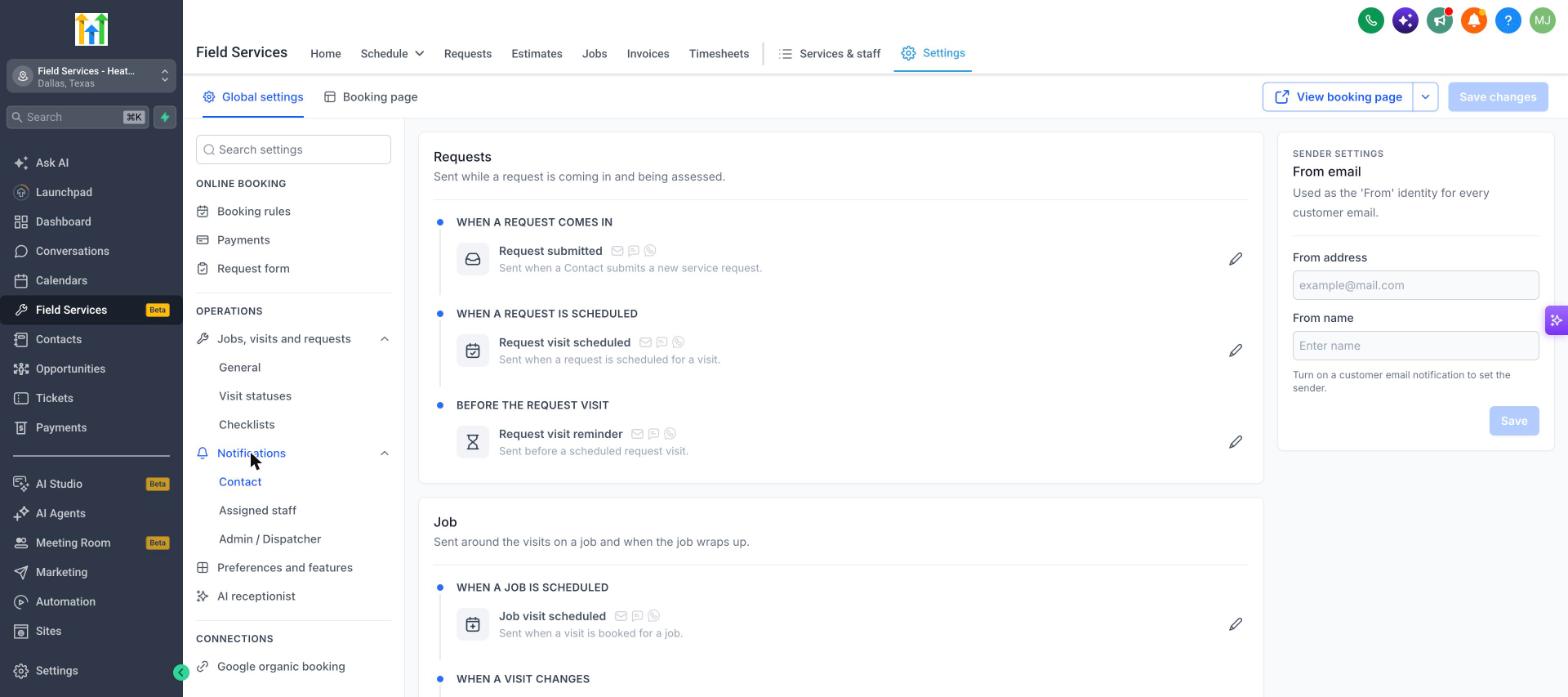
- Go to Field Services > Field Services Settings > Global settings.
- Under Operations, click Notifications.
- Choose Contact, Assigned staff or Admin / Dispatcher.
Available notifications
Notifications are grouped by when they are sent.
| Notification | Sent when |
|---|---|
| Request submitted | A Contact submits a new service request. |
| Request visit scheduled | A request is scheduled for a visit. |
| Request visit reminder | Before a scheduled request visit. |
| Job visit scheduled | A visit is booked for a job. |
| Visit rescheduled | A visit time changes. |
| Visit cancelled | A visit is cancelled. |
| Visit reminder | Before a scheduled visit. |
| Staff en route | The assigned staff member is traveling to the visit. |
| Visit completed | A visit is marked complete. |
How to turn on and edit a notification
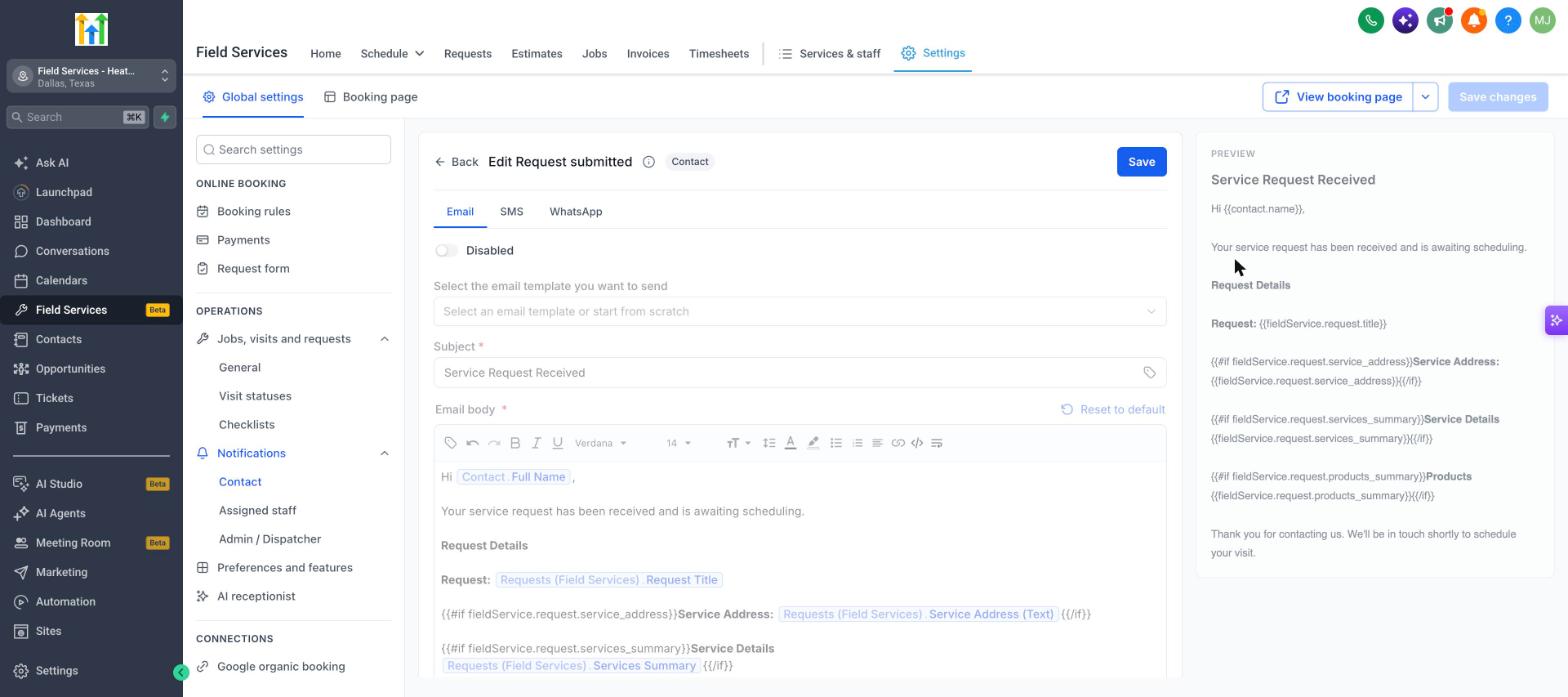
- Click the pencil icon next to the notification.
- Choose the channel tab: Email, SMS or WhatsApp.
- Switch the channel from Disabled to enabled.
- For email, choose an email template or start from scratch. Edit the Subject and the Email body. Click Reset to default to go back to the original message.
- Check the Preview on the right.
- Click Save.
Sender settings
For customer emails, set the From address and From name in the Sender settings panel on the right. This panel becomes available once you turn on a customer email notification. Click Save in that panel to keep your changes.
Merge fields
Messages use merge fields to fill in details. The default messages include fields like the contact's name, the request or job title, the service address, the services and products, the visit date and time, the arrival window and the assigned staff. You can insert more using the tag icon in the editor.
Frequently asked questions
Will a customer get two messages when a request is scheduled?
No. Even if you turn on both Request visit scheduled and Job visit scheduled, both are triggered at separate instances, one is for a request visit while the latter triggers when a job visit is scheduled.
Can I use my own email or SMS templates?
Yes. Choose a saved email template in the editor, or write your own.
Can I trigger my own automations from Field Services events?
Workflow support for Field Services is being expanded during the beta. Watch the Release Notes for updates.