
Checklists, Notes and Forms in Field Services
Make every visit consistent. Checklists give your staff a clear set of steps to complete on the job, while notes and forms keep everyone informed about what the customer asked for and what happened on site.
Note: Field Services is currently in private beta and is available to selected accounts. Features and screens may change as we improve them.
In this article
- What are checklists?
- How to create a checklist template
- How to add a checklist to a job
- Using checklists, notes and forms on a visit
- Frequently asked questions
- Related articles
What are checklists?
A checklist is a set of steps your staff complete during a visit, such as a safety check or a final walkthrough. You create checklist templates once and reuse them. A template can apply to every job automatically, or only to the services you pick.
How to create a checklist template
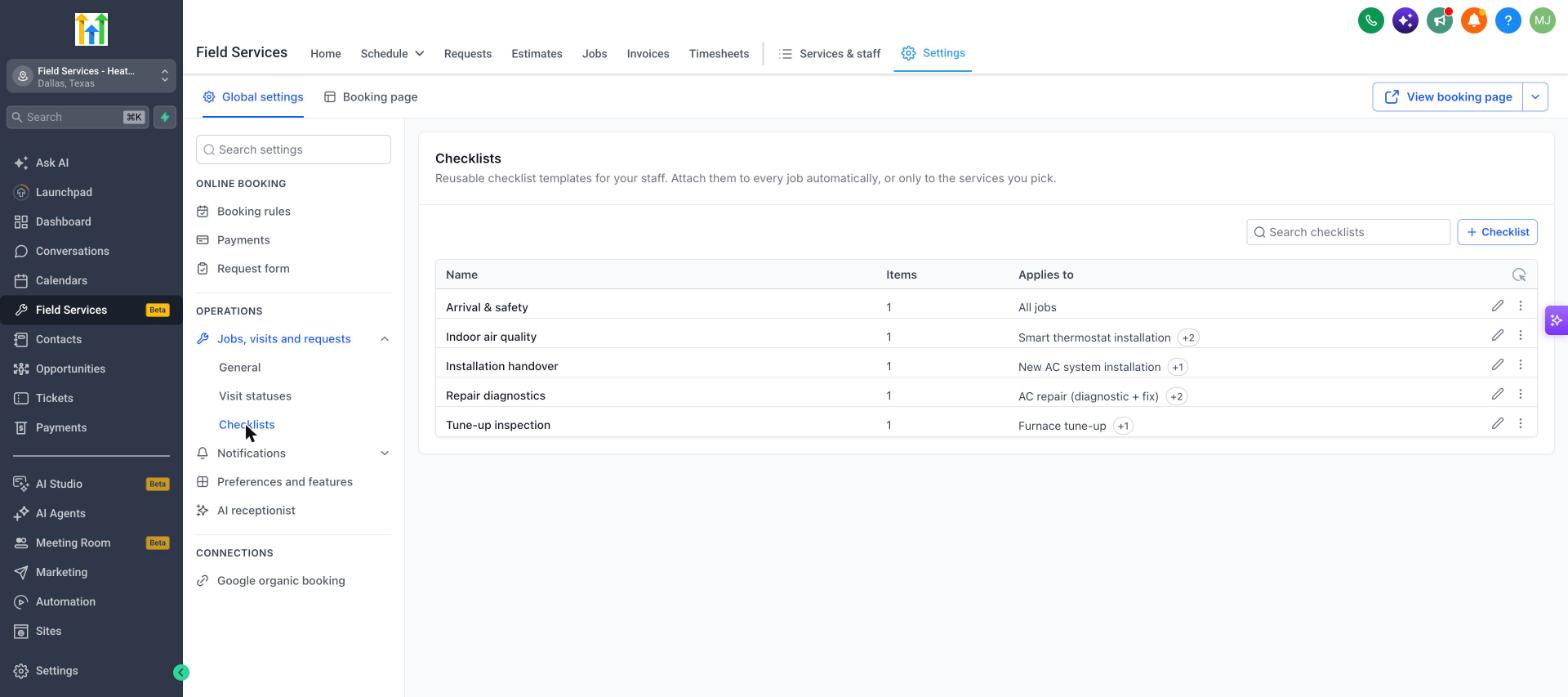
- Go to Field Services > Field Services Settings > Global settings.
- Under Operations, open Jobs, visits and requests and click Checklists.
- Click + Checklist.
- Name the checklist and add its items. Items can use different field types (see below). Mark items as required where needed.
- Choose what the checklist Applies to: all jobs, or specific services.
- Save the checklist.
The list shows each checklist's name, how many items it has and what it applies to. Use the pencil icon to edit a checklist, or the three dots for more options.
| Item type | Use it for |
|---|---|
| Single line of text | Short answers such as a part number. |
| Checkboxes | Tasks that can be ticked off. |
| Radio buttons | Choosing one option from several. |
| Date picker | Recording a date, such as a warranty expiry. |
How to add a checklist to a job
- Open the job.
- In the Checklists section, click Add checklist.
- Select the template you want.
Checklists that apply to all jobs, or to the services on the job, are added for you. See Jobs in Field Services.
Using checklists, notes and forms on a visit
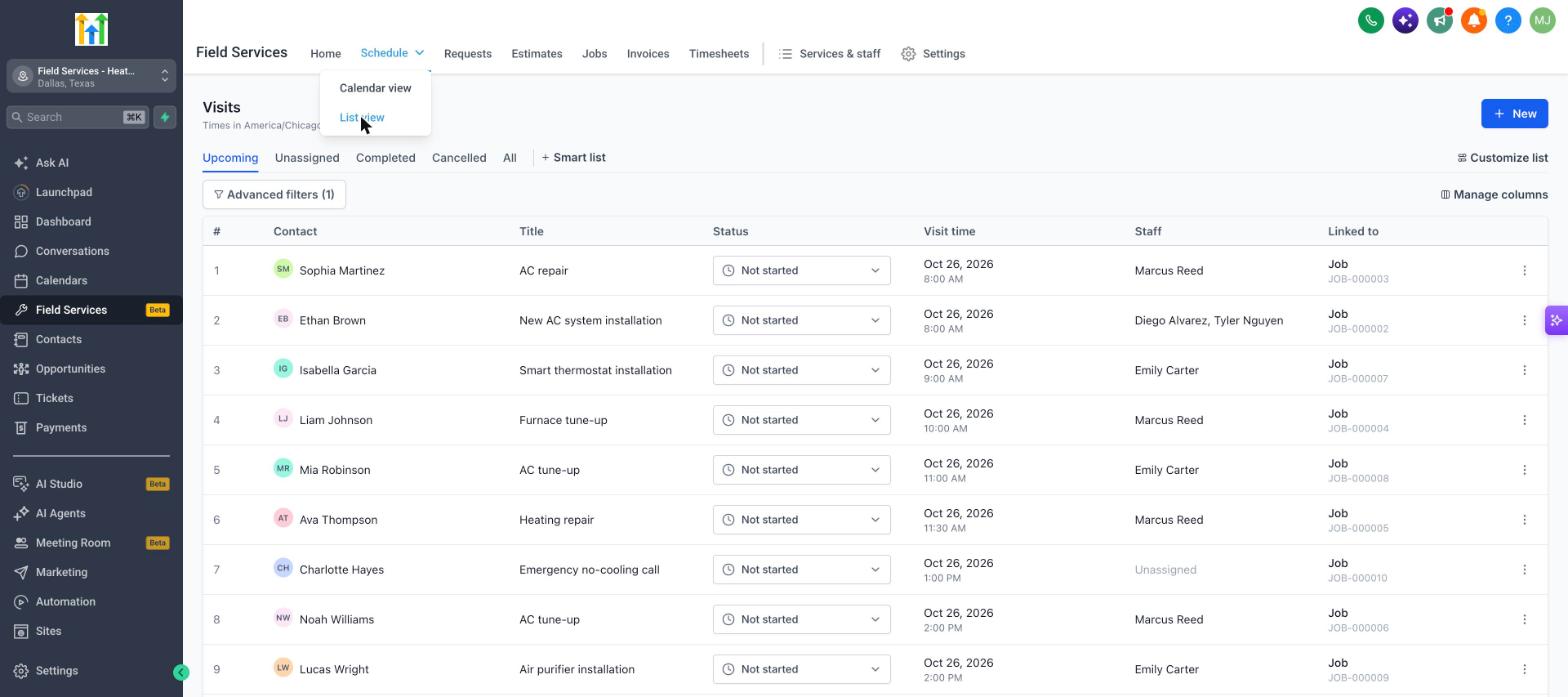
Open a visit to see its panel. The icons on the right side switch between sections:
| Section | What it shows |
|---|---|
| Details | The visit time, Contact, service address, assigned staff with their leave by time and drive time, and the services and products for the visit. Use the Status dropdown at the bottom to update the visit. |
| Notes | Job notes are shared across the job. Visit notes belong to this visit. Click Add a note to write one. |
| Checklist | Shows the checklist and how many items are done, for example "0 of 4 items done". Staff fill in each item as they work. |
| Job form | Shows the form the customer submitted when they booked, if there is one. If not, you will see No form submission found. |
Frequently asked questions
Can I use the same checklist for different services?
Yes. Create one template and choose the services it applies to, or apply it to all jobs.
Who can see notes?
Notes are internal. They are visible only to your staff and are not shown to customers.
Do request notes carry over?
Yes. Notes added to a request also appear on visits scheduled from that request.